
Choosing the right smart whiteboard can feel overwhelming with so many brands, screen sizes, and technical specifications on the market today. Whether you are outfitting a classroom, upgrading a corporate boardroom, or setting up a hybrid meeting space, the decision impacts productivity, collaboration quality, and long-term technology investment. This guide breaks down everything you need to know — from panel technology to sizing charts — so you can make a confident, informed purchase.
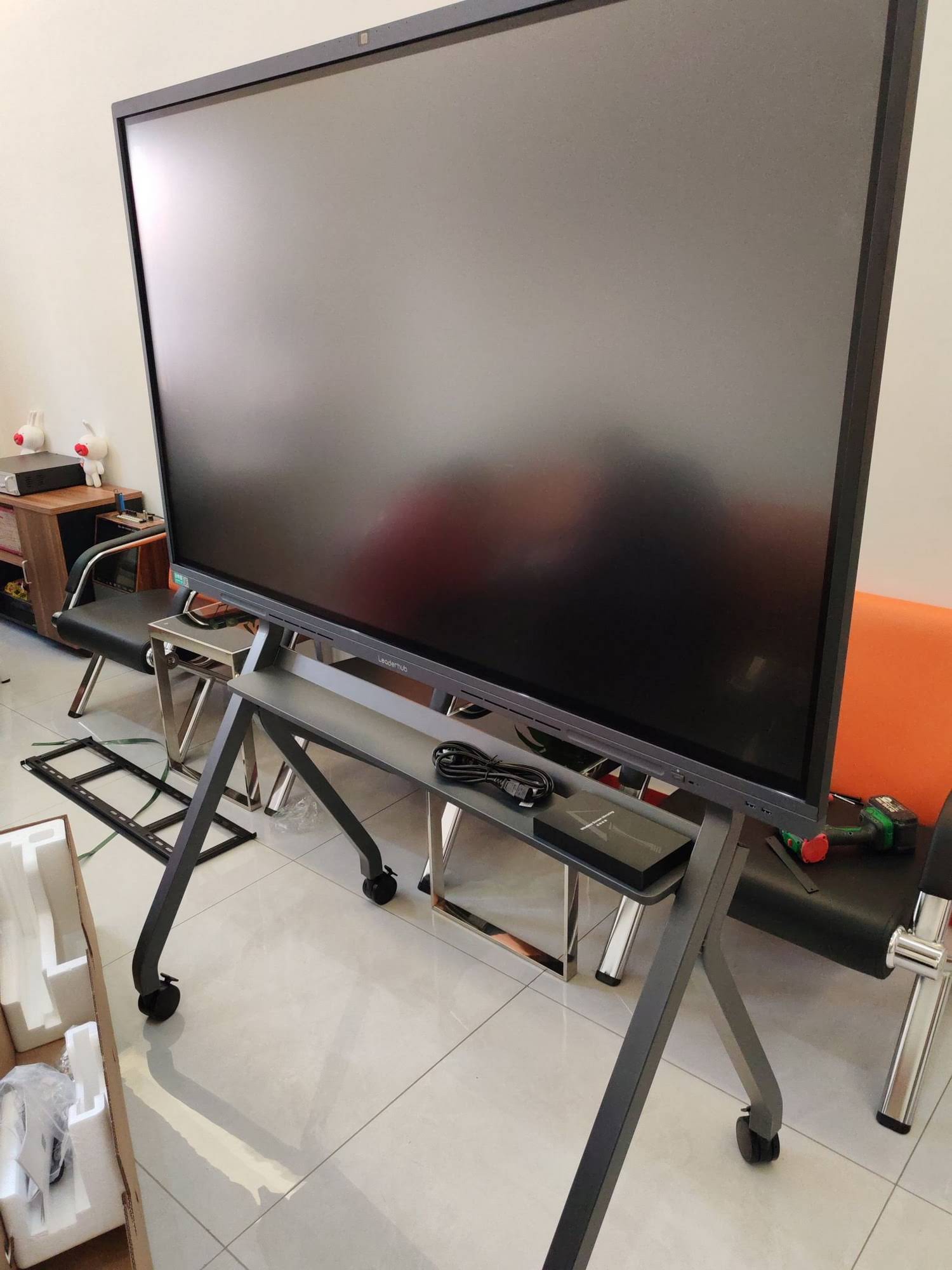
Why the Right Smart Whiteboard Matters
A smart whiteboard is no longer just a digital replacement for chalkboards — it’s a collaboration hub that integrates touch interaction, wireless screen sharing, video conferencing, and cloud-based annotation. According to industry research from Futuresource Consulting, global interactive flat panel shipments have grown steadily as schools and enterprises replace projectors with touch-enabled displays. Choosing poorly can mean wasted budget, frustrated teachers or employees, and compatibility headaches down the line. Choosing well means years of reliable, intuitive collaboration.
Having worked with distributors and end-users across 82 countries, we’ve seen firsthand how the “right fit” varies significantly by use case — a 55-inch panel that’s perfect for a huddle room would feel cramped in a lecture hall, and a budget-friendly Android-only display may lack the horsepower needed for video-heavy business meetings.
Key Features to Evaluate Before Buying
Before comparing specific models, it helps to understand the core features that separate a reliable smart whiteboard from a disappointing one.
1. Display Resolution and Panel Quality
Look for at least 4K UHD resolution (3840×2160). This ensures crisp text, clear video playback, and accurate color reproduction — essential for design reviews, financial dashboards, or detailed classroom diagrams. Anti-glare glass and wide viewing angles (178°) also matter, especially in rooms with large windows or bright overhead lighting.
2. Touch Technology
Infrared (IR) touch remains the most common and cost-effective technology, typically supporting 20-40 simultaneous touch points. Capacitive touch offers a smoother, smartphone-like writing experience but usually comes at a higher price point. For classrooms with multiple students writing at once, higher touch-point counts are worth prioritizing.
3. Operating System and Software
Most modern panels run on Android for built-in apps and whiteboarding tools, while offering an OPS (Open Pluggable Specification) slot for a Windows mini PC module. This dual-system flexibility lets users switch between simple annotation tasks and full desktop applications like Excel or CAD software.
4. Connectivity and Compatibility
Check for HDMI in/out, USB-C with power delivery, wireless screencasting (supporting both iOS and Android), and Bluetooth. Compatibility with video conferencing platforms like Zoom, Microsoft Teams, and Google Meet is essential for hybrid work environments.
5. Built-in Camera and Audio
For conference rooms, an integrated camera with wide field-of-view and noise-canceling microphones eliminates the need for separate video conferencing hardware — reducing both cost and cable clutter.

Choosing the Right Size: A Practical Sizing Guide
Screen size directly affects readability, room suitability, and budget. Below is a general reference table based on room dimensions and use case.
| Screen Size | Best Room Type | Ideal Room Depth | Typical Users |
|---|---|---|---|
| 55″ – 65″ | Huddle rooms, small offices | Up to 4 meters | 4-8 people |
| 75″ – 86″ | Classrooms, mid-size boardrooms | 4-8 meters | 10-25 people |
| 98″ – 110″ | Lecture halls, large training centers | 8-15 meters | 25-60 people |
As a rule of thumb, viewers should sit no farther than 6 times the screen’s diagonal size for comfortable text readability. For example, in a room using a 75-inch interactive smart whiteboard, the farthest viewer should ideally be within 9 meters.
Portable vs. Wall-Mounted: Which Fits Your Workflow?
Not every space needs a permanently mounted panel. Portable smart screens with built-in batteries and stands are increasingly popular for teams that rotate between rooms or need flexible setups for events and training sessions. A compact option like a handheld smart screen offers Android 14 functionality and battery power, making it ideal for pop-up presentations or field-based collaboration.
For fixed installations such as classrooms or executive boardrooms, wall-mounted panels provide a cleaner, more permanent solution with better cable management and stability.
Buying Tips: What to Check Before You Purchase
- Warranty and support: Look for at least a 2-3 year warranty and confirm local service availability, especially for enterprise or education bulk purchases.
- Bezel design: Thinner bezels reduce visual distraction and allow for seamless multi-panel setups if needed later.
- Mounting compatibility: Confirm VESA mount standards match your existing wall brackets or mobile stands.
- Software updates: Ask whether the manufacturer provides regular firmware and Android OS updates to keep security and app compatibility current.
- Energy efficiency: Panels with automatic standby and eye-care modes reduce long-term energy costs and screen fatigue.
- OEM/ODM flexibility: If you’re purchasing in bulk for a school district or corporate rollout, check if the supplier offers customization options for branding or software preloads.
Common Mistakes to Avoid
Many first-time buyers focus solely on price and overlook critical usability factors. Here are frequent pitfalls we’ve observed:
- Choosing a screen too small for the room, forcing back-row viewers to strain.
- Ignoring touch-point limits, which frustrates group collaboration in classrooms.
- Skipping a test-drive or demo before bulk purchasing — always request a trial unit if buying multiple units.
- Underestimating the importance of built-in camera quality for hybrid meeting rooms.
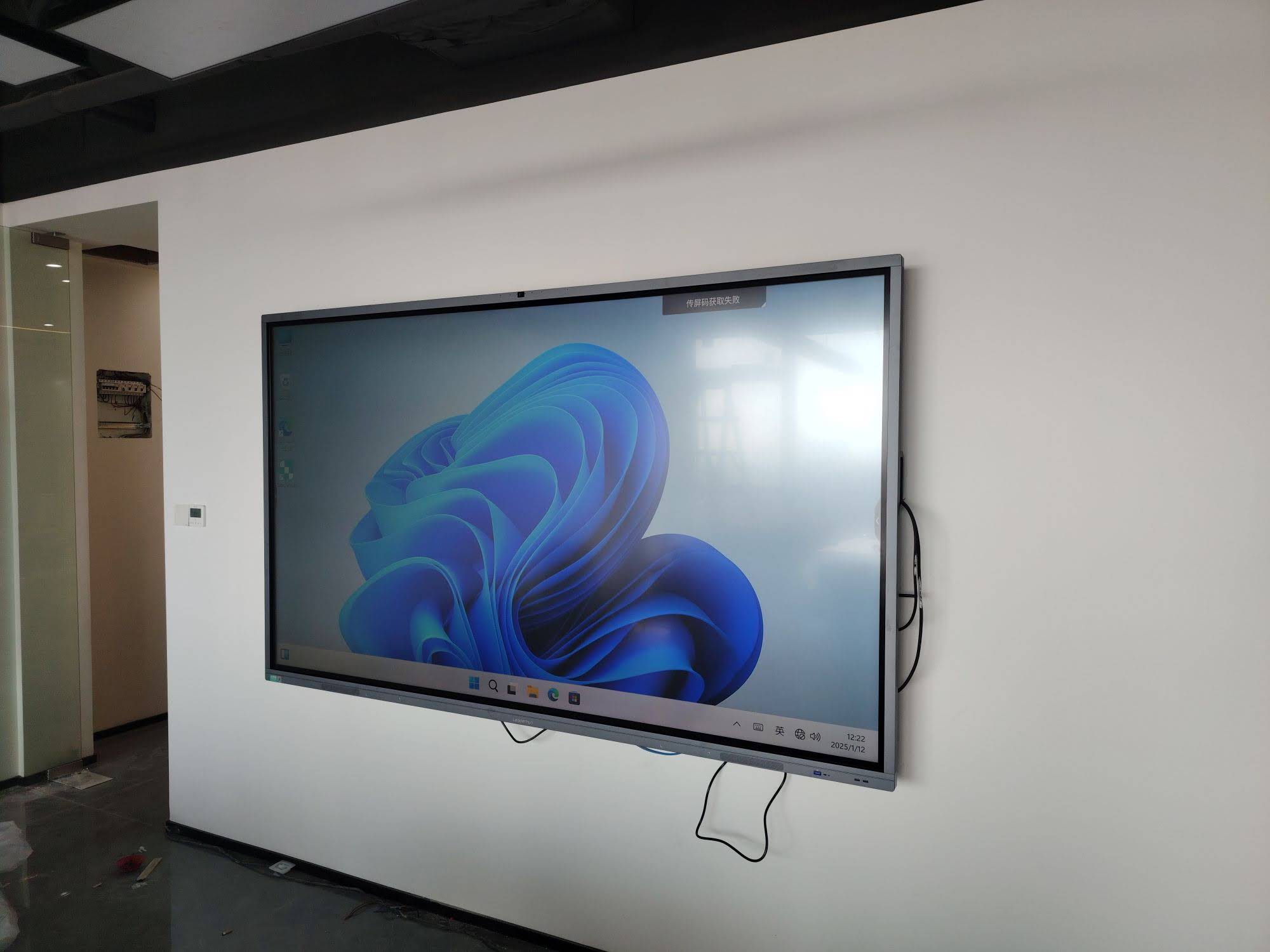
Comparing Panel Types: Education vs. Business Use
Education and business environments have different priorities, and it’s worth tailoring your selection accordingly.
| Priority | Education Focus | Business Focus |
|---|---|---|
| Touch Points | High (20+) for group activities | Moderate (10-20) usually sufficient |
| Software | Lesson tools, annotation apps | Video conferencing, document sharing |
| Durability | Scratch-resistant glass, daily heavy use | Moderate use, focus on video quality |
| Camera | Optional | Essential for remote meetings |
Enhancing Functionality with Mini PCs
Many interactive panels use an OPS slot to house a mini PC module, giving users full Windows functionality without an external computer. Pairing a smart whiteboard with a compact unit like a mini PC with an i5 processor allows for smoother multitasking, faster app loading, and better performance during video calls or design software use — something to consider if your team relies heavily on desktop applications.
Real-World Example: Choosing for a Growing Business
Consider a mid-sized marketing agency expanding from a 10-person office to 40 employees across two floors. Their team needed panels for both small huddle rooms and a larger conference space. After evaluating options, they selected 65-inch panels for smaller rooms and an 86-inch unit for the main conference room — balancing budget with room-specific readability needs. This staged approach, rather than a one-size-fits-all purchase, saved the company nearly 20% on their total technology budget while still meeting every room’s functional requirements.
Frequently Asked Questions
How long do smart whiteboards typically last?
With proper care, most commercial-grade panels last 5-8 years, though software support and firmware updates may become limited after 4-5 years depending on the manufacturer.
Can I use a smart whiteboard without internet access?
Yes. Core functions like writing, annotation, and local file access work offline. However, features like screencasting, cloud storage, and video conferencing require an internet connection.
Is a higher price always better?
Not necessarily. Price often reflects panel technology (capacitive vs. infrared touch), build materials, and bundled software — but the “best” choice depends on matching features to your actual use case rather than simply choosing the most expensive option.
Final Thoughts
Selecting the right smart whiteboard comes down to understanding your room size, user needs, and long-term technology goals. Prioritize resolution, touch accuracy, connectivity, and reliable manufacturer support over flashy extras you may never use. With 16 years of experience serving education and business clients across 82 countries, LeaderHub has seen how the right interactive display transforms everyday collaboration — and we recommend taking time to test a unit in your actual space before committing to a bulk purchase.
Whether you’re outfitting a single classroom or rolling out panels across multiple offices, matching size, features, and software to your specific workflow will ensure your investment pays off for years to come.








