Classrooms are changing fast. Interactive panels have replaced chalkboards, digital textbooks have replaced paper, and students now move between devices throughout the day. Behind many of these changes sits a small but powerful piece of hardware: the mini PC for education. Compact enough to hide behind a monitor or mount on the back of a display, yet capable of running a full desktop operating system, mini PCs give schools a flexible, affordable way to modernize learning spaces without rebuilding them.
This guide explains what a mini PC is, why schools and universities are adopting them, which specifications matter for different education scenarios, and how to compare models before you buy. Whether you are equipping a computer lab, a teacher’s desk, a library kiosk, or a smart classroom with an interactive display, you will find a practical framework here.
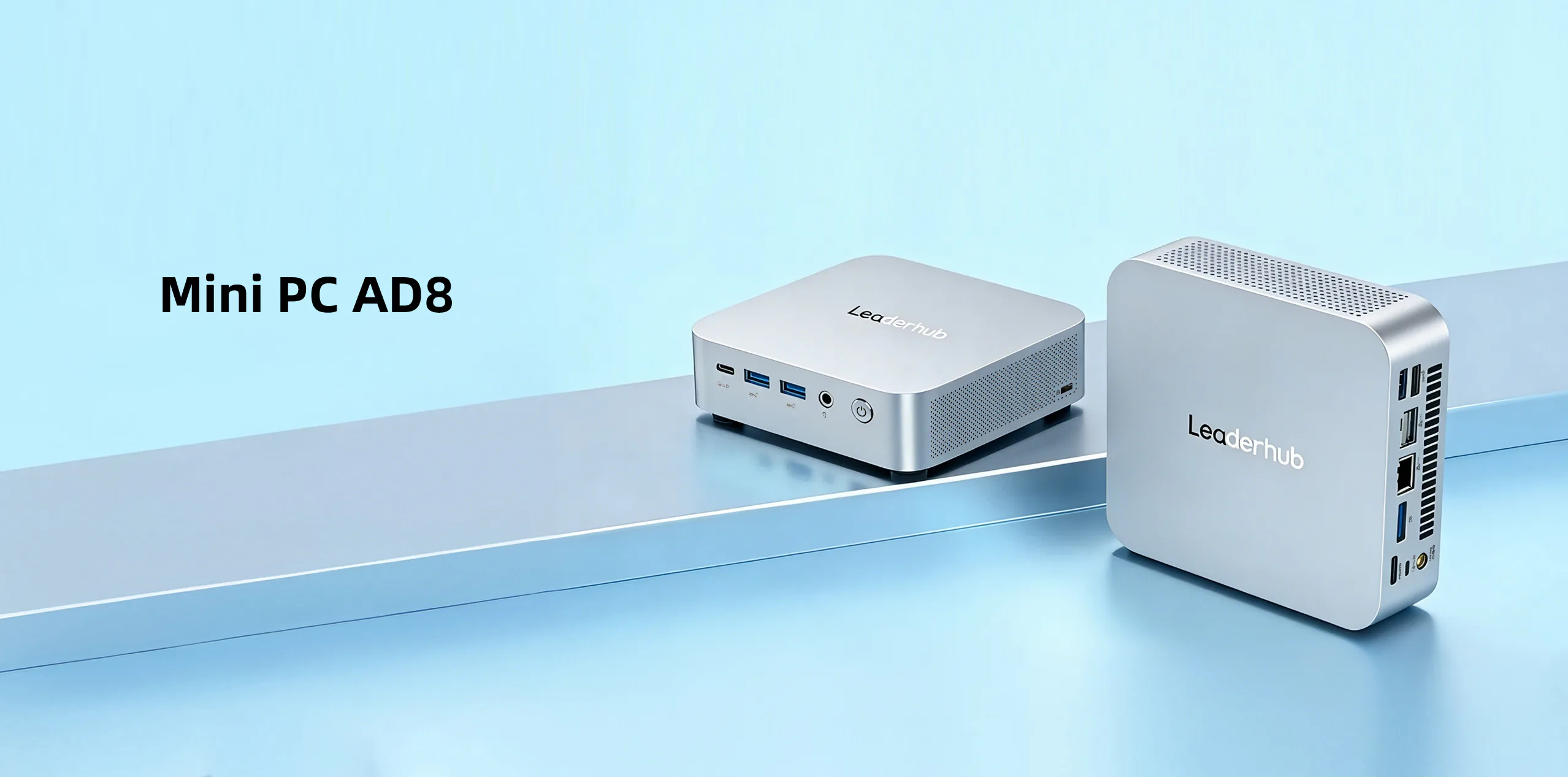
What Is a Mini PC and Why Does It Matter for Schools?
A mini PC is a full-function desktop computer packed into a small enclosure, often no bigger than a paperback book. Unlike a tablet or thin client, it runs Windows or Linux natively, supports multiple monitors, and connects to standard keyboards, mice, cameras, and printers. The difference from a traditional tower is mainly size, power consumption, and noise.
For education, this combination solves several long-standing problems at once:
- Space: classrooms, labs, and libraries rarely have room for bulky towers under every desk.
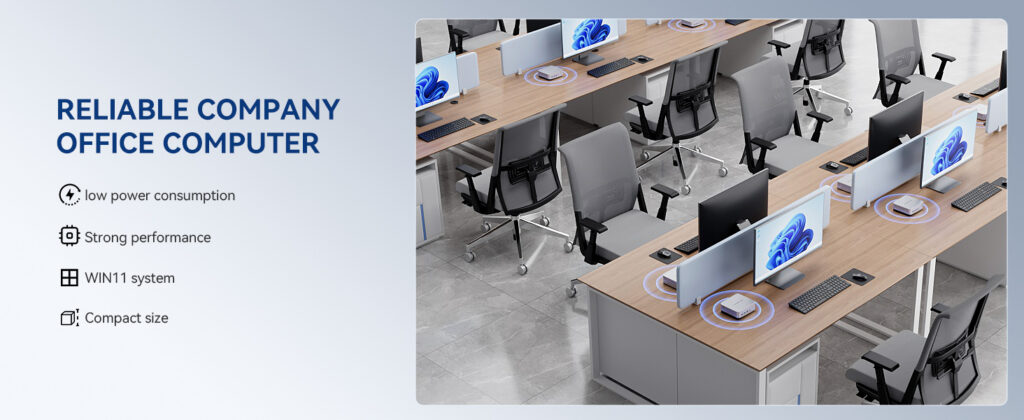
- Energy: a mini PC typically consumes 10–35 W under load, compared with 150–300 W for a standard desktop, which adds up across hundreds of seats.
- Noise: fanless or low-noise designs keep lecture halls and reading rooms quiet.
- Deployment: VESA mounting lets IT teams attach the computer to the back of a monitor or interactive panel, keeping cables tidy and hardware out of reach of curious hands.
- Budget: entry-level models cost a fraction of a laptop with comparable performance, and they are easier to repair and upgrade.
International research supports the case for thoughtful hardware investment. The UNESCO Technology in Education Report stresses that technology should serve clear pedagogical goals rather than be adopted for its own sake, while the OECD Digital Education Outlook highlights the importance of reliable, well-managed infrastructure as the foundation for any digital learning strategy. A mini PC is exactly that kind of foundation: unglamorous, dependable, and easy to scale.
Core Specifications to Evaluate in a Mini PC for Education
Not every classroom needs the same computer. A kindergarten reading station and a university engineering lab have very different requirements. The sections below break down the specifications that matter most and how to interpret them in an education context.
Processor (CPU)
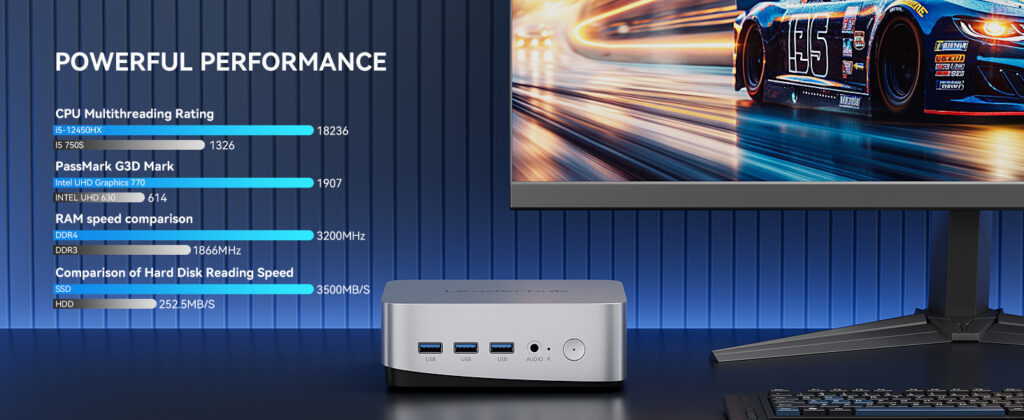
The processor determines how smoothly the system handles everyday teaching tasks. For web browsing, learning management systems, Google Workspace or Microsoft 365, and video playback, an efficient low-power chip such as the Intel N100 is more than adequate. For teachers running multiple applications simultaneously, screen recording, or driving a 4K interactive display, a mid-range Core i5 class processor delivers noticeably better responsiveness. STEM labs working with CAD, 3D modeling, or video editing benefit from higher-end CPUs with integrated graphics acceleration.
Memory (RAM)
Consider 8GB the realistic minimum for a classroom device in 2026. Modern browsers with many tabs open, plus a video conferencing session, can quickly exhaust 4GB. For teacher workstations and shared lab machines, 16GB provides comfortable headroom and extends the useful life of the device by several years.
Storage
Solid-state storage is essential. An SSD boots in seconds, which matters enormously when a lesson is 45 minutes long and students are waiting. A 256GB SSD is sufficient for cloud-centric schools; 512GB gives room for locally installed educational software, offline resources, and cached updates.
Ports and Display Outputs
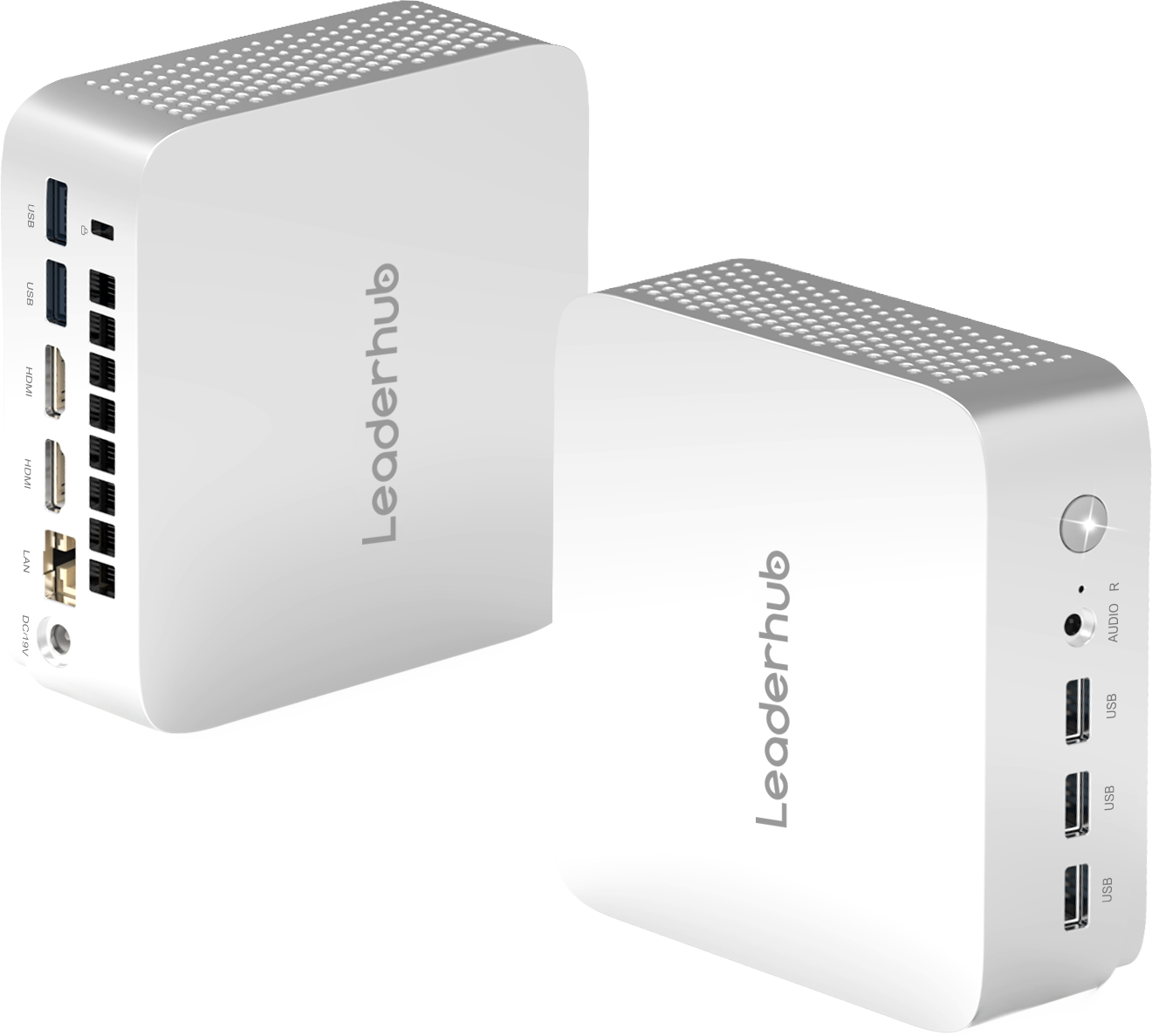
Count the ports you actually need. A typical classroom setup requires at least one HDMI output, several USB-A ports for peripherals, a USB-C port for modern accessories, Gigabit Ethernet for reliable wired networking, and ideally a second display output so a teacher can see one view while students see another on the main panel.
Connectivity
Wi-Fi 6 and Bluetooth 5.x are standard on current models and reduce cable clutter. However, school networks can be congested, so wired Ethernet remains the most dependable option for lab environments and devices that stream video to a large display.
Operating System and Management
Most schools standardize on Windows 11 Pro for domain joining, group policy, and device management through tools like Intune. Linux is a strong alternative for coding classes and budget-conscious institutions. Whichever you choose, verify that the hardware supports remote management, Wake-on-LAN, and TPM 2.0 for security compliance.
| Education Scenario | Recommended CPU Tier | RAM | Storage | Key Priorities |
|---|---|---|---|---|
| Primary school student stations | Intel N-series (N100 class) | 8GB | 256–512GB SSD | Low cost, silent operation, durability |
| Teacher desk / lectern | Core i5 class | 16GB | 512GB SSD | Dual display output, fast multitasking |
| Interactive panel engine | Core i5 class or higher | 16GB | 512GB SSD | 4K output, touch passthrough via USB, VESA mount |
| STEM / design / media lab | High-performance Core i7 class | 16–32GB | 512GB–1TB SSD | Graphics acceleration, thermal headroom |
| Library kiosk / digital signage | Intel N-series | 8GB | 256GB SSD | 24/7 reliability, remote management |
Where Mini PCs Fit in a Modern School
Mini PCs are versatile, and the same model can often serve several roles across a campus. Below are the most common deployment scenarios we see in schools, colleges, and training centers.
Computer Labs and Shared Learning Spaces
A lab of 30 mini PCs mounted behind monitors creates a clean, uncluttered room where students focus on screens rather than cables. Lower power draw reduces heat, which in turn reduces air-conditioning costs in warm climates. Imaging and re-imaging a fleet of identical compact machines is also far simpler for IT staff than managing mixed laptop inventories.
Powering Interactive Whiteboards and Flat Panels
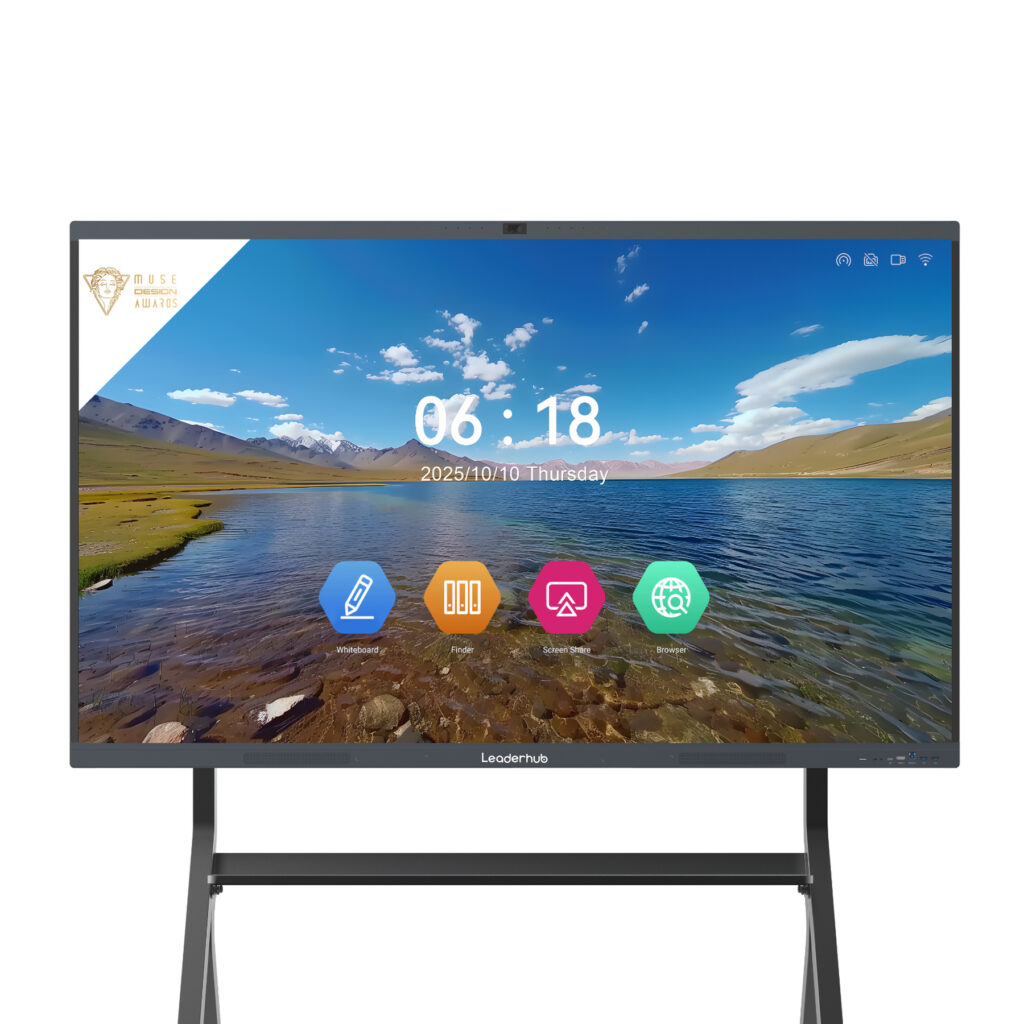
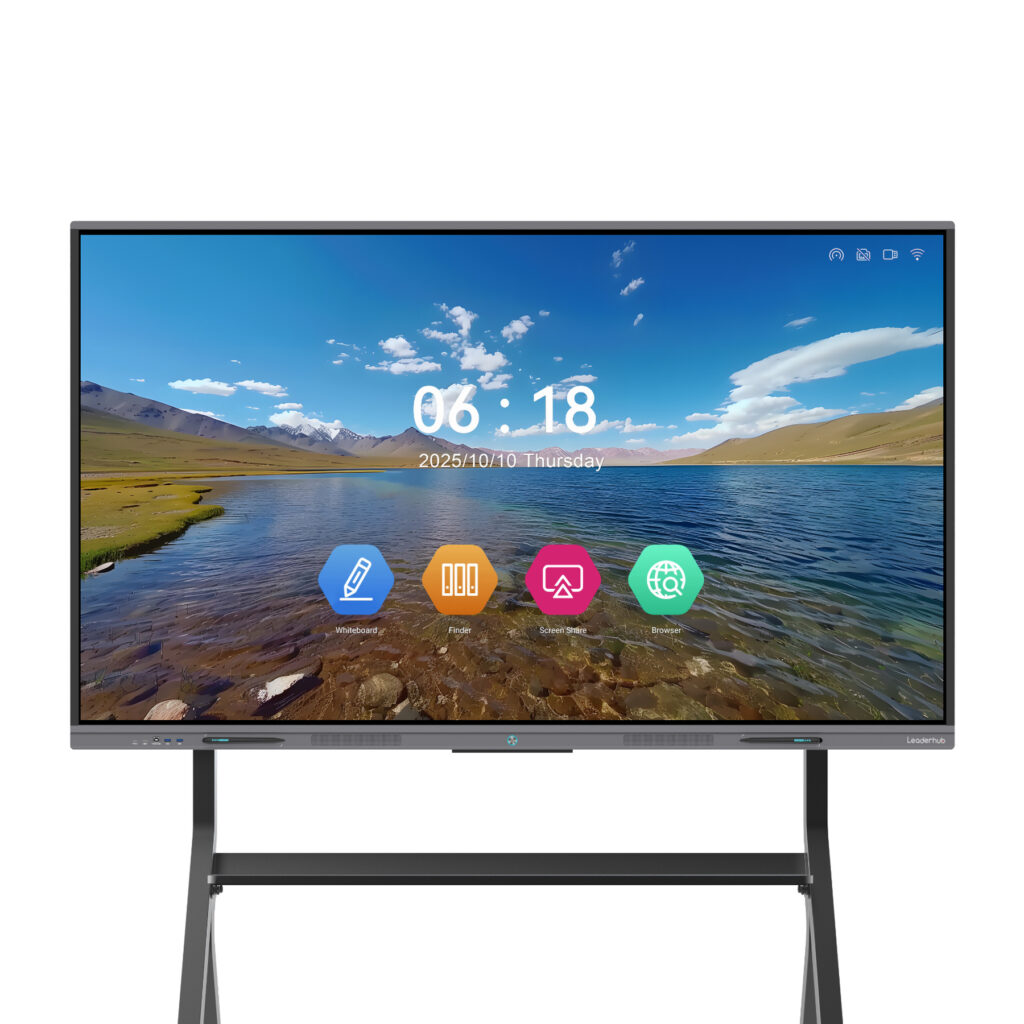
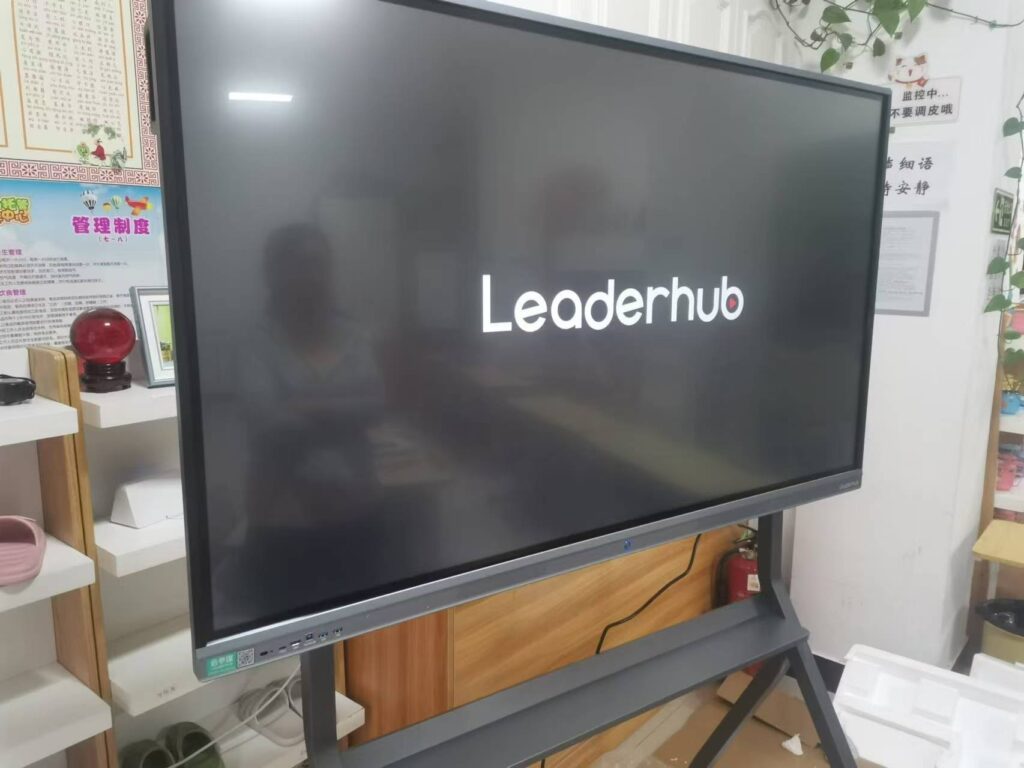
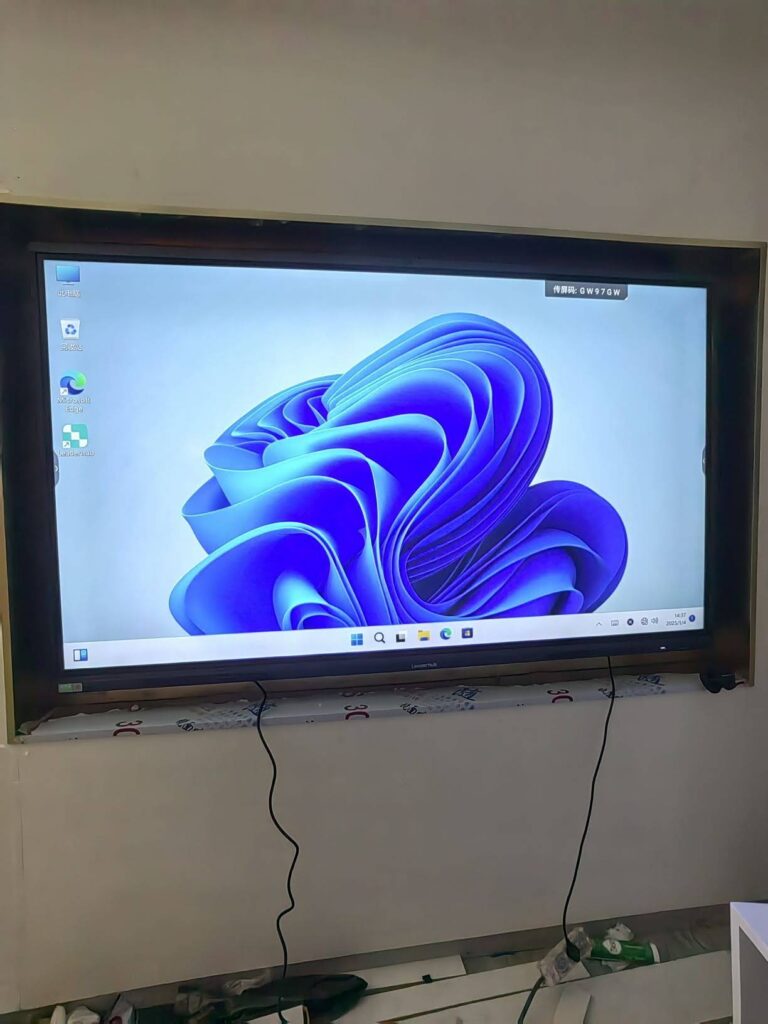
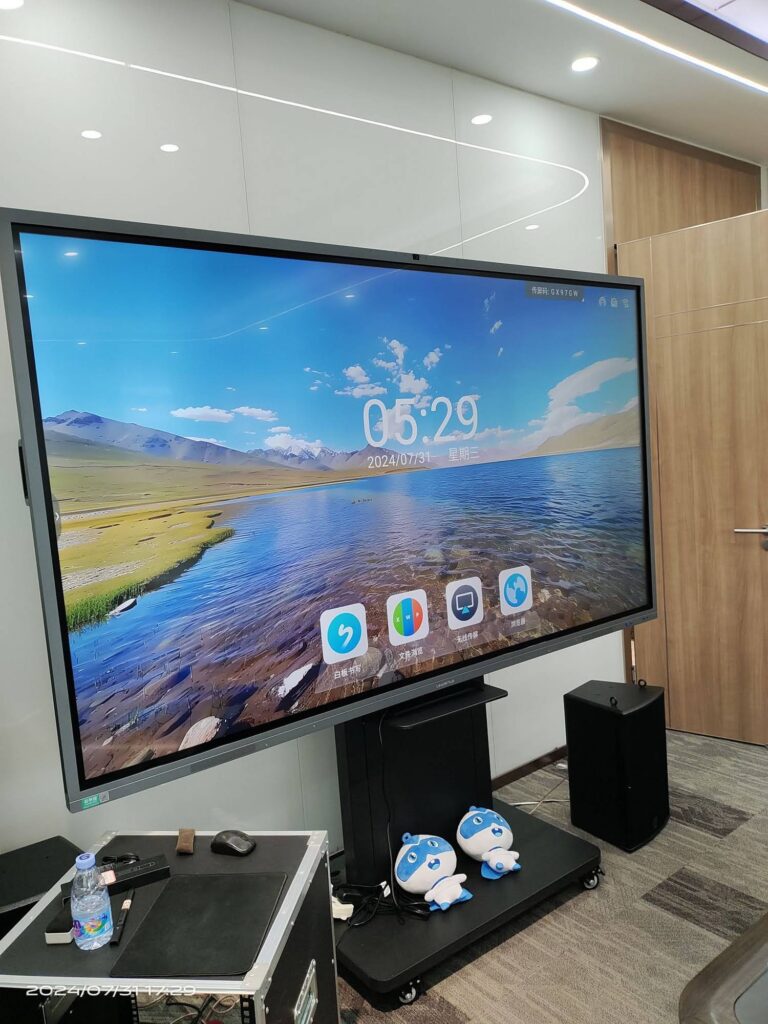
Many interactive displays ship with an Android system that handles basic whiteboarding, but teachers frequently need full Windows for curriculum software, exam platforms, and legacy applications. Pairing a smart whiteboard with a VESA-mounted mini PC gives the panel a complete desktop brain. Touch input passes through a single USB cable, so the teacher can annotate, browse, and present with their fingers directly on the screen.
Teacher Workstations
A teacher’s desk computer often runs a grade book, a presentation, a video, and a conferencing session at the same time. A mid-range mini PC with 16GB of RAM handles this load without stuttering and can drive both the desk monitor and the classroom display simultaneously, letting teachers prepare the next slide privately while students view the current one.
Libraries, Reception Areas, and Digital Signage
Catalog search terminals, visitor check-in kiosks, cafeteria menu boards, and hallway announcement screens all run comfortably on entry-level mini PCs. Their small footprint allows installation inside kiosks and behind wall-mounted displays, and remote management tools let a single administrator update content across the whole campus.
Coding, Robotics, and Maker Labs
Programming courses, Arduino and Raspberry Pi projects, and introductory data science all benefit from a stable desktop environment with plenty of USB ports for external devices. Higher-performance mini PCs provide the compute needed for compiling, running simulations, and even light machine learning exercises that support the AI literacy in education initiatives many schools are now launching.
Mini PC vs Laptop vs Traditional Desktop for Classrooms
Procurement teams often weigh mini PCs against the two more familiar alternatives. The table below summarizes the trade-offs in a school context.
| Factor | Mini PC | Laptop | Tower Desktop |
|---|---|---|---|
| Footprint | Very small, mountable | Small but occupies desk space | Large |
| Power consumption | Low (10–35 W) | Low to moderate | High (150 W+) |
| Theft and damage risk | Low when mounted | High (portable, fragile hinges, batteries) | Low |
| Upgrade and repair | RAM and SSD usually accessible | Often limited or soldered | Fully upgradeable |
| Interactive display pairing | Excellent (VESA mount, hidden) | Workable but cable-heavy | Possible but bulky |
| Typical cost per seat | Low to moderate | Moderate to high | Moderate |
| Mobility | Fixed (though easy to relocate) | Fully mobile | Fixed |
The pattern is clear: laptops win when students must carry devices between home and school, but for any fixed installation, mini PCs offer the best balance of cost, manageability, and longevity. Research summarized by the EEF Digital Technology Guidance also reminds decision-makers that the device itself matters less than how reliably it supports teaching; a machine that boots instantly and never crashes mid-lesson is worth more than one with impressive specifications on paper.
Comparing Education-Ready Mini PCs
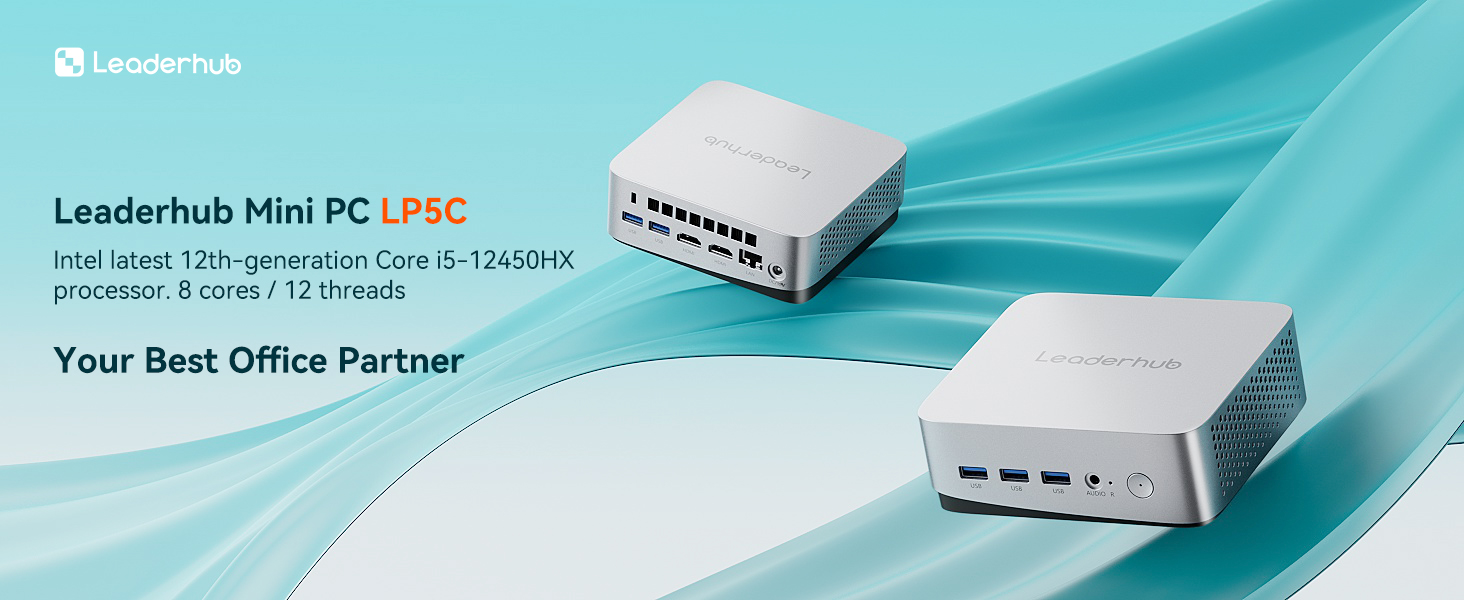
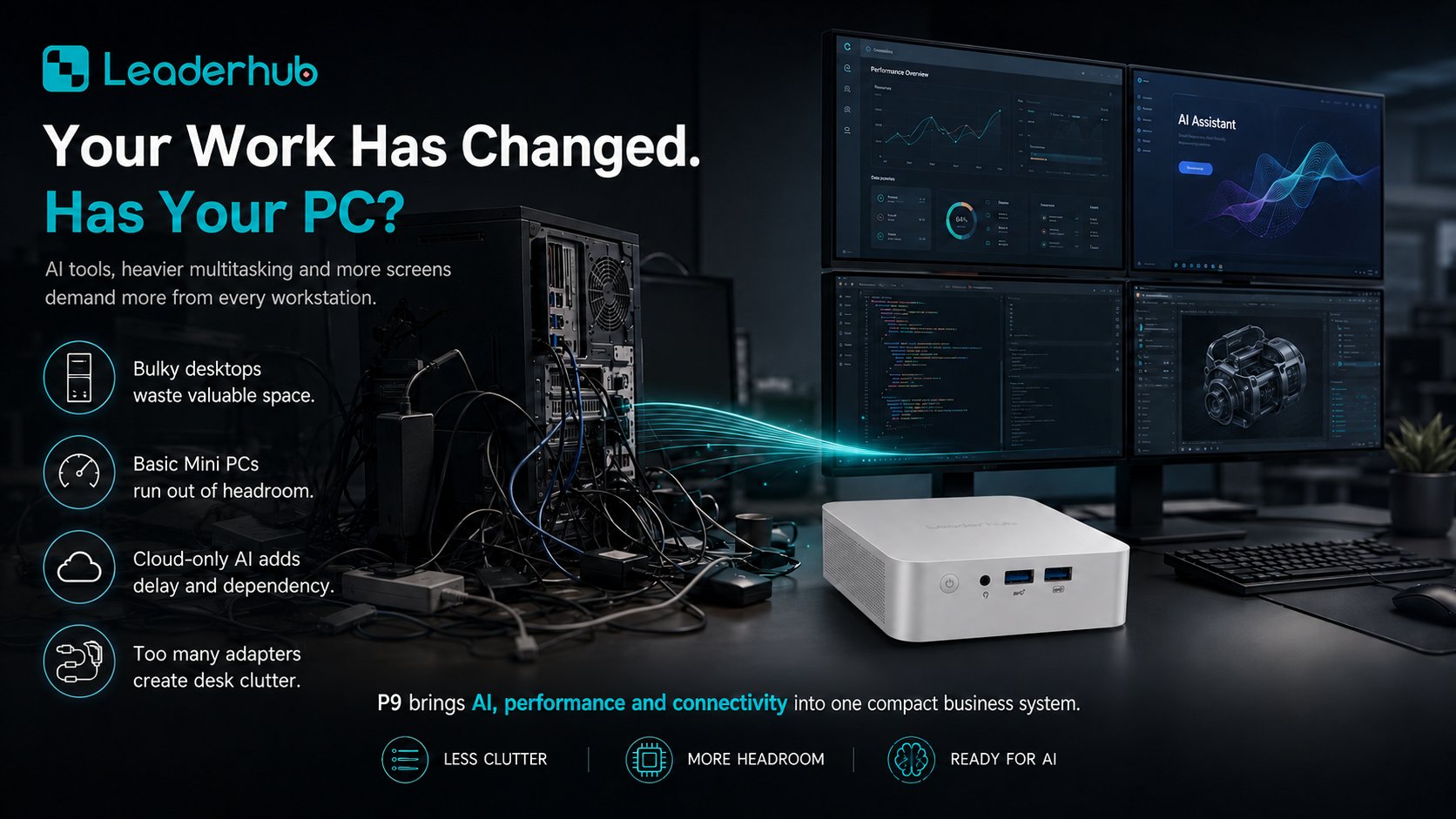
To make the framework concrete, here is how three current compact models from LeaderHub line up against common school requirements. LeaderHub is a Shenzhen-based technology company with 16 years of experience in interactive displays and compact computing, serving education and enterprise customers in more than 82 countries. Its mini PC range was designed with display pairing and classroom deployment in mind.
| Model | Processor | Memory / Storage | Best Education Use | Price |
|---|---|---|---|---|
| LeaderHub LP1C Mini PC | Intel N100 | 8GB / 512GB SSD | Student lab stations, library kiosks, signage | $399.00 |
| LeaderHub LP5C Mini PC | Intel Core i5-12450HX | 16GB / 512GB SSD | Teacher workstations, interactive panel engine | $799.00 |
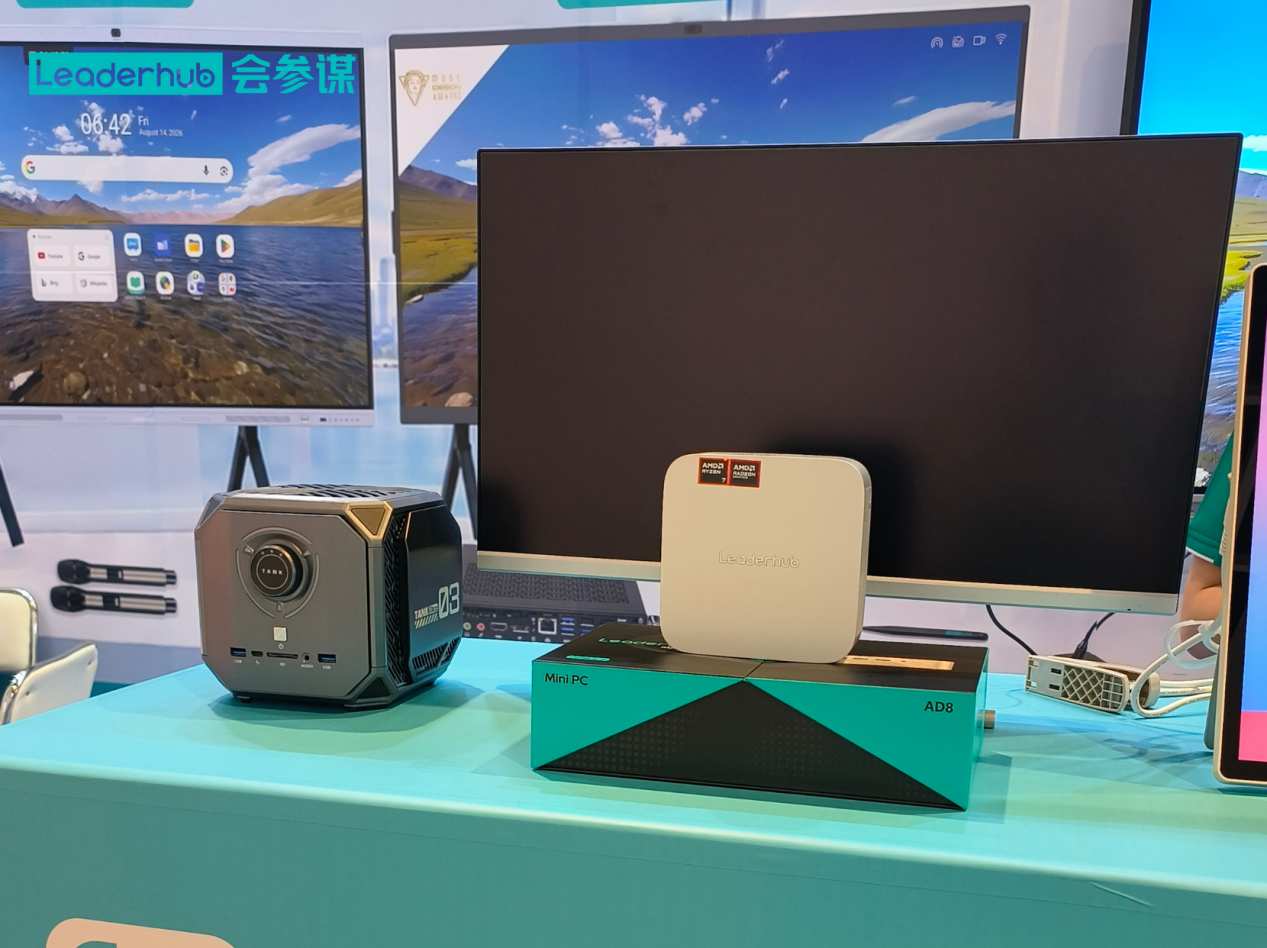
| LeaderHub AD8 Mini PC | High-performance platform | Expanded configuration | STEM, media, and design labs | $999.00 |
Budgeting: Think in Total Cost of Ownership
Purchase price is only the first line of a school technology budget. When comparing mini PCs with other options, include the following over a typical five-year lifecycle:
- Energy: a fleet of 200 mini PCs running six hours a day can save thousands of kilowatt-hours per year compared with tower desktops.
- Peripherals: mini PCs reuse existing monitors, keyboards, and mice, so refreshing the computer does not mean refreshing everything.
- Repairs: no screens, hinges, or batteries to break; most failures are solved by swapping an SSD or RAM module.
- IT labor: identical, mountable units with wired networking are faster to image, update, and troubleshoot.
- Warranty and support: check whether the vendor offers multi-year coverage and bulk replacement terms for institutional buyers.
Guidance from the World Bank Education Technology program consistently emphasizes that sustainable EdTech requires planning for maintenance, training, and replacement cycles from day one, not just the initial purchase.
Deployment and Management Best Practices
Once you have chosen a model, a few practical steps will make rollout smoother and extend the life of the hardware.
Mount Securely and Hide Cables
Use VESA brackets to attach each mini PC to the back of its monitor or interactive panel. Route power and HDMI cables through cable management channels so nothing dangles within reach.
Standardize Images
Create a single master operating system image with all curriculum software, security agents, and policies pre-configured. Identical hardware makes this far easier and avoids driver surprises.
Enable Remote Management
Configure Wake-on-LAN and remote desktop tools so updates can run overnight without staff walking room to room. Schedule patching during holidays or off-peak hours.
Lock Down Student Stations
Apply kiosk or restricted user profiles on shared devices, disable USB boot in BIOS, and set a BIOS password to prevent tampering.
Plan for Airflow
Even compact systems need ventilation. Leave a small gap around the chassis when mounting, and avoid enclosing units in sealed cabinets unless they are fanless and rated for it.
Train Teachers First
Hardware only delivers value when educators are confident using it. Short hands-on sessions aligned to the ISTE Standards for Educators help staff integrate the new setup into lesson planning rather than treating it as an obstacle.
Quick Buying Checklist for School Procurement Teams
- Does the CPU tier match the actual workload of the room (basic browsing vs. heavy multitasking vs. media production)?
- Is there at least 8GB RAM for students and 16GB for teachers, with an SSD rather than a hard drive?
- Are there enough USB ports for the keyboard, mouse, webcam, document camera, and touch cable?
- Does it support dual displays and 4K output if it will drive an interactive panel?
- Is Gigabit Ethernet included alongside Wi-Fi?
- Is a VESA mount bracket included or available?
- Does it ship with a Pro edition operating system and TPM 2.0 for domain management and security?
- What is the warranty length, and does the vendor offer bulk pricing and institutional support?
- Has the model been tested with your learning management system and assessment platforms?
Frequently Asked Questions
Can a mini PC replace a laptop for students?
For fixed classroom and lab use, yes. If students need to take devices home, laptops or tablets remain more appropriate. Many schools adopt a hybrid approach: mini PCs in labs and classrooms, portable devices for one-to-one programs.
How long will a mini PC last in a school environment?
With solid-state storage and no moving parts beyond a small fan, a well-specified mini PC typically serves five to seven years. Choosing 16GB RAM and a mid-range CPU extends the useful life further as software requirements grow.
Do I need a mini PC if my interactive panel already has Android built in?
Android handles whiteboarding and media well, but most schools still need full Windows for curriculum software, exam tools, and administrative systems. A mounted mini PC gives you both environments with one touch of the input button.
Are mini PCs powerful enough for coding and STEM classes?
Entry-level models comfortably run Python, Scratch, Arduino IDE, and web development tools. For 3D modeling, video editing, or data-intensive projects, step up to a higher-performance model such as the AD8 class.
What about screen time and digital wellbeing?
Hardware choice does not determine screen time; curriculum design does. The OECD Screen Time Research suggests balancing digital and non-digital activities, and a desk-mounted mini PC actually makes this easier than personal devices because teachers control when screens are on.
Final Thoughts
Choosing a mini PC for education comes down to matching the right performance tier to the right room, then planning for deployment and support from the start. Entry-level N100 systems deliver excellent value for student stations and kiosks; Core i5 class machines are the sweet spot for teachers and interactive displays; and high-performance models unlock advanced STEM and creative work. Across every tier, the compact form factor saves space, energy, and IT labor while keeping classrooms clean and focused on learning.
Ready to plan a rollout? Browse the full mini PC collection, explore compatible interactive smart whiteboards for a complete classroom solution, or contact the team for institutional pricing and deployment advice tailored to your school.