Choosing the right computer for a modern office is no longer about who has the biggest tower under the desk. Hybrid work, shrinking real estate costs per square meter, and the shift toward cloud-based software have changed what a business workstation needs to be. Today, a mini PC for business workstations can deliver the performance of a full-size desktop in a chassis small enough to hide behind a monitor, while using a fraction of the power and desk space.
This guide walks you through why compact computers are winning in offices, the key specifications that actually matter for business use, our top picks across three budget tiers, and a practical buying checklist you can hand to your IT or procurement team.
Why Mini PCs Are Taking Over Business Workstations
A decade ago, a small-form-factor desktop meant compromise: weaker processors, limited ports, and thermal throttling. That is no longer true. Modern mobile-class chips from Intel and AMD now deliver multi-core performance that comfortably handles spreadsheets, CRM dashboards, video calls, light design work, and even virtualization in a package that fits in the palm of your hand.
Here is what businesses gain when they move from towers to mini PCs:
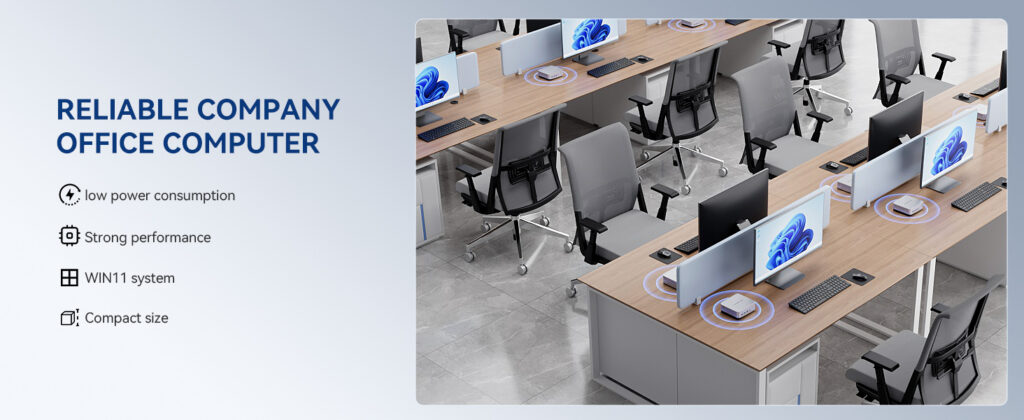
- Space efficiency: A typical mini PC occupies less than 1 liter of volume and can be VESA-mounted behind a display, freeing the entire desk surface.
- Lower energy bills: Most units draw 15–65 W under load versus 200–400 W for a conventional tower, which adds up across dozens or hundreds of seats.
- Quieter offices: Small fans or fanless designs mean open-plan workspaces stay calm and meeting rooms remain distraction-free.
- Simpler fleet management: Standardized hardware across departments makes imaging, updates, and replacement faster for IT.
- Flexible deployment: The same unit can drive a desk workstation, a reception kiosk, a digital signage screen, or a conference-room display.
Key Specs That Matter for a Business Mini PC
Marketing spec sheets can be overwhelming. For a workstation that will run eight hours a day for three to five years, these are the specifications that genuinely affect productivity and total cost of ownership.
1. Processor (CPU)
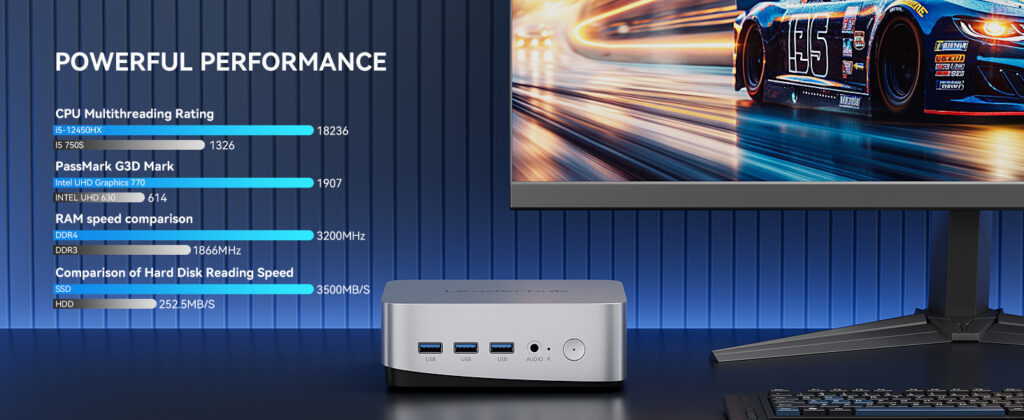
The CPU determines how quickly applications open, how many browser tabs you can keep alive, and how smooth video conferencing feels. For general office tasks, an efficient quad-core chip such as the Intel N100 is sufficient. For power users running large Excel models, multiple virtual desktops, or design software, look for a 12th-gen or newer Intel Core i5/i7 with 8 or more cores, like the Intel i5-12450HX.
2. Memory (RAM)
Memory is the most common bottleneck in business computing. Treat 8GB as the floor for basic task workers, 16GB as the sweet spot for most knowledge workers, and 32GB or more for analysts, developers, and creative staff. Check whether the RAM is upgradeable (SO-DIMM slots) rather than soldered if you want to extend the device’s lifespan.
3. Storage
An NVMe SSD is non-negotiable. A 512GB SSD balances cost and capacity for cloud-first teams, while an open M.2 slot lets you add a second drive later. Avoid eMMC storage, which is slower and cannot be replaced.
4. Ports and Multi-Display Support
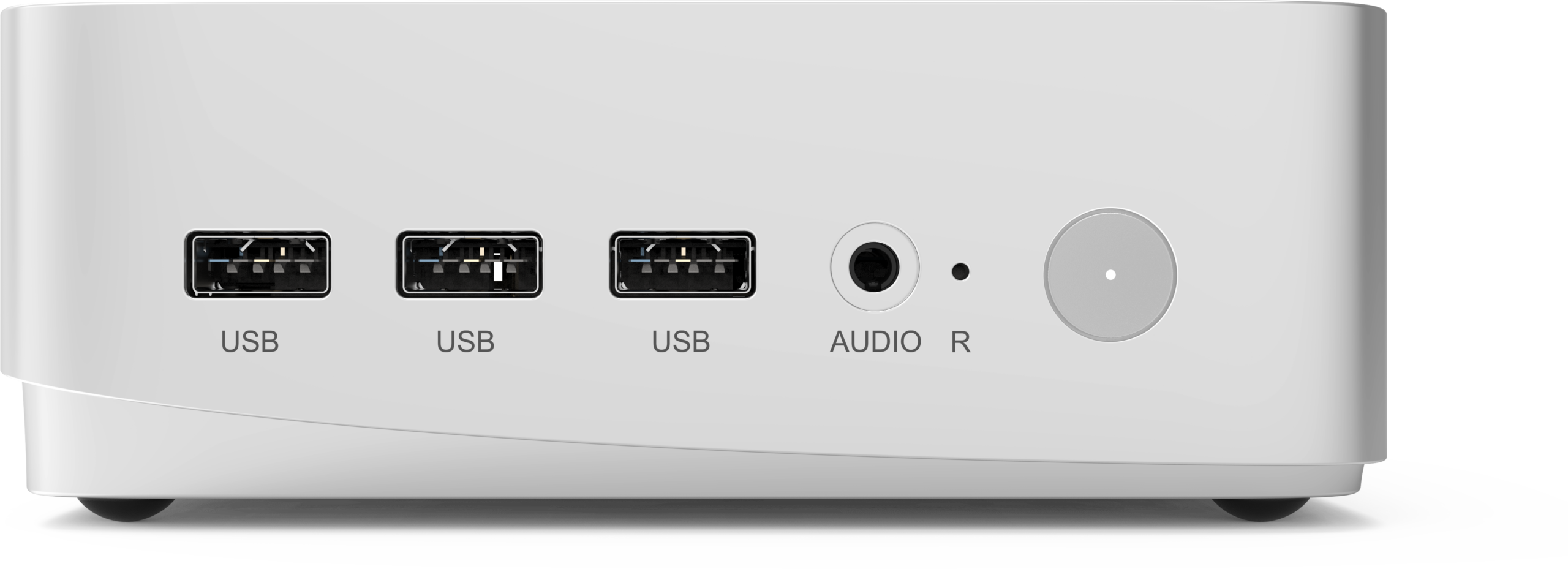
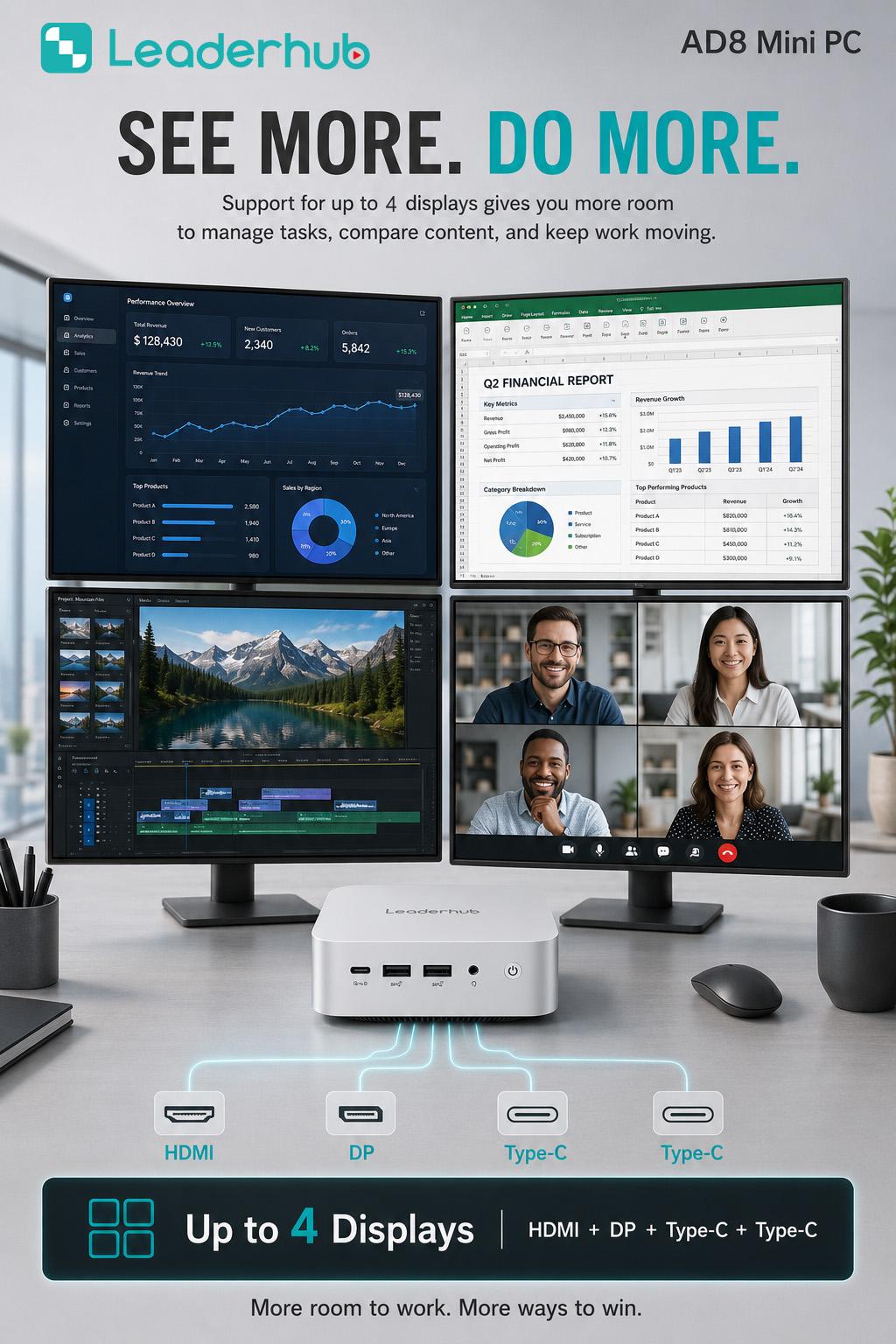
Count your peripherals before buying. A good business mini PC should offer at least two display outputs (HDMI, DisplayPort, or USB-C with DP Alt Mode), four or more USB-A ports, a USB-C port, and a Gigabit or 2.5G Ethernet jack. Dual- or triple-monitor support has a measurable impact on productivity for finance, customer service, and engineering roles.
5. Connectivity
Wi-Fi 6 or 6E and Bluetooth 5.x are standard in current-generation units and ensure stable video calls and wireless peripheral connections. Wired Ethernet remains the preferred choice for fixed desks where reliability matters most.
6. Thermal Design and Reliability
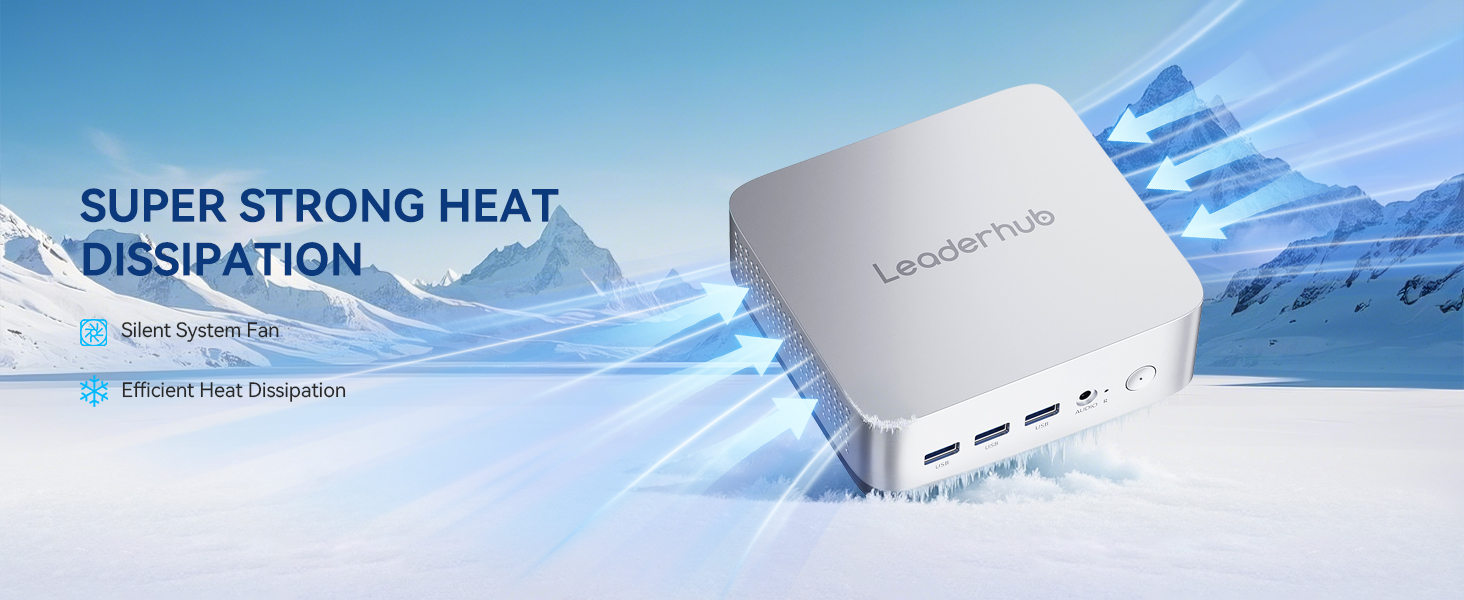
Business workstations run long hours, so cooling design matters. Look for metal chassis, well-ventilated enclosures, and manufacturers who publish sustained performance rather than only peak figures. A good cooling solution prevents throttling and extends component life.
Spec Tiers at a Glance
| Tier | Recommended CPU | RAM | Storage | Typical Users |
|---|---|---|---|---|
| Entry | Intel N100 / N-series | 8GB | 256–512GB SSD | Reception, data entry, front desk, signage |
| Mainstream | Intel Core i5 (12th gen+) | 16GB | 512GB–1TB SSD | Sales, marketing, finance, project managers |
| Performance | Intel Core i7 / AMD Ryzen 7+ | 32GB+ | 1TB+ SSD, dual drives | Developers, analysts, designers, engineers |
Top Picks: Best Mini PCs for Business Workstations
We have organized our recommendations by budget and workload so you can match a unit to each role in your organization. All three are available in the mini PC collection and share the same compact footprint and VESA-mountable design.
Best Budget Pick: LP1C Mini PC — Intel N100, 8GB RAM, 512GB SSD
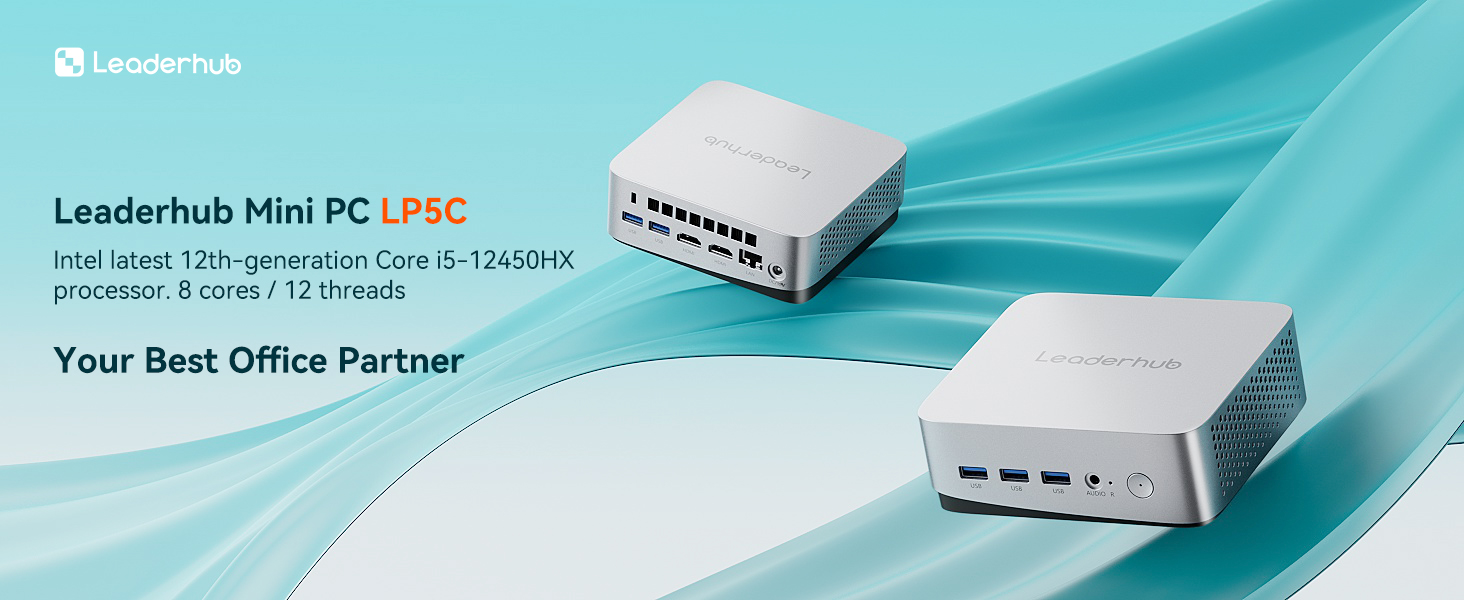
The LP1C Mini PC is built for high-volume deployments where every dollar counts. The Intel N100 is a four-core, low-power processor that handles Microsoft 365, web apps, video conferencing, and point-of-sale software without fuss, while sipping power quietly enough for a silent front office.
- Processor: Intel N100 (4 cores, efficient architecture)
- Memory: 8GB RAM
- Storage: 512GB SSD
- Best for: Reception desks, call centers, kiosks, digital signage, thin-client replacement
- Price: $399.00
Best Overall Value: LP5C Mini PC — Intel i5-12450HX, 16GB RAM, 512GB SSD
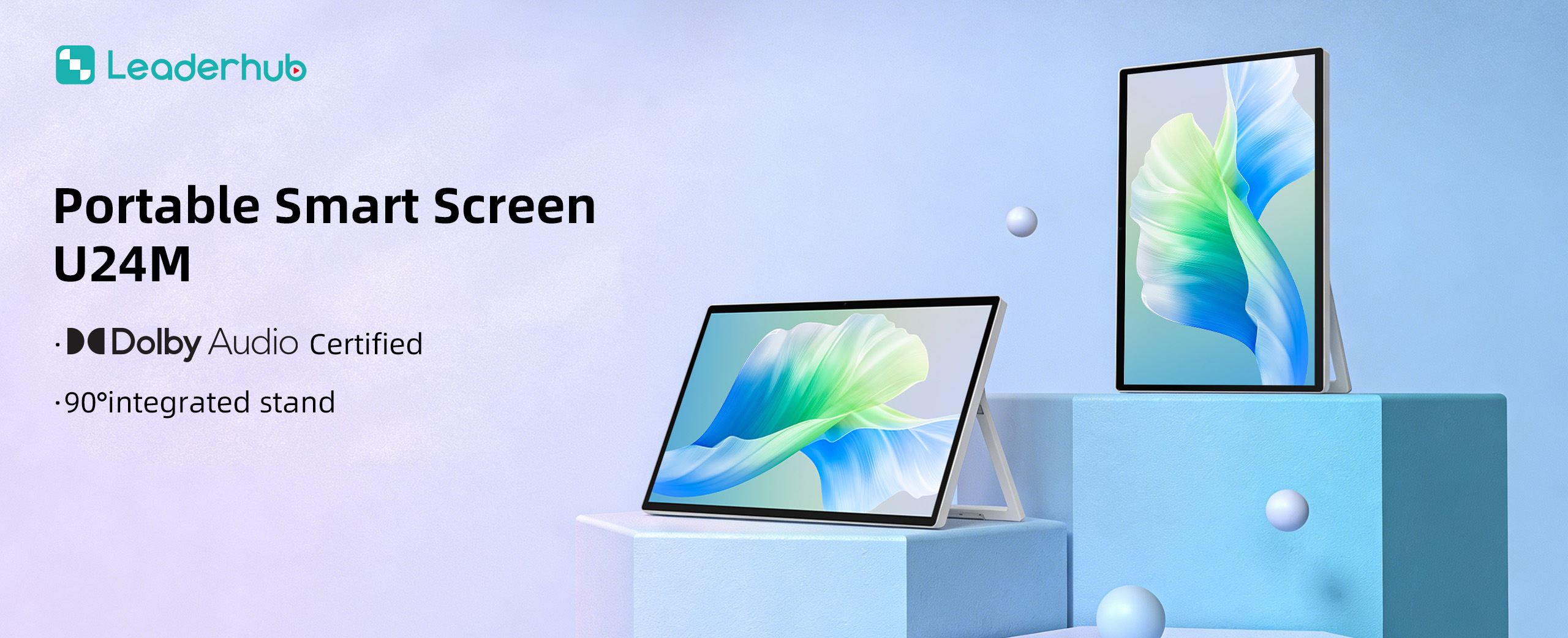
For the majority of knowledge workers, the LP5C Mini PC hits the sweet spot. The Intel i5-12450HX is an 8-core, 12-thread mobile chip from the HX performance class, giving you tower-like responsiveness for large spreadsheets, multitasking across dozens of browser tabs, and simultaneous video calls with screen sharing. The 16GB of memory keeps everything responsive even on heavy days.
- Processor: Intel Core i5-12450HX (8 cores / 12 threads)
- Memory: 16GB RAM
- Storage: 512GB SSD
- Best for: Sales, finance, HR, marketing, project management, dual-monitor desks
- Price: $799.00
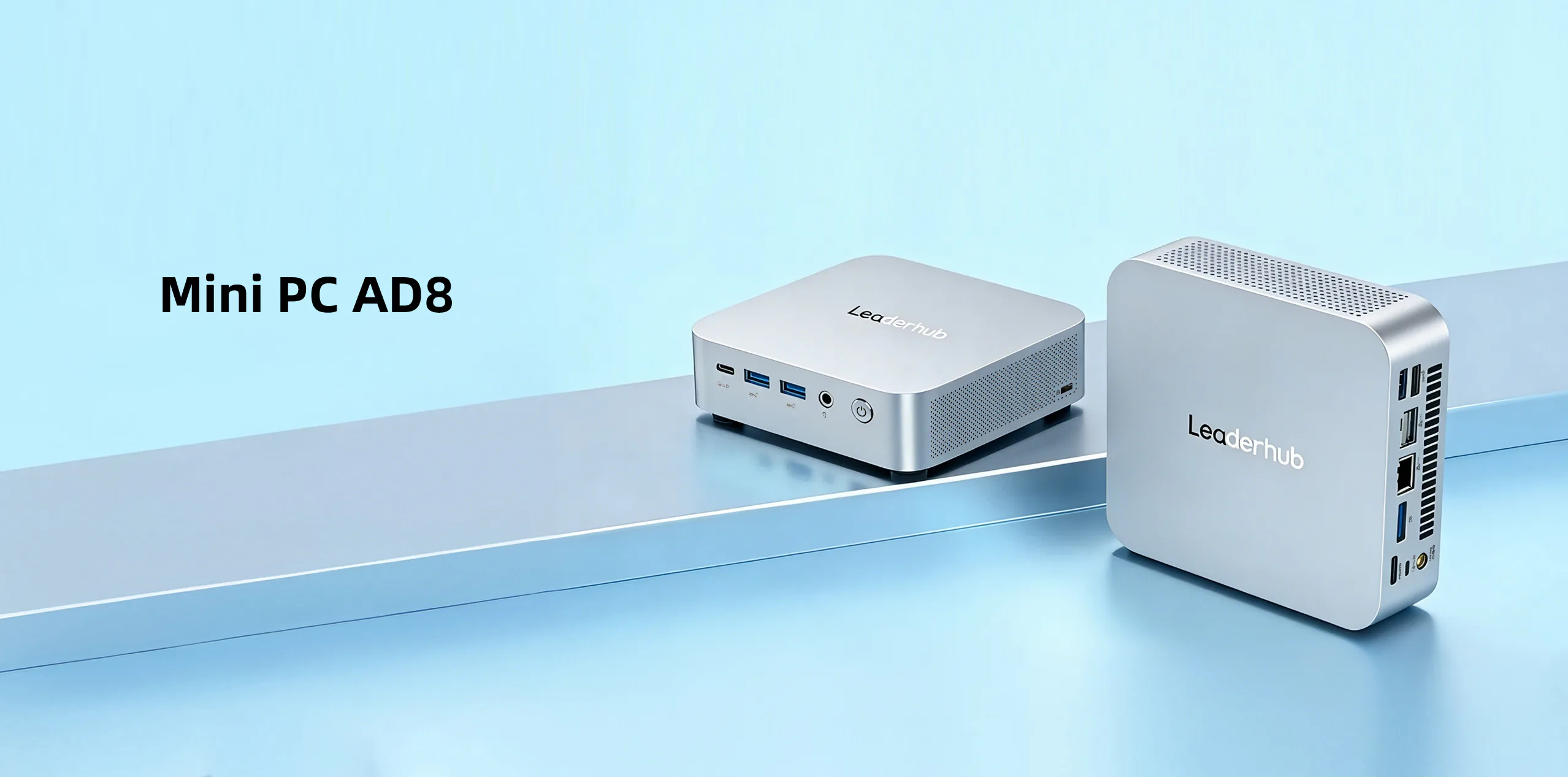
Best Premium Pick: AD8 Mini PC
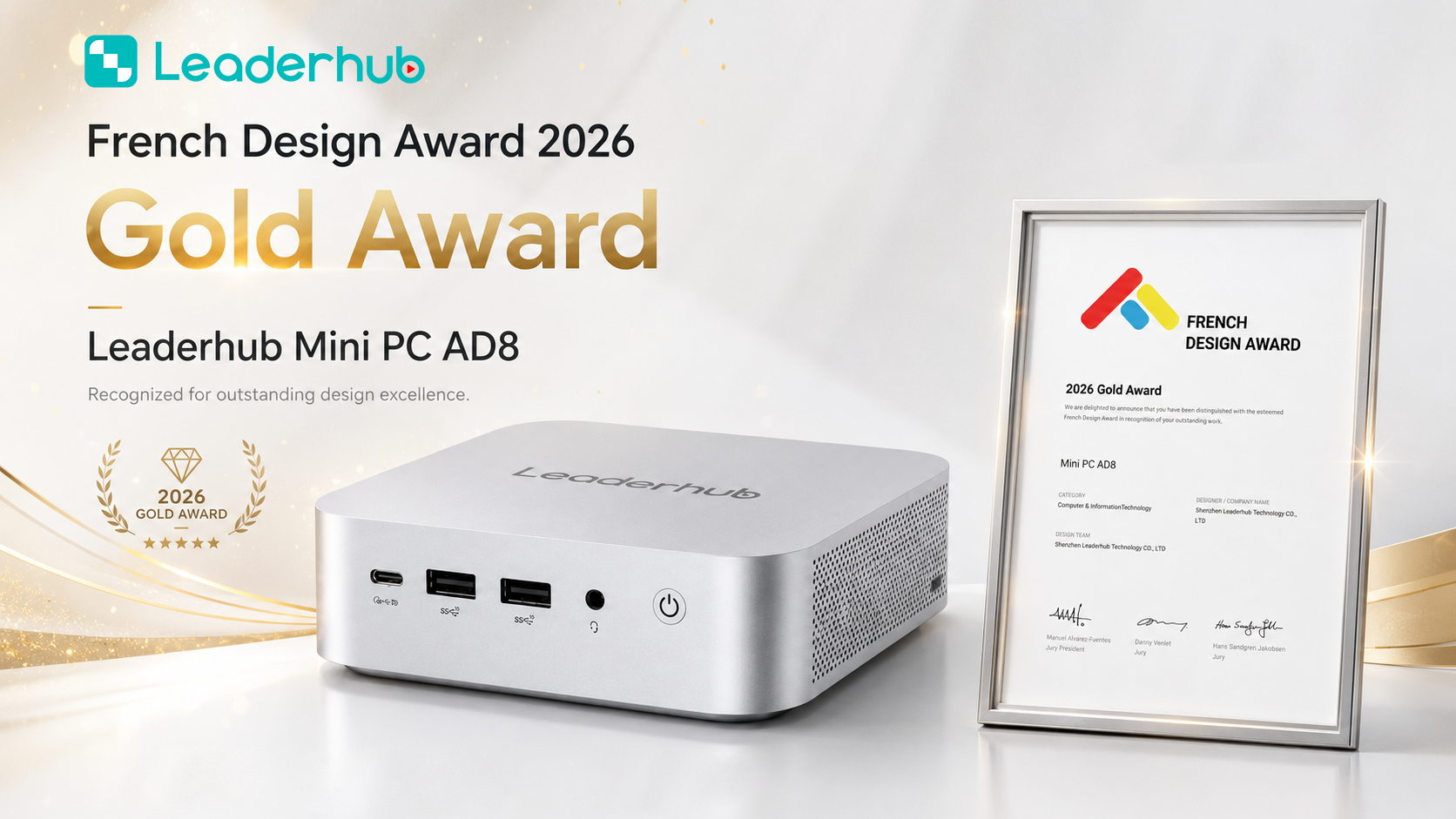
The AD8 Mini PC sits at the top of the lineup and is designed for teams who need headroom: developers compiling code, analysts crunching large datasets, designers working in Adobe applications, or conference rooms driving multiple 4K displays. Its performance-class platform and premium build make it a long-term investment for demanding seats.
- Positioning: Flagship performance tier for power users and multi-display setups
- Best for: Engineering, software development, data analytics, creative teams, boardroom display hubs
- Price: $999.00
Side-by-Side Comparison
| Model | Processor | RAM / Storage | Ideal Workload | Price |
|---|---|---|---|---|
| LP1C | Intel N100 | 8GB / 512GB SSD | Light office, kiosks, signage | $399.00 |
| LP5C | Intel i5-12450HX | 16GB / 512GB SSD | Mainstream knowledge work | $799.00 |
| AD8 | Flagship performance platform | See product page | Power users, multi-4K displays | $999.00 |
Mini PC vs. Traditional Desktop Tower
Still weighing whether to stick with towers? The table below summarizes how the two form factors compare on the criteria that matter most to a business buyer.
| Criteria | Mini PC | Desktop Tower |
|---|---|---|
| Footprint | Under 1 liter, VESA-mountable | 20–40 liters, floor or desk space |
| Power consumption | 15–65 W typical | 200–400 W typical |
| Noise | Near-silent | Audible fans under load |
| Everyday office performance | Equivalent for most roles | Equivalent |
| Discrete GPU support | Limited (integrated graphics) | Full-size GPUs available |
| Deployment flexibility | Desk, display, kiosk, meeting room | Fixed desk only |
The only scenario where a tower still wins decisively is heavy 3D rendering or GPU-accelerated workloads that require a dedicated graphics card. For everything else, a mini PC delivers the same productivity at lower cost and footprint.
Matching the Right Mini PC to Each Role
One size rarely fits all. A smart procurement strategy assigns hardware tiers to job functions so you avoid both under-powering critical seats and overspending on light-duty ones.
| Department / Use Case | Daily Workload | Recommended Model |
|---|---|---|
| Reception and front desk | Email, visitor management, browser | LP1C |
| Customer support / call center | CRM, softphone, chat tools | LP1C or LP5C |
| Sales and marketing | Presentations, video calls, analytics dashboards | LP5C |
| Finance and operations | Large spreadsheets, ERP, dual monitors | LP5C |
| Engineering and development | IDEs, containers, compiling, data analysis | AD8 |
| Meeting rooms and boardrooms | Driving interactive displays, UC platforms | LP5C or AD8 |
| Digital signage and kiosks | 24/7 content playback | LP1C |
Buying Guide: A 10-Point Checklist Before You Order
Use this checklist when comparing vendors and models for your business workstation refresh.
- Define workload tiers first. Group employees into light, mainstream, and power-user categories before looking at hardware.
- Prioritize RAM over raw CPU clock speed. Insufficient memory is the number-one cause of sluggish office PCs.
- Insist on NVMe SSD storage. Boot times under 15 seconds and instant app launches are now the baseline.
- Count display outputs. Confirm the unit supports the number and resolution of monitors each role uses.
- Check port variety. USB-A for legacy peripherals, USB-C for modern docks, and wired Ethernet for stability.
- Verify Wi-Fi 6 and Bluetooth 5. Essential for wireless keyboards, headsets, and reliable hybrid meetings.
- Look for VESA mounting. Hiding the PC behind the monitor instantly cleans up every desk.
- Ask about upgradeability. Accessible RAM and M.2 slots can extend the refresh cycle by two years or more.
- Review warranty and support terms. Business deployments need responsive replacement, not consumer-grade service.
- Calculate total cost of ownership. Factor in energy savings, reduced cooling load, and lower space costs, not just the sticker price.
For broader context on how compact computing is reshaping the technology landscape, the Consumer Technology Association publishes regular market research on form-factor trends and business adoption.
Beyond the Desk: Mini PCs in Meeting Rooms and Collaboration Spaces
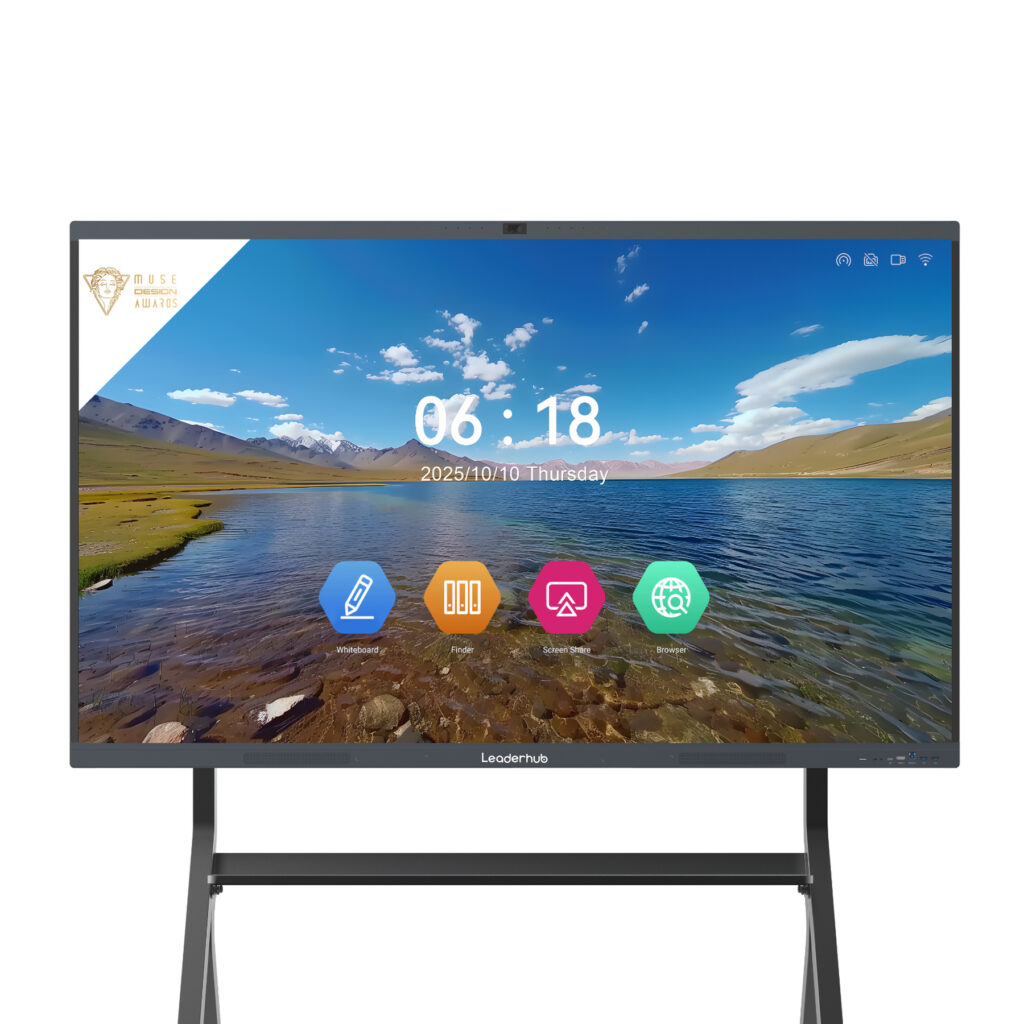
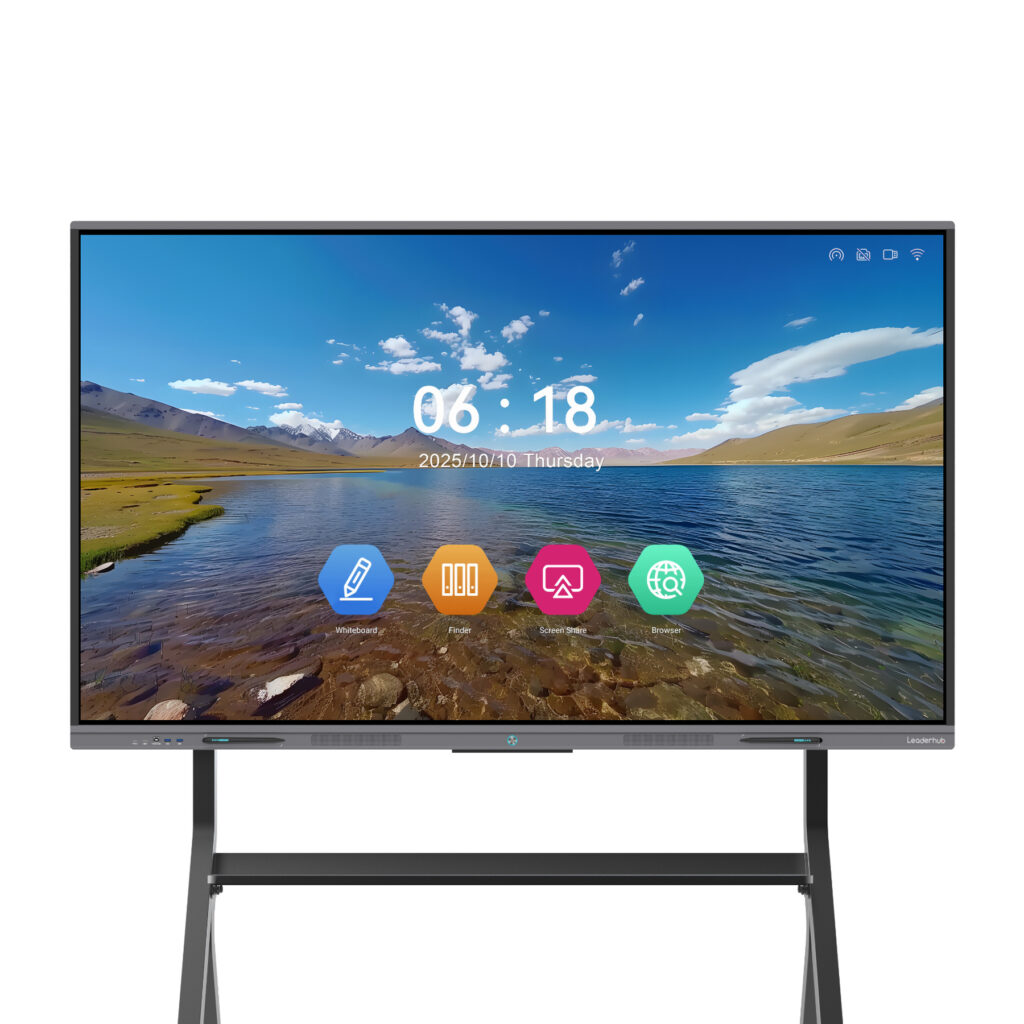
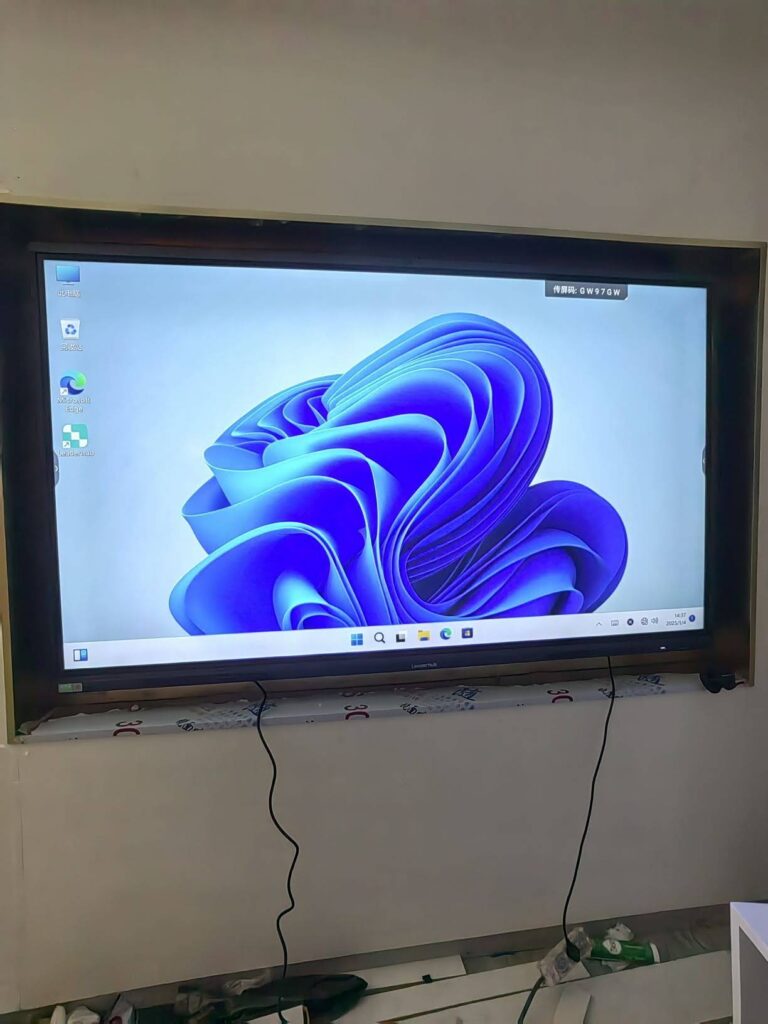
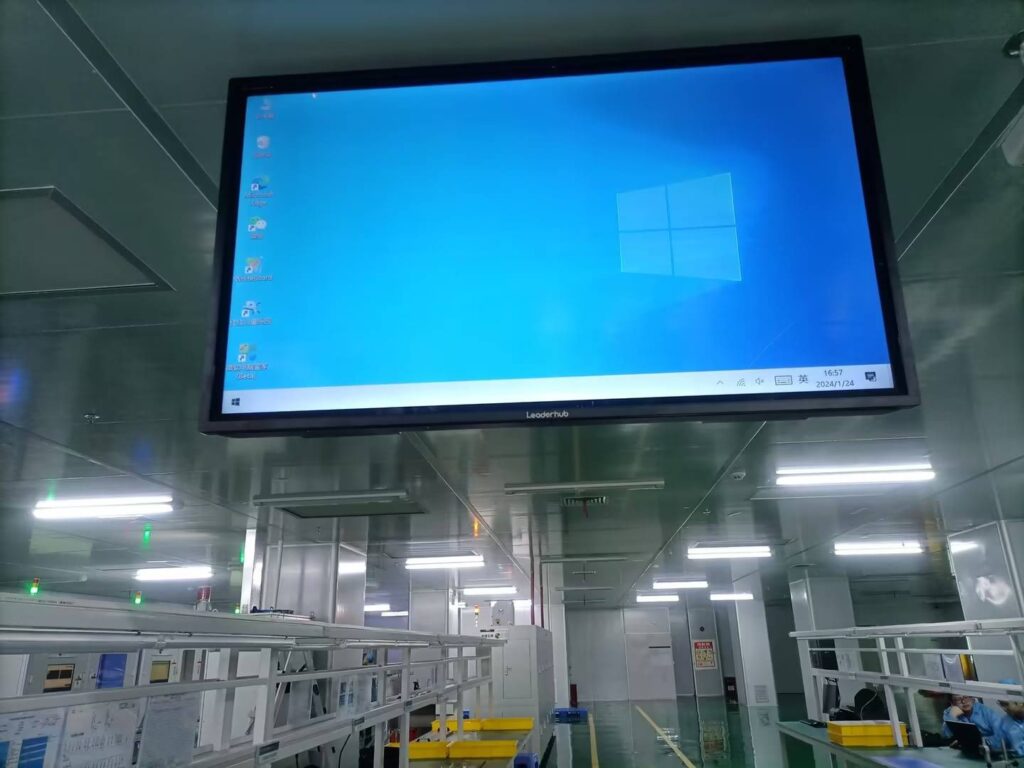
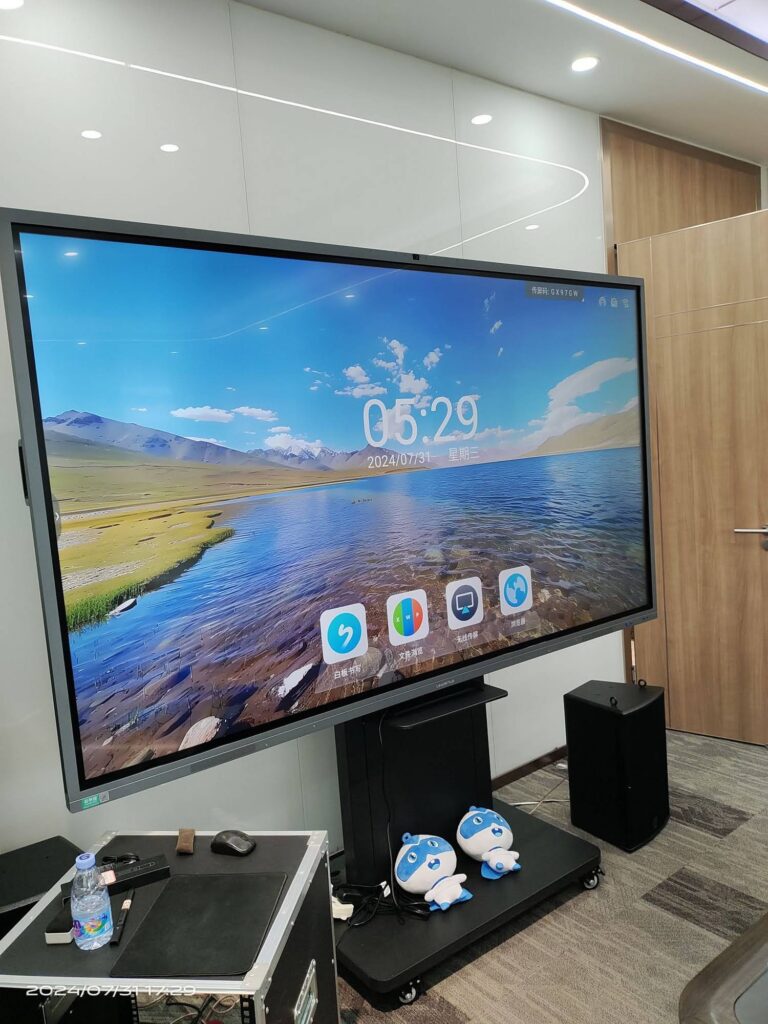
One of the most overlooked advantages of a business mini PC is how well it pairs with large-format interactive displays. Mounted behind a touch panel, a mini PC turns a conference room into a full Windows workstation capable of running Teams Rooms, Zoom Rooms, whiteboarding software, and company applications natively, without a laptop ever being plugged in.
Recommended pairings
- Combine the LP5C or AD8 with a 65″ to 86″ panel from the smart whiteboards range for a complete boardroom collaboration hub.
- Use the LP1C to drive lobby signage or a huddle-room display where only browser-based tools are needed.
- For mobile teams, a portable unit from the rotating screens collection can move between rooms while the mini PC stays fixed in the main meeting space.
If you are specifying AV equipment for multiple rooms, AVIXA offers industry standards for display sizing, viewing distance, and system integration that help ensure your mini PC and screen combination performs as expected.
These solutions come from LeaderHub, a Shenzhen-based technology company with 16 years of interactive-display expertise, delivering smart whiteboards, mini PCs, and portable smart screens to businesses and institutions in more than 82 countries worldwide.
Frequently Asked Questions
Is a mini PC powerful enough to replace a desktop for office work?
Yes. For email, office suites, web applications, video conferencing, and most business software, a mini PC with a modern Intel Core i5 and 16GB of RAM performs on par with a full-size desktop. Only GPU-intensive tasks like 3D rendering still favor towers.
How many monitors can a business mini PC support?
Most current units support at least two displays, and performance models commonly drive three or more 4K screens through a combination of HDMI, DisplayPort, and USB-C outputs. Always check the specific output count on the product page.
Can I upgrade a mini PC later?
Many business-class models include accessible SO-DIMM RAM slots and M.2 storage bays. Upgradeability varies by model, so confirm before purchasing if you plan to extend the device lifecycle.
Are mini PCs suitable for 24/7 operation such as digital signage?
Low-power units like the Intel N100-based LP1C are well suited to continuous operation thanks to low heat output and minimal moving parts. Ensure adequate ventilation around the enclosure.
What is the typical lifespan of a mini PC in a business environment?
With a quality SSD and proper cooling, a business mini PC typically serves four to five years, in line with standard enterprise refresh cycles.
Final Thoughts
The best mini PC for business workstations is the one that matches each role’s actual workload without overspending. For most offices, that means deploying an efficient LP1C at light-duty seats, standardizing on the LP5C for the bulk of knowledge workers, and reserving the AD8 for engineers, analysts, and boardroom display hubs. The result is a quieter, cleaner, more energy-efficient workplace with simpler IT management and a lower total cost of ownership.
Ready to plan your workstation refresh? Browse the full product range or contact the team for volume pricing, OEM/ODM options, and deployment advice tailored to your business.