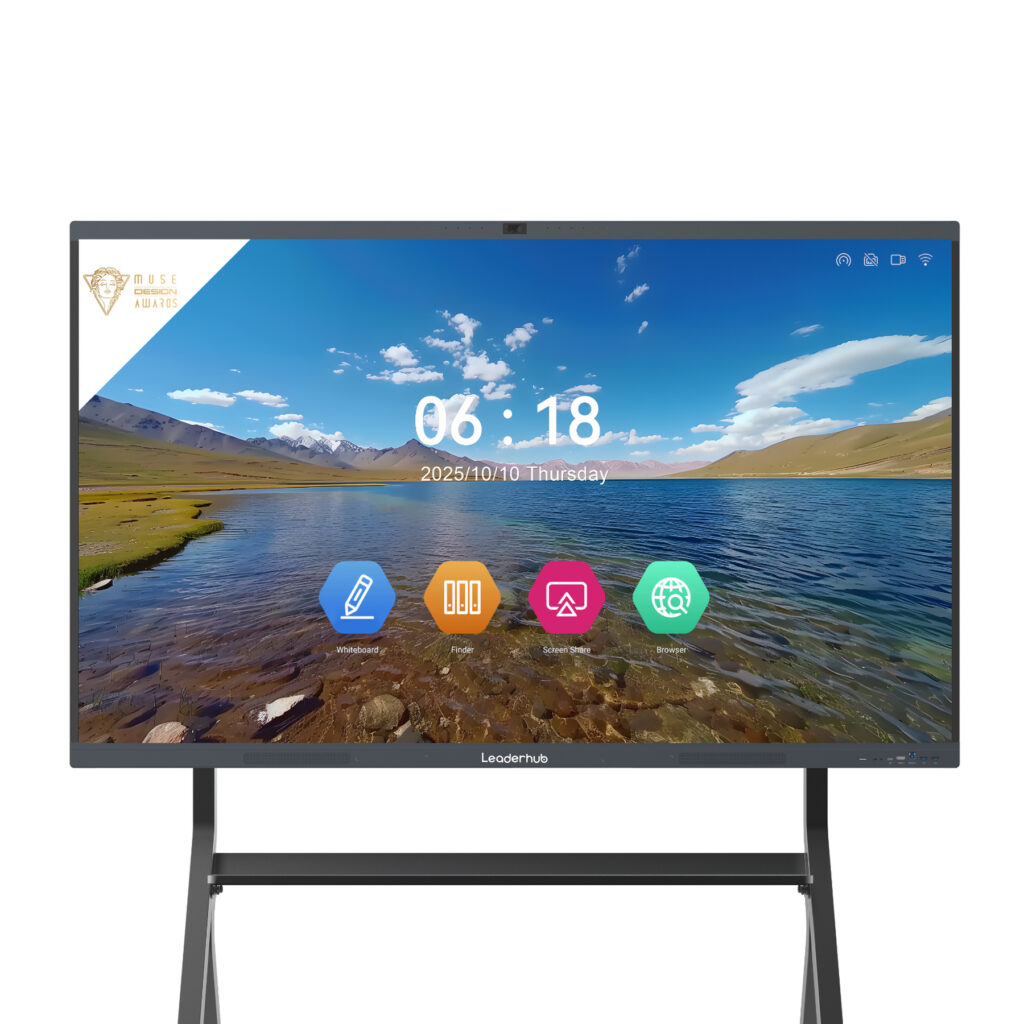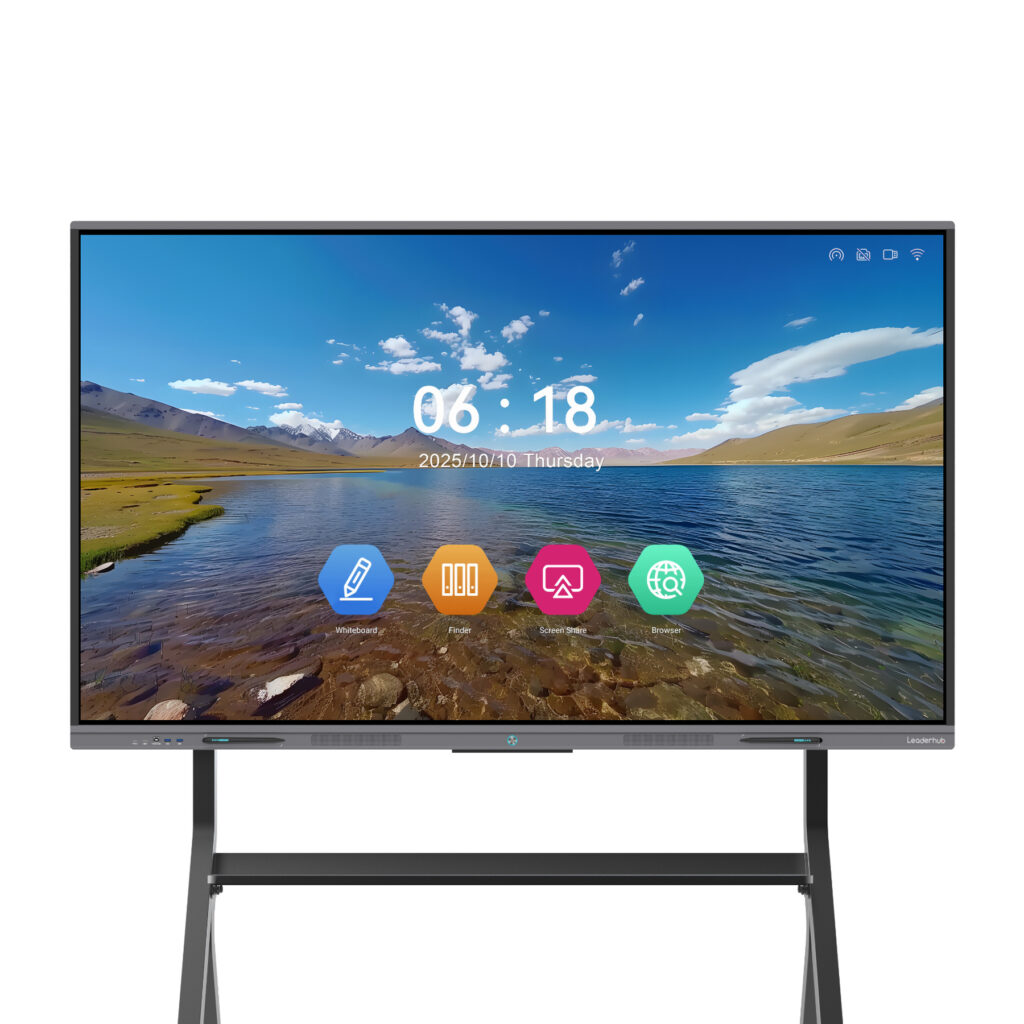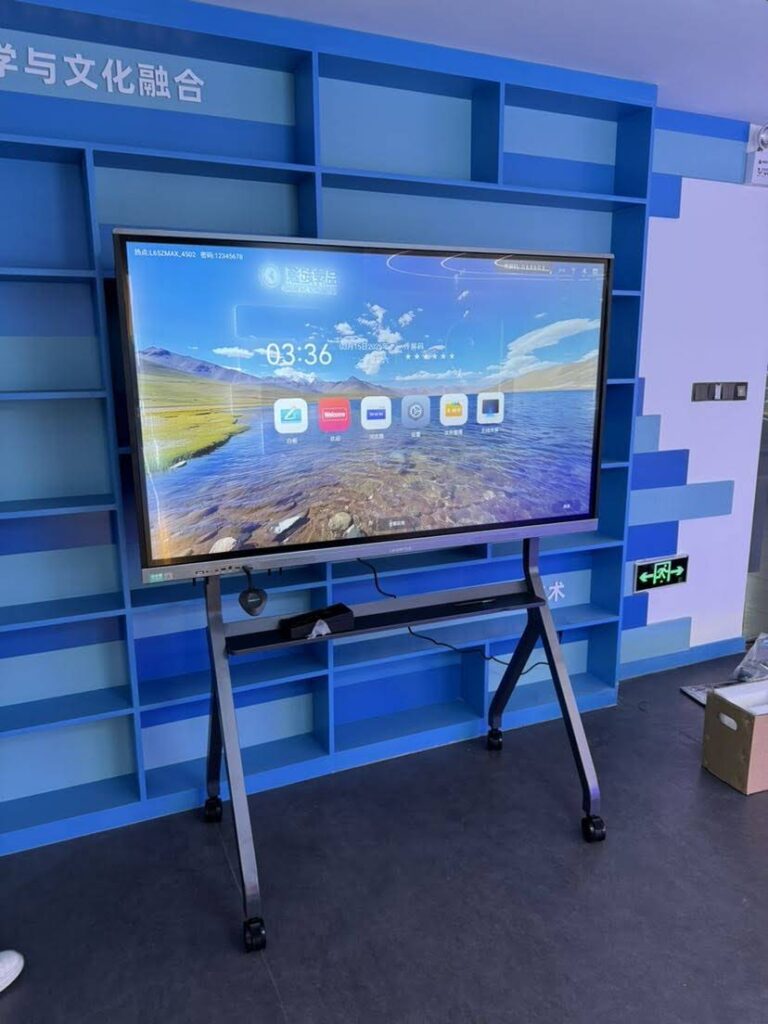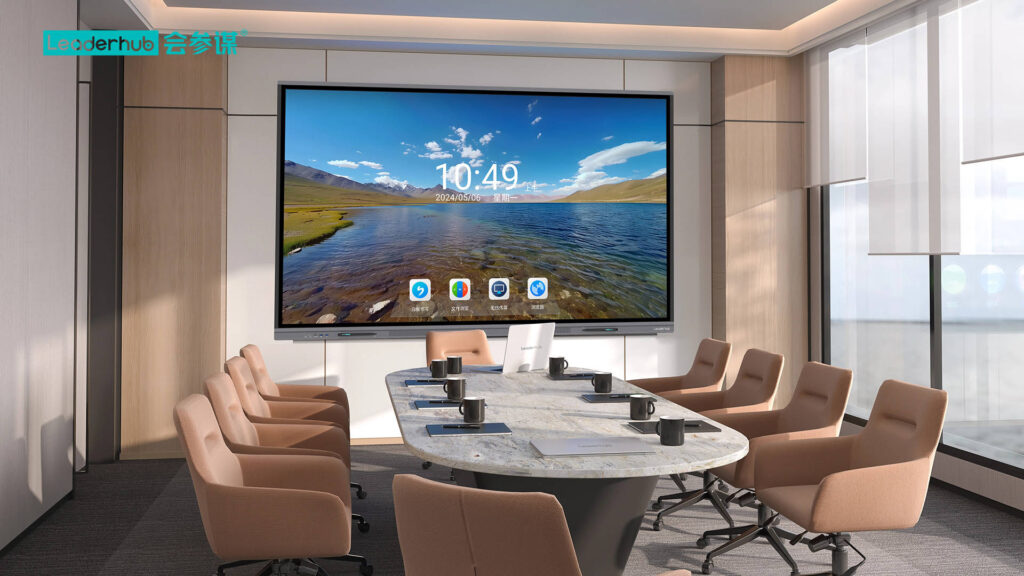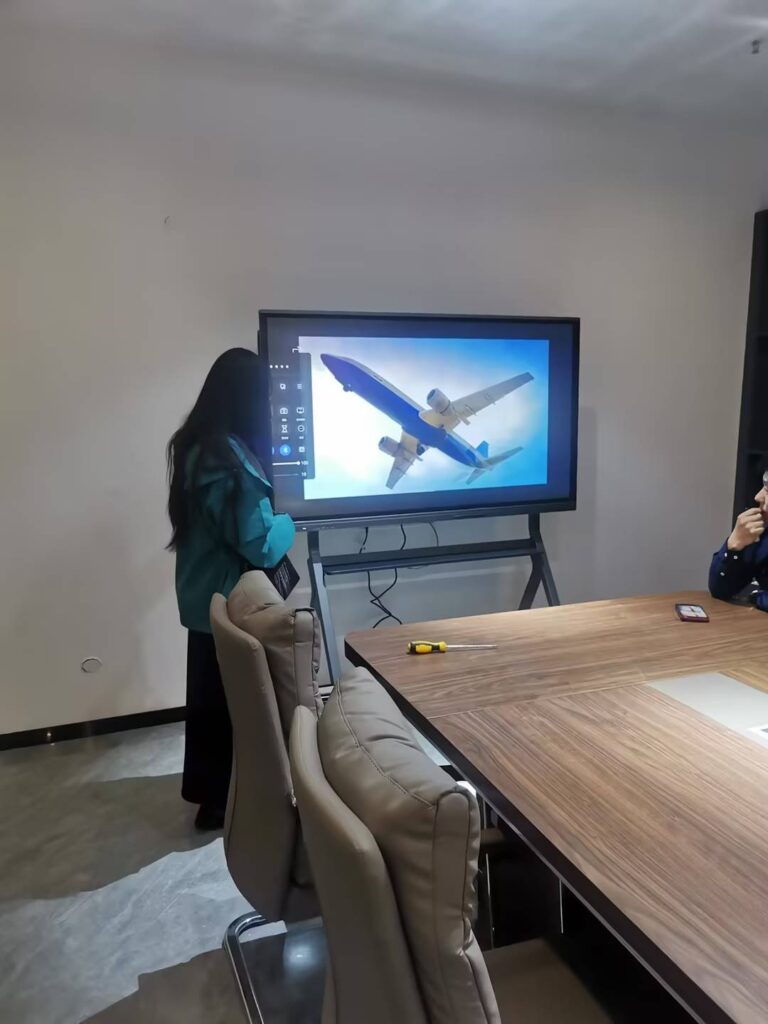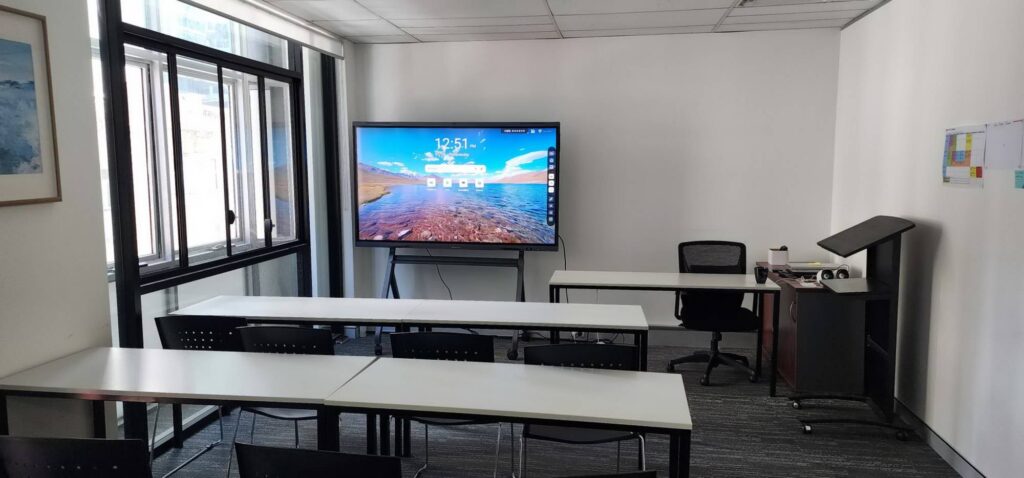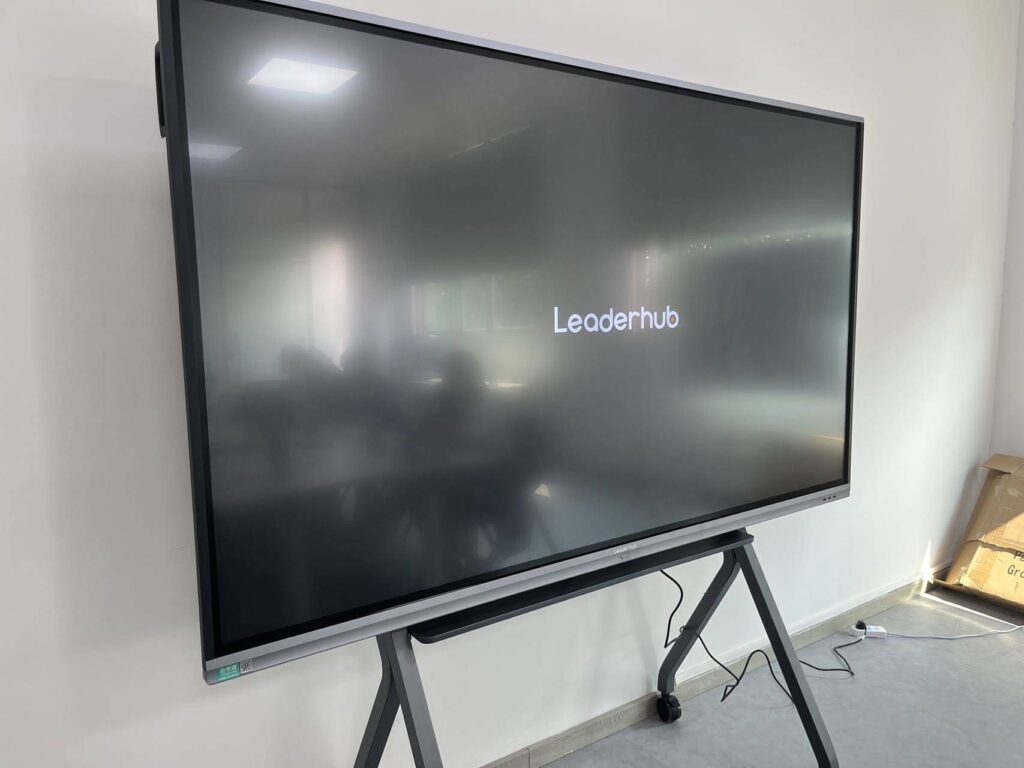
Choosing a smart board with annotation tools is one of the most important technology decisions a school or business can make. Unlike a plain display or a traditional whiteboard, an interactive panel with built-in annotation lets teachers mark up lesson slides, managers sketch over live spreadsheets, and remote teams write on the same canvas in real time. The problem is that almost every manufacturer claims to offer “annotation,” yet pen accuracy, latency, software depth and sharing options vary enormously. This guide explains what annotation tools actually do, which specifications matter for classrooms versus meeting rooms, and how to compare models before you buy.
What Is a Smart Board with Annotation Tools?
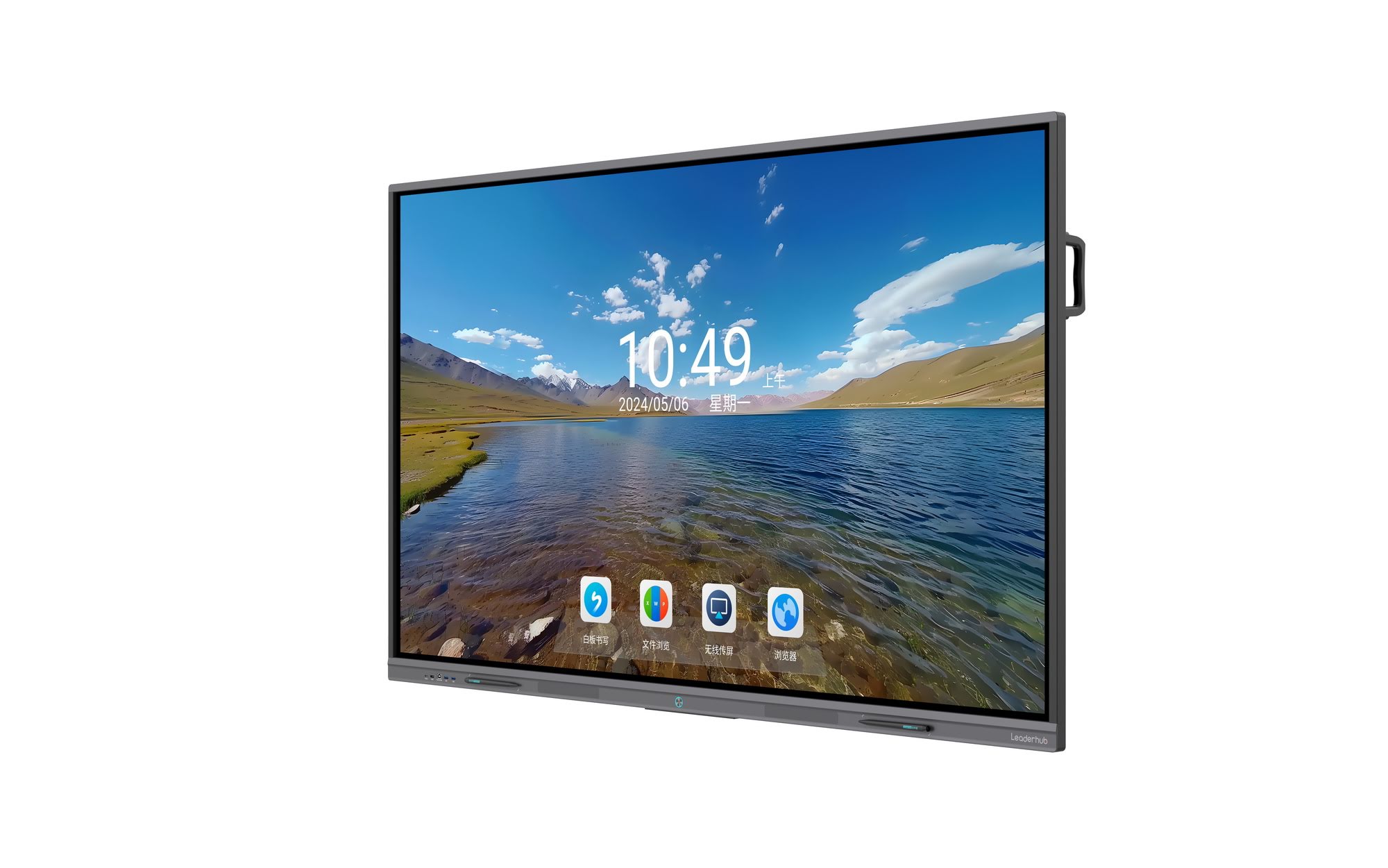
A smart board with annotation tools is an interactive flat panel (IFP) or smart whiteboard that combines a large 4K touchscreen with software that allows you to write, draw, highlight and mark up any content shown on the screen. Annotation can happen on a blank digital whiteboard canvas, on top of a PowerPoint or PDF, over a web browser, or even on a video feed or a laptop screen that has been wirelessly mirrored to the display.
The key difference between a basic touchscreen and a true annotation-ready smart board is the layer of software intelligence that sits on top of the touch hardware. Good annotation tools recognize the difference between a pen, a finger and a palm, convert messy handwriting into clean text, and save everything to the cloud so the session is never lost.
Core Annotation Features You Should Expect
- Multi-touch writing — 20 to 40 simultaneous touch points so several students or colleagues can write at once.
- Pen and finger differentiation — write with the stylus, erase with the palm, move objects with a finger.
- Floating annotation toolbar — mark up any app, document or video source without leaving the current screen.
- Handwriting and shape recognition — turn scribbled notes into typed text and hand-drawn circles into perfect shapes.
- Infinite canvas and multi-page whiteboard — scroll, zoom and add pages without running out of space.
- Save, export and share — export to PDF or image, scan a QR code to download notes, or sync to cloud storage.
- Screenshot and record — capture annotated screens or record an entire lesson for absent students.
- Templates and subject tools — rulers, protractors, graph paper, music staffs, timers and voting tools for teaching.
Why Annotation Tools Matter in the Classroom
Teachers do not need more screens; they need better ways to make thinking visible. Annotation on an interactive display allows a teacher to pause a video and circle a key detail, work through a math problem step by step on top of the textbook page, or invite three students to the board to solve the same equation side by side. According to the UNESCO Technology in Education Report, technology improves learning outcomes when it supports clear pedagogical goals and active participation rather than passive viewing — and annotation is one of the most direct ways to turn a display into an active learning tool.
Research summarized in the OECD Digital Education Outlook also highlights that teacher confidence with classroom technology is a decisive factor. This is why ease of use should be weighted as heavily as feature count: an annotation toolbar that opens with one tap and works the same on every source will be used daily, while a complicated interface will be ignored.
Classroom Scenarios Where Annotation Shines
- Live worked examples in math and science, with every step saved and shared to students afterward.
- Text analysis in language classes — highlighting, underlining and commenting on passages in different colors.
- Map and diagram labeling in geography, biology and history lessons.
- Student collaboration where groups split the screen and annotate simultaneously.
- Hybrid teaching where remote learners see annotations in real time through a video-conferencing app.
Why Annotation Tools Matter in Meetings
In a business environment, annotation turns a passive presentation into a working session. Sales teams can mark up proposals live with a client, engineers can redline drawings, and project managers can sketch a timeline over a shared Gantt chart. When the meeting ends, the annotated file is emailed to every attendee in seconds — no more photographing a whiteboard and hoping the glare did not ruin the picture.
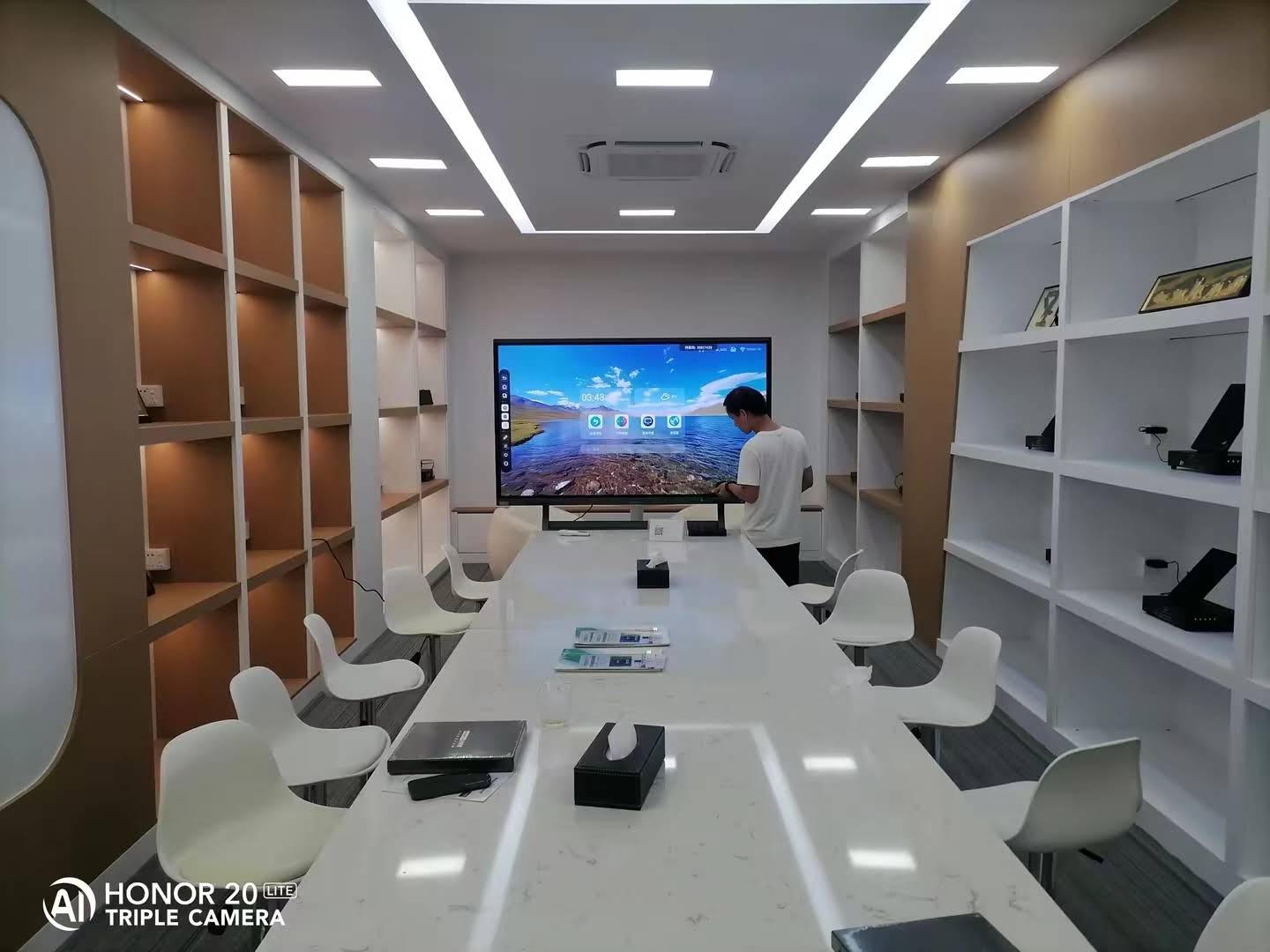
For hybrid teams, the most valuable annotation capability is cross-device, two-way markup: participants joining from a laptop or phone should be able to write on the same canvas as the people standing at the board. Industry bodies such as AVIXA emphasize that collaboration technology succeeds when it removes friction from the room, so look for one-tap wireless screen sharing, built-in video conferencing support and compatibility with Zoom, Microsoft Teams and Google Meet.
Key Features to Evaluate Before You Buy
The table below summarizes the specifications that have the biggest impact on the real-world annotation experience, along with recommended minimums for most classrooms and meeting rooms.
| Feature | Why It Matters for Annotation | Recommended Spec |
|---|---|---|
| Touch technology | Determines accuracy, palm rejection and how natural writing feels | Infrared or capacitive, 20+ touch points, pen/finger/palm detection |
| Writing latency | Lag between pen movement and ink appearing breaks the writing flow | Under 10 ms for a paper-like feel |
| Resolution | Fine handwriting and small text stay crisp from the back of the room | 4K UHD (3840 × 2160) |
| Glass surface | Anti-glare, tempered glass reduces reflections and resists scratches | Mohs 7 tempered glass, anti-glare coating |
| Annotation software | Floating toolbar, handwriting recognition, templates, cloud save | Built-in whiteboard app plus annotation over any source |
| Operating system | Affects app availability and whether Windows software can run natively | Android 13/14 with optional OPS Windows PC slot |
| Wireless sharing | Annotate over content from laptops, tablets and phones | AirPlay, Miracast, Google Cast, 4+ split screens |
| Export and sharing | Notes must leave the room easily | QR-code download, PDF/PNG export, email, cloud sync |
| Camera and microphone | Remote participants need to see and hear the annotations being discussed | Integrated 4K camera, 8-array mic, 2 × 15W+ speakers |
Touch Technology and Pen Accuracy
Most interactive flat panels use infrared (IR) touch frames, which are durable, cost-effective and work with any pen or finger. Higher-end models add precision IR or capacitive layers for finer handwriting. Whichever you choose, test the edge accuracy — cheaper panels often drift near the corners — and confirm that the display supports writing with two different pen colors at once, which is extremely useful when two students or presenters are at the board together.
Software Ecosystem and Updates
Hardware is only half the story. Ask whether the annotation software receives regular firmware updates, whether it supports cloud accounts for teachers and staff, and whether it includes a browser, document viewer and screen recorder. Educators should also check that the whiteboard app aligns with recognized practice frameworks such as the ISTE Standards for Educators, which emphasize collaborative and student-centered use of technology.
Classroom vs. Meeting Room: Different Priorities
Although the core hardware is similar, the ideal smart board with annotation tools for a school is not always the ideal one for a boardroom. Use the comparison below to align your shortlist with your actual environment.
| Decision Factor | Classroom Priority | Meeting Room Priority |
|---|---|---|
| Screen size | 75″–86″ so students at the back can read handwriting | 55″–65″ for huddle rooms, 75″–110″ for boardrooms |
| Touch points | 40-point touch for group activities | 20-point touch is usually sufficient |
| Annotation tools | Subject templates, rulers, timers, voting, lesson recording | Markup over Office files, PDFs and video calls; quick export |
| Durability | Scratch-resistant glass, eye-care low blue light, child-safe design | Premium finish, anti-fingerprint coating |
| Mobility | Wall mount in fixed classrooms; mobile stand for shared labs | Rolling stand or battery-powered mobile display for flexible spaces |
| Conferencing | Helpful for hybrid lessons | Essential — camera, microphone array and app certification |
| Budget per unit | Lower cost per room for district-wide rollouts | Higher spec justified for client-facing rooms |
If you are specifying displays for a K-12 district, the practical questions raised in this guide to choosing an interactive display for K-12 — total cost of ownership, teacher training and software licensing — are a useful complement to the hardware checklist above.
Which Screen Size Is Right for Your Space?
Annotation quality depends heavily on legibility. A useful rule of thumb is that the farthest viewer should sit no more than four to six times the screen height away. The table below maps popular Leaderhub models to room types so you can compare sizes and prices quickly.
| Model | Size | Best For | Price |
|---|---|---|---|
| Leaderhub U55Pro Mobile Smart Display | 55″ 4K | Huddle rooms, agile offices, small training rooms | $2,499.00 |
| Leaderhub L65ZM Interactive Whiteboard | 65″ 4K | Small classrooms, 6–10 person meeting rooms | $1,099.00 |
| Leaderhub L75HM Interactive Smart Whiteboard | 75″ 4K | Standard classrooms, mid-size conference rooms | $1,599.00 |
| Leaderhub L86ZM Interactive Whiteboard | 86″ 4K | Large classrooms, lecture rooms, boardrooms | $1,699.00 |
| Leaderhub L110H Interactive Flat Panel | 110″ 4K | Auditoriums, executive briefing centers, large halls | $7,999.00 |

A Step-by-Step Buying Checklist
- Measure the room and seating distance to determine the minimum screen size for legible handwriting.
- List the content sources you need to annotate over — Windows laptops, Chromebooks, iPads, document cameras, video calls.
- Request a live demo and write continuously for 30 seconds; check for lag, skipped strokes and accuracy at the corners.
- Test palm rejection by resting your hand on the glass while writing, exactly as a student or presenter would.
- Export a session via QR code, email and USB to confirm the sharing workflow is genuinely one-tap.
- Verify the OS and upgrade path — an OPS slot lets you add a Windows PC later without replacing the panel. A compact unit such as the Leaderhub mini PC range is a cost-effective way to run full desktop software on the board.
- Check warranty, training and firmware support, especially for multi-room deployments.
- Calculate total cost of ownership including stands, software licenses, installation and consumable pens.
Common Mistakes to Avoid
- Buying on panel size alone. A huge screen with poor touch accuracy will frustrate users more than a slightly smaller, responsive one.
- Ignoring glare. Rooms with large windows need anti-glare glass or annotations become invisible in the afternoon.
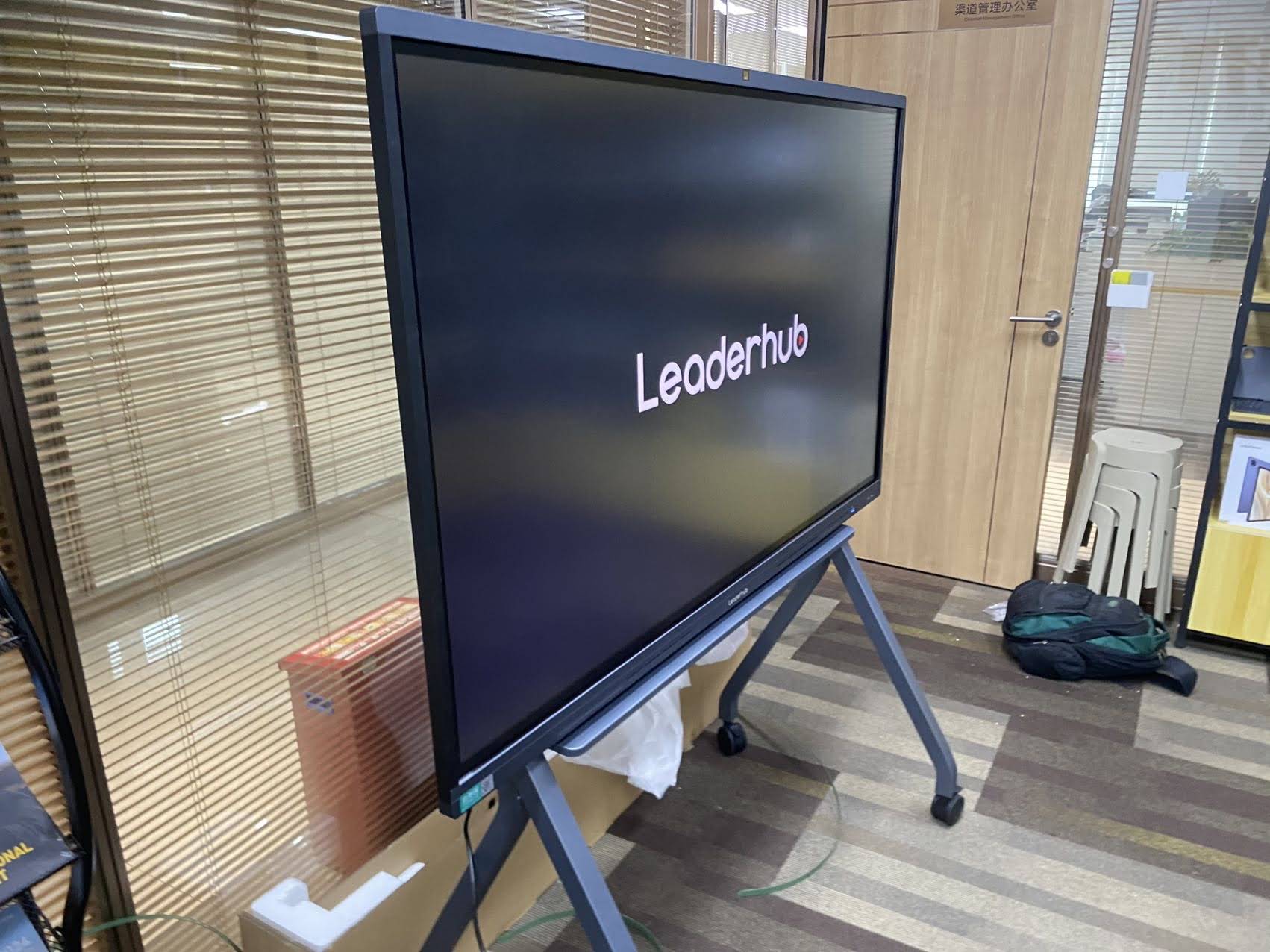
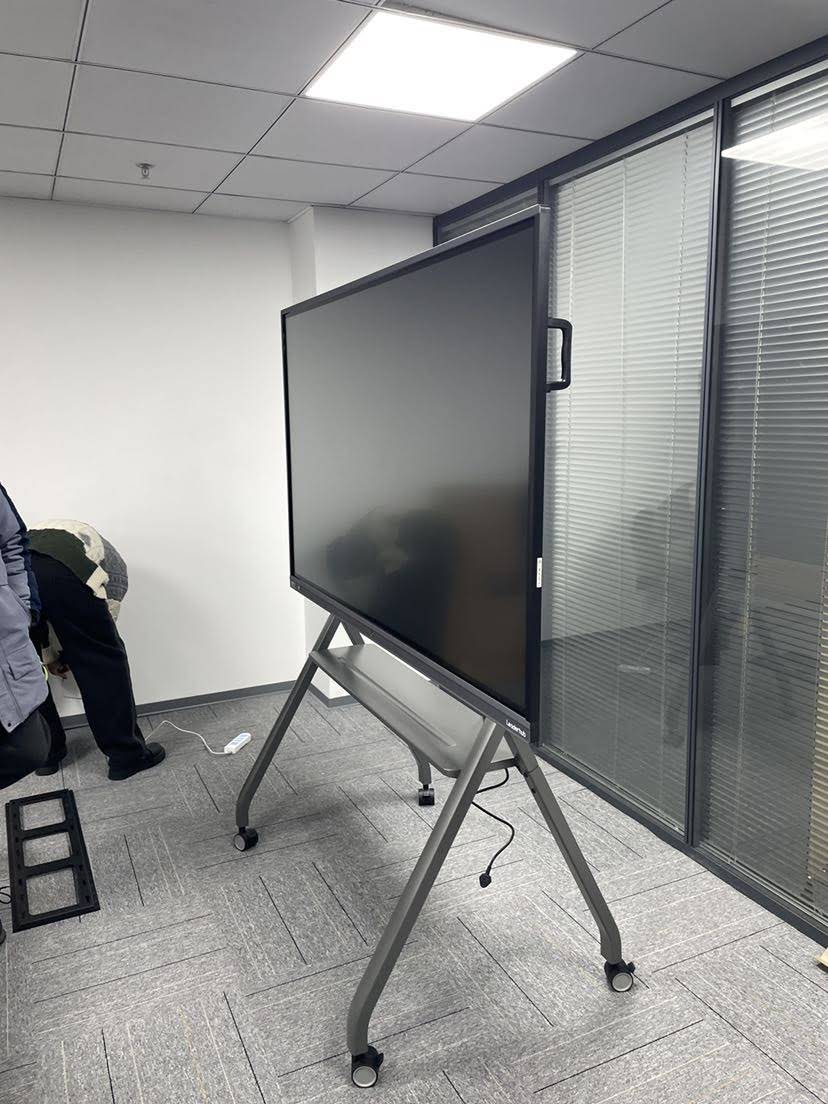
- Overlooking mobility. Flexible learning spaces and agile offices often benefit from a battery-powered, movable display rather than a fixed wall mount. Explore portable rotating smart screens if your rooms change layout frequently.
- Skipping teacher and staff training. Even the best annotation tools go unused without a short onboarding session.
- Forgetting remote participants. If hybrid meetings or lessons are part of your routine, built-in camera and microphone quality matter as much as the pen.
Recommended Smart Boards with Annotation Tools from Leaderhub
Leaderhub is a Shenzhen-based interactive display manufacturer with 16 years of experience, serving schools, enterprises and creative professionals in more than 82 countries, and ranked NO.1 in its interactive panel subcategory on JD.com. Every model in the Leaderhub smart whiteboard collection ships with a built-in whiteboard app, floating annotation over any source, handwriting recognition, QR-code sharing and wireless casting from phones, tablets and laptops.
For Classrooms
- L75ZM / L86ZM — 4K panels with 40-point touch, anti-glare tempered glass and eye-care modes, priced for district-wide rollouts.
- L75HM / L86HM — premium HM series with an award-winning rotatable design, ideal for portrait-mode documents and collaborative lessons.
For Meeting Rooms
- L75H Pro — conference-oriented panel with integrated camera and microphone array for annotated hybrid meetings.
- U55Pro — a mobile 55″ 4K smart display that can roll between huddle rooms and open-plan areas.
- L110H — a 110″ flagship for boardrooms and briefing centers where every detail must be visible.
Frequently Asked Questions
Can I annotate over content from my own laptop?
Yes. On a well-designed smart board with annotation tools, you can mirror your laptop wirelessly or via HDMI/USB-C and then open the floating toolbar to write over the mirrored image. The annotations are saved as a screenshot or multi-page document on the board.
Do I need a special pen?
Most infrared panels work with any pen, a finger or even a pointer. Dedicated styluses usually offer two writing tips in different thicknesses, and some models let two pens write in different colors simultaneously.
How are annotations shared after a class or meeting?
Typical options include scanning a QR code with a phone to download the notes, exporting a PDF to USB, emailing directly from the board, or syncing to Google Drive, OneDrive or a school learning platform.
Is Android or Windows better for annotation?
Android delivers fast boot and an intuitive built-in whiteboard that most teachers prefer for daily use. Windows via an OPS or mini PC is better when you need specific desktop applications. Many organizations choose a panel that supports both.
What size should I choose for a standard classroom?
For rooms of 25–35 students, a 75″ panel is the most common choice, while 86″ is recommended for deeper rooms or where small handwriting and detailed diagrams are frequent.
Final Thoughts
The best smart board with annotation tools is the one people actually reach for every day. Prioritize low-latency writing, reliable palm rejection, a one-tap annotation toolbar that works over every source, and effortless sharing. Then match the screen size to your room and decide whether built-in conferencing or mobility are must-haves. If you would like help comparing models for a specific classroom or meeting space, contact the Leaderhub team for a tailored recommendation or a live demonstration.