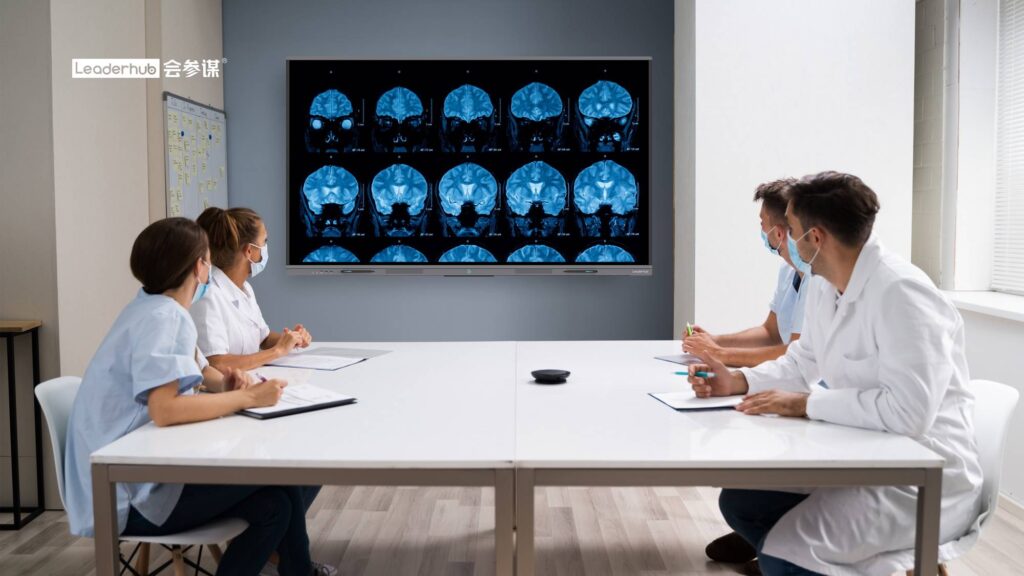
If you are shopping for an interactive flat panel or planning a classroom or meeting-room upgrade, one of the first practical questions is simple: do smart boards have HDMI? The short answer is yes. Virtually every modern smart board ships with at least one HDMI input, and most mid-range and premium models include two or three, plus an HDMI output, USB-C, USB-A, and a dedicated touch port. This guide walks through the ports you will actually find on a smart board, the differences between HDMI versions, and step-by-step instructions for connecting laptops, tablets, mini PCs, document cameras, and other devices.
The Quick Answer: Yes, Smart Boards Have HDMI
HDMI remains the universal standard for carrying video and audio from a source device to a display, and smart boards are no exception. Whether you are looking at a 55-inch mobile panel or a 110-inch lecture-hall display, you can expect:
- HDMI In – usually 2 to 3 ports, so a laptop, a document camera, and a video-conferencing codec can stay plugged in at the same time.
- HDMI Out – on many models, used to mirror the board to a second screen or projector.
- Touch USB (Type-B or Type-C) – paired with an HDMI input so your finger or stylus controls the connected computer.
- USB-C with DisplayPort Alt Mode – a single cable that carries video, audio, touch, and power on newer boards.
Older interactive whiteboards that relied on projectors sometimes used only VGA or proprietary cables, which is why the question still comes up. Today, however, HDMI is considered baseline equipment on any smart whiteboard designed for education or business use.
Complete Port Overview on a Modern Smart Board
Beyond HDMI, interactive displays include a wide range of connectivity options. The table below summarizes what each port does and where it is typically located.
| Port | Typical Quantity | Purpose | Usual Location |
|---|---|---|---|
| HDMI In | 2–3 | Video and audio from laptops, PCs, cameras, consoles | Front panel (1) and rear/side (1–2) |
| HDMI Out | 0–1 | Mirror the board to a second display or projector | Rear |
| USB-C (full function) | 1–2 | Video, audio, touch, and charging over one cable | Front panel |
| Touch USB (Type-B) | 2–3 | Sends touch data back to the device on the matching HDMI input | Next to each HDMI In |
| USB-A 2.0 / 3.0 | 3–5 | Flash drives, webcams, keyboards, wireless dongles | Front and side |
| DisplayPort | 0–1 | Alternative high-bandwidth video input for PCs | Rear |
| VGA + 3.5 mm Audio | 0–1 | Legacy analog connection for older computers | Rear |
| RJ45 LAN | 1–2 | Wired network for the Android system and OPS PC | Rear |
| OPS Slot | 1 | Plug-in Windows PC module, no external cables | Rear/side |
| SPDIF / Audio Out | 1 | Feed sound to external speakers or a soundbar | Rear |
HDMI In vs. HDMI Out: What Is the Difference?
This distinction causes more confusion than any other connectivity topic, so it deserves a dedicated explanation.
HDMI In
An HDMI input receives a signal. When you plug a laptop into HDMI In 1 and select that source on the board, the laptop’s screen appears on the panel. This is the port you will use 95 percent of the time.
HDMI Out
An HDMI output sends whatever is displayed on the smart board to another screen. Common scenarios include:
- A large lecture hall where the back rows need a second display showing the same content.
- A training room with an overflow area.
- A hybrid classroom where the teacher’s board feeds a confidence monitor.
Not every board includes HDMI Out, so if this use case matters to you, confirm it on the specification sheet before purchasing.
HDMI Versions on Smart Boards: 1.4, 2.0, and 2.1
Because nearly all interactive displays are now 4K, the HDMI version determines how smooth that 4K image looks. The three versions you will encounter are compared below.
| HDMI Version | Max 4K Refresh Rate | Bandwidth | Best For |
|---|---|---|---|
| HDMI 1.4 | 4K @ 30 Hz | 10.2 Gbps | Static presentations, documents, basic video |
| HDMI 2.0 | 4K @ 60 Hz | 18 Gbps | Smooth annotation, video playback, most classrooms and offices |
| HDMI 2.1 | 4K @ 120 Hz / 8K @ 60 Hz | 48 Gbps | Design studios, simulation, gaming, future-proofing |
For most buyers, HDMI 2.0 with 4K at 60 Hz is the sweet spot. It keeps pen strokes feeling responsive and eliminates the slight stutter you notice at 30 Hz. Also remember that the cable matters: a “High Speed” or “Premium High Speed” certified cable is needed to reliably carry 4K 60 Hz over distances beyond about 3 meters.
How to Connect Your Devices to a Smart Board
Connecting a device is usually a two-minute task. The steps vary slightly depending on what you are plugging in.
1. Windows Laptop or Desktop PC
- Plug a standard HDMI cable from the computer’s HDMI port into any HDMI In on the board.
- Connect the USB Touch cable (Type-B on the board side, Type-A on the computer side) that is paired with that HDMI input.
- Press the Source or Input button on the board or remote and select the matching HDMI number.
- Press Windows + P and choose Duplicate or Extend.
- Touch is plug-and-play; Windows installs the HID driver automatically.
2. MacBook or iPad
- Newer MacBooks have USB-C/Thunderbolt only. Use a USB-C to HDMI adapter, or connect directly to the board’s full-function USB-C port if available.
- For touch-back on macOS, connect the USB Touch cable as well, or rely on the single USB-C cable, which carries touch natively.
- Open System Settings > Displays to set mirroring or extended desktop.
- iPads with USB-C can mirror over a USB-C to HDMI adapter, though touch control of the iPad from the board is not supported by iPadOS.
3. Chromebook
- Most Chromebooks offer USB-C video output; use a USB-C to HDMI adapter or the board’s USB-C port.
- Connect the USB Touch cable for pen and finger control.
- Go to Settings > Device > Displays to mirror the built-in display.
4. Mini PC or OPS Module
A compact computer mounted behind the panel is the cleanest way to run Windows on a smart board without a laptop on the table. A mini PC such as the LeaderHub LP1C connects with one HDMI cable and one USB Touch cable, can be fixed to the VESA bracket with a simple adapter, and powers on with the display. Boards with an OPS slot go one step further: the PC module slides into the slot and uses no external cables at all.
5. Document Camera, Video-Conferencing Codec, or Game Console
These devices only need a video connection, so plug the HDMI cable into any free HDMI In and select that source. No touch cable is required. If audio does not play, check that the source device is set to output sound over HDMI rather than through its own speaker.
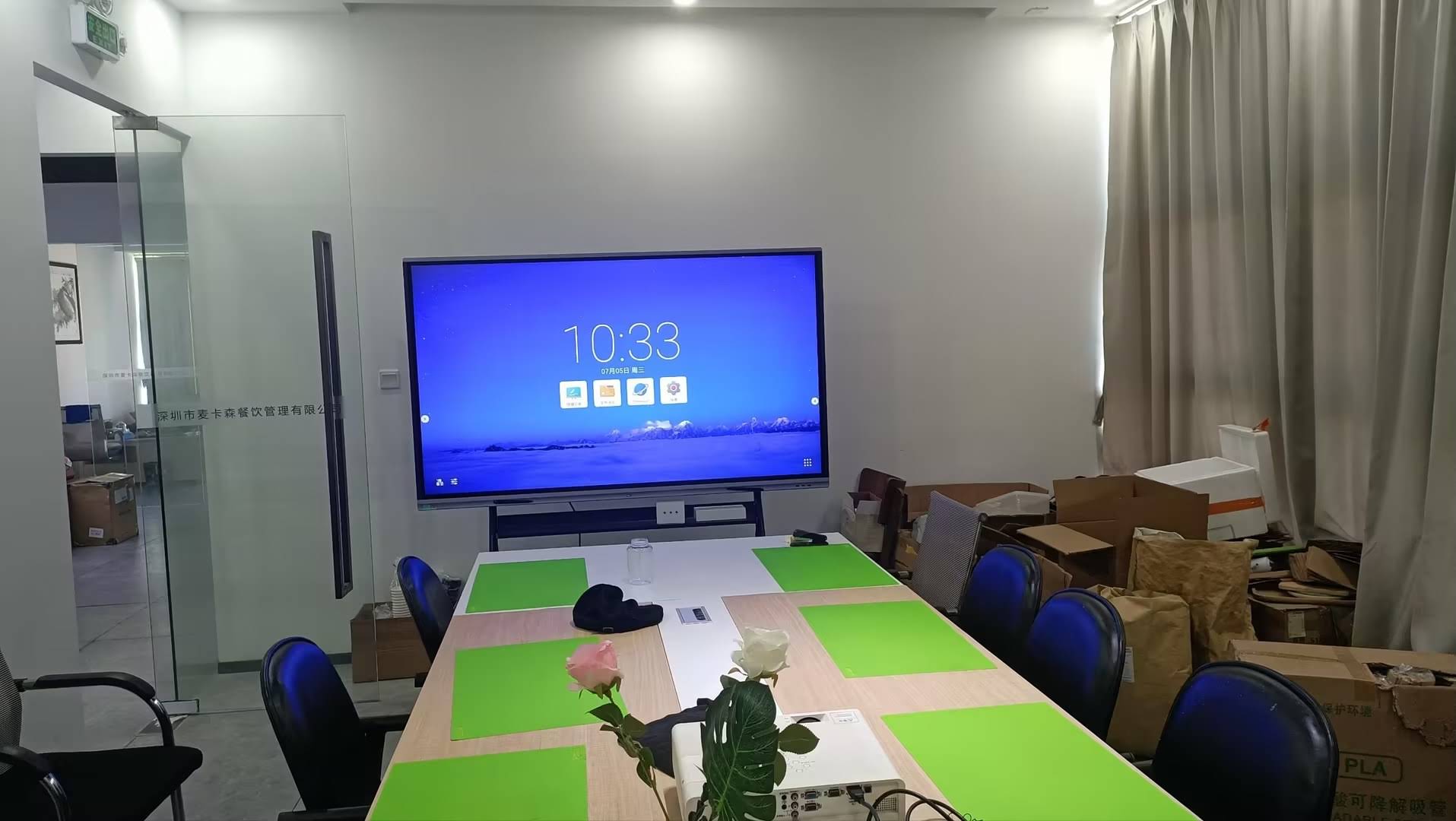
Why the Touch Cable Matters
HDMI is a one-way street: it carries picture and sound from the computer to the display, but it cannot carry your touches back to the computer. That return path is handled by the USB Touch cable or by a full-function USB-C connection. If you can see your laptop on the board but tapping does nothing, the touch cable is almost always the missing piece. Each HDMI input is paired with a specific Touch port, so make sure both cables land on the same numbered set.
Wireless Alternatives to HDMI
HDMI delivers the lowest latency and the most reliable image, but wireless sharing is convenient for bring-your-own-device meetings and student presentations. Common options include:
- Built-in screen mirroring – Miracast for Windows, AirPlay for Apple devices, and Google Cast for Android and Chromebook, all running on the board’s Android system.
- Wireless HDMI dongles – a transmitter plugs into the laptop’s HDMI or USB-C port and sends video to a receiver on the board, with no software install.
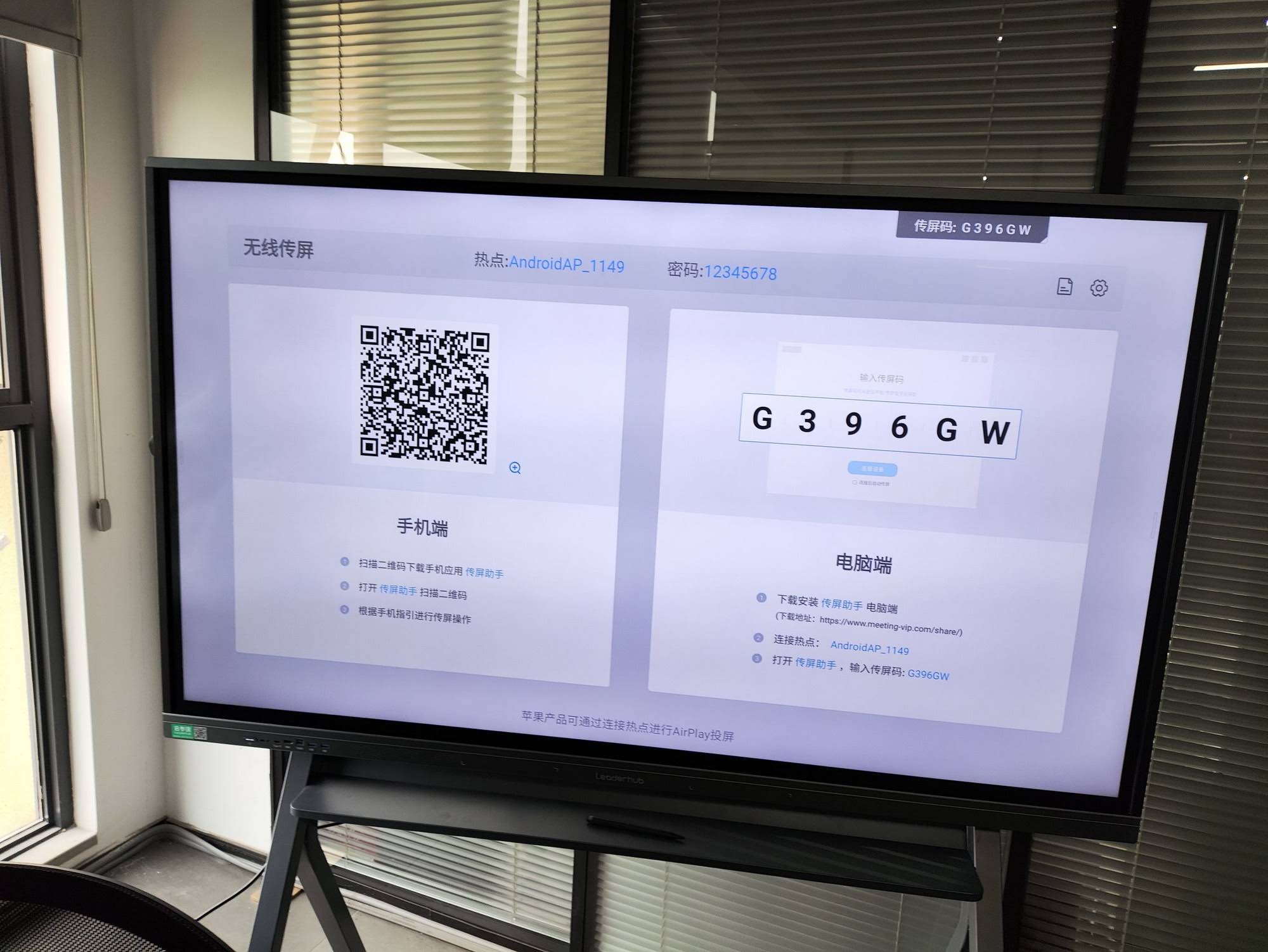
- Collaboration apps – multiple participants share screens simultaneously through a QR code or room code.
In practice, most organizations use both: HDMI for the permanently installed room PC or codec, and wireless for visitors and student devices. Industry bodies such as AVIXA, the AV industry standards association, recommend keeping at least one wired input available in every room as a fail-safe.
Troubleshooting Common HDMI Problems
No signal on the board
- Confirm the selected source matches the port you used (HDMI 1 vs. HDMI 2).
- Try a different cable; damaged HDMI cables are the most frequent cause.
- Restart the laptop with the cable already connected so the display is detected at boot.
Picture but no sound
- On Windows, right-click the speaker icon and choose the smart board as the output device.
- On macOS, select the board under System Settings > Sound > Output.
Touch not working
- Verify the USB Touch cable is in the port paired with your HDMI input.
- Use a USB cable no longer than 5 meters, or add an active extender for longer runs.
Flickering or black screen at 4K
- Switch to a certified High Speed HDMI cable.
- Lower the output to 4K 30 Hz or 1080p 60 Hz to test whether bandwidth is the issue.
- Check for HDCP mismatches when playing protected content through an adapter.
Choosing a Smart Board With the Right HDMI Setup
When comparing interactive displays, go beyond the simple question of whether HDMI exists and look at how it is implemented. A practical checklist:
- At least two HDMI inputs, ideally one on the front for quick laptop access.
- HDMI 2.0 or later for 4K at 60 Hz.
- A full-function USB-C port with 65 W or higher charging.
- HDMI Out if you need a secondary display.
- An OPS slot if you plan to add a dedicated Windows module later.
- Clearly labeled Touch ports paired with each HDMI input.
LeaderHub, a Shenzhen-based manufacturer with 16 years of interactive-display expertise and products delivered to more than 82 countries, builds its smart whiteboards and interactive flat panels around exactly these connectivity principles. The table below highlights several popular models.
| Model | Size | Resolution | Ideal Use | Price |
|---|---|---|---|---|
| LeaderHub L65ZM | 65″ | 4K UHD | Huddle rooms, small classrooms | $1,099 |
| LeaderHub L75HM | 75″ | 4K UHD | Standard classrooms, mid-size meeting rooms | $1,599 |
| LeaderHub L86ZM | 86″ | 4K UHD | Large classrooms, boardrooms | $1,699 |
| LeaderHub U55Pro | 55″ Mobile | 4K UHD | Flexible spaces, shared rooms | $2,499 |
| LeaderHub L110H | 110″ | 4K UHD | Lecture halls, auditoriums | $7,999 |
Frequently Asked Questions
Can I connect two laptops to a smart board at the same time?
Yes. Each laptop uses its own HDMI In, and you switch between them with the Source button. Some boards also offer a split-screen or picture-in-picture mode that shows two inputs side by side.
Does HDMI carry touch?
No. HDMI only carries video and audio. Touch requires the separate USB Touch cable or a single full-function USB-C connection.
What length of HDMI cable can I use?
Passive HDMI cables reliably support 4K 60 Hz up to about 3 to 5 meters. For longer runs, use an active HDMI cable, a fiber HDMI cable, or an HDBaseT extender over network cable.
Do smart boards work with HDMI-to-USB-C adapters?
Yes. Any standard USB-C to HDMI adapter that supports DisplayPort Alt Mode will work with a laptop, tablet, or phone that has video output over USB-C.
Is HDMI still necessary if the board has wireless casting?
Wireless is convenient, but HDMI offers zero compression, near-zero latency, and no dependence on the Wi-Fi network. Most IT departments keep HDMI as the primary connection for room PCs and conferencing hardware, with wireless as a secondary option. Research summarized in the UNESCO Technology in Education Report also stresses that reliability and ease of use are decisive factors in whether classroom technology is actually adopted by teachers.
Final Thoughts
So, do smart boards have HDMI? Absolutely, and in most cases they have several, alongside USB-C, touch ports, and an OPS slot that together make connecting almost any device straightforward. The key is to match the HDMI version to your content needs, remember the touch cable for interactivity, and choose a board whose port layout fits the way your room is actually used. If you would like help selecting the right configuration for your classroom or office, the LeaderHub team is happy to advise; simply contact us or explore the full product range.