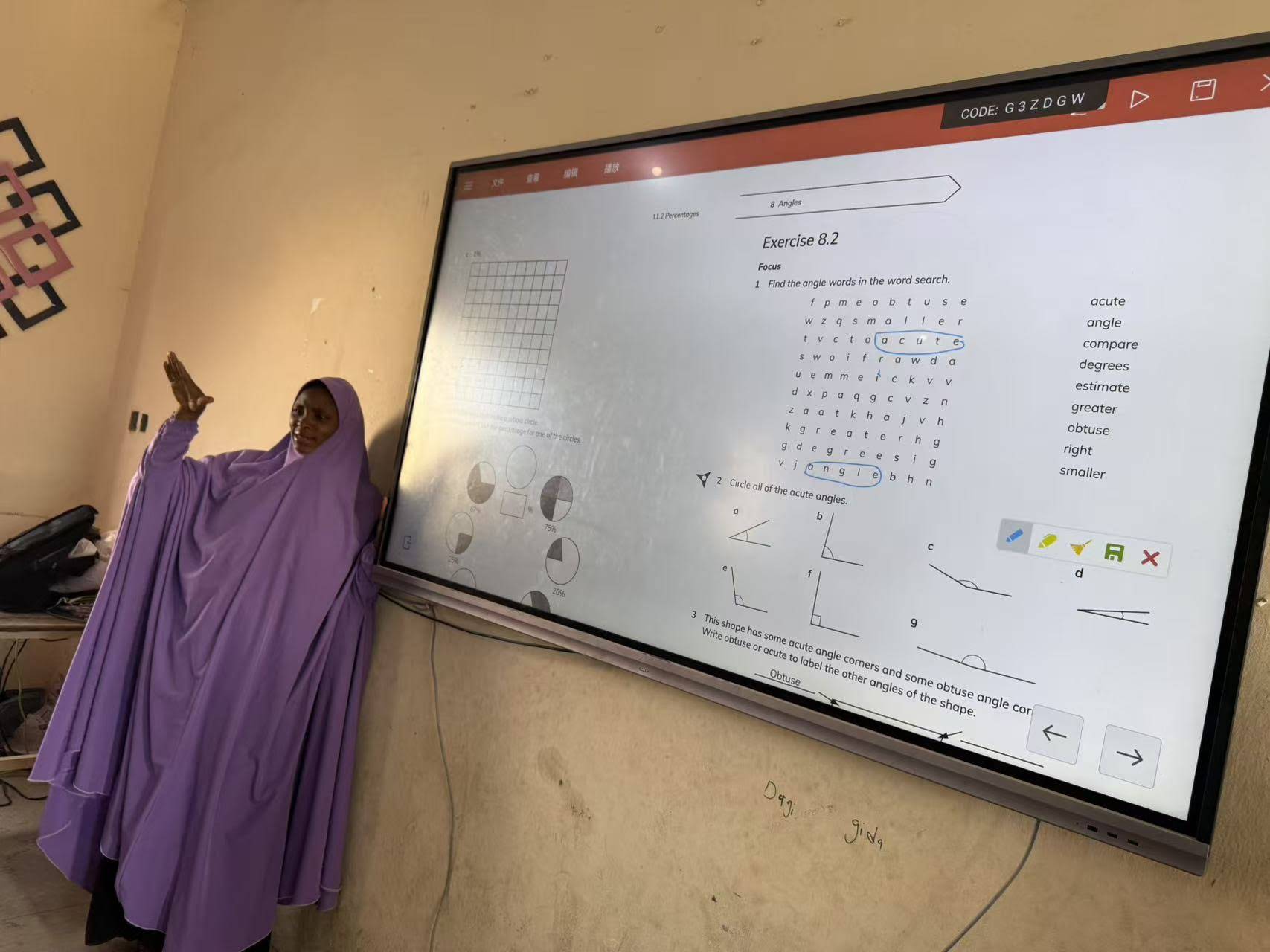
Walk into any modern classroom and you will notice the same shift: the dusty chalkboard has given way to a bright, touch-enabled screen that teachers write on, pull up videos from, and share with students’ devices in real time. But with dozens of models on the market, educators keep asking the same question — which smart board is best for teaching? The honest answer depends on your room size, your budget, your teaching style, and the level of IT support available to you. This guide breaks down the key features that actually matter in a classroom, compares the leading types of interactive displays, and recommends specific configurations for different teaching scenarios.
What Makes a Smart Board “Good for Teaching”?
A smart board designed for a boardroom is not automatically the right choice for a classroom. Teachers use their displays for five to eight hours a day, often with 25 to 40 students watching from varying distances and angles. A classroom display needs to survive heavy touch use, stay readable in bright daylight, and remain simple enough that a substitute teacher can operate it without a manual.
Research from the UNESCO Technology in Education Report highlights that technology improves learning outcomes only when it is well integrated with pedagogy. In practical terms, this means the best smart board for teaching is the one that reduces friction — fast boot time, intuitive whiteboarding software, and seamless device sharing — rather than the one with the longest spec sheet.
The Seven Features Teachers Should Prioritize
- Screen size and viewing distance — A 65″ panel suits rooms under 25 students; 75″ is the sweet spot for standard classrooms; 86″ and above is ideal for lecture halls and large labs.
- 4K UHD resolution — Ensures text, diagrams, and small fonts stay crisp even for students at the back of the room.
- Multi-touch support (20 points or more) — Lets several students work on the board simultaneously for group activities.
- Anti-glare, low-blue-light glass — Reduces eye strain during all-day use and improves visibility near windows.
- Built-in Android system with optional Windows module — Allows teachers to run both lightweight apps and full desktop software.
- Wireless screen sharing — Students and teachers can cast from Chromebooks, iPads, laptops, and phones without cables.
- Durability and warranty — Tempered glass, a sturdy mount, and at least a three-year warranty are essential for school environments.
Types of Interactive Displays Compared
Before comparing brands and models, it helps to understand the three main categories of classroom display technology, because each one has a very different cost of ownership.
| Display Type | How It Works | Pros for Teaching | Cons for Teaching |
|---|---|---|---|
| Interactive Flat Panel (IFP) | All-in-one 4K LCD touchscreen with built-in OS and speakers | No projector, no shadows, bright image, minimal maintenance, longest lifespan | Higher upfront cost than projector-based options |
| Interactive Projector + Whiteboard | Short-throw projector beams onto a touch-sensitive or pen-tracked surface | Low initial price, very large image sizes possible | Lamp replacement, dimmer image, shadows, calibration drift, fan noise |
| Mobile / Rotating Smart Screen | Portable touchscreen on a wheeled or battery-powered stand, often rotatable | Moves between rooms, portrait mode for documents, ideal for small groups | Smaller size, less suited to large lecture formats |
For most schools making a long-term investment, the interactive flat panel is the clear winner. Industry coverage such as the Choosing an Interactive Display for K-12 guide consistently points out that IFPs eliminate the hidden costs of projector lamps and filters while delivering a dramatically brighter, sharper image.

Top Interactive Displays for Classrooms: Model Comparison
Below is a side-by-side comparison of classroom-ready interactive displays across different size and budget tiers. The models listed are from LeaderHub’s education lineup, which is purpose-built with 4K panels, anti-glare glass, and dual Android/Windows capability.
| Model | Size | Best Classroom Fit | Price |
|---|---|---|---|
| LeaderHub L65ZM Interactive Whiteboard | 65″ 4K | Small classrooms, tutoring centers, early-years rooms | $1,099 |
| LeaderHub L65HM Smart Whiteboard | 65″ 4K | Small classrooms needing a higher-performance system | $1,299 |
| LeaderHub L75ZM Interactive Whiteboard | 75″ 4K | Standard K-12 classrooms (25–35 students) | $1,399 |
| LeaderHub L75HM Smart Whiteboard | 75″ 4K | Standard classrooms with heavy multimedia use | $1,599 |
| LeaderHub L86ZM Interactive Whiteboard | 86″ 4K | Large classrooms, science labs, training rooms | $1,699 |
| LeaderHub L75H Pro Interactive Flat Panel | 75″ 4K | Premium classrooms, hybrid and remote teaching | $2,399 |
| LeaderHub U55Pro Mobile Interactive Flat Panel | 55″ 4K Mobile | Shared between rooms, breakout spaces, special education | $2,499 |
| LeaderHub L110H Interactive Flat Panel | 110″ 4K | Lecture halls, auditoriums, university theatres | $7,999 |
ZM Series vs. HM Series: Which Line Suits Your School?
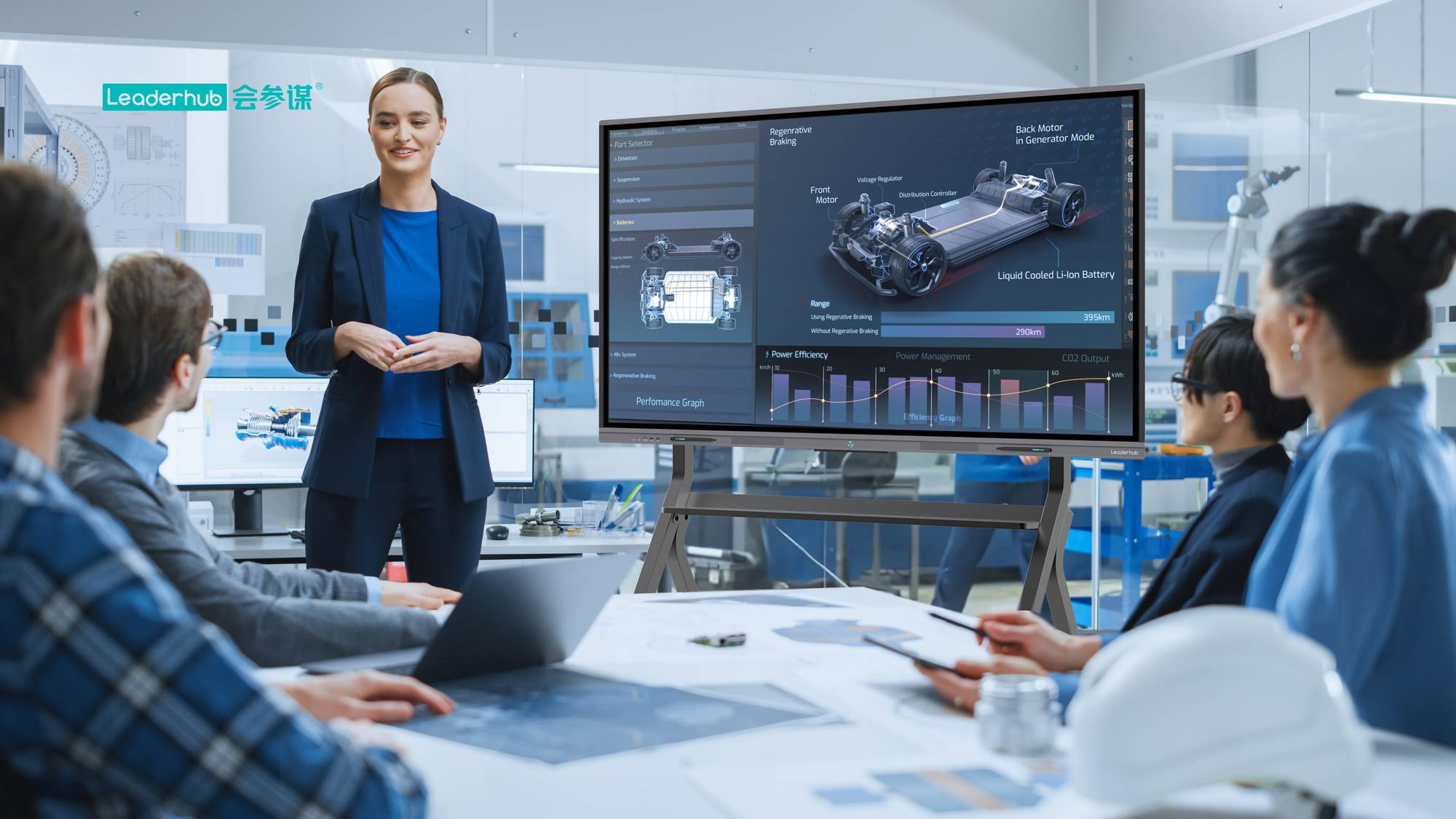
The two main education lines differ primarily in performance headroom and integrated features. The ZM series delivers the essentials — 4K touch, whiteboarding, screen sharing, and Android apps — at the most accessible price, making it the strongest choice for districts rolling out panels across many classrooms at once. The HM series, which has been recognized internationally as the Leaderhub HM Series award winner, adds a more powerful processor, upgraded audio, and enhanced camera and conferencing capabilities that suit hybrid lessons and media-rich subjects.
Best Smart Board by Teaching Scenario
Primary and Early-Years Classrooms
Younger students benefit from boards mounted lower, with responsive touch that works with fingers, not just styluses. A 65″ or 75″ panel is ideal because small children can reach the full writing area. Prioritize models with low-blue-light certification and easy-to-use drawing tools. The L65ZM and L75ZM are the natural starting points here.
Secondary Schools and STEM Labs
Science, math, and technology teachers need split-screen functionality, annotation over live video or simulations, and enough room to show a full worked problem. An 86″ display gives you the writing real estate for long equations, and the L86ZM at $1,699 is one of the most affordable large-format panels for this purpose. Pairing the panel with a mini PC such as the LP5C provides full Windows access for lab software and simulation tools.
Higher Education and Lecture Theatres
In rooms with 80 or more students, even an 86″ screen can look small from the back. The L110H 110-inch panel replaces dual projectors with a single bright, shadow-free surface and is sized so that slide text remains legible at 15 meters or more.
Flexible, Shared, and Hybrid Spaces
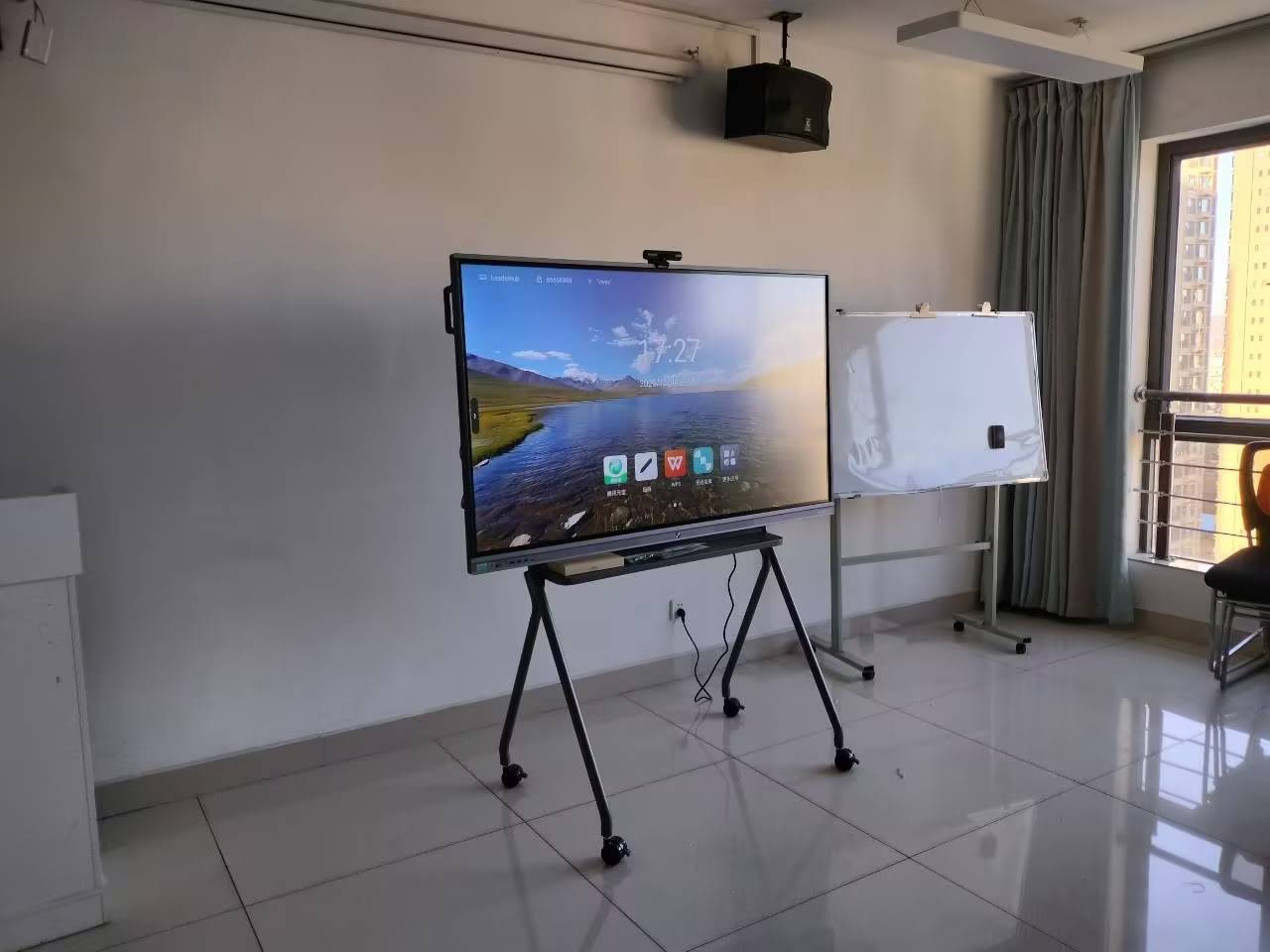
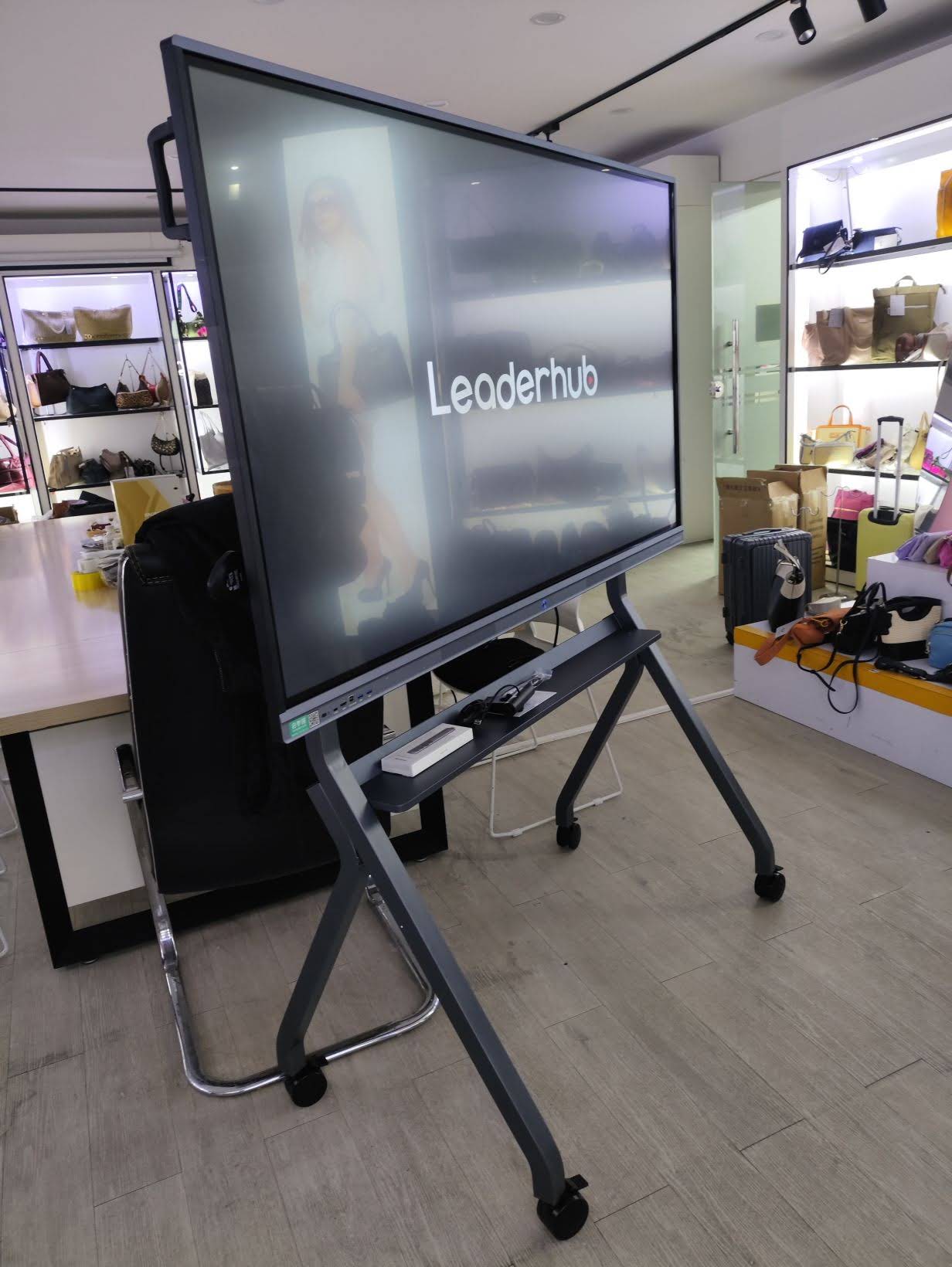
Not every classroom needs a permanently mounted panel. Schools with limited budgets or multipurpose rooms often get more value from a mobile display that rolls between spaces. The U55Pro on a motorized stand works well for this, and the rotating screens line — such as the 27″ L277M with battery — gives small-group tutors and special-education teachers a portable touchscreen that flips to portrait for reading documents and worksheets.
Software and Ecosystem: Often More Important Than Hardware
Teachers do not interact with specifications; they interact with software. When comparing smart boards, spend as much time evaluating the built-in whiteboard app, cloud saving, and screen-sharing experience as you do comparing screen sizes.
- Whiteboarding tools — Look for infinite canvas, shape recognition, handwriting-to-text conversion, and the ability to export lessons as PDF or image files for absent students.
- Screen sharing — The display should accept casts from Windows, macOS, iOS, Android, and ChromeOS without a dongle, and allow the teacher to show multiple student screens at once.
- Open platform — An Android system with access to educational apps, plus an optional Windows OPS module, future-proofs your investment.
- Classroom management — Features like screen lock, timer, spotlight, and a quick-launch toolbar save minutes every lesson.
- AI assistance — Newer panels include AI features such as automatic note summarization, voice commands, and smart content search, which reduce teacher prep time.
The OECD Digital Teaching Guidance stresses that professional development is the decisive factor in whether classroom technology is used effectively. Choose a vendor that provides training resources, not just a box.
Total Cost of Ownership: Looking Beyond the Sticker Price
A $900 interactive projector setup can look attractive next to a $1,400 flat panel until you add lamp replacements every two to three years, filter cleaning, recalibration, and the lost instruction time caused by a dim image on sunny days. Over a typical seven-year classroom lifespan, the flat panel usually comes out cheaper.
| Cost Factor | Interactive Projector System | 75″ Interactive Flat Panel |
|---|---|---|
| Initial purchase | Lower | Higher |
| Consumables (lamps, filters) | Recurring every 2–3 years | None |
| Expected lifespan | 4–6 years | 7–10 years (50,000+ hours) |
| Energy use | Higher (projector + PC + speakers) | Lower (single integrated device) |
| IT support time | Frequent calibration and cabling issues | Minimal |
A Quick Buyer’s Checklist for Schools
- Measure the distance from the board to the farthest seat, then choose a size where the screen height is at least one-sixth of that distance.
- Confirm the panel has anti-glare tempered glass rated for heavy daily touch use.
- Check the number of HDMI, USB-C, and USB inputs, plus whether an OPS slot is available for a future Windows upgrade.
- Test the whiteboard app with a real lesson before committing to a bulk order.
- Ask about warranty length, on-site support, and the availability of replacement parts in your region.
- Verify that the display supports student-device casting across all the operating systems used in your school.
- Consider procurement scale — many manufacturers offer OEM/ODM and volume pricing for district-wide deployments.
Why Many Schools Choose LeaderHub Interactive Displays
LeaderHub is a Shenzhen-based interactive-display manufacturer with 16 years of experience, serving education, enterprise, and creative users in more than 82 countries and ranked No.1 in its interactive-panel subcategory on JD.com. Its classroom lineup spans 55″ mobile panels to 110″ lecture-hall displays, all built around 4K touchscreens, Android with optional Windows, and AI-assisted collaboration tools — which allows schools to standardize on a single ecosystem across every room size. You can browse the full education range of smart whiteboards or speak with the team about volume pricing and customization through the contact page.
Final Verdict: Which Smart Board Is Best for Teaching?
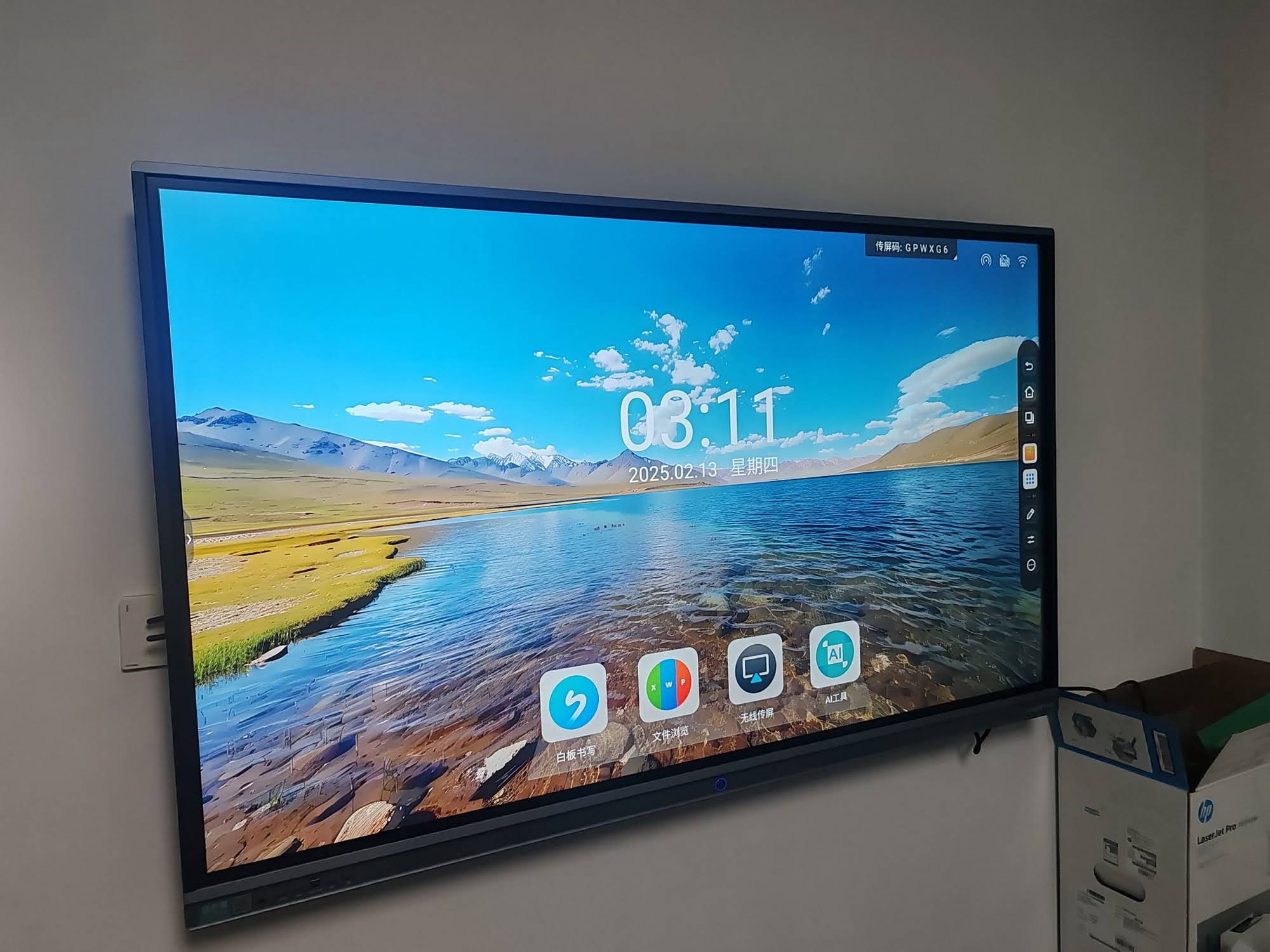
For the majority of schools, the best smart board for teaching is a 75-inch 4K interactive flat panel with anti-glare glass, 20-point touch, wireless casting, and a built-in Android system — it balances visibility, interactivity, and cost better than any other format. Budget-conscious districts equipping many rooms will find the L75ZM at $1,399 hard to beat, while schools running hybrid lessons or media-heavy subjects should step up to the L75HM or L75H Pro. Smaller rooms do well with a 65″ panel, large labs with an 86″ panel, and lecture halls with the 110″ L110H.
Whichever model you select, remember the lesson echoed across every major education study: the display is only as effective as the teaching it supports. Pair your investment with teacher training, reliable Wi-Fi, and a clear plan for how the board will be used every day, and you will see the engagement and learning gains that make interactive technology worthwhile.
Frequently Asked Questions
What size smart board is best for a standard classroom?
A 75-inch panel is the most common recommendation for rooms of 25 to 35 students. Choose 65 inches for smaller spaces and 86 inches or larger for labs and lecture rooms.
Do I need a separate computer with an interactive flat panel?
Not necessarily. Most panels run Android with built-in whiteboarding and browser apps. If you need full Windows software, add an OPS module or connect a compact mini PC.
Are interactive flat panels better than interactive projectors for teaching?
In most cases yes. Flat panels are brighter, sharper, shadow-free, quieter, and have no lamp or filter replacement costs, which typically makes them cheaper over the life of the device.
How long does a classroom smart board last?
Quality LCD interactive panels are rated for 50,000 hours or more, which translates to roughly seven to ten years of typical school use.