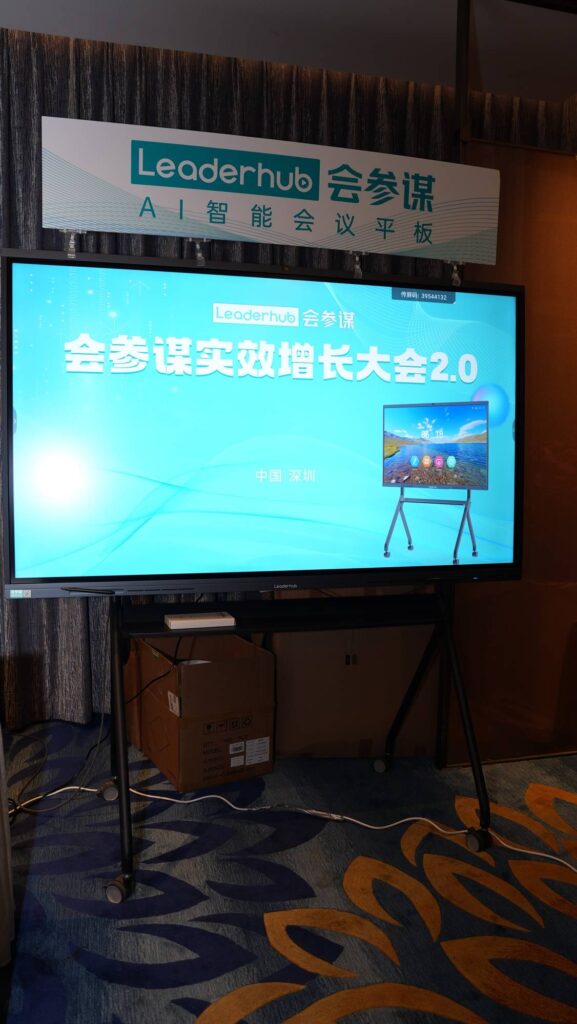
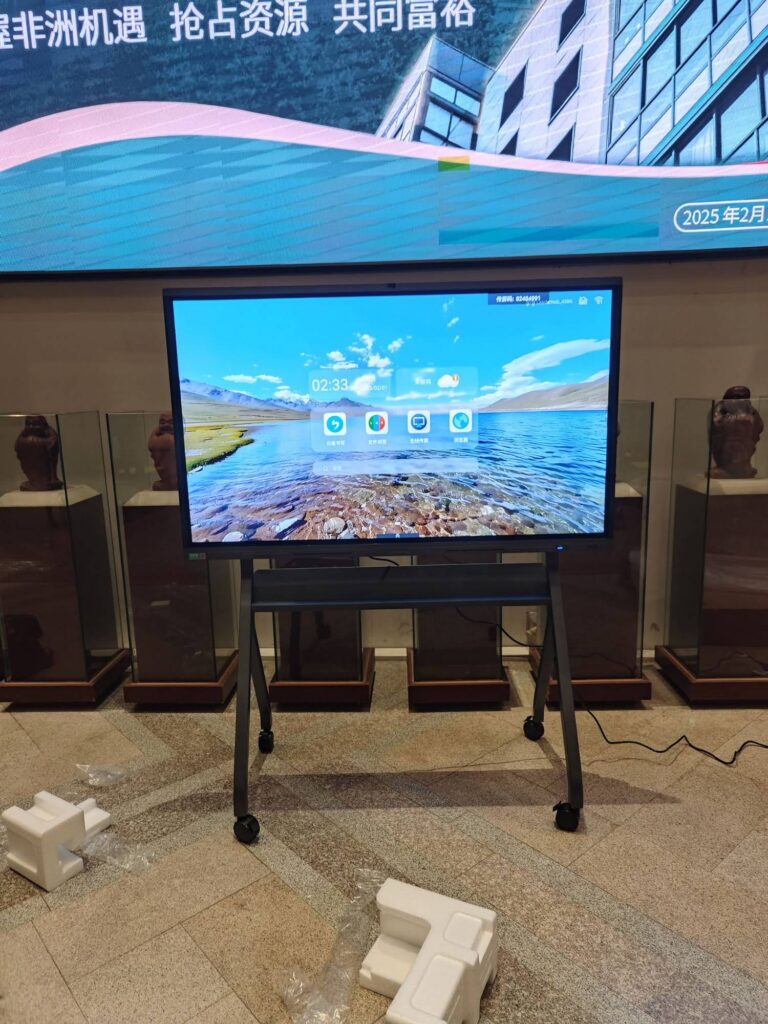
Teachers today are asked to do more than ever: keep students engaged, support hybrid learners, share digital resources, and move seamlessly between lesson plans, videos, and live annotation. A smart board is the one piece of classroom technology that touches every one of those tasks — which is why the question “which is the best smart board for teaching?” matters so much. The short answer is that the best smart board is the one that matches your classroom size, your teaching style, and your budget. The longer answer, with specific recommendations, feature breakdowns, and a step-by-step buying guide, is below.
Quick answer: For most K-12 and higher-education classrooms, a 75-inch 4K interactive panel running Android with 20-point touch and built-in whiteboarding software offers the best balance of visibility, usability, and value. Smaller rooms can go to 65 inches; lecture halls should look at 86 inches or above.
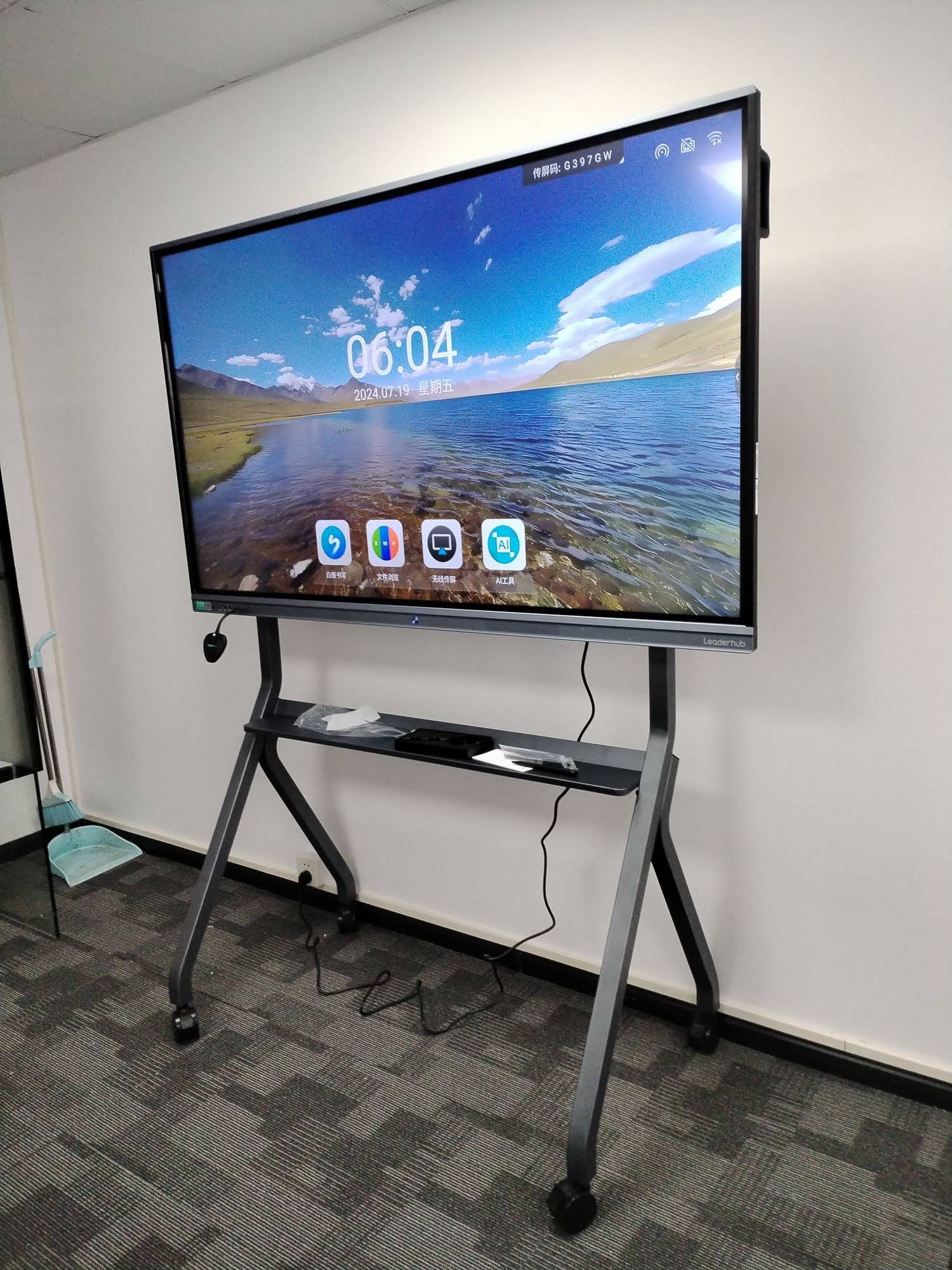
Why There Is No Single “Best” Smart Board for Every Teacher
Smart boards for education range from compact 55-inch mobile displays to 110-inch panels built for auditoriums. A board that is perfect for a primary-school reading corner would be far too small for a university lecture theatre, and a feature set designed for STEM labs may be overkill for an early-years classroom. Before comparing models, it helps to be honest about four things:
- Room size and viewing distance — how far away is the last row of students?
- Teaching style — do you annotate heavily, run collaborative group work, or mostly present slides and videos?
- Device ecosystem — are your teachers on Windows laptops, Chromebooks, iPads, or a mix?
- Budget per classroom — including mounting, installation, and training, not just the panel.
International guidance from the UNESCO Technology in Education Report makes the same point: classroom technology delivers results only when it is chosen to serve a clear pedagogical need rather than purchased for its own sake. Keep that principle in mind as you read through the features and picks below.
Key Features That Define the Best Smart Board for Teaching
1. Screen Size and Viewing Distance
Size is the first filter. A common rule of thumb for classrooms is that the screen diagonal in inches should be at least one-sixth of the distance (in inches) to the furthest student. In practice, that means 65 inches for rooms up to about 6 metres deep, 75 inches for standard classrooms of 25–30 students, and 86 inches or more for large rooms and lecture halls.
2. 4K UHD Resolution
At 75 inches and above, Full HD text becomes visibly soft from the front row. 4K (3840 × 2160) resolution is now the standard for teaching displays because small fonts in worksheets, spreadsheets, and diagrams stay crisp even when students are sitting close to the board.
3. Touch Technology and Writing Experience
Look for infrared or capacitive touch with at least 20 simultaneous touch points, so multiple students can write at once during group activities. Low writing latency, palm rejection, and pen-and-finger differentiation (write with the pen, erase with the palm) make the board feel like a traditional whiteboard rather than a laggy tablet.
4. Operating System and Built-In Software
Most modern smart boards run Android, often with an optional Windows OPS module. Android is ideal for everyday teaching — whiteboarding, screen sharing, browsing, and app-based learning tools — while a Windows slot lets schools run legacy software or district-mandated programs. Built-in whiteboard apps with infinite canvas, shape recognition, handwriting-to-text, and cloud saving are essential.
5. Wireless Screen Sharing
Teachers should be able to cast from a laptop, tablet, or phone without hunting for cables. Support for Miracast, AirPlay, Chromecast, and multi-split casting (showing several student devices at once) turns the board into a collaborative hub rather than a one-way projector replacement.
6. Connectivity and Expandability
Multiple HDMI inputs, USB-C with power delivery, USB 3.0 ports, LAN, and Wi-Fi 6 keep the board future-proof. An OPS slot for a plug-in PC and a dedicated camera/microphone array are valuable for hybrid and recorded lessons.
7. Durability, Eye Care, and Warranty
Classrooms are demanding environments. Tempered anti-glare glass (Mohs 7 or above), low blue-light and flicker-free panels, and a 3-year or longer warranty protect both students’ eyes and the school’s investment.
| Feature | Why It Matters for Teaching | Recommended Spec |
|---|---|---|
| Screen size | Visibility from the back row | 65″ small rooms · 75″ standard · 86″+ large |
| Resolution | Sharp text, diagrams, and video | 4K UHD (3840 × 2160) |
| Touch points | Multiple students writing together | 20-point or higher |
| Operating system | App ecosystem and ease of use | Android 13/14 + optional Windows OPS |
| Screen sharing | Cable-free teacher and student casting | Miracast, AirPlay, Chromecast, multi-split |
| Glass & eye care | Durability and student comfort | Anti-glare tempered glass, low blue light |
| Warranty | Total cost of ownership | 3 years minimum |
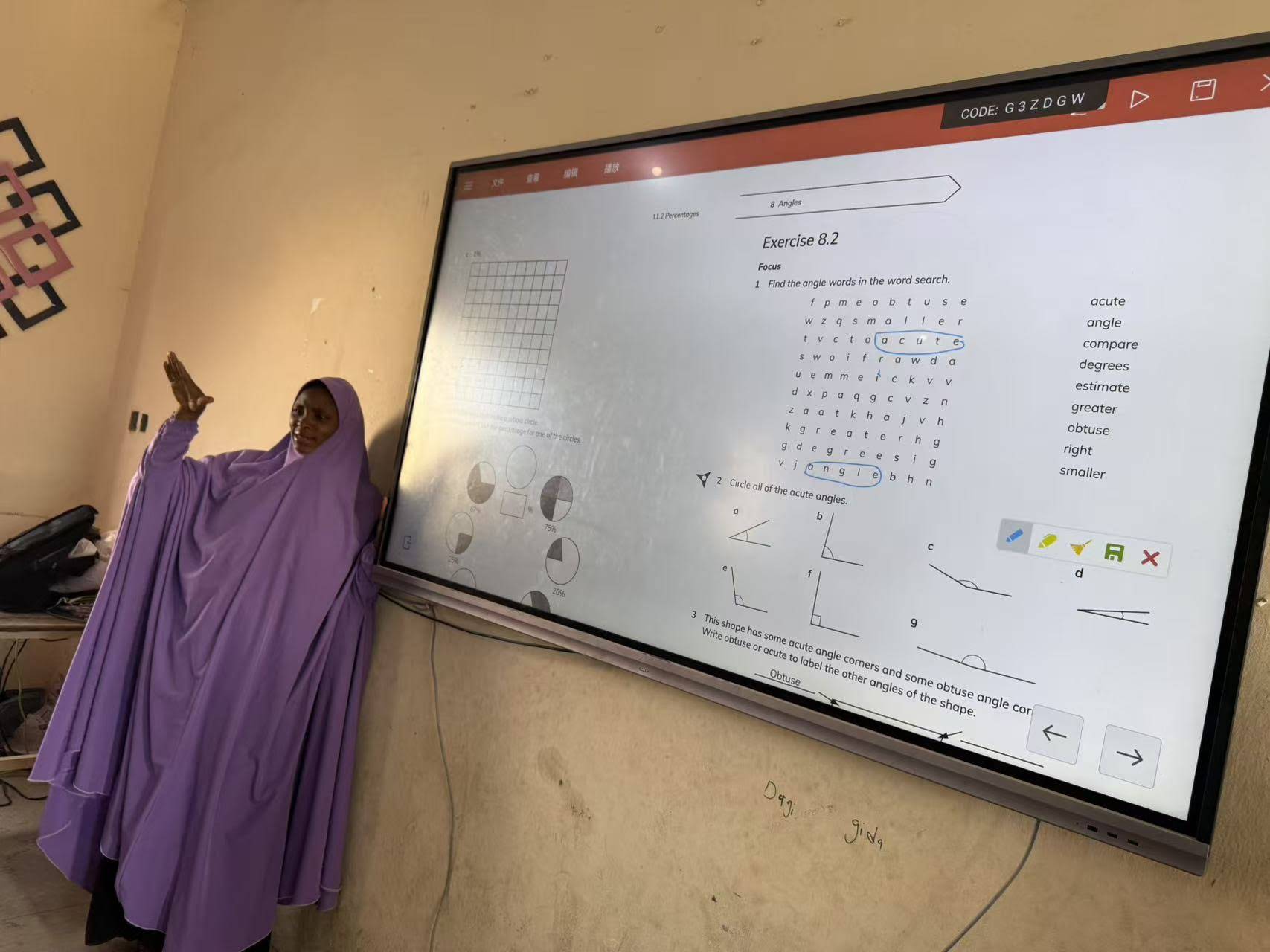
Top Picks: Best Smart Boards for Teaching
The recommendations below are drawn from the LeaderHub smart whiteboard range, chosen because the line covers every classroom scenario — from compact budget panels to 110-inch lecture-hall displays — while sharing a consistent 4K, Android-based teaching experience.
Best Overall for Standard Classrooms: LeaderHub L75HM
The LeaderHub L75HM 75″ 4K Interactive Smart Whiteboard hits the sweet spot for classrooms of 25–35 students. At 75 inches, every seat has a clear view, the 4K panel keeps worksheets sharp, and the HM-series design has been recognised for its versatile hub concept. Teachers get smooth annotation, wireless casting from any device, and a built-in whiteboard that saves lessons to the cloud. At $1,599, it delivers premium performance at a mid-range price.
Best Budget Pick: LeaderHub L65ZM
For primary classrooms, small-group rooms, and schools equipping many rooms at once, the LeaderHub L65ZM 65″ 4K Smart Panel at $1,099 is the most accessible entry point. It keeps the essentials — 4K resolution, multi-touch, Android whiteboarding, and screen sharing — without unnecessary extras.
Best Value for Large Classrooms: LeaderHub L86ZM
Large rooms usually force a trade-off between size and cost. The LeaderHub L86ZM 86″ 4K Smart Panel breaks that pattern at $1,699 — only $100 more than the 75-inch HM model — making it one of the most cost-effective ways to put an 86-inch teaching display in science labs, art rooms, and double classrooms.
Best Premium Pick: LeaderHub L75H Pro
Schools that run hybrid lessons, record classes, or want a flagship panel for demonstration rooms should consider the LeaderHub L75H Pro Interactive Flat Panel. Its upgraded processing, enhanced audio, and expanded connectivity are built for heavy daily use and advanced classroom software.
Best Mobile Smart Board: LeaderHub U55Pro
Not every school can mount a board in every room. The LeaderHub U55Pro 55″ Mobile 4K Smart Display rolls between classrooms, libraries, and breakout spaces, giving shared departments and tutoring programs a flexible teaching screen without permanent installation.
Best for Lecture Halls: LeaderHub L110H
Universities and training centres with auditorium-style seating need something larger. The LeaderHub L110H 110-Inch Interactive Flat Panel replaces projector-and-screen setups entirely, delivering bright, 4K, touch-enabled content visible from the back of a 100-seat hall.
| Model | Size | Best For | Price |
|---|---|---|---|
| L65ZM | 65″ | Primary classrooms, small rooms, bulk deployment | $1,099 |
| L65HM | 65″ | Small classrooms wanting HM-series features | $1,299 |
| L75ZM | 75″ | Standard classrooms on a tight budget | $1,399 |
| L75HM | 75″ | Best overall for 25–35 students | $1,599 |
| L86ZM | 86″ | Large classrooms, labs, best value per inch | $1,699 |
| L75H Pro | 75″ | Hybrid teaching, recording, premium rooms | $2,399 |
| U55Pro | 55″ mobile | Shared or flexible learning spaces | $2,499 |
| L86HM | 86″ | Large rooms with full HM feature set | $3,199 |
| L110H | 110″ | Lecture halls and auditoriums | $7,999 |
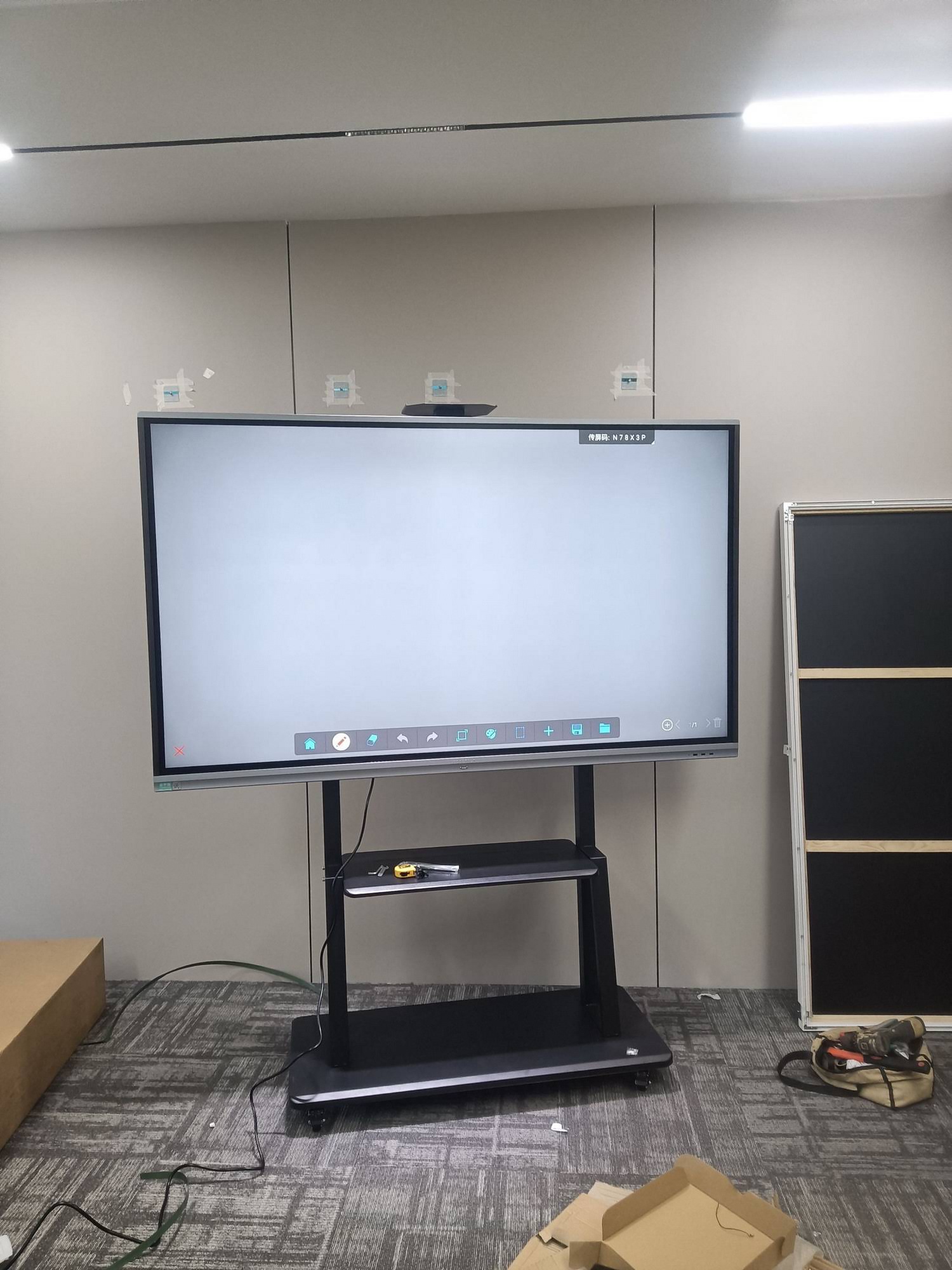
Smart Board Size Guide by Classroom Type
If you are still unsure about size, this guide maps common education spaces to the display that typically works best.
| Learning Space | Typical Students | Recommended Size |
|---|---|---|
| Early years / reading corner | 10–20 | 55″–65″ |
| Standard K-12 classroom | 25–35 | 75″ |
| Science lab / art studio | 30–40 | 86″ |
| University seminar room | 20–40 | 75″–86″ |
| Lecture hall / auditorium | 80+ | 110″ |
| Shared / flexible space | Varies | 55″ mobile on stand |
Buying Guide: How to Choose the Best Smart Board for Your School
Follow these steps to move from a long list of options to a confident purchase decision.
- Measure the room first. Record the distance to the furthest seat and the available wall width before you look at a single spec sheet.
- Audit your teacher devices. Confirm that the board’s casting protocols support the laptops and tablets already in use, so no one needs an adapter on day one.
- Prioritise the writing experience. Ask for a live demo and test handwriting speed, palm rejection, and erasing — this is what teachers will notice every single lesson.
- Check software and updates. Look for a built-in whiteboard, annotation over any source, cloud saving, and a clear OS update roadmap.
- Plan the mounting. Decide between fixed wall mounts, height-adjustable mounts (important for younger students and accessibility), and mobile stands.
- Budget for the full picture. Include installation, cabling, training, and warranty extensions in your per-room cost.
- Pilot before you scale. Equip two or three rooms, gather teacher feedback for a term, then roll out district-wide.
For a school-leader perspective on the same process, the guide on Choosing an Interactive Display for K-12 from EdTech Magazine is a useful companion read.
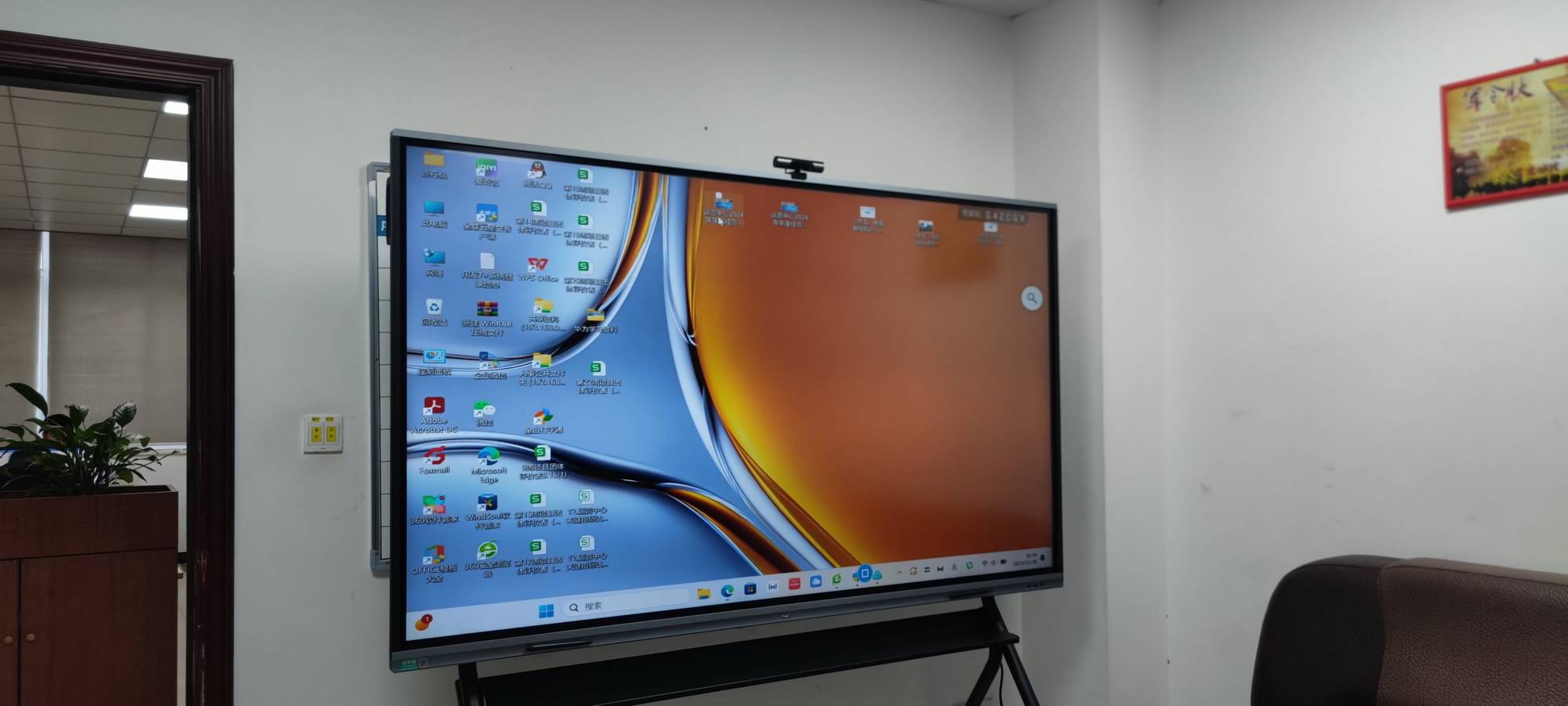
Common Mistakes to Avoid When Buying a Teaching Smart Board
- Buying too small to save money. A 65-inch panel in a 35-student room frustrates students at the back and undermines the entire investment.
- Choosing Full HD at 75 inches or larger — text and diagrams will look soft.
- Ignoring the mount. A fixed mount set for adult height is hard for younger children to reach.
- Overlooking training. Even the best hardware sits unused if teachers are not shown how to integrate it into lessons.
- Skipping the warranty check. Classroom panels are touched thousands of times a week; make sure coverage reflects that.
What the Research Says About Interactive Displays in Classrooms
Evidence consistently shows that smart boards improve outcomes when they are used to make learning more active — not simply to display slides. The EEF Digital Technology Guidance highlights that technology is most effective when it supports explanation, modelling, and feedback, all of which a well-chosen interactive panel enables. Similarly, the OECD Digital Education Outlook stresses the importance of teacher preparation alongside hardware investment, while academic work on Interactive Displays in Education points to gains in engagement and collaboration when students can interact directly with content.
The practical takeaway: pick a board that is easy for teachers to adopt, pair it with training, and use it to invite students to the front of the room.
Frequently Asked Questions
Which smart board size is best for teaching?
A 75-inch panel is the most popular choice for standard classrooms of 25–35 students. Choose 65 inches for small rooms and 86 inches or above for labs, large classrooms, and lecture halls.
Is an Android smart board enough, or do I need Windows?
For whiteboarding, screen sharing, video, and web-based learning platforms, Android is more than enough. Add a Windows OPS module only if your school relies on Windows-only software.
How much should a school budget for a teaching smart board?
Entry-level 65-inch 4K panels start around $1,099, 75-inch models range from $1,399 to $2,399 depending on features, and 86-inch panels start at $1,699. Add roughly 10–20% for mounting, installation, and training.
Can a smart board replace a projector?
Yes. Interactive panels are brighter, sharper, need no bulb replacement, work with the lights on, and add touch interaction that projectors cannot match.
Are smart boards safe for students’ eyes?
Modern education panels use anti-glare glass with low blue-light and flicker-free modes. Combined with sensible screen-time practices, they are designed for all-day classroom use.
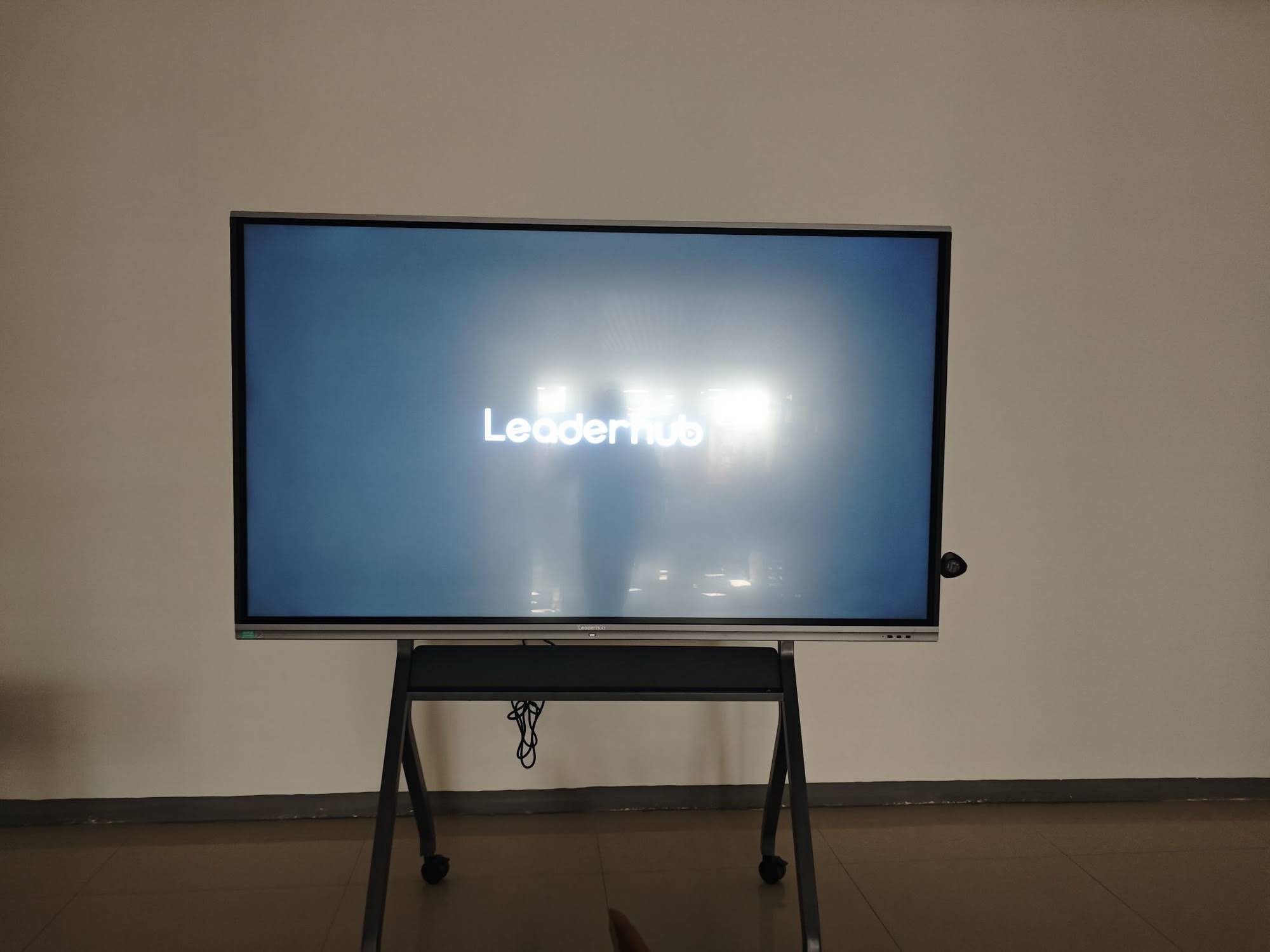
Final Verdict: Which Is the Best Smart Board for Teaching?
If you want one recommendation that fits the widest range of classrooms, the LeaderHub L75HM is the best smart board for teaching: 75 inches of 4K clarity, responsive multi-touch, Android whiteboarding, and wireless casting at a price that scales across a whole school. Budget-conscious schools should start with the L65ZM, large rooms get exceptional value from the L86ZM, and lecture halls are best served by the L110H.
These panels come from LeaderHub, a Shenzhen-based interactive-display specialist with 16 years of experience, products delivered to 82+ countries, and a NO.1 ranking in the JD.com interactive-panel subcategory — a track record that gives schools confidence in both the hardware and the long-term support behind it.
Ready to compare models side by side? Browse the full LeaderHub product catalogue, or contact the team for classroom-specific recommendations, volume pricing for school districts, and OEM/ODM options for education distributors.