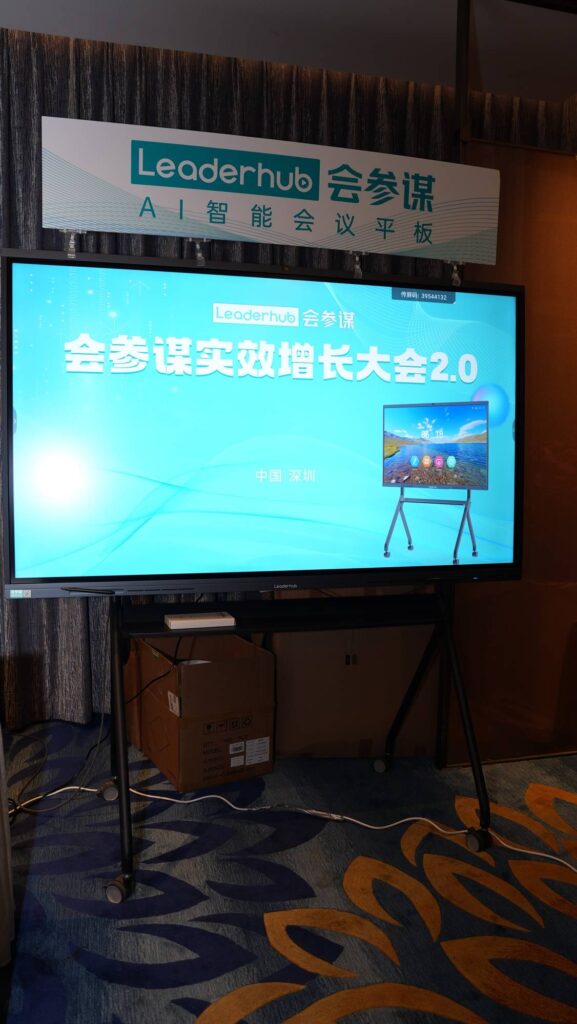
Academic conferences are no longer passive events where a presenter clicks through static slides while the audience waits for the Q&A. Today’s researchers, lecturers and keynote speakers are expected to annotate data live, pull up supplementary material on demand, invite remote co-authors into the discussion and share results instantly with attendees. A well-chosen smart board for academic conference presentations makes all of this possible, but with dozens of interactive flat panels on the market, selecting the right one requires a clear understanding of what actually matters in a lecture hall or seminar room.
This guide walks through the key criteria — screen size, resolution, touch technology, connectivity, software, mobility and budget — and explains how each factor affects audience engagement. Whether you are a conference organizer equipping a university auditorium, a department head upgrading seminar rooms, or an event planner looking for a portable interactive display, the recommendations below will help you make a confident decision.
Why Academic Conferences Need an Interactive Display, Not Just a Projector
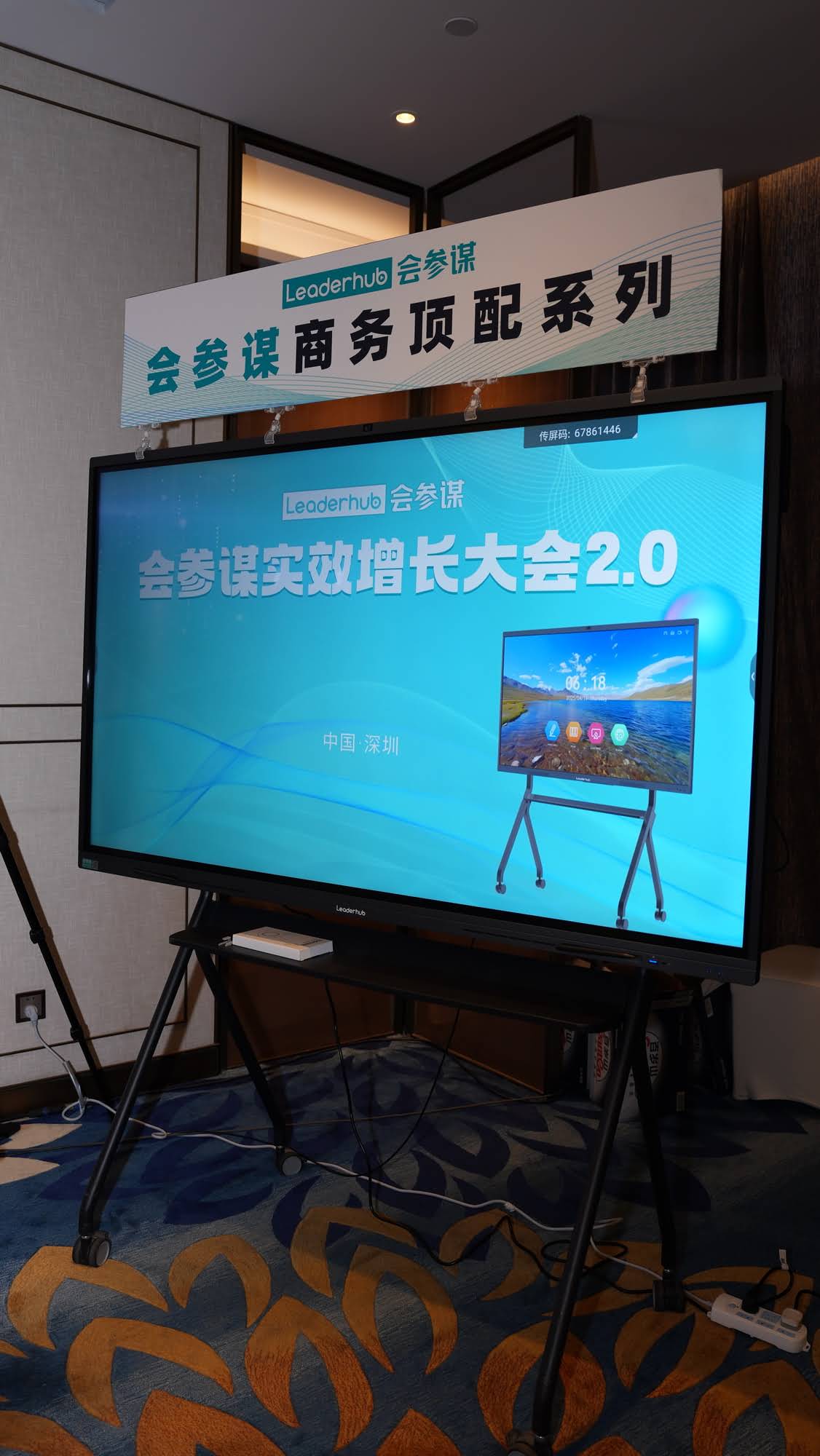
Traditional projectors still appear in many university venues, but they fall short in several ways that directly impact how well an audience absorbs research content. Projectors wash out under ambient lighting, require darkened rooms that make note-taking difficult, and offer no interactivity. An interactive display solves these problems while adding capabilities that align with how modern scholarship is communicated.
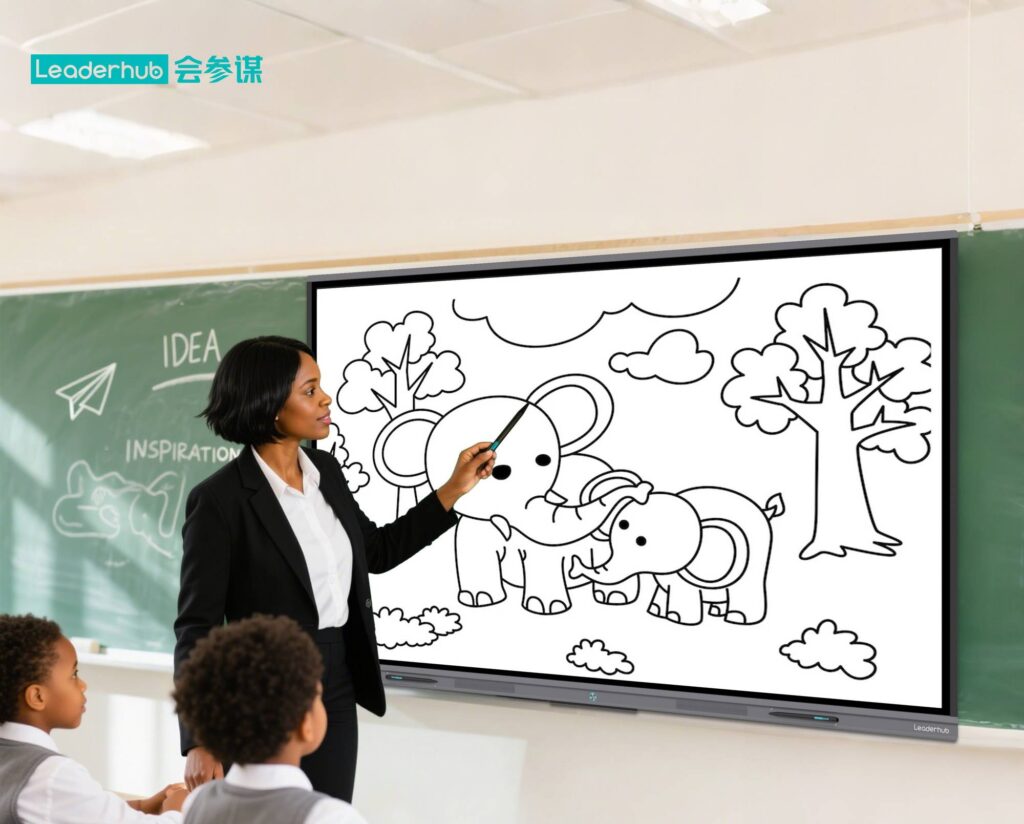
- Live annotation: Presenters can circle a data point on a chart, underline a key equation or sketch a model directly on the screen while speaking.
- Hybrid participation: Built-in cameras and microphones let remote panelists and international co-authors join the session with high-quality audio and video.
- Instant content sharing: Annotated slides and whiteboard notes can be emailed or scanned via QR code so attendees leave with the exact material discussed.
- Bright-room visibility: High-brightness 4K panels remain crisp with the lights on, keeping the audience alert and engaged.
- Multi-source display: Switch between a laptop, a tablet, a document camera and a cloud drive without fumbling with cables.
Research published in Interactive Displays in Education highlights how interactive public displays in academic environments encourage collaboration and improve information retention — exactly the outcomes conference organizers are looking for.
Key Factors When Choosing a Smart Board for Academic Conference Presentations
1. Screen Size: Match the Panel to the Room
Screen size is the first decision and arguably the most important. A board that is too small forces attendees at the back to squint at figures and footnotes, while an oversized panel in a small seminar room can feel overwhelming and is harder to transport. A useful rule of thumb is that the furthest viewer should sit no more than roughly six to eight times the screen height away for comfortable reading of detailed academic content such as tables, citations and formulas.
| Venue Type | Typical Audience | Recommended Size | Suitable Leaderhub Model |
|---|---|---|---|
| Poster session / breakout booth | 5–15 people | 24″–55″ | U24M, L277M, U55Pro |
| Seminar room / workshop | 15–40 people | 65″ | L65HM, L65ZM |
| Lecture theatre / parallel session | 40–100 people | 75″ | L75HM, L75ZM, L75H Pro |
| Main auditorium / keynote hall | 100–300+ people | 86″–110″ | L86HM, L86ZM, L110H |
2. Resolution and Brightness: Make Data Legible
Academic slides are text-heavy. Dense tables, small-font references, microscopy images and multi-line equations demand 4K Ultra HD resolution so that every character is sharp from the first row to the last. Brightness of at least 350–450 nits ensures the panel stays readable in a conference room with large windows or full overhead lighting. Look for anti-glare glass as well — reflections from ceiling lights can obscure an entire quadrant of a chart for viewers at certain angles.
3. Touch Technology and Writing Experience
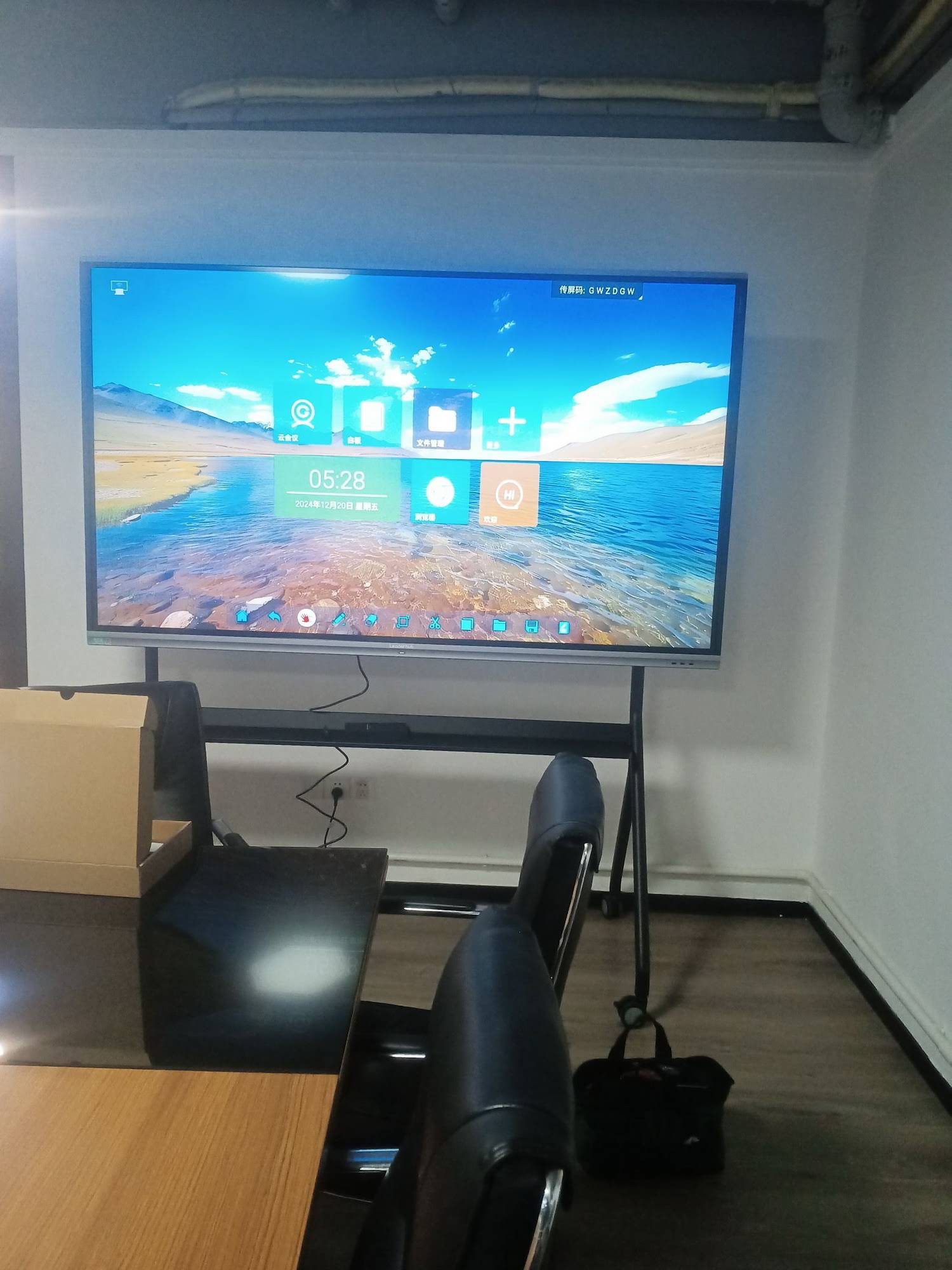
A smart board is only as good as its touch response. For academic use, prioritize the following:
- Low writing latency — ink should appear instantly under the pen so handwritten derivations feel natural.
- 20-point or higher multi-touch — allows two or more presenters to annotate simultaneously during panel discussions.
- Palm rejection — essential for lecturers who rest their hand on the glass while writing.
- Passive pen and finger support — no batteries to charge, and any attendee can step up and contribute.
- Dual-pen colour recognition — lets a presenter write in one colour and highlight in another without menu diving.
4. Connectivity for Multi-Presenter Sessions
Conference sessions often involve four or five speakers in a single hour, each with a different laptop, operating system and file format. Switching between them must be seamless. A conference-ready interactive display should offer:
- Wireless screen sharing for Windows, macOS, iOS, Android and Chrome OS, ideally with a one-tap dongle option for guests who cannot install software.
- Multiple HDMI and USB-C inputs with power delivery, so a presenter can charge their laptop while projecting.
- Dual Wi-Fi 6 and Gigabit Ethernet for stable cloud access and video conferencing in crowded venues where hundreds of devices compete for bandwidth.
- An OPS slot or built-in Windows module so the board can run specialist software — statistical packages, LaTeX viewers, simulation tools — without an external PC.
If your venue needs full Windows capability on a panel that ships with Android only, pairing the display with a compact mini PC such as the Leaderhub LP5C (Intel i5, 16GB RAM) is a cost-effective way to add desktop-class performance behind the screen.
5. Built-In Camera, Microphones and Video Conferencing
Hybrid conferences are now standard practice in academia, with remote keynote speakers and international delegates joining online. A smart board with an integrated 4K camera, far-field microphone array and speaker system removes the need for a separate webcam, audio mixer and conferencing codec. Compatibility with Zoom, Microsoft Teams, Google Meet and Webex is essential, and AI features such as auto-framing and voice tracking keep the on-camera presenter centred as they move across the stage.
6. Mobility: Fixed Installation vs. Portable Interactive Display
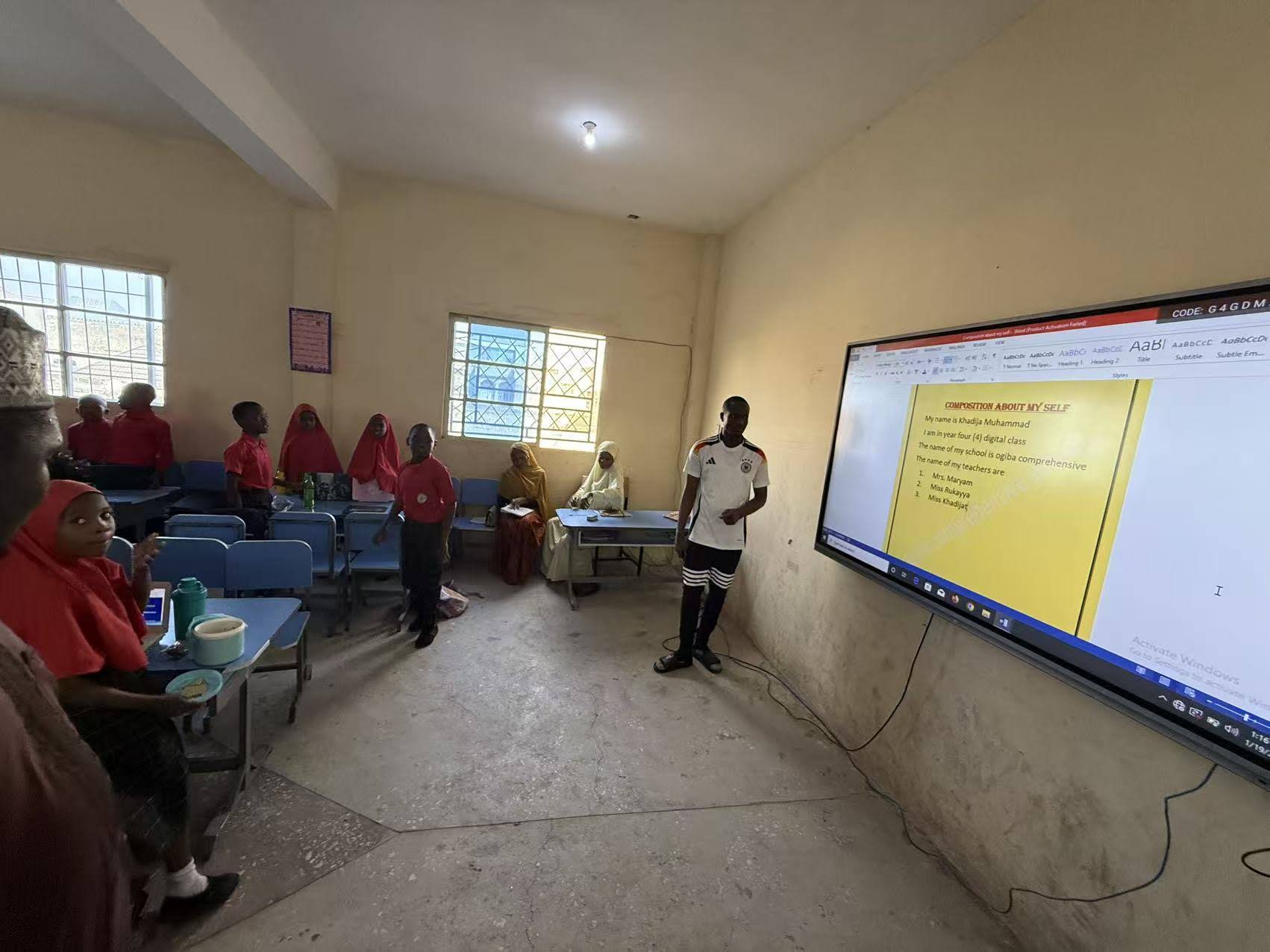
Universities and conference centres often host sessions across multiple rooms, and not every venue justifies a permanently wall-mounted panel. Consider how the board will actually be used over an academic year:
| Deployment Style | Best For | Advantages | Considerations |
|---|---|---|---|
| Wall-mounted 75″–110″ | Main auditorium, dedicated lecture theatres | Largest viewing area, clean cable management, permanent setup | Requires professional installation and wall load assessment |
| Mobile stand 65″–86″ | Seminar rooms shared across departments | Move between rooms, height adjustable, rotatable for portrait view | Needs lift access and corridor clearance |
| Battery-powered 55″ | Poster halls, registration areas, pop-up workshops | No power outlet required, fully wireless, quick repositioning | Smaller screen; plan for charging between sessions |
| Handheld 24″–27″ | Poster presentations, one-on-one demonstrations | Carry like a tablet, Android apps, built-in battery | Best for small-group interaction rather than large audiences |
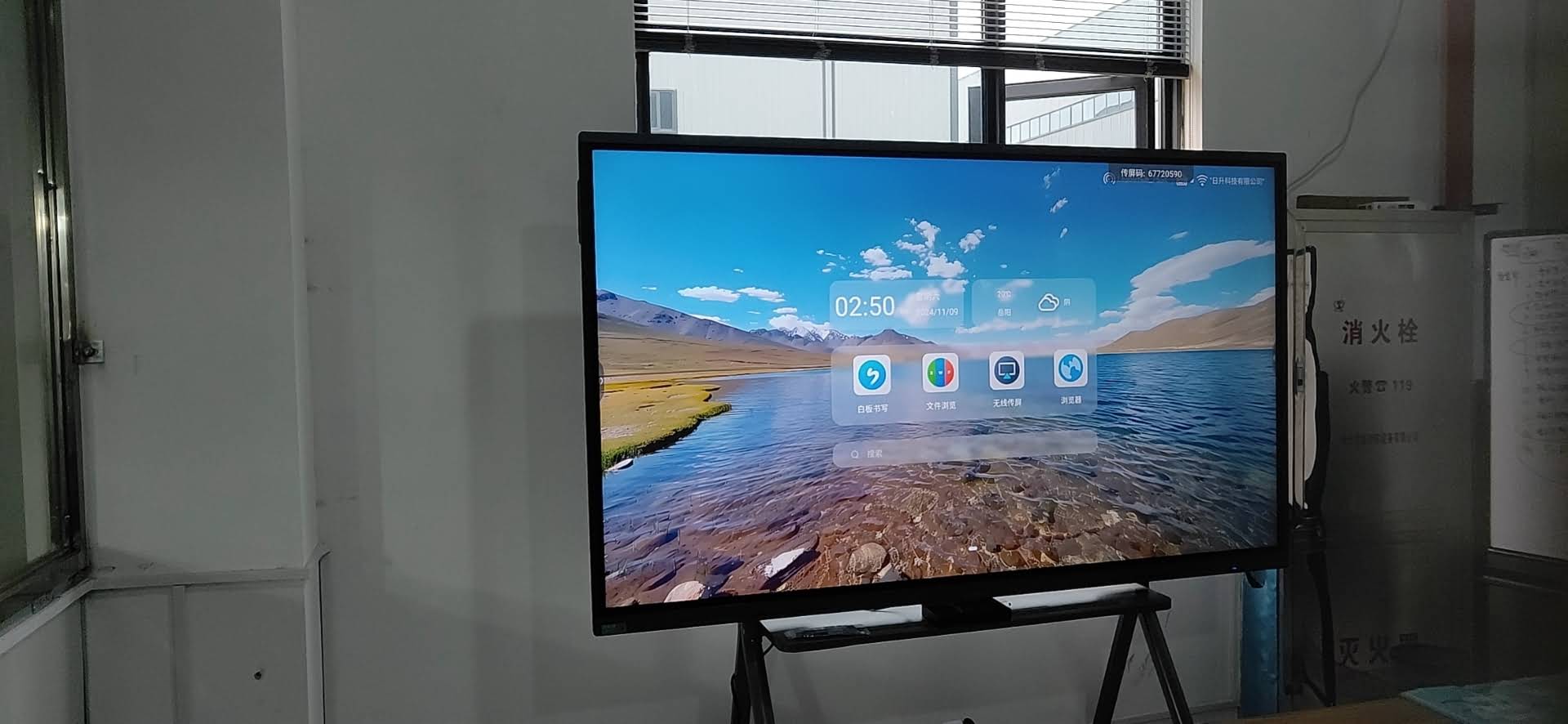
Models with a rotating screen, such as the Leaderhub HM series on its motorised stand, are particularly valuable for academic content: switching to portrait mode makes long documents, vertical infographics and full-page journal articles far easier to display. The HM series was recognised by the MUSE Design Awards as a Leaderhub HM Series rotatable conference hub for this very reason.
7. Software, Cloud and Security
Hardware is only half the equation. The software layer determines how smoothly a conference session runs. Look for:
- An infinite-canvas whiteboard app with shape recognition, handwriting-to-text conversion and PDF import so presenters can annotate directly on their submitted papers.
- Cloud drive integration (Google Drive, OneDrive, Dropbox) so speakers can open files without carrying a USB stick.
- A guest mode or session wipe function that clears personal logins and files when each presenter finishes — critical for protecting unpublished research data.
- Remote device management, allowing the AV team to update firmware, push wallpapers with conference branding and monitor all panels from one dashboard.
- An Android 13/14 operating system with regular security patches and Google Play or a curated app store.
8. Budget and Total Cost of Ownership
Interactive flat panels from established brands range from around $1,000 for a 65″ model to $8,000 or more for 110″ flagship displays. When comparing prices, factor in the total cost of ownership rather than the sticker price alone: a panel with a built-in camera, speakers and OPS slot may cost more initially but eliminates several separate purchases. LED backlights rated for 50,000 hours translate to well over a decade of conference use, and a three-year warranty with on-site support is worth paying for in a venue where downtime during a live event is unacceptable.
Recommended Leaderhub Interactive Displays for Academic Conferences
Leaderhub is a Shenzhen-based technology company with 16 years of interactive-display expertise, supplying smart whiteboards, mini PCs and portable smart screens to education institutions and enterprises in more than 82 countries. The following models are particularly well suited to conference and lecture environments.
| Model | Size | Ideal Conference Use | Price |
|---|---|---|---|
| Leaderhub L65ZM Interactive Whiteboard | 65″ 4K | Entry-level seminar rooms and workshop spaces | $1,099 |
| Leaderhub L75HM Smart Whiteboard | 75″ 4K | Parallel sessions, rotatable for portrait documents | $1,599 |
| Leaderhub L86ZM Interactive Whiteboard | 86″ 4K | Large lecture theatres, best value per inch | $1,699 |
| Leaderhub L75H Pro Interactive Flat Panel | 75″ 4K | Hybrid sessions with premium camera and audio | $2,399 |
| Leaderhub U55Pro Mobile Interactive Flat Panel | 55″ 4K | Battery-powered, moves between poster halls and breakout rooms | $2,499 |
| Leaderhub L110H Interactive Flat Panel | 110″ 4K | Keynote halls and main auditoriums | $7,999 |
| Leaderhub U24M Handheld Smart Screen | 24.5″ | Poster presentations and one-on-one research demos | $699 |
Practical Tips for Engaging Audiences with a Smart Board
Even the best hardware will not engage an audience on its own. The following techniques help presenters make the most of an interactive display during academic sessions.
Before the Session
- Upload slides to the cloud and test wireless casting from each presenter’s device at least 30 minutes before the session begins.
- Set the whiteboard app to a neutral background and pre-load any datasets, images or supplementary PDFs the speaker may want to reference.
- Position the display so the presenter can write without turning their back to the room; a mobile stand angled toward the audience works well.
During the Presentation
- Use the pen to build diagrams progressively rather than revealing a finished figure — audiences follow reasoning more closely when they watch it unfold.
- Invite a questioner to the board to sketch their alternative interpretation; multi-touch allows both people to work on the same canvas.
- Split the screen to show the slide on one side and a live annotation space on the other, keeping the original figure intact while exploring details.
After the Session
- Generate a QR code so attendees can download the annotated whiteboard as a PDF, extending the conversation beyond the room.
- Save the session to the conference’s shared drive for speakers who presented remotely or attendees in overlapping parallel tracks.
- Activate the guest-session wipe to protect any unpublished data before the next presenter logs in.
Common Mistakes to Avoid
- Buying on screen size alone while ignoring touch latency, which frustrates presenters who write equations by hand.
- Overlooking wireless casting compatibility for macOS and iPad users, who make up a large share of academic presenters.
- Skipping the network assessment — a 4K video conference in a hall with 300 smartphones connected to the same Wi-Fi requires dedicated bandwidth or a wired connection.
- Choosing a fixed mount for a multipurpose venue where a mobile stand would serve several departments.
- Ignoring after-sales support; a panel that fails on the morning of a keynote needs a vendor who can respond immediately.
Guidance from the Choosing Technology in Education framework is a useful reference here: ask whether the technology is appropriate, equitable, scalable and sustainable before committing institutional budget. Industry resources from AV Industry Standards and Resources also provide display-sizing and viewing-distance standards that AV teams can apply to auditorium planning.
Frequently Asked Questions
What size smart board is best for a 100-seat lecture hall?
An 86-inch 4K panel is the practical minimum for 100 seats; a 110-inch display is preferable if the room is long and narrow or if slides contain small text and dense tables.
Can one interactive display serve multiple conference rooms?
Yes. Mounting a 65″–86″ panel on a mobile stand allows it to move between seminar rooms, while a battery-powered model like the U55Pro can operate in spaces without convenient power outlets.
Do presenters need to install software to share their screen?
Most conference-grade panels support native protocols — AirPlay, Miracast and Chromecast — so Apple, Windows and Android devices can cast without installing anything. A plug-in USB-C dongle is a good backup for guests on locked-down institutional laptops.
Is a built-in camera really necessary for academic conferences?
For any event with remote speakers or online attendees, an integrated 4K camera with auto-framing significantly simplifies hybrid delivery and avoids the cost and cabling of a separate conferencing kit.
How do I protect unpublished research shown on a shared panel?
Choose a display with a guest mode that automatically clears files, browser history and cloud logins at the end of each session, and ensure the AV team can remotely lock or wipe the device.
Making the Right Choice for Your Conference
The ideal smart board for academic conference presentations balances a screen large enough for the room, 4K clarity for text-heavy slides, responsive touch for live annotation, flexible wireless connectivity for a rotating cast of presenters, and hybrid-ready audio and video. Add mobility where venues are shared and secure session management where sensitive research is on display, and you have a platform that turns passive lectures into genuinely engaging scholarly exchanges.
Browse the complete range of smart whiteboards and interactive flat panels, or contact the Leaderhub team for a tailored recommendation based on your venue size, audience and budget.