Launching a product is one of the most cross-functional projects a company ever runs. Marketing, sales, engineering, support, finance and leadership all need to agree on one timeline, one message and one set of priorities — often while some of the team is in the room and the rest is dialing in from another city. That is exactly why so many launch teams now use a smart board for product launch planning: a single, large, touch-enabled canvas where the whole roadmap can be drawn, debated, edited and shared in real time.
This guide walks you through how to set up a smart board for launch planning, five ready-to-copy templates, practical facilitation tips, and the best practices that separate smooth launches from chaotic ones. Whether you are planning a SaaS feature release, a hardware launch or a seasonal retail campaign, the same framework applies.
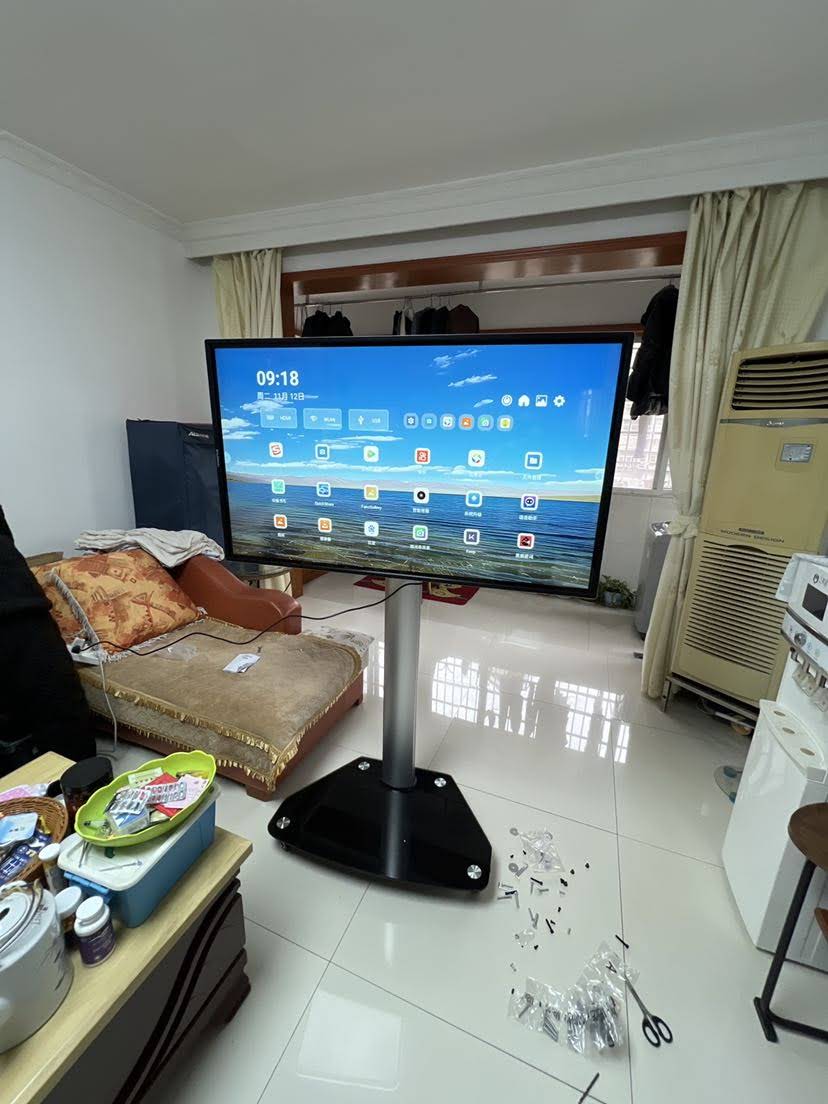
Why Use a Smart Board for Product Launch Planning?
A traditional whiteboard disappears the moment someone wipes it. Slide decks are static and quickly out of date. Project-management apps are precise but hard to look at together as a group. A smart board bridges all three: it gives you the spontaneity of a whiteboard, the structure of a planning tool and the shareability of a digital document.
Here is what a smart board changes in a launch-planning session:
- Everyone sees the same plan at the same time. A 65″ to 86″ 4K display makes timelines, dependencies and owner names legible from the back of the room.
- Edits happen live. When sales pushes the launch date back a week, you drag the milestone on the board and every downstream task moves with it — no “I’ll update the deck later.”
- Remote teammates participate equally. Screen sharing, video-conferencing apps and cloud whiteboards run natively on the panel, so hybrid participants can annotate the same canvas.
- Nothing is lost. Boards are saved, exported as PDF or image, and shared by QR code or email the moment the meeting ends.
- Context switching disappears. You can open the market-research spreadsheet, the campaign mock-ups and the launch Gantt chart side by side on one screen.
For teams that have struggled with launch-planning meetings that run long and end without decisions, the physical act of standing at a shared board and moving items together is surprisingly effective at creating alignment.
Setting Up Your Smart Board for a Launch-Planning Session
A good session starts before anyone enters the room. Use this pre-meeting checklist to make sure the board is ready to work for you rather than against you.
Step 1: Prepare the Canvas in Advance
Open your whiteboard app on the panel and lay out the template you plan to use (see the templates section below). Pre-load the frame with known facts — target launch window, confirmed budget, product name, core audience — so the meeting starts with decisions rather than data entry.
Step 2: Connect Your Source Documents
Log in to your cloud drive on the board or connect a laptop via USB-C or wireless casting. Keep the product requirements document, the competitor analysis and the current marketing calendar one tap away. If your panel runs on a built-in Android system plus an optional Windows module or an external mini PC, you can run full desktop versions of Excel, Jira, Asana or Figma directly on the display.
Step 3: Set Up the Hybrid Link
Launch your video-conferencing app on the panel so remote colleagues can see the board through the built-in camera and hear the room via the panel’s microphone array. Share the whiteboard canvas link so they can annotate from their own devices.
Step 4: Assign a Board Driver
One person should own the pen for each segment of the meeting. Rotating this role keeps energy high and prevents a single stakeholder from dominating the plan.
Step 5: Decide How the Board Will Be Saved
Agree before you begin: will the board be exported as a PDF to the shared drive, pushed to the project-management tool, or kept as a living cloud whiteboard that the team revisits weekly? Setting this up front avoids the classic “who has the photo of the board?” problem.
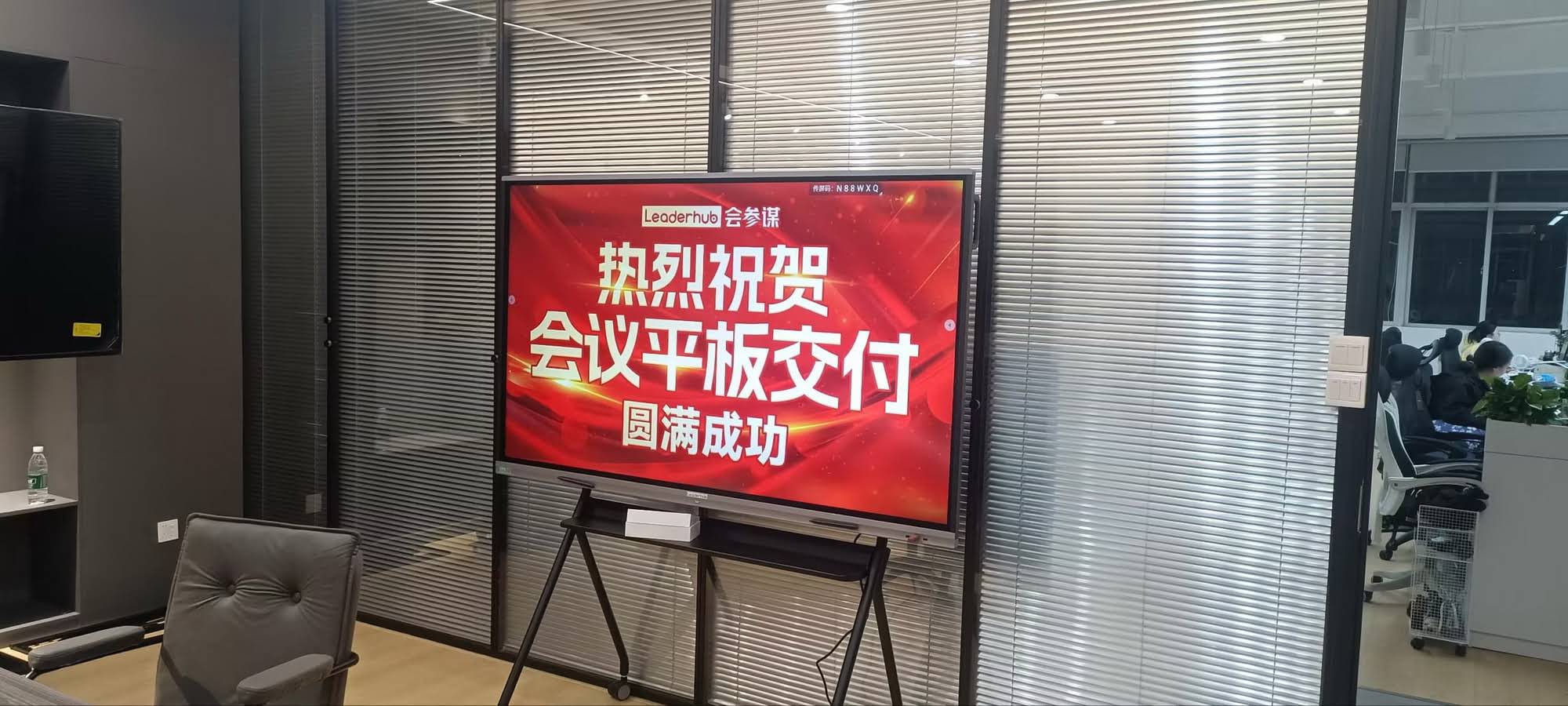
5 Smart Board Templates for Product Launch Planning
The templates below can be sketched directly on any interactive whiteboard app or built once and saved as a reusable file. Each one targets a specific phase of the launch.
Template 1: The Launch Roadmap Timeline
Draw a horizontal line across the full width of the board representing the weeks or months leading to launch day, with a second segment for the 30 days after. Above the line, add swimlanes for each function — Product, Marketing, Sales, Support, Legal. Place sticky notes for every milestone and draw arrows for dependencies.
- Best for: kickoff meetings and executive reviews
- Key columns: T-12 weeks, T-8, T-4, T-2, Launch Day, T+2, T+4
- Smart-board advantage: dragging one milestone visibly exposes every dependency that shifts with it
Template 2: The Go-to-Market Canvas
Divide the screen into a 3×3 grid: Target Segment, Core Problem, Value Proposition, Positioning Statement, Pricing & Packaging, Channels, Key Messages, Competitive Alternatives and Success Metrics. The team fills each box collaboratively, then votes with colored dots on the items that still feel uncertain.
- Best for: aligning marketing and product on the story before assets are produced
- Smart-board advantage: split-screen lets you keep the competitor’s website open beside the Positioning box
Template 3: The RACI Ownership Matrix
List every launch deliverable down the left side — press release, pricing page, sales deck, help-center articles, demo video, partner briefing — and every stakeholder across the top. Mark each cell R (Responsible), A (Accountable), C (Consulted) or I (Informed). Launches fail most often because two people thought the other owned something; this template surfaces those gaps in minutes.
Template 4: The Launch-Day Run-of-Show
An hour-by-hour (sometimes minute-by-minute) schedule for launch day itself: when the feature flag flips, when the blog post goes live, when the email sends, when social posts publish, who monitors support queues and who is the escalation contact. Keep this board visible on a panel in the “war room” throughout the day and tick items off as they complete.
Template 5: The Post-Launch Retrospective
Four columns: What Went Well, What Didn’t, What We Learned, What We’ll Change Next Time. Add a fifth lane for metrics versus targets. Because the original roadmap board is saved, you can display it beside the retrospective and compare plan versus reality honestly.
| Template | Launch Phase | Typical Session Length | Main Output |
|---|---|---|---|
| Launch Roadmap Timeline | Kickoff / Planning | 90–120 minutes | Dated milestones with owners |
| Go-to-Market Canvas | Strategy | 60–90 minutes | Positioning and messaging brief |
| RACI Ownership Matrix | Execution | 45–60 minutes | Deliverable-by-deliverable accountability |
| Launch-Day Run-of-Show | Launch Day | Live, all day | Timed checklist and escalation path |
| Post-Launch Retrospective | Review | 60 minutes | Lessons and process changes |
Tips for Running Effective Launch-Planning Sessions on a Smart Board
Having the right hardware and templates is half of the equation. The other half is facilitation. These tips come from launch teams who run their planning cycles almost entirely on interactive displays.
- Start with the launch date, then work backwards. Anchor the right edge of the timeline first. Teams that start from today and work forward almost always discover the schedule doesn’t fit.
- Use color consistently. Assign one pen color per function (for example, teal for Marketing, black for Product) and keep it the same across every board so the team can read the plan at a glance weeks later.
- Limit each sticky note to one task and one owner. “Marketing to prepare launch assets” is not a task; “Maria drafts the press release by 14 March” is.
- Timebox discussion with the on-screen timer. Most panels include a built-in countdown tool. Five minutes per milestone keeps the session moving.
- Capture decisions in a dedicated corner. Reserve a “Decisions Log” box on every board. When something is agreed, write it there immediately so it isn’t lost in the discussion.
- Photograph nothing — export everything. Use the panel’s save or QR-share function rather than a phone camera; the exported file stays editable.
- Review the board weekly on the same screen. A standing 15-minute stand-up in front of the launch roadmap keeps slippage visible and honest.
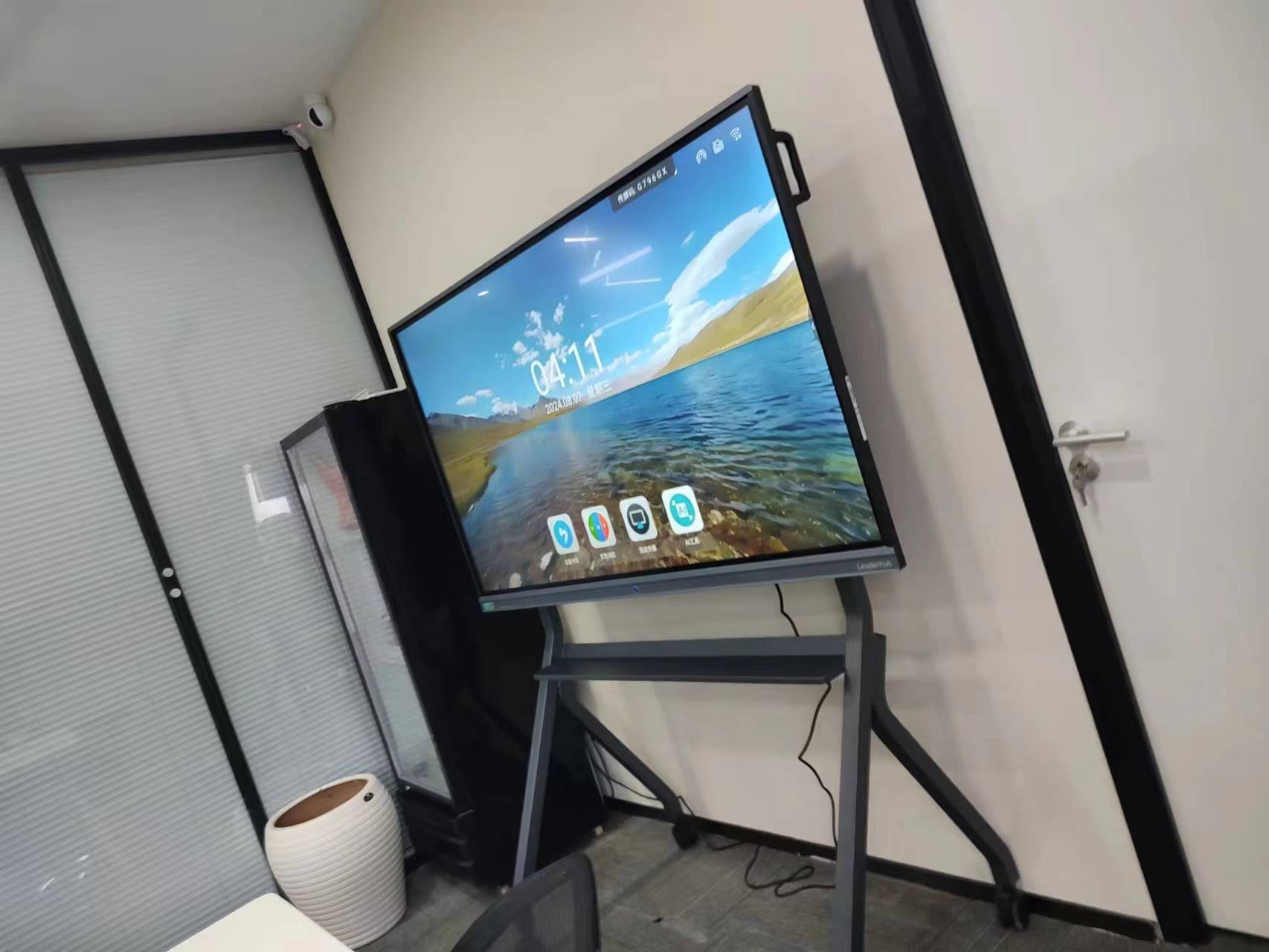
Best Practices for Hybrid and Distributed Launch Teams
Product launches increasingly involve regional marketing teams, outsourced agencies and remote engineers. A smart board is only valuable if everyone can contribute, not just the people physically in the room.
Give Remote Participants Edit Rights
Share the cloud whiteboard link before the meeting so remote attendees can add sticky notes from a laptop or tablet. Their contributions appear on the panel in real time, which prevents the “in-room team decides, remote team listens” dynamic.
Position the Camera at Board Level
If your panel has an integrated camera, remote participants see both the board and the people presenting at it. For portable sessions in smaller rooms, a mobile unit such as the U55Pro 55″ mobile interactive flat panel can be rolled wherever the team gathers, including open-plan spaces.
Record Key Segments
Record the screen during the roadmap walkthrough and share it with stakeholders in other time zones. A five-minute clip of the board being explained is often clearer than a written summary.
Standardize Across Offices
If you run launch planning in multiple locations, equip each room with the same panel model and the same saved templates. Consistent hardware and consistent layouts make it far easier for a regional team to pick up a plan started elsewhere. Industry bodies such as AVIXA publish AV standards that can help facilities teams specify consistent room setups.
Choosing the Right Smart Board for Launch Planning
Not every interactive display is equally suited to planning work. Launch roadmaps are dense — dozens of sticky notes, small text, multiple swimlanes — so screen size, resolution and multi-touch performance matter more here than in a typical presentation setting.
Key specifications to prioritize:
- Size: 65″ works for teams of up to six; 75″ to 86″ is better for cross-functional groups of eight or more, where people need to read owner names from a seated position.
- Resolution: 4K UHD keeps small handwriting and spreadsheet cells sharp.
- Multi-touch points: 20-point or higher touch lets several people move items at once during fast-paced prioritization.
- Operating system flexibility: Android for quick whiteboarding, plus Windows (via built-in module or external PC) for full project-management software.
- Connectivity: wireless casting from laptops and phones, USB-C with power delivery, and HDMI for guest presenters.
- Mobility: a rolling stand or battery-powered portable screen if your planning sessions move between rooms.
Leaderhub, a Shenzhen-based manufacturer with 16 years of interactive-display experience serving customers in more than 82 countries, offers a range of panels that fit launch-team needs at different budgets. The table below compares popular options for planning rooms.
| Model | Size | Ideal Team Size | Best For | Price |
|---|---|---|---|---|
| L65ZM Interactive Whiteboard | 65″ 4K | 3–6 people | Startup and small-team huddle rooms | $1,099 |
| L75HM Smart Whiteboard | 75″ 4K | 6–10 people | Cross-functional launch planning rooms | $1,599 |
| L86ZM Interactive Whiteboard | 86″ 4K | 10–16 people | Large war rooms and executive reviews | $1,699 |
| U55Pro Mobile Interactive Flat Panel | 55″ 4K | 3–6 people | Agile teams that move between spaces | $2,499 |
| L277M Smart Rotating Screen | 27″ touch, battery | 1–3 people | Personal planning and desk-side reviews | $899 |
Teams that need full Windows applications on the board — for example, running Microsoft Project or a CRM dashboard beside the whiteboard — often pair the panel with a compact unit such as the LP5C Mini PC, which mounts behind the display and turns it into a complete planning workstation. Browse the full smart whiteboard range to compare sizes and features.
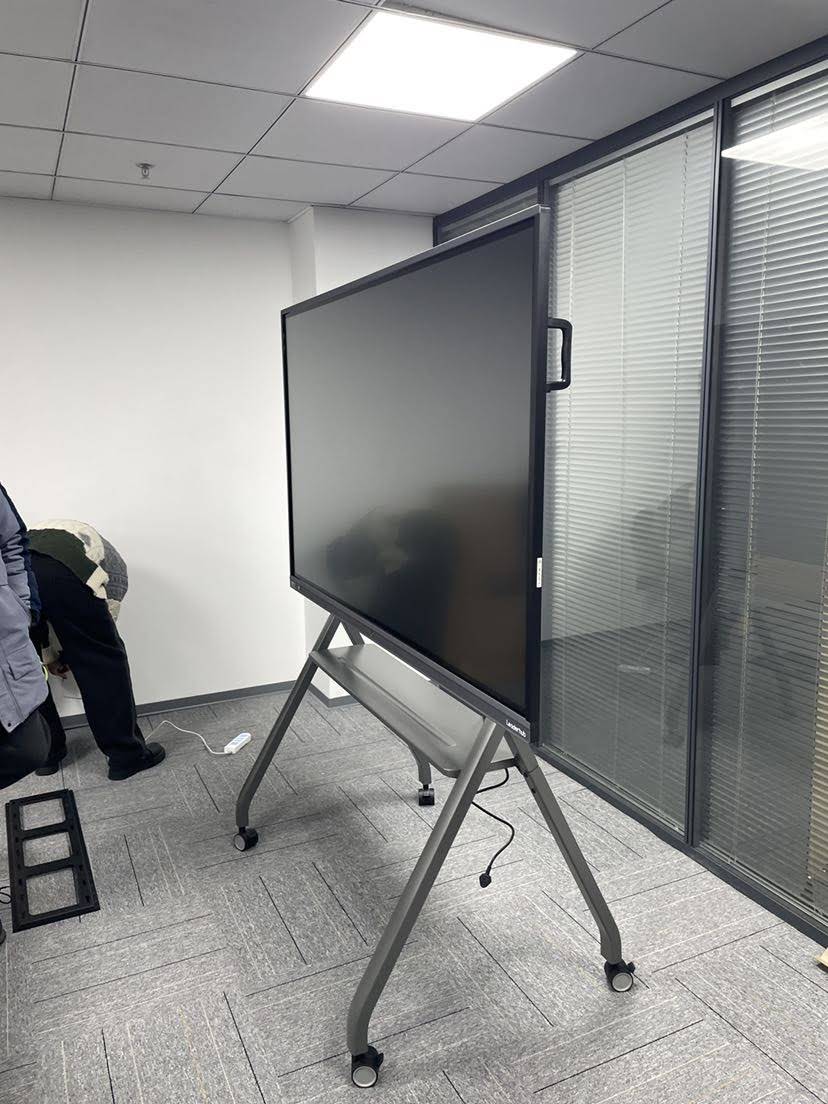
Common Mistakes to Avoid
Even experienced teams fall into predictable traps when they first move launch planning onto a smart board. Watch for these:
- Treating the board as a presentation screen. If one person talks and everyone else watches, you have an expensive TV. Put pens in multiple hands.
- Overloading a single canvas. When the roadmap, the RACI and the messaging all live on one frame, nothing is readable. Use separate pages or boards and link between them.
- Forgetting the post-launch window. Many roadmaps end on launch day. Extend the timeline at least four weeks past launch to plan monitoring, follow-up campaigns and customer feedback loops.
- Not training the team on the software. Spend 20 minutes in the first session showing everyone how to add notes, change colors, undo and export. It pays for itself immediately.
- Skipping version control. Save a dated copy of the board after each major planning session so you can trace how and why the plan changed.
Frequently Asked Questions
Which whiteboard software works best for launch planning on a smart board?
Most interactive panels ship with a native whiteboard app that handles timelines, sticky notes and shape tools well. For teams that already use cloud collaboration tools such as Miro, Microsoft Whiteboard or Google Jamboard alternatives, those run directly on Android- or Windows-based panels and sync with remote colleagues. The best choice is usually whatever your team already uses for day-to-day project work.
How large should a smart board be for a launch-planning room?
As a rule of thumb, text on the board should remain readable from roughly three times the screen’s diagonal distance. A 75″ panel is comfortable for a room where attendees sit up to about 5.5 metres away; an 86″ panel suits larger boardrooms.
Can we connect the smart board to our project-management tool?
Yes. Because modern panels run a full operating system, you can log in to web-based tools directly on the board and even display a live Gantt chart beside a hand-drawn whiteboard canvas using split-screen mode.
Is a portable smart screen enough for a small launch team?
For teams of two or three working on a focused component of the launch — for example, a content calendar or a demo script — a battery-powered rotating smart screen is often sufficient and can be carried to a colleague’s desk. Larger cross-functional sessions still benefit from a wall-mounted panel.
How do we keep the launch plan up to date after the meeting?
Export the board to your shared drive immediately after each session and schedule a short recurring review in front of the panel. Treat the board as the single source of truth for the launch timeline, and update it live during stand-ups rather than in separate documents.
Bringing It All Together
A product launch succeeds when every function can see the same plan, understand their part in it and react quickly when something shifts. Using a smart board for product launch planning makes that visibility physical and immediate: the roadmap is on the wall, it is editable by everyone and it is saved the moment the meeting ends.
Start with one template — the Launch Roadmap Timeline is the natural first choice — run a single planning session on the board, and refine from there. Within a launch cycle or two, most teams find the board has become the centre of their go-to-market process rather than just another screen in the room.
Ready to equip your launch room? Explore interactive displays for every team size, or contact the team for advice on the right configuration for your planning space.