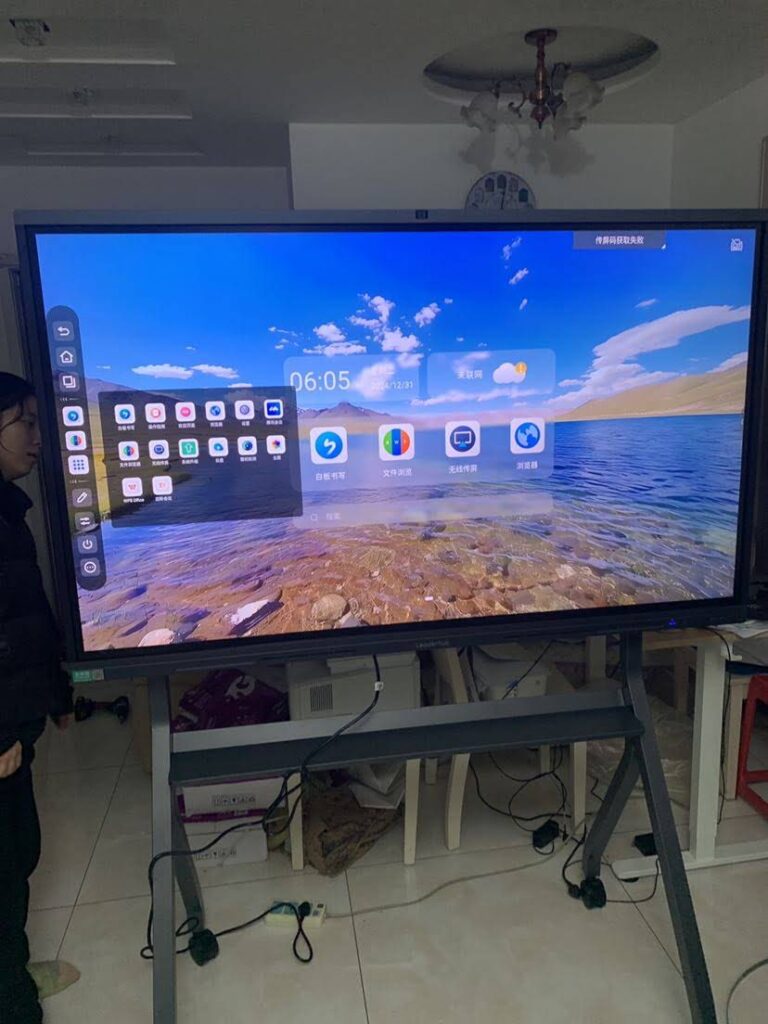
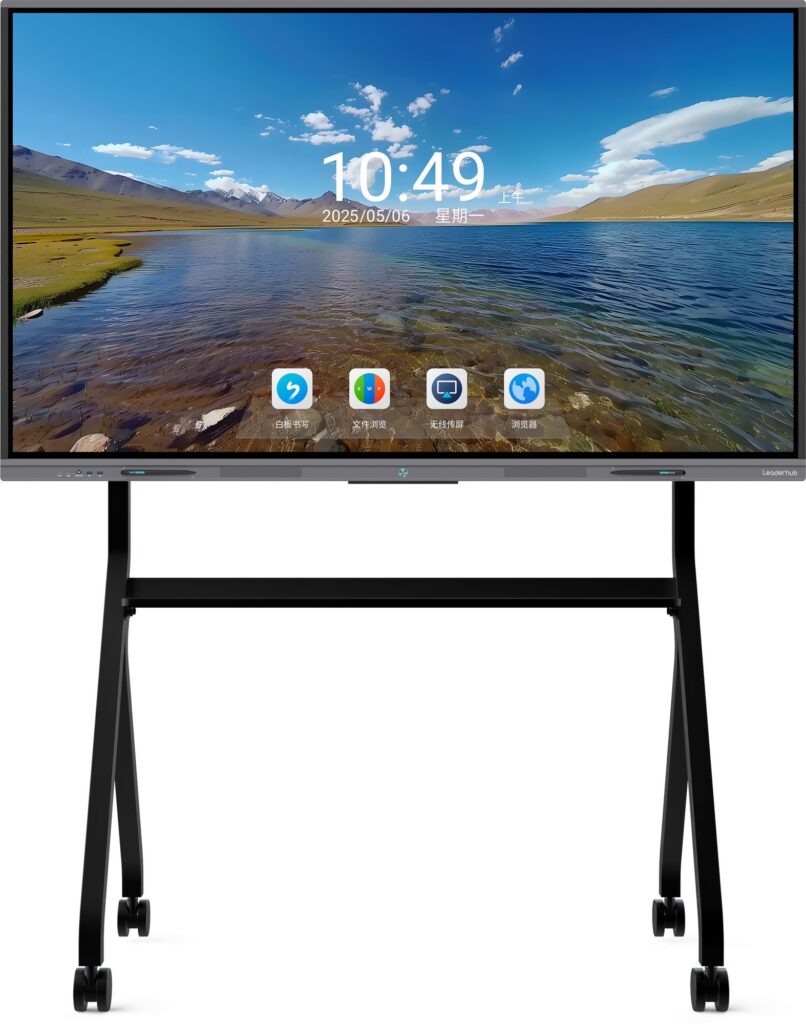
Turning a regular TV into an interactive workspace is easier than most people think. If you are searching for how to make your tv into a smart board, the key is to combine the right hardware, the right software, and a simple setup plan. A standard TV can become a useful collaboration screen for meetings, classrooms, training rooms, and home learning.
For teams that want a fast, reliable setup, Leaderhub offers smart whiteboards and mini PCs that can help create a more complete interactive experience.
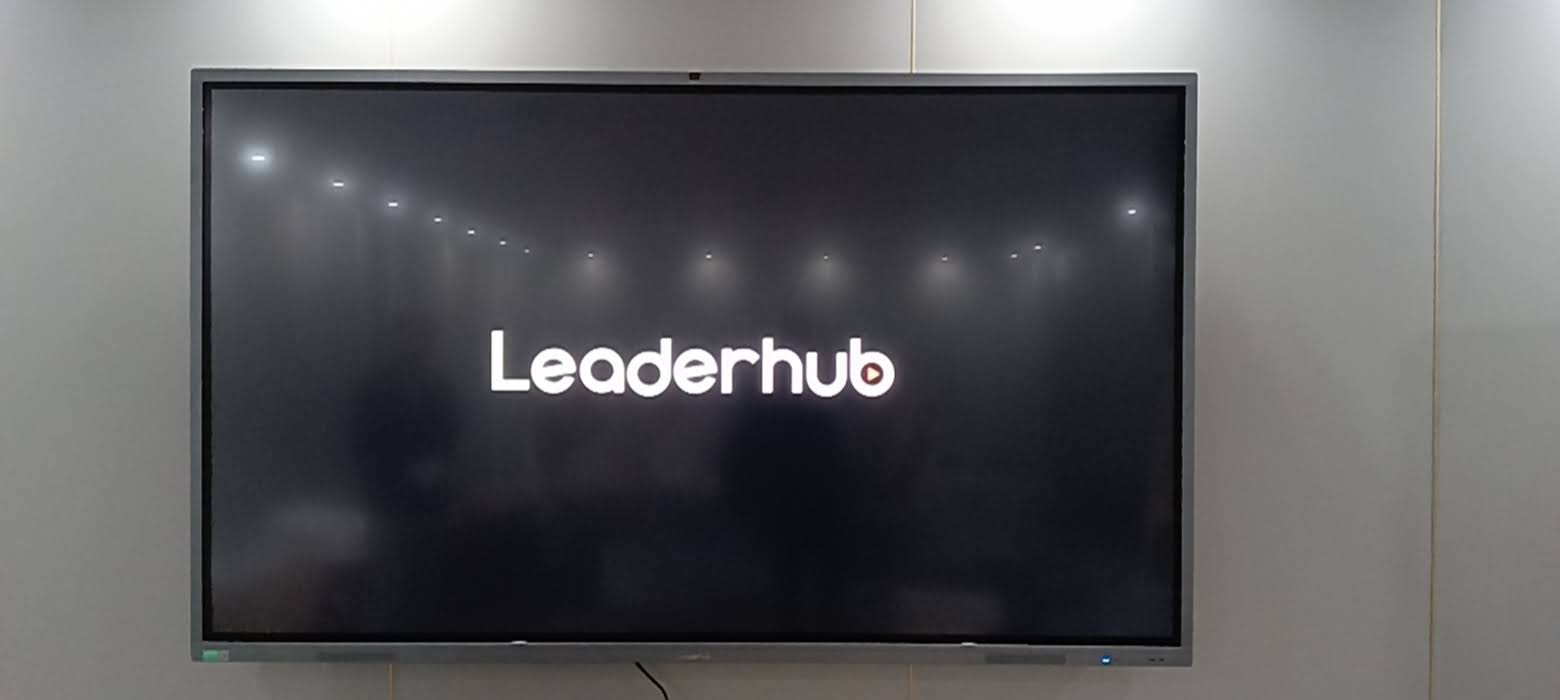
What “Smart Board” Really Means
A smart board is not just a screen. It is an interactive display that lets people write, touch, annotate, share content, and collaborate in real time. A regular TV can show content, but it usually cannot handle touch input on its own.
To make your TV feel like a smart board, you typically need one or more of these elements:
- A TV or large display for the visual surface
- A touch layer or touch frame for direct interaction
- A mini PC or computer to run whiteboard software
- Collaboration apps for drawing, sharing, and presenting
- Optional stylus tools for better writing accuracy
The 4 Best Ways to Turn Any TV Into an Interactive Display
| Method | Best For | Pros | Limitations |
|---|---|---|---|
| Wireless screen mirroring | Quick presentations, meetings, home use | Easy to set up, low cost, no major installation | Not truly touch-enabled; depends on device compatibility |
| Mini PC + whiteboard software | Classrooms, training, hybrid meetings | Stable, flexible, supports many apps | Needs a keyboard/mouse or touch layer for full interactivity |
| Touch frame or touch overlay | Hands-on collaboration, shared writing | Turns a normal TV into a touch surface | Requires careful sizing and calibration |
| All-in-one interactive display | Professional environments and long-term use | Best experience, clean setup, built for collaboration | Higher initial investment |
Step-by-Step: How to Make Your TV Into a Smart Board
1. Choose the right TV size
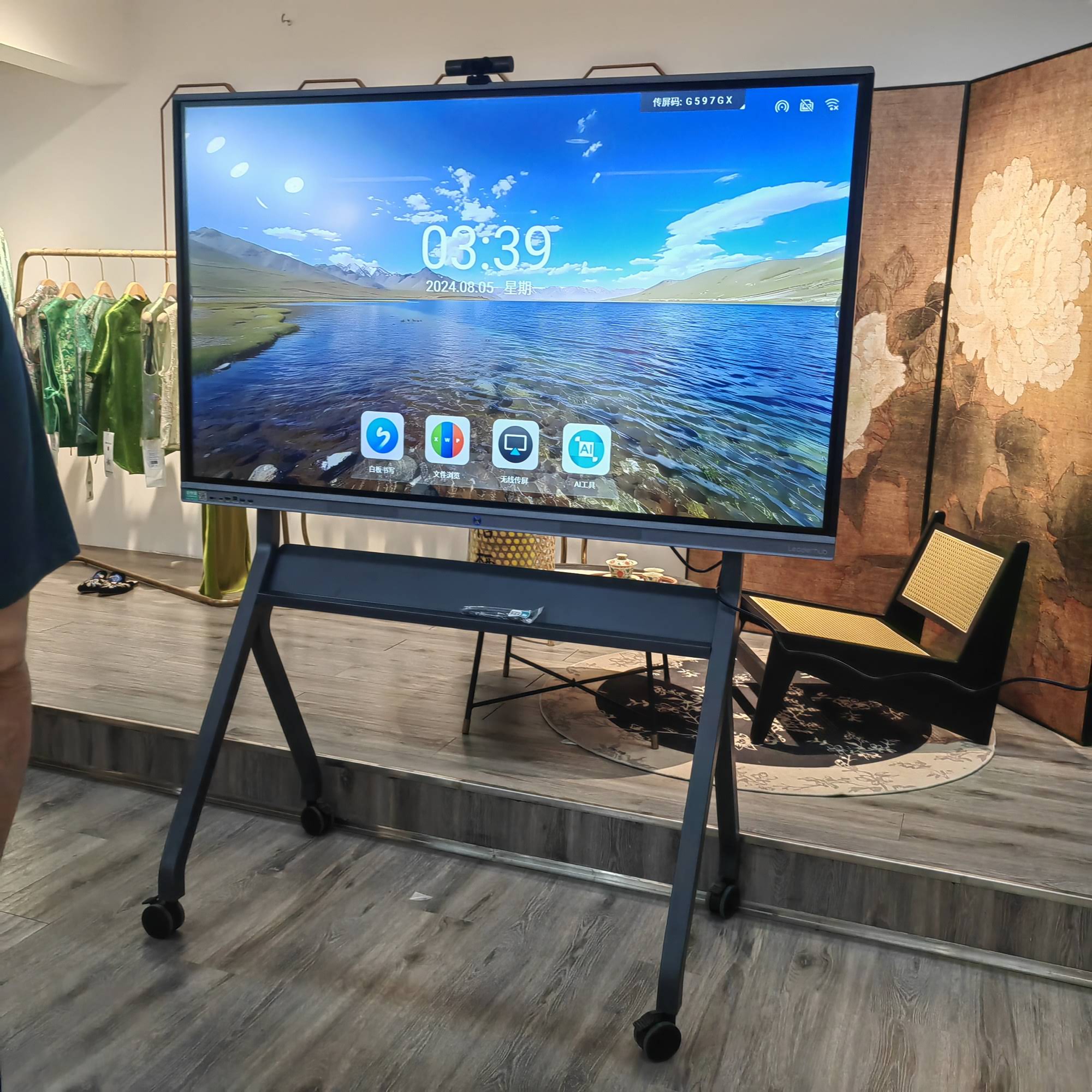
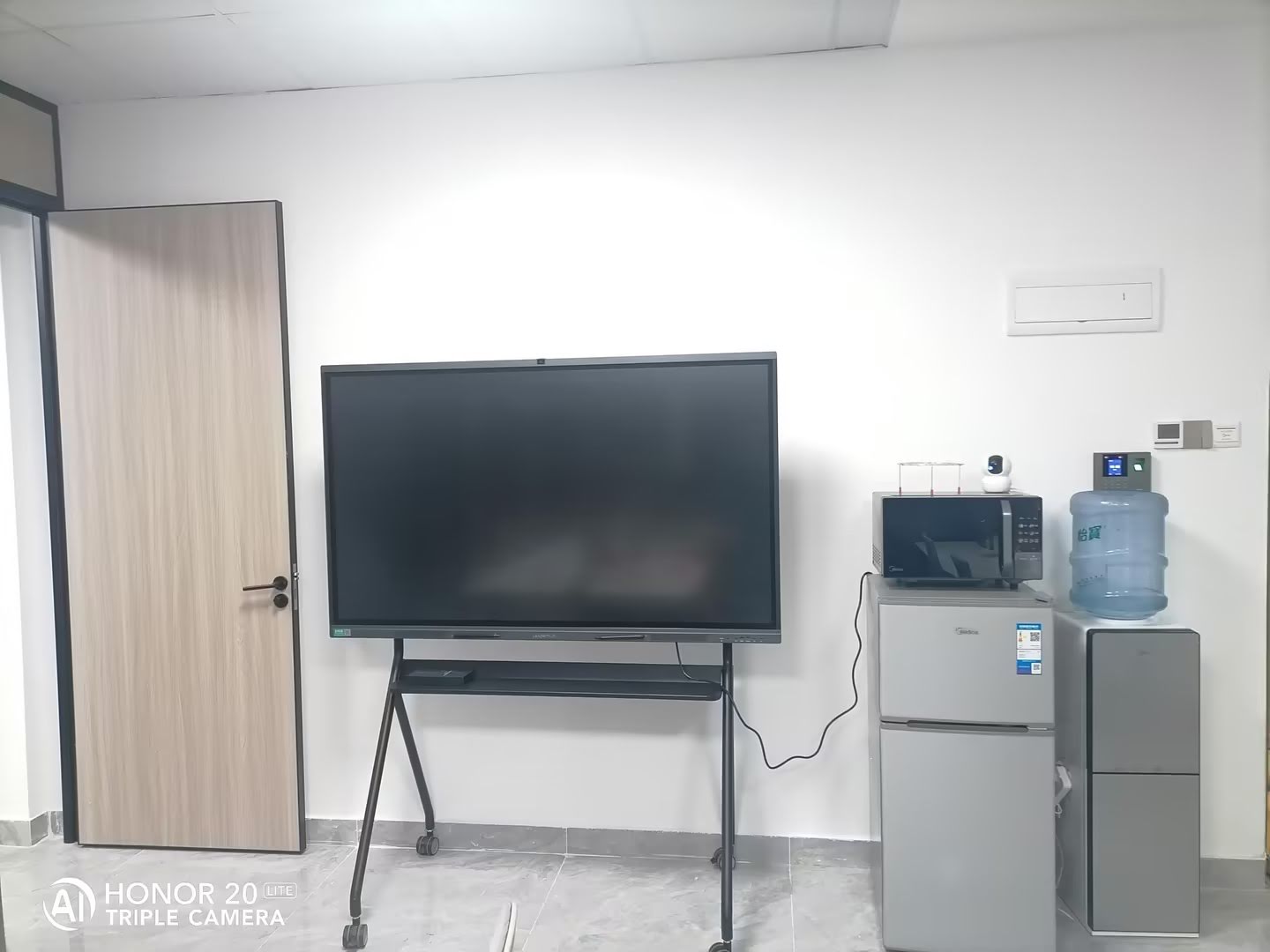
For most rooms, a 55-inch to 75-inch TV works well. Larger rooms may need 86 inches or more. Make sure the TV is mounted at a comfortable writing height so people can reach the screen without strain.
2. Add a computing device
A mini PC makes the setup much more powerful than using only a streaming stick or built-in TV apps. It can run web-based tools, annotation software, video conferencing, and presentation files smoothly.
You can explore mini PCs for smart board setups if you want a compact hardware option.
3. Install interactive software
Use whiteboard and collaboration software that supports handwriting, shape tools, screen annotation, and file import. Good software can make even a simple TV setup feel more like a real smart board.
- Digital whiteboard tools
- Presentation annotation apps
- Video conferencing platforms
- Cloud storage integration
4. Add touch capability if needed
If you want people to write directly on the screen, a touch frame or infrared touch overlay is the most important upgrade. This is what changes the TV from a passive display into a genuine interactive board.
5. Calibrate the display
After installing touch hardware, calibrate the system carefully. Proper calibration improves accuracy when users tap menus, drag objects, or write notes. If the touch response feels off, repeat the calibration before using it in a meeting or lesson.
6. Organize your cables and accessories
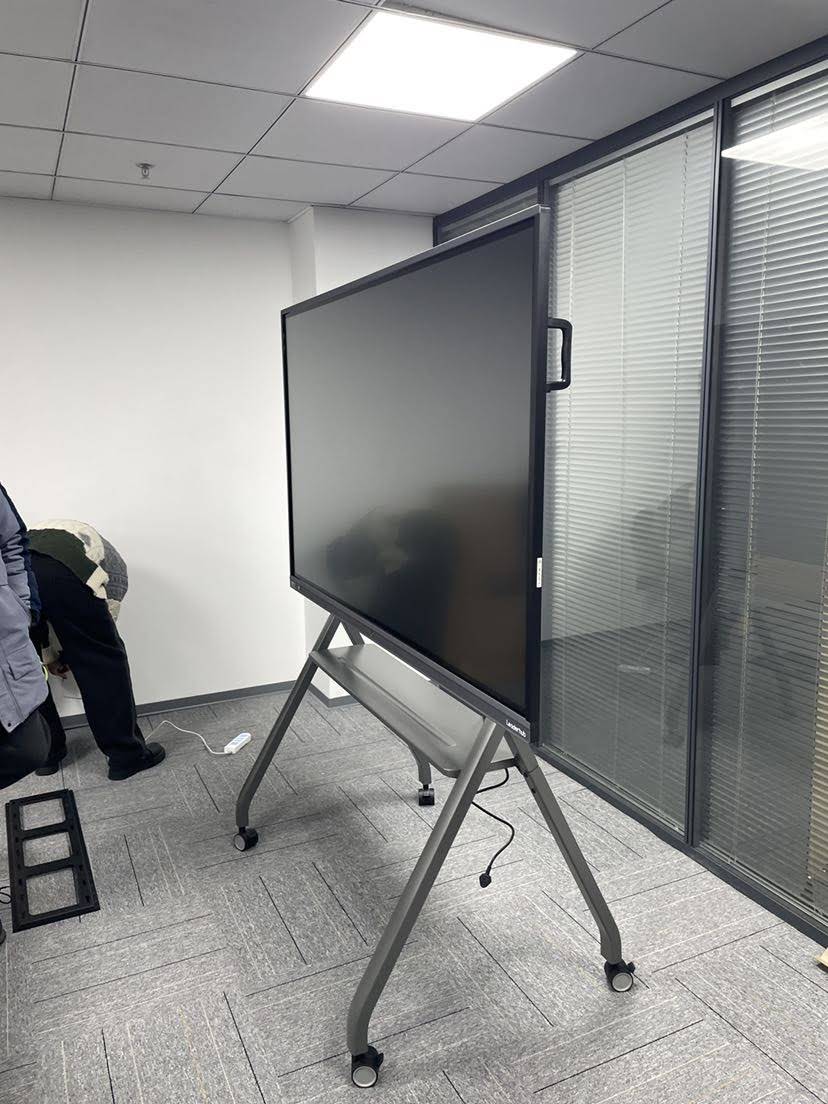
A clean setup matters. Use cable management clips, a wall mount or rolling stand, and wireless peripherals where possible. The easier the system is to use, the more people will actually use it.
Which Setup Is Best for You?
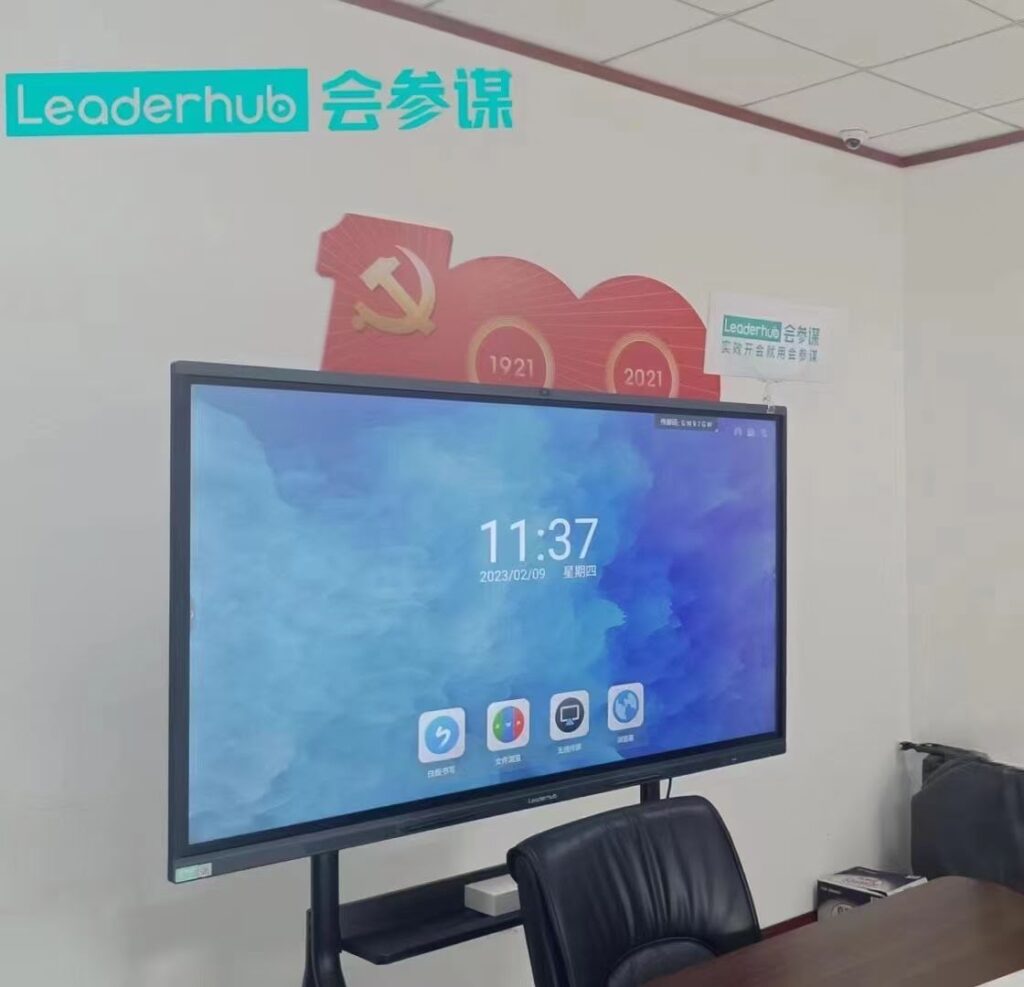
If you only need occasional screen sharing, wireless mirroring may be enough. If you want a classroom or meeting-room solution, a mini PC plus whiteboard software is a smart middle ground. If direct writing and touch are important, add a touch frame. For the most polished result, choose an all-in-one interactive display instead of converting a TV.
Recommended Setup Scenarios
- Home learning: TV + mini PC + basic whiteboard app
- Small office meeting room: TV + wireless casting + annotation tools
- Training room: TV + mini PC + touch overlay
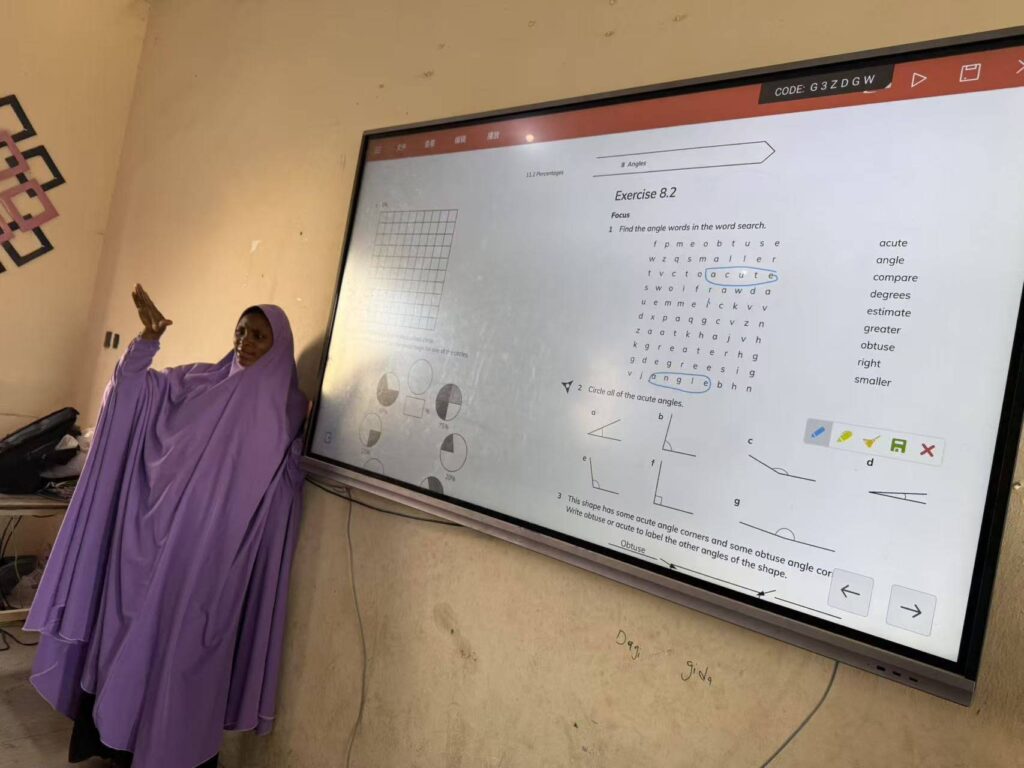
- School classroom: Large display + touch input + classroom collaboration software
Hardware Checklist Before You Start
| Item | Why It Matters |
|---|---|
| TV or large display | Provides the main visual surface |
| Mini PC | Runs software and improves performance |
| Touch overlay or frame | Adds real touch interaction |
| Wall mount or mobile stand | Improves ergonomics and viewing angle |
| Stylus or pen | Makes writing cleaner and more precise |
Best Practices for a Smooth Experience
- Keep the interface simple and easy to open.
- Use large icons and high-contrast visuals.
- Choose software that supports multiple users when needed.
- Test touch accuracy before a live session.
- Keep frequently used files on the home screen or in cloud folders.
- Set up wireless casting for guests and presenters.
Why Interactive Displays Work So Well
Interactive displays are effective because they make participation easier. Instead of watching a presenter control everything, users can write, move objects, and collaborate directly. That is one reason education and business teams continue to invest in digital display tools.
For broader context, see the UNESCO Technology in Education Report and the OECD Digital Education Outlook.
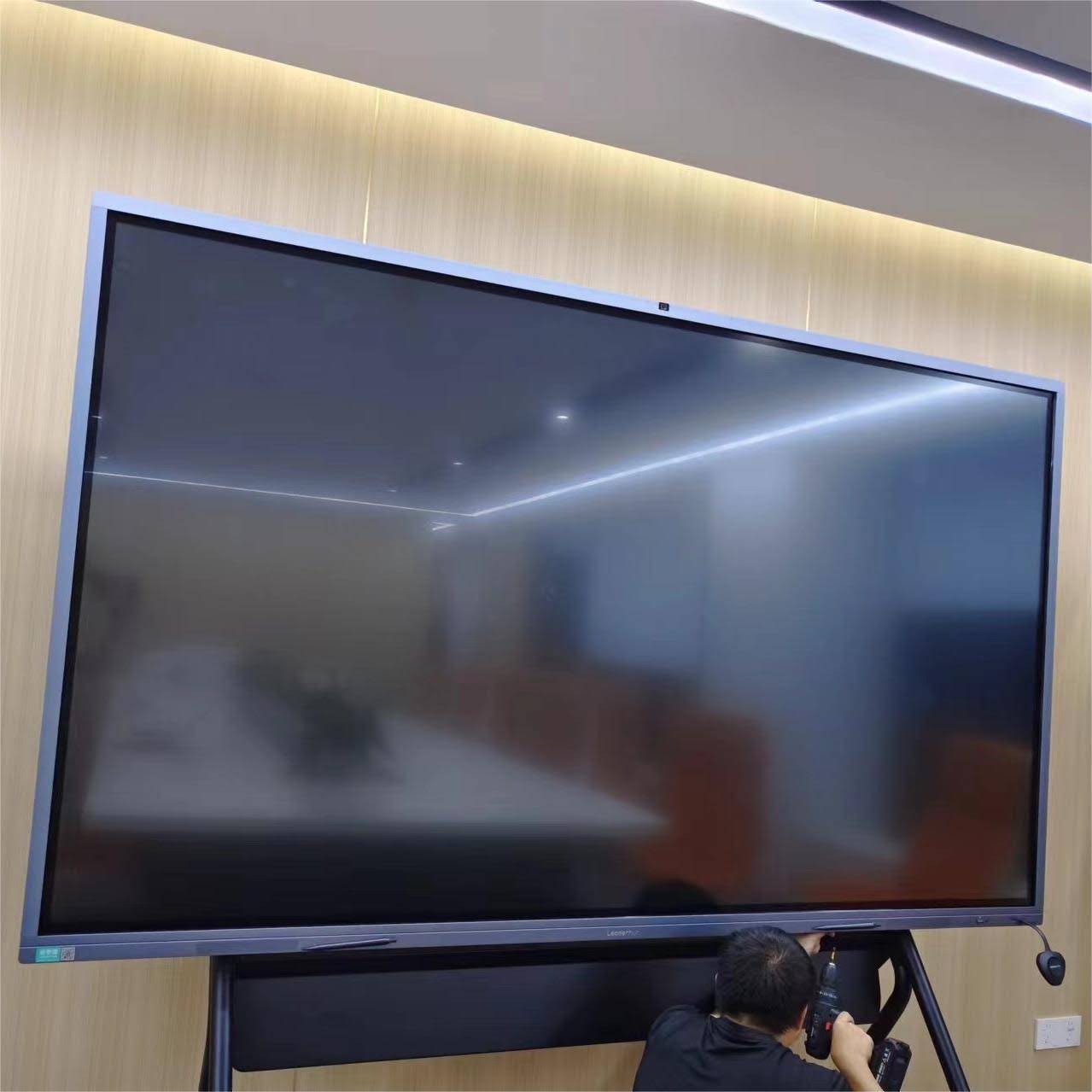
Quick Comparison: TV Conversion vs. Real Smart Board
| Feature | Converted TV | Dedicated Smart Board |
|---|---|---|
| Touch interaction | Needs extra hardware | Built in |
| Installation time | Moderate | Usually faster |
| Cost | Can be lower at first | Higher, but more complete |
| Long-term convenience | Depends on add-ons | Best for daily use |
Helpful Links to Explore
- Browse smart whiteboards
- Explore mini PCs
- Visit the shop
- Contact the team
- See an interactive flat panel example
Final Thought
If your goal is to make meetings more visual, lessons more engaging, or collaboration more hands-on, the answer to how to make your tv into a smart board is simple: combine a display, software, and the right input method. Start with the setup that matches your budget and room size, then upgrade touch capability when you need a more natural writing experience.
The best smart board setup is the one that people will actually enjoy using every day.