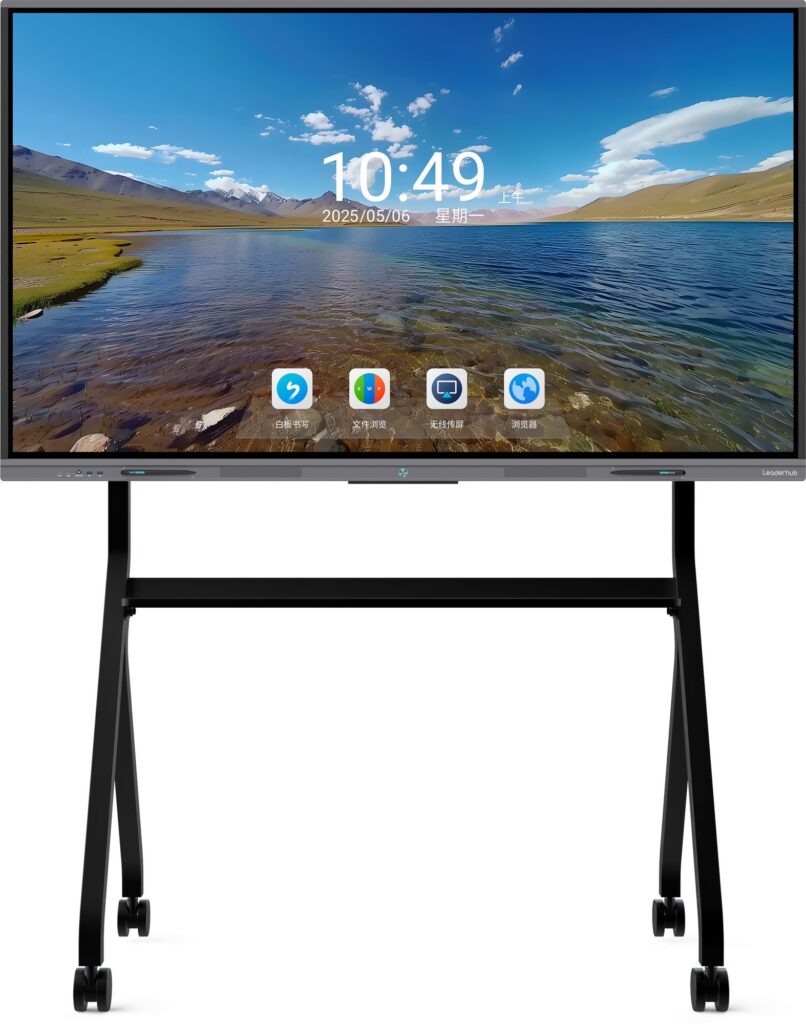
Leaderhub focuses on interactive displays and smart collaboration hardware, which makes wireless classroom and meeting-room setup easier for teams that want fewer cables.
Learning how to connect computer to smart board wirelessly can save time, reduce cable clutter, and make presentations feel much more flexible. Whether you are teaching, running a meeting, or sharing content in a training room, the right wireless method depends on your computer, the smart board model, and the level of stability you need.
What You Need Before You Start
Before you try any wireless screen sharing method, make sure you have the basics ready. A smooth connection usually depends on these items:
- A smart board with wireless casting support such as Miracast, AirPlay, Chromecast, or built-in software casting.
- A computer with Wi-Fi enabled and updated display drivers.
- The same local network for both devices in many cases.
- The correct input or app mode on the smart board.
- Enough signal strength in the room for a stable connection.
If you are comparing hardware options, you may also want to review smart whiteboards and interactive flat panels designed for collaboration-heavy environments.
Step-by-Step: How to Connect a Computer to a Smart Board Wirelessly
Step 1: Turn on the smart board and open the wireless display function
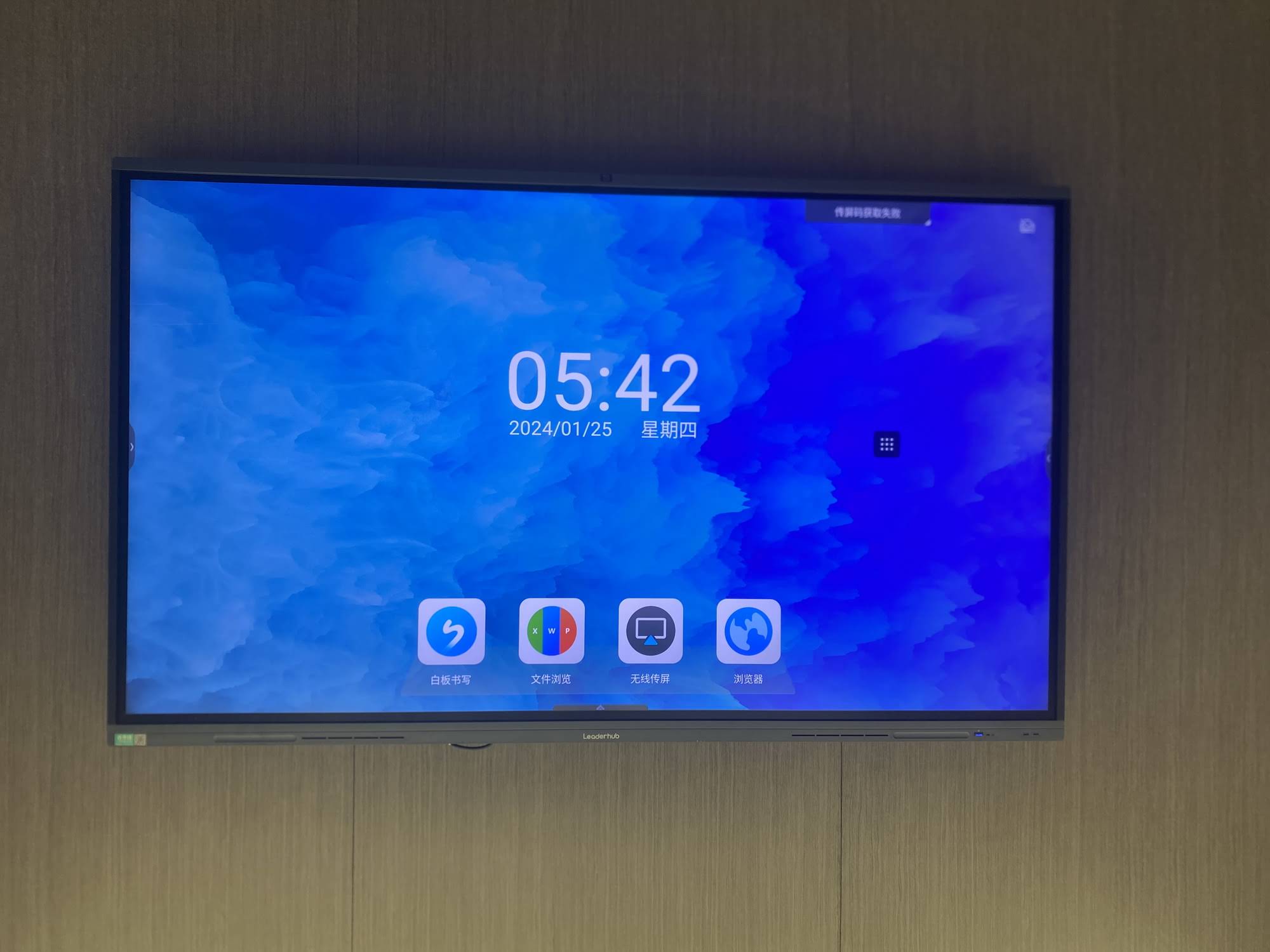
On the smart board, open the screen casting, wireless display, or screen mirroring app. The menu name may vary by brand, but the goal is the same: put the board into receiving mode.
Step 2: Connect both devices to the same network
In many setups, the computer and the smart board must be on the same Wi-Fi network. If your board supports direct casting, this may not always be required, but using one network is often the most reliable option.
Step 3: Open the wireless display menu on your computer
Here are the most common paths:
- Windows: Press Win + K or open Settings > Display > Connect to a wireless display.
- Mac: Open Control Center and select Screen Mirroring.
- Chromebook: Use the Cast option in the quick settings or browser menu.
Step 4: Select the smart board from the device list
When the smart board appears in the list of available devices, click it. If prompted, confirm the connection on the board itself or enter a PIN code shown on the display.
Step 5: Choose the right display mode
After connecting, decide whether you want:
- Duplicate: Shows the same screen on both devices.
- Extend: Uses the smart board as an extra display.
- Second screen only: Sends the image to the smart board only.
For meetings and teaching, Duplicate is usually the easiest choice. For multitasking or note-taking, Extend may be better.
Common Wireless Connection Methods
| Method | Best For | Notes |
|---|---|---|
| Miracast | Windows laptops and supported smart boards | Often built into Windows; no cable needed |
| AirPlay | MacBooks, iPads, Apple ecosystem users | Works best when the board supports AirPlay or an AirPlay receiver app |
| Chromecast / Cast | Chrome browser and Android-based workflows | Good for browser tabs and media sharing |
| Vendor casting app | Schools and offices using the same brand ecosystem | Usually offers extra tools like whiteboard annotation or remote control |
How to Choose the Best Wireless Method
The best way to connect depends on your daily use case. Here is a simple guide:
- For fast meetings: use the built-in casting feature that requires the fewest setup steps.
- For classrooms: choose a solution with low latency and easy reconnect options.
- For Apple users: AirPlay is often the smoothest experience.
- For mixed-device environments: a vendor app or cross-platform casting tool is usually the most practical.
- For heavy collaboration: make sure the board supports annotation, multi-user sharing, and stable full-screen mirroring.
To understand technology choices in education more clearly, you can also review the UNESCO Technology in Education Report and the ISTE Education Technology Standards.
Troubleshooting Wireless Smart Board Connection Problems
If the screen does not connect the first time, try these fixes in order:
- Check Wi-Fi: Make sure both devices are on the same network when required.
- Restart casting mode: Close the wireless display app on the board and open it again.
- Reboot the computer: A quick restart can resolve temporary driver or network issues.
- Update software: Install the latest OS updates, graphics drivers, and board firmware.
- Reduce interference: Move closer to the router or remove unnecessary wireless congestion.
- Check permissions: Some systems need screen recording or display permissions before mirroring works.
- Test another device: This helps you confirm whether the issue is with the board or the computer.
If the image is lagging or freezing
Use a stronger network, lower the resolution if possible, and avoid running too many bandwidth-heavy applications in the background. For video playback, casting a browser tab can sometimes be more stable than mirroring the entire desktop.
If the board is not visible
Confirm that the board is in the correct receiver mode and not on an HDMI input. Some smart boards also require a restart after switching between wired and wireless modes.
Best Practices for a Stable Wireless Presentation
- Keep the board firmware updated so casting features remain compatible with new computers.
- Use a dedicated meeting-room Wi-Fi network when possible.
- Rename devices clearly to avoid connecting to the wrong board in multi-room environments.
- Test your setup before the session if the presentation is important.
- Keep a backup cable available for emergencies, even if you plan to go wireless.
Wireless Setup for Schools, Offices, and Training Rooms
Different environments need different priorities:
- Schools: simple login, easy sharing, and strong classroom reliability.
- Offices: fast switching between presenters and secure network access.
- Training rooms: large display readability, smooth video, and low-latency interaction.
In many workplaces, pairing a smart board with a compact computer can improve flexibility. If you are building a clean all-in-one setup, explore mini PCs for easy room deployment and 65-inch interactive smart whiteboard options for smaller meeting spaces.
Frequently Asked Questions
Can I connect a computer to a smart board wirelessly without internet?
Yes, in some cases. If the smart board supports direct wireless display or local casting, you may not need internet. However, many environments still use the same Wi-Fi network for the best reliability.
Why is my wireless connection delayed?
Lag is usually caused by weak Wi-Fi, high network traffic, or outdated drivers. Try moving closer to the router, closing unused apps, or lowering the output resolution.
Is wireless connection better than HDMI?
Wireless is more convenient and keeps the setup clean, but HDMI can be more stable for high-stakes presentations. Many users keep both options available.
What is the easiest method for Mac users?
AirPlay is often the easiest if the smart board supports it. If not, a compatible receiver app or vendor casting software is usually the next best option.
Further Reading
When you understand the device type, the wireless standard, and the network conditions, how to connect computer to smart board wirelessly becomes a quick and repeatable process. Start with the built-in casting method, test stability, and keep a backup plan ready for busy rooms and live sessions.