
Choosing the right interactive display for a mixed-technology environment can feel overwhelming, especially when your organization relies on both Android and Windows ecosystems. Whether you’re outfitting a corporate boardroom, a university lecture hall, or a hybrid training center, the smart whiteboard you select needs to bridge these two operating systems seamlessly — without sacrificing performance, security, or ease of use.
After years of working with interactive displays across education and enterprise settings, we’ve found that the “dual-OS” question is one of the most common — and most misunderstood — purchasing decisions. This guide breaks down exactly what to look for, backed by real specifications, industry data, and practical experience from deployments across 82 countries.
Why Dual-OS Compatibility Matters
Most modern interactive flat panels ship with a built-in Android system for basic annotation, screen sharing, and app-based collaboration. However, many businesses and schools still depend heavily on Windows-based software — Microsoft Office, specialized CRM tools, CAD programs, or legacy enterprise applications. A whiteboard that only supports one OS forces you to compromise.
The solution lies in a hybrid architecture: an embedded Android module for quick-start functions paired with a removable or built-in Windows mini PC module (often called an OPS slot) that transforms the panel into a full Windows workstation. This dual approach has become the industry standard for serious buyers in 2024 and beyond.
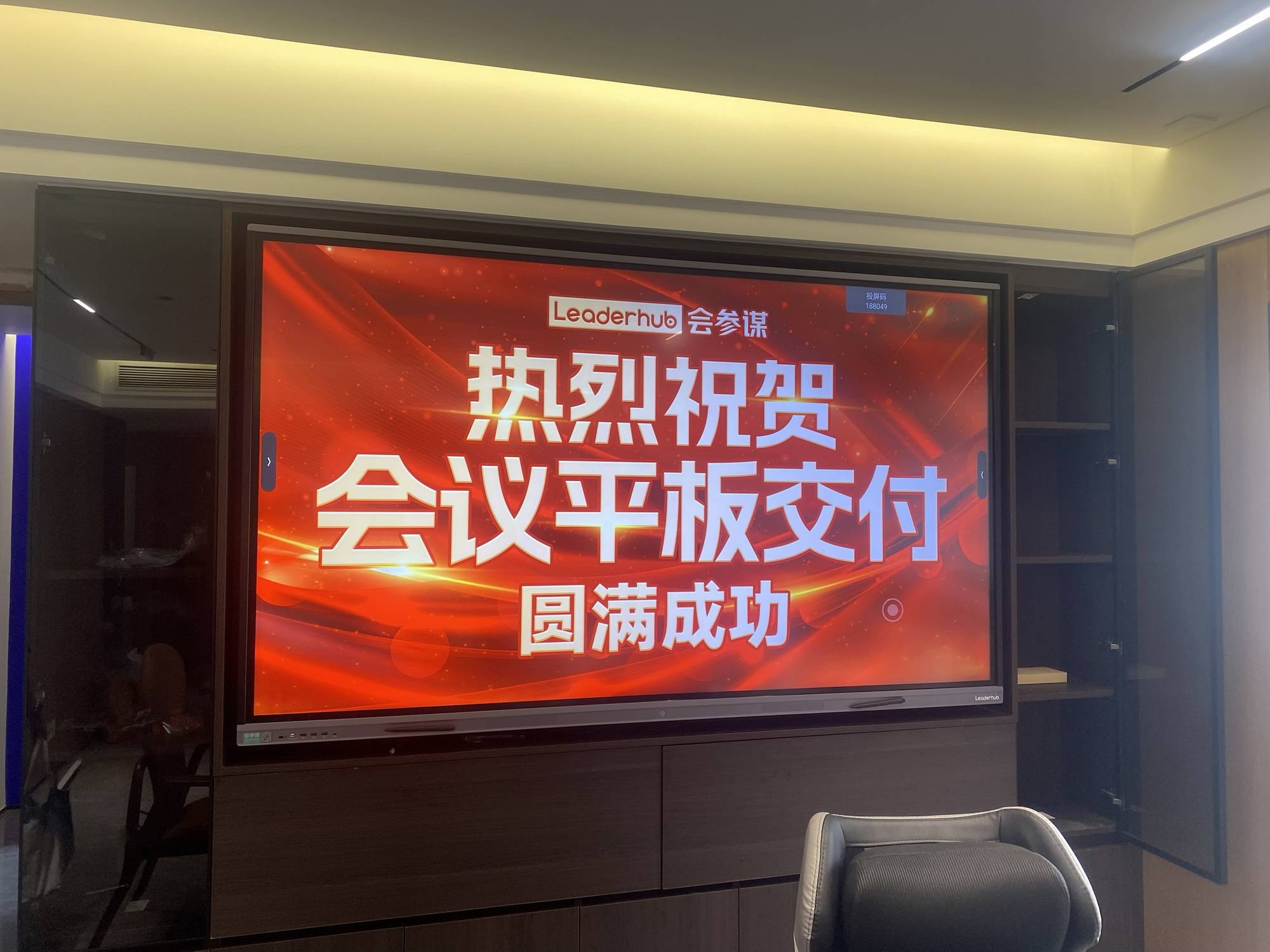
Key Factors to Evaluate Before Buying
Not all “dual-system” whiteboards are created equal. Here are the criteria that separate a reliable long-term investment from a frustrating purchase:
- Processor and RAM allocation — Android side typically runs on a quad-core or octa-core ARM chip, while the Windows module should support at least an Intel i5 with 8GB+ RAM for smooth multitasking.
- Switching speed — Look for panels that switch between Android and Windows in under 3 seconds via a physical or on-screen toggle, avoiding full reboots.
- Touch accuracy across both systems — Infrared or capacitive touch technology must register consistently whether you’re in Android annotation mode or running Windows applications.
- Connectivity options — USB-C, HDMI in/out, RJ45, and wireless casting should function identically regardless of which OS is active.
- Firmware update support — Manufacturers should provide regular OTA updates for both systems, not just Android.
Comparing Screen Sizes and Use Cases
Screen size directly impacts usability, especially in larger rooms. Based on deployment data from classrooms and meeting rooms globally, here’s how sizing typically breaks down:
| Screen Size | Best For | Typical Room Capacity |
|---|---|---|
| 55″ – 65″ | Small meeting rooms, huddle spaces | 4–10 people |
| 75″ – 86″ | Classrooms, mid-size boardrooms | 10–30 people |
| 98″ – 110″ | Lecture halls, large conference rooms | 30+ people |
For most businesses transitioning to hybrid meetings, the 75-inch to 86-inch range offers the best balance between visibility and cost. A properly configured 86-inch dual-system smart whiteboard can comfortably serve a 20-person training room while running Windows-based presentation software without lag.
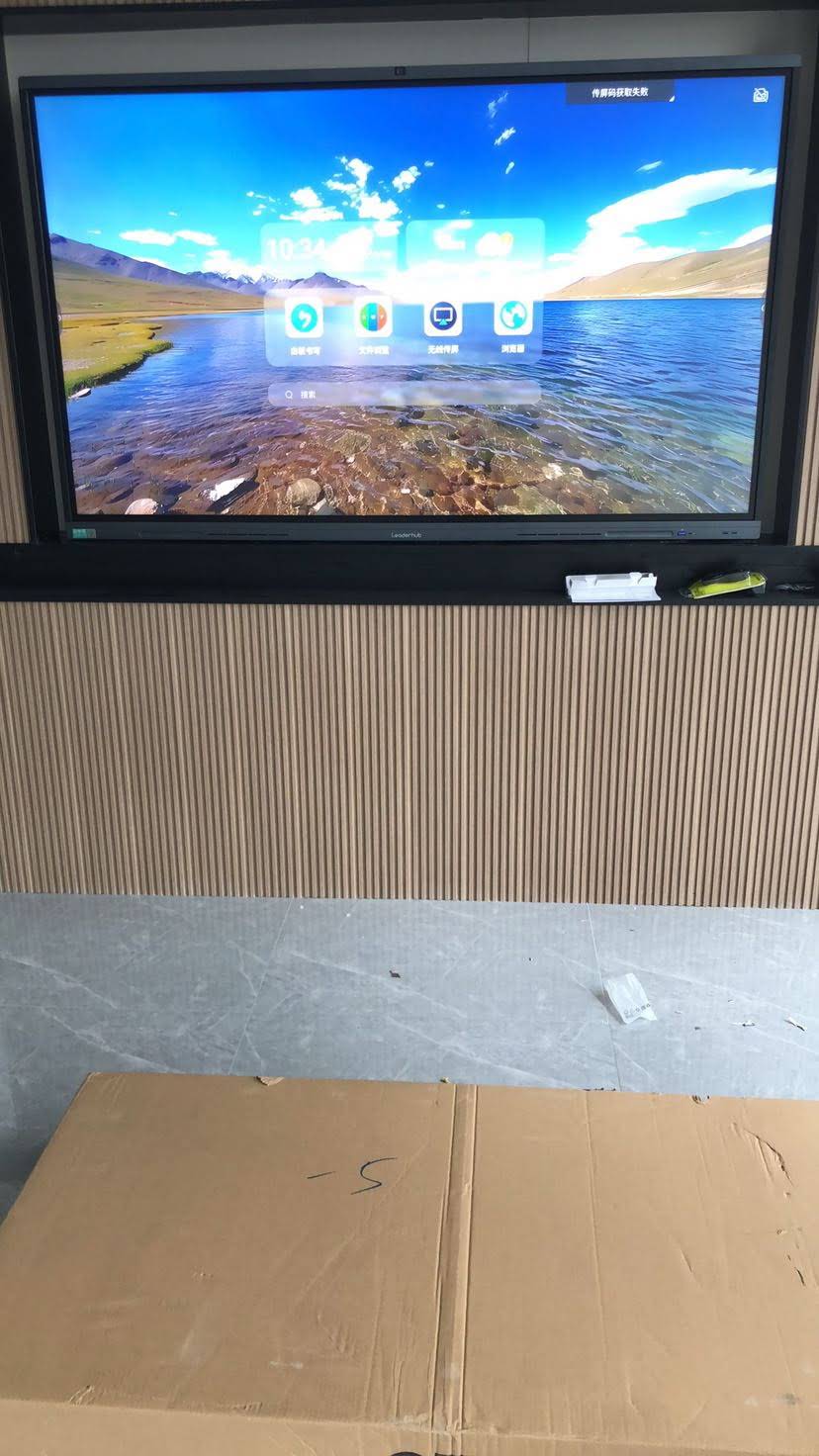
Software Ecosystem: What to Expect From Each OS
Understanding the practical differences between the two operating systems helps set realistic expectations for daily use:
Android Mode
Ideal for quick annotation, whiteboard sketching, screen mirroring from phones or tablets, and accessing pre-installed collaboration apps. Boot time is typically under 15 seconds, making it perfect for spontaneous brainstorming sessions.
Windows Mode
Necessary for running full desktop software — Excel spreadsheets, engineering tools, enterprise databases, or video conferencing platforms like Teams and Zoom with their complete feature sets. This mode requires the embedded PC module and generally takes 20–40 seconds to boot from cold start.
Switching Between Systems
The best panels allow instant switching via a side button or on-screen menu, keeping both systems running in a low-power state simultaneously rather than requiring a full shutdown and restart.
Technical Specifications Checklist
When comparing products, use this checklist to evaluate manufacturer specifications side-by-side:
| Specification | Minimum Recommended |
|---|---|
| Display Resolution | 4K UHD (3840 x 2160) |
| Touch Points | 20-point multi-touch |
| Android RAM | 4GB minimum, 8GB preferred |
| Windows PC Module RAM | 8GB minimum, 16GB for design-heavy work |
| Storage (Windows Module) | 256GB SSD minimum |
| Brightness | 350–400 nits |
| Warranty | 3 years minimum on panel and module |
Real-World Experience: What Buyers Often Overlook
Through direct feedback from schools and corporate clients across Southeast Asia, the Middle East, and Europe, a few recurring issues stand out that specification sheets rarely mention:
- Driver compatibility — Some cheaper Windows OPS modules use outdated touch drivers that cause lag or misalignment. Always request a live demo before bulk purchasing.
- Heat management — Running Windows mode for extended periods (6+ hours) generates more heat than Android mode. Panels with active cooling fans in the PC module last significantly longer.
- Software licensing — The Windows module needs its own valid OS license; confirm this is included and not an unlicensed installation, which can create compliance issues for enterprises.
- Firmware fragmentation — Android-side firmware updates sometimes lag behind Windows updates, creating temporary compatibility gaps. Choose manufacturers with a track record of synchronized update cycles.
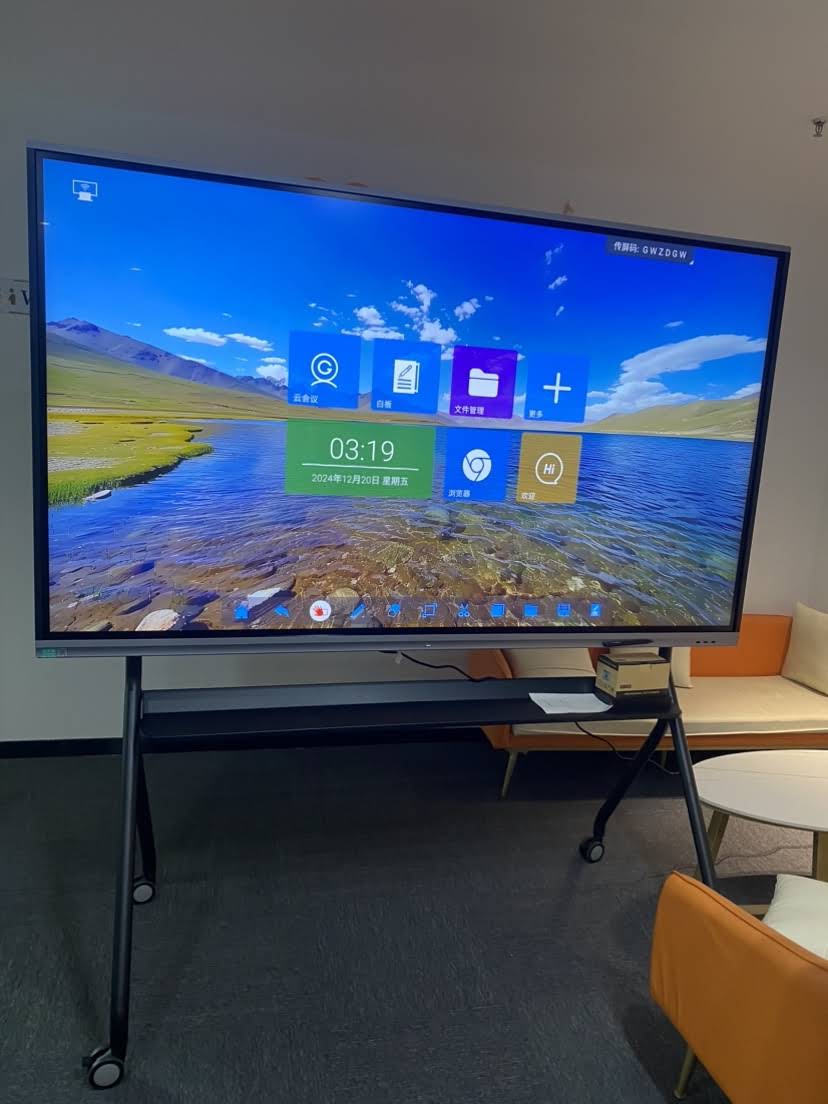
Industry Standards and Certifications to Look For
Reputable manufacturers typically hold several certifications that indicate quality control and safety compliance:
- CE and FCC certification for electronics safety
- RoHS compliance for environmental safety of components
- Energy Star or equivalent rating for power efficiency
- ISO 9001 manufacturing quality certification
These certifications matter more than they might seem — panels without proper certification often have inconsistent touch calibration and shorter component lifespans, particularly in the transition circuitry between Android and Windows systems.
Matching the Right Panel to Your Environment
Different environments demand different priorities. Here’s a practical breakdown based on common deployment scenarios:
For Corporate Meeting Rooms
Prioritize fast OS switching, wireless screen casting, and integration with existing video conferencing hardware. A 75-inch interactive flat panel with a dedicated Windows module handles most boardroom needs without requiring a separate laptop connection.
For Classrooms and Training Centers
Durability and touch responsiveness take priority since these panels see heavier daily use. Android mode is often sufficient for daily lessons, while Windows mode supports specialized educational software during exams or technical training sessions.
For Design Studios and Technical Teams
Higher RAM and dedicated GPU support become essential when running CAD, video editing, or 3D modeling software. In these cases, the Windows module specifications matter more than the Android side.
Cost Considerations
Dual-OS smart whiteboards generally cost 15–30% more than Android-only panels due to the added Windows module hardware and licensing. However, this upfront investment typically pays off within 12–18 months by eliminating the need for separate laptops, projectors, and connection cables — while reducing IT support tickets related to compatibility issues.
Final Recommendations
When evaluating a smart whiteboard for dual Android and Windows support, focus on three non-negotiables: fast system switching, sufficient RAM on both sides, and manufacturer support for synchronized firmware updates. Request live demonstrations whenever possible, and verify that the Windows module comes with a genuine, licensed operating system.
Companies like LeaderHub, with over 16 years of experience manufacturing interactive panels and mini PC modules for markets across 82 countries, have refined this dual-OS integration through continuous hardware iteration — a useful benchmark when comparing specifications from different suppliers.
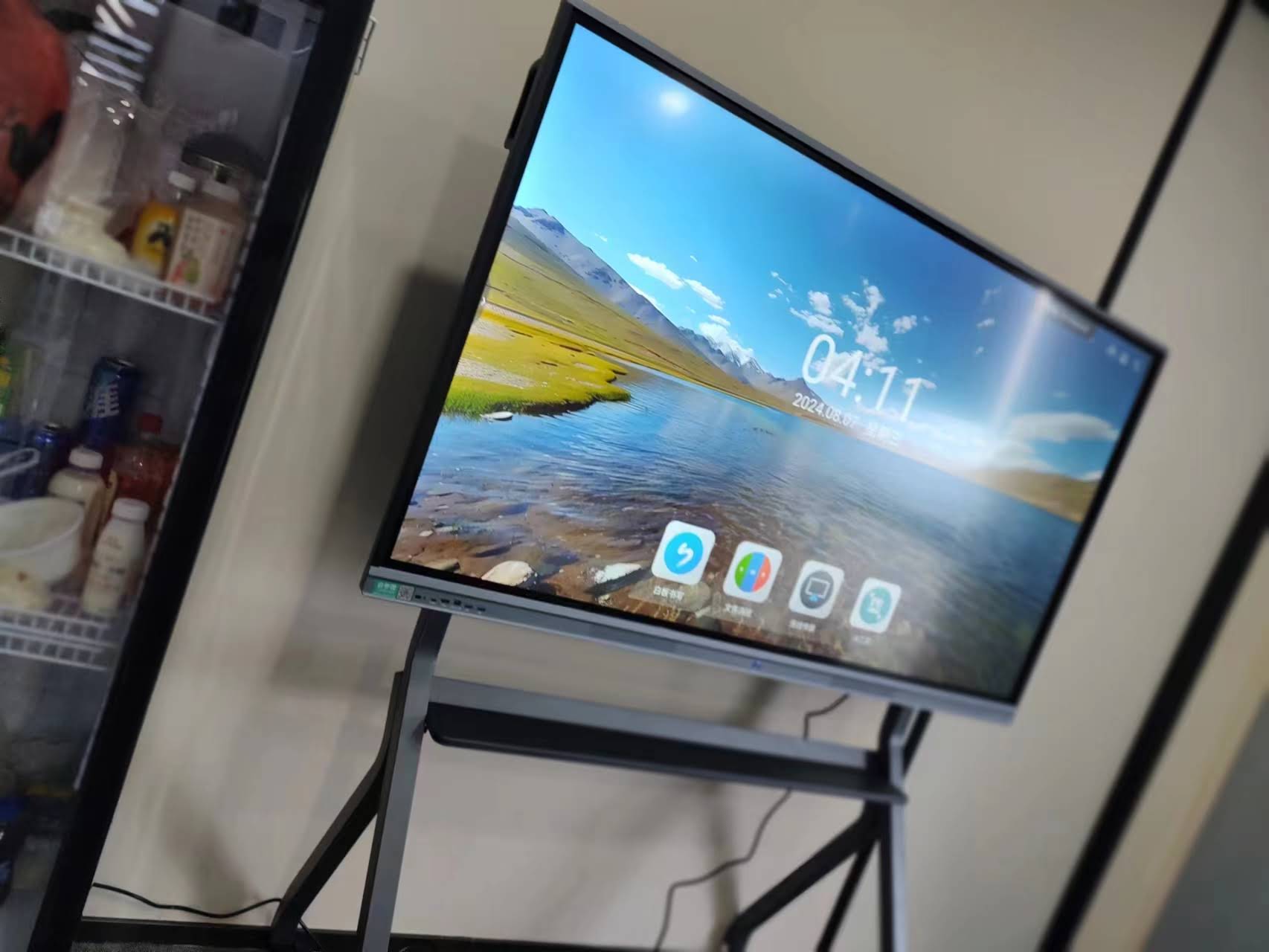
Ultimately, the right choice depends on your specific workflow. Organizations relying heavily on Microsoft ecosystem tools should weight their decision toward Windows module performance, while those focused primarily on collaborative annotation and casual presentations can lean on Android’s simplicity and speed. Testing both modes in your actual environment — not just a showroom — remains the most reliable way to confirm a panel meets your daily operational needs.








