
Choosing the right smart whiteboard for a classroom is no longer just about picking a big touchscreen. Modern educators need a device that supports interactive lessons, integrates with existing devices, and lasts for years of daily use in front of dozens of students. After speaking with hundreds of school IT administrators and teachers over the past decade, one thing is clear: the “best” smart whiteboard depends heavily on classroom size, subject matter, and budget.
This guide breaks down exactly what to look for — screen size, touch technology, operating system, connectivity, and pricing — so you can make a confident, informed purchase decision that will serve your school for the next 5-8 years.
Why Smart Whiteboards Have Become Essential in Modern Classrooms
Traditional whiteboards and projectors are quickly becoming outdated. According to industry surveys of K-12 and higher education institutions, over 70% of newly renovated classrooms in North America, Europe, and Southeast Asia now include an interactive flat panel instead of a chalkboard or projector screen. The reasons are simple:
- Higher student engagement — touch-based lessons keep attention longer than static slides
- Multimedia integration — video, annotation, and real-time internet content in one device
- Remote & hybrid learning support — built-in cameras and video conferencing tools
- Reduced long-term costs — no projector bulbs, no chalk dust, minimal maintenance
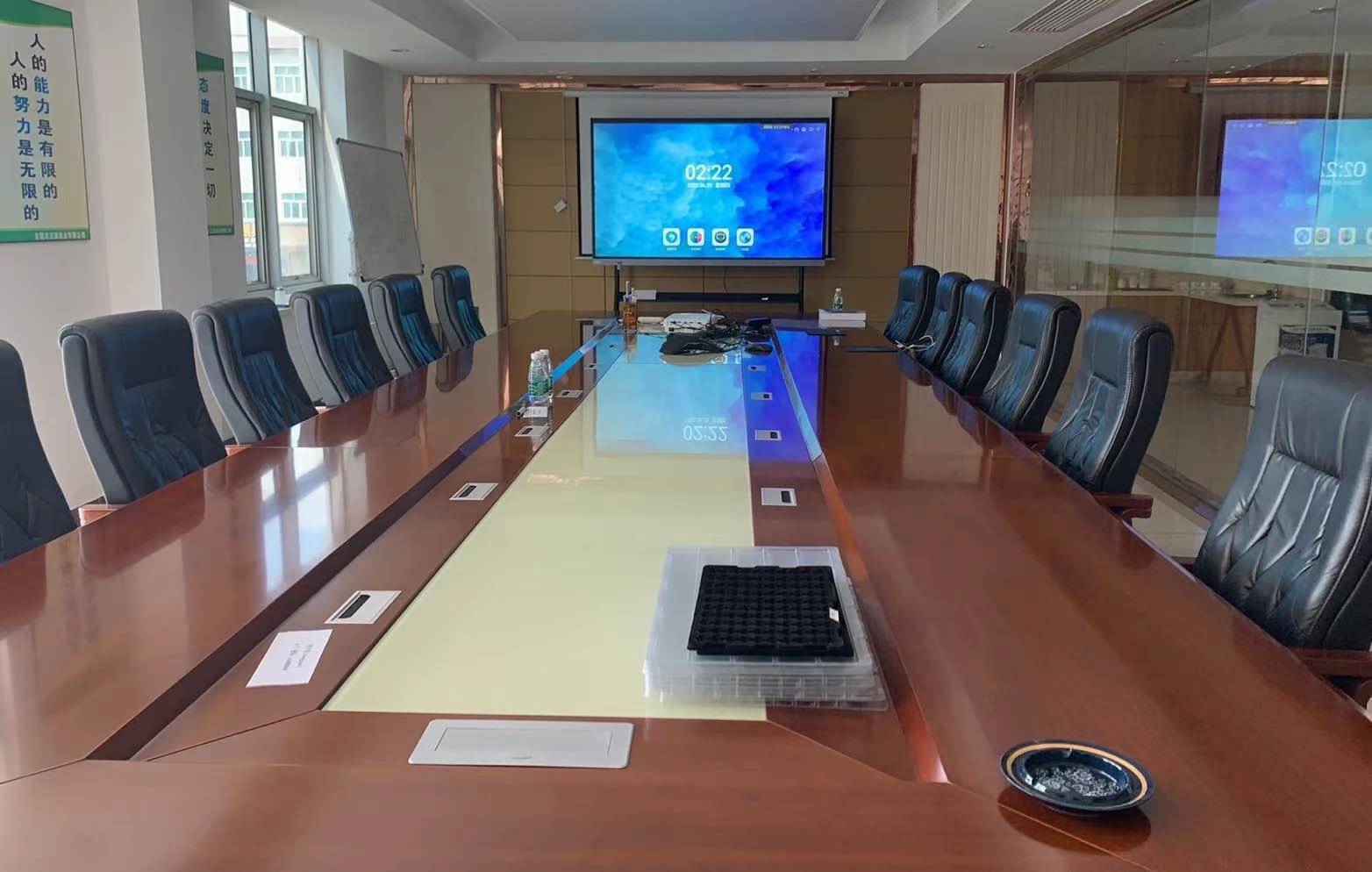
1. Screen Size: Match the Room, Not Just the Budget
Screen size is the single most common mistake schools make. A panel that looks perfect in a showroom can be far too small for a 40-student lecture hall or unnecessarily large for a small tutoring room.
| Room Size | Recommended Screen Size | Typical Class Size |
|---|---|---|
| Small classroom / tutoring room | 55″ – 65″ | Up to 15 students |
| Standard classroom | 65″ – 75″ | 15–30 students |
| Large classroom / training hall | 75″ – 86″ | 30–50 students |
| Lecture hall / auditorium | 98″ – 110″ | 50+ students |
For most standard classrooms, a 75-inch interactive smart whiteboard offers the best balance between visibility from the back row and comfortable touch access for teachers writing on the board.
2. Touch Technology: Infrared vs. Capacitive
Not all touchscreens perform the same way. Two technologies dominate the education market:
Infrared (IR) Touch
Cost-effective and widely used in education-grade panels. Supports 20+ touch points, works with fingers, styluses, or even gloved hands — ideal for younger students and art classes.
Capacitive Touch
Offers a smoother, smartphone-like writing experience with finer palm-rejection accuracy, but typically comes at a higher price point. Best suited for design, engineering, or higher-education use cases requiring precision annotation.
“We switched our entire secondary school to infrared 4K touchscreens three years ago. Durability has been excellent — zero screen failures across 22 units, even with heavy daily use by teenagers.” — IT Coordinator, secondary school in Sydney, Australia
3. Operating System & Software Compatibility
A smart whiteboard is only as good as the software running on it. Look for these core features:
- Built-in Android OS for annotation apps, whiteboard tools, and screen recording without an external computer
- Windows compatibility via an embedded or plug-in mini PC for full desktop software like PowerPoint, Excel, or subject-specific learning platforms
- Wireless screen casting from teacher and student devices (iOS, Android, Windows, macOS)
- Cloud-based lesson storage so notes and annotations sync automatically for later review
Many schools now prefer panels with a removable OPS mini PC slot, allowing IT departments to upgrade processing power without replacing the entire display — extending the device’s usable life by 3-4 years.
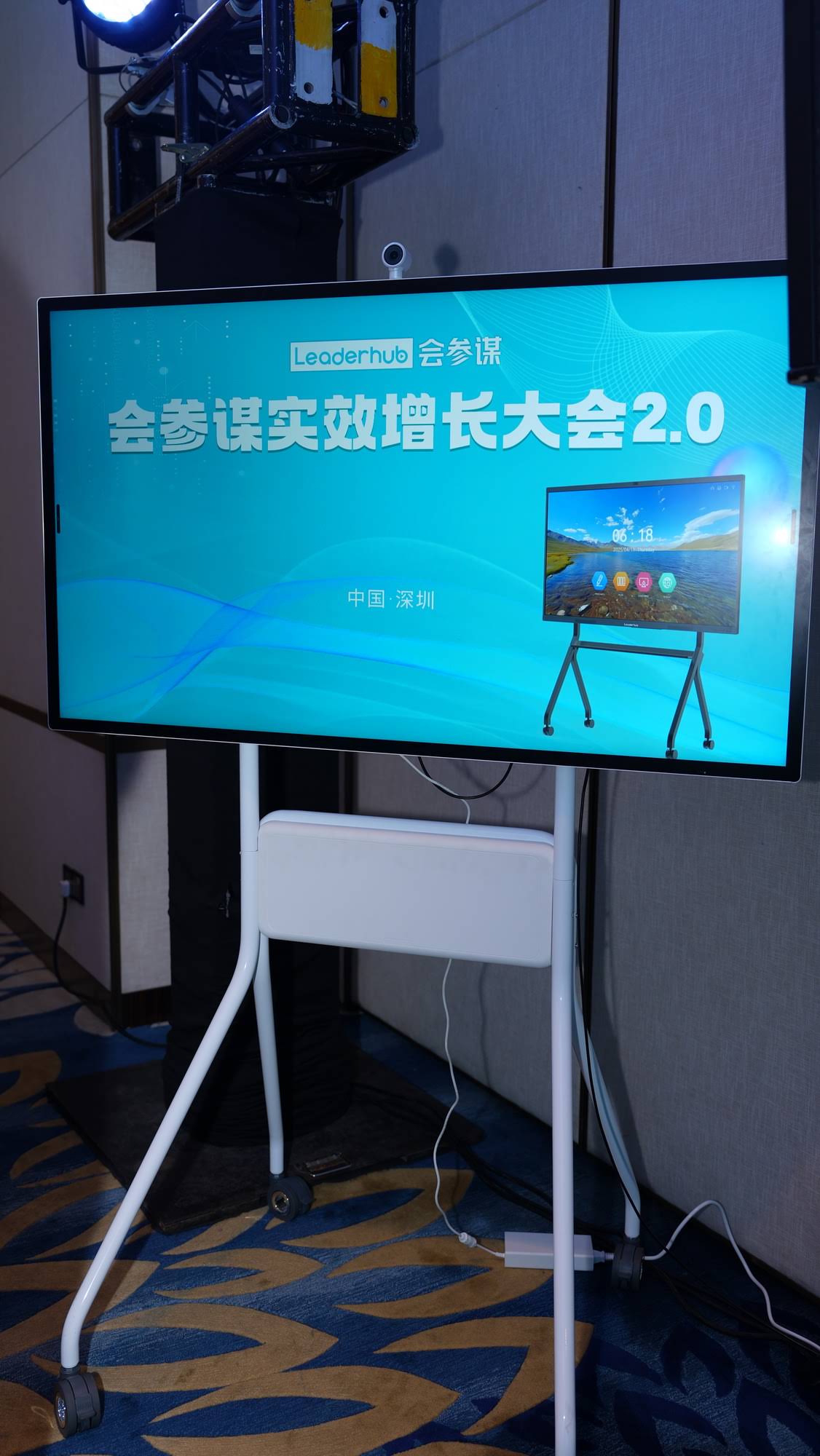
4. Connectivity & Ports
Before purchasing, confirm the panel includes enough ports for your existing classroom equipment. A well-equipped education panel should offer:
| Port / Feature | Common Use |
|---|---|
| HDMI In/Out (2-3 ports) | Connecting laptops, cameras, document scanners |
| USB 3.0 / USB-C | Flash drives, external touch input, charging |
| Wi-Fi 6 / Bluetooth 5.0 | Wireless casting and peripheral pairing |
| Built-in speakers (2x15W minimum) | Clear audio without external speaker system |
5. Budget: What to Expect at Each Price Range
Pricing for education-grade smart whiteboards varies significantly by size, resolution, and touch technology. Based on current market data:
- $1,000–$1,500 — 65″ 4K interactive panels with infrared touch, suitable for primary schools
- $1,500–$2,500 — 75″–86″ 4K panels with enhanced audio and built-in Android OS
- $2,500–$4,000 — Premium 75″–86″ panels with capacitive touch and OPS slot for Windows PC
- $4,000+ — Large-format 98″–110″ panels for lecture halls and auditoriums
For example, the L65ZM 65″ interactive whiteboard is a popular entry point for primary schools, while institutions needing large-format displays often choose the L110H 110-inch panel for lecture halls seating 60+ students.
6. Durability & Warranty — Don’t Overlook This
Classroom equipment endures far more wear than office displays. When evaluating manufacturers, check for:
- Tempered glass rated for high-frequency touch (10,000+ hours minimum)
- Anti-glare coating to reduce eye strain under classroom lighting
- Minimum 3-year warranty covering panel and touch module
- Availability of local technical support or authorized service centers

Real-World Case Study: A Mid-Sized School District Upgrade
A district serving over 1,200 students in Southeast Asia recently upgraded 28 classrooms from projector-based systems to 4K interactive panels. Key results reported after one academic year:
- 32% reduction in AV equipment maintenance costs (no projector bulb replacements)
- Teacher-reported increase in student participation during interactive lessons
- Faster lesson setup time — average of 90 seconds versus 5+ minutes with legacy projectors
This mirrors broader industry findings: interactive display adoption consistently correlates with improved lesson pacing and reduced technical downtime during class time.
Frequently Asked Questions
Do I need a separate computer for a smart whiteboard?
Not necessarily. Most modern panels include a built-in Android system sufficient for browsing, annotation, and basic presentation software. However, schools running specialized Windows-based educational software may prefer models with an OPS slot for an integrated mini PC.
How long do smart whiteboards typically last?
With proper care, education-grade panels typically last 6-8 years before requiring replacement, especially when the manufacturer offers a modular mini PC upgrade path.
What size is best for a standard classroom?
For rooms with 20-30 students, a 75-inch panel offers the best visibility-to-cost ratio based on typical classroom viewing distances.
Final Thoughts
Selecting the right smart whiteboard comes down to matching screen size and technology to your actual classroom needs — not simply choosing the most expensive or largest option available. Prioritize durability, software flexibility, and vendor support to ensure your investment serves students well for years to come.
Companies like LeaderHub, with 16 years of experience manufacturing interactive panels for education and enterprise markets across 82 countries, offer a range of tested, classroom-ready options — from compact 65″ models to large-format 110″ lecture hall displays — making it easier for schools of any size to find a suitable fit.








