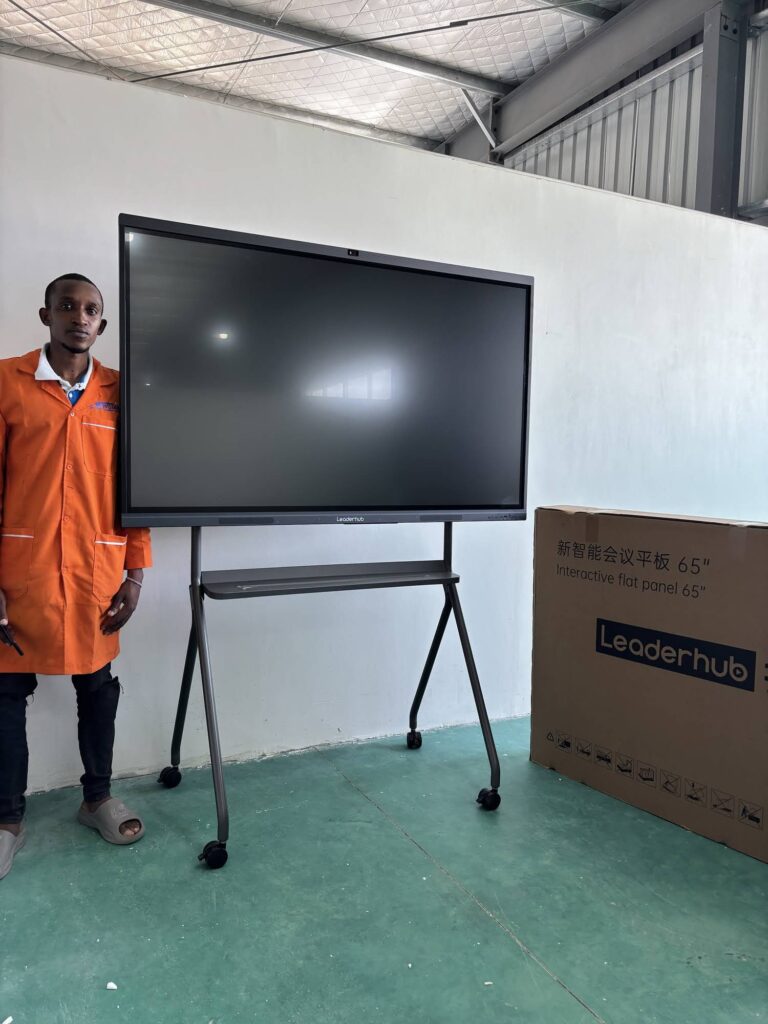
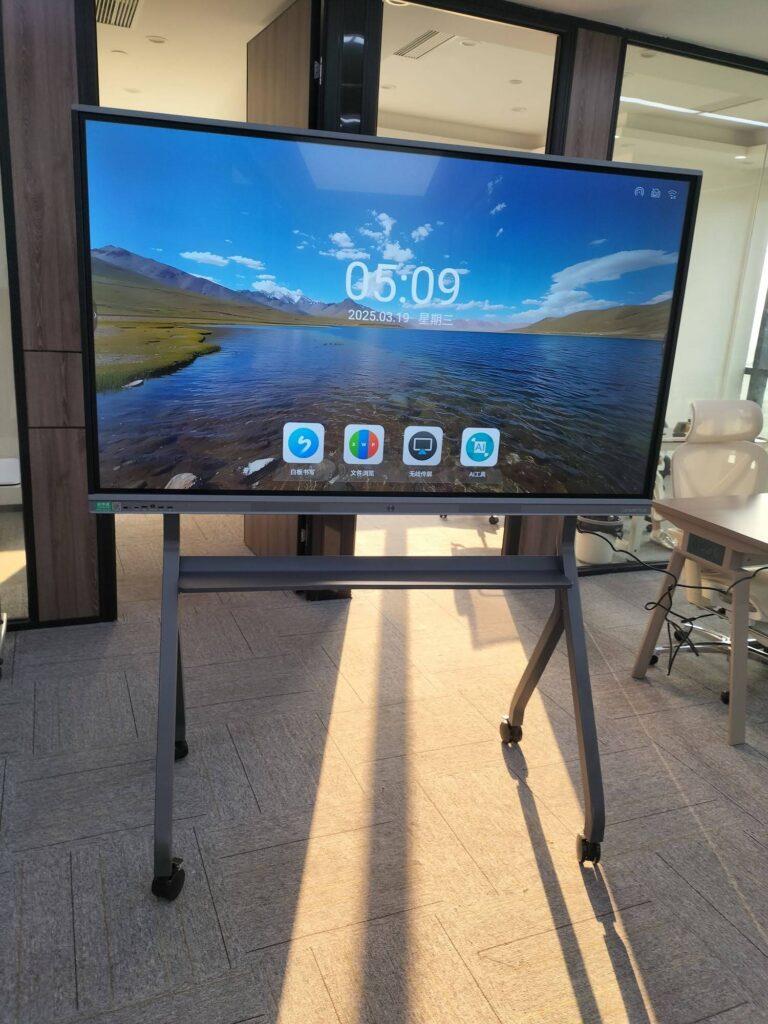
Most meetings still begin the same way: someone opens a slide deck full of static charts that were exported two days ago, and the team spends the first ten minutes arguing about whether the numbers are still accurate. A smart board with interactive data dashboards changes that dynamic completely. Instead of looking at frozen screenshots, your team touches live charts, filters the data in real time, annotates directly on the visualization, and leaves the room with decisions instead of follow-up questions.
This guide explains what an interactive dashboard smart board actually is, how to visualize data effectively on a large touch display, which hardware features matter most, and how organizations across sales, operations, finance, and education are using these displays to collaborate faster. Whether you are equipping a boardroom, a project war room, or a data-literacy classroom, you will find practical steps you can apply immediately.
What Is a Smart Board with Interactive Data Dashboards?
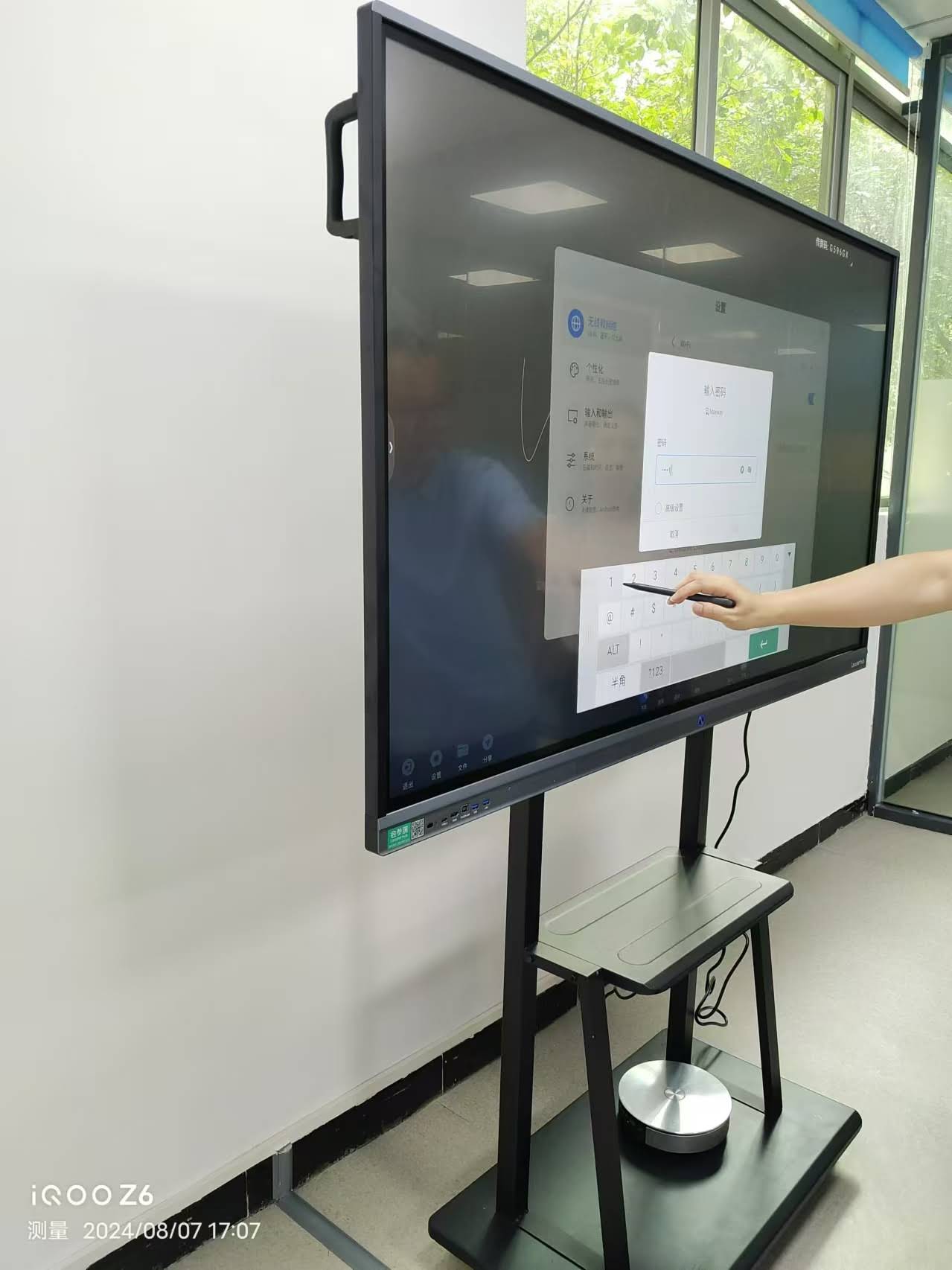
A smart board with interactive data dashboards is a large-format interactive flat panel that runs business intelligence (BI) tools, spreadsheets, and data visualization apps directly on a multi-touch 4K screen. Unlike a conventional TV connected to a laptop, the board itself becomes the workspace: users can pinch to zoom into a chart, tap a region on a map to drill down, drag a slider to change a date range, and write notes over the data with a stylus.
The Core Components
- Interactive display: A 55″ to 110″ touch panel with 4K UHD resolution and anti-glare glass so fine chart details stay readable from across the room.
- Computing power: An integrated Android system or a slot-in / external mini PC running Windows, so Power BI, Tableau, Looker Studio, Grafana, or Excel dashboards load without lag.
- Dashboard software: Cloud BI tools, web dashboards, or native apps that connect to your CRM, ERP, project trackers, or Google Sheets.
- Collaboration layer: Whiteboarding, annotation, screen sharing from phones and laptops, and video conferencing for hybrid participants.
Because everything happens on one surface, there is no switching between a projector, a flipchart, and a laptop. The data, the discussion, and the decision live in the same place.
Why Live Dashboards on a Smart Board Beat Static Slides
Research on workplace and classroom technology consistently shows that passive viewing produces weaker engagement than hands-on interaction. The OECD Digital Education Outlook highlights that the value of digital tools comes from how they enable active participation, not simply from putting content on a screen. The same logic applies to business meetings.
Measurable Advantages for Teams
- Always-current data. Dashboards pull from live sources, so the sales pipeline or production KPIs on the board reflect this morning, not last week.
- Faster questions, faster answers. When someone asks “what does this look like for the EMEA region only?”, a presenter taps a filter rather than promising to “send that later.”
- Shared understanding. Everyone sees the same numbers at the same time, which cuts down on misaligned spreadsheets circulating by email.
- Annotation and accountability. Notes written on the chart are saved and shared, creating a visual record of why a decision was made.
- Hybrid inclusion. Remote team members see the dashboard and the annotations through the conferencing feed, not a blurry camera pointed at a wall.
How to Visualize Data on a Smart Board: A Step-by-Step Workflow
Great dashboards on a large touch display are designed differently from those viewed on a 14-inch laptop. Follow these steps to make your data legible, interactive, and decision-ready.
Step 1 — Connect Your Data Sources
Start by linking your BI tool to the systems your team already uses. Most cloud dashboards support direct connectors for CRMs, databases, project management platforms, and spreadsheets. Set an automatic refresh interval (hourly, or every few minutes for operations dashboards) so the board always shows current figures without manual uploads.
Step 2 — Choose the Right Chart for the Question
Each visualization answers a specific type of question. Using the wrong chart type is the most common reason dashboards confuse rather than clarify.
| Question You Are Asking | Best Chart Type | Touch Interaction to Enable |
|---|---|---|
| How is this metric changing over time? | Line or area chart | Drag to select a date range; tap a point for exact value |
| How do categories compare? | Horizontal bar chart | Tap a bar to drill into sub-categories |
| What share does each part contribute? | Donut or treemap (limit to 5–6 segments) | Tap a segment to isolate it |
| Where is performance strongest geographically? | Choropleth or bubble map | Pinch to zoom; tap a region to filter the whole dashboard |
| Are we on target? | KPI card with bullet gauge | Tap card to open trend history |
| Is there a relationship between two variables? | Scatter plot | Lasso-select a cluster of points |
Step 3 — Design for Distance and Touch
- Use a maximum of 6–8 tiles per screen. A 75″ board is big, but people sit 3–5 meters away.
- Keep tap targets (filters, buttons, legend items) at least 44 pixels so fingers can hit them reliably.
- Prefer high-contrast palettes. Pastels that look fine on a monitor wash out under meeting-room lighting.
- Place the single most important KPI in the top-left, where eyes land first.
- Add a visible “last refreshed” timestamp so nobody questions data freshness.
Step 4 — Annotate, Capture, Share
Once the discussion starts, use the board’s screen-annotation layer to circle anomalies, write action items beside the chart, and assign owners. Save the annotated snapshot as a PDF or image and push it to your team channel or email directly from the board. This creates a decision log that is far more useful than meeting minutes.
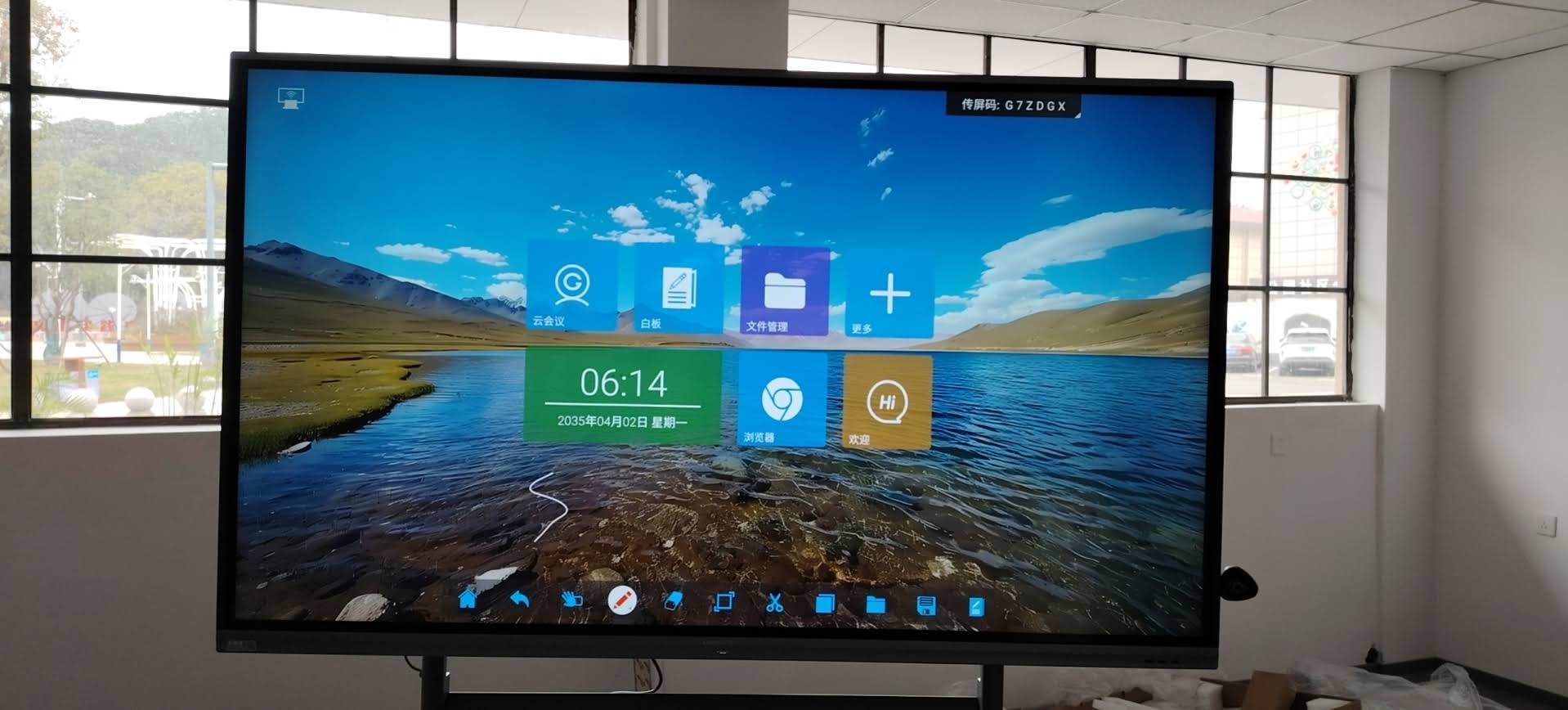
Boosting Team Collaboration with Interactive Dashboards
The real return on a dashboard smart board is not prettier charts — it is a change in how teams meet. Below are the collaboration patterns that deliver the most value.
Daily Stand-Ups and Sales Huddles
Sales and support teams gather around the board for 15 minutes each morning. The pipeline dashboard shows deals by stage, aging, and owner. Reps tap their own name to filter, update next steps on the spot, and the manager annotates priorities. No one prepares slides; the data is simply there.
Project War Rooms and Operations Centers
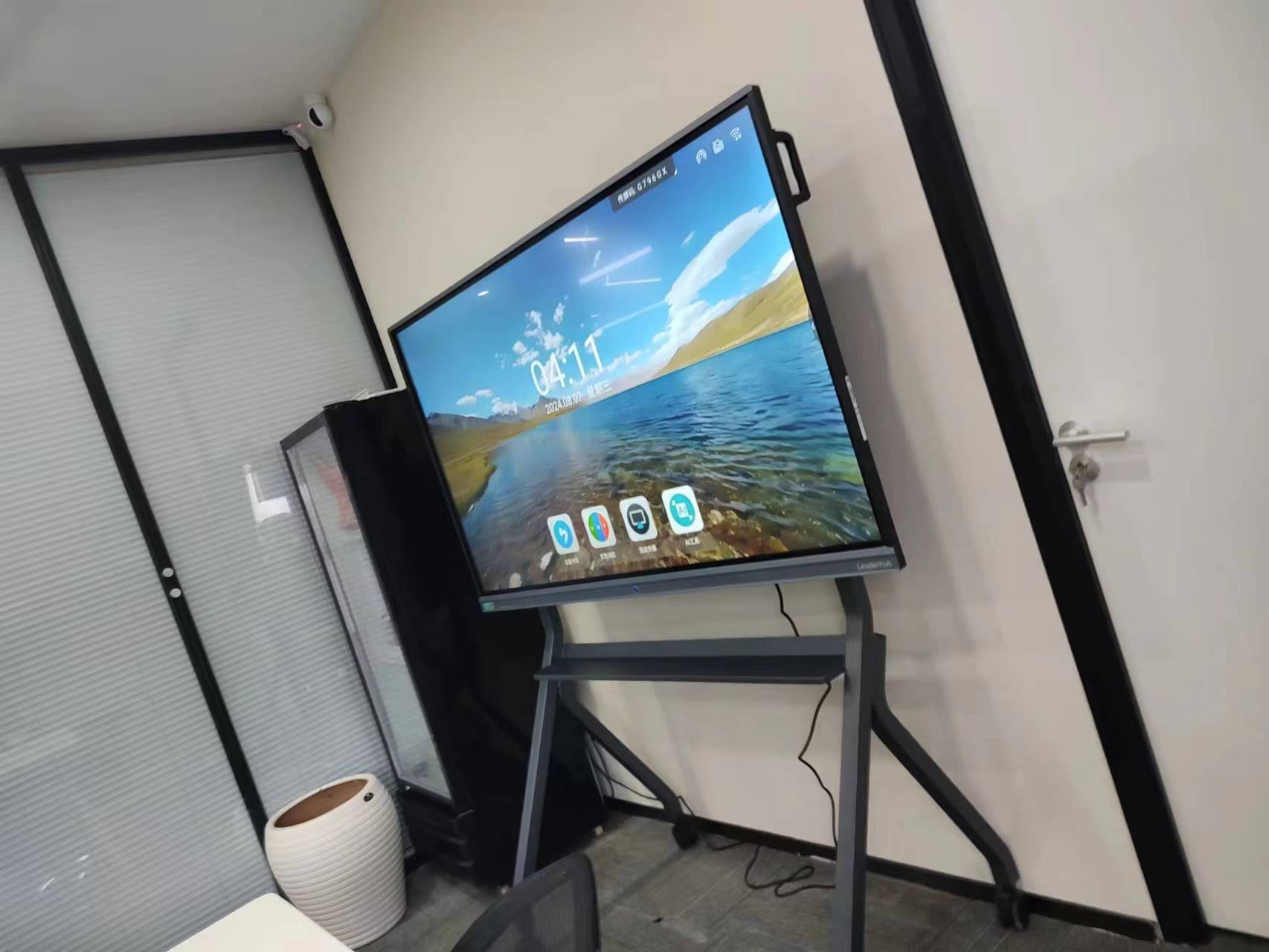
For product launches, plant operations, or logistics control, a wall-mounted board displays a persistent dashboard — throughput, defect rate, delivery status — that refreshes automatically. When an alert fires, the team walks up, drills down, and whiteboards a response next to the chart. Mobile stands or a rotating screen let smaller squads bring the dashboard to wherever the problem is.
Executive and Board Reviews
Leadership meetings move from “presenting results” to “exploring results.” When a board member asks about a regional dip, the CFO filters live instead of deferring. According to AVIXA, the audiovisual industry association, the shift toward interactive, collaborative displays in corporate spaces is one of the defining trends in modern meeting-room design.
Classrooms and Training Rooms
Data literacy is now a core skill. Teachers use dashboard smart boards to let students manipulate real datasets — population statistics, climate records, school survey results — and discover patterns themselves. Interactive displays align well with the ISTE Standards for Students, which emphasize computational thinking and using data to construct knowledge.
| Team | Dashboard Focus | Collaboration Outcome |
|---|---|---|
| Sales | Pipeline, win rate, forecast vs. quota | Shorter stand-ups, faster deal coaching |
| Marketing | Campaign ROI, traffic, conversion funnels | Real-time budget reallocation decisions |
| Operations | OEE, throughput, downtime, inventory | Root-cause analysis at the point of alert |
| Finance | Cash flow, variance, departmental spend | Interactive monthly close reviews |
| HR | Headcount, attrition, hiring funnel | Data-backed workforce planning sessions |
| Education | Student progress, attendance, assessment data | Hands-on data literacy and teacher PLC meetings |
Hardware Features That Matter for Dashboard Display
Not every interactive panel handles dense data visualization well. Dashboards are text-heavy, use thin lines, and demand responsive touch when users filter and drill. Here is what to check before you buy.
| Feature | Why It Matters for Dashboards | Recommended Spec |
|---|---|---|
| Resolution | Small axis labels and legends stay sharp from a distance | 4K UHD (3840 × 2160) |
| Screen size | Room depth determines how many tiles remain readable | 65″ for huddle rooms, 75″–86″ for boardrooms, 110″ for operations centers |
| Touch points & latency | Multiple people can filter and annotate simultaneously without lag | 20+ touch points, under 10 ms response |
| Anti-glare glass | Prevents window reflections from hiding chart segments | Etched, low-reflectance tempered glass |
| Processing | Complex BI reports with many visuals need real CPU and RAM | Dedicated Windows mini PC (Intel i5 class, 16 GB RAM) or OPS module |
| Connectivity | Reliable data refresh and wireless casting from any device | Gigabit Ethernet, Wi‑Fi 6, HDMI, USB‑C |
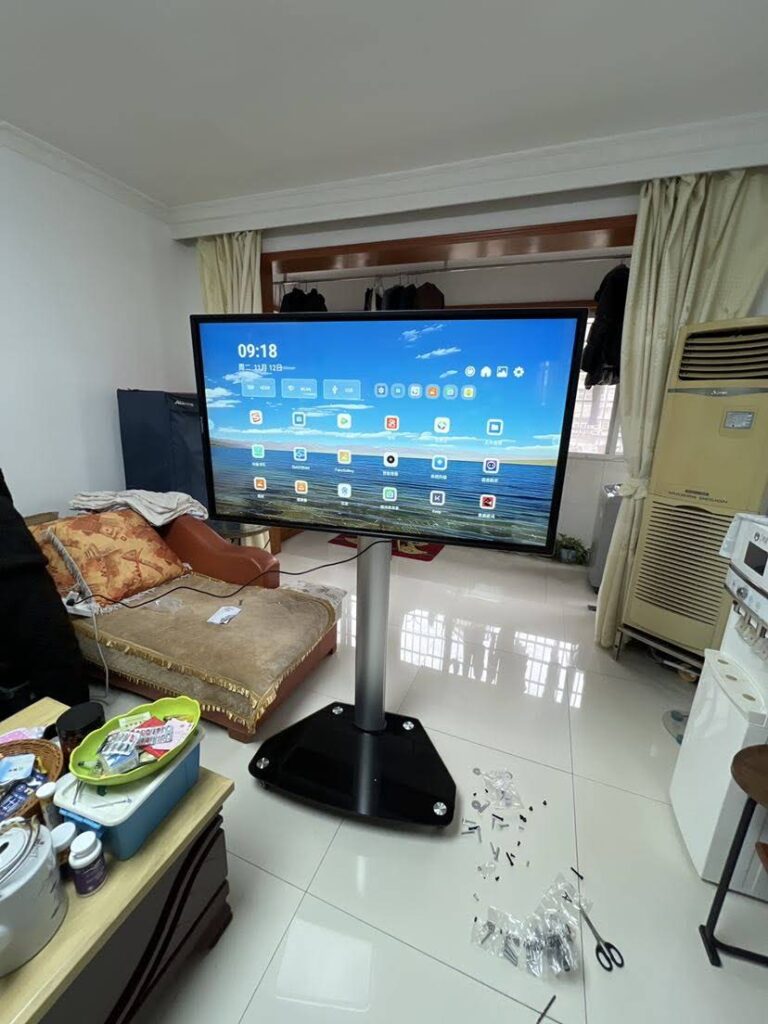
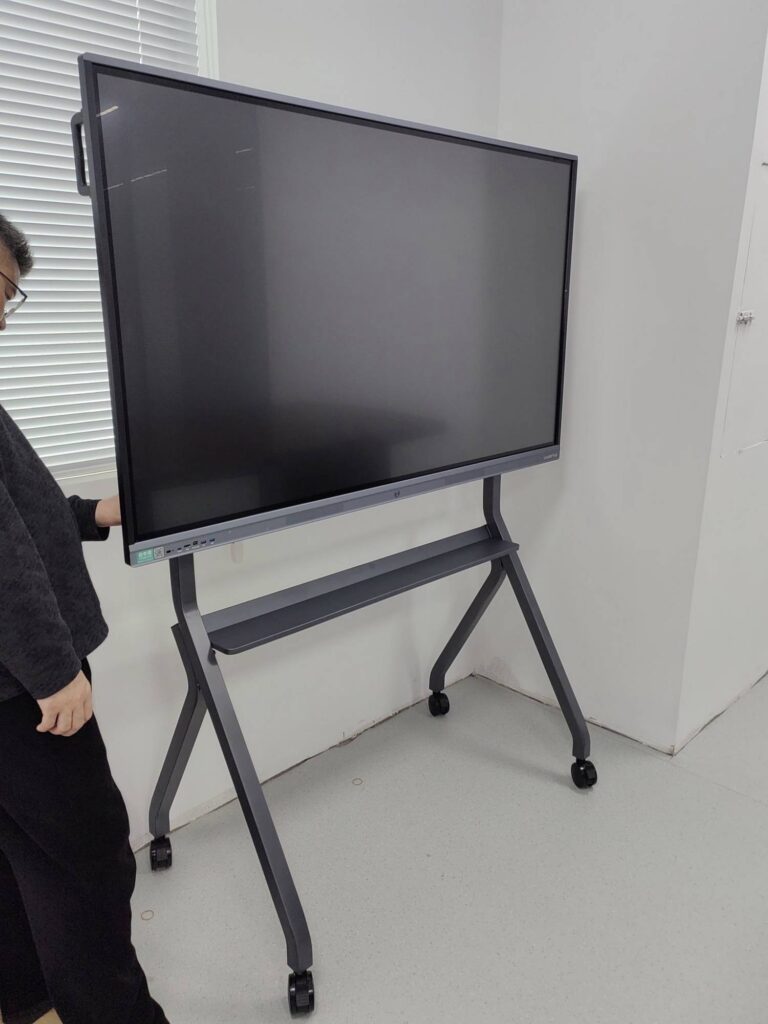
| Mobility | Move dashboards between rooms or onto the shop floor | Rolling stand or built-in battery for portable models |
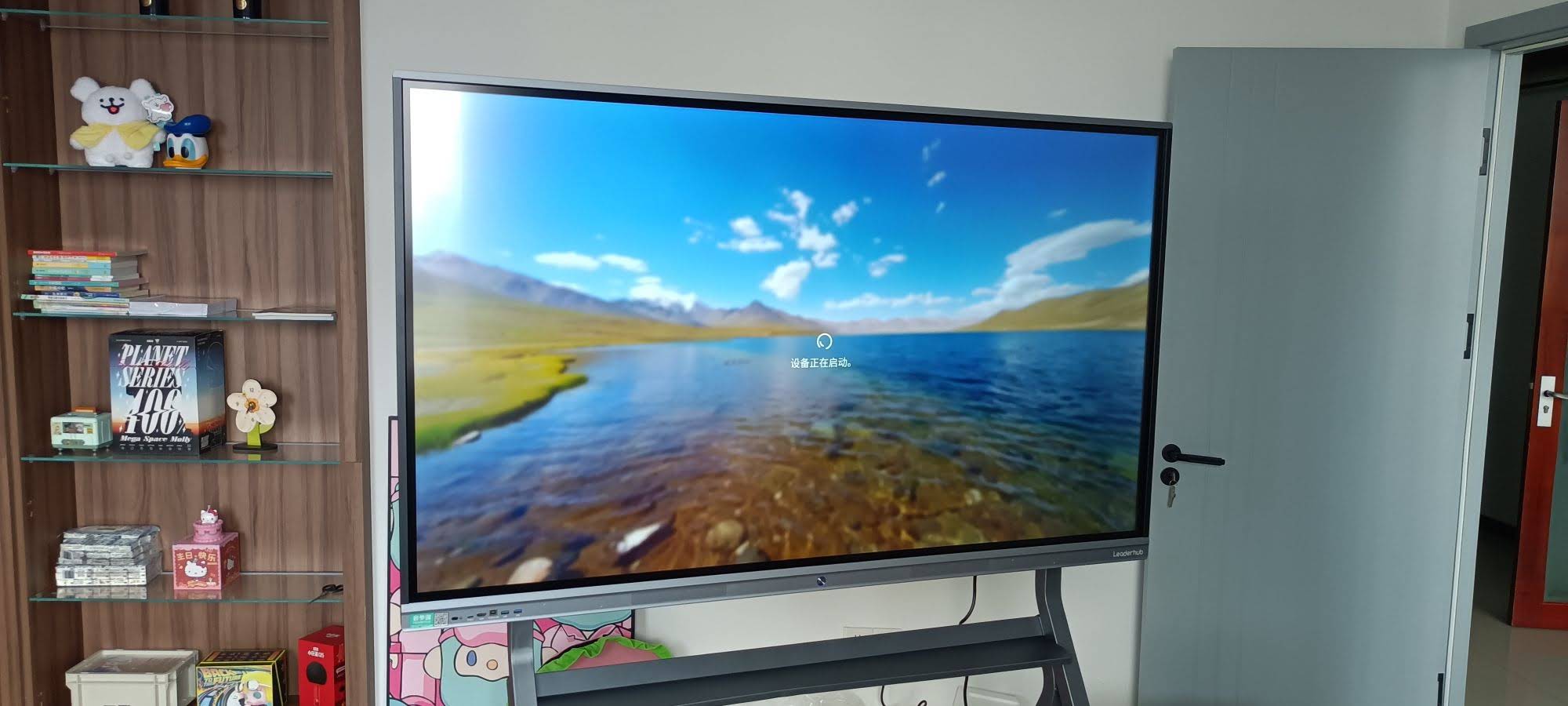
Recommended Setups for Different Room Sizes
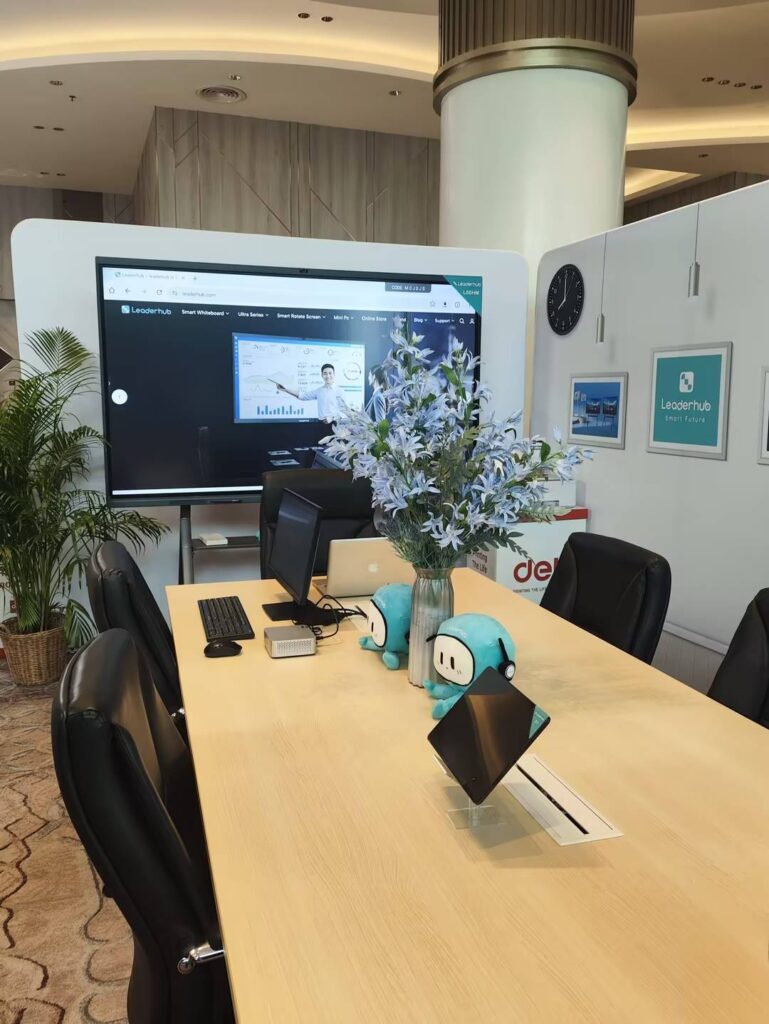
LeaderHub is a Shenzhen-based interactive display manufacturer with 16 years of experience, serving customers in 82 countries with smart whiteboards, interactive flat panels, mini PCs, and portable smart screens. Its lineup covers every dashboard scenario, from a two-person data huddle to a full operations wall. Browse the complete range of interactive smart whiteboards or consider the configurations below.
| Scenario | Recommended Display | Add-On | Starting Price |
|---|---|---|---|
| Huddle room / small team (4–6 people) | L65ZM 65″ 4K Smart Panel | LP1C Mini PC for Windows BI apps | $1,099 |
| Standard boardroom (8–12 people) | L75HM 75″ 4K Touchscreen | LP5C Mini PC (Intel i5, 16 GB RAM) | $1,599 |
| Large conference / training room | L86ZM 86″ 4K Smart Panel | Rolling stand for flexible layouts | $1,699 |
| Operations center / data wall | L110H 110″ Interactive Flat Panel | AD8 Mini PC for multi-dashboard workloads | $7,999 |
| Mobile / shop-floor dashboards | U55Pro 55″ Mobile 4K Display | U24M handheld screen for roaming supervisors | $2,499 |
The rotatable HM series — recognized with a MUSE Design Award — is particularly useful for dashboards: switch to portrait mode to display long scrolling tables or mobile-app analytics exactly as users see them on their phones.
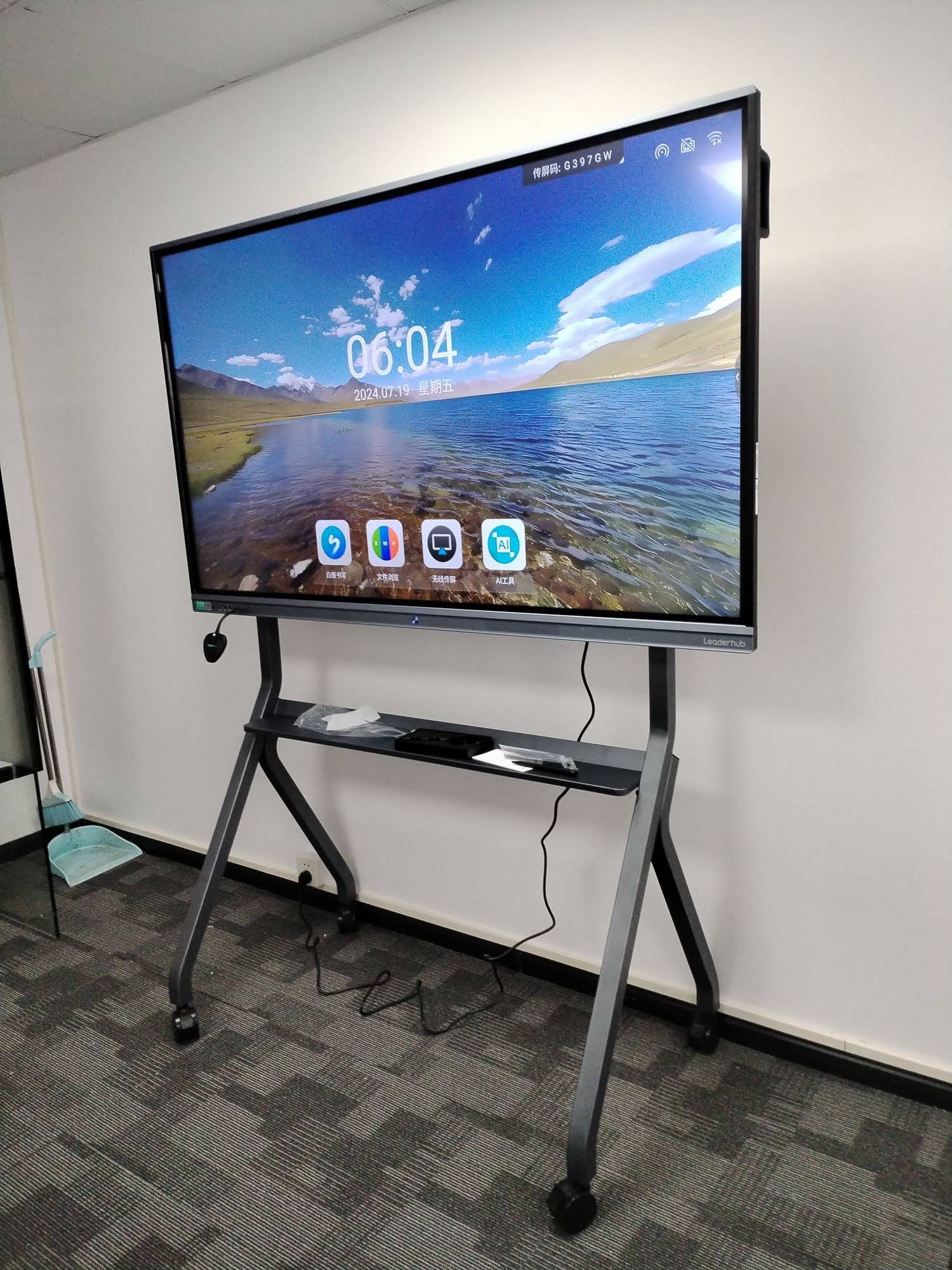
Best Practices and Common Mistakes
Do This
- Start with one meeting. Pick a recurring review, rebuild it as a live dashboard, and measure the time saved before scaling.
- Create a “board layout.” Most BI tools let you save a separate view optimized for large screens; use it instead of your desktop layout.
- Assign a dashboard owner. One person maintains connectors, refresh schedules, and permissions.
- Train facilitators, not just viewers. A 30-minute session on filtering, drilling, and annotating pays for itself in the first week.
Avoid This
- Cramming 15 charts onto one screen. If everything is important, nothing is.
- Using 3D charts or exploded pie charts — they distort values and are hard to tap accurately.
- Running heavy BI reports on an underpowered built-in system; pair the panel with a capable mini PC.
- Forgetting access control. Lock sensitive dashboards behind user login so a finance view is not left open on a public wall.
Frequently Asked Questions
Can I run Power BI, Tableau, or Looker Studio on a smart board?
Yes. Web-based dashboards run in the board’s browser, and full desktop versions run on a connected Windows mini PC or OPS module. Touch gestures translate directly into clicks, scrolls, and drags inside these tools.
How do remote participants interact with the dashboard?
Through screen sharing in your video conferencing app, remote attendees see the live dashboard and all annotations. Many BI platforms also allow them to open the same report on their own device and apply filters that sync to the board.
What size smart board is best for data dashboards?
For rooms where viewers sit up to 4 meters away, 75″ is the sweet spot. For longer rooms or wall-mounted operations dashboards viewed while standing, 86″ or 110″ ensures small labels remain legible.
Is a dashboard smart board useful for schools?
Very much so. Students can explore real datasets interactively, which supports data literacy and inquiry-based learning. Guidance from EdTech Magazine on choosing an interactive display for K-12 is a useful starting point for schools evaluating panels.
How secure is displaying business data on a shared board?
Use user authentication on the BI platform, enable auto-logout on the panel, and restrict guest casting to approved devices. Enterprise panels also support remote device management so IT can push updates and wipe sessions centrally.
Turn Your Data into Decisions
A smart board with interactive data dashboards does more than modernize your meeting room — it changes the quality of the conversations that happen there. Teams stop debating which numbers are right and start deciding what to do about them. Classrooms turn abstract statistics into something students can touch and explore. Operations teams respond to problems while they are still small.
Ready to see live dashboards on a 4K touch display? Explore the full product range or contact the LeaderHub team for a configuration tailored to your room, your data tools, and your budget.