Every IT department eventually faces the same question: how do you refresh dozens, hundreds, or thousands of desktops without blowing the budget, overheating the office, or spending weeks on imaging and cabling? For a growing number of organizations, the answer is a mini PC for IT departments — a compact desktop that delivers full business performance in a chassis small enough to hide behind a monitor. This guide walks through the criteria that matter most when you evaluate compact desktops for business deployment, from processor tiers and manageability to mounting, security, and total cost of ownership.
Why IT Departments Are Standardizing on Mini PCs
Traditional tower desktops were designed for an era of expansion cards and spinning hard drives. Modern business workloads — office productivity, web applications, video conferencing, and cloud-hosted software — simply do not need that footprint. Compact desktops now offer the performance of a full-size machine while solving several long-standing operational headaches:
- Space efficiency: a VESA-mounted mini PC disappears behind the display, freeing desk space in hot-desking and open-plan offices.
- Lower power draw: many compact units run at 10–35 W under typical load, cutting electricity costs across a large fleet.
- Faster deployment: smaller, lighter boxes are easier to ship, stage, image, and install at remote branches.
- Quieter workplaces: fanless or low-noise designs reduce ambient noise in call centers and meeting rooms.
- Simplified standardization: one or two hardware models can cover reception desks, knowledge workers, kiosks, and conference rooms.
The result is a desktop strategy that is cheaper to run, easier to support, and far more flexible than legacy towers — provided you choose the right model for each role.
Key Criteria When Choosing a Mini PC for IT Departments
1. Processor and Performance Tiers
The processor determines who the machine is suitable for. Rather than buying one high-end configuration for everyone, most IT teams define two or three tiers that map to real job functions. The table below summarizes a practical tiering model.
| Tier | Typical CPU Class | Ideal Users | Typical Workloads |
|---|---|---|---|
| Entry | Intel N-series (e.g., N100) | Reception, kiosks, digital signage, light office | Browser apps, email, thin-client access, signage playback |
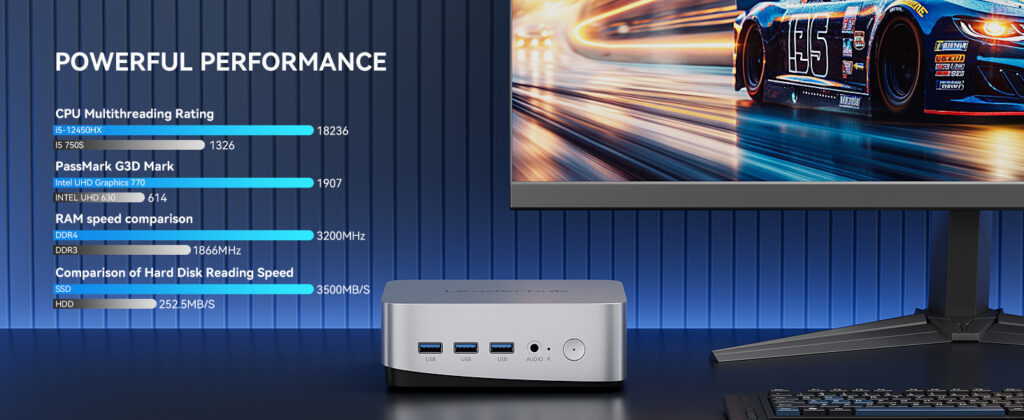
| Mainstream | Intel Core i5 H-class (e.g., i5-12450HX) | Knowledge workers, finance, sales, support teams | Multi-tab productivity, video calls, ERP/CRM, large spreadsheets |
| Performance | High-performance compact platform | Engineers, designers, analysts, developers | Data analysis, light CAD, virtual machines, content creation |
2. Memory and Storage
For a modern Windows business image, 8 GB of RAM is the realistic minimum for light users and 16 GB should be the standard for anyone who runs collaboration tools alongside business applications. Storage should always be NVMe or SATA SSD — never a mechanical drive. A 512 GB SSD gives enough room for the OS, applications, local profiles, and update caches without forcing early replacements. Check whether memory and storage are user-upgradable; it extends the usable life of the fleet by two to three years.
3. Connectivity and Ports
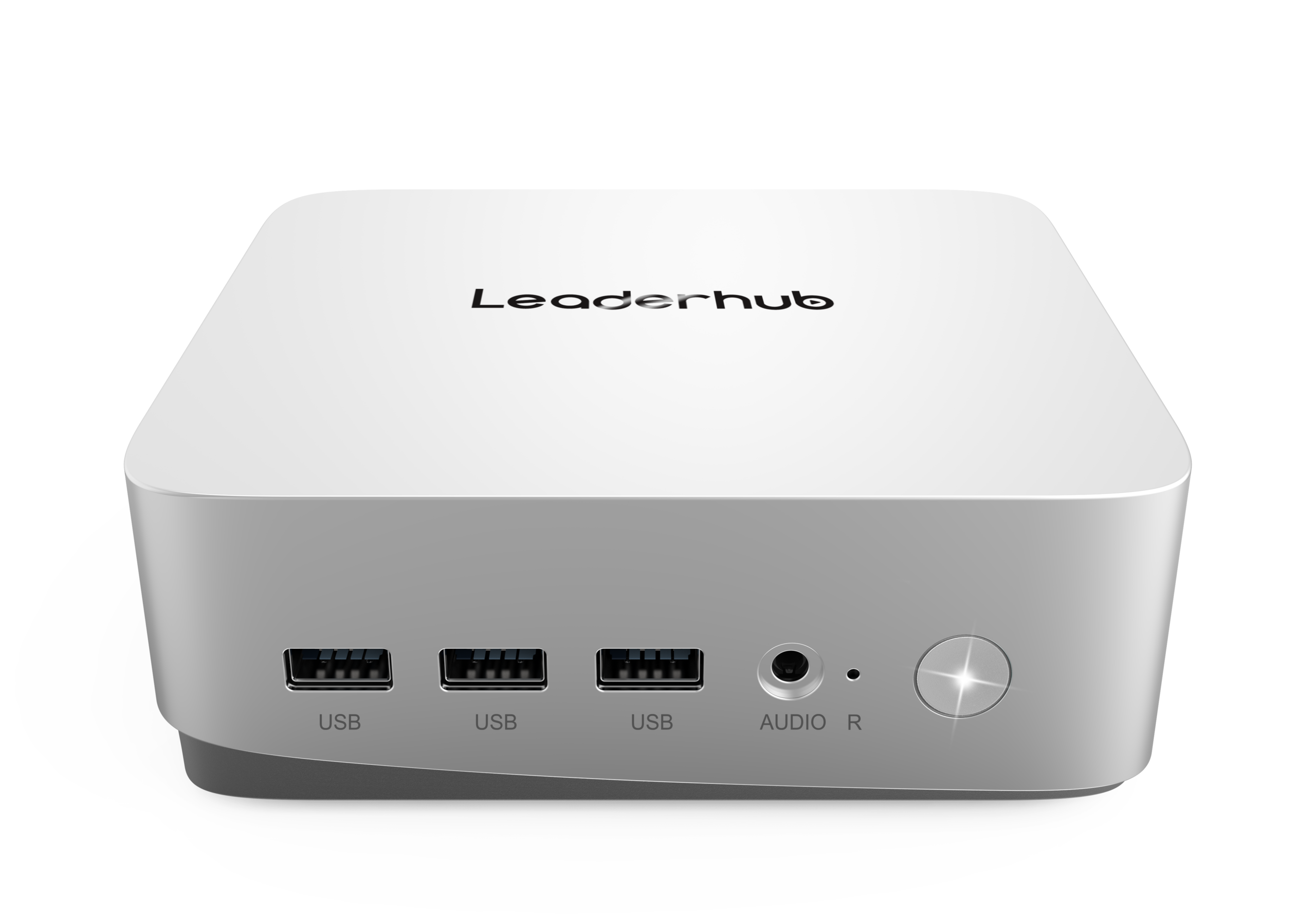
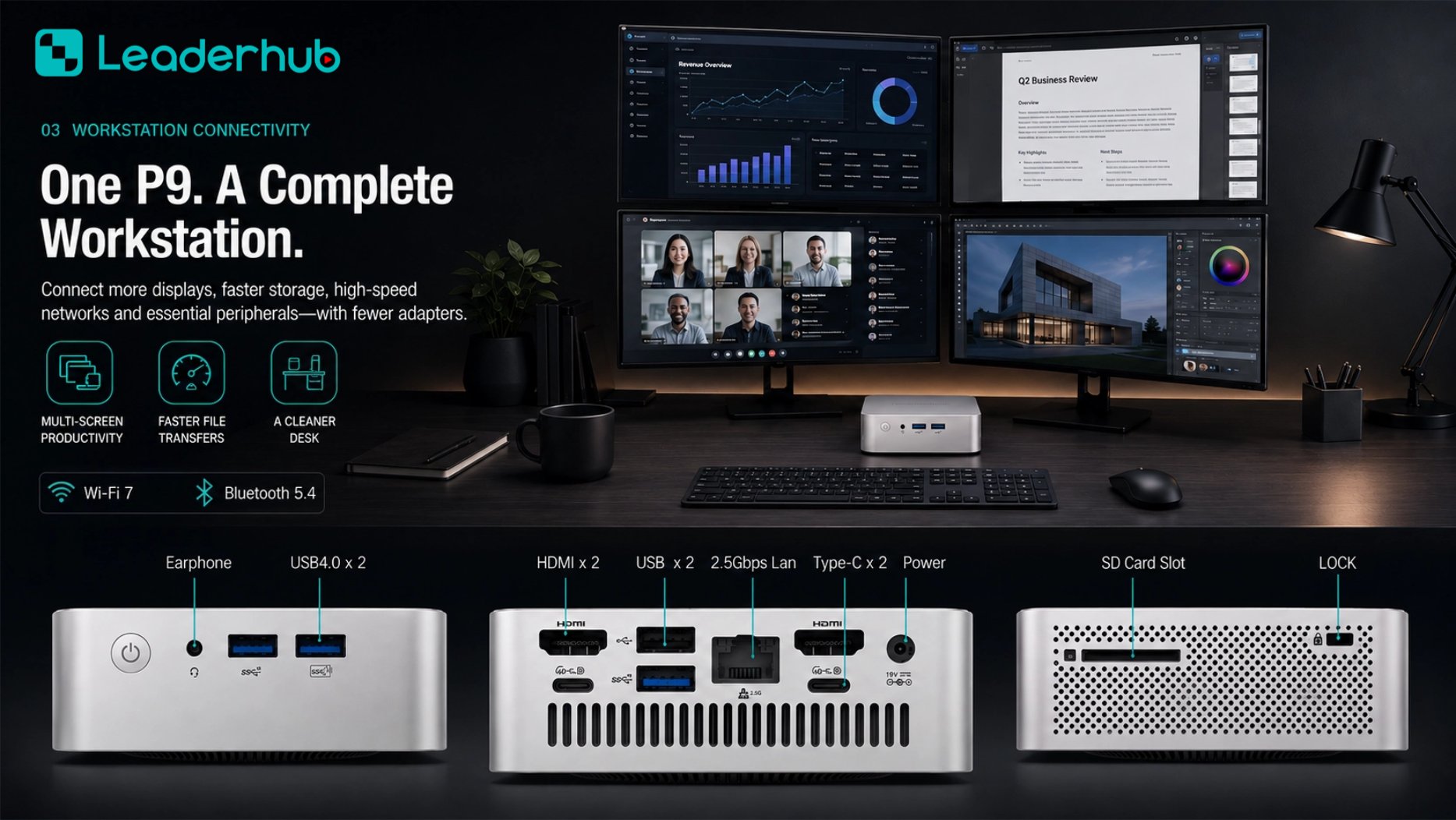
Port selection is where many compact desktops fall short. Before approving a model for business deployment, verify it offers:
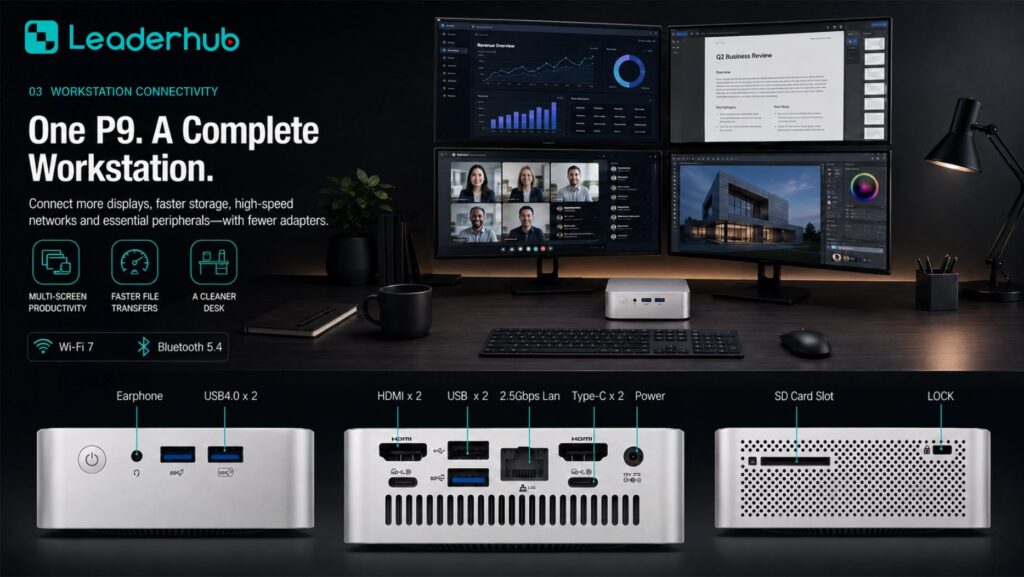
- At least two video outputs (HDMI and/or DisplayPort) for dual-monitor setups.
- Enough USB-A and USB-C ports for keyboard, mouse, headset, webcam, and peripherals without a hub.
- Gigabit Ethernet (or faster) — wired networking remains the standard for managed endpoints.
- Modern Wi-Fi and Bluetooth for flexible workspaces and wireless peripherals.
- A 3.5 mm audio jack for call-center headsets where USB audio is not preferred.
4. Manageability and Security
A mini PC for IT departments must behave like an enterprise endpoint, not a consumer gadget. Confirm support for TPM 2.0, Secure Boot, and a modern Windows Pro or enterprise license so the device can be enrolled in your MDM or domain. Features such as Wake-on-LAN, BIOS password control, and auto power-on after power loss save real technician hours. If you run remote branches, remote management capability and the ability to apply a standard image via PXE or USB should be non-negotiable.
5. Thermal Design and Reliability
Compact chassis concentrate heat. Look for units that maintain sustained performance rather than aggressive throttling after a few minutes under load. Metal enclosures, well-designed airflow, and quality fans (or a genuinely fanless design for entry-tier units) all contribute to longevity. Ask the vendor for mean-time-between-failure data and the warranty term — a three-year warranty aligned to your refresh cycle is the sweet spot for most organizations.
6. Mounting, Footprint, and Physical Security
VESA compatibility lets you mount the computer behind a monitor or under a desk, which is cleaner, safer, and reduces accidental damage. For shared spaces and public-facing locations, check for a Kensington lock slot or a bracket that supports secure mounting.
7. Power Consumption and Total Cost of Ownership
Purchase price is only one line in the budget. Energy, cooling, support time, and replacement frequency often add up to more than the hardware itself over five years. The comparison below shows why compact desktops consistently win on TCO.
| Cost Factor | Traditional Tower | Business Mini PC |
|---|---|---|
| Typical power draw | 65–150 W | 10–35 W |
| Desk footprint | Large, floor or desk space required | Near zero (VESA mounted) |
| Shipping & storage | Bulky, higher freight cost | Compact, easy to stage in volume |
| Installation time per seat | Longer cabling and placement | Minutes with a mounting bracket |
| Noise and heat in the workspace | Higher | Low to silent |
Matching Compact Desktop Models to Business Roles
Once your tiers are defined, selecting hardware becomes straightforward. The following examples from the business mini PC range illustrate how a three-tier fleet can be built from a single vendor to simplify imaging, spares, and support.
| Model | Core Configuration | Best For | Price |
|---|---|---|---|
| LP1C Mini PC | Intel N100, 8 GB RAM, 512 GB SSD | Front desks, kiosks, signage, light office tasks | $399.00 |
| LP5C Mini PC | Intel i5-12450HX, 16 GB RAM, 512 GB SSD | Standard knowledge-worker desktop, conference rooms | $799.00 |
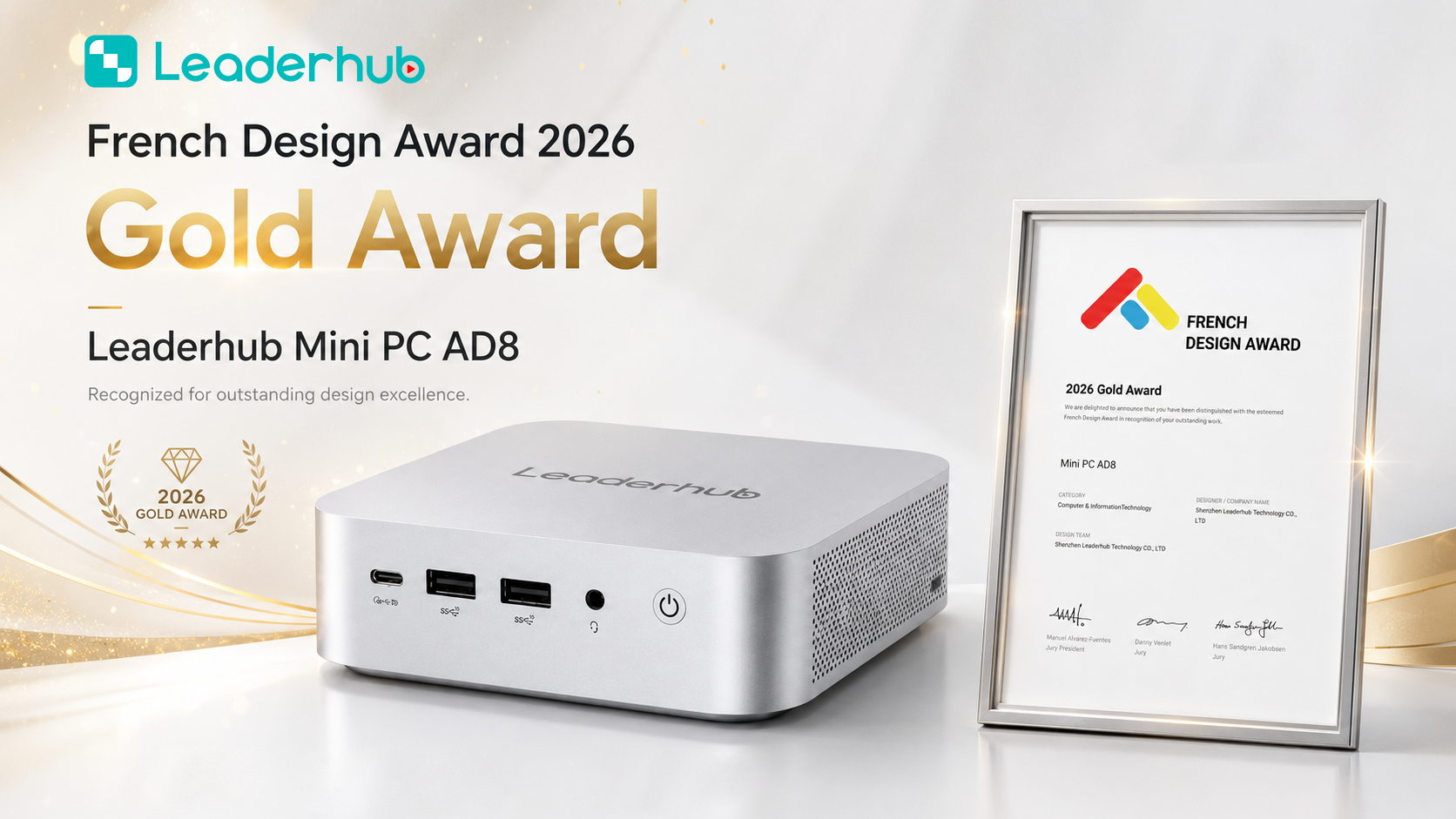
| AD8 Mini PC | Flagship compact performance platform | Power users, analysts, design and development teams | $999.00 |
Deployment Best Practices for Large Mini PC Rollouts
Choosing the hardware is half the job. A smooth business deployment depends on process. IT teams that roll out compact desktops successfully tend to follow a similar playbook:
- Pilot before you scale. Deploy 10–20 units across different departments for at least four weeks and gather feedback on performance, noise, and port availability.
- Build a golden image per tier. Standardize drivers, security agents, and application sets so every unit is identical out of the box.
- Automate enrollment. Use zero-touch provisioning or MDM auto-enrollment so a technician only needs to connect power and network.
- Mount consistently. Ship VESA brackets with every unit and document a single mounting standard to protect cables and ports.
- Stock spares. Keep 3–5% of the fleet as hot spares; the compact size makes it easy to store them at each site.
- Schedule the refresh. Align warranty length with a four- or five-year replacement cycle and budget for it from day one.
Mini PCs in Meeting Rooms and Collaboration Spaces
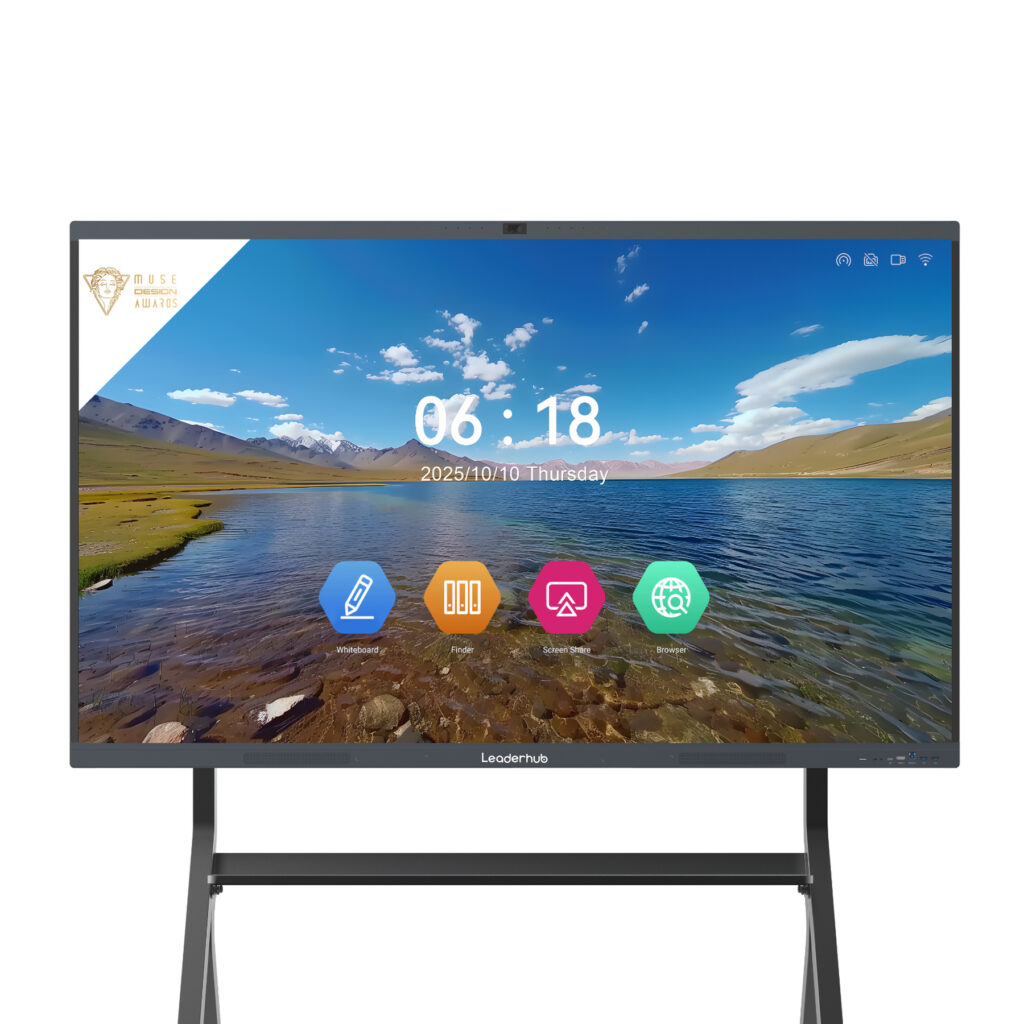
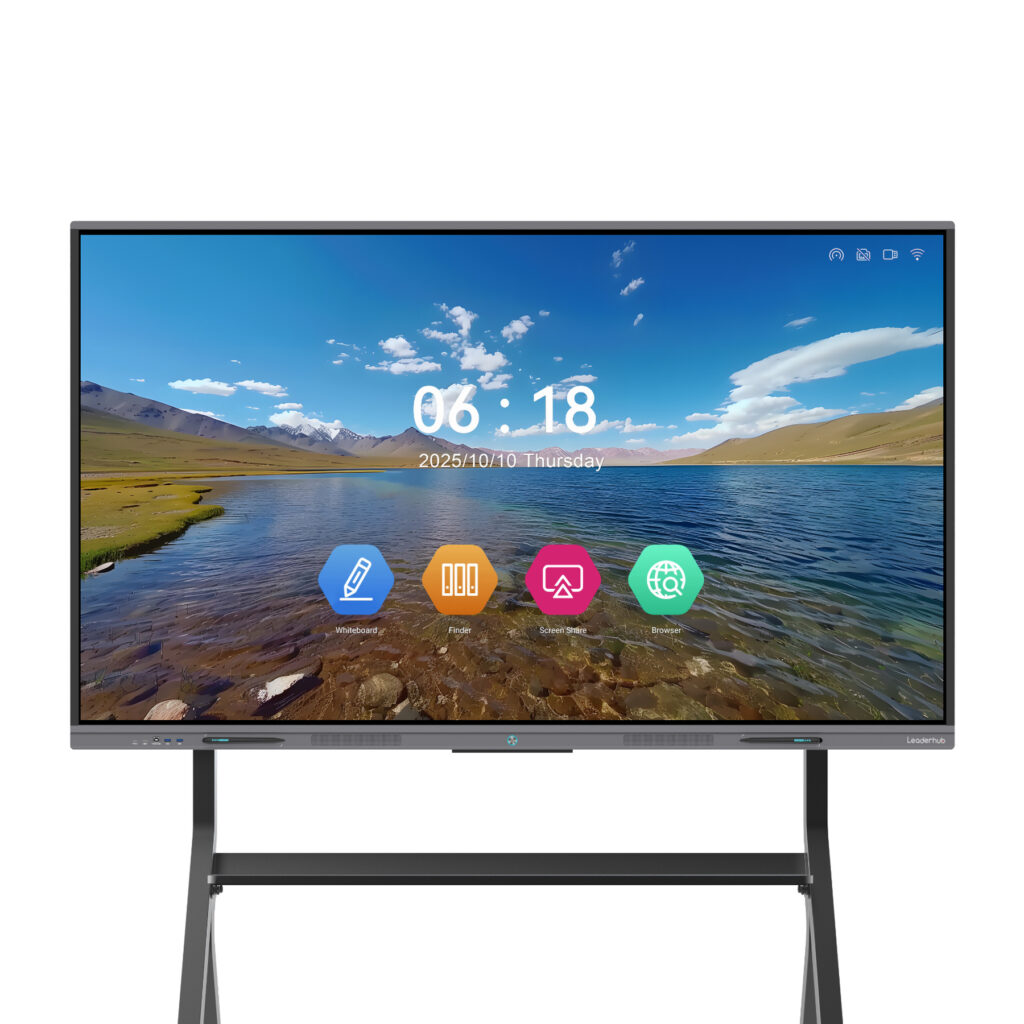
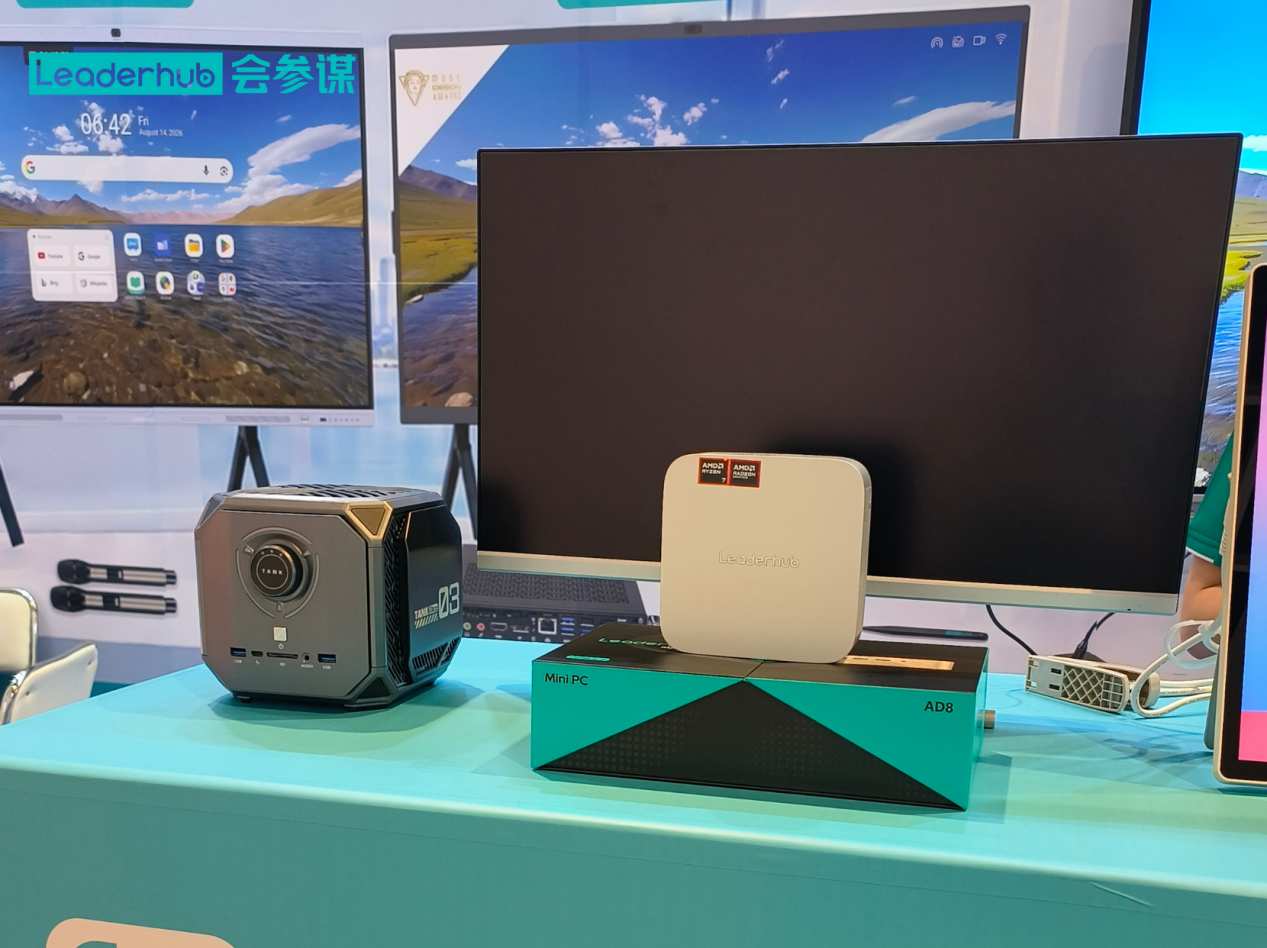
Beyond individual desks, compact desktops have become the preferred compute engine for conference rooms. A mainstream mini PC mounted behind an interactive smart whiteboard or large-format display turns the room into a full Windows collaboration hub — running video conferencing, whiteboarding, and document sharing from a single managed device. Because the PC is part of the standard fleet, the IT team applies the same image, patches, and security policies as every other endpoint, rather than maintaining a separate consumer device per room. For broader guidance on room design and signal standards, the AV Industry Standards and Resources published by AVIXA are a useful reference when planning integrated spaces.
Common Mistakes to Avoid
- Buying consumer-grade boxes. Devices without TPM 2.0, Pro licensing, or a business warranty create security and support problems later.
- Under-specifying memory. Saving $50 on RAM often costs more in complaints and early replacements.
- Ignoring port counts. A unit that needs a USB hub on every desk adds cost and failure points.
- Skipping thermal testing. Benchmark sustained performance in a warm room, not just a five-minute demo.
- Overlooking vendor continuity. Choose a partner that can supply the same models and spares for the life of the deployment.
Frequently Asked Questions
Can a mini PC fully replace a tower desktop for office staff?
Yes. For the vast majority of business users, a mainstream compact desktop with a Core i5-class processor, 16 GB of RAM, and an SSD provides equal or better real-world performance than the tower it replaces, with a fraction of the power consumption.
How long should a business mini PC last?
Plan on a four- to five-year lifecycle. Choosing models with upgradable memory and storage, plus a warranty that covers at least three years, keeps the fleet productive for the full term.
Are mini PCs suitable for remote and branch offices?
They are ideal. Their small size reduces shipping costs, they can be pre-imaged centrally, and features such as Wake-on-LAN and auto power-on make remote support far easier than with legacy hardware.
What is the best way to compare models before purchasing?
Request sample units, run your actual business image and applications, and measure boot time, sustained CPU performance, noise, and temperature over a full workday. The data from a short pilot is worth more than any spec sheet.
Final Checklist Before You Approve a Model
Use this quick list to confirm a candidate is ready for business deployment:
- Performance tier matches the intended user group
- 16 GB RAM for standard users, SSD storage on every unit
- Dual video outputs, sufficient USB, Gigabit Ethernet
- TPM 2.0, Secure Boot, business OS licensing
- VESA mounting and lock slot
- Sustained thermal performance verified
- Warranty aligned with the refresh cycle
- Vendor can supply consistent models and spares long term
LeaderHub, a Shenzhen-based technology company with 16 years of experience in interactive displays and compact computing, supplies mini PCs, smart whiteboards, and portable smart screens to organizations in more than 82 countries, with a focus on helping small and medium-sized enterprises access reliable, affordable technology. If you are planning a desktop refresh or a meeting-room upgrade, contact the team to discuss volume configurations, or browse the full product catalog to compare models side by side.