Choosing the right education mini PC supplier is one of the most consequential IT decisions a school, college or training center can make. The devices you install today will power lessons, exams, coding clubs and administrative work for the next five to seven years. A compact, energy-efficient mini PC can replace bulky desktop towers in classrooms and computer labs, cut electricity bills, simplify maintenance and free up valuable desk space for students. This guide walks school IT managers, procurement officers and principals through everything they need to know: the specifications that matter, how to match hardware to different learning environments, the questions to ask a supplier, and how to evaluate total cost of ownership rather than just the sticker price.
Why Schools Are Replacing Desktop Towers with Mini PCs
Traditional classroom desktops were designed for offices, not for 30 students crowding around shared benches. Mini PCs solve the practical problems that schools face every day, and the shift is accelerating. According to the UNESCO Technology in Education Report, the key question for schools is no longer whether to adopt technology but how to do so affordably, equitably and sustainably. Mini PCs answer that question in several ways:
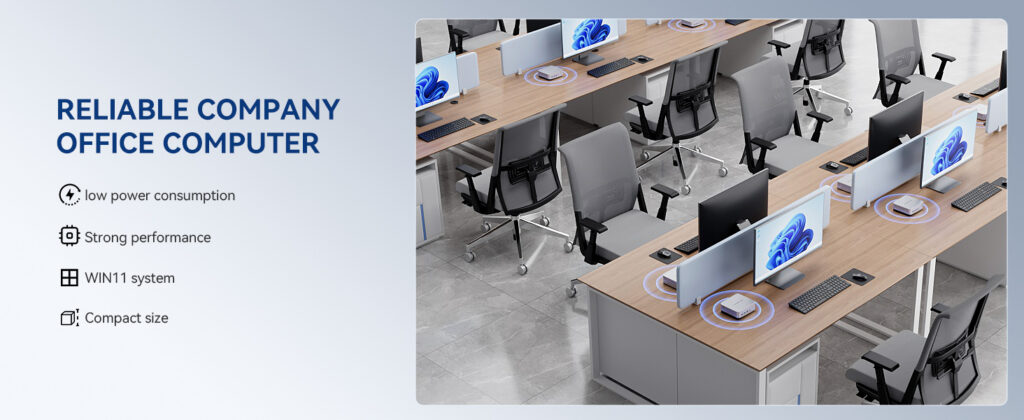
- Space efficiency: A device the size of a textbook mounts behind a monitor or under a desk, keeping lab benches clear and reducing cable clutter.
- Lower energy consumption: Many education-grade mini PCs draw 10 to 35 watts under load, compared with 150 to 300 watts for a conventional tower. Across a 40-seat lab, that saving adds up fast.
- Silent or near-silent operation: Fanless or low-RPM designs remove the background hum that distracts students during reading and listening activities.
- Faster deployment: Lightweight units can be imaged, labeled and mounted in minutes, which matters when IT staff must refresh hundreds of seats over a short summer break.
- Longer refresh cycles: Solid-state storage and fewer moving parts mean fewer failures and lower repair costs over the device lifespan.
- Flexible mounting: VESA brackets let schools attach mini PCs to monitors, interactive flat panels, carts or walls, turning any surface into a workstation.
Key Criteria for Evaluating an Education Mini PC Supplier
Not every mini PC on the market is suitable for schools. Consumer-grade devices often lack the durability, manageability and support schools require. Use the criteria below to separate genuine education-focused suppliers from resellers of generic hardware.
1. Processor Performance Tiers That Match Real Classroom Workloads
Over-specifying wastes budget; under-specifying frustrates teachers. Map processor tiers to actual use cases:
| Performance Tier | Typical Processor | Best For | Example Software |
|---|---|---|---|
| Entry / Efficient | Intel N100 / N-series | Primary classrooms, libraries, testing stations, kiosks | Web browsers, Google Workspace, Microsoft 365, LMS platforms, video playback |
| Mainstream | Intel Core i5 (12th gen or newer) | Secondary school computer labs, teacher podiums, STEM rooms | Scratch, Python IDEs, Tinkercad, Photoshop Elements, multi-tab research |
| Performance | Intel Core i7 / Ryzen 7 class | Media arts labs, CAD and engineering courses, university departments | Adobe Premiere, Fusion 360, Blender, Unity, virtualization |
2. Memory and Storage Configuration
For general classroom use, 8GB of RAM and a 256GB to 512GB NVMe SSD is a sensible baseline in 2025 and beyond. Computer labs running creative or programming software should move to 16GB. Ask your supplier whether memory and storage are user-upgradeable. Soldered RAM saves a few dollars at purchase but prevents schools from extending device life later. Also confirm that the SSD interface is NVMe rather than legacy SATA or eMMC, because boot time and application responsiveness directly affect how much of a 45-minute lesson is actually spent learning.
3. Connectivity and Port Selection
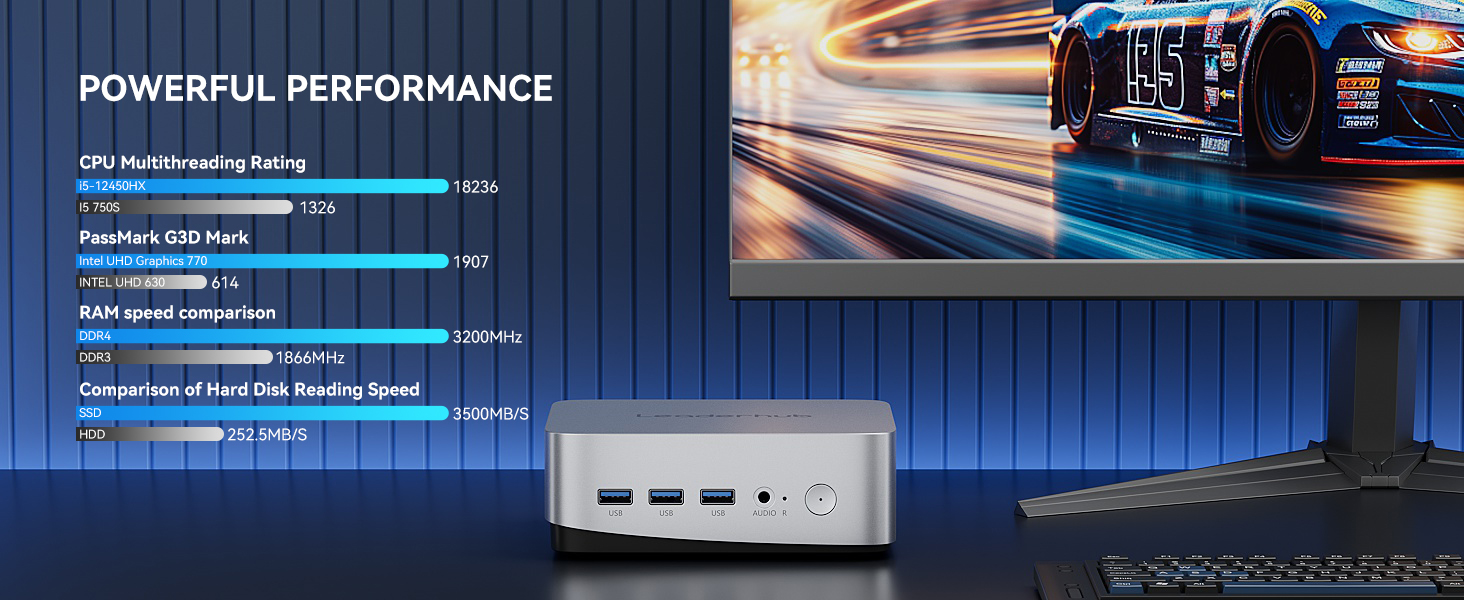
Classroom peripherals have multiplied: document cameras, interactive displays, USB microscopes, microphones, 3D printers and charging docks. A school-ready mini PC should offer:
- At least two video outputs (HDMI and DisplayPort or USB-C with DisplayPort Alt Mode) so a teacher can drive both a monitor and a smart whiteboard simultaneously.
- Four or more USB-A ports plus at least one USB-C port for modern accessories.
- Gigabit or 2.5G Ethernet for reliable wired connections in labs where Wi-Fi congestion is common.
- Wi-Fi 6 or Wi-Fi 6E and Bluetooth 5.x for wireless keyboards, mice and headsets.
- A 3.5mm audio jack for language labs and accessibility devices.
4. Thermal Design, Acoustics and Power Draw
A classroom is a harsh environment: dust, chalk particles, high ambient temperatures in summer and devices running eight hours a day. Look for suppliers that publish sustained-load thermal performance, not just peak benchmarks. Fanless designs eliminate dust intake entirely and are ideal for libraries and early-years classrooms. Where active cooling is used, ask for the noise rating in decibels under load. On the energy side, low-power processors not only reduce utility costs but also allow schools in regions with unstable grids to run mini PCs from compact UPS units or even solar-backed power banks.
5. Security, Manageability and Fleet Deployment
Managing 500 devices across three campuses is a very different challenge from managing five. Verify that the supplier’s hardware supports:
- TPM 2.0 for Windows 11 compliance and BitLocker encryption.
- Wake-on-LAN and BIOS-level scheduling so IT can push updates overnight.
- Kensington lock slots and VESA mounting to deter theft.
- Compatibility with Intune, Google Admin or other mobile device management tools your district already uses.
- Pre-imaging or custom BIOS branding services for large orders, which saves dozens of staff hours.
Guidance such as the OECD Digital Education Outlook emphasizes that digital infrastructure only delivers learning gains when it is reliable and well managed. Hardware that is easy to administer centrally is a prerequisite, not a luxury.
6. Durability, Warranty and Spare Parts Availability
Request information on mean time between failures, operating temperature range and whether the chassis is metal or plastic. A three-year warranty with advance replacement is the standard schools should expect from a serious education mini PC supplier. Equally important is whether the supplier can guarantee that the same model, or a drop-in compatible successor, will remain available for the duration of your refresh cycle. Mixed fleets of incompatible models create imaging headaches and inconsistent user experiences.
Mini PC Applications Across the Modern Campus
A single supplier relationship should be able to cover every corner of a school. The table below shows how different mini PC configurations serve distinct campus environments.
| Campus Area | Primary Need | Recommended Configuration | Mounting |
|---|---|---|---|
| General Classroom | Teacher presentation, LMS, video, document camera | N100 or i5, 8GB RAM, 512GB SSD, dual display output | VESA behind interactive panel |
| Computer Lab | Coding, productivity, standardized testing | i5-class, 16GB RAM, 512GB SSD, wired Ethernet | Under-desk bracket or monitor mount |
| Library and Media Center | Catalog search, research, quiet environment | Fanless N100, 8GB RAM, 256GB to 512GB SSD | Monitor-mounted, locked |
| STEM / Maker Space | 3D modeling, robotics, video editing | i7-class or dedicated GPU option, 16GB to 32GB RAM | Desktop or cart |
| Administration Office | Student information systems, finance, HR | i5-class, 16GB RAM, TPM 2.0, multi-monitor | Desktop or VESA |
| Digital Signage / Hallways | 24/7 announcements, schedules, wayfinding | Fanless N100, 8GB RAM, auto power-on | Behind display, concealed |
Comparing LeaderHub Mini PCs for Education Buyers
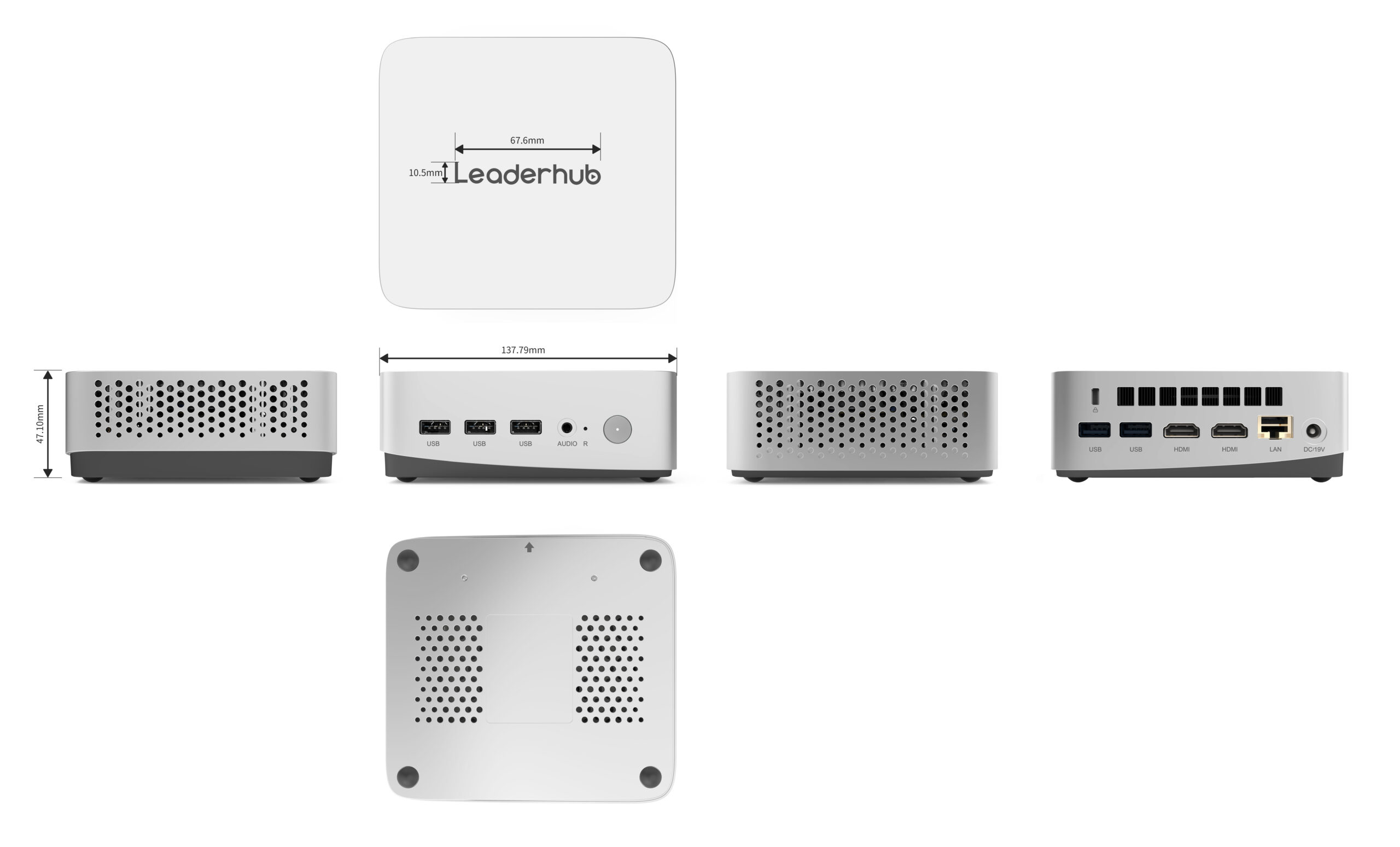
To illustrate how the tiers above translate into real products, here is how the three models in the LeaderHub mini PC range line up against common school requirements.
| Model | Processor | Memory / Storage | Ideal Education Scenario | Price |
|---|---|---|---|---|
| LeaderHub LP1C | Intel N100 | 8GB RAM / 512GB SSD | Primary classrooms, libraries, testing centers, digital signage | $399.00 |
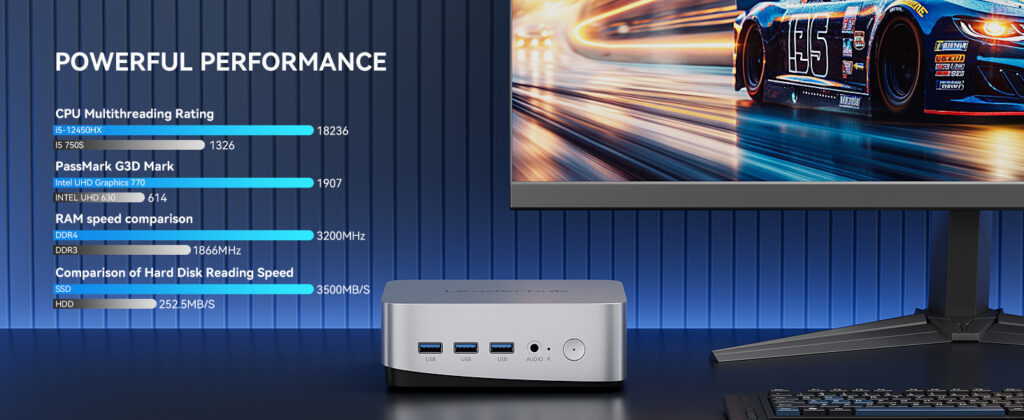
| LeaderHub LP5C | Intel Core i5-12450HX | 16GB RAM / 512GB SSD | Secondary computer labs, teacher podiums, STEM and coding rooms | $799.00 |
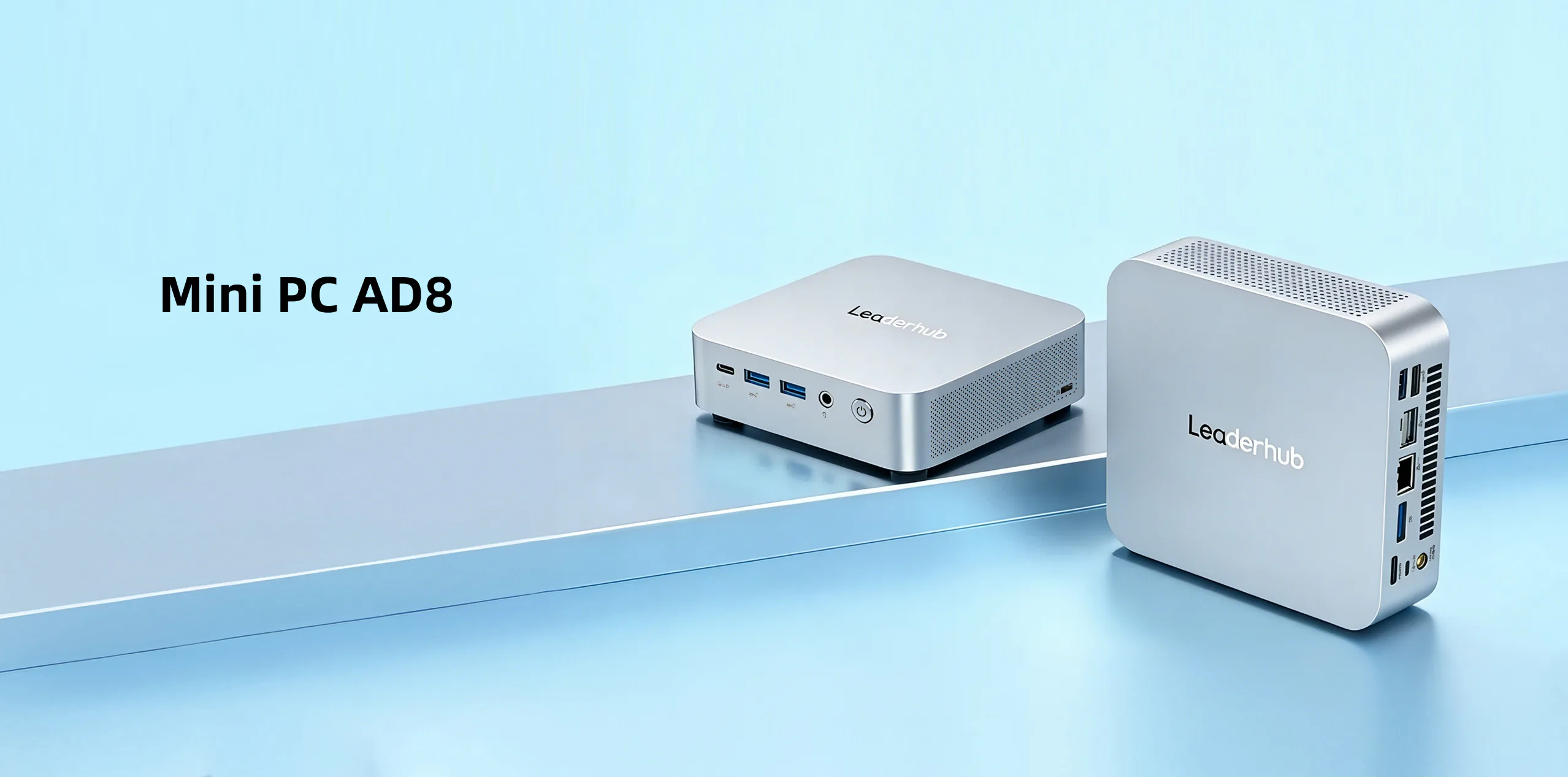
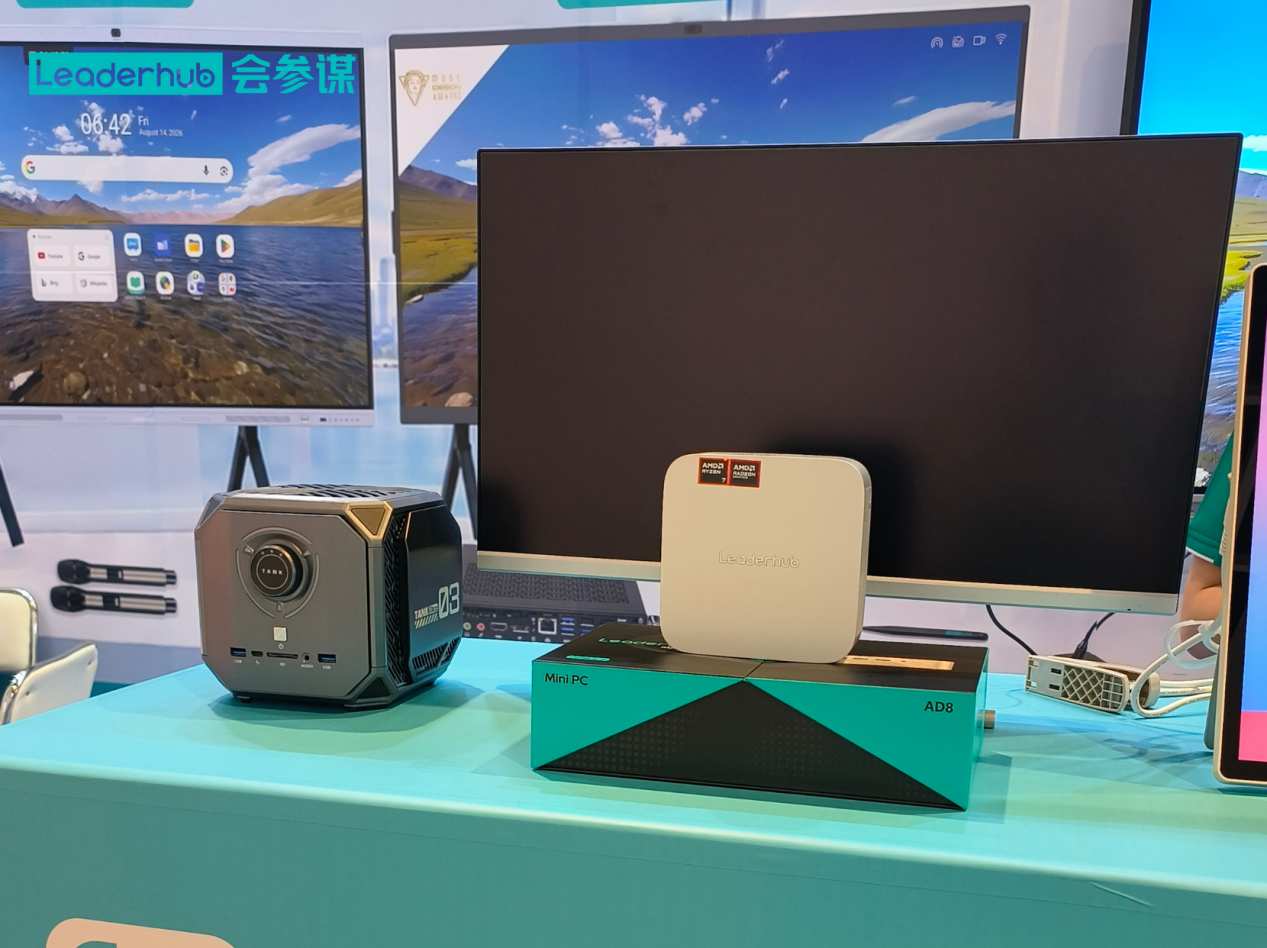
| LeaderHub AD8 | High-performance platform | Expanded configuration | Media arts labs, CAD and design courses, university departments | $999.00 |
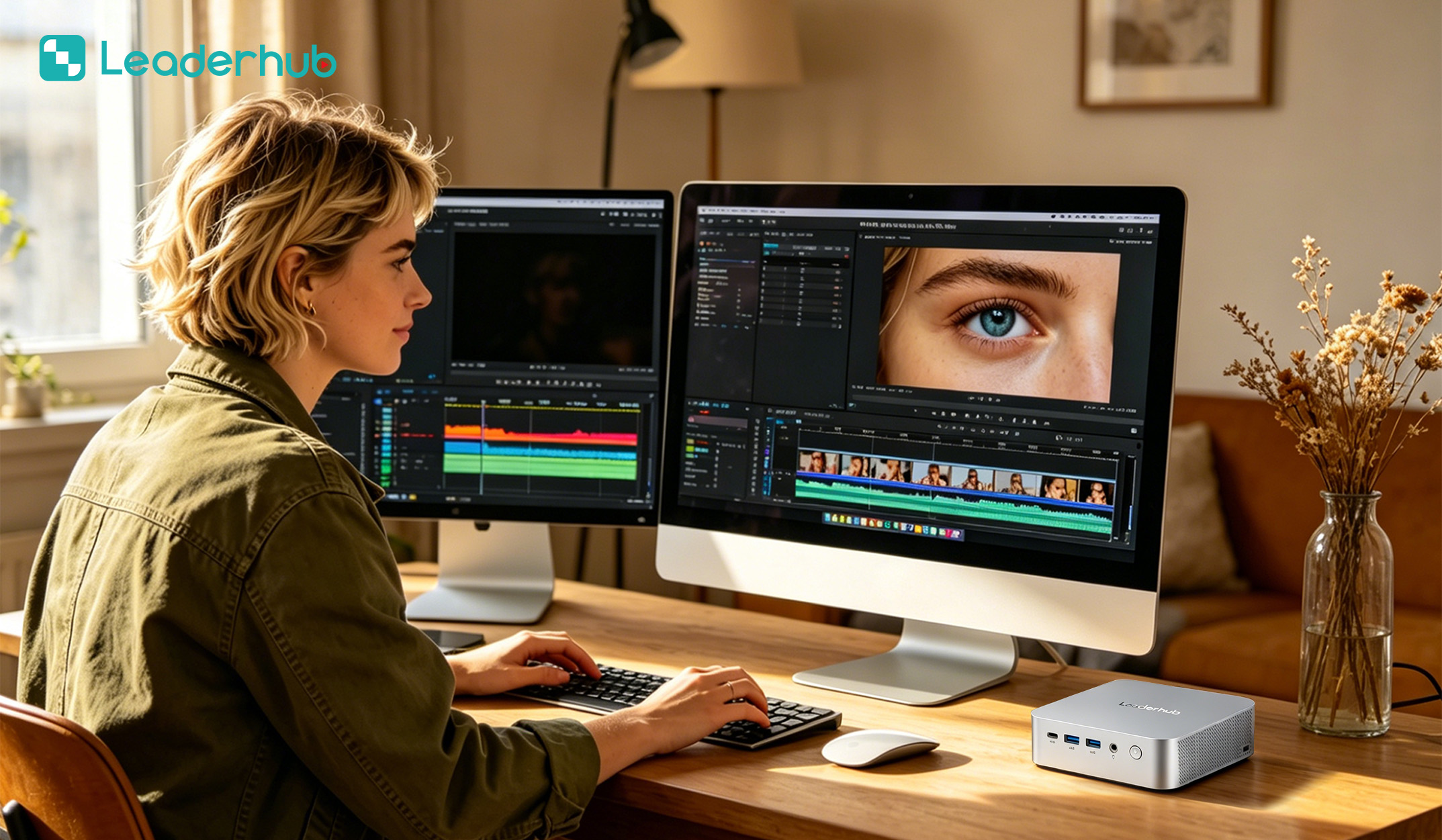
For most K-12 districts, a blended fleet works best: the LP1C in the majority of classrooms and libraries, with the LP5C reserved for labs and teacher stations. Higher education and vocational institutions with demanding creative or engineering curricula will find the AD8 better suited to sustained heavy workloads.
Pairing Mini PCs with Interactive Displays
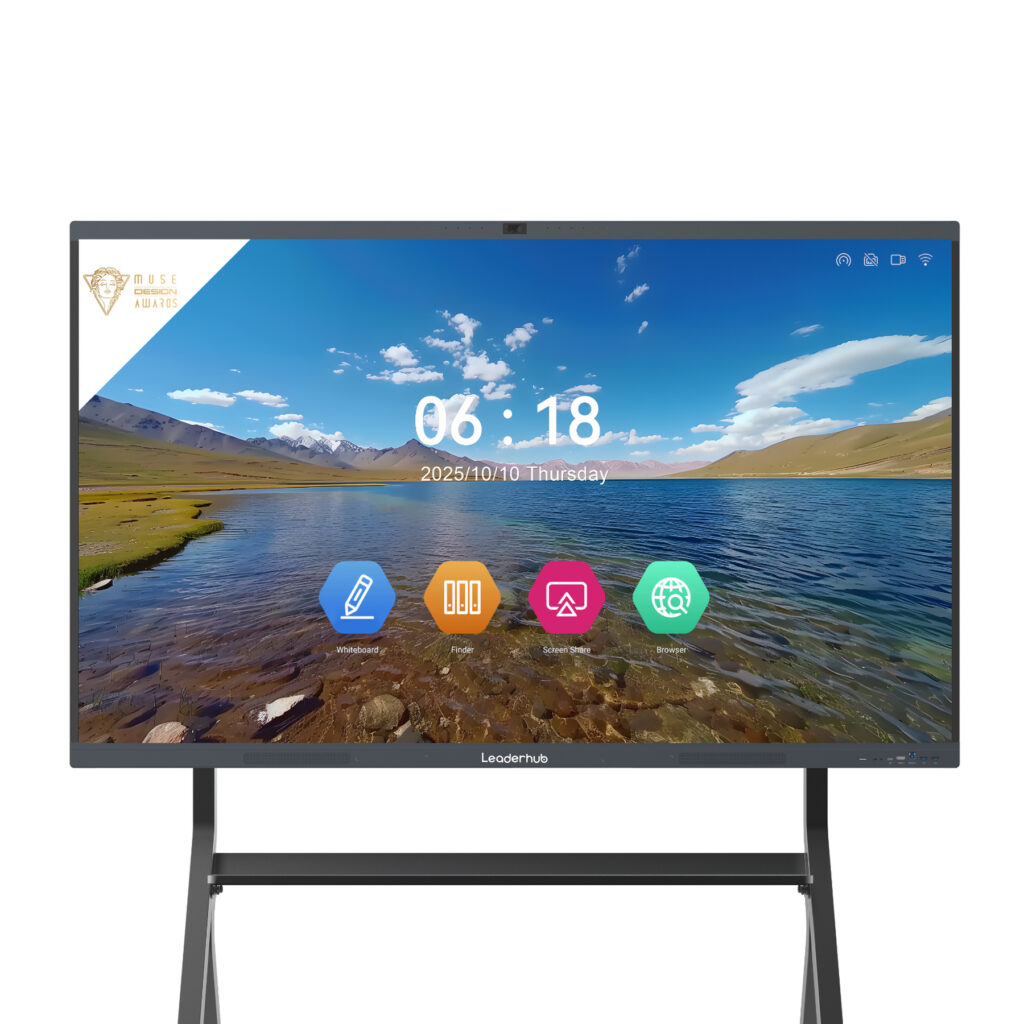
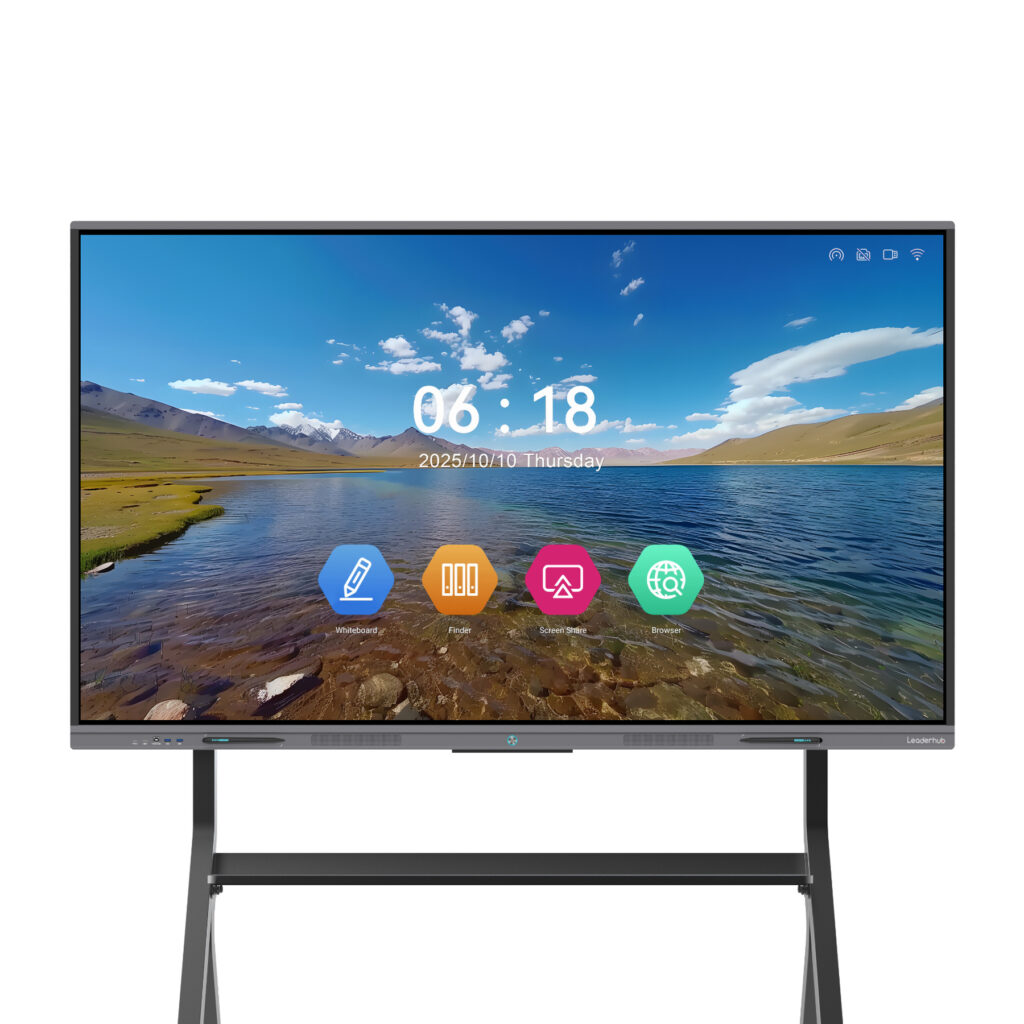
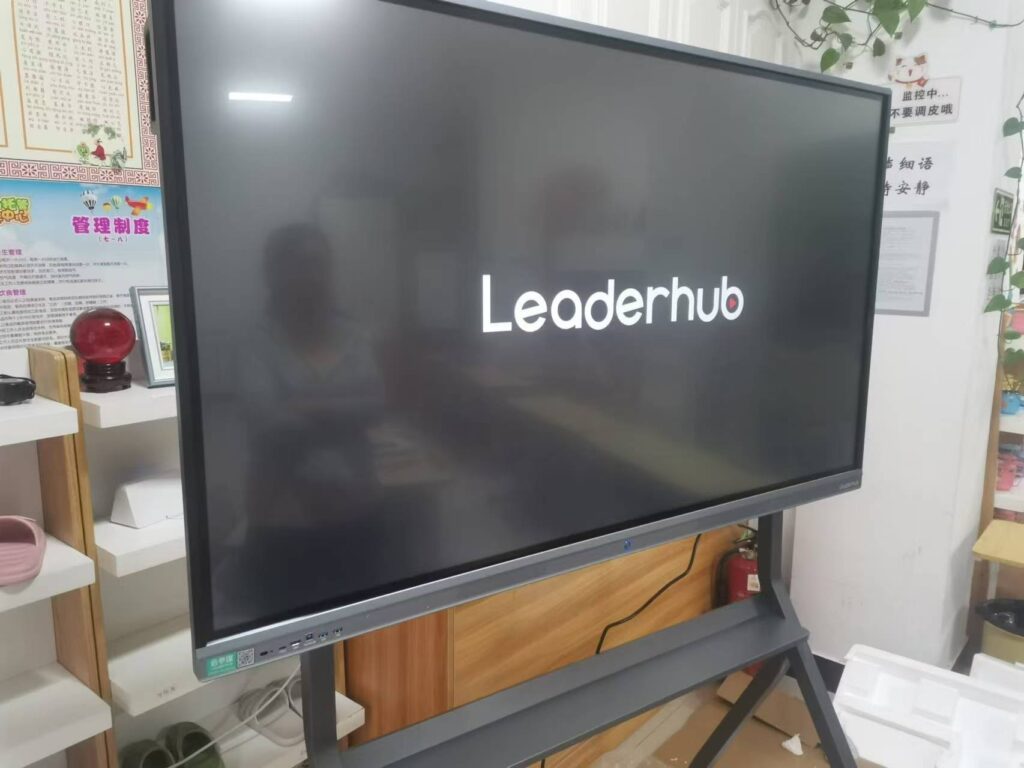
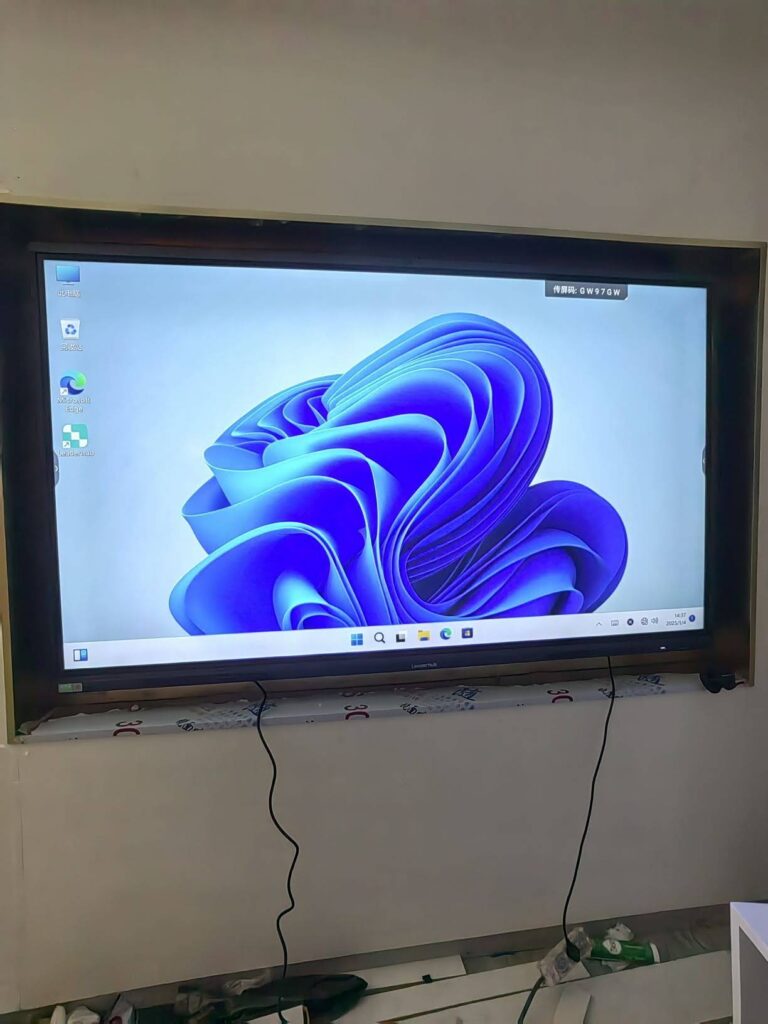
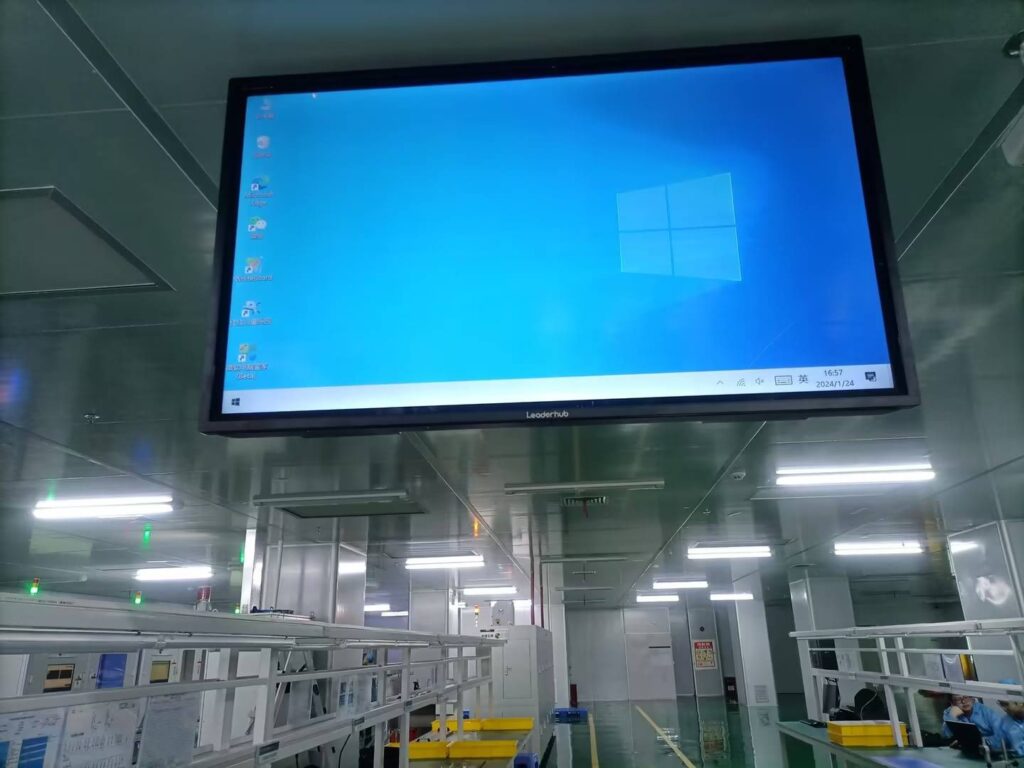
One of the strongest arguments for sourcing from a supplier that also manufactures interactive displays is ecosystem compatibility. When a mini PC and a smart whiteboard come from the same vendor, touch calibration, display scaling, OPS or VESA mounting and firmware updates are tested together before they reach your classroom. A mini PC mounted behind a 4K interactive smart whiteboard gives teachers a full Windows environment on the big screen, letting them run any curriculum software, annotate over live content and share wirelessly from student devices, while the embedded Android system remains available for quick whiteboarding.
Practical tips when combining the two:
- Confirm the mini PC supports the display’s native resolution at 60Hz through HDMI 2.0 or DisplayPort 1.4.
- Use a single USB touch-back cable so the Windows desktop responds to finger and pen input on the panel.
- Configure the mini PC to power on automatically with the display to eliminate a daily troubleshooting step for teachers.
- Standardize on one display size per room type (65-inch for small rooms, 75-inch or 86-inch for standard classrooms) to simplify training and spare parts.
Procurement Checklist: Questions to Ask Any Education Mini PC Supplier
Before issuing a purchase order or tender response, work through this checklist. The answers reveal whether a supplier understands education or simply sells boxes.
- Can you provide a sample unit for a 30-day pilot in a live classroom before we commit to volume?
- What is the warranty term, and do you offer advance replacement or on-site service?
- How long will this exact model remain in production, and what is the upgrade path?
- Do you offer pre-imaging, asset tagging or custom BIOS settings for bulk orders?
- What are the measured idle and full-load power figures in watts?
- Is the device certified for Windows 11 with TPM 2.0, and does it support Linux distributions commonly used in education?
- Are RAM and SSD user-replaceable, and are spare parts stocked regionally?
- What VESA mounting brackets and lock accessories are included or available?
- Can you supply compatible interactive displays, monitors and peripherals under a single contract?
- What volume pricing tiers apply for 50, 200 and 500+ units, and do you offer OEM or ODM customization for district-wide standardization?
Frameworks like the ISTE Education Technology Standards remind procurement teams that hardware is only valuable when it enables specific pedagogical outcomes. Tie each line item in your tender back to a learning or operational goal, and ask suppliers to explain how their devices support it.
Total Cost of Ownership: Looking Beyond the Purchase Price
A $399 mini PC that lasts six years, consumes 15 watts and never needs a fan replaced is far cheaper than a $299 unit that fails in year three and burns 60 watts. When comparing suppliers, model the following over a five-year horizon:
| Cost Factor | Traditional Desktop Tower | Education Mini PC |
|---|---|---|
| Energy (per seat, 5 years) | High: 150 to 300W under load | Low: 10 to 35W under load |
| Deployment labor | Heavy units, more cabling, longer setup | Lightweight, VESA mount, minutes per seat |
| Maintenance | Multiple fans, HDDs, PSUs to fail | SSD only, fanless or single fan |
| Space and furniture | Requires tower shelf or floor space | Hidden behind monitor, smaller desks possible |
| Theft and damage risk | Exposed, easy to kick or unplug | Lockable, mounted out of reach |
Why Schools Worldwide Partner with LeaderHub
LeaderHub is a Shenzhen-based technology company with 16 years of expertise in interactive displays, smart whiteboards, mini PCs and portable smart screens, serving education, enterprise and government customers in 82 countries. Because the company engineers both the computing hardware and the displays it connects to, schools receive a tested, integrated classroom solution from a single supplier rather than assembling components from multiple vendors. With strategic partnerships across the education and training sectors, OEM and ODM customization for district-wide standardization, and a presence at major global technology exhibitions, LeaderHub combines competitive pricing with the long-term product availability and support that institutional buyers require.
Frequently Asked Questions
How many mini PCs do we need per classroom?
Most schools install one teacher-station mini PC per classroom, mounted behind the interactive display, and equip computer labs with one unit per student seat. Shared learning areas such as libraries typically use one unit per two to three students.
Can mini PCs run standardized testing software?
Yes. Entry-level models with an Intel N100, 8GB RAM and an SSD comfortably meet the requirements of most secure browser and online assessment platforms. Verify the specific minimum specifications published by your examination board.
Are mini PCs suitable for Chromebook-style management?
Mini PCs run full Windows or Linux, which gives schools far more software flexibility than Chrome OS. They integrate with Microsoft Intune, Group Policy and most third-party MDM platforms for centralized control.
What is the typical lifespan of an education mini PC?
With solid-state storage and efficient processors, five to seven years of classroom service is realistic, provided the supplier offers user-upgradeable memory and a solid warranty.
Does LeaderHub offer bulk pricing for schools and districts?
Volume pricing, pre-imaging and customization options are available for institutional orders. Schools and integrators can contact the LeaderHub team to request a quotation or arrange a pilot unit.
Selecting an education mini PC supplier is ultimately about reliability, fit and partnership. Define your use cases, pilot before you buy, insist on manageability and warranty terms that match your refresh cycle, and favor suppliers who can deliver the whole classroom ecosystem. Explore the full LeaderHub product range to see how compact computing and interactive displays work together to create classrooms where technology quietly supports learning instead of getting in its way.