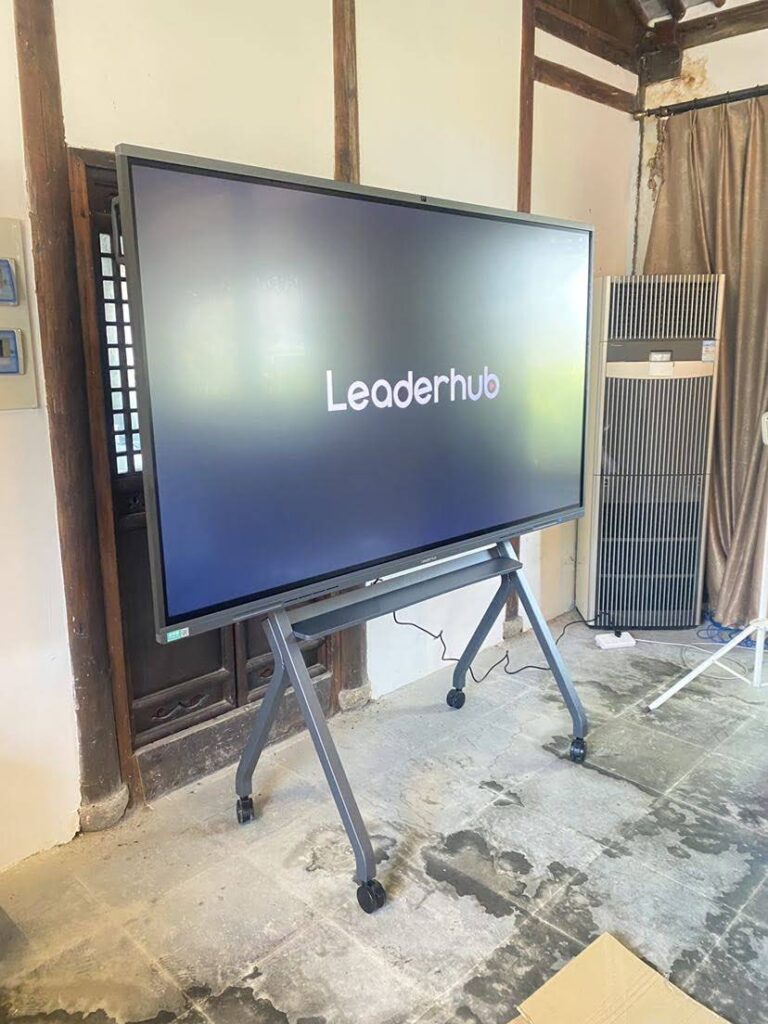
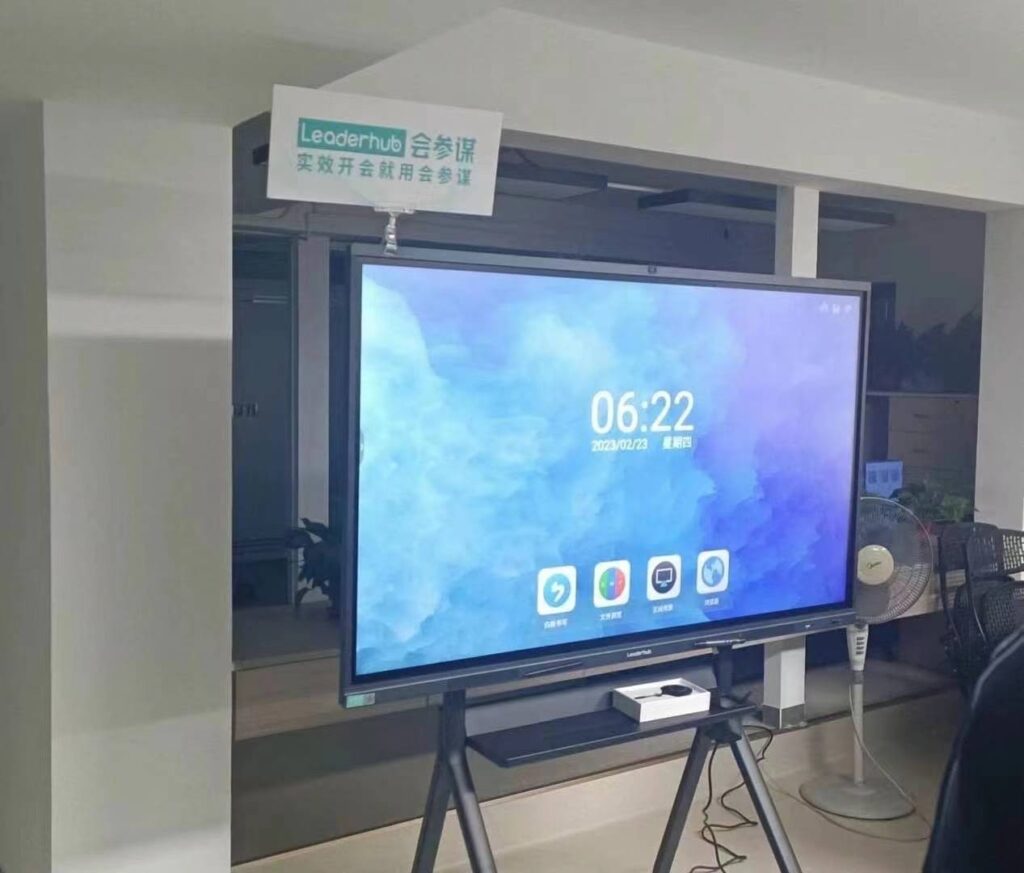
In modern classrooms and meeting rooms, smart boards have become essential tools for collaboration, presentations, and interactive learning. However, there are moments when you need to pause the action on screen¡ªwhether to give students time to copy notes, hold a discussion without distraction, or freeze a particular slide during a presentation. Knowing how to freeze a smart board screen can significantly improve teaching efficiency and meeting productivity.
This comprehensive guide walks you through multiple methods to freeze your smart board screen, including built-in freeze functions, software shortcuts, and hardware solutions. Whether you’re using an interactive flat panel, a traditional smart whiteboard, or a portable smart screen, these techniques will help you control your display with confidence.
Understanding the Screen Freeze Function
Screen freezing is a feature that allows you to capture and hold a static image of your current display while the computer or connected device continues running in the background. This function proves particularly valuable during presentations, lectures, and collaborative sessions where you need to pause visual content without stopping your workflow.
The freeze function differs from pausing a video or stopping a presentation. When you freeze the screen, the display shows a snapshot of the current content, but your computer remains active. You can continue working on other tasks, prepare the next part of your presentation, or switch applications¡ªall without the audience seeing these changes until you unfreeze the screen.
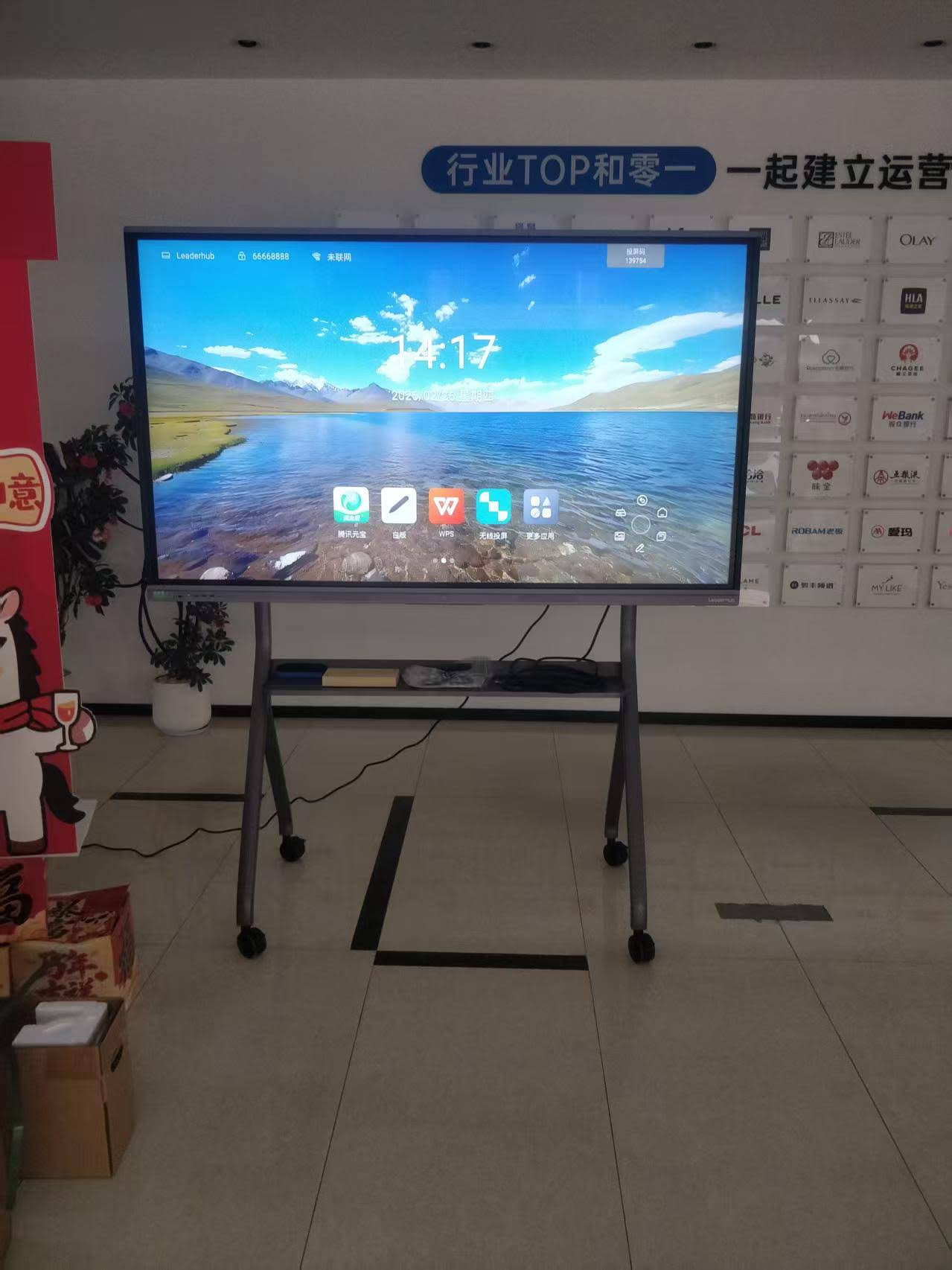
Method 1: Using Built-in Freeze Button on Smart Board
Most modern interactive flat panels and smart whiteboards come equipped with dedicated hardware buttons or on-screen controls for freezing the display. This method represents the most straightforward approach and requires no additional software installation.
Locating the Freeze Button
The physical freeze button is typically located in one of these areas:
- On the side bezel of the interactive display
- Within the control panel at the bottom of the screen
- In the toolbar menu that appears on-screen
- As part of the remote control unit
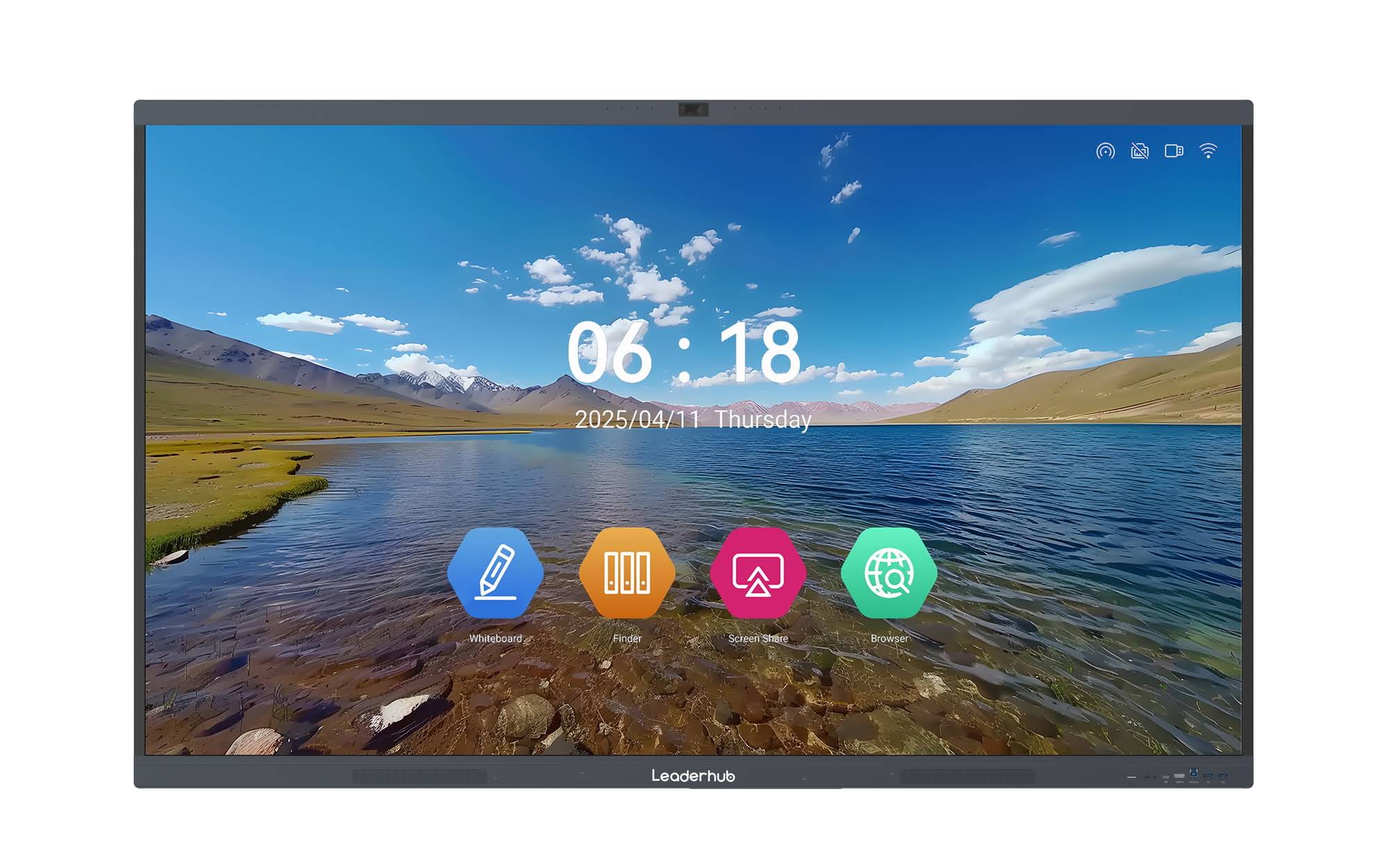
For LeaderHub smart whiteboards and interactive panels, the freeze function is conveniently accessible through the floating toolbar that appears during operation. This design ensures educators and presenters can quickly freeze the screen without interrupting their flow.
Step-by-Step Process
| Step | Action | Result |
|---|---|---|
| 1 | Display the content you want to freeze | Content appears on screen |
| 2 | Press the freeze button or tap the freeze icon | Screen captures current image |
| 3 | Continue working on your device | Frozen image remains displayed |
| 4 | Press freeze button again to resume | Live display returns |
Method 2: Software-Based Screen Freeze Solutions
When your smart board doesn’t have a dedicated freeze button, or you need more advanced control over the freeze function, software solutions provide excellent alternatives. These applications work across different smart whiteboard brands and offer additional features like annotation on frozen screens.
Windows Screen Freeze Applications
For Windows-based smart boards, several reliable software options enable screen freezing:
- ZoomIt: A free Microsoft utility that allows screen freezing, zooming, and annotation during presentations
- ScreenFreeze: Dedicated tool specifically designed for capturing and holding screen content
- Smart Notebook Software: Many interactive whiteboard software packages include built-in freeze capabilities
To use ZoomIt for freezing your smart board screen:
- Download and install ZoomIt from the Microsoft website
- Run the application in the background during your presentation
- Press Ctrl + 4 to freeze the current screen
- Use drawing tools to annotate if needed
- Press Esc to unfreeze and return to live display
Mac Screen Freeze Solutions
Mac users can leverage these methods to freeze their smart board display:
- Take a screenshot using Command + Shift + 3 and display it in full screen
- Use presentation software like Keynote with its presenter display mode
- Install third-party screen capture utilities with freeze capabilities
Method 3: Using Remote Control or OSD Menu
Many interactive displays, particularly those used in education and corporate environments, include comprehensive on-screen display (OSD) menus accessible via remote control. This method provides another reliable way to freeze your smart board screen.
Accessing the OSD Menu
The process typically involves these steps:
- Locate the Menu or Settings button on your smart board remote
- Navigate to the Display or Picture settings section
- Look for options labeled “Freeze,” “Image Hold,” or “Screen Capture”
- Select the freeze option to capture the current display
- Return to the same menu to deactivate the freeze
This method works independently of your connected computer, making it particularly useful when you need to freeze content from multiple input sources or when presenting from different devices throughout a session.
Method 4: Presentation Software Freeze Features
Modern presentation software includes features that effectively freeze portions of your display while maintaining control over your workflow. This approach integrates seamlessly with your existing presentation tools.
PowerPoint Presenter View
Microsoft PowerPoint’s Presenter View allows you to control what appears on the smart board while maintaining a different view on your laptop:
- Set up your presentation in Slideshow mode
- Enable Presenter View from the Slideshow menu
- Your smart board displays only the current slide while you see notes and navigation on your device
- Pause on any slide indefinitely without the audience seeing your preparations
Google Slides and Other Cloud-Based Tools
Cloud-based presentation tools offer similar functionality with the added benefit of real-time collaboration. When presenting through Google Slides on your smart board, you can pause the presentation at any point, and the display remains frozen on that slide while you access other resources or prepare the next section.
Practical Applications and Use Cases
Understanding when and why to freeze your smart board screen enhances its practical value. Here are real-world scenarios where the freeze function proves invaluable:
Educational Settings
In classrooms, teachers regularly use the screen freeze function for several purposes:
- Note-taking time: Freeze complex diagrams or important information while students copy notes
- Discussion facilitation: Hold a thought-provoking image or question on screen during group discussions
- Assessment preparation: Display test questions while preparing answer keys on your device
- Resource switching: Keep instructional content visible while accessing supplementary materials
According to a 2025 study by the Educational Technology Research Association, classrooms using interactive displays with freeze capabilities showed a 23% improvement in student note-taking accuracy and a 31% increase in discussion engagement compared to traditional projection methods.
Corporate and Meeting Environments
Business professionals leverage screen freezing in various scenarios:
- Data analysis: Hold complex charts or financial data on screen during detailed discussions
- Multi-device presentations: Freeze content from one device while switching to another input source
- Confidential information handling: Display necessary information while hiding sensitive data preparation
- Remote collaboration: Maintain visual reference points during video conference transitions
Training and Workshop Sessions
Trainers and facilitators find the freeze function particularly useful when conducting hands-on workshops. They can display step-by-step instructions or reference materials on the smart board while participants work independently, eliminating the need to constantly switch between demonstration mode and practice time.
Troubleshooting Common Screen Freeze Issues
Even with straightforward functionality, users occasionally encounter challenges when trying to freeze their smart board screens. Here are solutions to the most common problems:
Freeze Function Not Responding
If the freeze button or command doesn’t work:
- Verify that your smart board firmware is updated to the latest version
- Check if any software conflicts are preventing the freeze function
- Restart the interactive display and try again
- Consult your device’s user manual for specific freeze button combinations
Frozen Screen Shows Distorted or Incorrect Content
When the frozen image doesn’t accurately reflect what was displayed:
- Ensure your display resolution matches your source device’s output
- Check cable connections for secure attachment
- Adjust refresh rate settings to prevent capture timing issues
- Try freezing at a different moment in your presentation
Unable to Unfreeze the Screen
If your smart board remains frozen and won’t return to live display:
- Press the freeze button multiple times to ensure the command registers
- Try pressing the Menu or Home button to access system controls
- Use the remote control to navigate to freeze settings and manually disable it
- As a last resort, power cycle the interactive display
Advanced Tips for Effective Screen Freezing
Maximize the utility of your smart board’s freeze function with these professional techniques:
Combining Freeze with Annotation
Many modern interactive flat panels allow annotation on frozen screens. This powerful combination enables you to:
- Highlight specific areas of frozen content during discussions
- Add notes or explanations to static images
- Create collaborative learning experiences where students contribute to frozen content
- Mark up reference materials without altering the original document
Strategic Timing for Screen Freezes
The effectiveness of screen freezing depends significantly on when you use it. Consider these timing strategies:
| Scenario | Optimal Freeze Timing | Benefit |
|---|---|---|
| Complex diagram explanation | Immediately after displaying full image | Allows thorough examination without distraction |
| Note-taking opportunity | After key points are highlighted | Students can copy complete, organized information |
| Discussion question | Right after posing the question | Maintains focus during deliberation |
| Source transition | Before switching input devices | Prevents disruptive blank screen moments |
Creating a Seamless Presentation Flow
Professional presenters integrate screen freezing into their workflow without disrupting the audience experience. Practice these techniques:
- Pre-position your freeze moments: Identify ahead of time when you’ll need to freeze the screen
- Make it invisible: Freeze during natural transition points so the action doesn’t distract
- Maintain engagement: Use frozen screens as opportunities to interact directly with your audience
- Time your unfreezes: Resume live display at moments that naturally draw attention back to the screen
Comparing Smart Board Freeze Capabilities Across Brands
Different manufacturers implement screen freeze functionality in varying ways. Understanding these differences helps you choose the right interactive display for your needs or make the most of your existing equipment.
Hardware-Based vs. Software-Based Solutions
Smart boards generally fall into two categories regarding freeze functionality:
Hardware-based freeze systems process the freeze command at the display level, independent of your connected computer. This approach offers faster response times, greater reliability, and the ability to freeze content from any input source. LeaderHub interactive panels utilize this hardware-based approach, ensuring consistent freeze performance across all connected devices and input types.
Software-based freeze systems rely on applications running on your connected computer. While these solutions provide additional features like advanced annotation and capture options, they depend on your computer’s performance and may not work when presenting from external devices.
Key Features to Consider
When evaluating smart board freeze capabilities, assess these factors:
- Response time from freeze command to screen capture
- Image quality of the frozen display
- Availability of annotation tools on frozen screens
- Compatibility with multiple input sources
- Ease of access to freeze controls during presentations
- Ability to save frozen images for later reference
Integrating Screen Freeze with Other Smart Board Features
The screen freeze function becomes even more powerful when combined with other capabilities of modern interactive displays. Here’s how to leverage multiple features together:
Freeze and Split Screen
Advanced interactive flat panels allow you to freeze one portion of your display while keeping another section live. This functionality enables:
- Displaying reference material on one side while demonstrating processes on the other
- Comparing before-and-after scenarios side by side
- Maintaining instructions visible while showing real-time work
- Running multiple applications with selective freezing
Freeze and Screen Recording
Combine screen freezing with recording features to create comprehensive training materials. Freeze important slides or diagrams, annotate them during your explanation, then resume recording to capture the complete instructional sequence. This technique produces high-quality educational content with clear emphasis on key concepts.
Freeze and Wireless Connectivity
Modern smart boards with wireless screen sharing capabilities allow you to freeze content from one device while seamlessly transitioning to another. For example, freeze a chart from your laptop, then wirelessly connect a tablet to demonstrate a related application¡ªall without losing the reference material on screen.
Best Practices for Educational Implementation
Educators who master screen freezing report significant improvements in classroom engagement and learning outcomes. Research from the International Association for Technology in Education indicates that strategic use of interactive display features, including screen freezing, correlates with 28% better information retention among students.
Establishing Classroom Protocols
Create clear expectations around screen freezing in your teaching practice:
- Use consistent visual or verbal cues when freezing the screen
- Set specific time limits for frozen screen activities
- Teach students to recognize freeze moments as opportunities for focused work
- Incorporate student feedback about freeze duration and frequency
Differentiated Instruction Applications
Screen freezing supports various learning styles and needs:
- Visual learners: Benefit from extended viewing time of frozen diagrams and charts
- Students with processing speed differences: Appreciate additional time to absorb information
- English language learners: Can decode text and translate terminology at their own pace
- Students with attention challenges: Find frozen screens less distracting than continuous motion
Maintaining Your Smart Board’s Freeze Functionality
Regular maintenance ensures your screen freeze feature continues working reliably:
Software Updates
Keep your interactive display firmware current to access the latest freeze functionality improvements and bug fixes. Most manufacturers, including LeaderHub, release periodic updates that enhance performance, add features, and resolve known issues.
Hardware Checks
Periodically verify that:
- Physical freeze buttons respond consistently
- Touch screen calibration remains accurate for on-screen freeze controls
- Remote control batteries are fresh and buttons function properly
- No software conflicts prevent freeze commands from executing
User Training
Ensure all users of your smart board understand how to access and use the freeze function. Provide quick reference guides near the display and include freeze functionality in your onboarding process for new teachers, presenters, or meeting facilitators.
Future Developments in Screen Freeze Technology
As interactive display technology continues evolving, screen freeze capabilities are becoming more sophisticated. Industry trends suggest several emerging developments:
AI-Enhanced Freezing
Artificial intelligence is beginning to predict optimal freeze moments based on presentation content and pacing patterns. Smart systems analyze your teaching or presentation style and can automatically suggest when freezing the screen would enhance comprehension or engagement.
Multi-Device Synchronization
Next-generation smart boards will offer synchronized freezing across multiple connected displays, ensuring consistent visual reference points in large venues or hybrid learning environments where content appears on several screens simultaneously.
Enhanced Annotation Integration
Future freeze functions will include more sophisticated annotation tools, real-time collaboration features, and automatic saving of frozen-screen annotations to connected learning management systems or collaboration platforms.
Making the Right Choice for Your Needs
When selecting a smart board or portable smart screen for your classroom, meeting room, or training facility, evaluate freeze functionality as a key feature. Consider these factors:
- How frequently will you need to freeze the display?
- Do you require annotation capabilities on frozen screens?
- Will you be freezing content from multiple input sources?
- Does your workflow benefit more from hardware-based or software-based freezing?
- What level of freeze control do users need¡ªsimple on/off or advanced options?
Companies like LeaderHub, with over 16 years of experience in interactive display technology, design their smart whiteboards and interactive panels with practical features like intuitive screen freezing that work reliably in real-world educational and business environments. Their products serve users in more than 82 countries, demonstrating proven performance across diverse applications and settings.
Conclusion
Mastering how to freeze a smart board screen represents a fundamental skill for modern educators, presenters, and meeting facilitators. Whether you use built-in hardware buttons, software shortcuts, remote control menus, or presentation software features, the ability to pause your display while maintaining your workflow enhances communication effectiveness and audience engagement.
The screen freeze function transforms interactive displays from passive projection surfaces into dynamic collaboration tools. By strategically freezing content at the right moments, you give your audience time to process information, facilitate meaningful discussions, and create more organized, professional presentations and lessons.
As interactive display technology continues advancing, screen freeze capabilities will become even more integrated with AI-powered features, multi-device ecosystems, and enhanced collaboration tools. Staying current with these developments and practicing effective freeze techniques ensures you maximize the value of your smart board investment while delivering the best possible experience for your students, colleagues, or meeting participants.
Remember that the most effective use of screen freezing comes not from the technology itself, but from thoughtful integration into your teaching or presentation style. Experiment with different freeze timings, combine the feature with other smart board capabilities, and adjust your approach based on audience feedback. With practice, screen freezing becomes a natural, seamless part of your interactive display toolkit¡ªhelping you communicate more effectively and achieve better outcomes in every presentation, lesson, or collaborative session.