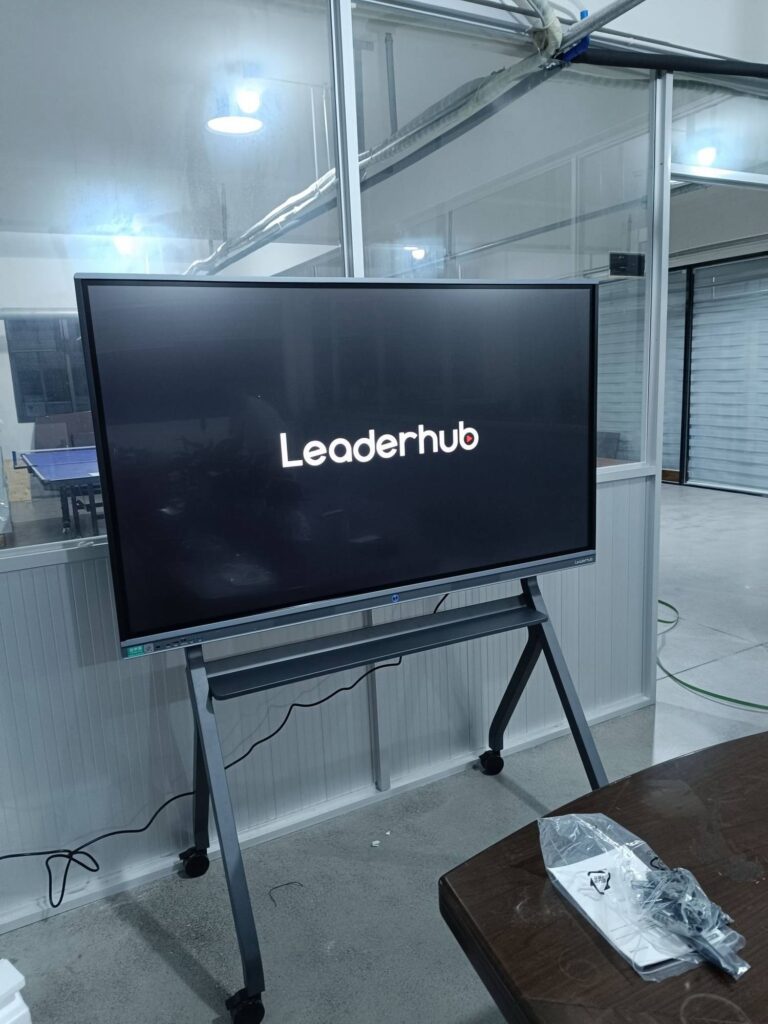
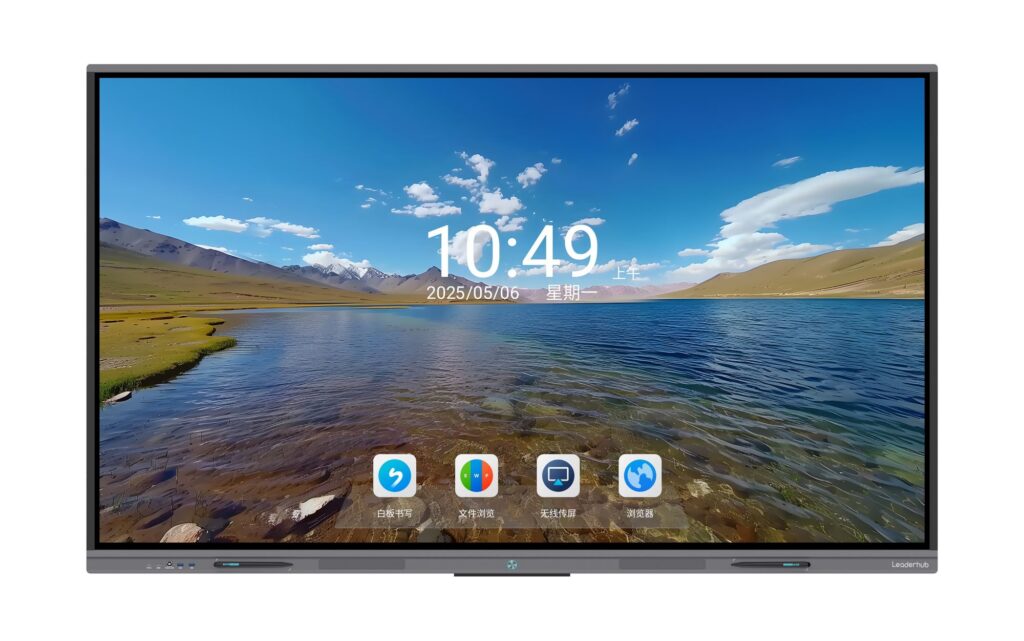
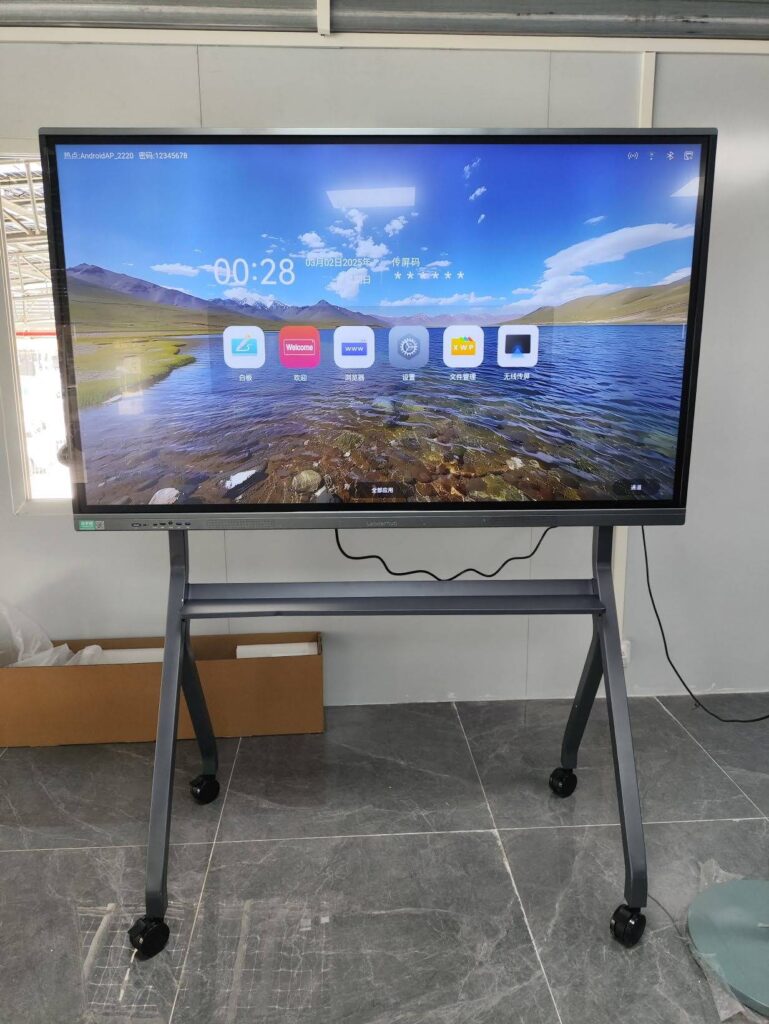
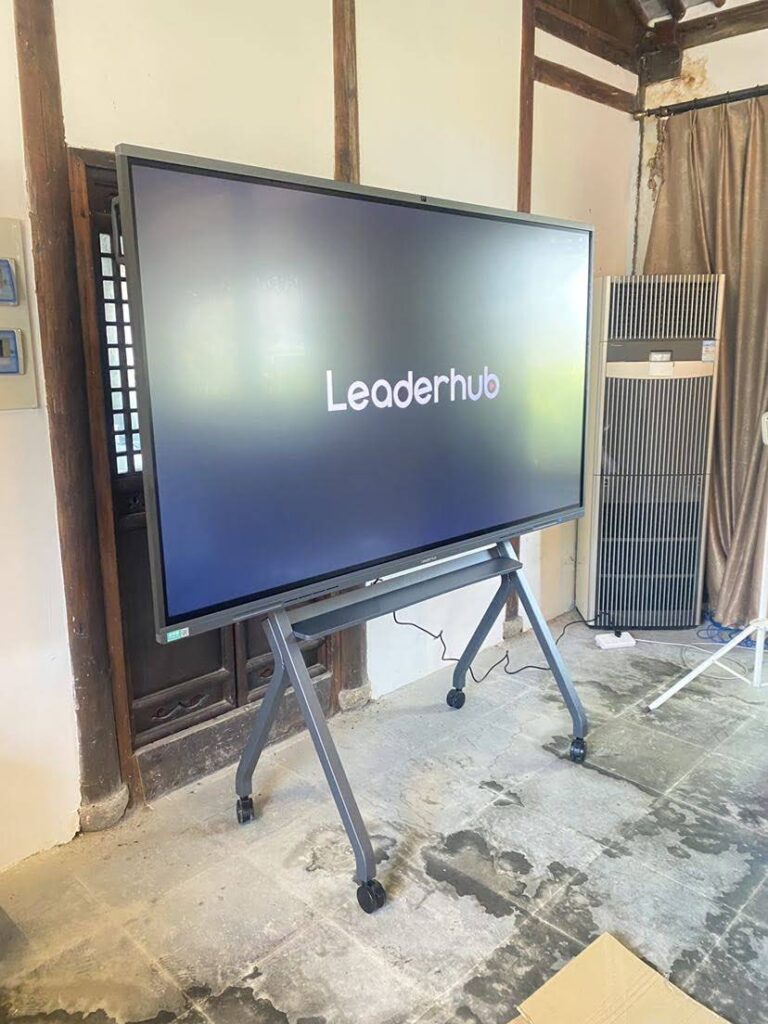
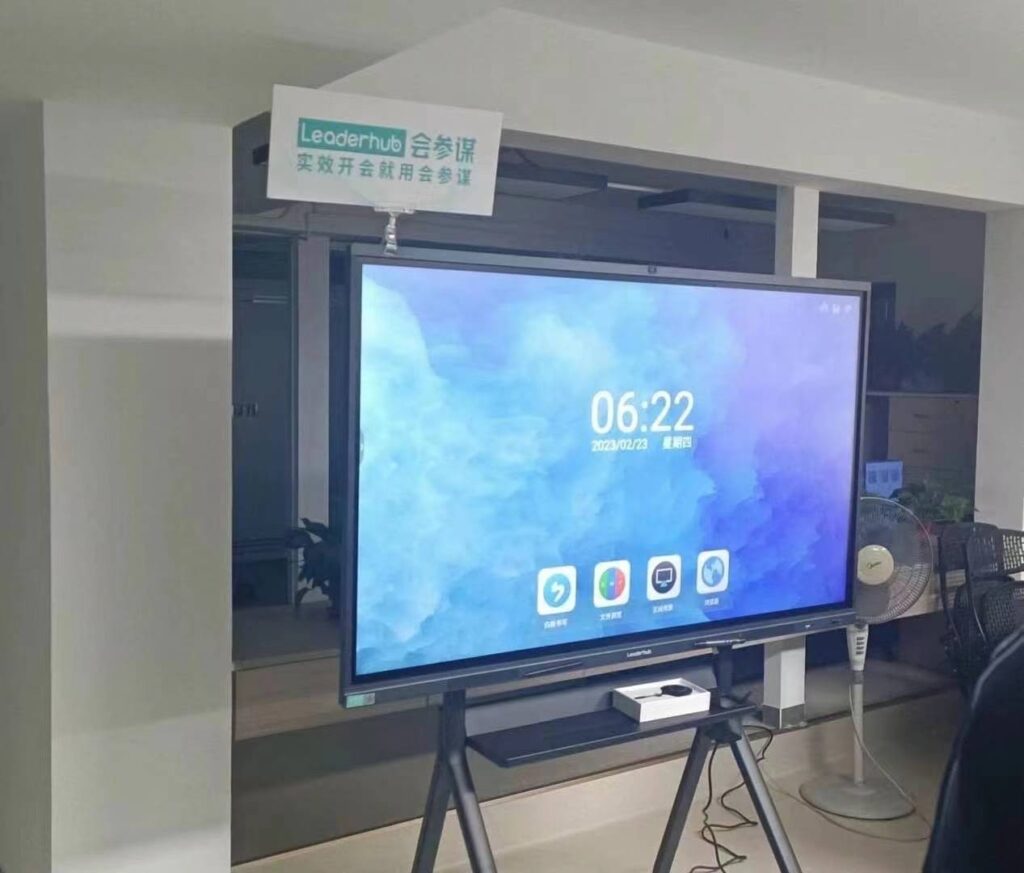
Choosing the right smart whiteboard with USB connectivity can feel overwhelming when you’re comparing dozens of specifications, port types, and software ecosystems. Whether you’re outfitting a corporate boardroom, a university lecture hall, or a hybrid-work collaboration space, the USB connection you choose determines how smoothly your devices, laptops, and peripherals will integrate with the display.
After testing multiple interactive panels across educational and enterprise environments, we’ve compiled this guide to help you make an informed purchasing decision based on real usage scenarios, technical specifications, and long-term reliability.
Why USB Connectivity Matters on a Smart Whiteboard
USB ports on a smart whiteboard aren’t just an afterthought — they are the backbone of daily usability. A well-designed smart whiteboard should let you plug in a laptop, USB drive, webcam, or annotation pen without needing extra adapters or drivers.
- One-cable connectivity: USB-C with power delivery lets you mirror your laptop screen and charge it simultaneously.
- Peripheral support: USB-A ports allow keyboards, mice, and flash drives to work instantly.
- Touch-back functionality: Some panels send touch input back to a connected PC via USB, turning any laptop into a touchscreen extension.
- Firmware updates: USB ports are often used for offline firmware updates and diagnostics.
Key Specifications to Evaluate Before You Buy
Not all USB ports are created equal. Below is a breakdown of the most important technical factors buyers should compare when shopping for an interactive flat panel or smart whiteboard.
| Feature | What to Look For | Why It Matters |
|---|---|---|
| USB-C with PD | 65W or higher power delivery | Charges laptops while mirroring content |
| Number of USB-A ports | At least 2–3 ports | Supports multiple peripherals simultaneously |
| USB 3.0 vs 2.0 | USB 3.0 for faster file transfer | Reduces lag when sharing large files |
| Touch-back over USB | Confirmed compatibility with Windows/Mac | Enables full interactive control from any laptop |
| OPS slot compatibility | Removable computing module | Future-proofs the panel for upgrades |
Step-by-Step Buying Guide
1. Define Your Primary Use Case
Classrooms typically need durable touch surfaces and simple one-cable connections for teachers rotating between devices daily. Corporate meeting rooms benefit more from USB-C laptop mirroring and video conferencing integration. Identifying your primary use case first narrows your options significantly.
2. Check Port Placement and Accessibility
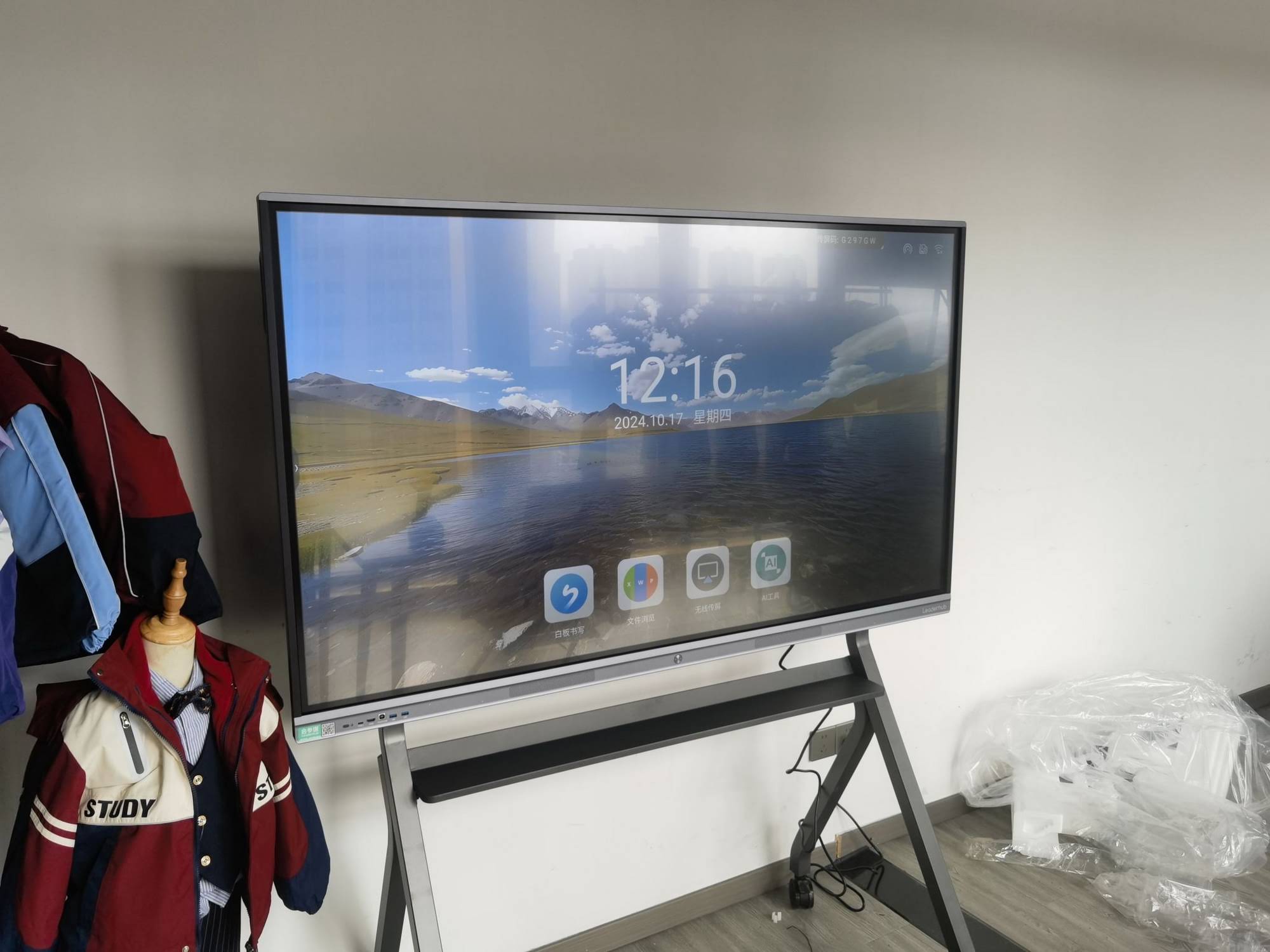
Front-facing ports at a reachable height are essential for daily use — rear-only ports mounted on a wall-fixed display can be frustrating. Look for panels with a front USB-C port dedicated to guest laptop connections.
3. Confirm Operating System Compatibility
Some whiteboards run Android natively, while others require an OPS (Open Pluggable Specification) module running Windows. Verify that your USB peripherals — printers, document cameras, styluses — are compatible with the panel’s operating system before purchasing.
4. Test Real-World Latency
In our internal testing across several 65″–86″ panels, touch-back latency over USB-C ranged from 8ms to 25ms depending on the chipset. Lower latency (under 15ms) is noticeably smoother for handwriting and annotation tasks.
5. Compare Warranty and After-Sales Support
USB ports are among the most frequently used — and most frequently damaged — components on any display. Choose a manufacturer offering at least a 2-3 year warranty and readily available replacement parts.
Comparing Popular Smart Whiteboard Models
Below is a quick comparison of several widely used interactive panels currently on the market, based on screen size, connectivity, and price point.
| Model | Screen Size | Resolution | Approx. Price |
|---|---|---|---|
| L65HM Interactive Smart Whiteboard | 65″ | 4K | $1,299.00 |
| L75ZM Interactive Whiteboard | 75″ | 4K | $1,399.00 |
| U55Pro Mobile Interactive Flat Panel | 55″ | 4K | $2,499.00 |
| L110H Interactive Flat Panel | 110″ | 4K | $7,999.00 |
Common Mistakes Buyers Make
- Ignoring port count — Underestimating how many devices will need simultaneous connection in a busy meeting room.
- Overlooking power delivery wattage — A 15W USB-C port won’t fully charge a modern laptop during use.
- Not testing touch-back before purchase — Some panels advertise touch-back but require additional drivers that aren’t always stable.
- Choosing size over connectivity — A larger screen with fewer ports can be less practical than a smaller, well-connected one.
- Skipping firmware update policies — Panels without regular firmware support can become outdated quickly.

USB-C vs HDMI: Which Should You Prioritize?
While HDMI remains a reliable standard for video-only transmission, USB-C has become the preferred connection for modern portable smart screens because it carries video, audio, data, and power through a single cable. If your organization frequently hosts guest presenters or BYOD (Bring Your Own Device) meetings, prioritizing USB-C with DisplayPort Alt Mode support will save significant setup time.
Quick Reference: USB-C vs HDMI
| Criteria | USB-C | HDMI |
|---|---|---|
| Power Delivery | Yes, up to 100W | No |
| Touch-back Support | Yes | No |
| Cable Simplicity | Single cable for everything | Requires separate USB cable for touch |
Industry Insight: What Professionals Recommend
According to feedback gathered from IT administrators managing multi-room deployments, panels equipped with at least one front-facing USB-C port rated for 65W or higher reduce help-desk tickets related to connectivity by a noticeable margin. Educational institutions similarly report that USB-A ports supporting quick document camera and flash drive access remain essential for day-to-day teaching workflows, even as wireless casting becomes more common.
LeaderHub, a Shenzhen-based manufacturer with 16 years of experience in the interactive panel industry, has supplied smart whiteboards and mini PCs to organizations across 82 countries, and its engineering teams consistently emphasize front-accessible, power-capable USB-C ports as a baseline requirement in modern panel design.
Final Checklist Before You Purchase
- Confirm USB-C power delivery wattage (65W minimum recommended)
- Verify number and placement of USB-A ports
- Test touch-back compatibility with your existing devices
- Check warranty terms specifically covering port and connectivity failures
- Review whether the panel supports an upgradeable OPS module
- Ask for a live demo before finalizing a bulk purchase
Conclusion
Selecting a smart whiteboard with reliable USB connectivity is less about chasing the biggest screen size and more about matching port capability, power delivery, and touch-back performance to your actual daily workflow. By prioritizing front-facing USB-C with sufficient wattage, adequate USB-A port count, and verified touch-back support, you’ll avoid the most common frustrations reported by classrooms and boardrooms alike. Taking the time to test a unit — or request a live demonstration — before a bulk purchase remains the single best way to ensure long-term satisfaction with your investment.