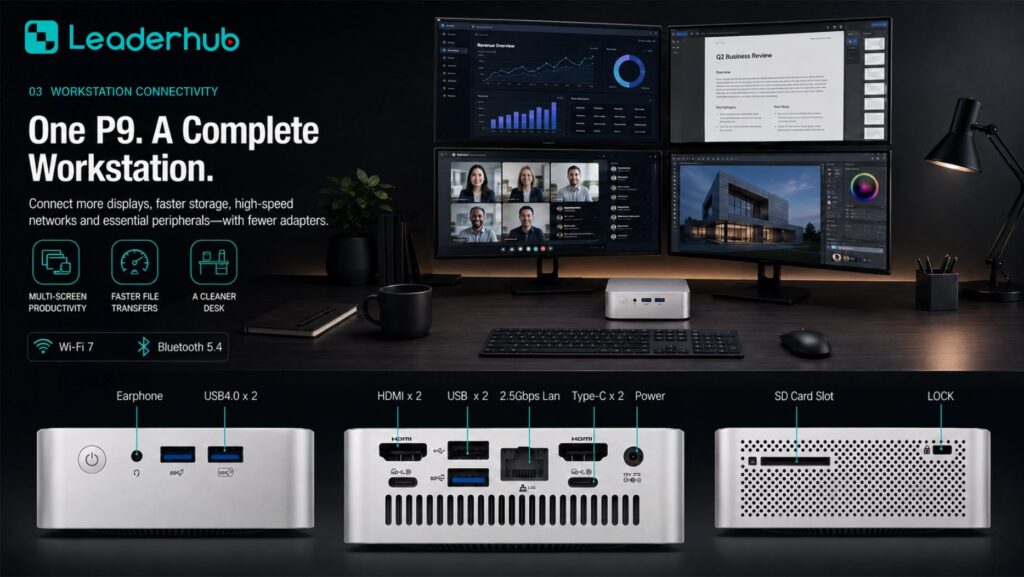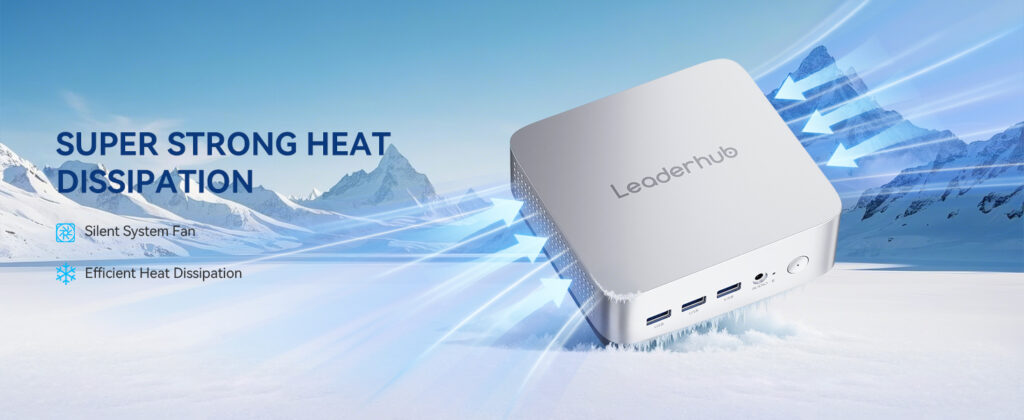
Digital classrooms are no longer a future concept. From primary schools to universities and training centers, teachers now rely on interactive whiteboards, cloud-based learning platforms, video conferencing tools, and AI-assisted teaching software every single day. Behind all of this technology sits one critical component that is often overlooked: the computer that powers the classroom. A mini PC for digital classrooms delivers the processing power schools need in a compact, quiet, and energy-efficient form factor that fits neatly behind a display, under a desk, or inside a podium.
This guide explains why mini PCs have become the preferred choice for smart teaching environments, what specifications actually matter in a classroom, and how to match the right compact computer to your school’s teaching scenarios and budget.
Why Digital Classrooms Are Switching to Mini PCs
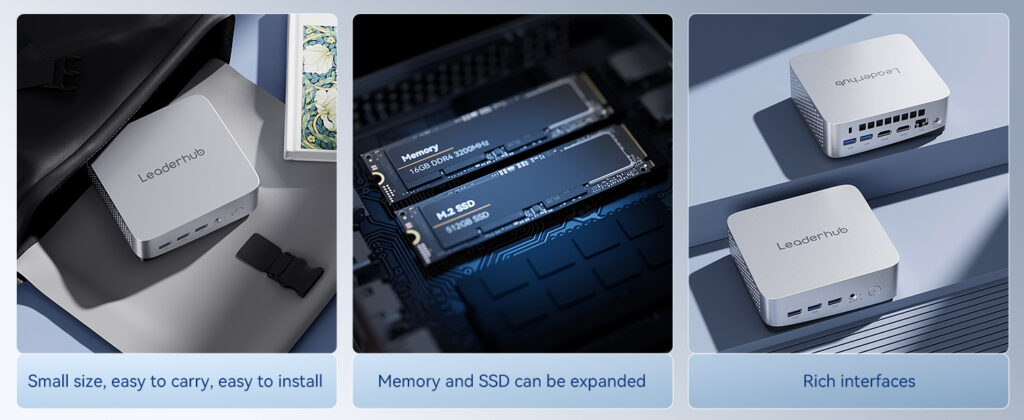
Traditional desktop towers were designed for offices, not classrooms. They take up valuable space, generate heat and fan noise, and require long cable runs to reach wall-mounted displays. Laptops solve the space problem but introduce battery wear, theft risk, and inconsistent setups between rooms. A compact computer sits in the middle: it offers the stability and manageability of a desktop with a footprint smaller than a textbook.
According to the OECD Digital Education Outlook, the effectiveness of classroom technology depends heavily on reliable infrastructure that teachers can use without technical friction. A mini PC that boots in seconds, connects instantly to the interactive display, and runs silently in the background is exactly the kind of infrastructure that removes friction from teaching.
Key Advantages for Schools
- Space saving: Mounts behind an interactive flat panel or under a teacher’s desk, keeping the front of the classroom clean and safe.
- Silent operation: Low-noise or fanless designs prevent distraction during lessons and recordings.
- Low power draw: Typical consumption of 10–45W versus 150W+ for a tower, which adds up across dozens of classrooms.
- Standardized deployment: Identical units in every room simplify imaging, updates, and remote management for IT teams.
- Longer refresh cycles: Modern Intel-based mini PCs comfortably handle classroom workloads for 5–7 years.
What a Classroom Mini PC Actually Needs to Do
Before comparing specifications, it helps to map out the real workloads a classroom computer handles. Most smart teaching setups involve several of the following tasks running simultaneously:
- Driving a 4K interactive whiteboard or large-format display with touch input
- Running presentation, annotation, and lesson-planning software
- Streaming educational video content and online learning platforms
- Hosting or joining video conferences for hybrid and remote learners
- Recording lessons for later review or flipped-classroom models
- Running classroom management, assessment, and attendance tools
- Increasingly, running local AI tools for translation, transcription, and tutoring
None of these tasks individually require a workstation, but running them together on an underpowered machine leads to lag, dropped video frames, and frustrated teachers. The goal is to find the right balance of performance, reliability, and cost for your specific teaching model.
How to Choose the Best Mini PC for Digital Classrooms: 7 Factors
1. Processor Performance
The CPU determines how smoothly the system handles multitasking. For basic classrooms focused on presentations, web browsing, and video playback, an efficient processor such as the Intel N100 provides excellent value with very low power consumption. For classrooms that record lessons, run video conferencing alongside annotation software, or use STEM and design applications, a 12th-generation Intel Core i5 or higher delivers noticeably better responsiveness and headroom for future software.
2. Memory (RAM)
Memory is where many budget classroom computers fall short. Browser-based learning platforms with multiple tabs, video calls, and whiteboard software can quickly consume 6–8GB. The practical guidance is:
- 8GB: Minimum for standard teaching rooms with light multitasking
- 16GB: Recommended for hybrid classrooms, lesson recording, and multi-display setups
- 32GB: Ideal for computer labs, media rooms, and AI-assisted teaching tools
3. Storage Type and Capacity
Always choose an SSD over a mechanical hard drive. Solid-state storage means the computer boots in under 20 seconds, applications open instantly, and there are no moving parts to fail when the unit is mounted behind a vibrating display. A 512GB SSD is a comfortable baseline that leaves room for the operating system, teaching software, cached lesson materials, and recorded videos.
4. Display Outputs and 4K Support
Modern interactive flat panels are predominantly 4K. Your mini PC must support 4K output at 60Hz through HDMI 2.0 or DisplayPort, otherwise text on the whiteboard will look soft and touch response may feel sluggish. Dual or triple display outputs are valuable if you want to mirror the whiteboard onto a confidence monitor for the teacher or extend content to a secondary screen.
5. Ports and Connectivity
Classrooms connect more peripherals than most offices: touch displays (via USB), document cameras, microphones, webcams, wireless presenters, and sometimes science sensors. Look for:
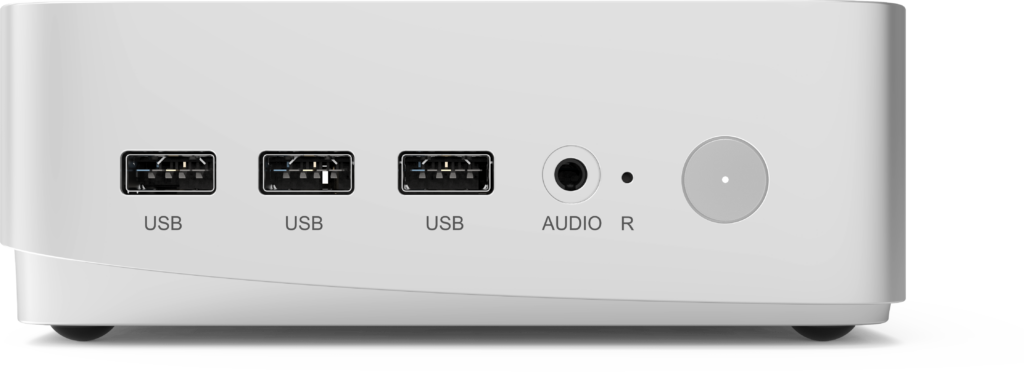
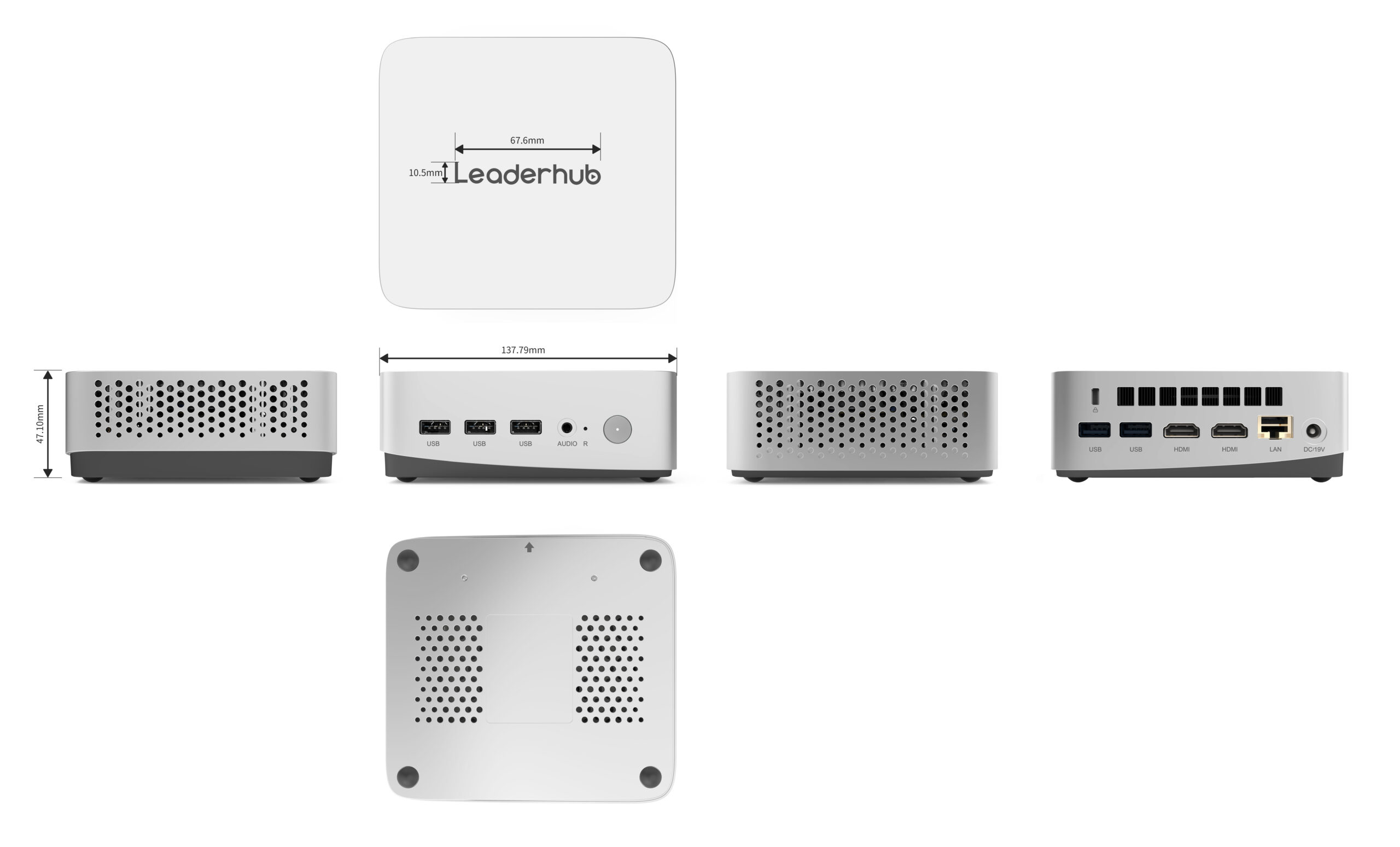
- Multiple USB-A ports plus at least one USB-C for modern accessories
- Gigabit Ethernet for stable network access during video calls and testing
- Wi-Fi 6 and Bluetooth for wireless keyboards, styluses, and casting
- A 3.5mm audio jack for classroom speaker systems
6. Noise, Heat, and Mounting
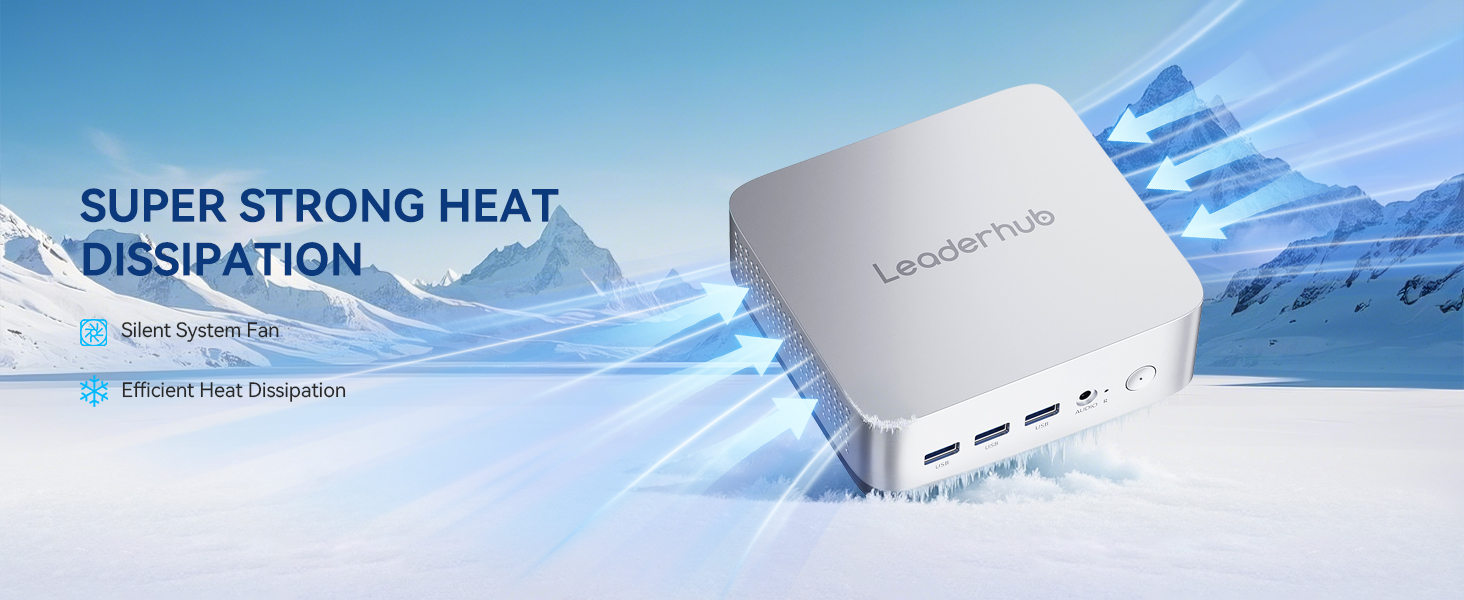
A compact computer that is mounted behind a display sits in a warm, enclosed space. Choose a model with an efficient thermal design and confirm it includes a VESA mounting bracket so it can attach directly to the back of the interactive panel or a wall plate. Quiet operation matters more in classrooms than almost anywhere else, as constant fan noise is a documented source of student distraction.
7. Manageability and Security
IT teams managing dozens or hundreds of classrooms need remote management, standardized imaging, and the ability to lock down the system. A Windows-based mini PC with TPM 2.0 support, BIOS-level password protection, and compatibility with your existing device management platform will save hundreds of hours over the device lifecycle. The ISTE Essential Conditions framework highlights consistent technical support as one of the prerequisites for effective technology use in schools, and manageable hardware is the foundation of that support.
Recommended Specifications by Classroom Type
| Classroom Type | Typical Workload | Processor | RAM / Storage | Display Support |
|---|---|---|---|---|
| Standard Teaching Room | Presentations, web platforms, video playback, whiteboard annotation | Intel N100 class | 8GB / 512GB SSD | Single 4K display |
| Hybrid / Recording Classroom | Video conferencing + annotation + lesson capture simultaneously | Intel Core i5 (12th gen+) | 16GB / 512GB SSD | Dual 4K displays |
| STEM / Computer Lab | Coding, CAD, simulations, multimedia editing | Intel Core i5 / i7 | 16–32GB / 512GB–1TB SSD | Dual or triple displays |
| AI-Assisted Smart Classroom | Local AI tools, real-time transcription, multi-screen collaboration | High-performance multi-core | 32GB / 1TB SSD | Multiple 4K displays |
LeaderHub Mini PC Options for Smart Teaching
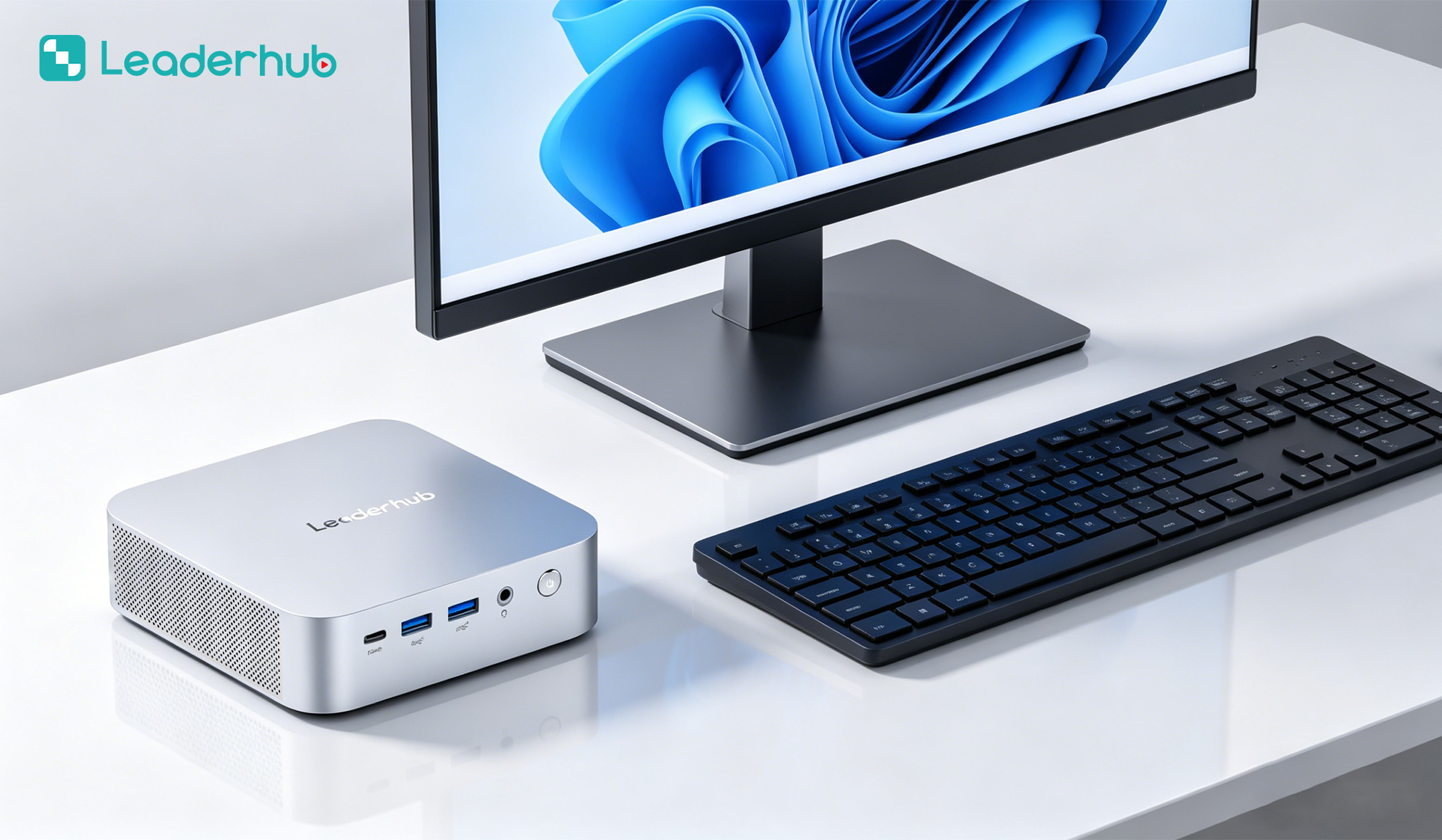
LeaderHub is a Shenzhen-based technology company with 16 years of interactive-display expertise, delivering smart whiteboards, mini PCs, and portable smart screens to education, enterprise, and creative users in more than 82 countries. Because its compact computers are engineered alongside its interactive panels, schools benefit from hardware that is designed to work together from day one. The current mini PC lineup covers three performance tiers that map neatly to the classroom types above.
| Model | Core Configuration | Best For | Price |
|---|---|---|---|
| LeaderHub LP1C Mini PC | Intel N100, 8GB RAM, 512GB SSD | Standard classrooms, large-scale rollouts, energy-conscious schools | $399.00 |
| LeaderHub LP5C Mini PC | Intel i5-12450HX, 16GB RAM, 512GB SSD | Hybrid classrooms, lesson recording, STEM labs | $799.00 |
| LeaderHub AD8 Mini PC | Flagship compact performance tier | AI-assisted smart classrooms, lecture halls, multi-display teaching spaces | $999.00 |
LP1C: The Value Choice for Every Classroom
For schools equipping many rooms at once, the LP1C offers the most practical balance of cost and capability. The Intel N100 handles 4K whiteboard output, browser-based learning platforms, and HD video playback with minimal power draw, which also means minimal heat when mounted behind a display. With 8GB of RAM and a 512GB SSD, it boots quickly and stays responsive through a full teaching day.
LP5C: Headroom for Hybrid and Media-Rich Teaching
The LP5C steps up to a 12th-generation Intel Core i5 with 16GB of memory. This is the configuration to choose when teachers regularly run video conferencing for remote students while annotating on the whiteboard and recording the session. It also comfortably supports dual 4K displays, allowing a teacher-facing monitor alongside the main interactive panel.
AD8: Built for the Next Generation of Smart Classrooms
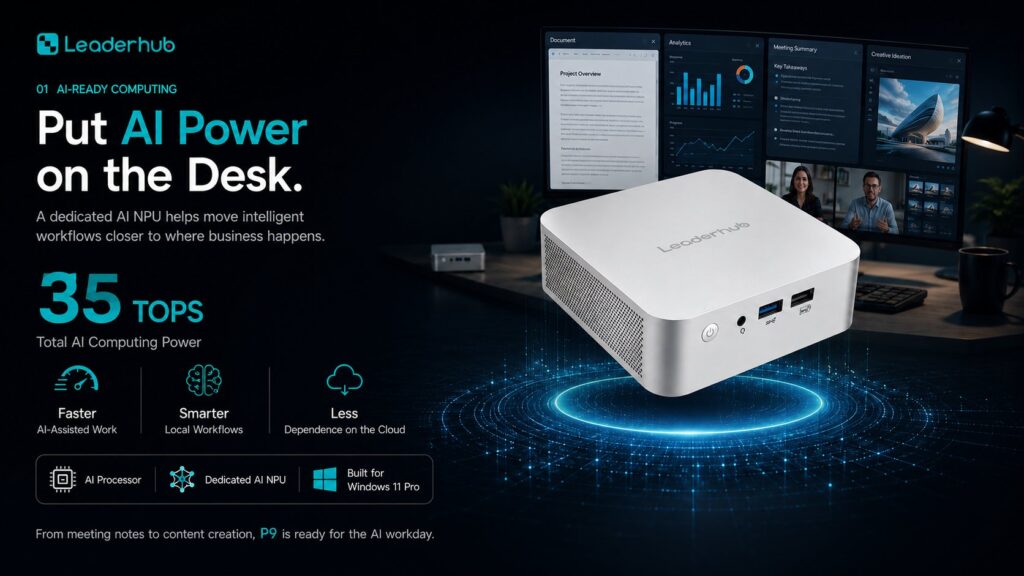
As AI-powered teaching tools move from the cloud to the classroom, processing demands rise. The AD8 is positioned as the flagship option for institutions investing in advanced collaboration, real-time transcription and translation, and demanding multi-screen setups in lecture halls and innovation labs.
Pairing Your Mini PC with an Interactive Whiteboard
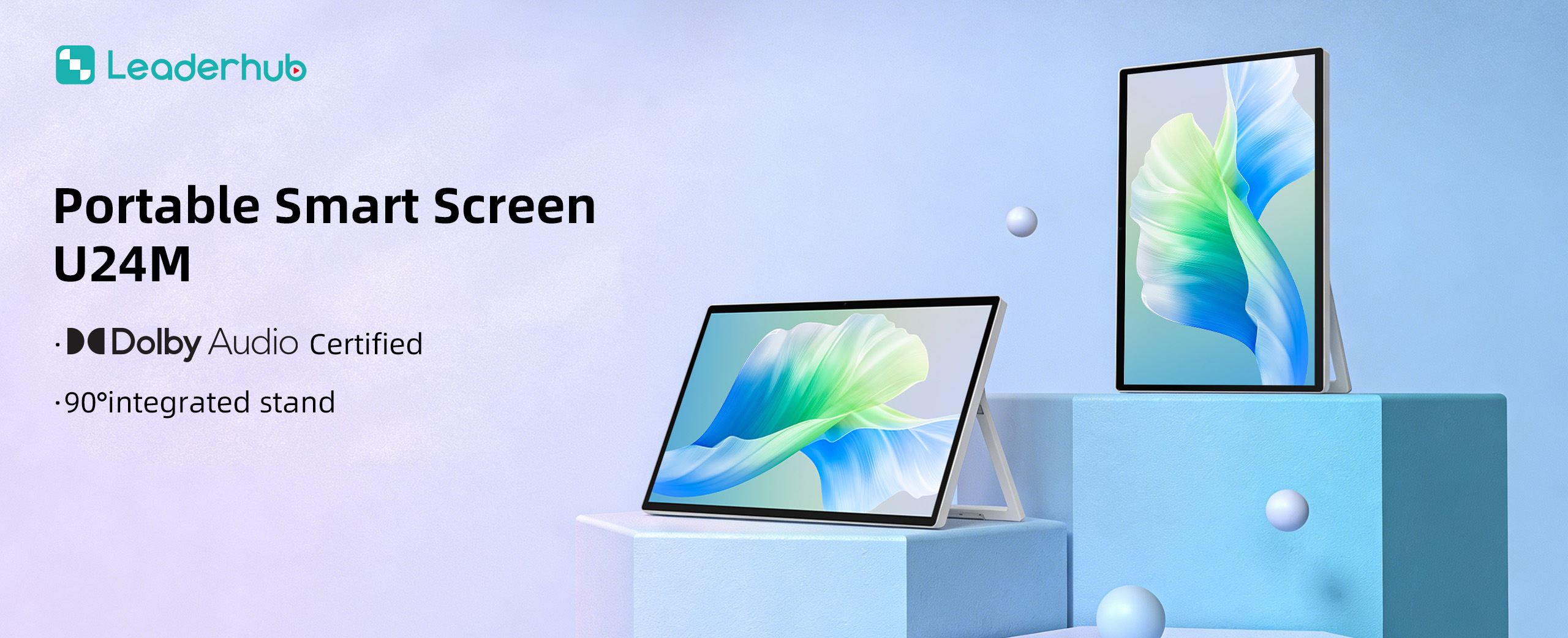
A mini PC reaches its full potential when combined with a quality interactive display. Most schools pair a compact computer with a 65-inch, 75-inch, or 86-inch 4K panel depending on room size. When matching the two, keep these points in mind:
- Touch-back connection: Connect the display’s USB touch port to the mini PC so finger and stylus input controls the Windows environment directly.
- Single-cable convenience: Where supported, USB-C with DisplayPort Alt Mode carries video, touch, and data over one cable, reducing clutter and failure points.
- Room size to screen size: 65″ suits rooms up to roughly 25 students, 75″ for 30–40 students, and 86″ for large classrooms and lecture spaces.
- Unified vendor support: Sourcing the display and the computer from the same manufacturer simplifies compatibility and after-sales service.
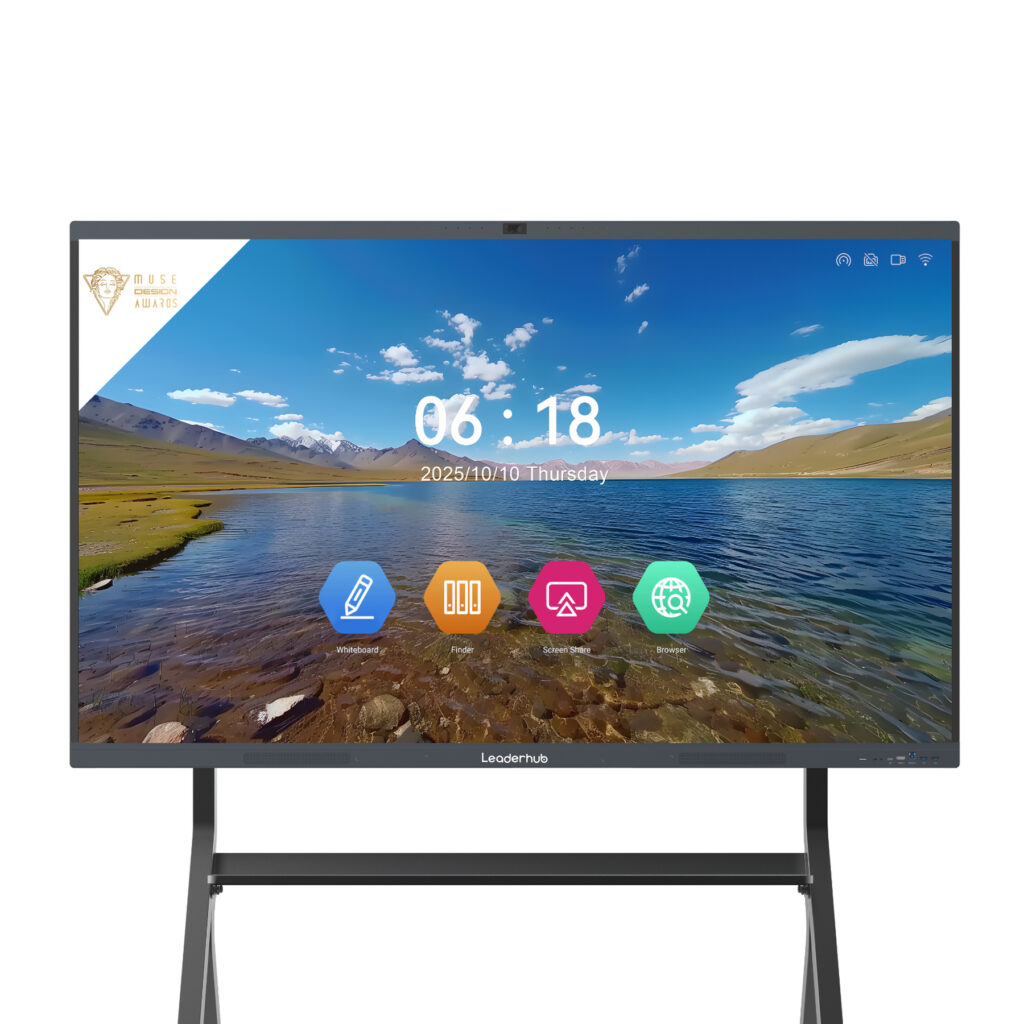
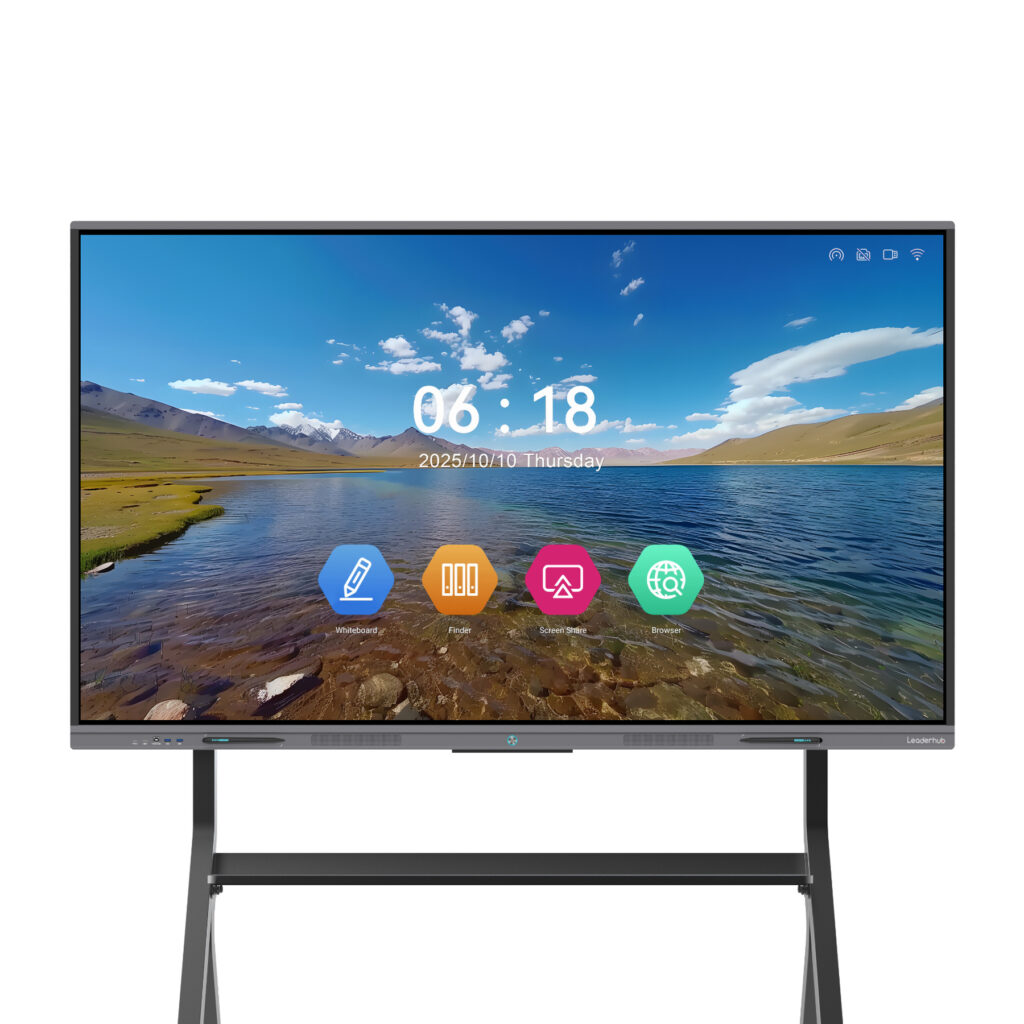
LeaderHub’s smart whiteboards, such as the 75-inch L75HM 4K touchscreen, are designed to integrate seamlessly with the LP1C, LP5C, and AD8, giving schools a complete and tested teaching station rather than a collection of separately sourced parts. Guidance from EdTech Magazine on choosing an interactive display for K-12 similarly emphasizes evaluating the display and its computing source as one system.
Budget Planning and Total Cost of Ownership
The purchase price is only part of the picture. When comparing a mini PC against towers or laptops for classroom deployment, factor in the following over a typical five-year cycle:
| Cost Factor | Desktop Tower | Laptop | Mini PC |
|---|---|---|---|
| Energy consumption | High | Low | Very low |
| Space and furniture needs | Dedicated desk space | Portable, needs docking | Hidden behind display |
| Theft and damage risk | Low | High | Low (fixed mount) |
| Battery replacement | None | Required within 3–4 years | None |
| IT management effort | Moderate | High (mobile devices) | Low (standardized) |
The UNESCO Technology in Education Report cautions that education technology spending should be guided by evidence of impact and long-term sustainability rather than novelty. Choosing durable, efficient, and easily maintained hardware is one of the most straightforward ways to align technology budgets with that principle.
Deployment Checklist for IT Administrators
- Audit each classroom’s display resolution, ports, and mounting options before ordering.
- Choose one or two standard configurations across the school to simplify imaging and spares.
- Confirm VESA bracket compatibility with your interactive panels or wall plates.
- Plan wired Ethernet drops for rooms that host video conferencing or online assessments.
- Prepare a master image with teaching software, browser policies, and remote management agents.
- Label and document each unit’s location, serial number, and warranty status.
- Schedule a short teacher onboarding session so staff know how to wake, connect, and troubleshoot the system.
Frequently Asked Questions
Is a mini PC powerful enough to run a 4K interactive whiteboard?
Yes. Even entry-level models with the Intel N100 output 4K at 60Hz and handle whiteboard software, browser platforms, and video playback smoothly. Higher tiers add headroom for recording and multi-display setups.
Should schools choose Windows or Android for the classroom computer?
Many interactive panels include a built-in Android system suitable for basic annotation and casting. A Windows-based mini PC adds full compatibility with school management software, examination systems, office suites, and specialist teaching applications, which is why most institutions use both together.
How long will a classroom mini PC last?
With SSD storage and no moving parts beyond a quiet fan, a quality compact computer typically serves five to seven years in a classroom environment before performance or software support justifies replacement.
Can a mini PC be mounted out of sight?
Yes. Most units include a VESA bracket that attaches directly to the back of the display or to a wall plate, keeping cables short and the teaching area clutter-free.
Final Thoughts
Choosing the right mini PC for digital classrooms comes down to matching real teaching workloads with the appropriate performance tier, ensuring reliable 4K display and touch connectivity, and prioritizing quiet, efficient, and manageable hardware that IT teams can support at scale. For most schools, an N100-class unit covers standard rooms affordably, a Core i5 configuration serves hybrid and media-rich classrooms, and a flagship model future-proofs spaces built for AI-assisted learning.
Ready to build a complete smart teaching station? Browse the full range of interactive displays and mini PCs, or contact the LeaderHub team for classroom configuration advice, volume pricing, and OEM/ODM options for education projects.