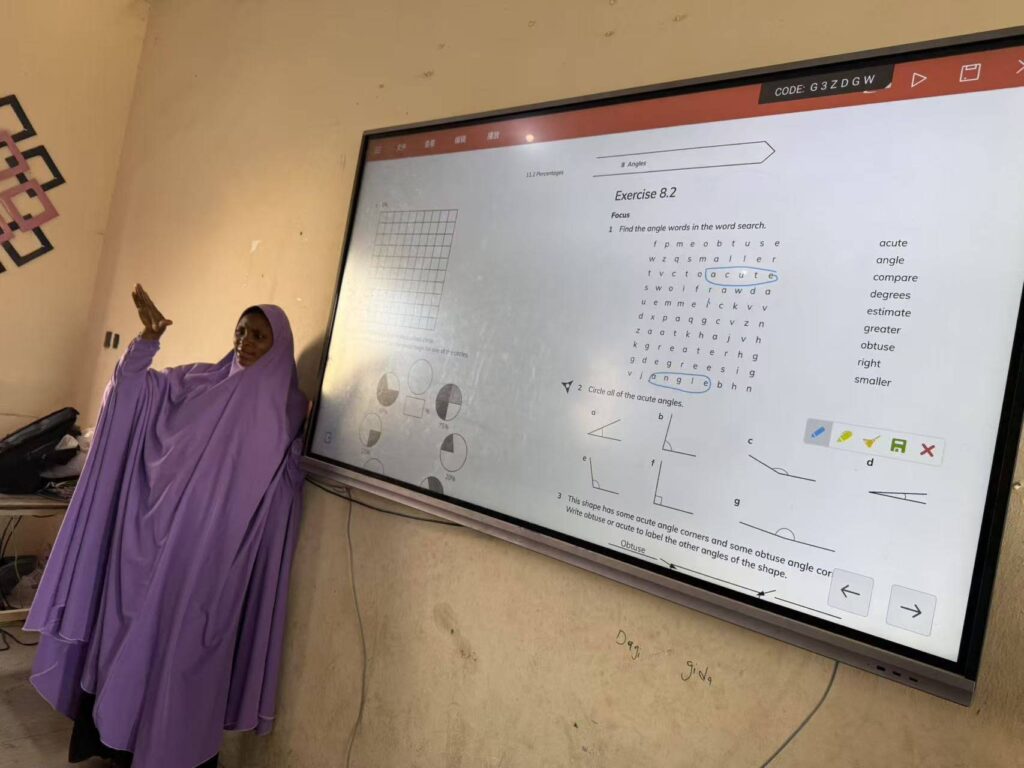
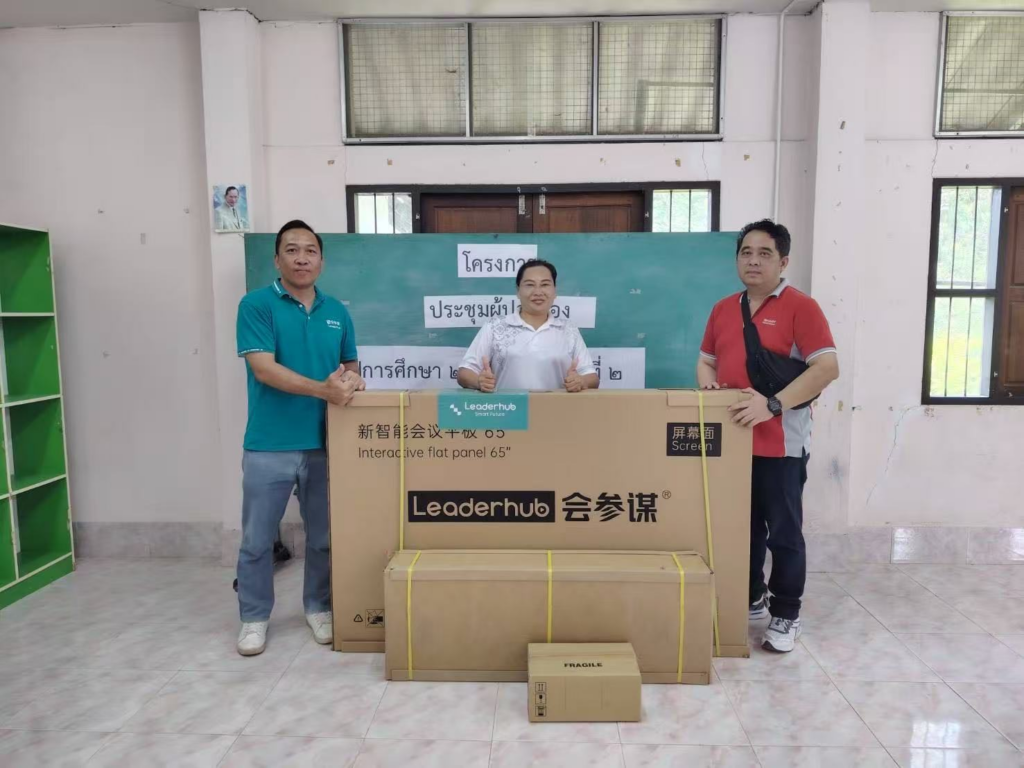
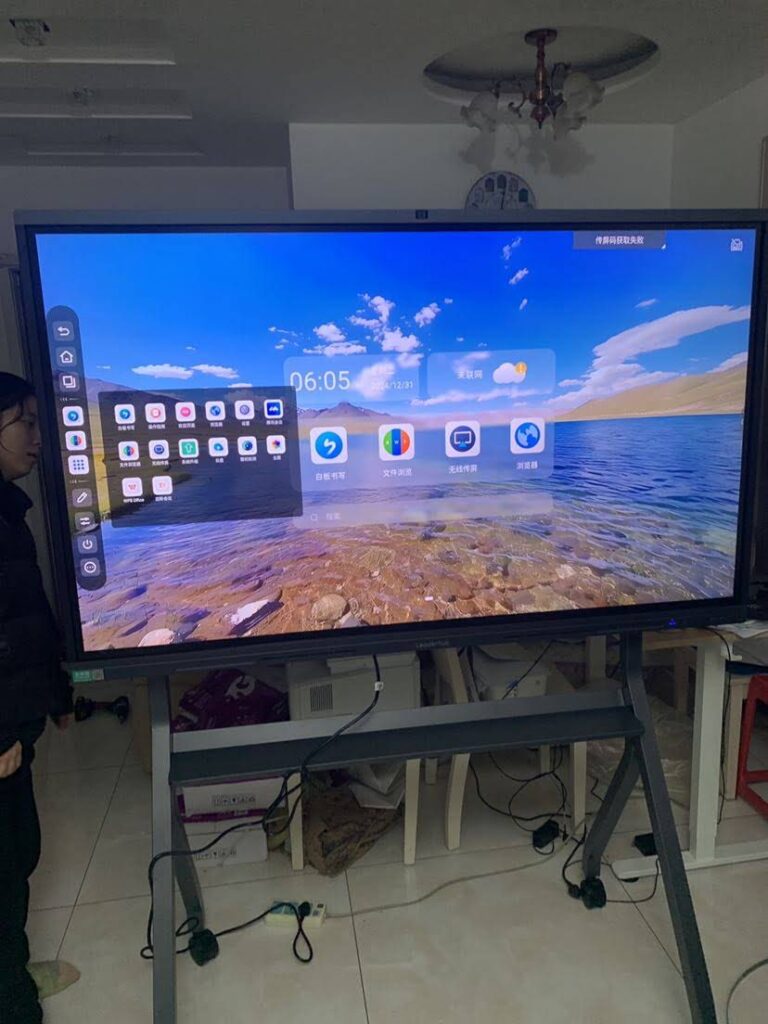
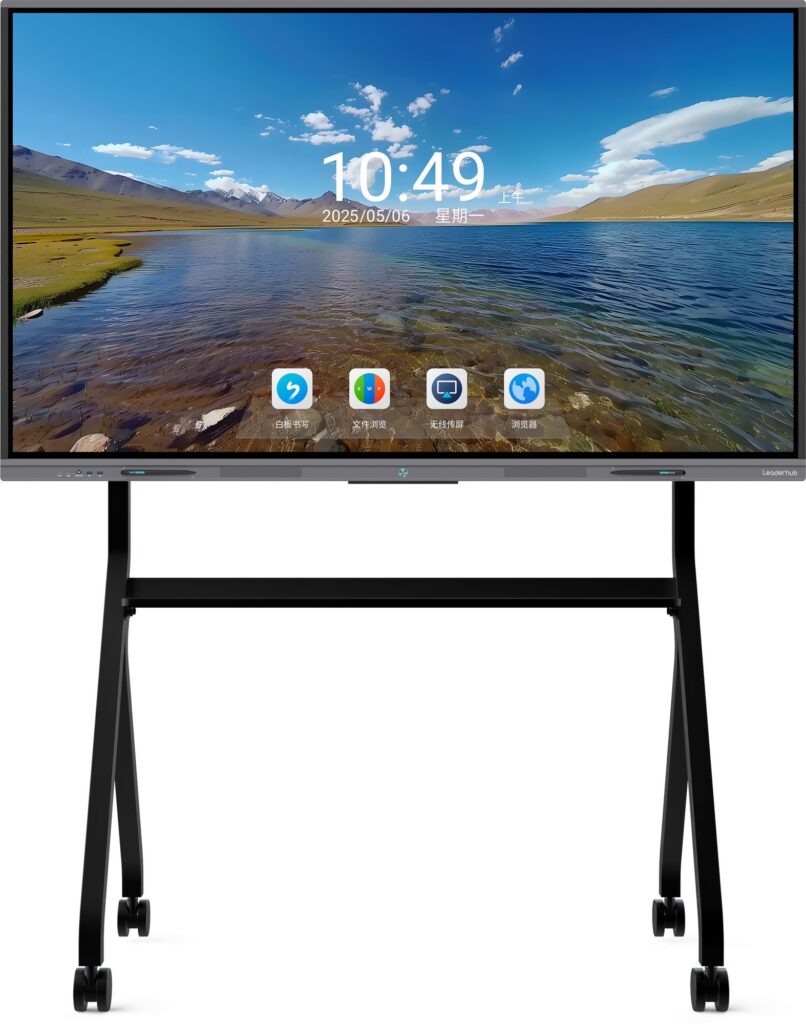
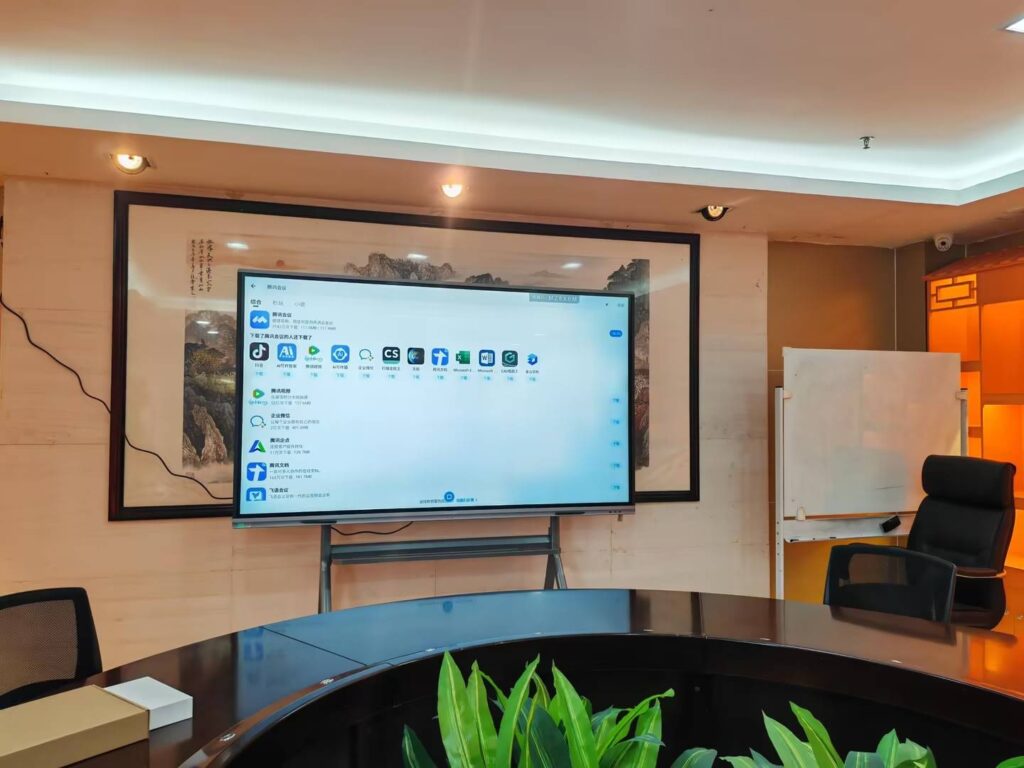
If you are trying to figure out how to connect smart board to phone, the good news is that it is usually easier than it looks. Most modern smart boards support either wired connection or wireless screen sharing, so you can mirror your phone, show photos, open apps, present documents, or control a meeting in just a few minutes.
The best method depends on your phone model, the smart board’s operating system, and whether you want a stable classroom setup or a quick one-time connection. Below, you will find a clear step-by-step guide for Android and iPhone users, plus troubleshooting tips, connection options, and best practices for smoother sharing.
Quick navigation:
What you need |
Wired connection |
Wireless connection |
Troubleshooting |
FAQ
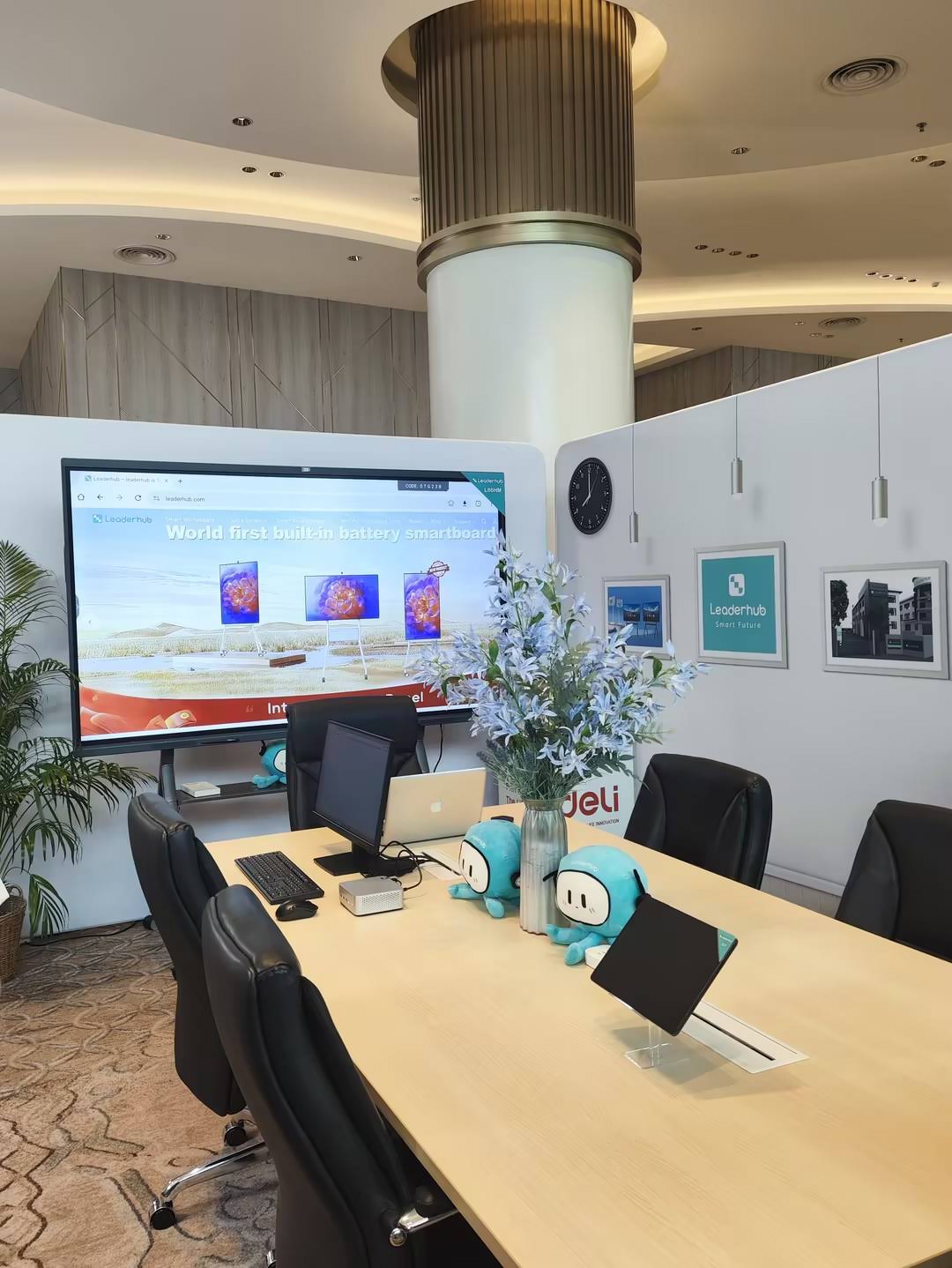
The easiest ways to connect a smart board to a phone
In most cases, you can connect your phone to a smart board in one of three ways:
- Wired connection: USB-C to HDMI, Lightning to HDMI, or a compatible adapter.
- Wireless screen mirroring: AirPlay, Miracast, Chromecast, or built-in casting tools.
- App-based sharing: A companion app or device-management app for meetings and classrooms.
| Connection Method | Best For | Pros | Watch Out For |
|---|---|---|---|
| USB-C / HDMI | Stable presentations and classrooms | Low lag, reliable signal | Needs the right adapter |
| AirPlay | iPhone and iPad users | Simple and fast | Both devices must be on the same network |
| Miracast | Many Android phones | Wireless and convenient | Support varies by device |
| Casting App | Classrooms and business meetings | Easy for multi-user environments | May require installation or login |
What you need before connecting
Before you start, make sure your phone and smart board support the same connection type. A few minutes of preparation can save a lot of frustration later.
- A smart board with screen mirroring, HDMI input, or a casting app
- An Android or iPhone device
- The correct adapter or cable if you choose a wired setup
- A stable Wi-Fi network for wireless casting
- Updated software on both devices
If you are choosing hardware for meetings or learning spaces, smart whiteboards and interactive flat panels are usually the most convenient options for phone sharing.
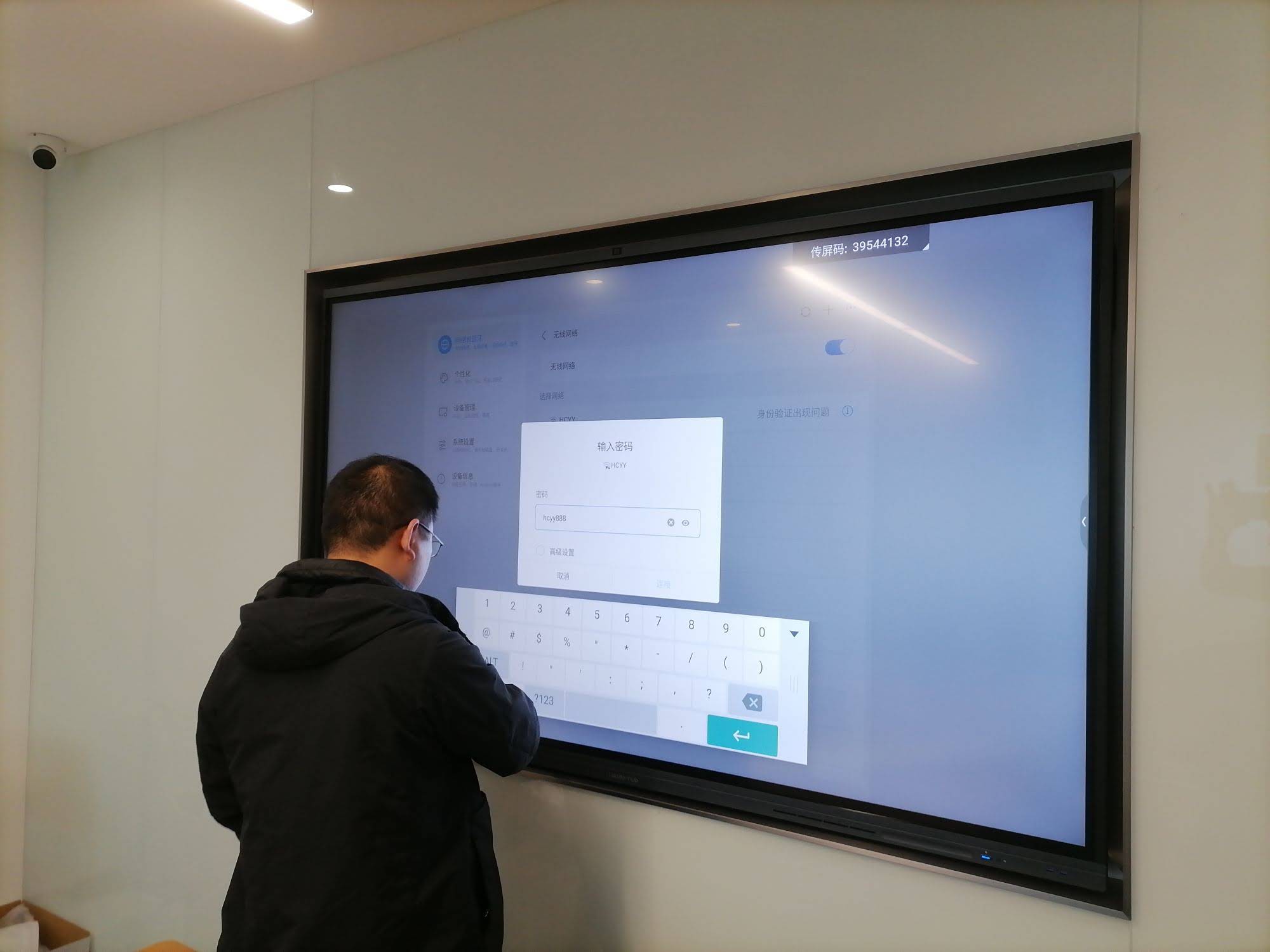
Method 1: Connect a phone to a smart board with a wired cable
A wired connection is the best choice when you want stable video, almost no delay, or a setup that will be used every day in a classroom or conference room.
For Android phones
- Check whether your phone supports USB-C video output.
- Use a USB-C to HDMI adapter or a compatible dock.
- Connect the adapter to the phone and the HDMI cable to the smart board.
- Switch the smart board to the correct HDMI input.
- Accept any pop-up permission on your phone if prompted.
For iPhone users
- Use a Lightning to HDMI adapter for older iPhones or a USB-C to HDMI adapter for newer models.
- Plug the adapter into the phone.
- Connect the HDMI cable to the smart board.
- Select the matching HDMI source on the board.
- Wait a few seconds for the screen to appear.
Tip: If you only need a simple display for presentations, a wired method is often the most dependable. It is also ideal when Wi-Fi is unstable.
Method 2: Connect wirelessly with screen mirroring
Wireless casting is popular because it removes cable clutter and lets you move around freely. This is especially useful in hybrid meetings, classrooms, and collaborative brainstorming sessions.
For iPhone: use AirPlay
- Make sure the smart board supports AirPlay.
- Connect both the iPhone and the smart board to the same Wi-Fi network.
- Open Control Center on your iPhone.
- Tap Screen Mirroring.
- Select the smart board from the list.
- Enter the code shown on the board if required.
For Android: use Miracast or casting
- Confirm that the smart board supports Miracast or a built-in wireless display feature.
- Connect both devices to the same Wi-Fi network.
- Open the phone’s Cast, Smart View, or Wireless Display menu.
- Choose the smart board from the device list.
- Accept the pairing request if shown.
If your board uses a casting app
- Install the recommended app on your phone if needed.
- Open the app and scan the QR code or enter the pairing code.
- Allow network and screen-sharing permissions.
- Start sharing your screen, photos, or video files.
Method 3: Use a meeting app or collaboration tool
Some smart boards are designed to work with meeting platforms or collaboration apps. This is helpful when multiple people need to share content from different phones during one session.
- Open the same app on the board and phone
- Join the same room or meeting session
- Choose the content you want to display
- Switch presenters without disconnecting the main display
For classrooms, it is also worth checking guidance from the UNESCO Technology Recommendations and the EU Digital Education resources when planning digital collaboration environments.
Common problems and how to fix them
| Problem | Possible Cause | Solution |
|---|---|---|
| No signal on the board | Wrong input selected | Switch to the correct HDMI or wireless source |
| Phone does not find the board | Devices are not on the same network | Reconnect both devices to the same Wi-Fi |
| Lag or stuttering video | Weak Wi-Fi or overloaded network | Move closer to the router or use a wired connection |
| Sound is missing | Audio routed to the phone | Check volume, mute status, and output settings |
| App cannot connect | Permissions blocked | Allow local network, Bluetooth, and screen-capture permissions |
Best practices for a better phone-to-smart-board experience
- Update both devices before important meetings or lessons.
- Use a strong Wi-Fi network if you are mirroring wirelessly.
- Test the connection in advance if the session is time-sensitive.
- Keep a backup adapter or cable in case wireless casting fails.
- Close unnecessary apps on your phone to reduce lag.
If you are building a larger collaboration setup, a compact computing device can help improve performance. You can also explore a compatible mini PC for smoother room control and presentation workflows.
FAQ
Can I connect a phone to a smart board without Wi-Fi?
Yes. A wired HDMI connection is the simplest option when Wi-Fi is unavailable or unstable. This is often the best choice for classrooms and conference rooms that need a dependable display.
Do all phones support wireless mirroring?
Not all phones support the same casting standard. iPhones typically use AirPlay, while many Android phones support Miracast or another built-in casting feature. Always check the phone and smart board specifications before you buy.
Is Bluetooth enough to connect a smart board to a phone?
Bluetooth is usually not used for full screen mirroring. It may help with pairing accessories or audio, but for viewing your phone screen on a smart board, you will usually need HDMI, AirPlay, Miracast, or a casting app.
What is the most reliable way for teachers and presenters?
For reliability, wired HDMI is often the safest option. For flexibility, wireless casting is more convenient. Many schools and businesses keep both options available so they can switch depending on the room and the device.
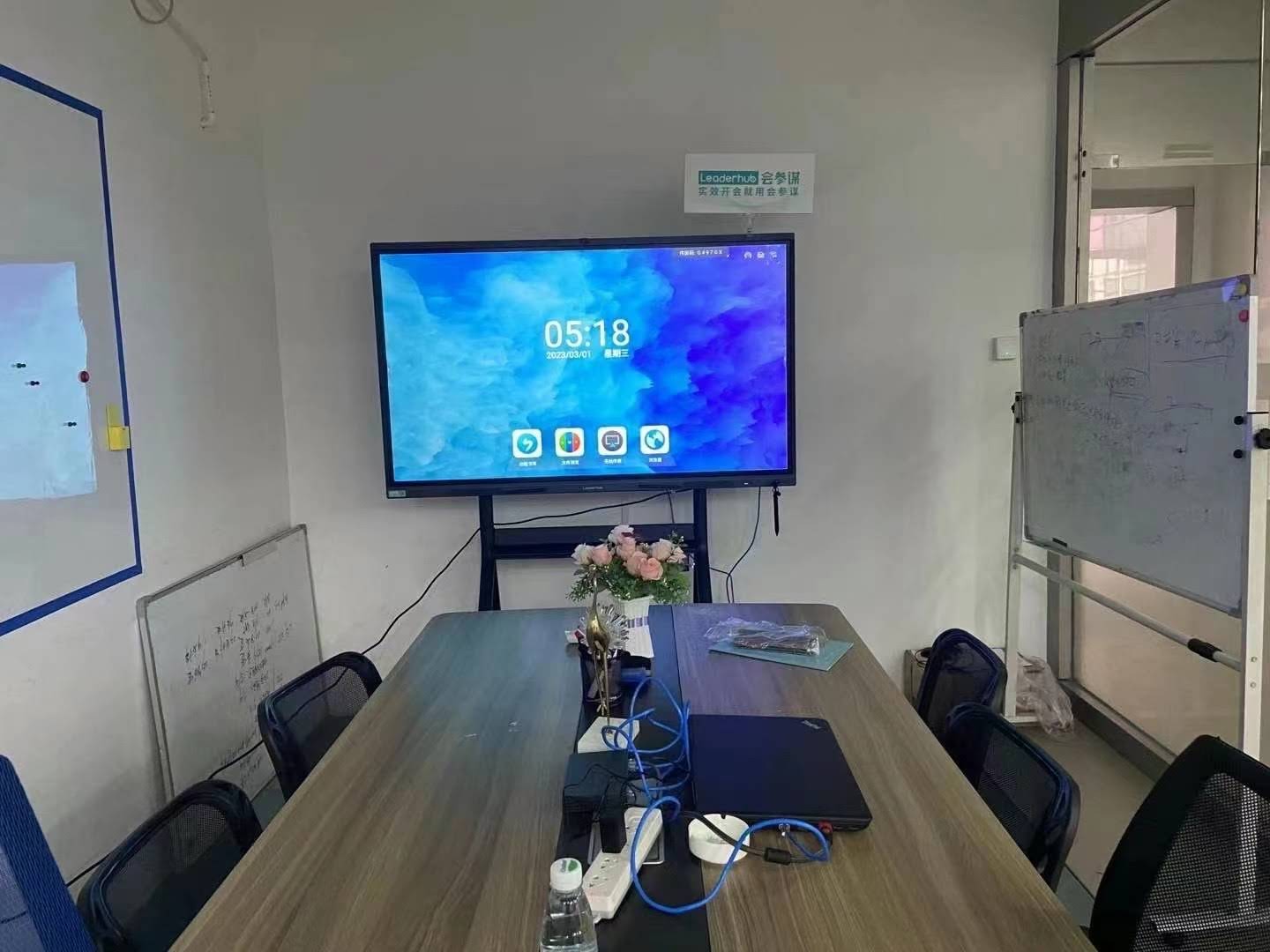
If you want to upgrade your setup, browse more options on the shop page or contact a specialist through contact us for tailored recommendations.
In some cases, a well-matched display is the difference between a smooth session and a frustrating one. A modern smart board with reliable wireless sharing, strong touch response, and flexible input support makes phone connection fast and practical for everyday use.