Smart boards have revolutionized modern classrooms, meeting rooms, and collaborative workspaces, making interactive learning and presentations more engaging than ever. However, maintaining these sophisticated touchscreen displays requires proper care and attention. Using the wrong cleaning methods or harsh chemicals can permanently damage the screen surface, affecting touch sensitivity and visual clarity. According to recent industry data, improper cleaning accounts for approximately 35% of all smart board warranty claims, representing millions of dollars in preventable damage annually.
This comprehensive guide will walk you through professional cleaning techniques, recommended products, and essential maintenance practices to keep your smart board functioning optimally for years. Whether you’re an educator, IT professional, or facility manager, understanding proper cleaning procedures is crucial for protecting your investment and ensuring consistent performance.

Understanding Smart Board Screen Technology
Before diving into cleaning methods, it’s essential to understand what you’re working with. Modern smart boards typically feature one of several screen technologies:
| Screen Type | Characteristics | Cleaning Sensitivity |
|---|---|---|
| Resistive Touch | Pressure-sensitive overlay, works with any stylus | Moderate – avoid excessive pressure |
| Capacitive Touch | Glass surface, multi-touch capability | High – requires gentle cleaning |
| Infrared Touch | Sensor frame around screen, any surface | Low – durable but sensors need care |
| Electromagnetic | Special pen required, precise input | Moderate – protect surface coating |
Each technology has specific vulnerabilities. Capacitive screens, for instance, have an oleophobic coating that repels fingerprints but can be stripped away by alcohol-based cleaners. Understanding your specific model helps you choose appropriate cleaning methods.
Essential Cleaning Supplies You’ll Need
Proper equipment makes all the difference between safe, effective cleaning and potential screen damage. Here’s what professional AV technicians recommend keeping on hand:
Recommended Cleaning Materials
- Microfiber cloths (at least 3-4 dedicated for screen cleaning)
- Distilled water (tap water contains minerals that leave streaks)
- Screen-safe cleaning solution (specifically formulated for electronic displays)
- Spray bottle for diluted cleaning solutions
- Compressed air canister for removing dust from edges
- Soft-bristled brush for cleaning bezels and frames
Materials to Absolutely Avoid
- Paper towels (too abrasive, leave micro-scratches)
- Ammonia-based glass cleaners (like Windex)
- Alcohol concentrations above 70%
- Acetone or paint thinners
- Abrasive scrubbing pads or sponges
- Furniture polish or wax products
- Bleach or chlorine-based cleaners
A 2023 survey of educational technology directors across 450 school districts revealed that 82% of smart board screen damage resulted from using inappropriate cleaning products, particularly household glass cleaners containing ammonia.
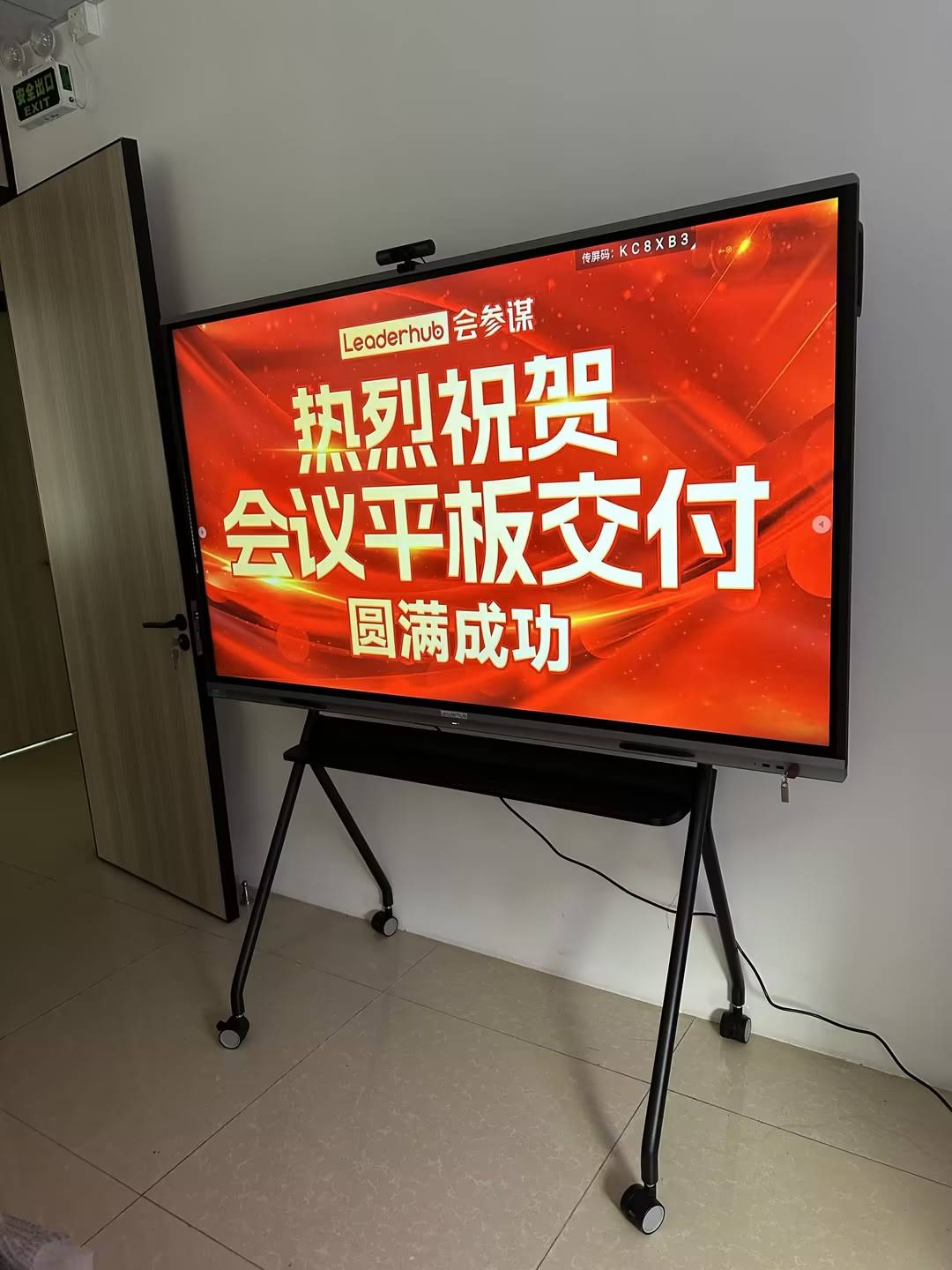
Step-by-Step Smart Board Cleaning Process
Following a systematic approach ensures thorough cleaning without risking damage. This method has been tested and refined by facility maintenance teams managing thousands of interactive displays worldwide.
Daily Light Cleaning (1-2 minutes)
For routine maintenance after each use:
- Power down the display ¨C Always turn off the smart board and unplug it if possible. A black screen makes smudges and fingerprints more visible, and eliminates electrical risk.
- Initial dust removal ¨C Use a clean, dry microfiber cloth to gently wipe the screen in straight horizontal motions from top to bottom. Avoid circular motions which can spread oils.
- Address fingerprints ¨C For light fingerprints, a dry microfiber cloth is often sufficient. Apply minimal pressure and use overlapping strokes.
- Inspect and verify ¨C Check the screen at an angle to spot any remaining marks or streaks before powering back on.
Weekly Deep Cleaning (5-7 minutes)
For more thorough maintenance:
- Prepare your workspace ¨C Ensure adequate ventilation and gather all necessary supplies. Power down the board completely.
- Remove loose debris ¨C Use compressed air around edges, ports, and the bezel to dislodge accumulated dust. Hold the can upright and use short bursts.
- Prepare cleaning solution ¨C Mix distilled water with approved screen cleaner according to manufacturer instructions, typically a 50/50 ratio. Alternatively, use a specialized electronic screen cleaning solution.
- Apply solution correctly ¨C Never spray directly onto the screen. Instead, lightly dampen your microfiber cloth¡ªit should be moist, not wet. Excess liquid can seep into edges and damage internal components.
- Clean in sections ¨C Work in overlapping horizontal strokes, starting from the top. Use gentle, consistent pressure without bearing down.
- Dry immediately ¨C Follow immediately with a dry microfiber cloth to prevent streaking and water spots.
- Clean the frame and bezel ¨C Use a separate cloth slightly dampened with the same solution to clean the plastic or metal frame surrounding the screen.
- Final inspection ¨C Wait 5 minutes before powering on to ensure complete drying, then check for any missed spots or streaks.
Dealing With Stubborn Stains
Sometimes you’ll encounter marks that resist normal cleaning:
- Dry erase marker residue ¨C Dampen cloth with distilled water only, let sit on the mark for 30 seconds, then gently wipe. For stubborn marks, specialized whiteboard cleaning solutions designed for electronic displays work well.
- Adhesive residue ¨C Never use scrapers or sharp objects. Instead, apply a screen-safe cleaner and let it soak for 60 seconds before gently rubbing with a microfiber cloth.
- Grease or oily marks ¨C May require a slightly stronger solution. Some manufacturers approve 70% isopropyl alcohol for spot cleaning, but always verify your warranty terms first.
Important: If a stain persists after three gentle attempts, contact your manufacturer’s support rather than applying increasing force or stronger chemicals. Persistent marks are sometimes beneath the protective layer and require professional attention.
Manufacturer-Specific Recommendations
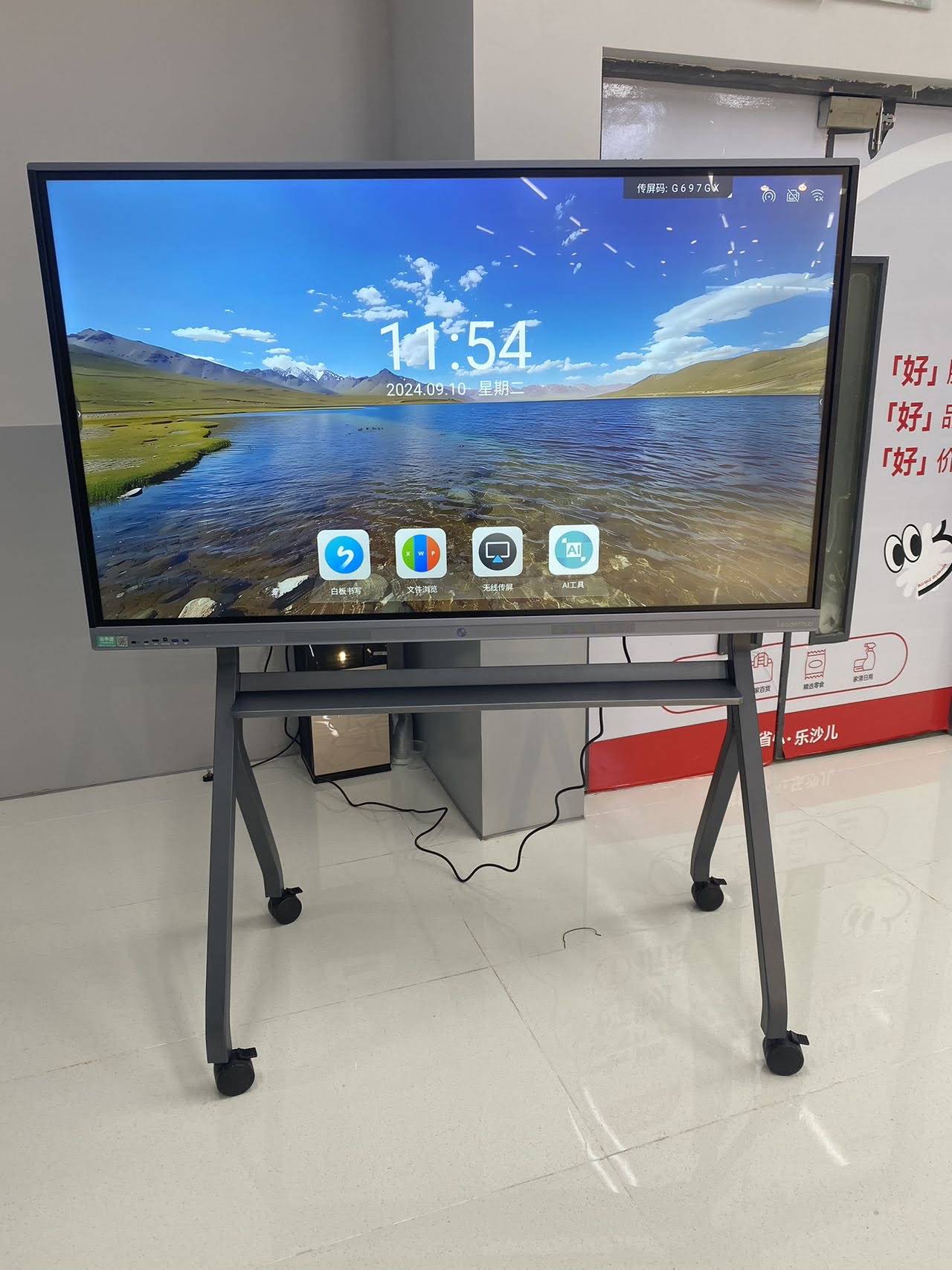
Different brands may have specific guidance. For example, LeaderHub, a professional manufacturer with over 16 years of experience in interactive display technology, provides detailed maintenance guidelines with each of their smart whiteboards and interactive flat panels. Their products, deployed in more than 82 countries, come with specific cleaning instructions tailored to the screen coating used.
Always check your product manual or manufacturer’s website for model-specific instructions. Key information to look for includes:
- Approved cleaning solutions and concentrations
- Specific warnings about chemicals that void warranties
- Recommended cleaning frequency
- Special care instructions for anti-glare or anti-fingerprint coatings
Common Cleaning Mistakes That Damage Smart Boards
Understanding what not to do is just as important as knowing proper techniques. These mistakes account for the majority of preventable screen damage:
1. Using Excessive Liquid
Spraying cleaner directly onto the screen or using a soaking-wet cloth allows liquid to seep behind the bezel and into sensitive electronics. This can cause short circuits, permanent display damage, or complete system failure. Always apply cleaning solution to your cloth, never to the screen.
2. Applying Too Much Pressure
Smart board screens contain multiple layers including touch sensors, LCD/LED panels, and protective coatings. Excessive pressure can crack the LCD, damage touch sensors, or create pressure marks that become permanent. Clean with the weight of your hand only¡ªno pushing or scrubbing.
3. Cleaning While Powered On
Besides the safety risk, cleaning an active screen can trigger unintended touches, opening applications or changing settings. The blank, powered-off screen also makes dirt and streaks more visible, ensuring more thorough cleaning.
4. Using Rough Fabrics
Standard cleaning cloths, paper towels, and rags contain fibers that create microscopic scratches. Over time, these accumulate, creating a hazy appearance and reducing touch accuracy. Invest in quality microfiber cloths specifically designed for electronics.
5. Neglecting the Frame and Edges
Dust and grime accumulate in bezels and along edges, eventually migrating onto the screen during use. Clean these areas regularly with a separate cloth to prevent contamination transfer.
6. Ignoring Manufacturer Warnings
Many boards have special coatings that are incompatible with common cleaning agents. Using prohibited chemicals can void your warranty and cause irreversible damage. When in doubt, contact manufacturer support before using any cleaning product.
Preventive Maintenance Best Practices
The best cleaning strategy is preventing excessive soiling in the first place. Implement these practices to minimize cleaning frequency and extend screen life:
Establish Usage Guidelines
- Post clear instructions near the board reminding users to touch gently
- Encourage stylus use instead of direct finger contact when possible
- Prohibit using permanent markers anywhere near the smart board
- Require hand washing before extended touch sessions
- Designate one person as the primary cleaning coordinator
Environmental Controls
- Humidity management ¨C Maintain room humidity between 30-50%. Lower humidity increases static electricity and dust attraction; higher humidity promotes condensation.
- Temperature stability ¨C Avoid placement near heating vents, windows with direct sunlight, or air conditioning outlets. Temperature fluctuations cause expansion and contraction that stresses screen components.
- Dust control ¨C Use air purifiers in high-traffic areas and ensure HVAC filters are changed regularly.
Protective Measures
- Install a retractable dust cover for periods of non-use (evenings, weekends, holidays)
- Consider screen protectors for high-touch environments, though verify compatibility with your specific touch technology
- Maintain at least 6 inches of clearance around all sides for proper ventilation
Creating a Cleaning Schedule and Documentation
Systematic maintenance prevents both over-cleaning (which can wear protective coatings) and under-cleaning (allowing buildup that requires aggressive methods). Professional facilities typically implement this framework:
| Frequency | Task | Responsible Party |
|---|---|---|
| Daily | Quick wipe with dry microfiber cloth | Primary user/teacher |
| Weekly | Thorough cleaning with approved solution | Designated maintenance staff |
| Monthly | Deep clean including frame, vents, and ports | IT/AV technician |
| Quarterly | Comprehensive inspection and calibration check | Professional service technician |
| As needed | Immediate spot cleaning for spills or marks | Whoever notices the issue |
Maintenance Log Template
Keep a simple log near each smart board or in a shared digital system. Document:
- Date and time of cleaning
- Person who performed the cleaning
- Type of cleaning (daily wipe, weekly deep clean, spot treatment)
- Products used
- Any issues observed (persistent marks, touch responsiveness problems, visual defects)
- Any actions taken beyond standard cleaning
This documentation serves multiple purposes: tracking maintenance compliance, identifying recurring issues, supporting warranty claims, and training new staff. Schools and businesses with proper documentation report 40% faster warranty processing and more favorable outcomes when issues arise.
Troubleshooting Touch Sensitivity Issues
Sometimes cleaning addresses more than just appearance¡ªit can resolve functionality problems. If your smart board exhibits touch accuracy issues, systematic cleaning may help:
When Touch Response Becomes Erratic
Buildup on the screen surface or sensors can interfere with touch detection. Signs include:
- Touch registering in the wrong location
- Delayed or sluggish response to touch input
- Phantom touches (board registering input with no physical contact)
- Dead zones where touch doesn’t register at all
Solution approach:
- Perform thorough screen cleaning using approved methods
- Clean the bezel and frame, as sensor arrays are often located there
- Use compressed air around all edges and corners
- Check for and remove any transparent tape or adhesive residue
- Recalibrate the touch system according to manufacturer instructions
- If problems persist, contact technical support¡ªsensor damage may require professional repair
Addressing Specific Screen Defects
Streaks and Hazing
Persistent streaks after cleaning usually result from:
- Using tap water ¨C Minerals leave deposits. Switch to distilled water.
- Too much cleaning solution ¨C Use less product; more doesn’t mean cleaner.
- Dirty cleaning cloths ¨C Launder microfiber cloths regularly without fabric softener, which reduces absorbency.
- Improper drying technique ¨C Follow wet cleaning immediately with a dry cloth.
Ghosting or Image Persistence
Faint outlines of previous content remaining visible can sometimes be confused with surface residue. True image persistence is an LCD issue requiring display settings adjustment or replacement. However, if it appears to be surface-level:
- Perform thorough cleaning focusing on the affected area
- Allow the board to run a white screen for several hours (activates all pixels evenly)
- If problems persist, this is likely a hardware issue requiring professional assessment
Anti-Glare Coating Damage
Many premium smart boards feature anti-glare coatings that can be damaged by harsh cleaners or abrasive materials. Signs of coating damage include:
- Uneven surface appearance (shiny spots in otherwise matte finish)
- Rainbow patterns or discoloration
- Increased glare in certain areas
Prevention is key¡ªonce removed, anti-glare coatings typically cannot be restored without professional reapplication. Always use products specifically approved for coated screens.
Special Considerations for Different Environments
Educational Settings
Classroom smart boards face unique challenges with high-volume use by young students who may not understand gentle handling:
- Implement daily end-of-day cleaning as part of classroom routine
- Consider student helpers as “tech monitors” responsible for gentle cleaning
- Use visual reminders about proper touch techniques posted near the board
- Schedule deeper cleaning during school breaks when boards sit unused
- Coordinate with custodial staff to ensure they use approved products
Corporate Conference Rooms
Business environments typically have lower use frequency but may face different challenges:
- Place cleaning supplies visibly near the board with quick-reference instructions
- Include cleaning reminders in room booking systems
- Schedule professional deep cleaning quarterly or semi-annually
- Consider implementing touch-free presentations where possible to minimize screen contact
Healthcare and Laboratory Settings
Medical environments require enhanced hygiene protocols while respecting equipment sensitivities:
- Verify that sanitizing wipes meet both infection control standards and screen compatibility requirements
- Establish clear boundaries between medical-grade disinfectants (for surrounding surfaces) and screen-safe cleaners
- Increase cleaning frequency to align with room sanitation schedules
- Maintain separate, dedicated cleaning supplies for smart boards versus other equipment
Long-Term Screen Care and Lifespan Optimization
With proper maintenance, quality smart boards should provide 7-10 years of reliable service. Maximize your investment by implementing these longevity strategies:
Screen Burn-In Prevention
While modern LCD screens are less susceptible than older plasma displays, static images can still cause persistence:
- Use screensavers that activate after 10-15 minutes of inactivity
- Vary displayed content rather than leaving the same image up continuously
- Reduce brightness to the minimum comfortable level for ambient lighting
- Power down completely when not in use for extended periods
Climate Control Impact
Temperature and humidity extremes accelerate component aging:
- Optimal operating temperature: 50-95¡ãF (10-35¡ãC)
- Storage temperature: -4 to 140¡ãF (-20 to 60¡ãC)
- Humidity range: 20-80% relative humidity (non-condensing)
Spaces with poor climate control may require supplemental environmental management¡ªdehumidifiers, space heaters, or fans¡ªto protect equipment investments.
Professional Servicing Schedule
Even with excellent daily care, periodic professional assessment catches developing issues:
- Annual inspection ¨C Professional technician evaluates overall condition, tests all functions, updates firmware
- Calibration verification ¨C Touch accuracy should be professionally verified yearly
- Internal cleaning ¨C Dust accumulation inside the chassis affects cooling and component life
- Connection assessment ¨C Cable integrity and port condition evaluation
When to Seek Professional Help
Some situations exceed routine maintenance and require expert intervention:
- Liquid infiltration ¨C If liquid has entered the screen assembly, immediately power down and contact support. Attempting to operate may cause permanent damage.
- Physical screen damage ¨C Cracks, pressure marks, or dead pixel clusters require assessment by authorized service technicians.
- Persistent functionality issues ¨C Touch problems, display artifacts, or connectivity failures after cleaning indicate hardware problems.
- Warranty concerns ¨C If your board is under warranty, unauthorized repairs or improper cleaning products may void coverage. Consult manufacturer guidelines first.
- Coating restoration ¨C Damaged anti-glare or oleophobic coatings may be restorable through professional reapplication services.
Don’t attempt increasingly aggressive cleaning methods when normal approaches fail. This usually escalates minor issues into major damage. Professional diagnosis is more cost-effective than replacement.
Cost-Benefit Analysis of Proper Maintenance
Organizations sometimes view cleaning protocols as unnecessary overhead, but data tells a different story:
| Scenario | Average Annual Cost | Expected Lifespan |
|---|