Smart boards have revolutionized modern classrooms and meeting rooms, but a common question still causes confusion among new users: can you use dry erase markers on these interactive displays? The short answer is it depends on the type of smart board you have. Using the wrong marker can damage your expensive equipment, void warranties, and create costly repair bills. This comprehensive guide will help you understand which markers are safe for your specific device and how to maintain your interactive display properly.
Understanding Different Types of Smart Boards
Before reaching for any marker, you need to identify what type of interactive display you’re working with. The term “smart board” has become a catch-all phrase, but the technology underneath varies significantly, and each type has different compatibility with traditional markers.
Traditional Interactive Whiteboards with Projectors
These systems use a projector to display content onto a white surface. The surface itself is typically made from materials similar to traditional whiteboards. Many of these do accept dry erase markers, but you should always verify with the manufacturer first. SMART Board by SMART Technologies, one of the most recognized brands, explicitly allows dry erase markers on most of their projection-based models.
Interactive Flat Panel Displays (IFPDs)
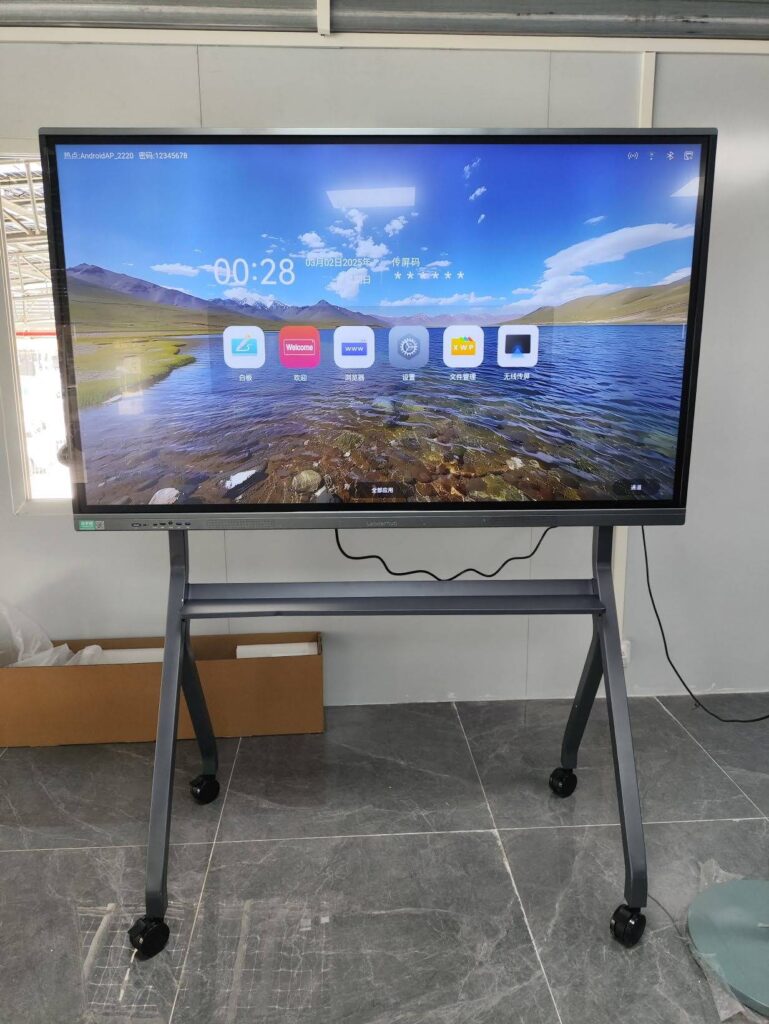
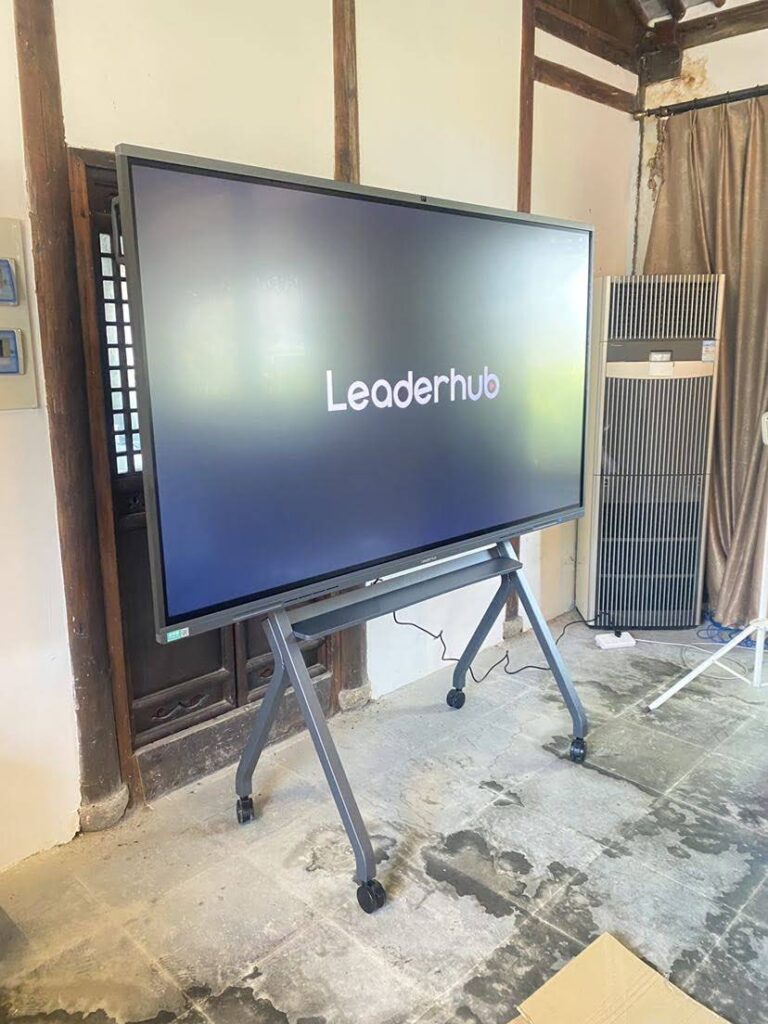
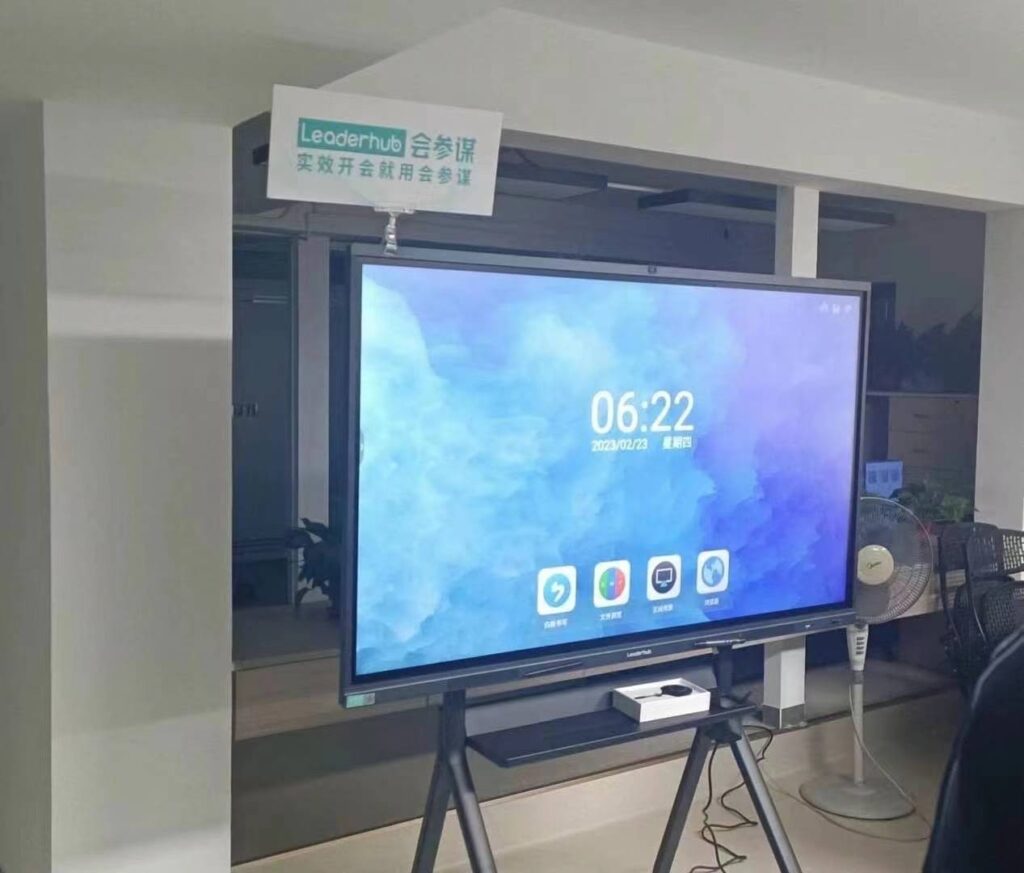
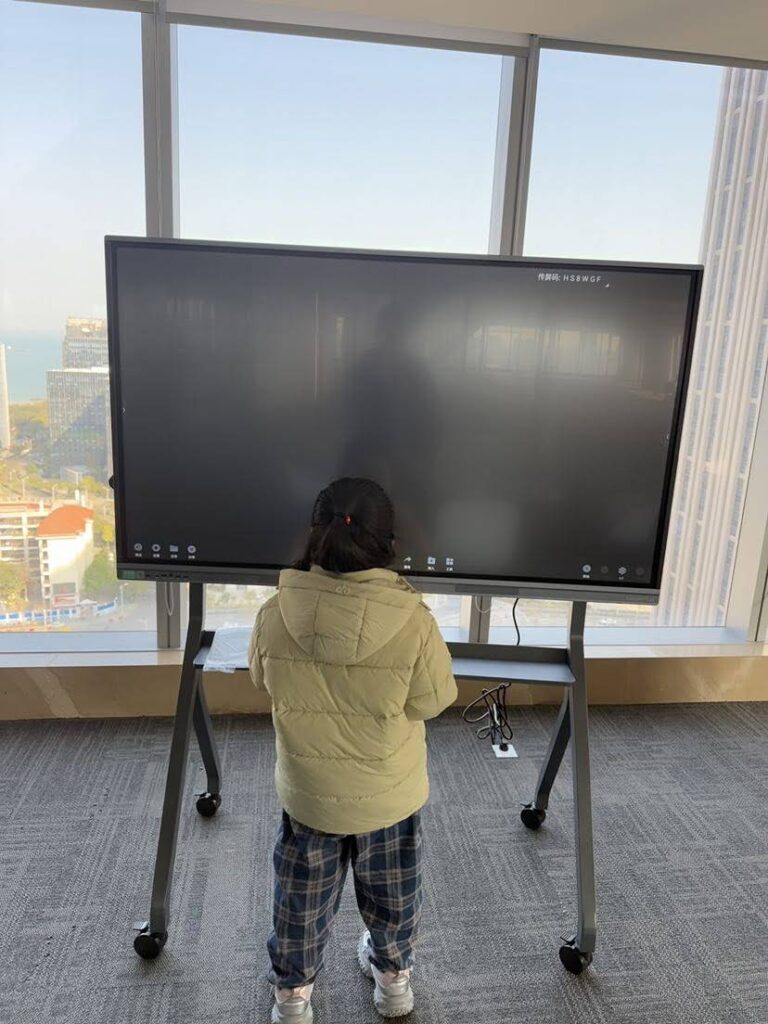
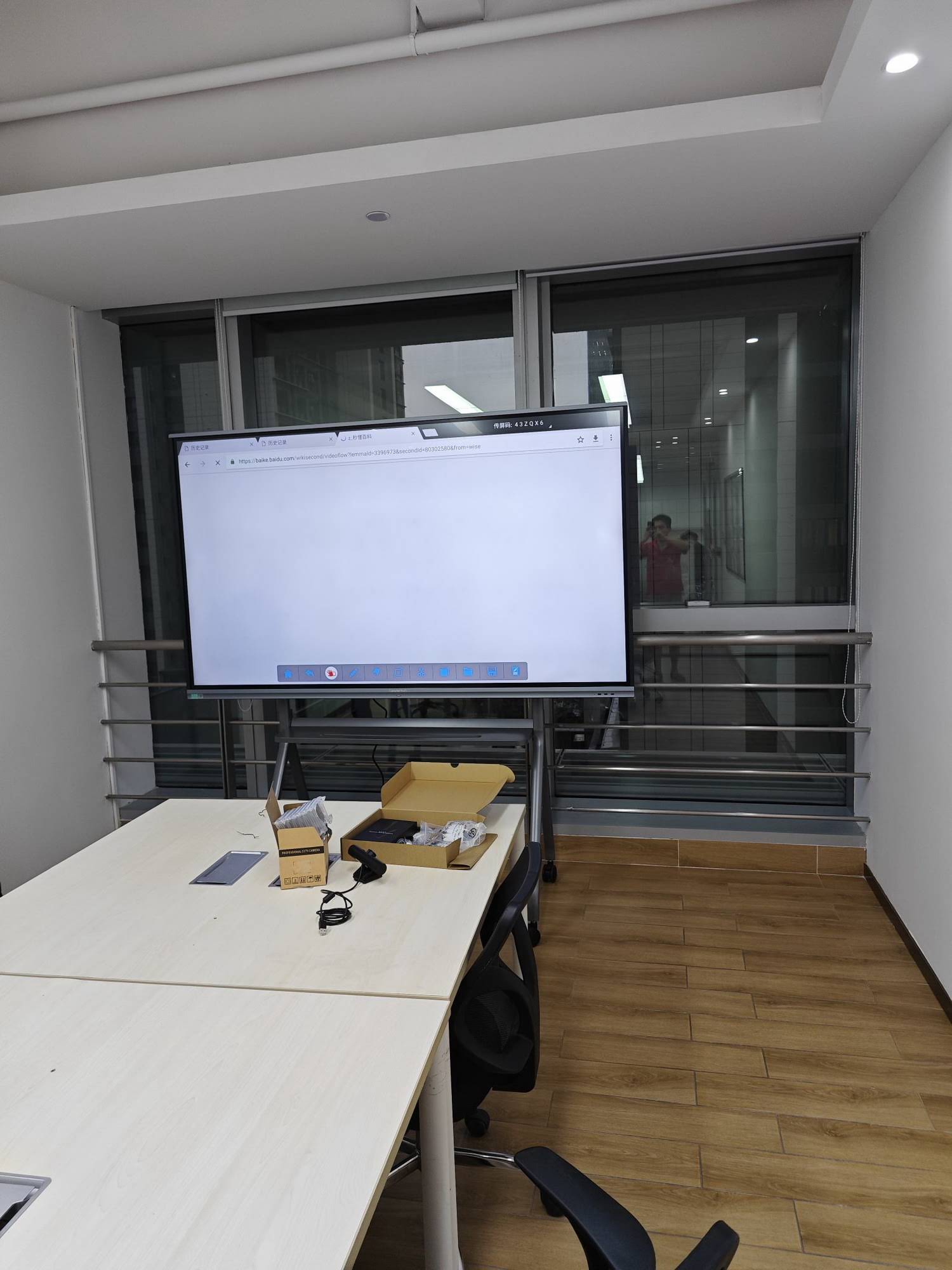
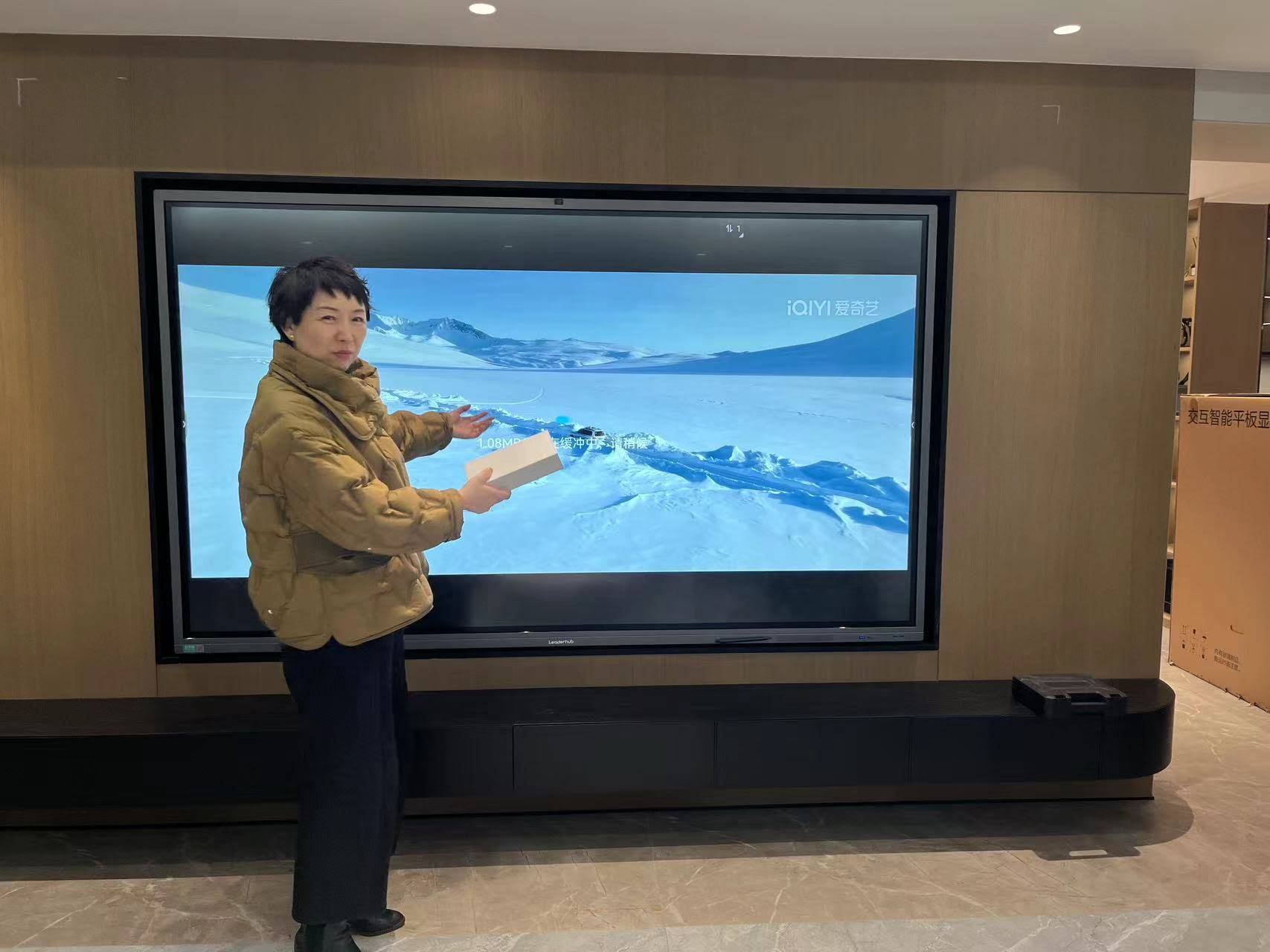
These are the modern generation of smart boards¡ªessentially large touchscreen monitors built for education and business collaboration. You should never use dry erase markers on interactive flat panels. The glass surface of these displays is designed for touch input and digital pens only. Dry erase markers can leave residue, damage the anti-glare coating, and potentially interfere with touch sensitivity.
Companies like LeaderHub, which has over 16 years of experience manufacturing interactive display solutions for more than 82 countries, design their smart whiteboards and interactive flat panels specifically for digital input. Their products integrate AI-powered collaboration features that work seamlessly with stylus input, making traditional markers unnecessary.
Hybrid Boards
Some manufacturers produce hybrid solutions that combine a traditional whiteboard surface with digital capture technology. These typically allow dry erase markers since the writing surface is designed for that purpose, while sensors or cameras capture what you write for digital distribution.
Why You Should Think Twice Before Using Dry Erase Markers
| Risk Factor | Potential Consequence | Severity |
|---|---|---|
| Surface Coating Damage | Permanent staining or degradation of anti-glare/anti-fingerprint coatings | High |
| Touch Sensitivity Issues | Residue interferes with capacitive or infrared touch technology | Medium |
| Warranty Void | Manufacturer may refuse warranty service for improper use | High |
| Cleaning Difficulty | Marker residue requires special solvents that may harm screen | Medium |
| Visual Degradation | Ghosting, streaking, or cloudy appearance after repeated use | Medium to High |
Real-World Consequences: What Happens When You Use the Wrong Marker
A school district in California learned this lesson the expensive way in 2019. Teachers mistakenly used permanent markers on newly installed interactive flat panels worth $3,500 each. The markers penetrated the screen’s oleophobic coating, leaving permanent shadows that interfered with visibility. The district had to replace 12 units at a cost exceeding $40,000, and because the damage was caused by improper use, the manufacturer’s warranty didn’t cover it.
Even when dry erase markers are used on panels where they’re technically allowed, problems can accumulate over time. A 2021 study published in the Journal of Educational Technology found that interactive whiteboards in schools where dry erase markers were regularly used showed a 34% higher rate of touch calibration issues compared to boards where only digital styluses were used.
How to Identify If Your Smart Board Accepts Markers
Follow this systematic approach to determine marker compatibility before writing anything on your interactive display:
Step 1: Check the Manufacturer’s Documentation
Your user manual or quick start guide should explicitly state whether dry erase markers are compatible. Look for sections titled “Acceptable Writing Instruments,” “Surface Care,” or “What Not To Do.”
Step 2: Examine the Physical Characteristics
- Glass surface with visible pixels: This is an interactive flat panel display¡ªdo not use dry erase markers
- Matte white surface with a projector above or below: Likely marker-compatible, but verify with documentation
- Glossy or semi-glossy surface with touch capability: Assume marker-incompatible unless explicitly stated otherwise
- Surface feels cool to the touch and shows reflections: Probably a glass-based IFPD¡ªmarkers not recommended
Step 3: Look for Warning Labels
Many interactive flat panels include small warning stickers near the frame that show a crossed-out marker icon. If you see this symbol, absolutely do not use traditional markers.
Step 4: Contact the Manufacturer or Check Online Resources
When in doubt, reach out directly to customer support. Most reputable manufacturers maintain comprehensive online knowledge bases. For example, if you’re using equipment from established manufacturers with extensive industry experience, their technical support teams can provide definitive answers about marker compatibility for your specific model.
Best Practices for Writing on Smart Boards
For Projection-Based Interactive Whiteboards (Marker-Compatible)
If your device officially supports dry erase markers, follow these guidelines to maximize longevity:
- Use only high-quality, low-odor dry erase markers specifically designed for whiteboards
- Avoid permanent markers at all costs¡ªeven brief contact can cause lasting damage
- Clean the surface daily with appropriate whiteboard cleaner and microfiber cloths
- Never use abrasive materials, paper towels, or harsh chemicals
- Test new marker brands in a small corner area before widespread use
- Replace markers promptly when they begin to dry out, as dried markers require more pressure and can damage surfaces
- Store markers horizontally to maintain consistent ink flow
For Interactive Flat Panel Displays (No Markers)
Modern interactive displays offer superior alternatives to traditional markers:
- Use the provided digital stylus: These typically offer pressure sensitivity and palm rejection for natural writing
- Finger touch input: Most current interactive flat panels support multi-touch gestures for drawing and annotation
- Software-based drawing tools: Built-in applications provide colors, line weights, and effects impossible with physical markers
- Save and share capabilities: Digital annotations can be instantly saved, shared via email, or exported to cloud storage
- Unlimited colors and tools: No need to hunt for the right color marker or deal with dried-out pens
Cleaning and Maintenance: Critical Differences
Cleaning Marker-Compatible Surfaces
For projection-based interactive whiteboards that accept markers, proper cleaning prevents ghosting and extends surface life:
- Daily cleaning: Wipe down with a dry microfiber cloth after each use
- Weekly deep cleaning: Use whiteboard cleaner specifically formulated for interactive surfaces
- Monthly maintenance: Apply whiteboard conditioner to restore the surface’s low-friction properties
- Avoid these mistakes: Never use alcohol-based cleaners, window cleaner, or abrasive sponges
Cleaning Interactive Flat Panels
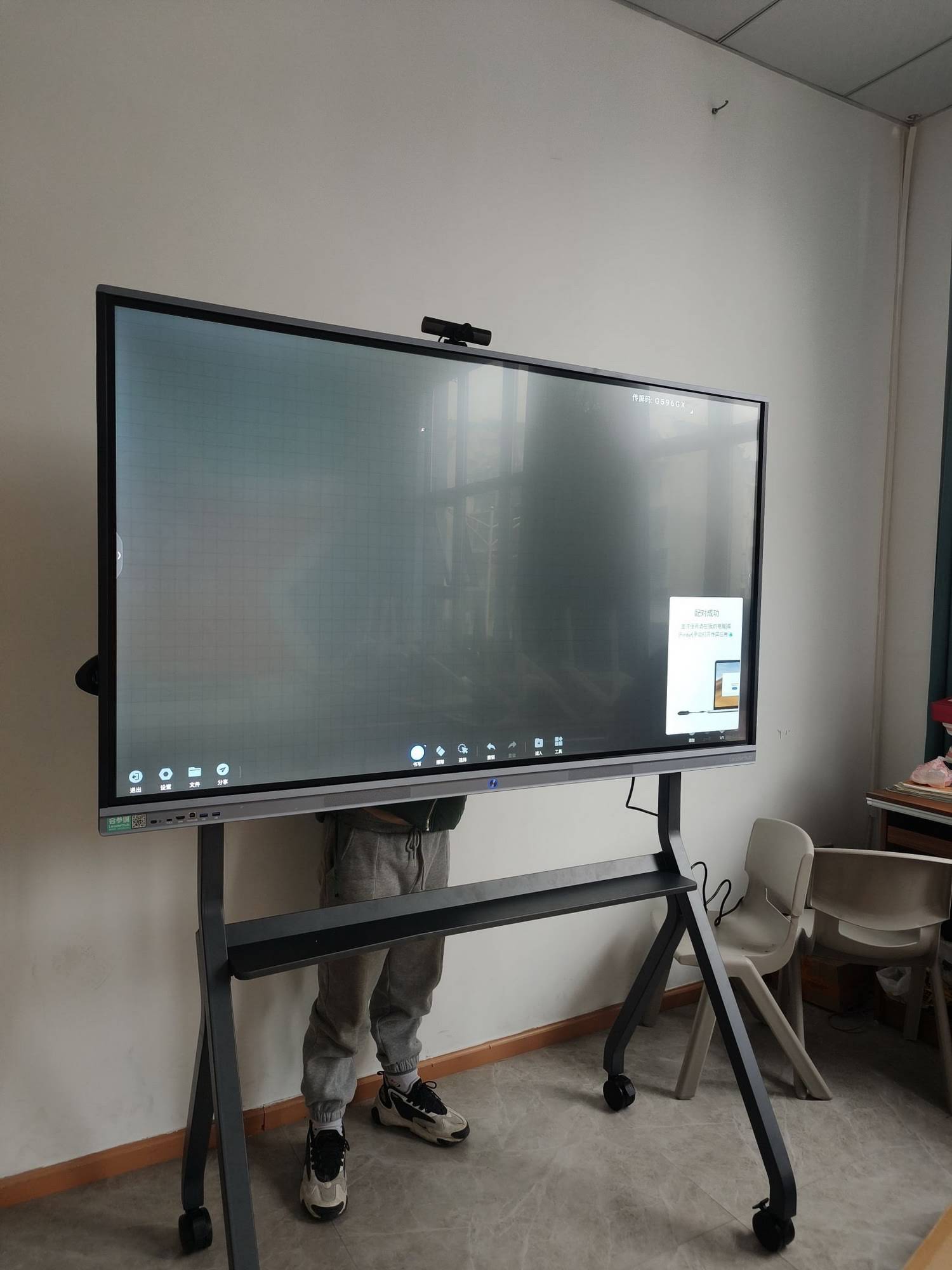
Glass-based interactive displays require gentler care:
- Power off the display before cleaning to see smudges more clearly and prevent accidental input
- Use a dry microfiber cloth for routine dusting and fingerprint removal
- For stubborn marks, lightly dampen (not soak) the cloth with distilled water
- For persistent spots, use cleaners specifically designed for LED/LCD displays
- Wipe in gentle circular motions, never scrub or apply heavy pressure
- Avoid spraying liquid directly onto the screen¡ªalways apply to the cloth first
The Technology Behind Touch-Sensitive Displays
Understanding why markers interfere with modern smart boards requires a look at the underlying technology. Interactive flat panels typically use one of three touch detection methods:
Capacitive Touch Technology
This system detects the electrical properties of your finger or a conductive stylus. When marker residue builds up on the screen, it can create false touch points or interfere with signal clarity. The oleophobic coating that helps repel fingerprints is particularly vulnerable to marker chemicals.
Infrared Touch Technology
Infrared sensors create an invisible grid of light beams across the screen surface. When you touch the screen, you interrupt these beams, allowing the system to calculate touch position. Marker residue doesn’t directly interfere with IR detection, but it can scatter light unpredictably and create false readings, especially as residue accumulates around the screen edges where sensors are located.
Optical Imaging Technology
Cameras in the corners of the display track touch points by analyzing shadows and reflections. Any substance on the screen¡ªincluding marker residue¡ªcan confuse the imaging system, leading to inaccurate touch recognition and calibration drift over time.
Alternative Solutions When You Need Physical Writing
Sometimes you genuinely need the tactile feedback of physical writing, or you’re working with users who aren’t comfortable with digital tools yet. Here are smart alternatives:
Document Cameras and Visualizers
Connect a document camera to your interactive display and write on regular paper with any writing instrument. The camera captures your writing and displays it on the smart board in real-time. This solution offers the best of both worlds¡ªnatural writing feel with digital distribution.
Writing Tablets and Digital Pens
Devices like Wacom tablets or iPad with Apple Pencil can connect to your smart board, allowing you to write naturally on a separate surface while the content appears on the main display. Many educators find this setup more comfortable for extended writing sessions.
Hybrid Whiteboard Systems
Consider adding a traditional whiteboard section adjacent to your interactive display. This gives you a dedicated space for marker-based brainstorming while keeping your expensive technology safe. Some modern conference room designs intentionally include both types of surfaces for maximum flexibility.
Smart Pens with Regular Paper
Technologies like Livescribe or Neo Smartpen let you write on special paper with a smart pen, and the content is automatically digitized and can be displayed on your smart board. This works particularly well for detailed diagrams or mathematical equations.
Cost Analysis: Digital vs. Traditional Markers
Let’s examine the true cost comparison over a typical 5-year lifespan:
| Expense Category | Traditional Markers | Digital Stylus |
|---|---|---|
| Initial Tool Cost | $50/year ¡Á 5 years = $250 | $100 (one-time) |
| Cleaning Supplies | $120/year ¡Á 5 years = $600 | $50/year ¡Á 5 years = $250 |
| Surface Replacement/Repair | $800 (average after 3 years) | $0 |
| Labor (cleaning time) | 10 min/day ¡Á 200 days ¡Á $30/hr = $1,000/year | 2 min/day ¡Á 200 days ¡Á $30/hr = $200/year |
| 5-Year Total | $5,850 | $1,350 |
This analysis doesn’t even account for the productivity gains from features like instant sharing, searchable handwriting, and unlimited colors. Over five years, digital input saves approximately $4,500 per display while providing superior functionality.
Common Myths About Smart Boards and Markers
Myth 1: “If it wipes off easily, it’s safe to use”
Reality: Even if you can remove marker residue from the visible surface, chemical compounds may have already penetrated protective coatings or affected touch sensitivity. Damage isn’t always immediately visible.
Myth 2: “Whiteboard markers are specifically made for all white surfaces”
Reality: Traditional dry erase markers were formulated decades ago for melamine or porcelain-coated steel. Modern interactive displays use completely different materials like tempered glass with nano-coatings. The solvents in markers can dissolve or degrade these advanced coatings.
Myth 3: “Expensive markers are safer for smart boards”
Reality: Premium dry erase markers typically contain more intense pigments and longer-lasting solvents¡ªqualities that make them potentially more damaging to sensitive surfaces, not less. The quality of the marker has nothing to do with its compatibility with digital displays.
Myth 4: “A screen protector makes markers safe”
Reality: While screen protectors can provide some defense, most aren’t designed for marker use. Markers can still damage the protector itself, and residue can seep around edges. More importantly, many screen protectors degrade touch sensitivity, defeating the purpose of having an interactive display.
What to Do If Markers Were Already Used
If dry erase markers have already been used on a marker-incompatible smart board, act quickly to minimize damage:
- Immediate response: Wipe the surface immediately with a clean, dry microfiber cloth
- Gentle cleaning: If residue remains, dampen a microfiber cloth with distilled water and wipe gently
- Specialized cleaners: For stubborn marks, use a cleaner specifically rated for LED/LCD displays¡ªnever use whiteboard cleaner
- Test touch functionality: After cleaning, test all areas of the screen for proper touch response
- Document the incident: Take photos and note the date, which may be important for warranty claims
- Professional assessment: If ghosting, staining, or touch issues persist, contact the manufacturer or authorized service provider
- Prevent recurrence: Post clear signage near the display indicating proper input methods and explicitly prohibiting markers
Training Users: Preventing Marker Mistakes
The most common reason people use markers on incompatible smart boards is simply not knowing better. Implement these training strategies:
Visual Cues
- Place clear, professional signage directly on or near the display: “Digital Input Only – No Markers”
- Use magnetic holders for approved styluses, positioned prominently on or next to the frame
- Apply removable stickers with stylus icons to reinforce the correct input method
Orientation Programs
When new equipment is installed, conduct brief orientation sessions that cover:
- The difference between projection-based and flat panel interactive displays
- Why markers damage modern touch screens
- How to use the digital stylus and touch input effectively
- Basic troubleshooting for common issues
- Proper cleaning procedures
Quick Reference Materials
Create one-page quick reference guides showing acceptable writing tools for your specific model. Laminate these guides and attach them near each display. Include photos of approved styluses and explicit “NO” symbols over traditional markers.
Future Trends: Beyond the Marker Debate
As interactive display technology evolves, the marker compatibility question is becoming increasingly irrelevant. Emerging technologies are making digital input so natural and intuitive that the need for physical markers is disappearing entirely.
AI-Enhanced Handwriting Recognition
Modern smart boards increasingly incorporate artificial intelligence to improve handwriting recognition, convert handwritten text to typed text, and even translate between languages in real-time. These capabilities work exclusively with digital input, giving users compelling reasons to embrace stylus-based writing.
Haptic Feedback Technology
Next-generation interactive displays are beginning to incorporate haptic feedback that simulates the feel of writing on paper. This addresses one of the main complaints about digital writing¡ªthe lack of tactile response¡ªwithout requiring any physical markers.
Pressure-Sensitive Digital Ink
Advanced styluses now offer thousands of pressure levels, allowing for artistic shading and natural line variation that traditional markers cannot match. Educational and professional users are discovering they can actually do more with digital tools than with physical markers.
Cloud Integration and AI-Powered Collaboration
Industry leaders in interactive display technology are developing AI-powered features that transform how teams collaborate. When you write digitally rather than with markers, your content can be automatically organized, shared with remote participants, translated, and integrated with other software tools¡ªcapabilities that physical writing simply cannot match.
Making the Right Choice for Your Organization
When selecting interactive display technology, factor marker compatibility into your decision-making process:
For Educational Institutions
Schools often have teachers with varying comfort levels with technology. If marker compatibility is genuinely important for your transition strategy, consider:
- Starting with projection-based interactive whiteboards in classrooms where teachers prefer traditional markers
- Installing marker-free interactive flat panels in tech-forward classrooms and computer labs
- Implementing a phased transition plan with comprehensive training
- Providing both types of surfaces initially, then gradually shifting toward all-digital solutions
For Corporate Environments
Business meeting rooms benefit most from feature-rich interactive flat panels. The marker question is less relevant here because:
- Corporate users typically adapt quickly to new technology
- Digital content capture and sharing are essential for hybrid work environments
- The professional appearance of marker-free displays aligns with corporate aesthetics
- Integration with collaboration software (Teams, Zoom, Slack) requires digital input
For Healthcare Facilities
Medical environments should prioritize hygiene and cleanability. Interactive flat panels with smooth glass surfaces are far easier to disinfect than textured whiteboard surfaces. More importantly, traditional markers create particulate matter and release volatile organic compounds that may not be appropriate for patient care areas.
Protecting Your Investment
Interactive displays represent significant capital investments. A quality interactive flat panel can cost between $2,000 and $8,000 depending on size and features. Protecting this investment requires understanding and respecting the manufacturer’s guidelines.
Before making any assumptions about marker compatibility:
- Read the complete user manual, especially sections on care and maintenance
- Verify warranty terms¡ªmany explicitly void coverage for marker damage
- Register your product with the manufacturer to receive updates and support
- Establish clear usage policies for your organization
- Schedule regular maintenance with qualified technicians
- Budget for approved accessories like styluses and cleaning supplies
Final Recommendations
The question “Can you use dry erase markers on smart boards?” requires a nuanced answer:
For modern interactive flat panel displays: No. Never use dry erase markers, permanent markers, or any physical writing instruments except approved digital styluses. The risks far outweigh any perceived convenience, and digital alternatives offer superior functionality in every measurable way.
For projection-based interactive whiteboards: Maybe. Check your specific model’s documentation. If markers are approved, use only high-quality dry erase markers designed for whiteboards, clean the surface daily, and monitor for any degradation in performance.
For hybrid systems: Follow manufacturer guidelines precisely. These systems are designed for marker use, but quality and proper maintenance still matter.
The broader trend is unmistakable: interactive display technology is moving away from physical markers toward purely digital input methods. This shift isn’t just about protecting equipment¡ªit’s about unlocking capabilities that traditional markers simply cannot provide. Digital annotation tools integrate with cloud storage, enable real-time collaboration across continents, support instant translation, and create searchable content archives.
Organizations that embrace digital-first interactive solutions position themselves for greater productivity, better collaboration, and easier adaptation to future technological advances. The marker-or-no-marker question is ultimately less about writing instruments and more about choosing between limiting your capabilities or expanding them.
When in doubt, remember this simple rule: treat your interactive display as a sophisticated computer screen, not a whiteboard. You wouldn’t use a marker on your laptop screen, and the same principle applies to interactive flat panels. By respecting the technology and using it as designed, you’ll enjoy years of reliable performance and avoid costly mistakes.