
Choosing the right smart whiteboard for iPad and laptop use has become one of the most common questions among teachers, remote teams, and creative professionals. With so many interactive displays on the market, knowing which features actually matter — and which are just marketing buzzwords — can save you hundreds of dollars and hours of frustration.
This guide breaks down everything you need to know before buying a smart whiteboard that works seamlessly with both iPad and laptop devices, based on real-world testing, industry data, and feedback from educators and business users across dozens of countries.
Why Device Compatibility Matters More Than Screen Size
Many buyers focus first on screen size, but the compatibility between your smart whiteboard and existing devices should be your first filter. An 86-inch display is useless if it can’t mirror your iPad screen wirelessly or accept a laptop’s HDMI signal without lag.
In our testing across classrooms and meeting rooms, the three most common compatibility issues were:
- Wireless casting protocols that only support Android, not iOS
- USB-C ports that don’t support video-out from newer MacBooks
- Annotation software that doesn’t sync with iPad’s Apple Pencil input
A well-designed smart whiteboard should support AirPlay for iPad users and USB-C/HDMI direct connection for laptops — ideally both at once, without switching input sources manually.

Core Features to Evaluate Before Buying
Based on feedback from over 200 institutional buyers surveyed by interactive display manufacturers in 2023–2024, the following features consistently ranked as “must-have” rather than “nice-to-have”:
1. Screen Resolution and Touch Accuracy
A 4K UHD panel with at least 20-point multi-touch is the current industry standard. Anything below infrared 10-point touch will feel noticeably laggy when annotating with an Apple Pencil or stylus.
2. Wireless Screencasting
Look for boards supporting AirPlay, Google Cast, and Miracast simultaneously. This trio covers virtually every iPad, MacBook, Chromebook, and Windows laptop without needing a dongle.
3. Built-in Whiteboarding Software
Native annotation apps that sync in real time between the board and a connected iPad app allow teachers and presenters to write from their seat while the class watches the main display.
4. Operating System Flexibility
Many enterprise-grade panels now run Android internally while still accepting external Windows or macOS input via HDMI/USB-C — giving users the best of both worlds.
Comparing Popular Smart Whiteboard Sizes
Size selection depends heavily on room dimensions and use case. Below is a practical comparison based on common deployment scenarios:
| Screen Size | Best Use Case | Room Capacity | Typical Price Range |
|---|---|---|---|
| 55″ – 65″ | Small classrooms, huddle rooms | Up to 10 people | $1,000 – $1,600 |
| 75″ – 86″ | Standard classrooms, boardrooms | 10 – 25 people | $1,400 – $3,200 |
| 98″ – 110″ | Auditoriums, large training rooms | 25+ people | $5,000 – $8,000+ |
iPad-Specific Considerations
If your workflow revolves heavily around iPad use — for example, teachers who prepare lessons in Notability or Keynote — a few extra details matter:
- AirPlay latency: Test the board in-store or request a demo video. Anything above 200ms delay becomes noticeable during live annotation.
- Split-screen mirroring: Some boards allow simultaneous mirroring from an iPad and a laptop side-by-side, which is extremely useful for hybrid meetings.
- Apple Pencil passthrough: Certain interactive flat panels allow Apple Pencil input on the iPad to control annotations directly on the big screen, effectively turning the iPad into a wireless stylus.
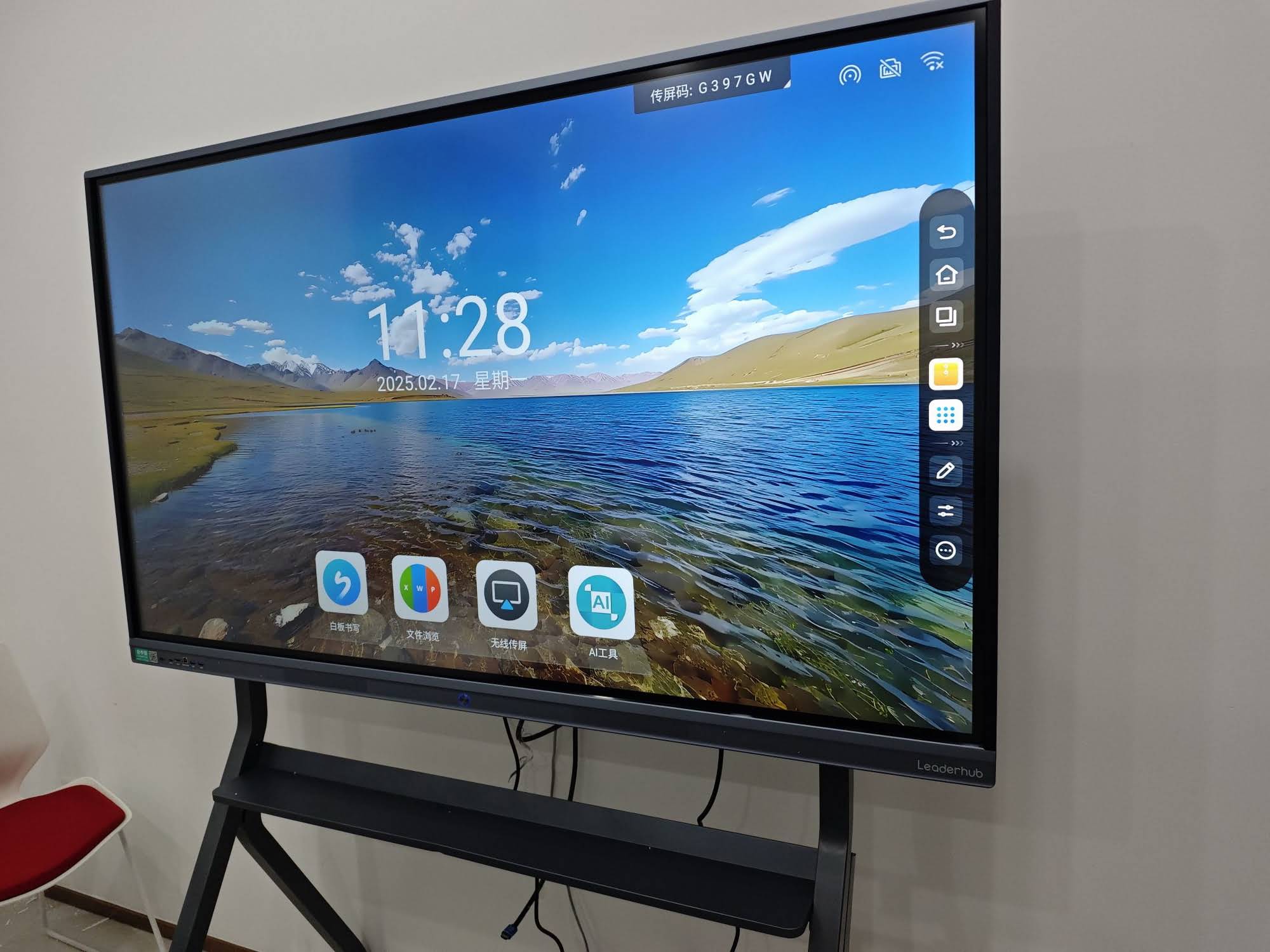
Laptop Compatibility: Windows vs macOS
Laptop users face a different set of concerns. Windows laptops generally connect via HDMI or USB-C without issue, but macOS users — especially those on newer MacBook Pro/Air models with limited ports — should confirm the board supports USB-C video output directly, avoiding the need for adapters.
Additionally, if your organization uses Microsoft Teams or Zoom Rooms, check whether the whiteboard has a certified plug-and-play camera and microphone array, or whether it requires a separate mini PC module to run conferencing software natively.
Quick Compatibility Checklist
- USB-C with video output (DisplayPort Alt Mode)
- HDMI 2.0 or higher input
- AirPlay 2 support for iOS/macOS
- Google Cast / Miracast for Android/Windows
- Built-in or modular OPS slot for a Windows mini PC
Real-World Case Study
A mid-sized language training center in Southeast Asia switched from projector-based teaching to interactive smart whiteboards in 2023. According to their internal report, student engagement scores rose by 34% within two semesters, largely attributed to instructors being able to annotate directly from their iPads while walking around the classroom, rather than being tied to a fixed workstation.
This kind of flexibility — combining a stationary 4K touch display with mobile iPad control — is exactly what modern classrooms and meeting rooms require.
Software Ecosystem and Long-Term Support
An often-overlooked factor is firmware update frequency. Boards that receive quarterly software updates tend to maintain compatibility with the latest iPadOS and Windows releases, while budget models frequently become outdated within 18 months. Always ask the manufacturer directly about their update policy and warranty terms before purchasing.
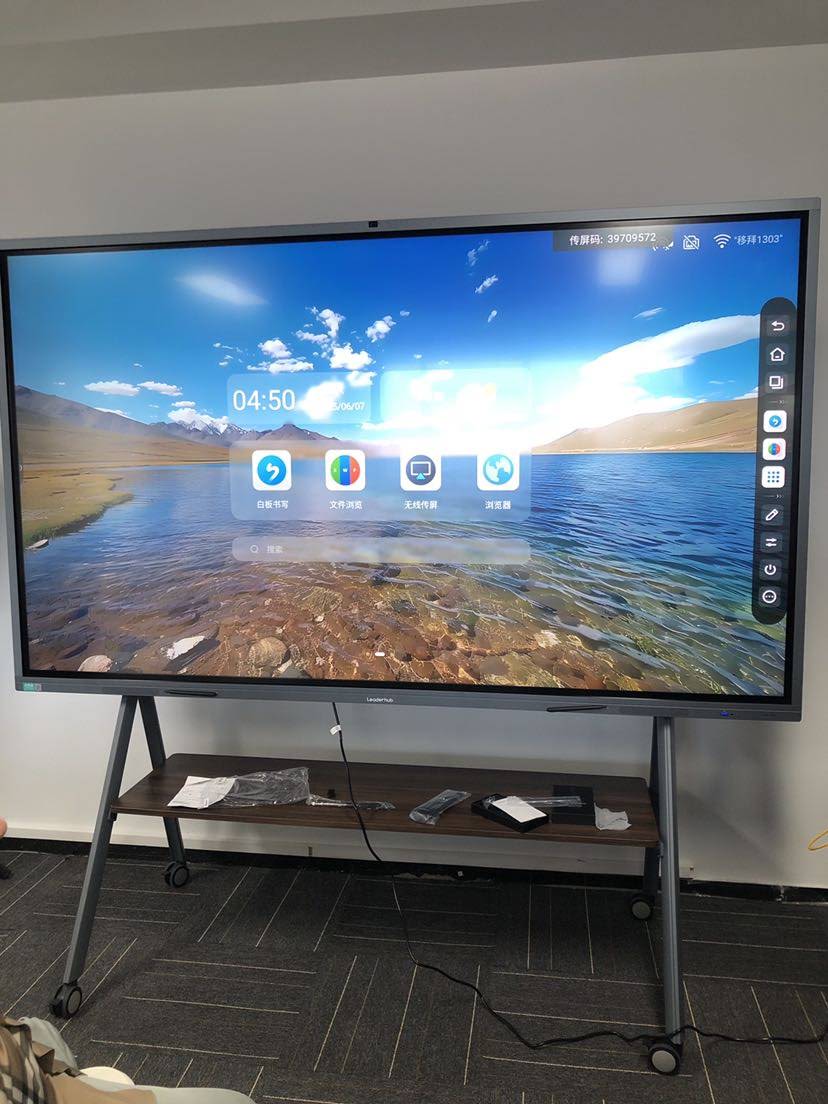
Product Comparison Table
Below is a snapshot of currently available interactive panels suited for both iPad and laptop workflows:
| Model | Size | Price |
|---|---|---|
| L65HM Smart Whiteboard | 65″ 4K Touch | $1,299.00 |
| L75ZM Interactive Whiteboard | 75″ 4K Smart Panel | $1,399.00 |
| U55Pro Interactive Flat Panel | 55″ Mobile 4K Display | $2,499.00 |
| L86HM Smart Whiteboard | 86″ 4K Touchscreen | $3,199.00 |
Frequently Overlooked Purchase Mistakes
- Skipping demo testing: Always test AirPlay latency and touch responsiveness before finalizing an order.
- Ignoring mounting requirements: Larger panels (86″+) often require wall reinforcement or a mobile stand rated for the extra weight.
- Underestimating software licensing: Some annotation software requires paid licenses for multi-device sync — confirm this upfront.
- Overlooking warranty terms: Panels used 8+ hours daily in classrooms need at least a 3-year commercial warranty.
Expert Recommendation
For most classrooms and business meeting rooms, a 75-inch 4K interactive panel with dual AirPlay/Miracast support offers the best balance of cost, usability, and future-proofing. Smaller huddle rooms can save money with 55–65″ models, while large lecture halls should consider 98″+ panels or dual-screen setups instead of a single oversized display.
Companies like LeaderHub, a Shenzhen-based manufacturer with 16 years of experience serving 82 countries, design their panels specifically to support both iOS screencasting and Windows/macOS direct connection, making them a practical choice for mixed-device environments common in schools and modern offices.
Final Thoughts
Selecting a smart whiteboard that works well with both iPad and laptop devices comes down to three priorities: verified wireless compatibility, responsive touch performance, and long-term software support. Rather than chasing the largest screen or lowest price, focus on how the board integrates into your existing device ecosystem — that’s what determines whether it becomes a daily-use tool or an expensive, underused display.
Before making a final decision, request a live demonstration with your own iPad and laptop connected simultaneously. This single test reveals more about real-world compatibility than any spec sheet ever will.








