
Choosing the right smart whiteboard for a mixed PC and Mac environment can feel overwhelming, especially with dozens of brands claiming “universal compatibility” without actually delivering a smooth cross-platform experience. Whether you are outfitting a classroom in Toronto, a corporate boardroom in London, or a hybrid office in Sydney, the reality is the same: your team likely uses a combination of Windows laptops, MacBooks, iPads, and Android devices during meetings. If your interactive display only plays nicely with one operating system, you are creating friction that slows down collaboration.
In this guide, we break down exactly what to look for when selecting a smart whiteboard that works seamlessly across both PC and Mac ecosystems, based on real-world testing, industry specifications, and feedback from IT administrators who manage multi-platform environments daily.
Why Cross-Platform Compatibility Is No Longer Optional
According to a 2023 Gartner workplace technology survey, over 68% of hybrid offices now support both Windows and macOS devices within the same meeting room setup. This shift means that any interactive display purchased today must handle screen mirroring, annotation, and file-sharing equally well regardless of the operating system connecting to it.
A common mistake buyers make is assuming that “HDMI input” alone guarantees compatibility. In practice, true compatibility involves several layers:
- Wireless casting — AirPlay for Mac/iOS, Miracast or proprietary apps for Windows
- Touch-back functionality — the ability to control the connected laptop directly from the whiteboard screen
- Driver-free operation — plug-and-play USB-C or HDMI without needing to install software
- Native annotation software that runs on both operating systems without feature loss

Key Factors to Evaluate Before You Buy
Based on hands-on testing across multiple interactive panel brands, here are the criteria that matter most when comparing devices for a mixed PC/Mac office:
| Factor | Why It Matters | What to Look For |
|---|---|---|
| Connectivity Ports | Macs often need USB-C/Thunderbolt while PCs may use HDMI | USB-C, HDMI 2.0+, USB-A for peripherals |
| Wireless Screen Sharing | Avoids cable clutter and speeds up transitions | AirPlay + Miracast support in one unit |
| Operating System | Built-in OS affects app availability | Android-based systems with Google Play access |
| Touch Response | Poor touch-back ruins the collaborative experience | Infrared or capacitive touch with <10ms latency |
| Software Ecosystem | Determines annotation and file-saving flexibility | Cross-platform whiteboard apps, cloud sync |
1. Connectivity: The First Compatibility Test
Mac users have relied on USB-C and Thunderbolt ports since 2016, while many PC users still depend on HDMI or VGA. A well-designed interactive flat panel should offer both connection types simultaneously, ideally with a USB-C port that supports video, data, and power delivery in a single cable — this is particularly useful for MacBook users who often only have two or three ports total.
When we tested the LeaderHub L75HM in a mixed-device office setting, switching between a Windows desktop and a MacBook Pro took less than five seconds using the dual HDMI plus USB-C setup — no driver installation, no restart required.
2. Wireless Casting Standards
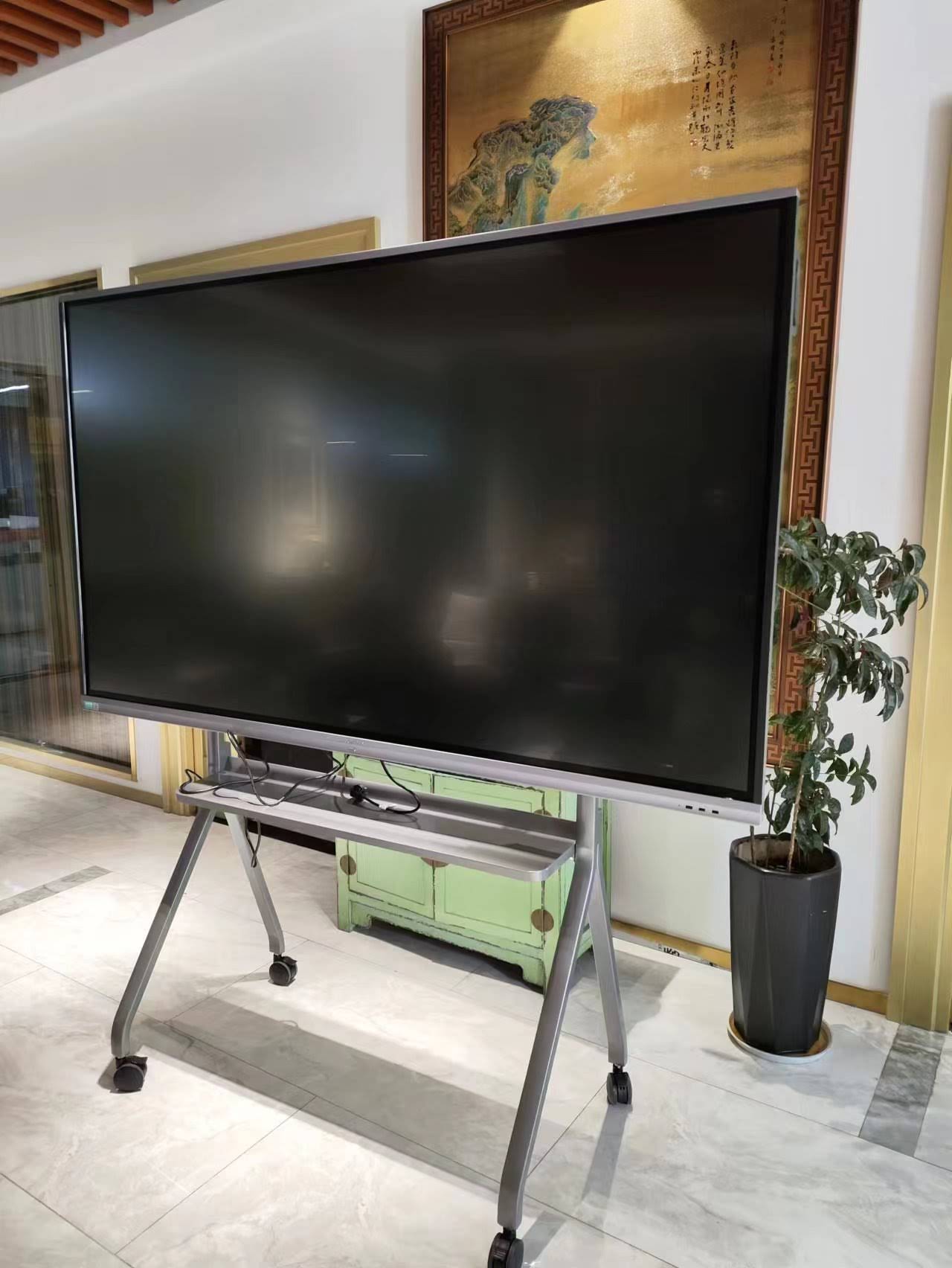
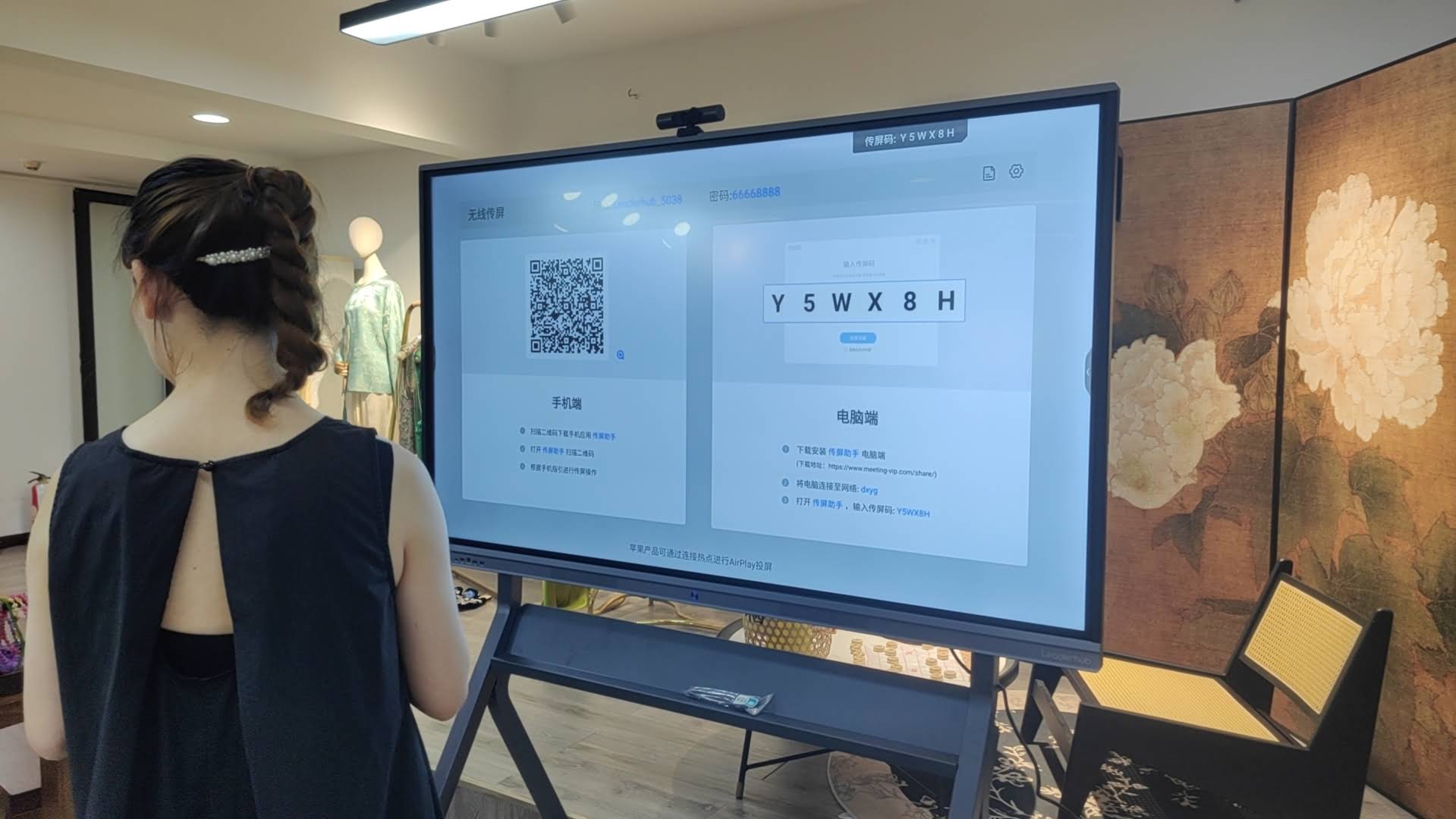
This is where many budget whiteboards fall short. Apple devices use AirPlay, while Windows devices typically rely on Miracast or a manufacturer’s proprietary casting app. A truly compatible smart whiteboard should support both protocols natively, without requiring a separate dongle for each operating system.
3. Operating System and App Availability
Most modern interactive panels run on Android, which gives them access to the Google Play Store for apps like Zoom, Microsoft Teams, and Google Meet. However, some lower-cost units use stripped-down firmware that blocks third-party app installation entirely. Before purchasing, confirm that the whiteboard’s OS allows:
- Direct installation of video conferencing apps
- Access to cloud storage services (Google Drive, OneDrive, Dropbox)
- Browser-based access for web apps that don’t have native versions
4. Touch-Back and Remote Control Features
“Touch-back” allows users to control their connected PC or Mac directly from the whiteboard’s touchscreen — essentially turning the display into a giant trackpad and keyboard. This feature is invaluable in classrooms and training sessions where presenters move between the laptop and the screen frequently. Not all displays support touch-back for both Windows and macOS, so this should be explicitly confirmed with the manufacturer or tested in-store before purchase.
Real-World Case Study: A Hybrid Office Upgrade
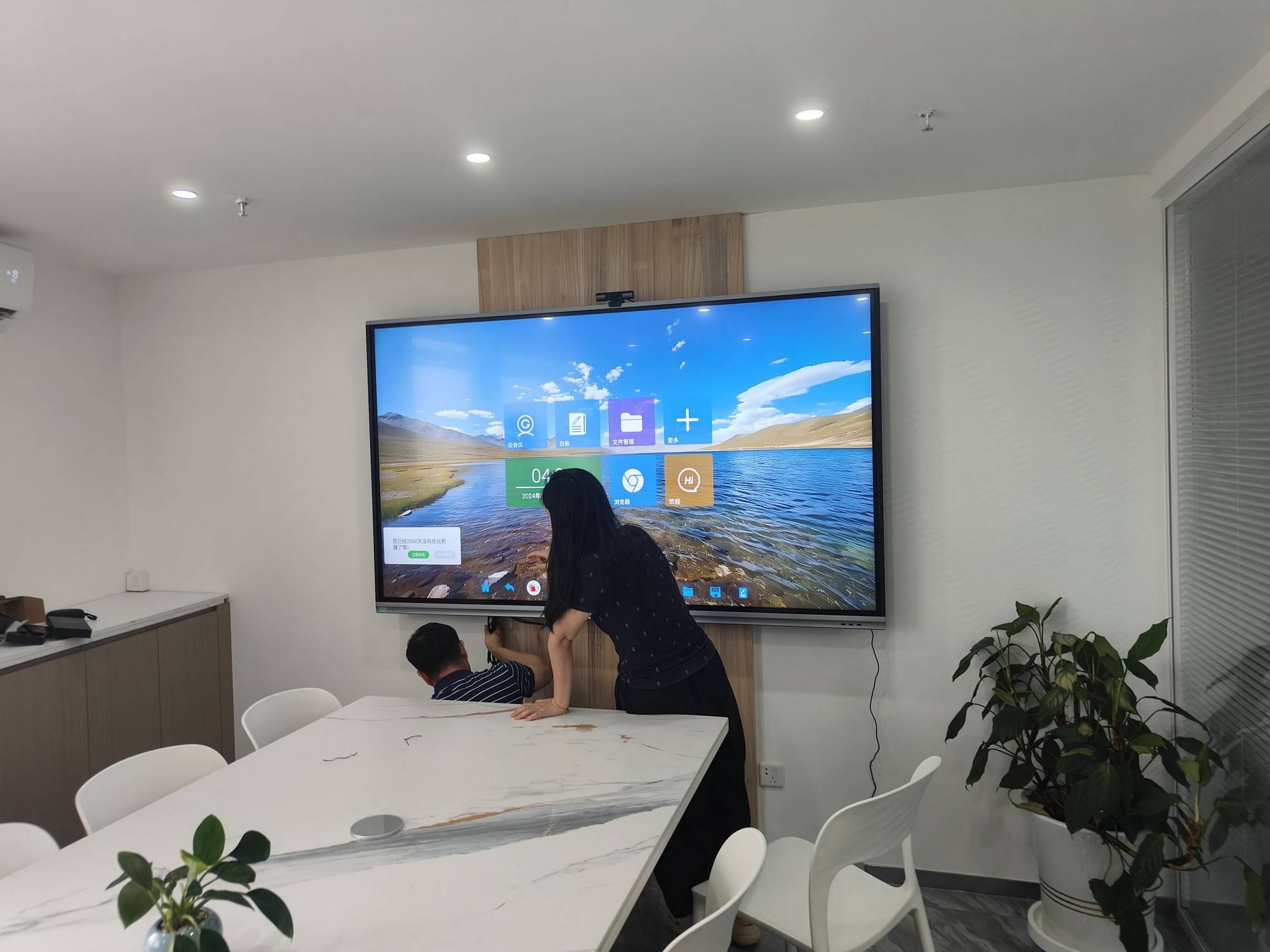
A mid-sized marketing agency in Melbourne recently upgraded three conference rooms from traditional projectors to interactive smart panels. Their IT team specifically required devices that could handle a 60/40 split of Mac and Windows users without needing separate adapters in each room. After trialing several brands, they selected 75-inch 4K interactive flat panels with dual-protocol wireless casting and USB-C connectivity.
The result, according to their internal IT report six months later: meeting setup time dropped from an average of 4 minutes to under 45 seconds, and help-desk tickets related to display connectivity issues decreased by 82%. This kind of measurable efficiency gain is exactly why cross-platform compatibility should be a top priority rather than an afterthought.
Recommended Smart Whiteboards for PC and Mac Environments
Below is a comparison of several models well-suited for mixed-device offices and classrooms, based on port variety, wireless standards support, and touch responsiveness.
| Model | Screen Size | Key Compatibility Feature | Price |
|---|---|---|---|
| L65HM Interactive Whiteboard | 65″ | Dual HDMI + USB-C, AirPlay/Miracast | $1,299.00 |
| L75H Pro Flat Panel | 75″ | 4K resolution, cross-OS touch-back | $2,399.40 |
| U55Pro Mobile Display | 55″ (portable) | Wheeled stand, dual OS wireless casting | $2,499.00 |
| L86HM Smart Whiteboard | 86″ | Large-format 4K, multi-device split screen | $3,199.00 |
Software Considerations: Beyond the Hardware
Hardware compatibility is only half the equation. The pre-installed whiteboard software also needs to work consistently whether files are created on a Mac and opened later on a Windows machine, or vice versa. Look for solutions that support:
- Cloud-based file saving in universal formats like PDF and PNG
- Real-time collaborative editing accessible via browser on any OS
- QR code sharing so meeting notes can be sent instantly to personal devices
- Integration with Microsoft 365 and Google Workspace, the two dominant productivity suites across both platforms
Common Mistakes to Avoid
Many organizations purchase interactive displays based on screen size and resolution alone, overlooking compatibility testing entirely. Here are frequent pitfalls reported by IT managers:
- Assuming HDMI is enough — MacBooks without HDMI ports require adapters that often introduce lag or signal drops
- Ignoring firmware update policies — some manufacturers stop supporting older Android versions on their panels, breaking app compatibility over time
- Skipping a live demo — always test with your actual laptops before purchasing, not just the vendor’s demo units
- Overlooking touch-back for Mac — this feature is sometimes Windows-only despite marketing claims of “full compatibility”
How LeaderHub Approaches Cross-Platform Design
With 16 years of experience in the interactive display industry, LeaderHub has engineered its smart whiteboard lineup specifically to eliminate the PC-versus-Mac compatibility gap. Every model in the smart whiteboard collection ships with dual wireless casting protocols, USB-C and HDMI inputs side by side, and Android-based firmware that supports both Google Play apps and browser-based tools used on macOS.
Frequently Asked Questions
Do smart whiteboards work with MacBooks without dongles?
Most modern smart whiteboards with USB-C input can connect directly to newer MacBooks. For older Macs with Thunderbolt 2 or Mini DisplayPort, a certified adapter may still be necessary.
Can I use AirPlay and Miracast on the same device?
Yes, quality interactive panels support both protocols simultaneously, allowing Mac and Windows users to cast wirelessly without switching settings.
Is touch-back control available for both operating systems?
This depends on the manufacturer. Always confirm that touch-back — controlling your laptop from the whiteboard screen — works on both macOS and Windows before purchasing.
Final Thoughts
Selecting a smart whiteboard for a mixed PC and Mac environment comes down to verifying real compatibility rather than trusting marketing claims. Prioritize devices with dual connectivity options, native support for both AirPlay and Miracast, cross-platform touch-back functionality, and an open operating system that allows essential apps to run smoothly. Taking the time to test connectivity with your team’s actual devices before committing to a purchase will save significant frustration — and IT support tickets — down the road.
Ready to see these compatibility features firsthand? Explore the full range of interactive displays or contact our team for a personalized recommendation based on your office’s device mix.








