
Smart boards have transformed modern classrooms by enabling interactive, engaging, and collaborative learning experiences. According to a 2023 study by EdTech Magazine, classrooms equipped with interactive displays show a 16% increase in student engagement and a 12% improvement in knowledge retention compared to traditional teaching methods. Whether you’re new to interactive technology or looking to maximize your existing setup, understanding how to effectively use a smart board can significantly enhance your teaching practice.
This comprehensive guide provides practical strategies, real-world examples, and expert recommendations to help educators integrate smart board technology seamlessly into their daily instruction.
Understanding Smart Board Basics
Before diving into advanced techniques, it’s essential to understand what makes a smart board an effective teaching tool. Modern interactive flat panels combine touchscreen functionality, built-in software, wireless connectivity, and multimedia capabilities into a single device. Unlike traditional whiteboards, these digital displays allow teachers to save lessons, integrate dynamic content, and facilitate real-time collaboration.
Most smart boards operate using infrared or capacitive touch technology, responding to finger touches or stylus input with precision. The display connects to your computer or operates independently with built-in Android or Windows systems, providing flexibility in how you deliver content.
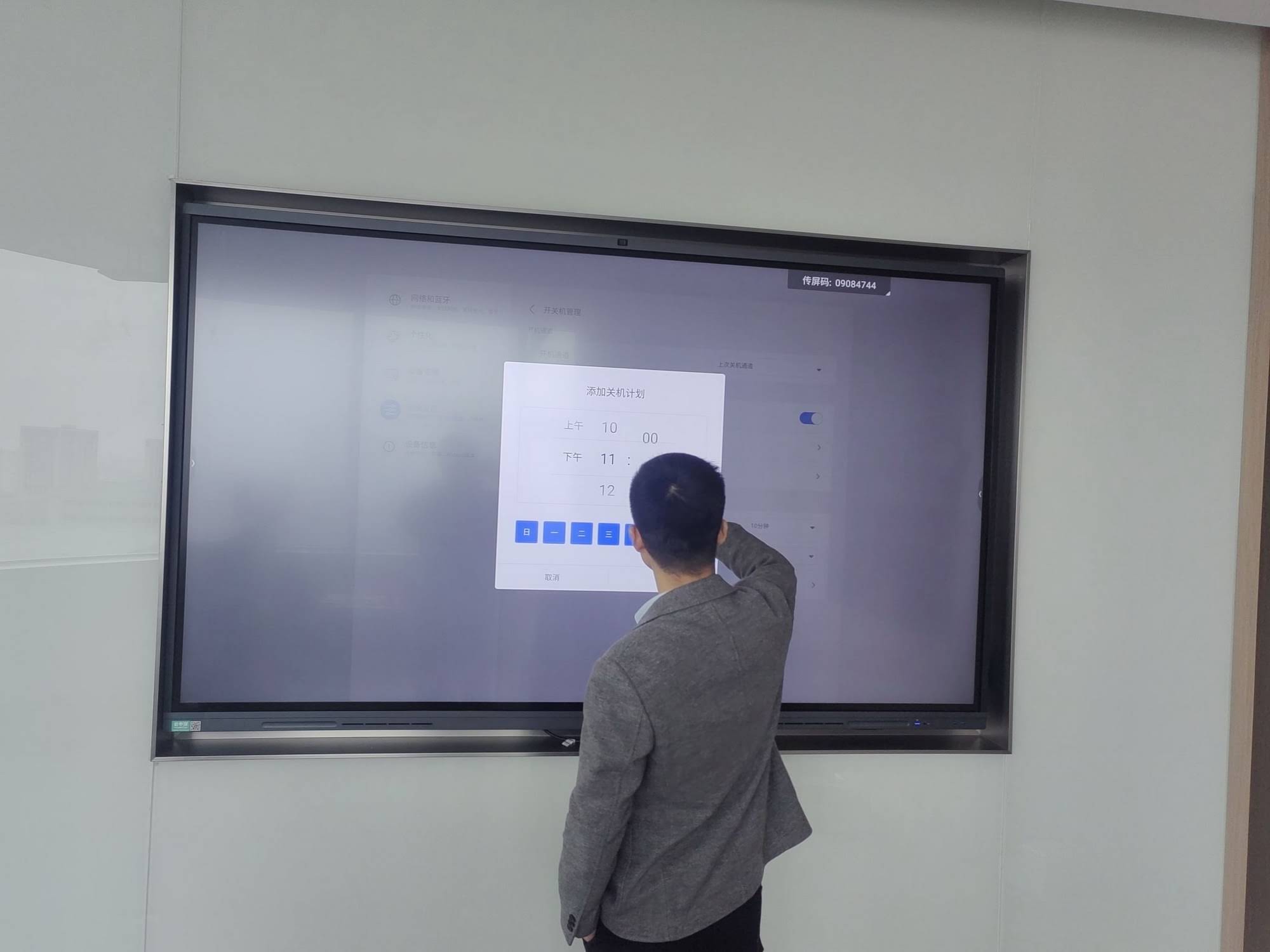
Essential Setup and Calibration
Proper setup ensures optimal performance and user experience. Position your smart board at an appropriate height where both you and your students can comfortably interact with the lower portion of the screen. The recommended mounting height places the center of the screen at approximately 48-52 inches from the floor for elementary classrooms and 52-60 inches for secondary education.
Initial Configuration Steps
- Network connectivity: Connect your smart board to your school’s Wi-Fi network to enable content sharing, cloud storage access, and software updates
- Account setup: Create teacher and student accounts with appropriate permission levels to manage content access and security
- Touch calibration: Run the built-in calibration tool to ensure accurate touch response across the entire screen surface
- Audio configuration: Test and adjust built-in speakers or connect external audio systems for optimal sound quality
- Software installation: Download essential teaching apps, subject-specific tools, and collaboration software before your first lesson
Regular calibration maintenance, typically every 2-3 months, helps maintain touch accuracy as the device experiences normal wear from daily use.
Interactive Annotation Techniques
One of the most powerful features of smart boards is the ability to annotate directly over any content. This capability transforms static materials into dynamic, interactive lessons that capture student attention and facilitate deeper understanding.
Effective Annotation Strategies
Use different color coding systems to organize information visually. For example, use blue for main concepts, green for supporting details, and red for critical points students must remember. Research from the Journal of Educational Technology shows that color-coded annotations improve information recall by up to 22%.
During text analysis, highlight key passages while students read along, then invite students to the board to add their own annotations. This collaborative approach develops critical thinking skills and encourages active participation. Save these annotated documents and share them with students after class for review.
| Annotation Tool | Best Use Case | Educational Benefit |
|---|---|---|
| Highlighter | Emphasizing key vocabulary and concepts | Improves information retention and focus |
| Digital Pen | Solving math problems step-by-step | Demonstrates problem-solving processes clearly |
| Shape Tools | Creating diagrams and visual organizers | Supports visual learners and organizes information |
| Text Box | Adding definitions and explanations | Provides context and clarification |
| Eraser | Correcting mistakes or revealing answers | Enables iterative learning and discovery |
Integrating Multimedia Content
Modern smart boards excel at incorporating various media types into lessons. Video clips, audio recordings, interactive simulations, and web-based resources can be seamlessly integrated to accommodate different learning styles and maintain student engagement throughout the lesson.
When incorporating video content, use the pause-and-discuss technique. Play a short segment, pause the video, and use annotation tools to highlight important details or pose questions. This active viewing approach prevents passive consumption and encourages analytical thinking.
For science and mathematics instruction, leverage interactive simulation software that allows students to manipulate variables and observe results in real-time. A physics teacher in California reported that using interactive gravity simulations on her smart board increased student understanding of acceleration concepts by 34% compared to previous years using static diagrams.
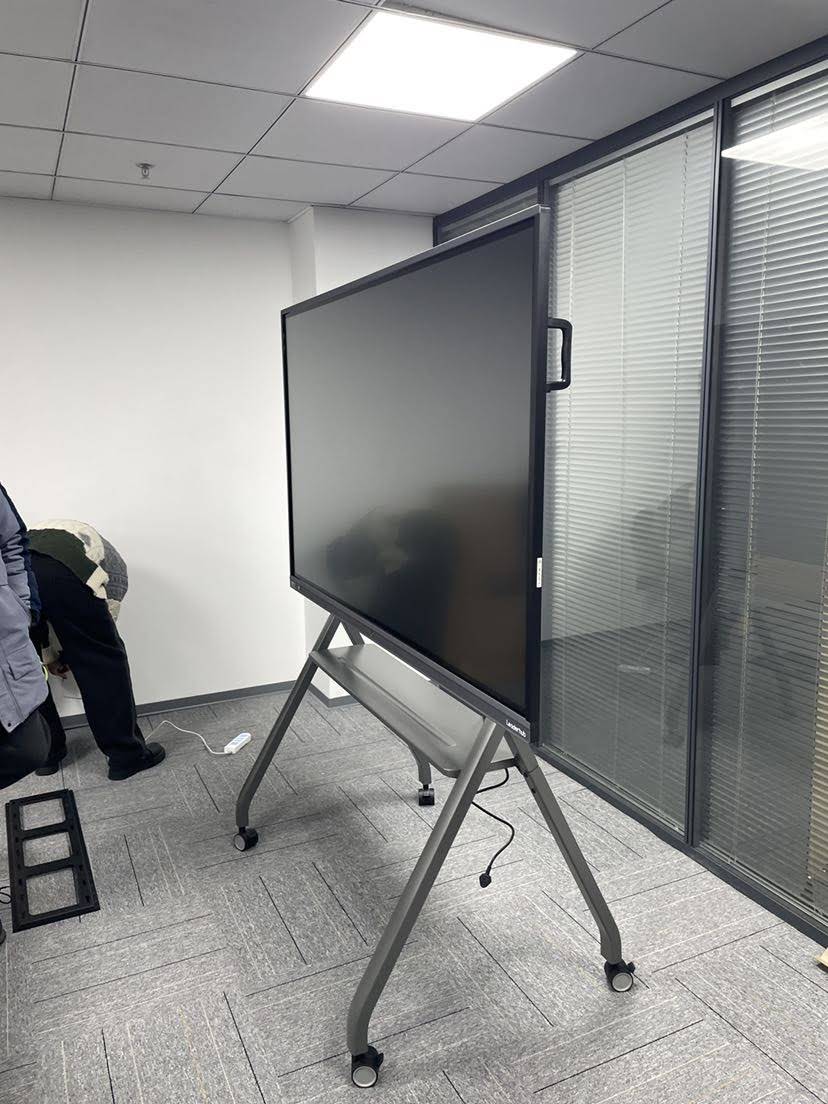
Facilitating Collaborative Learning
Smart boards transform classroom dynamics by enabling multiple students to interact simultaneously with the content. This collaborative capability supports project-based learning, group problem-solving, and peer teaching strategies.
Multi-Touch Collaboration Activities
Implement simultaneous brainstorming sessions where small groups approach the board together and add ideas using different colored pens. This technique works exceptionally well for concept mapping, where students visually organize relationships between ideas in subjects like history, literature, or biology.
For mathematics classes, display a complex problem and invite students to work through different solution methods simultaneously on different sections of the screen. This approach demonstrates that multiple valid strategies may exist and helps students learn from their peers’ thinking processes.
Student-Led Presentations
Train students to use basic smart board functions for their presentations. When students present research projects or explain solutions, they develop technology literacy while building confidence in public speaking. Provide a simple checklist of presentation tools including screen recording, annotation features, and multimedia integration to help them prepare effective presentations.
Optimizing Lesson Planning and Organization
Effective smart board use begins with thoughtful lesson planning that leverages the technology’s strengths without over-relying on it. Create a balanced instructional approach that combines interactive technology with traditional teaching methods and hands-on activities.
Lesson Structure Best Practices
- Opening engagement: Begin with an interactive warm-up activity on the smart board that activates prior knowledge
- Direct instruction: Use multimedia presentations with embedded questions and polls to maintain attention during content delivery
- Guided practice: Demonstrate processes step-by-step with real-time annotation and student participation
- Independent practice: Transition away from the board for individual work, returning to it for review and clarification
- Closure: Use interactive review games or collaborative summary activities to consolidate learning
Organize your digital files logically with folders for each subject, unit, and lesson. This organization saves valuable class time and allows you to quickly access materials when student questions require revisiting previous content. Many experienced teachers recommend creating a master template with consistent layout, fonts, and color schemes that students become familiar with over time.
Addressing Common Technical Challenges
Even experienced educators encounter technical difficulties when using smart boards. Developing troubleshooting skills and backup plans ensures smooth lessons even when technology issues arise.
Frequent Issues and Solutions
| Problem | Common Cause | Quick Solution |
|---|---|---|
| Touch response inaccuracy | Calibration drift or screen debris | Run calibration tool and clean screen surface |
| Display not turning on | Power connection or standby mode | Check power cable and press power button firmly |
| No audio output | Volume settings or audio source selection | Verify volume level and check audio output settings |
| Wireless connection drops | Network interference or weak signal | Move closer to router or use wired connection |
| Software freezing | Insufficient memory or outdated software | Close unnecessary apps and install updates |
Always maintain an analog backup plan. Keep traditional whiteboard markers available and prepare alternative activities that don’t require the smart board. This preparation reduces stress when technical issues occur and demonstrates professional adaptability to your students.
Implementing Formative Assessment Tools
Smart boards provide excellent platforms for ongoing assessment that informs instructional decisions. Real-time feedback tools help you gauge understanding immediately and adjust your teaching accordingly.
Interactive Assessment Strategies
Use digital polling and quiz features to check for understanding throughout the lesson. Display multiple-choice questions and have students respond using connected devices or by physically indicating their choices. The instantaneous results reveal which concepts require additional explanation or practice.
Implement exit ticket activities where students solve a problem or answer a question on the smart board before leaving class. Photograph or save these responses to analyze student understanding and plan the next day’s instruction. A middle school math teacher in Texas found that using smart board exit tickets improved her ability to identify struggling students by 40% compared to paper-based assessments.
Create interactive sorting activities where students categorize items by dragging and dropping them into correct groups. This works effectively for subjects ranging from grammar (parts of speech) to science (classification of organisms) to history (chronological ordering of events).
Engaging Reluctant Learners
The interactive nature of smart boards particularly benefits students who struggle with traditional instruction methods. The tactile and visual elements provide alternative pathways to understanding that can re-engage disinterested learners.
For students with attention difficulties, use the smart board’s ability to break content into smaller, interactive chunks. Instead of lengthy explanations, present information in short segments followed by immediate hands-on interaction with the content. The physical act of approaching the board and manipulating information maintains focus more effectively than passive listening.
Struggling readers benefit from text-to-speech features built into many smart board systems. Highlight text and activate audio playback to support decoding while students follow along visually. This multi-sensory approach strengthens reading comprehension and builds confidence.
Maximizing Smart Board Software Capabilities
Most smart boards come with proprietary software offering features beyond basic annotation. Investing time in learning these advanced capabilities significantly expands your instructional possibilities.
Essential Software Features
- Screen recording: Capture your lesson demonstrations as video files that students can review later at their own pace
- Screen sharing: Display student work from tablets or laptops directly on the smart board for whole-class discussion
- Split screen: Show multiple resources simultaneously, such as comparing two different texts or displaying instructions alongside student work
- Virtual manipulatives: Access digital versions of hands-on learning tools like fraction bars, geometric shapes, or algebra tiles
- Lesson templates: Use pre-designed layouts for common activities like Venn diagrams, T-charts, or timelines to save preparation time
- Cloud integration: Save and access lessons from any device and share resources instantly with students through learning management systems
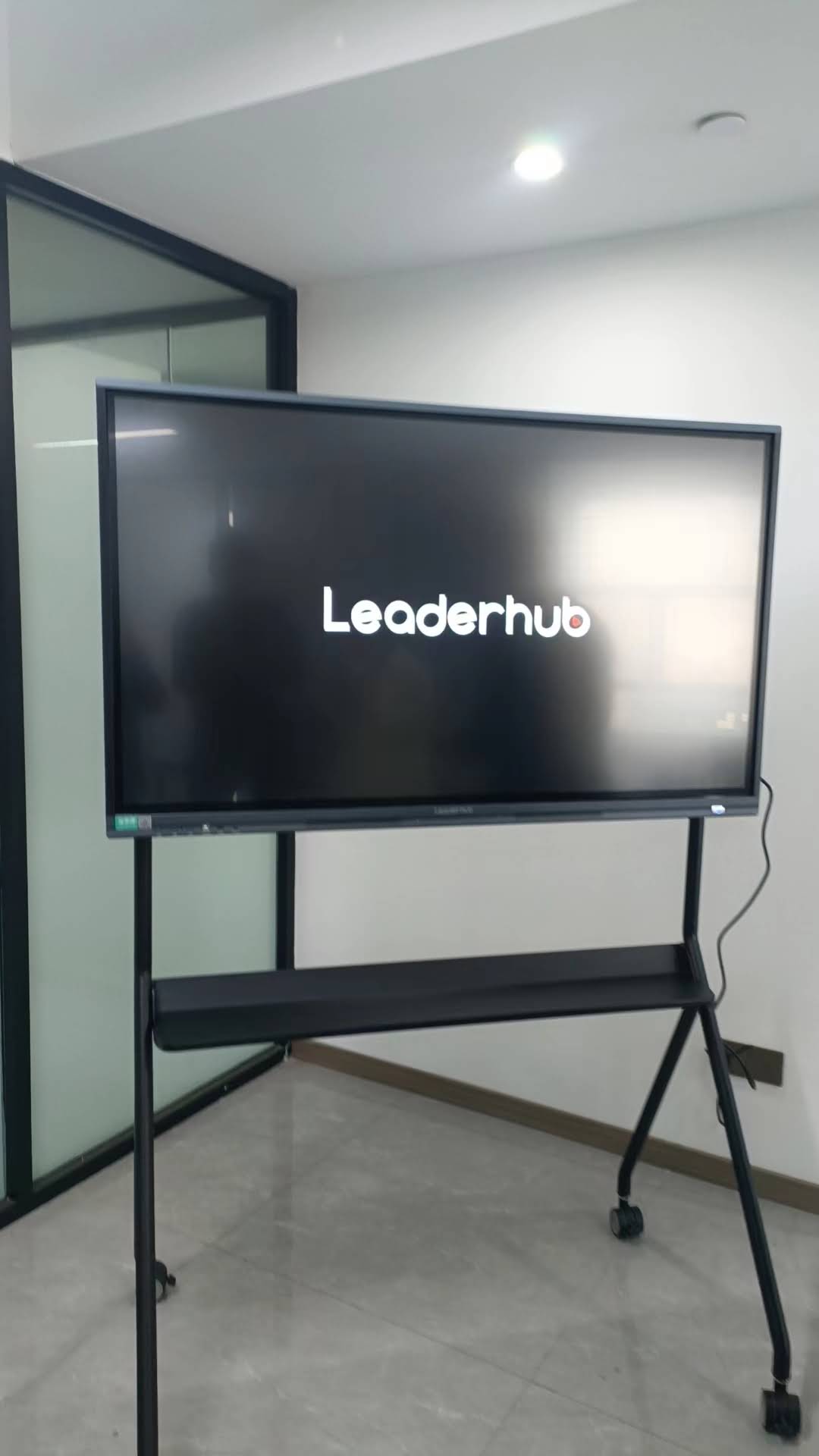
Companies like LeaderHub, with over 16 years of experience in interactive display technology, provide comprehensive training resources and customer support to help educators master these software capabilities. Their smart whiteboards are used in classrooms across more than 82 countries, supporting diverse teaching approaches and educational contexts.
Professional Development and Continuous Learning
Developing smart board proficiency requires ongoing learning and experimentation. Even experienced users regularly discover new techniques and applications that enhance their teaching practice.
Building Your Skills
Start with one new feature per week rather than attempting to master everything simultaneously. This incremental approach prevents overwhelming yourself while steadily expanding your capabilities. Focus first on tools that directly address your current teaching challenges.
Join online communities of educators using smart boards. These forums provide practical lesson ideas, troubleshooting advice, and innovative applications you may not discover independently. Many teachers report that peer collaboration accelerates their learning curve more effectively than formal training sessions.
Request opportunities to observe colleagues who excel at smart board integration. Seeing different teaching styles and subject applications provides concrete models to adapt for your own classroom. Offer reciprocal observations where you share your developing expertise in exchange.
Maintaining Healthy Technology Balance
While smart boards offer tremendous instructional benefits, effective teaching requires balancing technology use with traditional methods and non-digital activities. Over-reliance on any single tool, regardless of its capabilities, limits learning experiences.
Implement the 70-20-10 rule as a general guideline: use the smart board for approximately 70% of direct instruction, traditional whiteboard or chart paper for 20% of activities, and hands-on manipulatives or movement-based learning for 10% of class time. Adjust these proportions based on your subject area, student needs, and lesson objectives.
Monitor student screen time awareness. While interactive displays engage students effectively, extended periods of screen focus can cause eye strain and reduce attention quality. Incorporate regular breaks where students look away from screens and engage in physical movement or tactile activities.
Involving Parents and Guardians
Help families understand how smart board technology enhances their children’s learning. During open houses or parent conferences, demonstrate the interactive features and explain how these tools support academic growth.
Share recorded lessons or annotated materials with parents so they can support homework completion and review concepts at home. This transparency builds parental confidence in classroom technology and creates stronger home-school connections. Some teachers create short video tutorials explaining how to access and use shared digital resources, making it easier for families with varying technology comfort levels to engage.
Future-Proofing Your Practice
As educational technology continues evolving, developing adaptable skills ensures you remain effective regardless of specific devices or software versions. Focus on transferable competencies like digital literacy, multimedia integration, and interactive pedagogy rather than memorizing button sequences for particular models.
Stay informed about emerging trends in educational technology through professional journals, conferences, and manufacturer updates. Understanding the direction of technology development helps you make informed decisions about adopting new features and planning professional development priorities.
The integration of artificial intelligence into interactive displays represents the next evolution of smart board technology. AI-powered features like automatic handwriting recognition, intelligent content suggestions, and adaptive learning responses will further enhance personalization and instructional efficiency. Educators who develop strong foundational smart board skills now will easily adapt to these advancing capabilities.
Smart boards have become essential tools for modern teaching, offering unprecedented opportunities for engagement, interaction, and personalization. By mastering the practical techniques outlined in this guide and maintaining a balanced, student-centered approach, you can transform your classroom into a dynamic learning environment where technology serves as a powerful enabler of educational excellence rather than a mere novelty.








