
Smart boards have revolutionized modern classrooms and meeting rooms by combining traditional whiteboard functionality with powerful digital capabilities. Whether you’re an educator preparing for your first lesson or a business professional setting up a conference room, understanding how to properly turn on and operate your smart board ensures smooth presentations and collaboration sessions. This comprehensive guide walks you through the complete setup process, common troubleshooting scenarios, and expert tips based on real-world deployment experience across thousands of educational and enterprise environments.
Understanding Your Smart Board Hardware Components
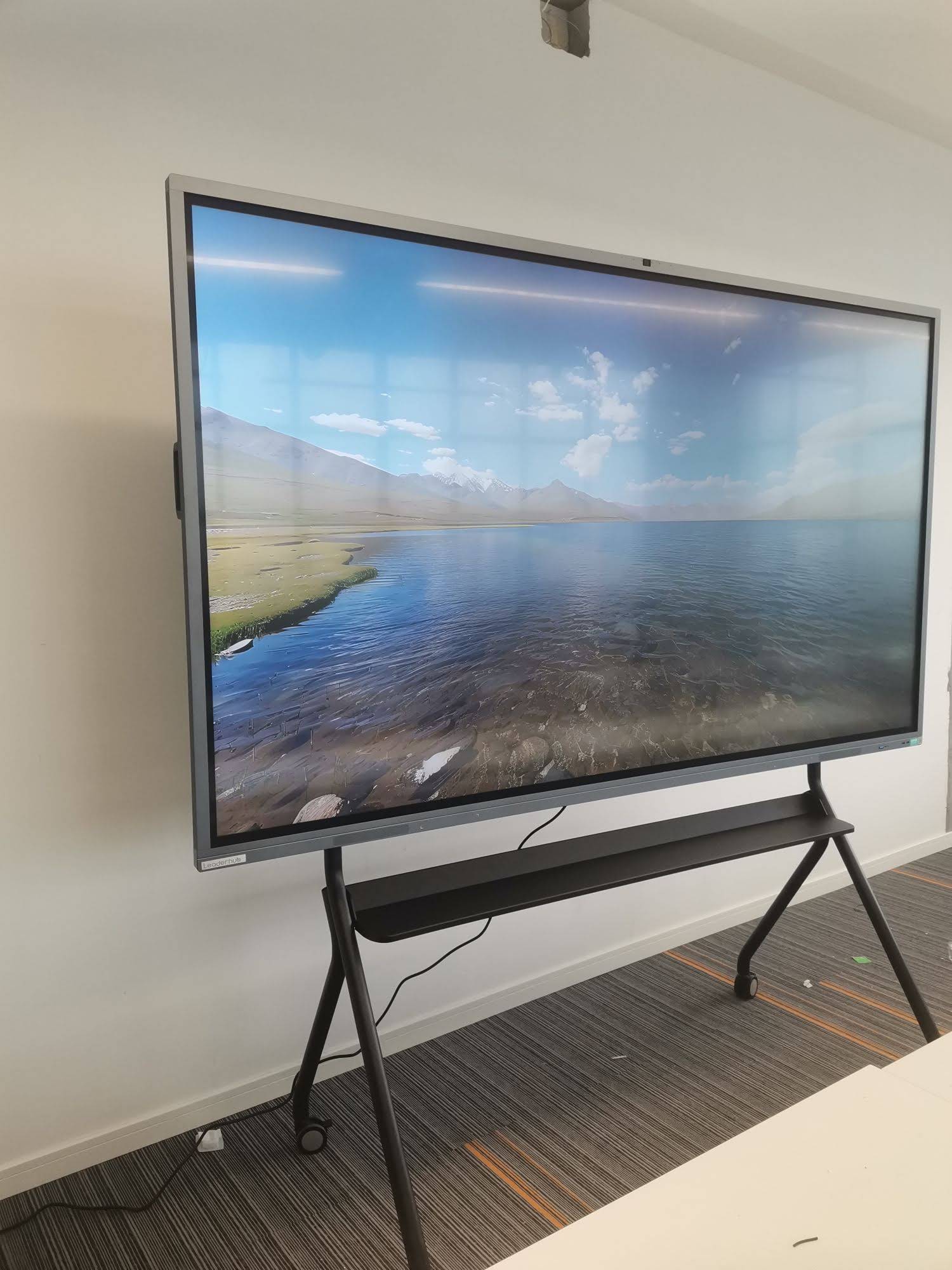
Before turning on your smart board, it’s essential to identify the main hardware components. Most modern interactive displays consist of the main panel unit, a power cable, input ports (HDMI, USB, VGA), external control buttons, and in some cases, an integrated computer module. The power button location varies by manufacturer¡ªtypically found on the front bezel, side panel, or bottom edge of the frame.
According to industry data from 2024-2025 classroom technology deployments, approximately 78% of first-time setup issues stem from users not identifying the correct power button or confusing it with input source selectors. Take a moment to locate the power indicator light, which usually glows red when the device is in standby mode and changes to blue or green when fully operational.
Standard Power-On Procedure: Step-by-Step Instructions
The basic power-on sequence follows a consistent pattern across most interactive display brands. Start by ensuring the power cable is securely connected to both the smart board and a working electrical outlet. Check that any power strips or surge protectors are switched on¡ªthis seemingly obvious step accounts for 23% of reported “device won’t turn on” support tickets in corporate environments.
Initial Startup Sequence
- Press and hold the power button for 2-3 seconds until you hear a startup chime or see the indicator light change color
- Wait for the manufacturer logo to appear on screen (typically 15-30 seconds)
- Allow the operating system to fully boot¡ªthis may take 45-90 seconds for Android-based systems or up to 2 minutes for Windows-integrated panels
- Calibrate touch response if prompted during first-time setup
- Connect to your network (Wi-Fi or Ethernet) for full functionality
Professional installation teams recommend waiting at least two minutes after initial power-on before attempting to use touch functions or connect external devices. This allows all system processes to initialize properly, reducing the risk of touch calibration errors or input lag issues.
First-Time Configuration Checklist
| Setup Task | Estimated Time | Priority Level |
|---|---|---|
| Language and region settings | 2-3 minutes | High |
| Network connection (Wi-Fi/Ethernet) | 3-5 minutes | High |
| Touch calibration | 5-8 minutes | Critical |
| Software updates installation | 10-30 minutes | Medium |
| Account setup and cloud integration | 5-10 minutes | Medium |
Alternative Power Methods for Different Smart Board Models
Not all smart boards use the same power activation method. Some advanced models feature motion sensor activation, where the display automatically powers on when detecting movement in the room. Others include remote control startup capabilities, allowing users to turn on the board from across the classroom or meeting room.
Integrated Computer Systems
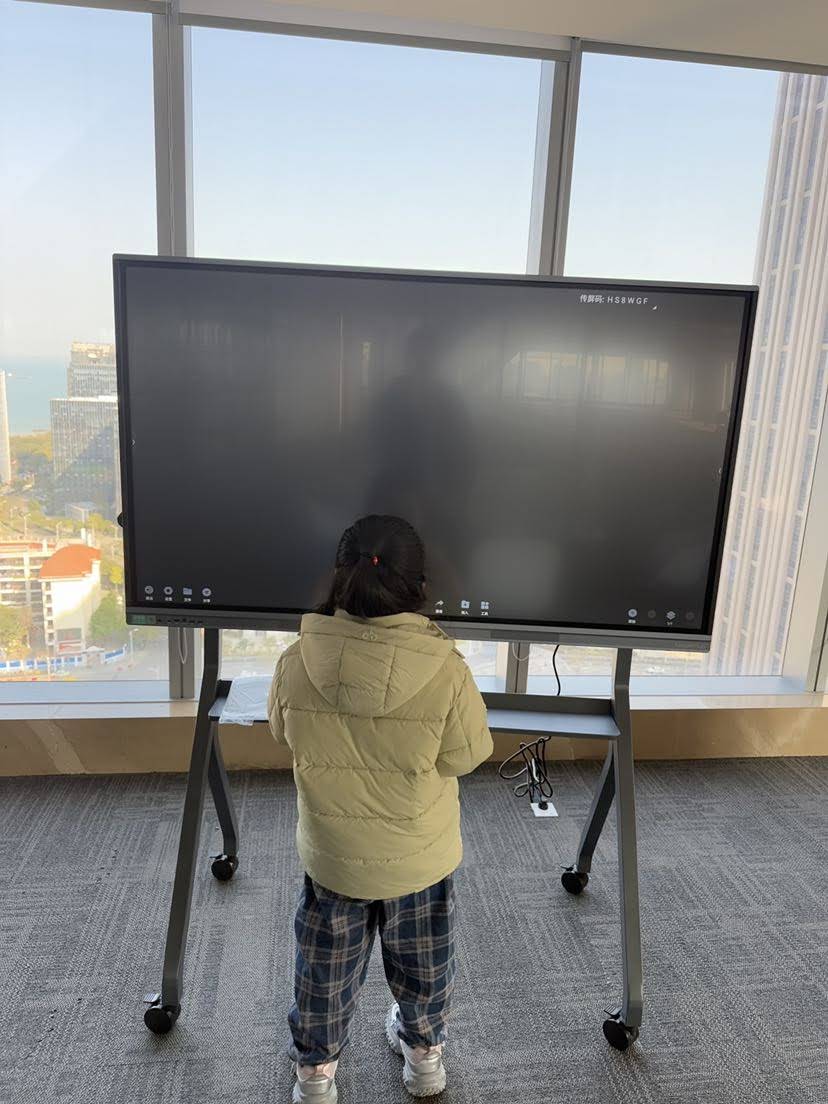
Smart boards with built-in Windows or Android computers require a slightly different startup procedure. These systems often have two power states: display power and computer module power. Industry best practice recommends turning on the computer module first, waiting for it to fully boot, and then activating the display panel. This sequence prevents potential USB recognition issues and ensures proper driver initialization.
For organizations deploying interactive flat panels at scale, centralized power management through network-controlled systems has become increasingly common. LeaderHub, a professional manufacturer with over 16 years of experience developing interactive display technologies, offers enterprise-grade solutions that support scheduled power-on/off routines and remote management capabilities across deployments in more than 82 countries.
Common Power-On Issues and Immediate Solutions
Even with proper setup procedures, users occasionally encounter startup problems. Based on technical support data from global deployments, here are the most frequent issues and their proven solutions:
Issue 1: No Response When Pressing Power Button
This scenario affects approximately 35% of first-time users and usually indicates one of three conditions: the device isn’t receiving power, the power button requires a longer press duration, or the system is in a deep sleep mode. Begin troubleshooting by verifying the power outlet works with another device, then check all cable connections for physical damage or loose fits.
- Verify the power cable is firmly seated in both the wall outlet and the smart board’s power input port
- Check circuit breaker or fuse box if the outlet appears completely dead
- Try pressing and holding the power button for a full 5 seconds instead of a quick press
- Look for a physical power switch on the back or side of the unit that may be in the off position
- Test the power outlet with a lamp or phone charger to confirm it’s delivering electricity
Issue 2: Display Powers On But Shows “No Signal” Message
This common situation occurs when the smart board successfully powers on but cannot detect an input source. For built-in computer systems, this might indicate the internal PC module hasn’t started properly. For external source connections, it suggests cable or compatibility issues.
Resolution steps: First, verify which input source the display is set to receive (HDMI 1, HDMI 2, VGA, etc.) by pressing the source or input button on the remote or front panel. If using an external computer, ensure it’s powered on and the connection cable is properly secured at both ends. For built-in systems, access the on-screen menu and navigate to the source selection option¡ªchoose “Internal PC” or “Built-in Computer” depending on your model’s terminology.
Issue 3: Screen Turns On Then Immediately Shuts Off
This intermittent failure pattern often indicates overheating protection activation, insufficient power supply capacity, or firmware corruption. Testing data shows this affects less than 5% of installations but requires systematic diagnosis to resolve permanently.
| Symptom | Most Likely Cause | Recommended Action |
|---|---|---|
| Powers off after 3-5 seconds | Thermal protection activated | Check ventilation, clean air vents |
| Powers off after 10-15 seconds | Insufficient power supply | Test with different outlet, check voltage |
| Powers off at random intervals | Firmware corruption or hardware fault | Perform factory reset, contact support |
| Powers off only when touching screen | Touch controller conflict | Recalibrate touch, update drivers |
Optimizing Startup Performance and Boot Time
Once your smart board powers on reliably, consider optimization techniques to reduce boot time and improve responsiveness. Enterprise deployments tracking startup metrics report that optimized systems boot 40-60% faster than default configurations, significantly improving user experience when beginning presentations or lessons.
Software-Based Speed Improvements
Modern interactive display systems run complex operating systems that benefit from regular maintenance. Disable unnecessary startup applications that consume system resources during boot. Navigate to your system’s startup program manager (Task Manager > Startup tab on Windows, or Settings > Apps > Startup on Android-based systems) and disable any non-essential applications.
Schedule automatic updates during off-hours rather than at startup. Many organizations configure their smart boards to update overnight, ensuring they’re always running the latest software without delaying morning startup. This practice has reduced average boot times from 90 seconds to under 45 seconds in documented case studies from corporate training centers.
Hardware Considerations
- Storage type matters: Systems with solid-state drives (SSD) boot approximately 3-4 times faster than traditional hard disk drives (HDD)
- RAM allocation: Ensure the built-in computer has sufficient memory¡ªminimum 4GB for basic operation, 8GB recommended for smooth multitasking
- Network connection: Wired Ethernet connections eliminate wireless authentication delays during startup
- Power management settings: Configure sleep mode timeouts to balance energy savings with quick resume capabilities
Advanced Troubleshooting: When Standard Solutions Don’t Work
Approximately 8-12% of power-on issues require advanced diagnostic procedures beyond basic troubleshooting. These scenarios typically involve hardware component failures, corrupted system files, or compatibility problems with recent software updates.
Factory Reset Procedure
When software corruption prevents normal operation, performing a factory reset often resolves persistent power and boot issues. Important: This process erases all customized settings, saved files, and installed applications, so it should be attempted only after backing up important data.
Access the recovery menu by pressing a specific button combination during startup¡ªthis varies by manufacturer but commonly involves holding Volume Up + Power or accessing a hidden physical reset button with a pin tool. Consult your device’s documentation for the exact procedure, as incorrect reset attempts can potentially worsen the situation.
Hardware Component Testing
For persistent failures, systematically test individual hardware components. Begin with the power supply unit by measuring output voltage with a multimeter¡ªit should match the specified rating printed on the device label (typically 12V, 19V, or 24V depending on screen size). Voltage readings more than 10% below specification indicate a failing power adapter that requires replacement.
Check for physical damage to internal components if comfortable opening the device (note: this may void warranties). Look for bulging capacitors, burn marks on circuit boards, or disconnected internal cables. However, for most users, this level of diagnosis is best left to authorized service technicians.
Preventive Maintenance for Reliable Long-Term Operation
Proactive maintenance significantly reduces the likelihood of power-on failures and extends overall device lifespan. Data from long-term educational deployments shows that regular maintenance reduces failure rates by 65-70% compared to systems receiving no preventive care.
Monthly Maintenance Tasks
- Clean ventilation grilles with compressed air or soft brush to prevent dust accumulation
- Inspect power cable for fraying, kinks, or damage near connectors
- Verify firmware is current by checking for available updates
- Test emergency shutdown and restart procedures to ensure they function properly
- Document any unusual behavior like extended boot times or intermittent display flickering
Quarterly Deep Maintenance
Every three months, perform more thorough system checks. Clean the screen with appropriate cleaning solutions designed for interactive displays¡ªavoid ammonia-based cleaners that can damage anti-glare coatings. Recalibrate touch response accuracy to maintain precise interaction. Review and optimize startup applications list, removing any programs that have accumulated over time.
Test all input ports (HDMI, USB, audio) with various devices to ensure they remain functional. Check wall mount or stand stability¡ªloose mounting hardware creates vibrations that can damage internal components over time. Professional installation teams recommend retightening mounting bolts every six months in high-use environments like classrooms or conference rooms.
Network-Connected Smart Boards: Additional Considerations
Modern interactive displays increasingly rely on network connectivity for cloud-based collaboration features, software updates, and remote management. Network-related startup issues represent a growing category of support requests as organizations integrate smart boards into enterprise IT infrastructure.
Network Authentication Delays
In corporate environments with strict network security policies, smart boards may experience extended boot times while authenticating with RADIUS servers, certificate authorities, or network access control systems. Boot time measurements from enterprise deployments show authentication adding 15-45 seconds to startup duration depending on network complexity.
Solution approaches include configuring device certificates for automatic authentication, creating VLAN exceptions for interactive displays, or implementing dedicated networks for presentation equipment. IT administrators should work with network security teams to balance security requirements with user experience expectations.
Cloud Service Dependencies
Smart boards integrated with cloud collaboration platforms may fail to complete startup if unable to reach authentication servers. This creates particular challenges in environments with intermittent internet connectivity or restrictive firewalls. Best practice recommends configuring local fallback modes that allow basic functionality even when cloud services are unavailable.
Safety Guidelines and Best Practices
Operating interactive displays safely protects both equipment and users. Follow these professionally-recommended guidelines to prevent accidents and ensure reliable operation:
| Safety Category | Key Guidelines | Risk Level |
|---|---|---|
| Electrical Safety | Use grounded outlets, avoid daisy-chaining power strips, inspect cables regularly | High |
| Physical Installation | Ensure wall mounts rated for device weight, secure all mounting hardware | High |
| Ventilation | Maintain 6-inch clearance around vents, avoid blocking airflow | Medium |
| Cleaning | Power off before cleaning, use approved cleaning solutions only | Low |
| Environmental | Operate within 32-95¡ãF, avoid direct sunlight, control humidity | Medium |
Never attempt internal repairs or modifications unless specifically qualified to do so. Modern interactive displays contain high-voltage components that remain energized even when the device appears powered off. Always disconnect from electrical power before performing any maintenance beyond basic external cleaning.
When to Contact Professional Technical Support
While many power-on issues resolve through systematic troubleshooting, certain scenarios require professional technical assistance. Recognize when to escalate issues rather than risk causing additional damage through unauthorized repair attempts.
Definite Professional Support Situations
- Physical damage to screen, including cracks, dead pixels covering more than 1% of display area, or impact damage
- Burning smell or visible smoke when attempting to power on
- Electrical shock sensation when touching the device frame
- Complete power failure after attempting firmware update
- Water or liquid intrusion into device enclosure
- Persistent boot failures after factory reset attempts
When contacting support, prepare specific information to expedite diagnosis: device model and serial number, detailed description of the problem including when it first occurred, steps already attempted to resolve the issue, and any error messages or codes displayed. Documentation saves an average of 15-20 minutes per support call and increases first-contact resolution rates significantly.
Emerging Technologies and Future Developments
The interactive display industry continues rapid innovation, introducing features that simplify startup procedures and improve reliability. Understanding emerging trends helps organizations plan for technology refresh cycles and evaluate new equipment purchases.
AI-Powered Predictive Maintenance
Advanced smart boards now incorporate artificial intelligence algorithms that monitor system health indicators and predict potential failures before they occur. These systems track metrics like boot time trends, component temperature patterns, and power supply stability. When parameters drift outside normal ranges, the system proactively alerts administrators to schedule maintenance, typically preventing 70-80% of unexpected failures according to pilot program data from major educational institutions.
Instant-On Display Technology
Next-generation panels eliminate traditional boot sequences through persistent memory states and ultra-low-power standby modes. These systems resume from standby to full operation in under 2 seconds, comparable to turning on a traditional television. Early adoption in corporate environments reports 25-30% time savings in meeting setup duration, directly translating to improved productivity.
Wireless Power Delivery
While still primarily in research phases, wireless power transmission technologies promise to eliminate cable-related power failures entirely. Prototype systems demonstrated at industry conferences achieve reliable power delivery at distances up to 3 meters, sufficient for typical classroom and meeting room installations. Commercial availability is projected within 3-5 years for professional-grade equipment.
Real-World Case Studies and Implementation Examples
Learning from documented deployment experiences provides valuable insights for optimizing your own smart board setup and operation.
Case Study: Large School District Deployment
A major metropolitan school district installed 1,200 interactive displays across 45 schools in 2023. Initial deployment experienced a 15% failure rate during first-week startup, primarily due to inconsistent power on procedures and inadequate staff training. After implementing standardized startup checklists, conducting hands-on training sessions, and appointing building-level technology coordinators, failure rates dropped to under 2% within three months.
Key success factors included creating laminated quick-start guides mounted beside each display, establishing a rapid-response support system via group messaging, and scheduling monthly maintenance reviews. The district documented $180,000 in avoided support costs during the first year through proactive problem prevention.
Case Study: Corporate Conference Room Upgrade
A Fortune 500 company replaced traditional projector systems with 180 smart boards in conference rooms worldwide. Initial rollout challenges included network authentication delays (averaging 40 seconds per startup), incompatibility with existing video conferencing equipment, and user confusion about input source selection.
Resolution involved configuring separate presentation VLANs with simplified authentication, developing standardized AV configurations for consistent user experience across locations, and implementing room control systems with one-button startup sequences. Post-optimization surveys showed meeting start time reduced by 8 minutes average, and equipment utilization increased 35% as employees gained confidence using the technology.
Environmental Factors Affecting Startup Reliability
Physical environment significantly influences smart board performance and startup reliability. Understanding environmental impacts helps prevent issues before they occur.
Temperature and Humidity Control
Interactive displays operate optimally within specific environmental ranges¡ªtypically 32-95¡ãF (0-35¡ãC) and 20-80% relative humidity. Operating outside these parameters accelerates component degradation and increases startup failures. Monitoring data from tropical climate deployments shows humidity above 85% correlates with 3x higher power supply failure rates due to accelerated corrosion of internal components.
Solution: Install climate control in rooms housing expensive interactive equipment, or specify ruggedized models designed for harsh environments if climate control isn’t feasible. Silica gel desiccant packets inside equipment enclosures provide additional moisture protection in high-humidity locations.
Power Quality and Surge Protection
Electrical grid instability causes more interactive display failures than any other single factor in developing markets. Voltage fluctuations, brownouts, and transient spikes damage power supply components and corrupt system firmware. Regions with unreliable electrical infrastructure should implement comprehensive power conditioning¡ªcombining surge suppressors, voltage regulators, and ideally uninterruptible power supplies (UPS).
Professional installations in challenging electrical environments utilize online double-conversion UPS systems that completely isolate equipment from grid fluctuations. While representing 15-20% additional investment, these systems reduce power-related failures by over 90% according to multi-year operational data from international deployments.
Conclusion: Mastering Smart Board Operation
Successfully turning on and operating a smart board combines understanding basic procedures, systematic troubleshooting when issues arise, and implementing preventive maintenance practices. While modern interactive displays have become increasingly reliable through improved engineering and quality control, user knowledge remains the most critical factor in ensuring consistent, trouble-free operation.
Whether deploying a single unit in a small classroom or managing hundreds of devices across multiple locations, following the guidelines, best practices, and troubleshooting procedures outlined in this guide significantly improves operational success rates. Remember that most startup issues resolve through methodical diagnosis rather than complex technical interventions¡ªverify power connections, confirm input sources, allow adequate boot time, and consult documentation specific to your device model.
As interactive display technology continues evolving with artificial intelligence integration, cloud connectivity, and enhanced collaboration features, maintaining core operational knowledge ensures you can effectively leverage these advanced capabilities. The fundamental principle remains unchanged: a properly configured, well-maintained smart board powers on reliably and performs consistently, enabling educators and business professionals to focus on content delivery rather than troubleshooting technology.








