Research presentations are different from everyday lessons. A doctoral candidate defending a thesis, a lab team walking through experimental data, or a faculty panel reviewing a grant proposal all need a display that can show dense charts, fine text, annotated diagrams and live software without compromise. Choosing the right smart board for education research presentations is therefore less about flashy extras and more about clarity, precision and reliable connectivity. This guide explains which features actually matter, how to size a board for your lecture hall or seminar room, and how to compare models without overspending.
Why Research Presentations Demand More From a Smart Board
A standard classroom interactive panel is designed for slides, videos and handwriting. Academic and research settings push the hardware harder in several ways:
- Data density: spreadsheets, regression tables, microscopy images and code need to stay legible from the back row.
- Live annotation: presenters mark up graphs, circle outliers and sketch models in real time, so pen latency and palm rejection matter.
- Multiple sources: a laptop running statistical software, a tablet with notes and a remote collaborator on a video call may all need to appear at once.
- Long sessions: symposiums and defenses can run for hours, so eye comfort and thermal stability are not optional.
The UNESCO Technology in Education Report stresses that educational technology should be chosen on the basis of pedagogical need rather than novelty. For research presentations, that means starting from the content you need to show and working backward to the specification.
The Essential Features Checklist
1. 4K Resolution and Anti-Glare Glass
Resolution is the first filter. A 4K UHD panel (3840 × 2160) displays four times the pixels of a 1080p screen, which is the difference between a readable p-value and a blurry smudge. Pair this with anti-glare tempered glass, because research rooms often have large windows and overhead lighting that wash out glossy screens. Look for a brightness of at least 350–400 nits and a contrast ratio of 1200:1 or higher.
2. Precise Touch and Low-Latency Writing
Infrared and capacitive touch frameworks both work, but the specification to check is the response time. Anything under 8 ms feels natural when you are drawing a confidence interval or writing an equation. Also confirm:
- 20-point or higher multi-touch so two or three people can annotate together during a panel review.
- Palm rejection, so a presenter can rest a hand on the glass while writing.
- Dual-pen support with different colors or thicknesses assigned automatically.
- Object recognition that distinguishes finger, pen and eraser gestures.
3. Wireless Screen Sharing and Split-Screen
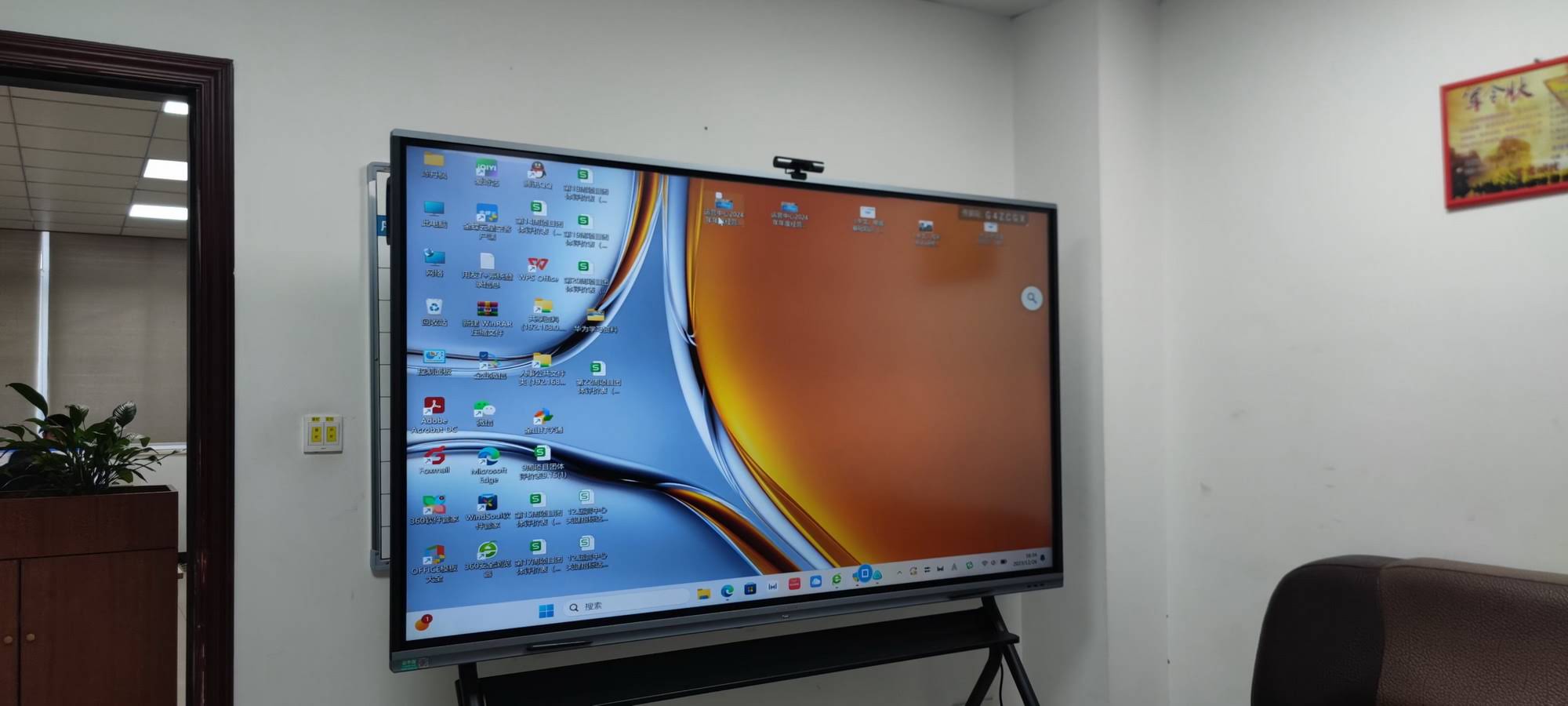
Research presentations rarely come from a single device. A board that supports wireless casting from Windows, macOS, iOS and Android saves minutes of cable swapping between speakers. The most useful capability for academic work is split-screen: showing a dataset on one half and a slide or video call on the other. Check how many simultaneous streams the panel accepts; four is a practical standard for seminar use.
4. Built-In Computing or a Dedicated Mini PC
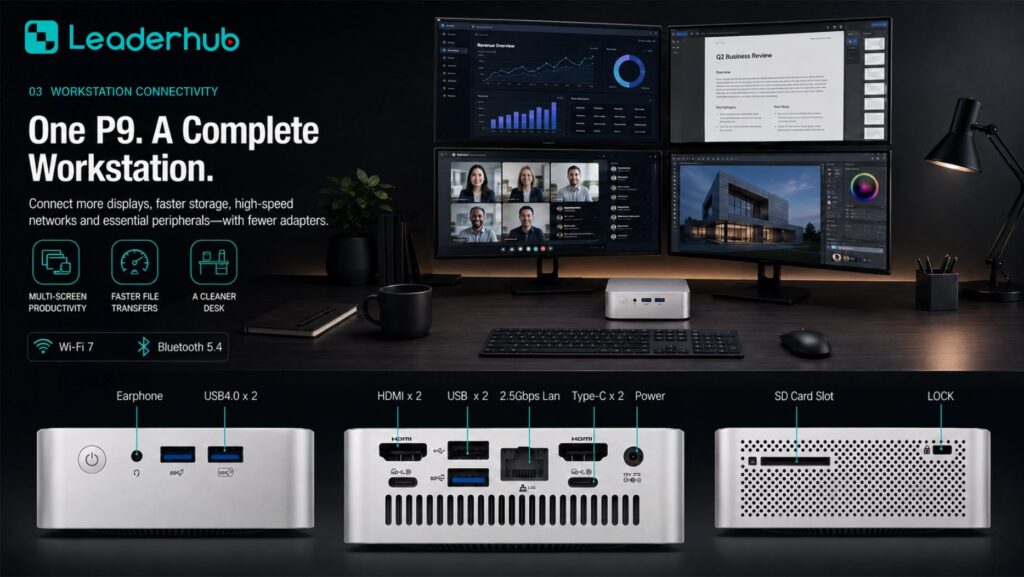
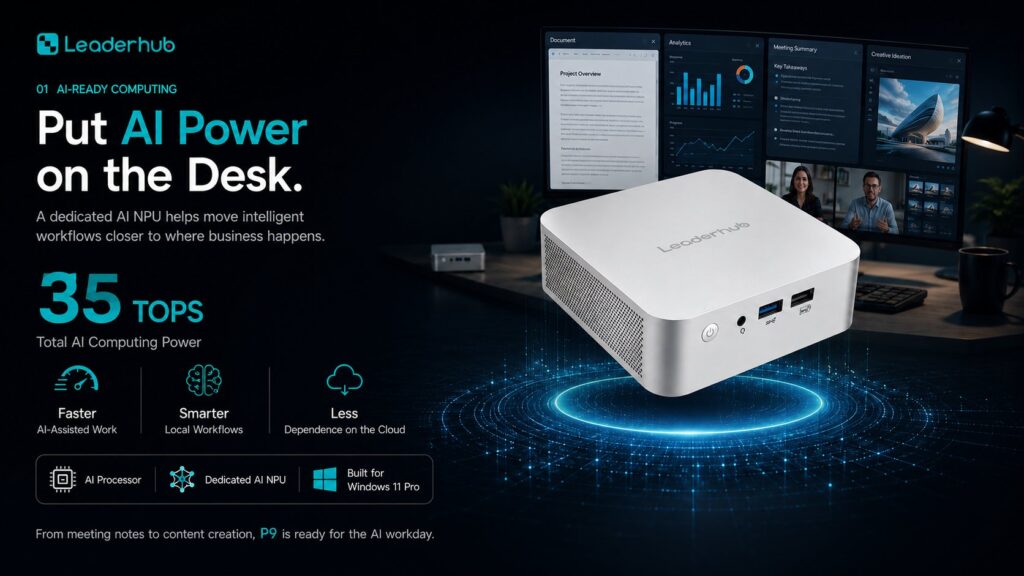
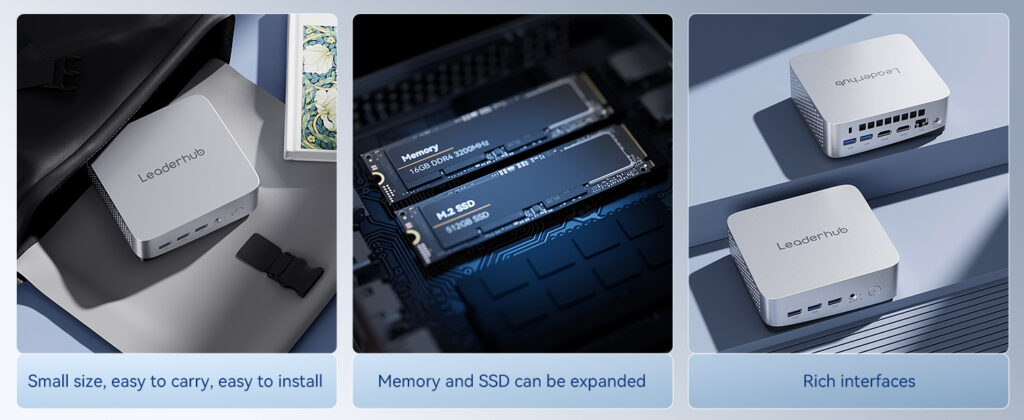
Many panels run Android for whiteboarding and casting, but research software such as SPSS, MATLAB, R Studio or GIS tools usually needs Windows. You have two options: a board with an OPS slot, or an external mini PC connected via HDMI and USB touch-back. A compact unit with an Intel i5 processor and 16 GB RAM handles heavy datasets comfortably and lets the IT department manage updates centrally.
5. Audio, Camera and Hybrid Participation
External reviewers and collaborators increasingly join remotely. Integrated 2 × 15 W or stronger speakers, a far-field microphone array and an optional 4K camera turn the board into a complete hybrid-defense station. Make sure the panel runs mainstream conferencing apps natively or via the connected PC so remote participants can see annotations in real time.
6. Mobility and Mounting Options
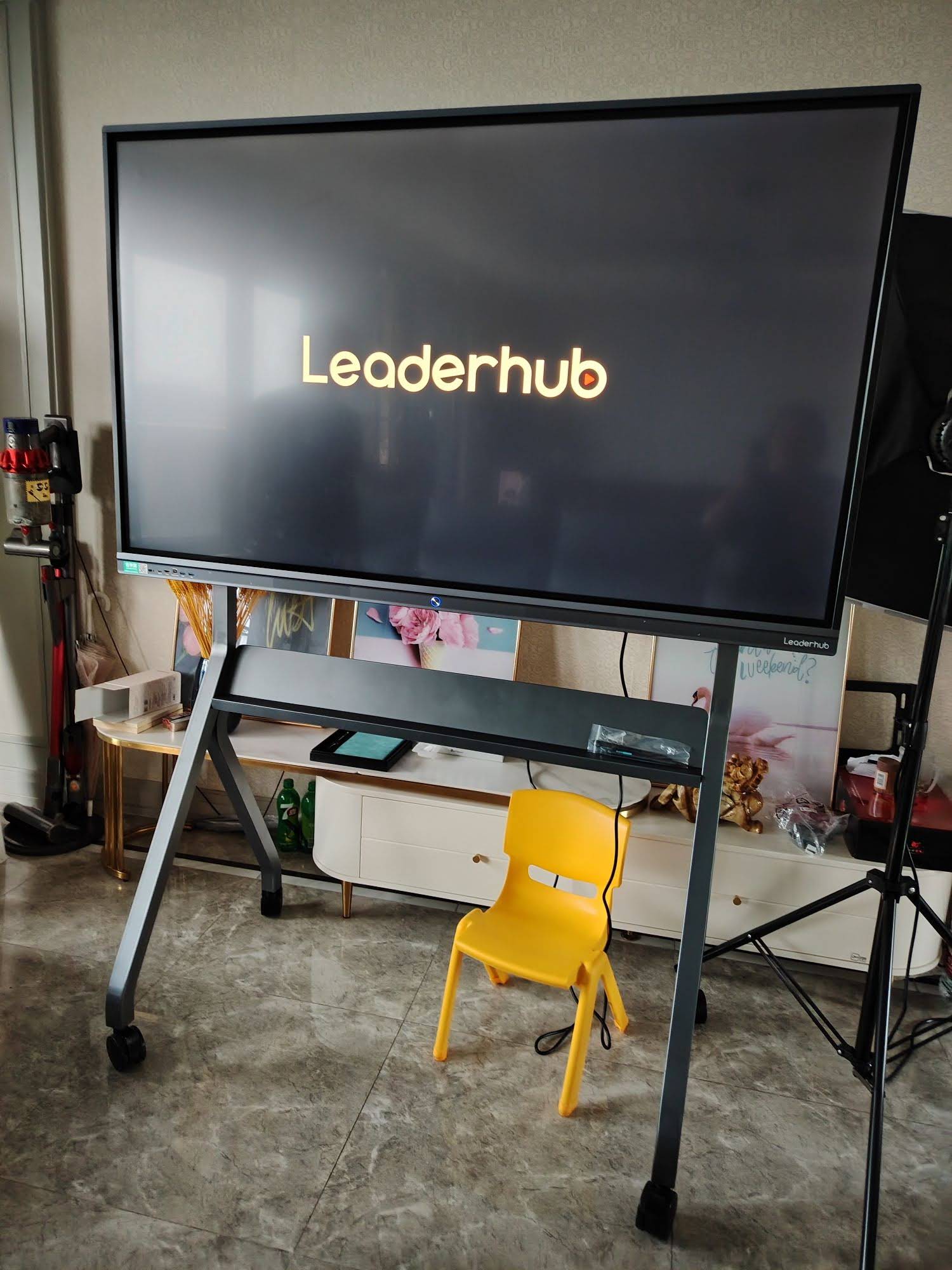
Research groups move between labs, meeting rooms and lecture theatres. A mobile stand with locking wheels or, for smaller teams, a battery-powered mobile panel lets one investment serve several spaces. Confirm the VESA pattern and total weight before ordering if you plan a wall installation in an older building.
Feature Comparison at a Glance
| Feature | Minimum for Research Use | Why It Matters |
|---|---|---|
| Resolution | 4K UHD | Keeps small fonts and chart labels legible |
| Touch response | ≤ 8 ms, 20-point | Natural handwriting and multi-user annotation |
| Screen sharing | 4 devices, cross-platform | Fast speaker changeovers, side-by-side data views |
| Computing | Android + Windows (OPS or mini PC) | Runs statistical and modeling software |
| Audio | 2 × 15 W speakers, mic array | Clear hybrid participation for remote reviewers |
| Eye comfort | Low blue light, flicker-free | Reduces fatigue in multi-hour sessions |
| Ports | HDMI × 2, USB-C, USB 3.0, LAN | Connects lab instruments, cameras and laptops |
Choosing the Right Screen Size for Your Room
Size is the most common purchasing mistake. A board that is too small forces presenters to zoom in and lose context; a board that is too large for a narrow seminar room makes the front row uncomfortable. A simple rule is that the furthest viewer should sit no more than roughly six times the screen height away for detailed content.
| Room Type | Typical Audience | Recommended Size |
|---|---|---|
| Lab huddle space / supervisor office | 2–6 people | 55″ mobile panel |
| Seminar room | 8–15 people | 65″ |
| Departmental meeting room / defense room | 15–30 people | 75″ |
| Lecture theatre / symposium hall | 30–60 people | 86″ or 110″ |
Software and Workflow Considerations
Hardware is only half of the decision. Before signing a purchase order, ask the vendor to demonstrate the following with your own files:
- Native file support for PDF, PPTX, DOCX, XLSX and common image formats without a laptop.
- Whiteboard export to PDF or image with a QR code so attendees can scan and save annotated slides instantly.
- Cloud storage integration (Google Drive, OneDrive or institutional servers) for shared research folders.
- Remote device management so IT can push firmware updates to every board on campus.
- Guest mode that wipes personal data after each session, which is critical when the room is shared by multiple research groups.
The OECD Digital Education Outlook notes that interoperability between devices and institutional systems is one of the biggest predictors of sustained technology use in education. A board that fits your existing workflow will be used every week; one that does not will gather dust.
Budget, Total Cost of Ownership and Procurement Tips
Published prices for education-grade 4K interactive panels range from roughly $1,000 for a 65″ model to $8,000 for a 110″ flagship. When comparing quotes, factor in:
- Mounting and stands: a quality mobile trolley can add $200–$400.
- Computing: an OPS module or mini PC adds $400–$1,000 but unlocks full Windows software.
- Warranty: three years on-site is standard for institutional buyers; confirm panel burn-in coverage.
- Training: a one-hour onboarding session for faculty dramatically increases adoption.
For practical procurement questions, the Choosing an Interactive Display for K-12 guide offers a framework that applies equally well to higher-education buyers: define the use case, pilot in one room, then standardize.
Common Mistakes to Avoid
- Buying a 1080p panel to save money and discovering that tables become unreadable beyond the third row.
- Ignoring the Android version. Older operating systems lose app compatibility within two to three years.
- Forgetting USB-C with power delivery, which lets a presenter connect a laptop with a single cable.
- Overlooking glass hardness. Research rooms see daily use by many hands, so look for Mohs 7 or higher.
- Skipping the pilot. A two-week trial with your actual presentation files reveals issues that spec sheets hide.
Recommended Smart Boards for Research Presentations
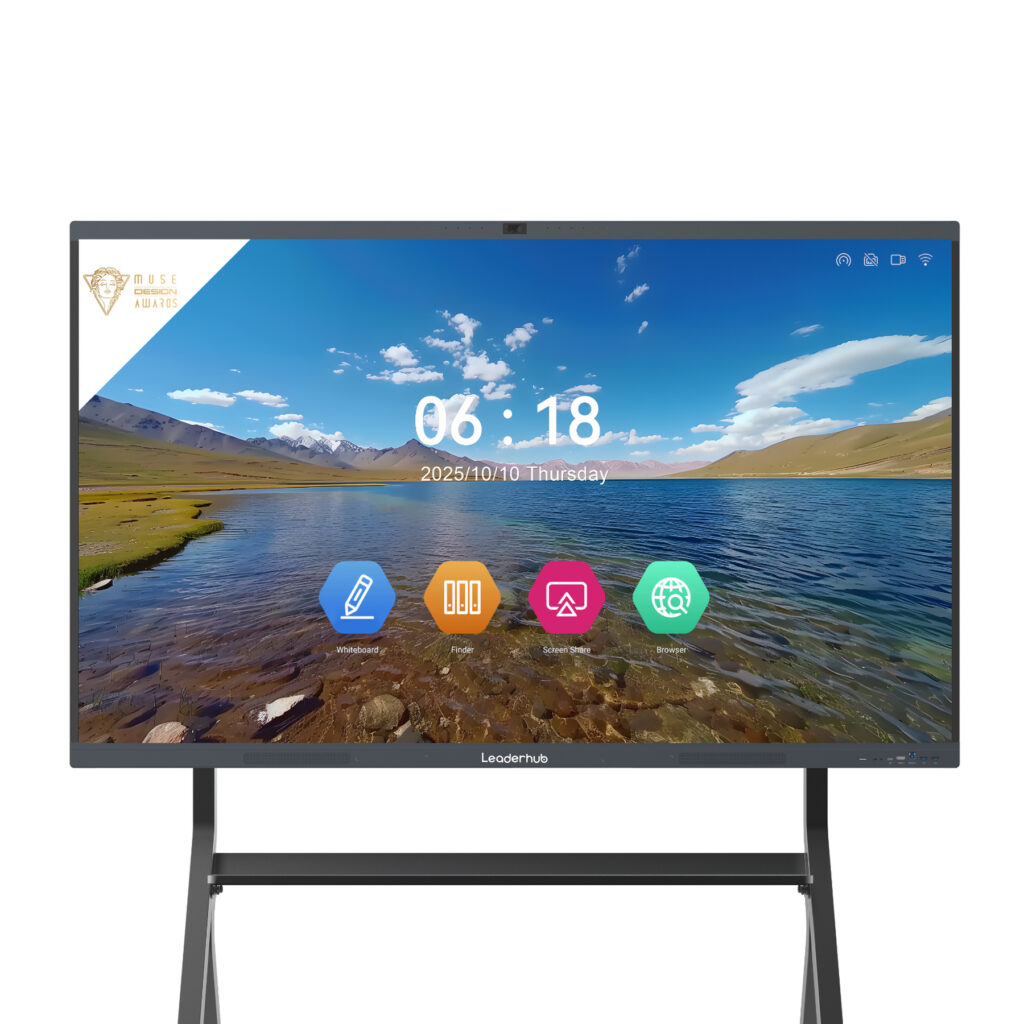
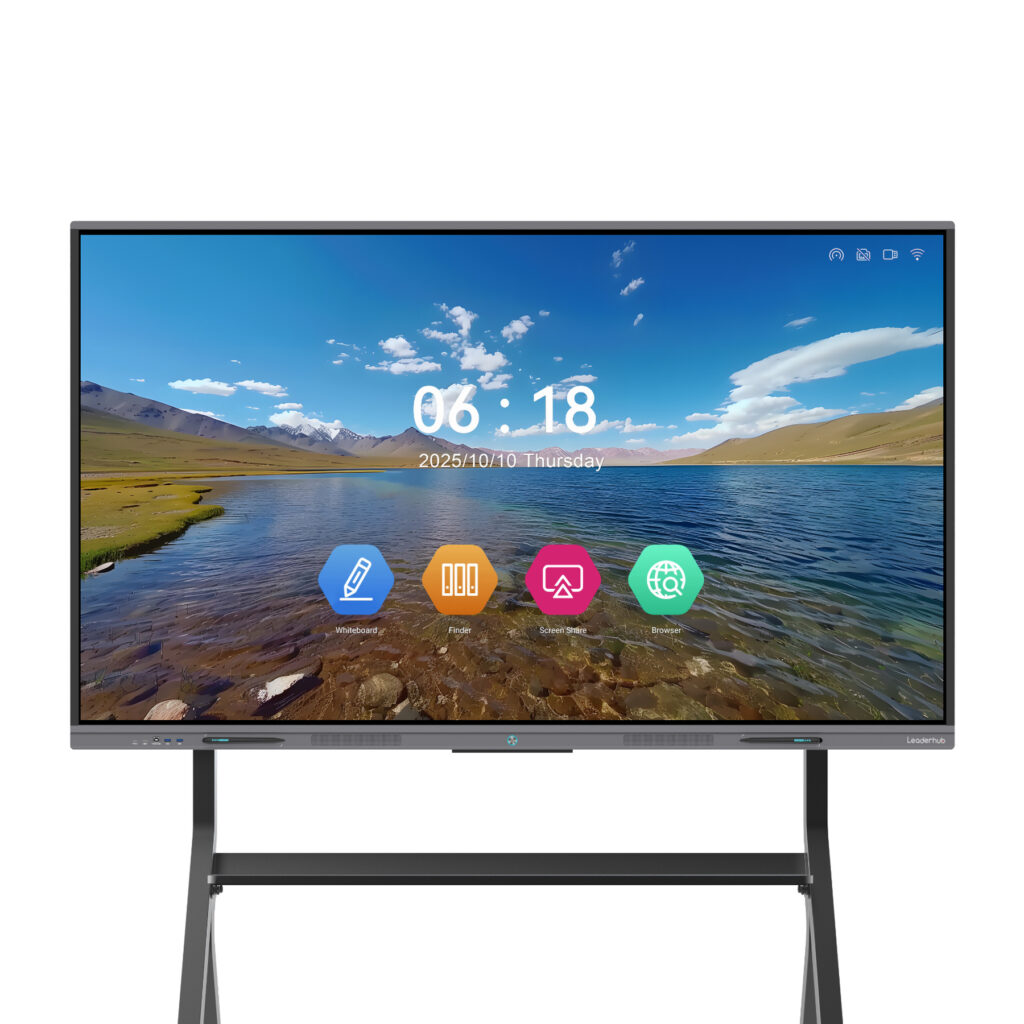
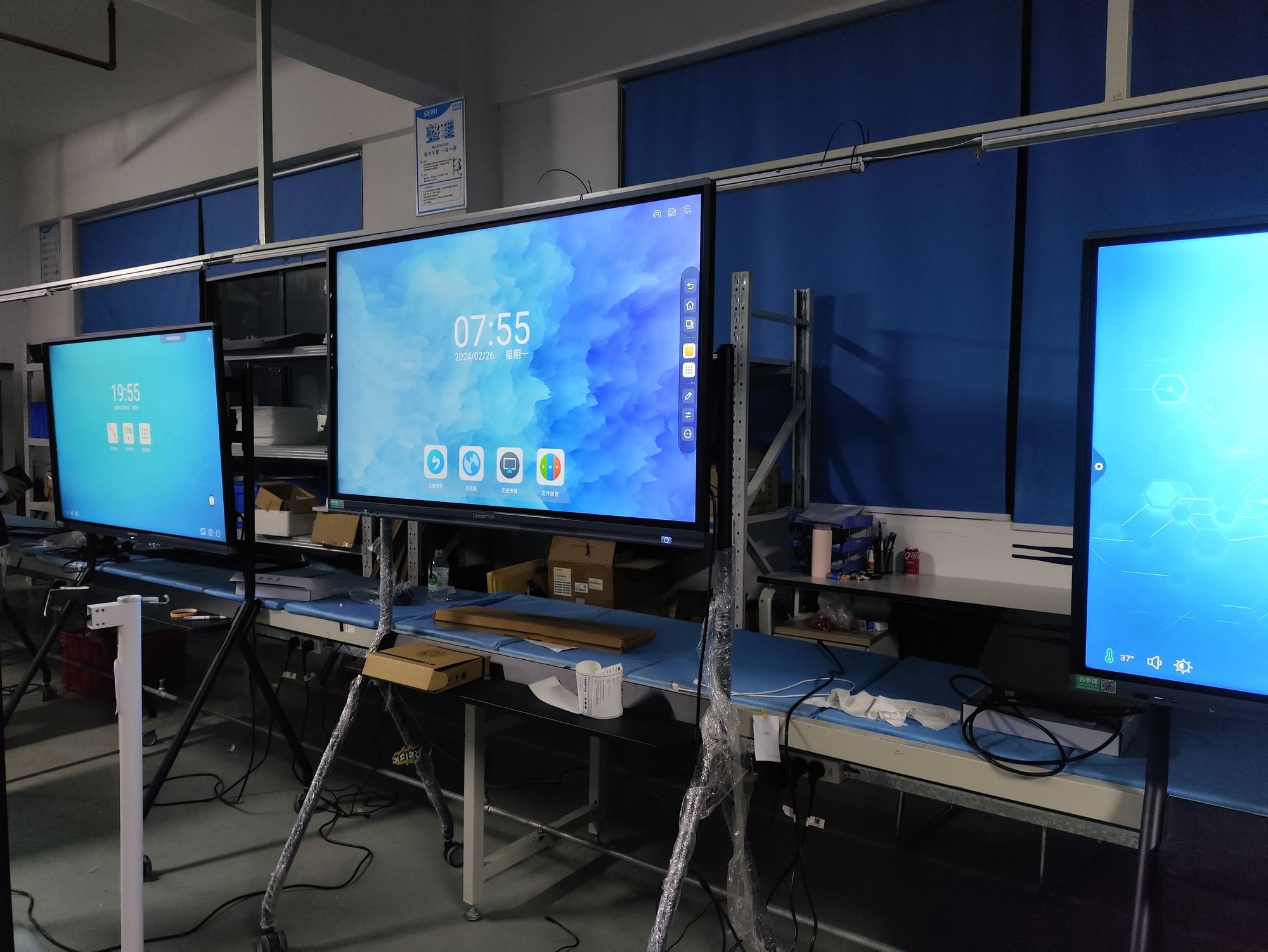
Leaderhub is a Shenzhen-based manufacturer with 16 years of interactive-display experience, serving education and enterprise customers in more than 82 countries. The models below cover the full range of academic room sizes, and every panel in the smart whiteboard collection ships with 4K resolution, anti-glare glass and cross-platform wireless casting.
| Model | Size | Best For | Price |
|---|---|---|---|
| U55Pro Mobile Interactive Flat Panel | 55″ | Lab huddles and roaming between offices | $2,499 |
| L65ZM Interactive Whiteboard | 65″ | Budget-friendly seminar rooms | $1,099 |
| L75HM Smart Whiteboard | 75″ | Thesis defenses and departmental meetings | $1,599 |
| L86ZM Interactive Whiteboard | 86″ | Lecture theatres and large seminars | $1,699 |
| L110H Interactive Flat Panel | 110″ | Symposium halls and auditoriums | $7,999 |
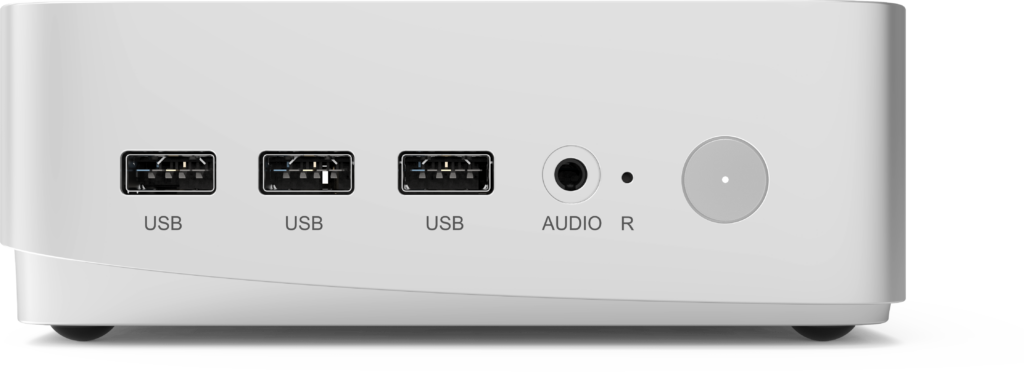
Teams that need Windows-based analysis software on the board can pair any of these panels with the LP5C Mini PC, which offers an Intel i5 processor, 16 GB of RAM and a 512 GB SSD for demanding datasets.
Frequently Asked Questions
Is a smart board better than a projector for research presentations?
In most cases, yes. A 4K panel delivers higher brightness, sharper detail and consistent colors regardless of ambient light, and it supports direct touch annotation without calibration. Projectors remain useful only for very large auditoriums where a 110″ panel is still too small.
Can several researchers write on the board at the same time?
Boards with 20-point or higher multi-touch allow two to four people to annotate simultaneously, each with a different pen color. This is valuable during collaborative data review or whiteboard brainstorming sessions.
How do I share annotated slides with attendees afterwards?
Most modern panels let you export the whiteboard session as a PDF and generate a QR code on screen. Attendees scan the code and download the file instantly, which eliminates emailing photos of the board.
Do I need an OPS computer if the board already runs Android?
Android handles whiteboarding, browsing and casting well. If your presentations rely on Windows-only software such as statistical or modeling packages, add an OPS module or connect a mini PC with touch-back so the screen controls the software directly.
What is the typical lifespan of an education smart board?
Quality LED panels are rated for 50,000 hours or more, which equates to well over a decade of normal academic use. Software support is the more realistic limit, so choose a model with a recent Android version and a vendor that provides regular firmware updates.
Final Thoughts
The best smart board for education research presentations is the one that makes your data legible, your annotations effortless and your remote collaborators feel present. Prioritize 4K resolution, low-latency touch, flexible multi-device sharing and a computing option that runs your actual research software. Size the board to the room, pilot it with real files, and budget for mounting, computing and training alongside the panel itself. Independent research on Interactive Displays in Education consistently shows that well-chosen, well-integrated displays improve engagement and knowledge sharing. If you would like help matching a model to your campus, you can contact the Leaderhub team for a tailored recommendation.