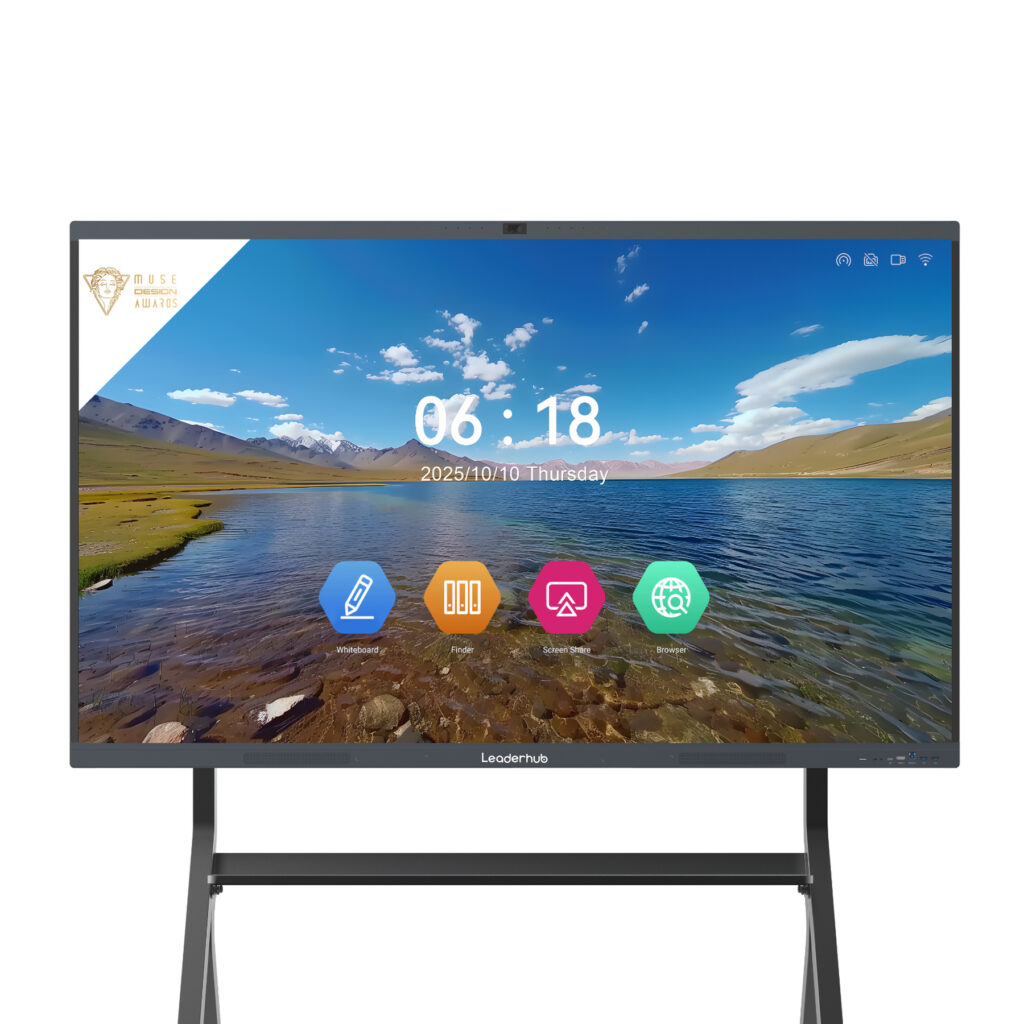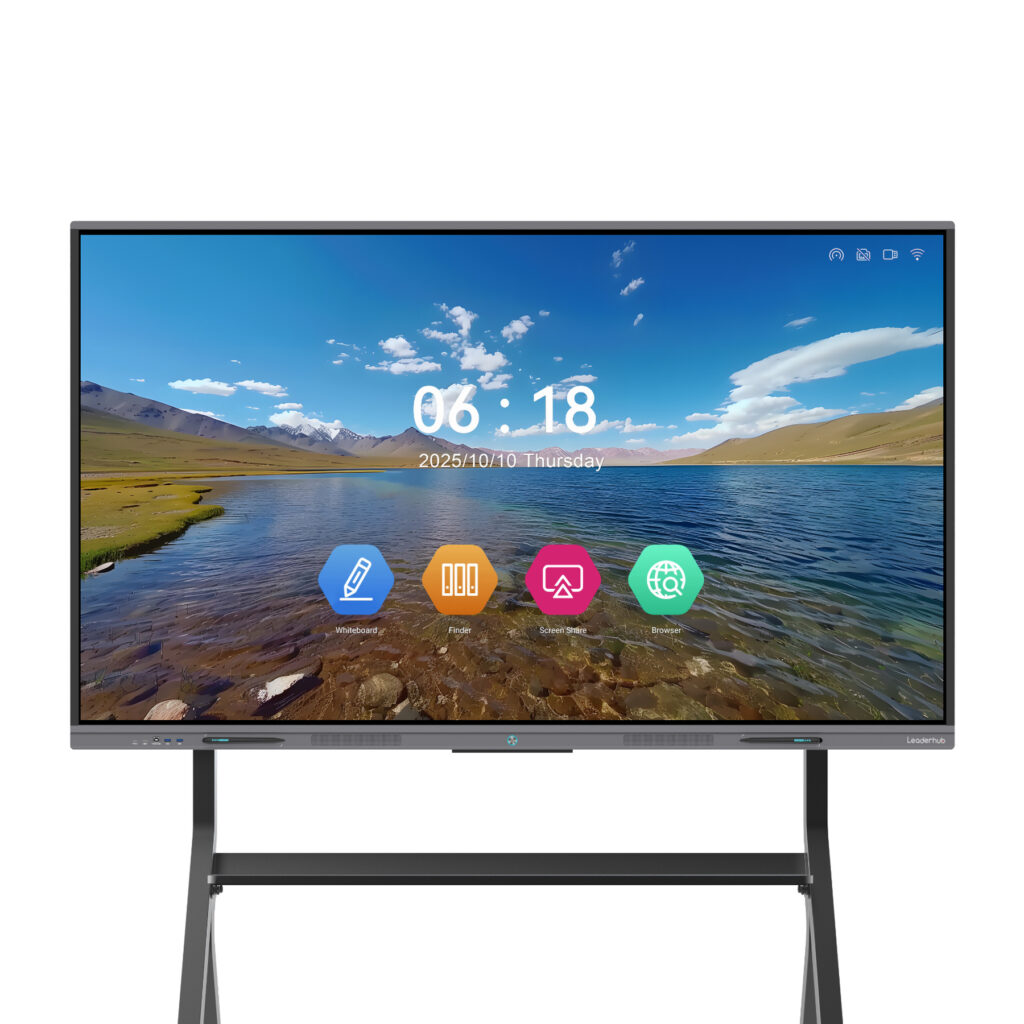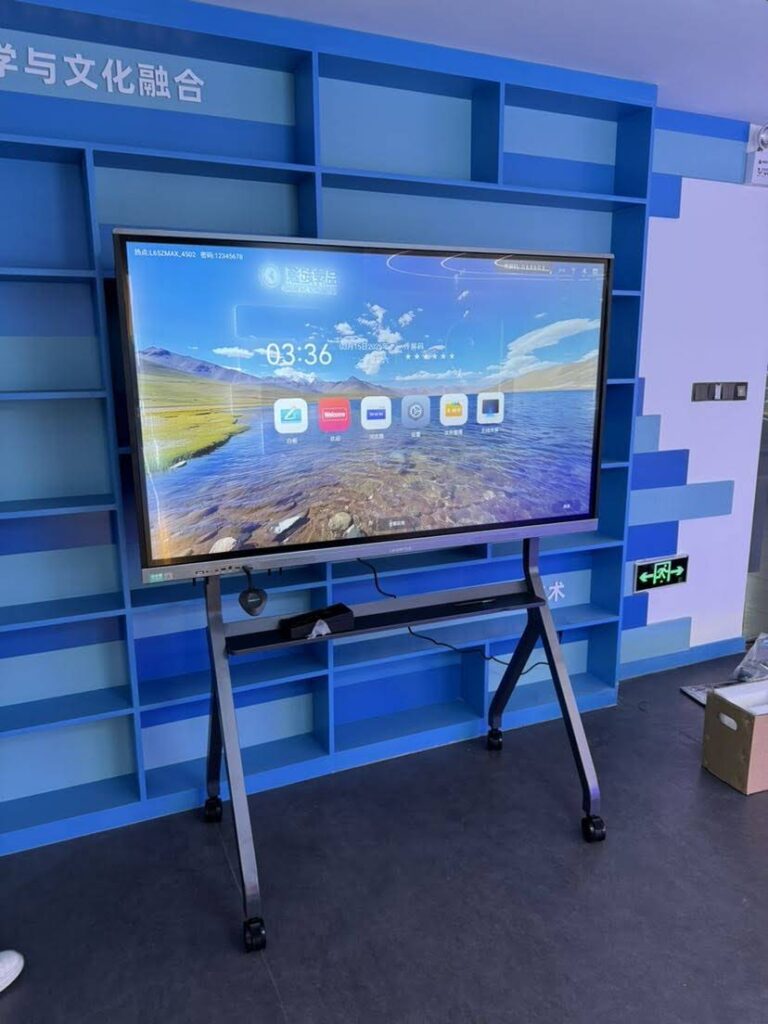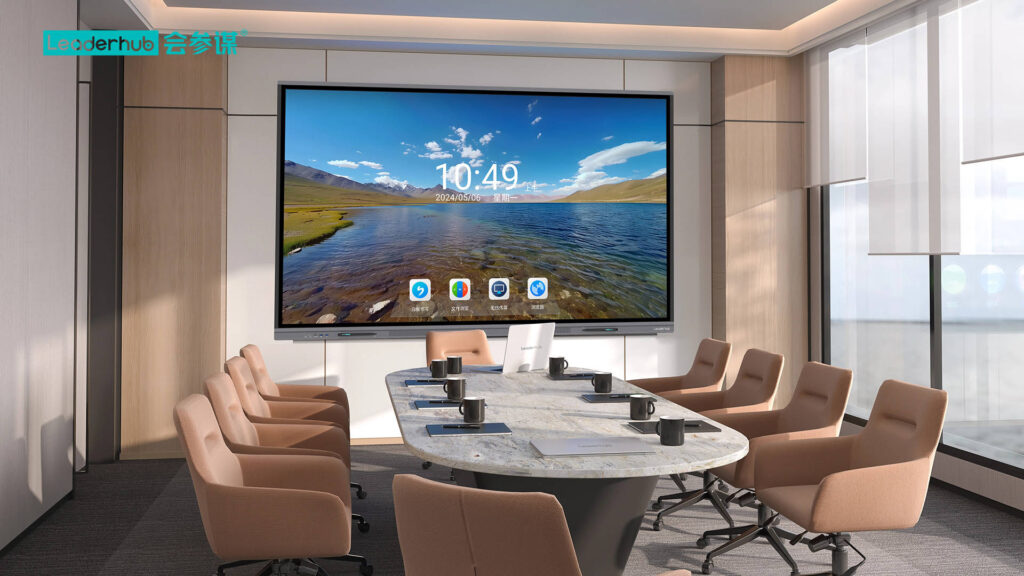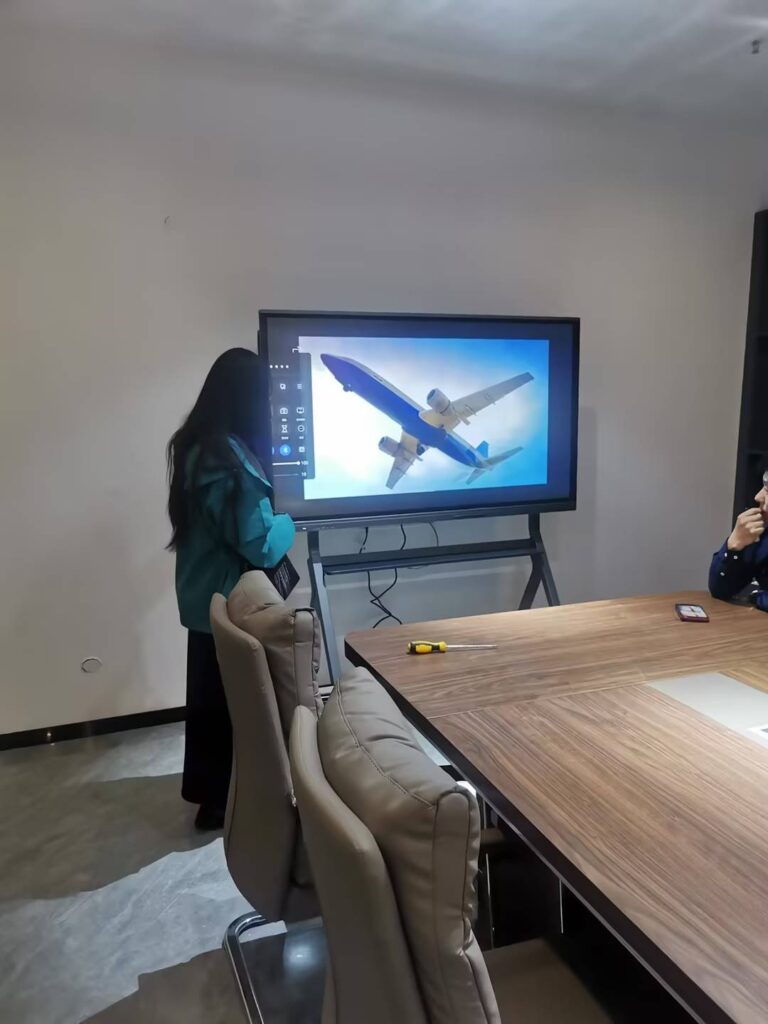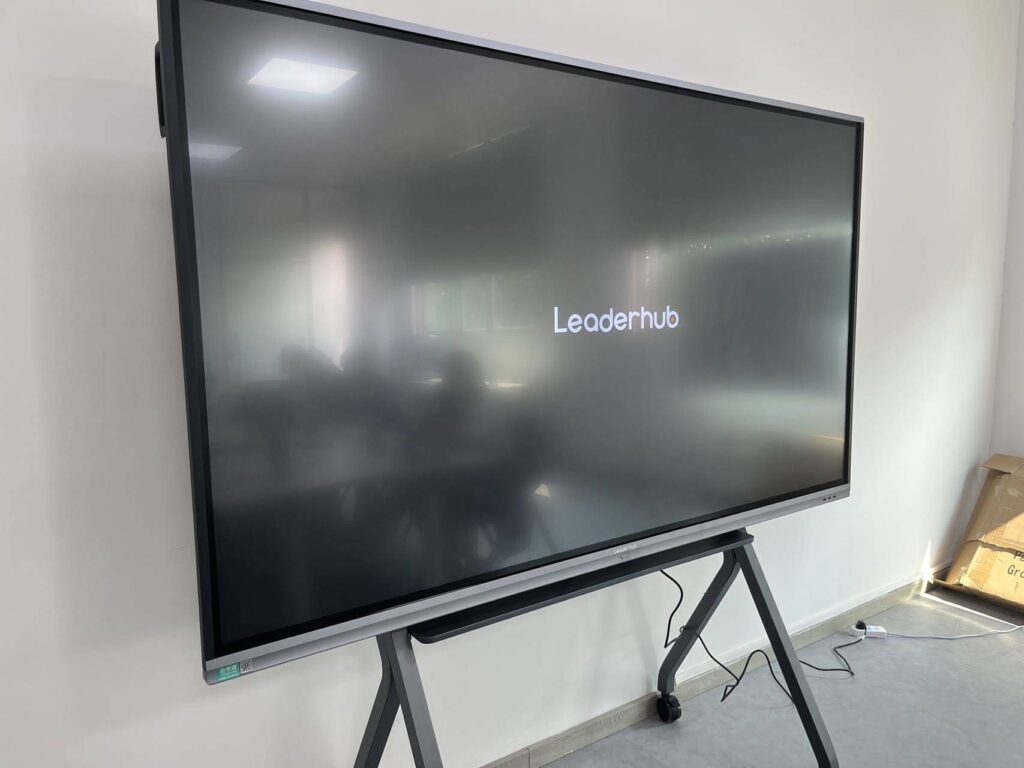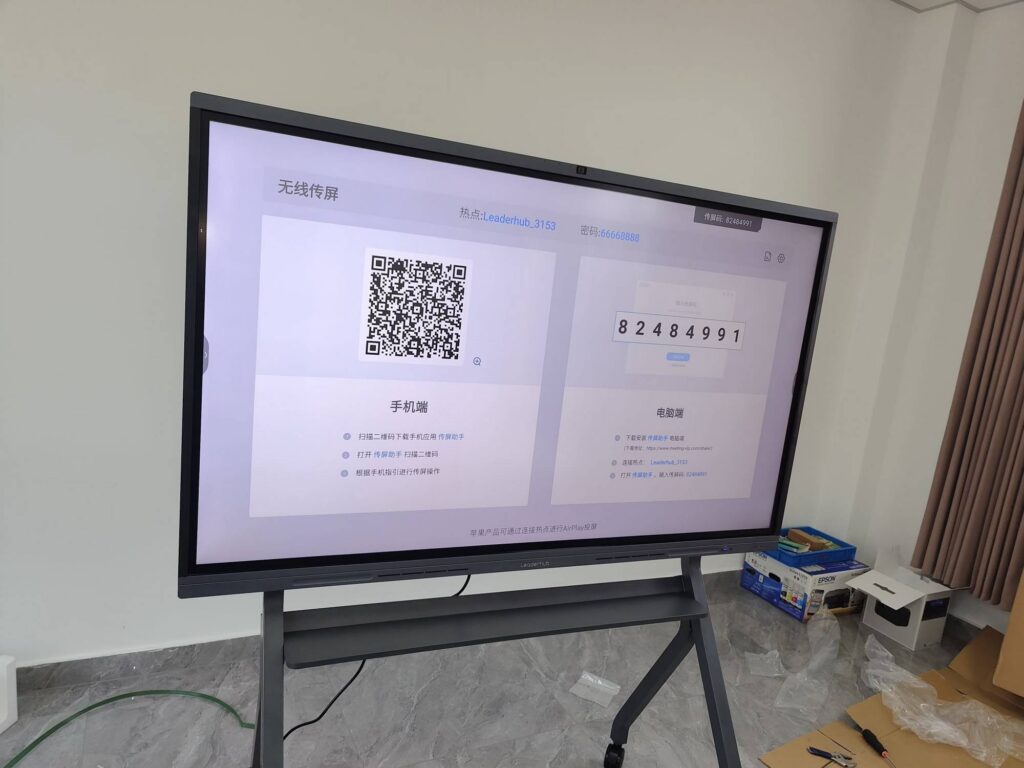
Formative assessment works best when it is fast, low-stakes, and visible to everyone in the room. That is exactly where a smart board for formative assessment activities earns its place: it turns a quick comprehension check into a shared, interactive moment, and it gives teachers real-time evidence of what students understand before the lesson moves on. Below you will find ten classroom-tested ideas, practical setup tips, and a simple framework for choosing the right interactive display for your school.
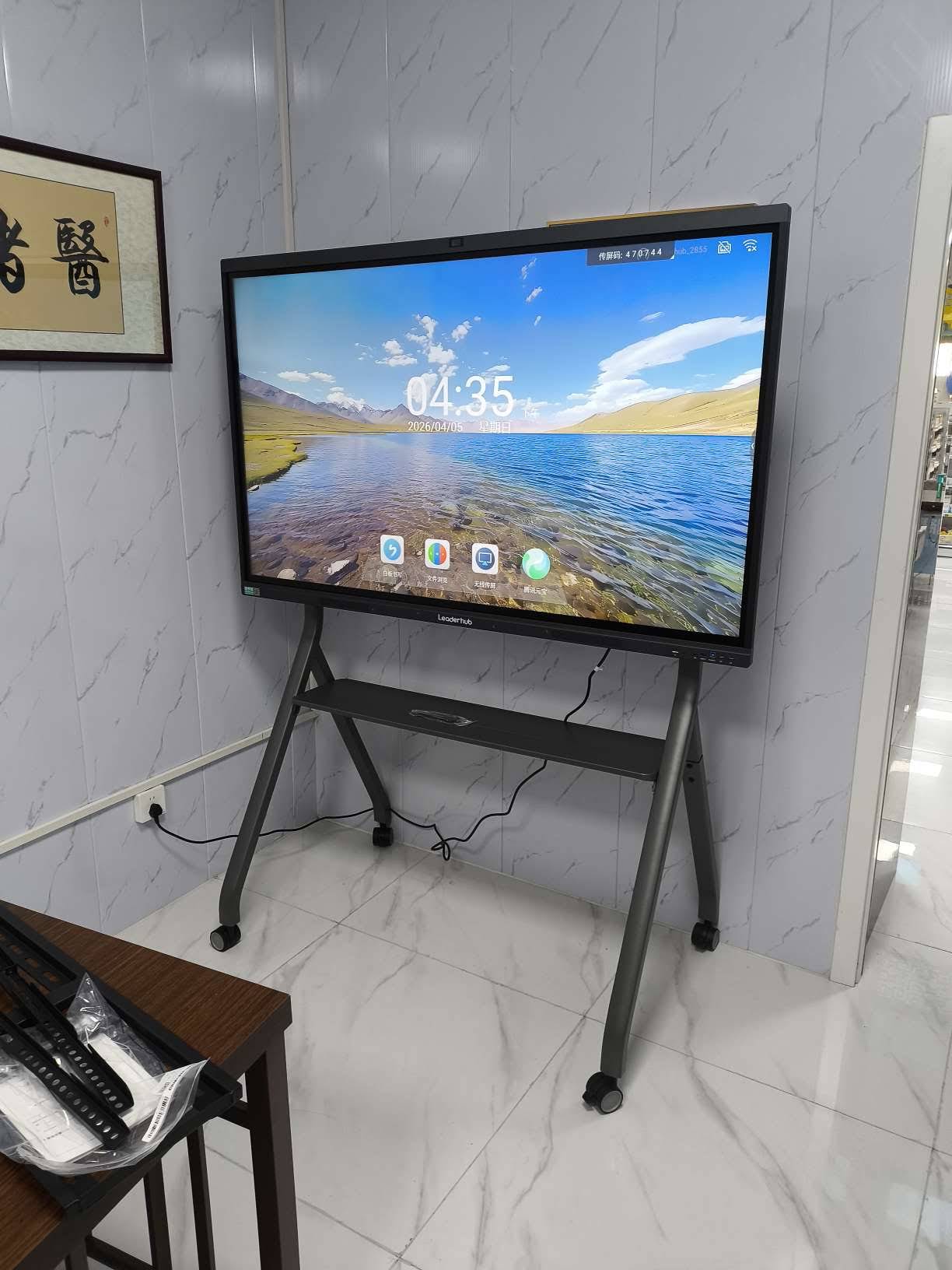
Why a Smart Board Changes the Way Formative Assessment Works
Traditional formative checks—exit tickets, hand raising, paper quizzes—share one weakness: the feedback loop is slow. By the time a teacher has graded the papers, the moment to adjust instruction has passed. An interactive flat panel closes that gap. Student responses appear on screen instantly, misconceptions become visible in seconds, and the whole class can see and discuss the thinking behind an answer.
Research consistently points in the same direction. The EEF Digital Technology Guidance notes that technology has its strongest impact when it supports what teachers already do well—especially providing feedback and checking understanding. Similarly, the UNESCO Technology in Education Report stresses that classroom technology should serve clear pedagogical goals rather than exist for its own sake. Formative assessment is one of the clearest goals there is.
Key benefits at a glance
- Immediate visibility — see the whole class’s thinking on one 4K screen
- Higher participation — anonymous or group responses lower the fear of being wrong
- Saved evidence — annotations and screenshots become a record of learning progress
- Faster adjustment — re-teach or move on within the same lesson
Setting Up Your Smart Board for Real-Time Feedback
Before diving into activities, make sure the hardware and software are ready to support quick checks. A few setup choices make the difference between a smooth lesson and a frustrating one.
| Setup Element | Why It Matters for Assessment | Recommended Practice |
|---|---|---|
| Multi-touch support | Allows several students to respond on the board at once | Choose a panel with 20+ touch points |
| Wireless screen sharing | Student devices can push work to the main screen | Enable casting from phones, tablets and laptops |
| Built-in whiteboard app | Instant annotation without launching a PC | Prepare templates (grids, scales, Venn diagrams) in advance |
| Cloud save & export | Keeps a record of each check for later review | Save boards by date and class group |
| 4K resolution | Small text and student handwriting stay legible from the back row | Match screen size to room depth (see table below) |
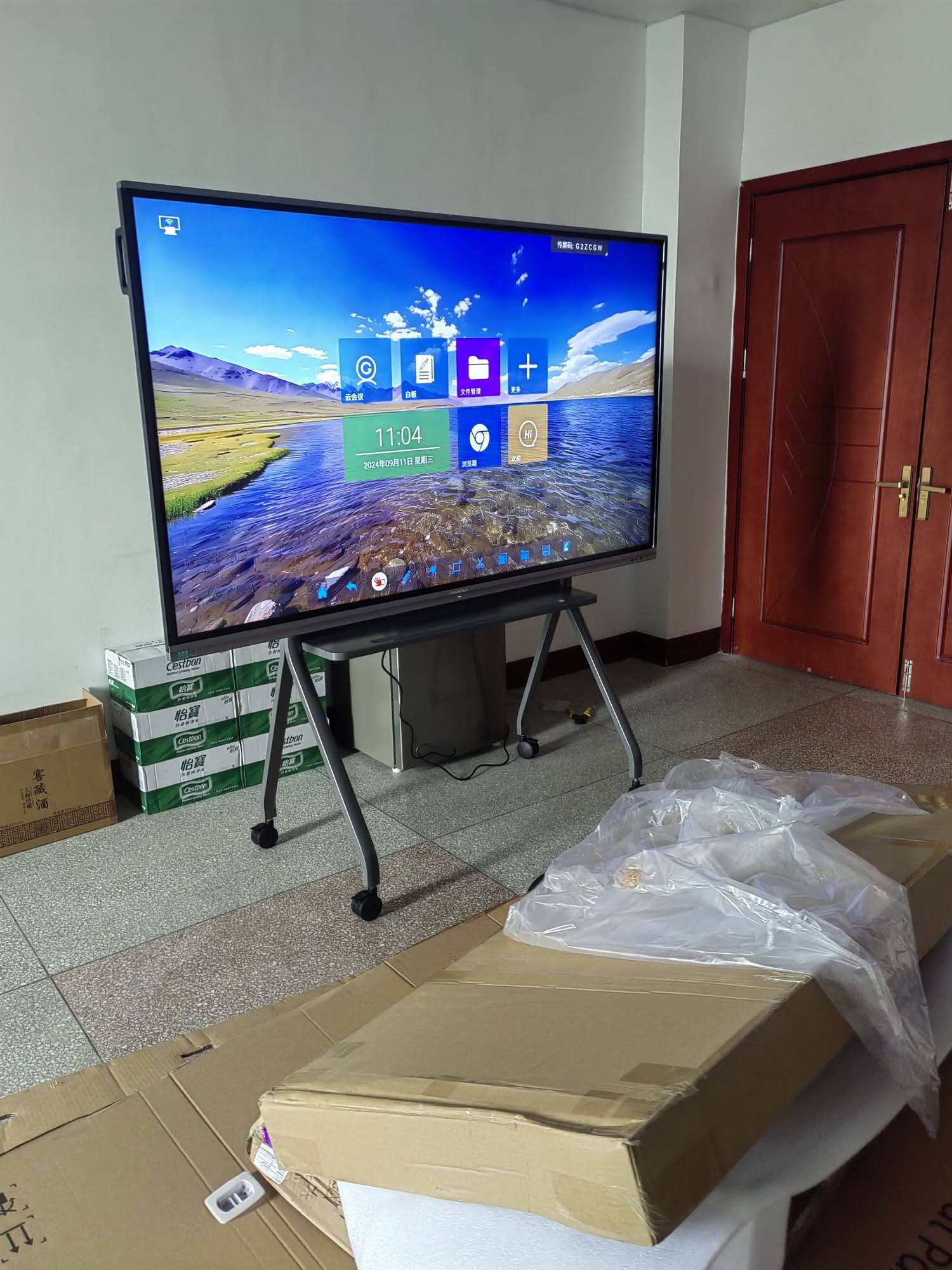
10 Engaging Smart Board Formative Assessment Activities
Each of the ideas below takes between two and ten minutes and requires nothing beyond the interactive display itself—though many become even stronger when paired with student devices.
1. Live Polling with Touch-Vote Grids
Draw a simple four-quadrant grid on the whiteboard app, each quadrant representing one answer choice. Students walk up (or cast from their devices) and tap a dot into the quadrant they believe is correct. Within a minute you have a visual distribution of class thinking. Follow-up tip: ask one student from each quadrant to explain their reasoning before revealing the answer—this surfaces misconceptions far better than a simple right/wrong count.
2. Drag-and-Drop Sorting Challenges
Place a set of terms, images, or equations on the screen and ask students to drag them into labeled categories. This works for vocabulary (parts of speech), science (renewable vs. non-renewable), math (rational vs. irrational), and history (causes vs. effects). Because every move is visible, the teacher can see hesitation and self-correction in real time.
3. The Digital Exit Ticket Wall
In the last five minutes of a lesson, students write a one-sentence summary or a lingering question on their own device and cast it to the board. The result is a mosaic of student thinking that can be screenshot and saved. The next day, open the saved board and address the two or three most common questions—students see that their input directly shaped the lesson.
4. Annotate-and-Correct Error Analysis
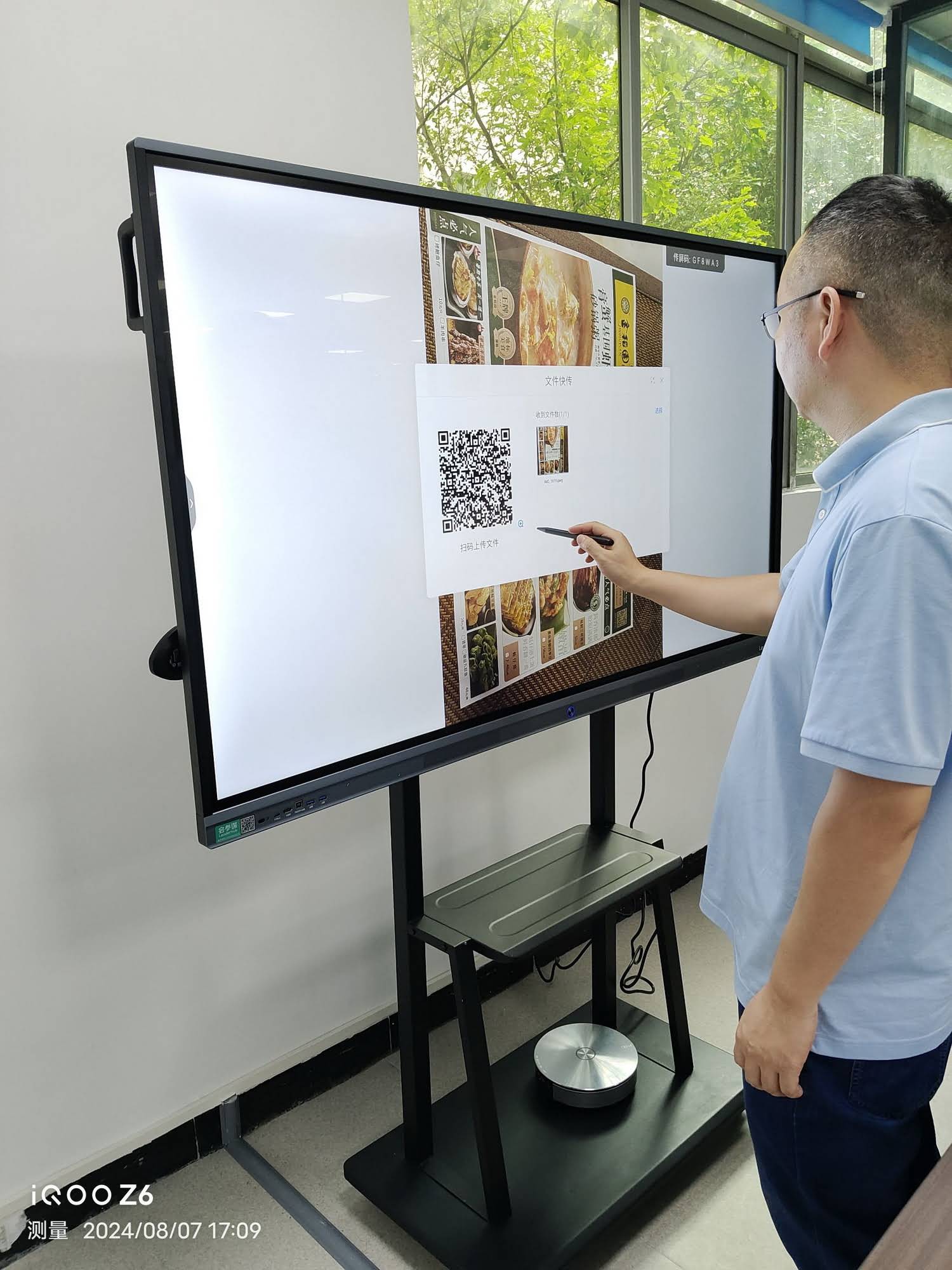
Display a worked example containing one deliberate mistake. Invite students to come to the board, circle the error with the pen tool, and write the correction beside it. Multi-touch panels allow two or three students to annotate simultaneously, which keeps energy high and reduces waiting time.
5. Confidence Scale Check-Ins
Draw a horizontal line from “Not yet” to “I could teach this.” Students place a dot (anonymously if preferred) to indicate their confidence with the day’s objective. Pair this with a content question so you can compare perceived confidence against actual performance—a powerful conversation starter about metacognition.
6. Collaborative Concept Maps
Write the central concept in the middle of the screen and have small groups take turns adding connected nodes. The emerging map reveals which relationships students grasp and which they skip entirely. Save the map and revisit it at the end of the unit so students can see how their understanding has grown.
7. Timed Whiteboard Quiz Rounds
Split the screen into two or three columns, one per team. Pose a question, start the on-screen timer, and let a representative from each team write their answer. The whole class evaluates the responses together. Keep rounds short—three questions is often enough to diagnose where the class stands.
8. Think-Pair-Share with Screen Casting
Students think individually, discuss with a partner, and then one pair casts their shared response to the board. Rotating which pairs share ensures the teacher hears from the full room over time, not just the most confident voices. The OECD Digital Teaching Guidance highlights this kind of structured, device-supported dialogue as a high-value use of classroom technology.
9. Fill-in-the-Blank Reveal
Prepare a passage, diagram, or formula with key elements hidden behind movable shapes. Students slide the shapes away only after writing their predicted answer. The board shows both the prediction and the reveal side by side, making each check a mini learning moment rather than a test.
10. Peer Feedback Gallery Walk
Display student work (with permission) across multiple saved board pages. The class moves through each page, adding one strength and one suggestion using different pen colors. Because comments are written rather than spoken, quieter students participate equally, and the author receives a documented record of peer feedback.
Matching the Activity to the Learning Goal
Not every check suits every moment in a lesson. The table below maps the ten activities to the stage where they tend to deliver the most useful information.
| Lesson Stage | Best-Fit Activities | What You Learn |
|---|---|---|
| Opening (prior knowledge) | Live polling, confidence scale, concept map | Where to start and which misconceptions to anticipate |
| During instruction | Drag-and-drop sorting, error analysis, fill-in-the-blank | Whether to slow down, re-explain, or extend |
| Practice & application | Quiz rounds, think-pair-share casting | Depth of understanding and quality of reasoning |
| Closing (consolidation) | Exit ticket wall, peer feedback gallery | What stuck, what remains unclear, what to revisit tomorrow |
Choosing the Right Interactive Display for Assessment-Rich Classrooms
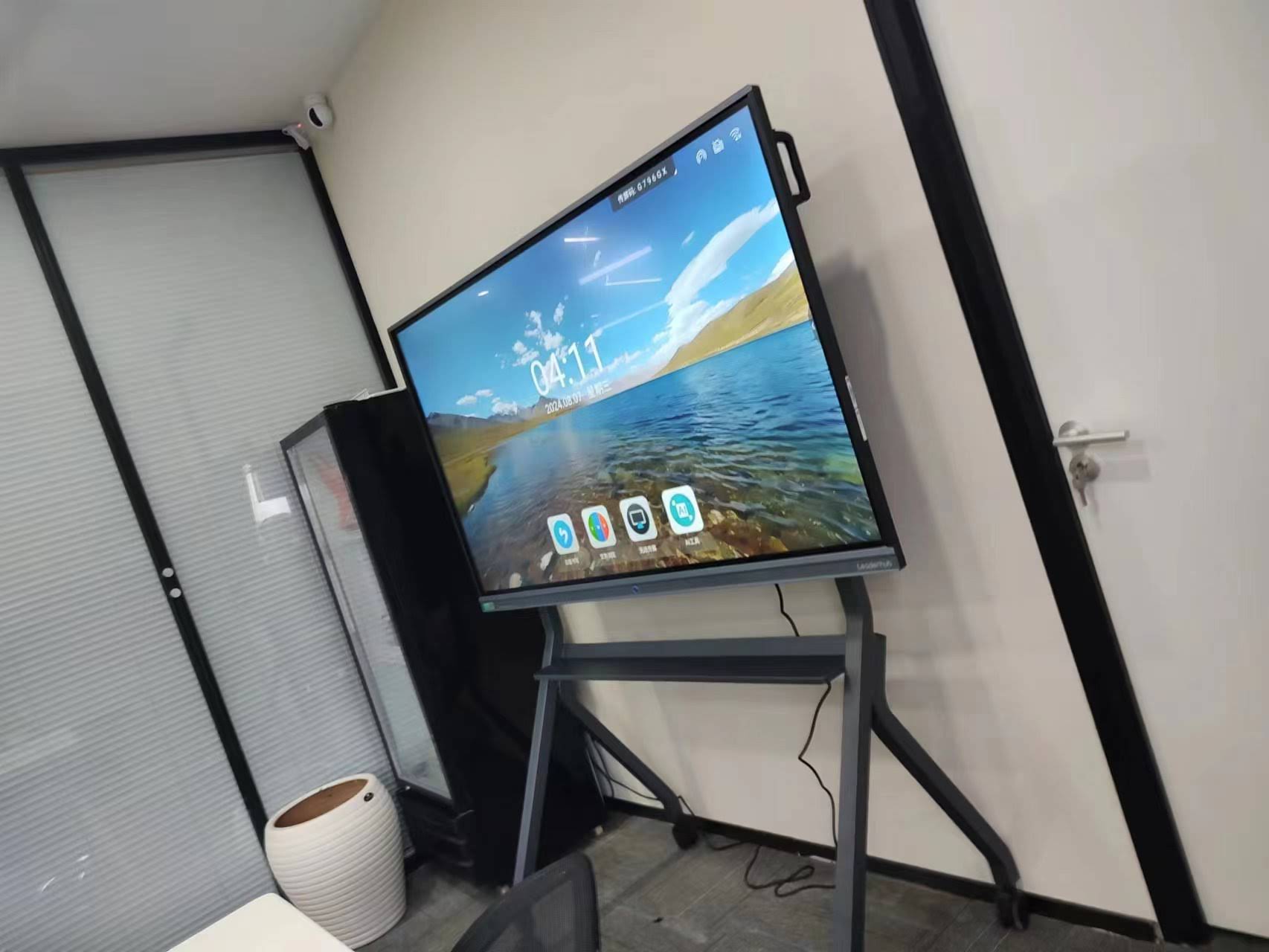
The activities above depend on responsive touch, clear visuals, and reliable sharing. Screen size should match the room: students in the back row must be able to read handwritten responses without straining. As a general rule, a 65-inch panel suits rooms up to about 25 students, a 75-inch panel covers standard classrooms of 30–35, and 86 inches or larger works for lecture halls and open learning spaces.
| Model | Size | Ideal Classroom | Price |
|---|---|---|---|
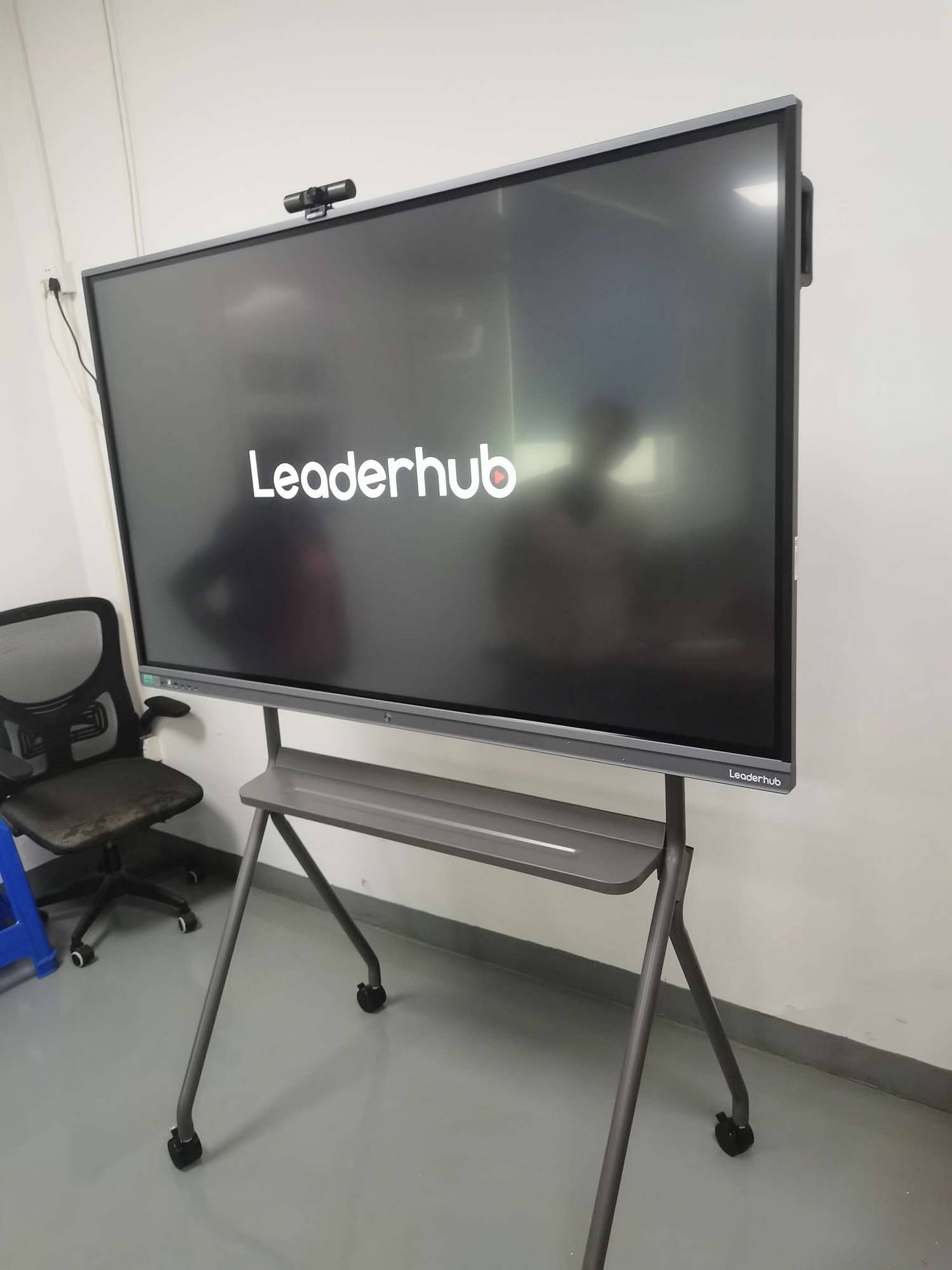
| Leaderhub L65ZM Interactive Whiteboard | 65″ 4K | Small classes, resource rooms, tutoring centers | $1,099 |
| Leaderhub L75HM Smart Whiteboard | 75″ 4K | Standard K-12 and higher-ed classrooms | $1,599 |
| Leaderhub L86ZM Interactive Whiteboard | 86″ 4K | Large classrooms, STEM labs, lecture spaces | $1,699 |
| Leaderhub U55Pro Mobile Interactive Flat Panel | 55″ 4K mobile | Shared spaces, small-group stations, flexible learning zones | $2,499 |
For schools running small-group rotation models, a portable option such as the Leaderhub U24M handheld smart screen lets a teacher carry a battery-powered touch display from table to table for quick formative checks, then cast results to the main board for whole-class discussion. You can browse the complete smart whiteboard collection to compare specifications side by side.
Practical Tips for Teachers Getting Started
Start with one routine, not ten
Pick a single activity—the exit ticket wall is a popular first choice—and run it daily for two weeks. Once students know the routine, add a second. Consistency matters more than variety in the early stages.
Protect anonymity where it helps
Confidence scales and polling work best when responses are anonymous; error analysis and gallery walks benefit from named contributions. Decide in advance which mode fits the activity. The Child Protection in Digital Education guidance from UNICEF is a useful reference when deciding what student work to display or save.
Save, but also act
Saving boards is only valuable if you look at them again. Build a habit of opening yesterday’s saved board for two minutes at the start of class. Students quickly learn that their responses matter.
Balance screen time with discussion
The board is a tool for surfacing thinking, not a replacement for conversation. Each check should end with students talking—explaining, defending, or revising their answers aloud.
Frequently Asked Questions
Do students need their own devices for these activities?
No. Seven of the ten activities can be run entirely on the smart board itself using touch and pen input. Screen casting adds flexibility for exit tickets and think-pair-share, but it is optional.
How long should a formative check take?
Most effective checks last two to five minutes. If an activity regularly runs longer than ten, it is probably functioning as a practice task rather than an assessment, which is fine—just be clear about the purpose.
Can formative assessment data from the board be shared with parents or administrators?
Yes. Saved boards can be exported as images or PDFs and attached to progress notes, giving a concrete picture of student thinking that complements test scores.
What about students who are reluctant to come to the board?
Use anonymous polling and casting first, then gradually introduce board-based activities in pairs. Multi-touch panels allow two students to work side by side, which lowers the pressure considerably.
Bringing It All Together
A smart board for formative assessment activities is not about replacing the teacher’s judgment—it is about giving that judgment better, faster information. Live polling, sorting challenges, exit ticket walls, and peer feedback galleries all share a single purpose: making student thinking visible so instruction can respond in the moment.
Leaderhub, a Shenzhen-based interactive display manufacturer with 16 years of experience serving schools and organizations in 82 countries, designs its smart whiteboards and interactive flat panels with exactly these classroom workflows in mind—multi-touch annotation, wireless casting, built-in whiteboard tools, and cloud saving. If you are planning an upgrade or outfitting a new learning space, contact the Leaderhub team to discuss the right display size and configuration for your classrooms.