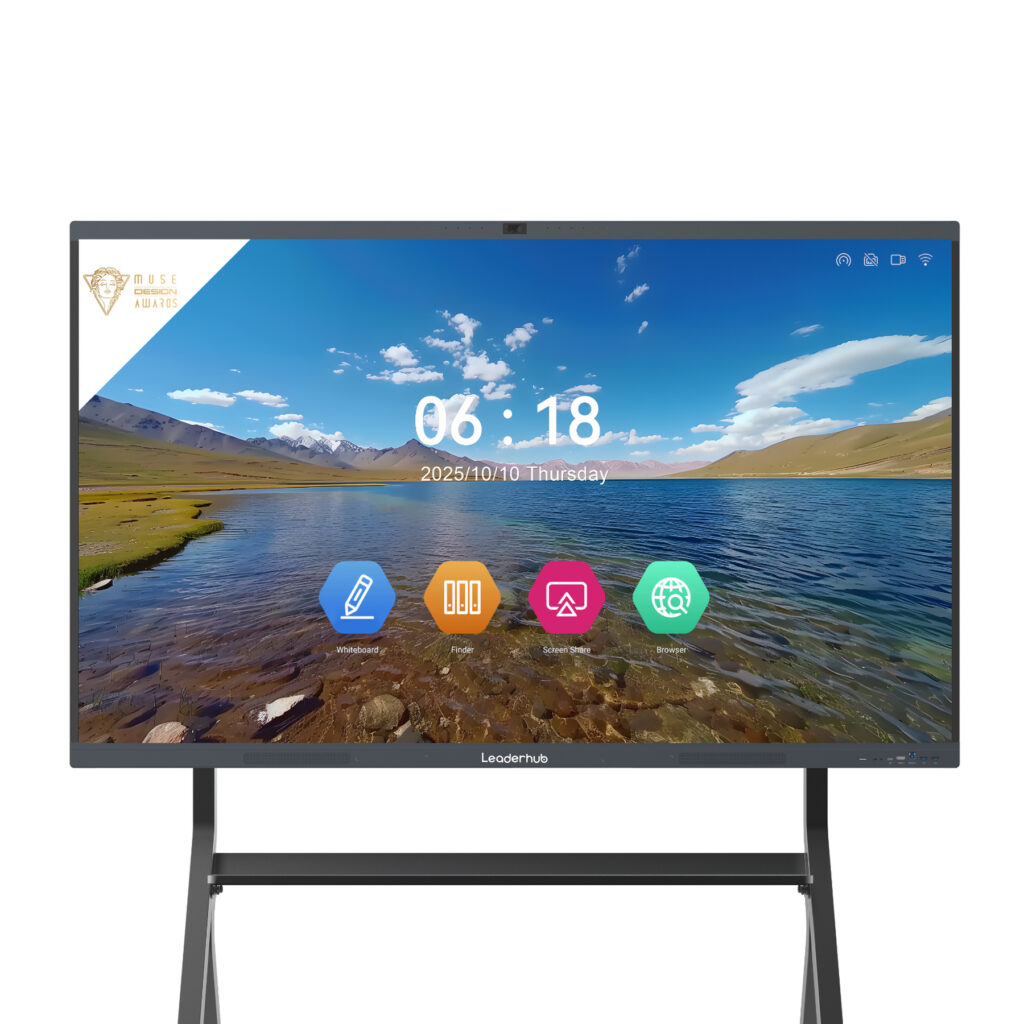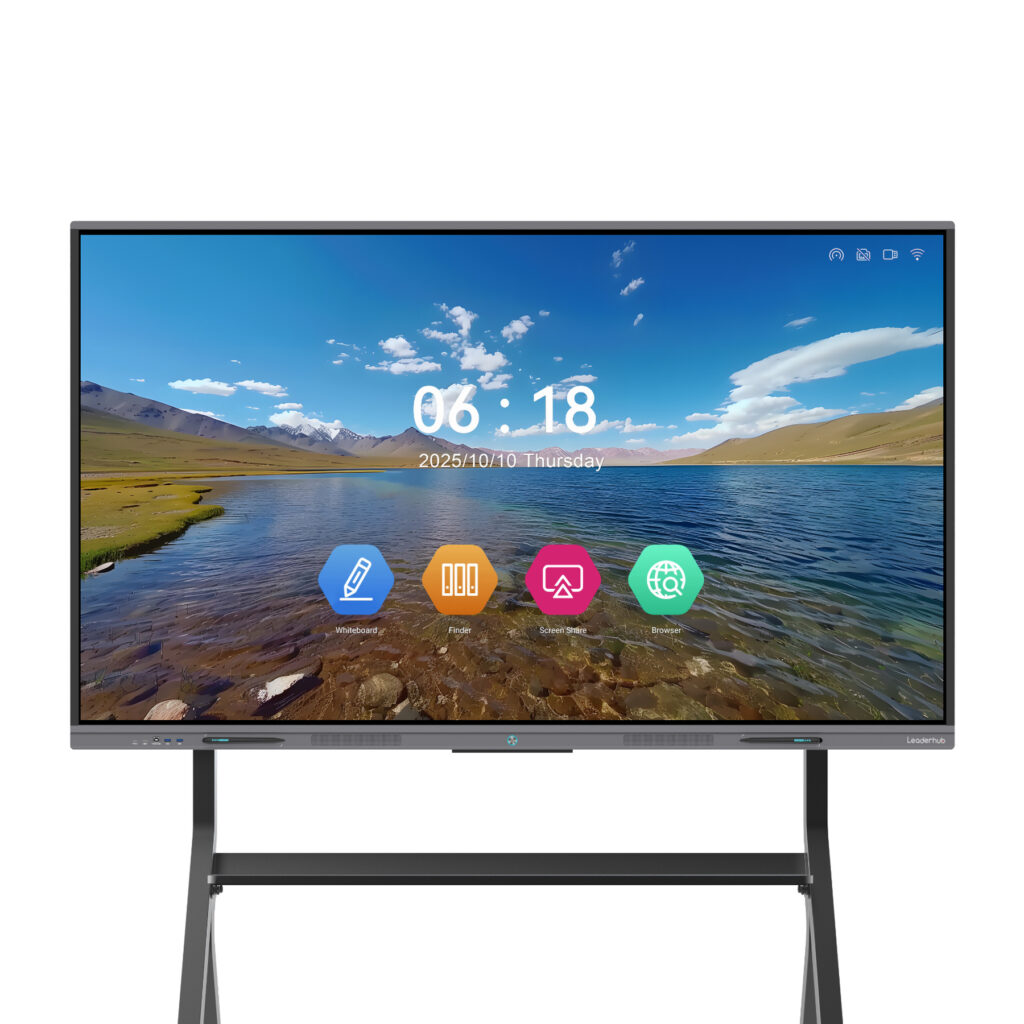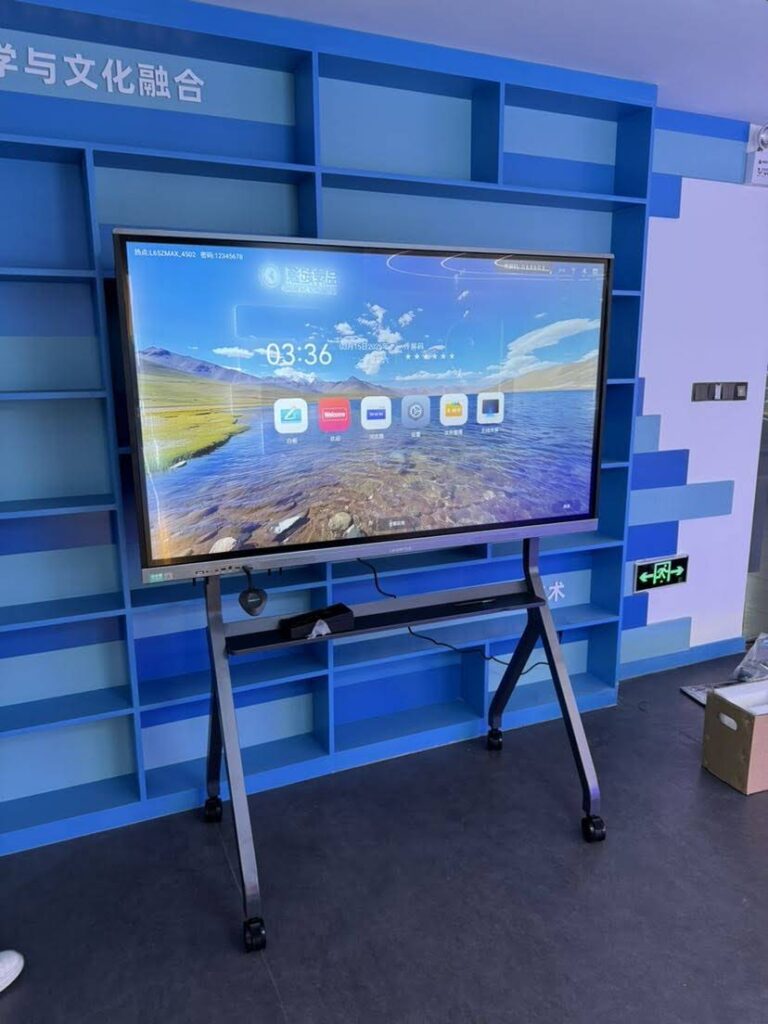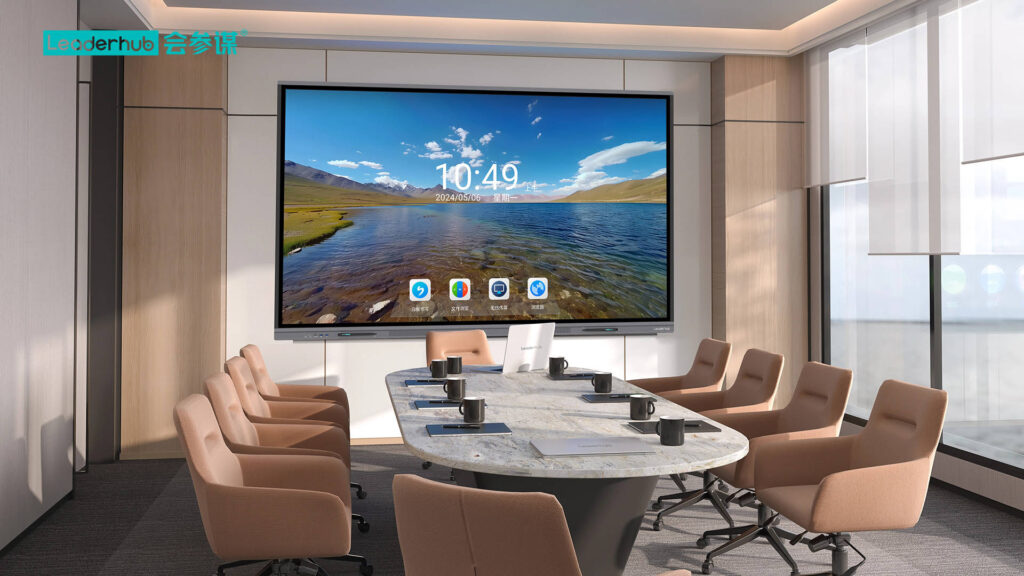
Math is one of the hardest subjects to teach from the front of a room. Students need to see a problem unfold step by step, test ideas, make mistakes and fix them in real time. A traditional whiteboard forces teachers to erase their thinking as they go; a smart board keeps every step, every graph and every student contribution visible and reusable. If you are wondering how to use a smart board in math class without turning lessons into a tech demo, this guide walks through 10 classroom-tested ideas, practical setup tips and a quick sizing guide for math rooms of different sizes.
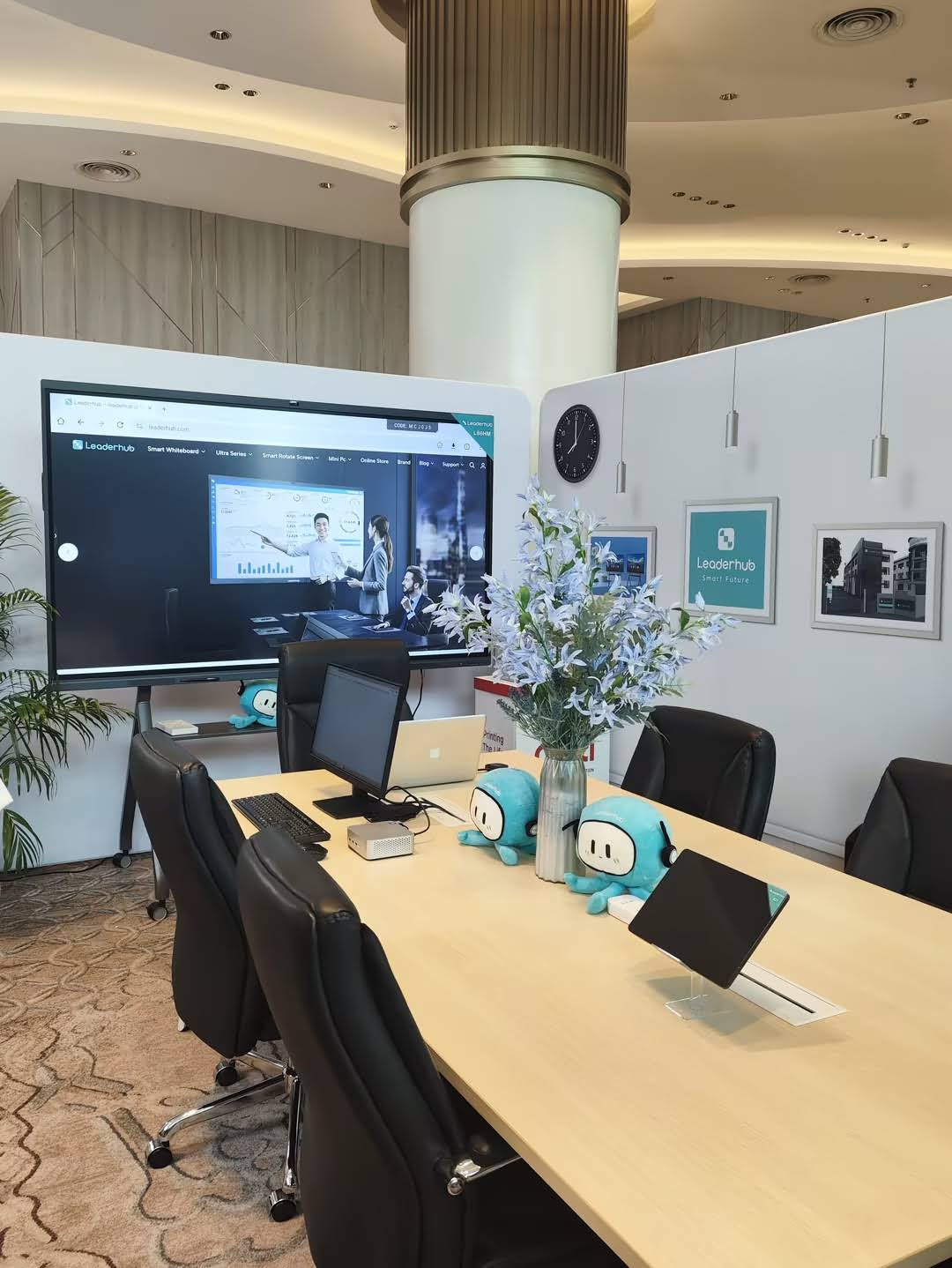
Why Smart Boards Work So Well for Math
Math is a visual and procedural subject. Interactive displays support both sides of that equation in ways that chalk, markers and static projectors cannot:
- Step-by-step visibility: work stays on the board and can be scrolled back, so students can revisit the exact step where they got lost.
- Dynamic representations: graphs, shapes and number lines respond instantly when a value changes, helping learners connect symbols to meaning.
- Multi-touch collaboration: several students can write on a 4K panel at once, which turns passive watching into active participation.
- Save, export and replay: every worked example can be exported as a PDF or recorded as a video for absent students or exam revision.
Research summarized in the UNESCO Technology in Education Report is clear that technology helps most when it is tied to a specific pedagogical purpose rather than used for its own sake. The ideas below are built around that principle: each one solves a real teaching problem in the math classroom.
10 Interactive Smart Board Ideas for Math Teachers
1. Turn Problem Solving into a Live, Shared Workspace
Instead of solving a problem yourself while students copy, open a blank whiteboard page and invite two or three students to attempt the same problem side by side. Use different pen colors for each student, then compare approaches as a class. The infinite canvas means you never have to erase a good (or instructively wrong) attempt to make room for the next one.
2. Use Digital Manipulatives for Fractions, Place Value and Algebra Tiles
Younger learners understand fractions faster when they can drag, split and recombine fraction bars. Older students benefit from virtual algebra tiles to model expressions like 2x + 3 before moving to abstract notation. Most interactive flat panels run Android or Windows, so you can use free browser-based manipulatives directly on the screen with touch.
3. Graph Functions in Real Time
Open a graphing tool on the board and let students change coefficients with their fingers. Watching a parabola stretch, flip or shift as the value of a, b or c changes builds intuition that no static textbook figure can provide. Ask students to predict the change before you drag the slider—prediction turns a demonstration into a thinking exercise.
4. Build Geometry Lessons with Drag, Rotate and Measure
Smart boards handle shape recognition, rotation, reflection and measurement with simple gestures. Draw a rough triangle and let the software snap it into a clean shape, then rotate it to show that the angle sum never changes. For transformations, use split-screen mode to display the original figure on one side and the transformed image on the other.
5. Run Quick Polls and Exit Tickets
Display a multiple-choice question and have students respond from their phones or tablets. Results appear instantly on the board, so you can see within seconds whether the class understood order of operations or needs another example. This is one of the most effective formative-assessment uses of a smart board in math class because it is fast and anonymous.
6. Gamify Practice with Math Relays and Timed Challenges
Split the screen into two or three zones and run a relay: teams send one student at a time to solve the next step of a multi-step problem. Use the on-screen timer and let the board’s multi-touch support handle simultaneous writing. Competition keeps energy high during otherwise repetitive practice, such as factoring or long division.
7. Record Your Board Work as Review Videos
Many interactive displays include built-in screen recording with audio. Record each worked example, export it, and share it to your class platform. Students who were absent—or who simply need to hear the explanation a second time—can replay the exact lesson. Over a semester this becomes a complete video library aligned to your own curriculum.
8. Annotate Over Textbooks, PDFs and Real-World Data
Open a textbook page, a sports statistics table or a utility bill on the board and annotate directly on top of it. Highlight the relevant numbers, circle the units, and write the equation beside the data. Connecting percentages, ratios and linear growth to real documents makes abstract math feel relevant, especially for middle and high school students.
9. Connect Student Devices for Collaborative Problem Solving
Wireless screen sharing lets a student cast their tablet work to the main display so the whole class can critique it. Rotate this role so every student presents at least once a week. Peer explanation strengthens understanding for both the presenter and the audience, and it builds the mathematical communication skills emphasized in modern curricula.
10. Use the Infinite Canvas for Multi-Step Proofs and Word Problems
Long proofs and multi-part word problems often run out of space on a physical board. On a smart board, keep scrolling: write the given information at the top, the diagram in the middle, and the full chain of reasoning below. At the end, zoom out so students can see the entire logical structure at once—then save it as a reference sheet.
Quick Reference: Which Idea Fits Which Grade Level?
| Idea | Best Grade Range | Math Topics | Key Smart Board Feature |
|---|---|---|---|
| Live shared workspace | All grades | Any | Multi-touch, infinite canvas |
| Digital manipulatives | K–8 | Fractions, place value, early algebra | Touch-enabled web apps |
| Real-time graphing | 7–12 | Functions, calculus | 4K display, built-in browser |
| Geometry drag and rotate | 4–10 | Shapes, transformations | Shape recognition, split screen |
| Polls and exit tickets | All grades | Any | Wireless device connection |
| Math relays | 3–9 | Arithmetic, factoring | Multi-touch, on-screen timer |
| Recorded review videos | 6–12 | Any | Screen recording, cloud export |
| Annotating real data | 6–12 | Ratios, statistics, finance | PDF annotation layer |
| Student screen casting | 5–12 | Any | Wireless casting |
| Infinite-canvas proofs | 8–12 | Geometry proofs, word problems | Infinite canvas, zoom |
Practical Tips for Teachers New to Smart Boards
Start with One Routine, Not Ten
Pick a single idea—exit tickets or live shared problem solving are the easiest—and use it every day for two weeks. Once it feels automatic, add the next one. Teachers who try to do everything at once tend to abandon the board and go back to markers.
Build a Template Library
Create and save blank templates: a coordinate grid, a number line, a place-value chart, a two-column proof layout. Opening a ready-made grid in two seconds instead of drawing axes by hand saves minutes every lesson and keeps your diagrams accurate.
Learn the Pen-and-Palm Workflow
Most modern panels distinguish between the stylus (write), finger (select or drag) and palm (erase). Mastering this three-way interaction lets you write an equation, drag a term across the equals sign and erase a mistake without ever touching a menu.
Keep Screen Time Purposeful
The OECD Digital Education Outlook notes that learning gains come from how technology is integrated into instruction, not from device presence alone. Use the board for what it does uniquely well—dynamic visuals, shared work, instant feedback—and keep paper practice where it still works best.
Common Mistakes and How to Fix Them
| Mistake | Why It Hurts Learning | Fix |
|---|---|---|
| Using the board as a projector only | Students stay passive; no interaction gain | Require at least one student touch per lesson segment |
| Writing too small | Back-row students cannot read exponents or fractions | Zoom in while writing, zoom out to review |
| Never saving board pages | Loses revision material and absent-student support | Export to PDF at the end of every lesson |
| Glare from windows | Reduces contrast on graphs and small text | Choose an anti-glare panel and position it away from direct light |
| Ignoring input lag | Handwriting feels unnatural, slows down teaching | Select a panel with low-latency writing and a dedicated stylus |
Choosing the Right Smart Board Size for a Math Classroom
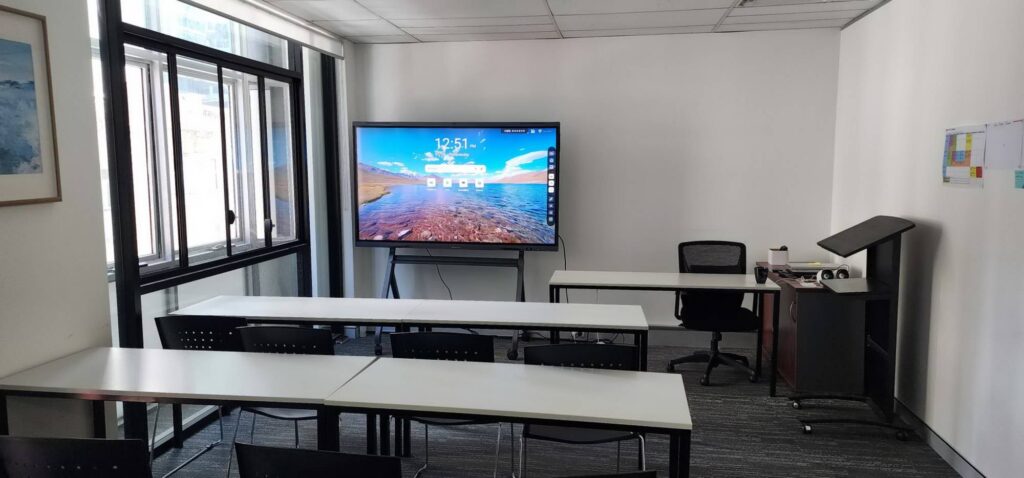
Because math relies on small symbols—subscripts, exponents, fraction bars—screen size and resolution matter more than in many other subjects. A 4K panel keeps thin lines sharp, and the right diagonal size depends on how far the back row sits from the board.
| Classroom Setup | Recommended Size | Suggested Model | Typical Price |
|---|---|---|---|
| Small group room or tutoring center (up to 15 students) | 65″ | Leaderhub L65ZM Interactive Whiteboard | $1,099 |
| Standard classroom (20–30 students) | 75″ | Leaderhub L75HM Smart Whiteboard | $1,599 |
| Large classroom or lecture room (30+ students) | 86″ | Leaderhub L86ZM Interactive Whiteboard | $1,699 |
Beyond size, look for a panel that offers palm rejection, a passive stylus that never needs charging, built-in screen recording and wireless casting from both iOS and Android devices. If you are comparing options for an entire department, you can browse the full range of interactive smart whiteboards for classrooms or review the EEF Digital Technology Guidance for a framework on evaluating classroom technology purchases.
About the Equipment Behind These Ideas
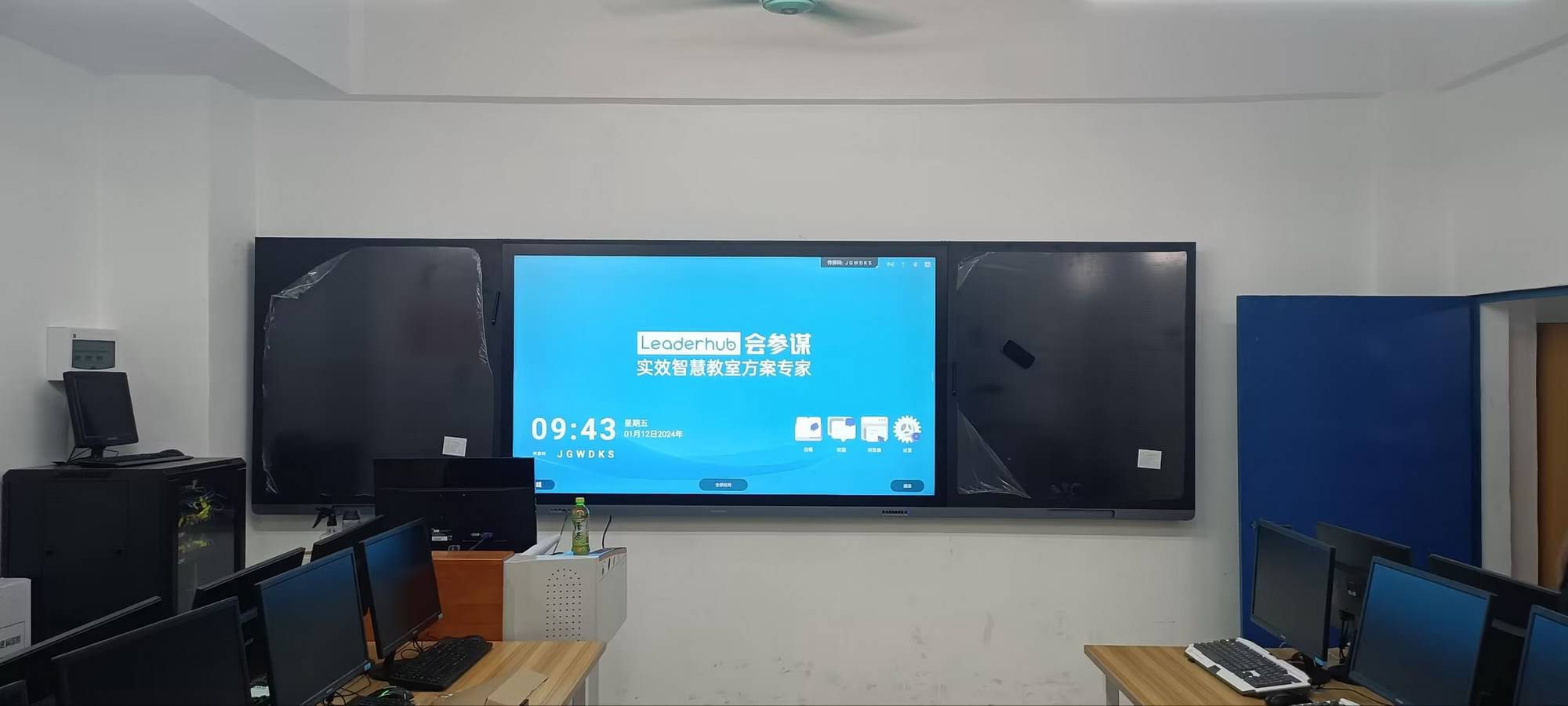
The examples in this article were developed around interactive flat panels from Leaderhub, a Shenzhen-based technology company with 16 years of experience in the interactive display industry. Its smart whiteboards, mini PCs and portable smart screens are used in education and enterprise settings across 82 countries, and the company ranks No.1 in its interactive-panel subcategory on JD.com. Schools and training centers that need help selecting or configuring a panel for math instruction can contact the Leaderhub team for classroom-specific recommendations.
Frequently Asked Questions
Do I need special math software to use a smart board effectively?
No. The built-in whiteboard app handles most daily teaching, and free browser-based graphing and geometry tools run directly on the panel. Specialized software is optional, not required.
How long does it take teachers to feel comfortable with a smart board?
Most math teachers report feeling confident with basic writing, saving and annotation within one to two weeks of daily use. Advanced features like screen recording and multi-device casting typically follow within the first month.
Can students with limited device access still participate?
Yes. The multi-touch surface itself is the primary participation tool. Polling and casting from student devices are enhancements, but shared writing at the board requires nothing beyond the panel.
Is a 65-inch panel too small for a full-size math classroom?
For rooms where the back row sits more than about 7 meters from the board, a 75-inch or 86-inch panel is recommended so that exponents, subscripts and graph labels remain legible from every seat.
Used with intention, a smart board turns math from something students watch into something they do. Start with one idea from this list, build your template library, and let the board’s ability to save, replay and share do the heavy lifting for revision. The result is a classroom where every worked example stays visible, every student has a reason to come to the front, and every lesson leaves behind a record that supports learning long after the bell rings.