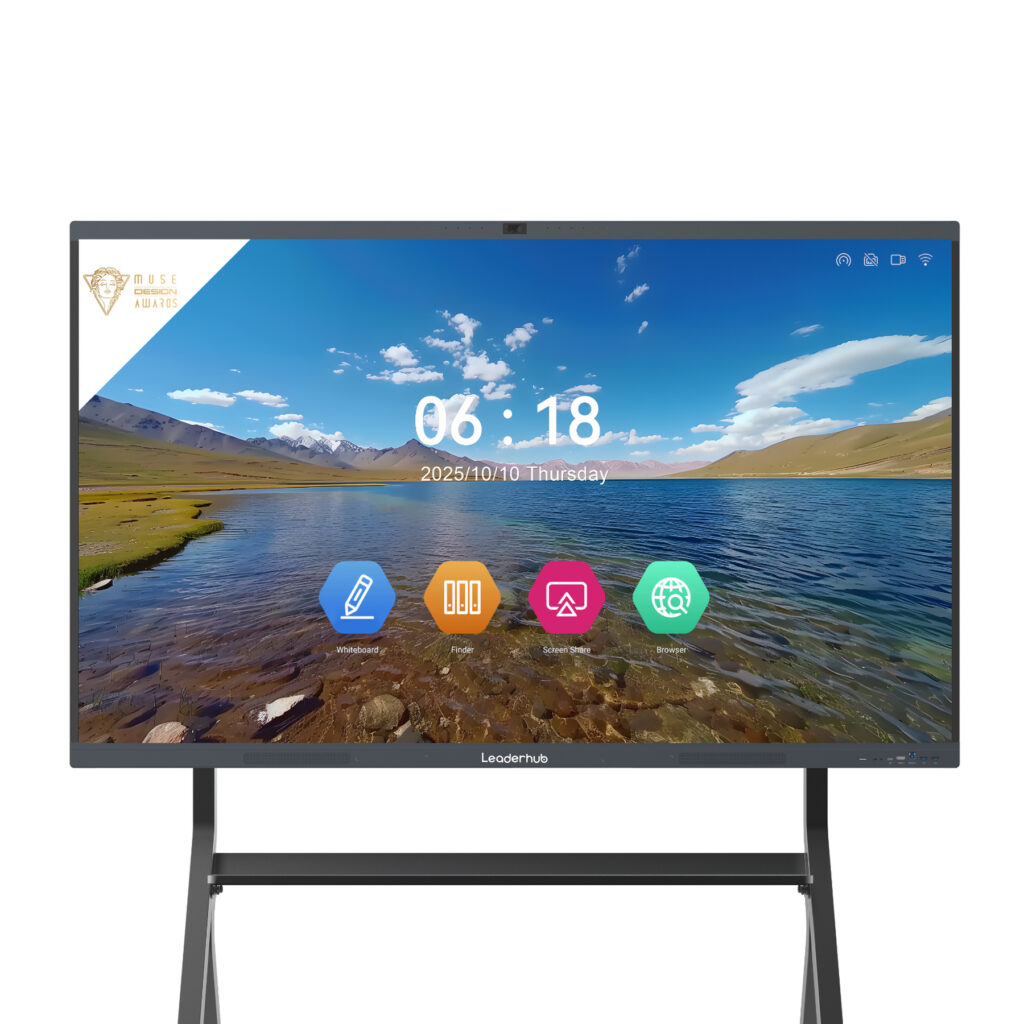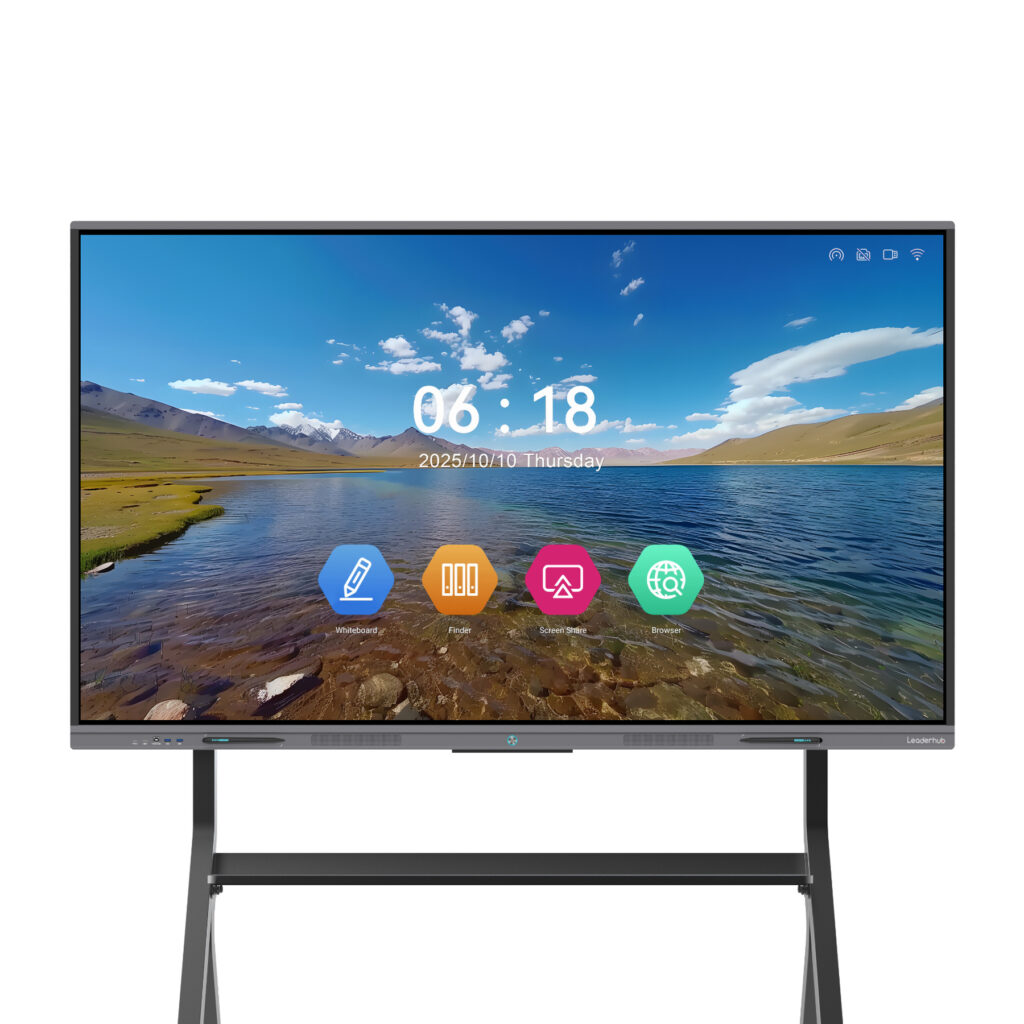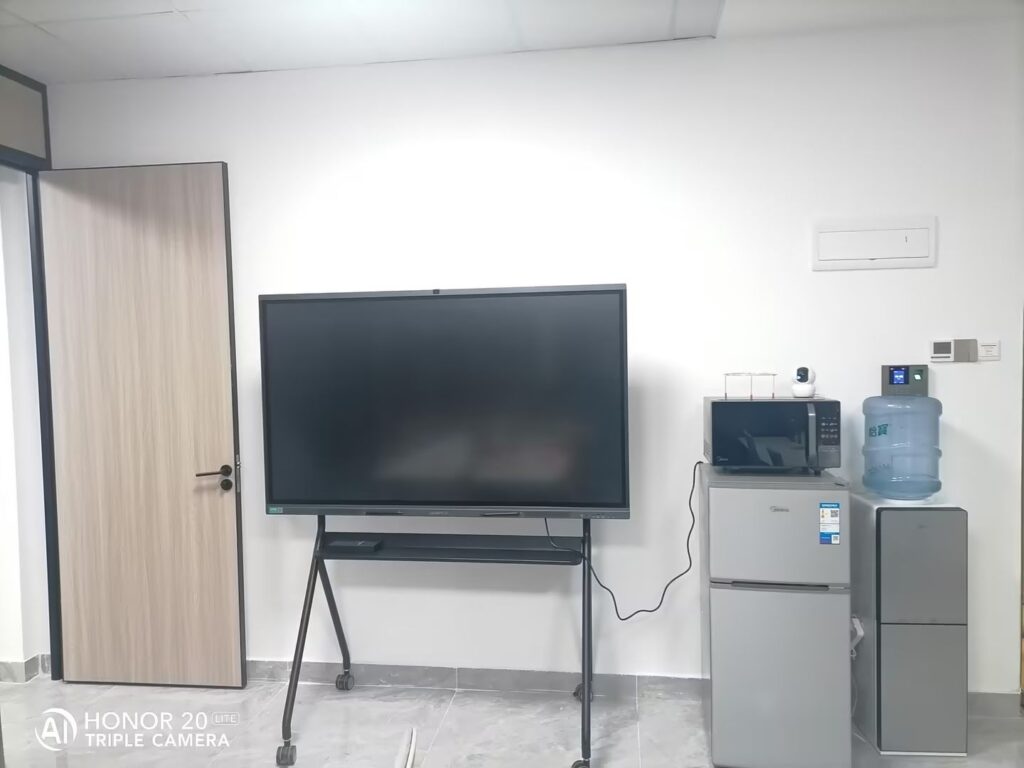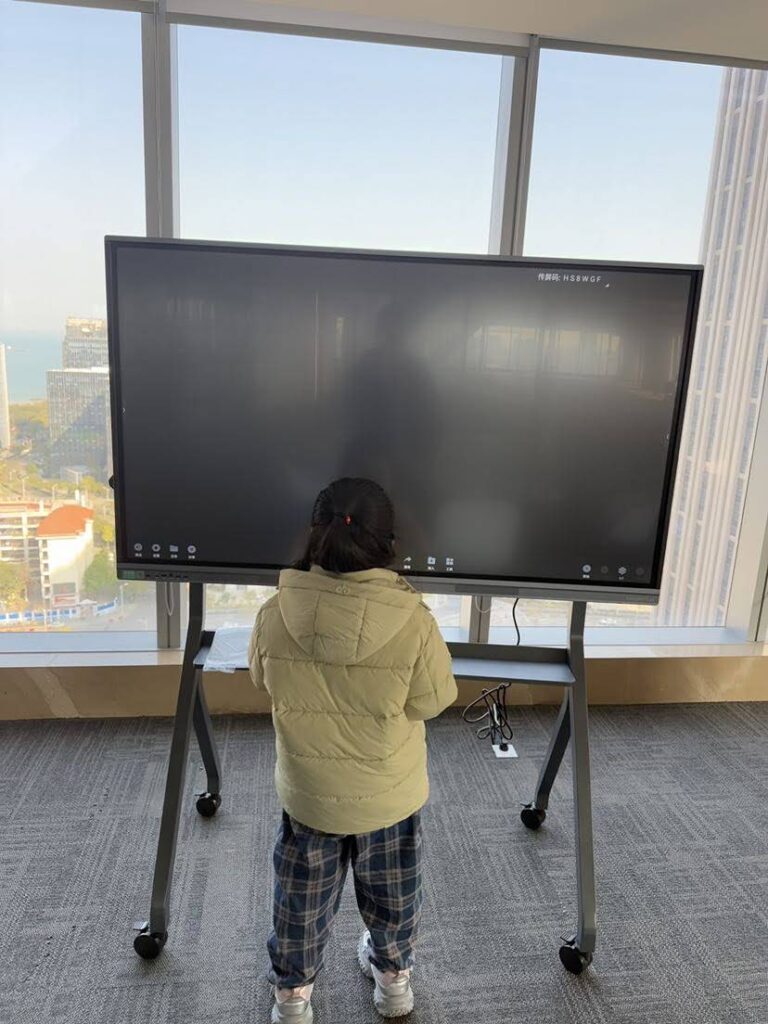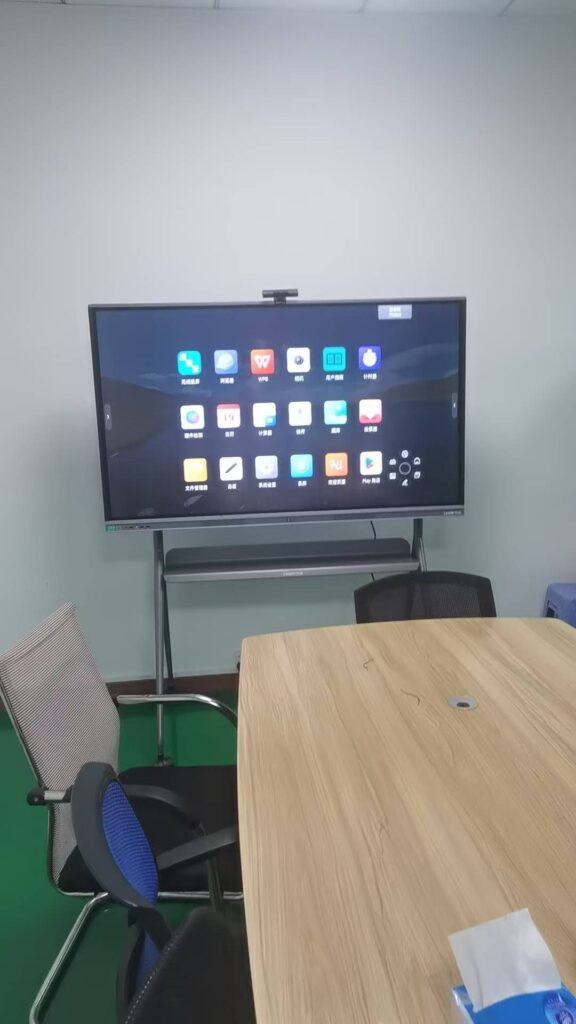
Textbooks are still the backbone of most lessons, but reading a page aloud while students stare at a wall of text is one of the fastest ways to lose a classroom. A smart board for interactive textbook presentations changes that dynamic completely. Instead of a static page, the textbook becomes a canvas that teachers can annotate, zoom, animate and hand over to students in real time. In this guide, we explain how interactive displays bring printed and digital textbooks to life, which features matter most for teachers, and how to plan lessons that keep every student involved from the first minute to the last.
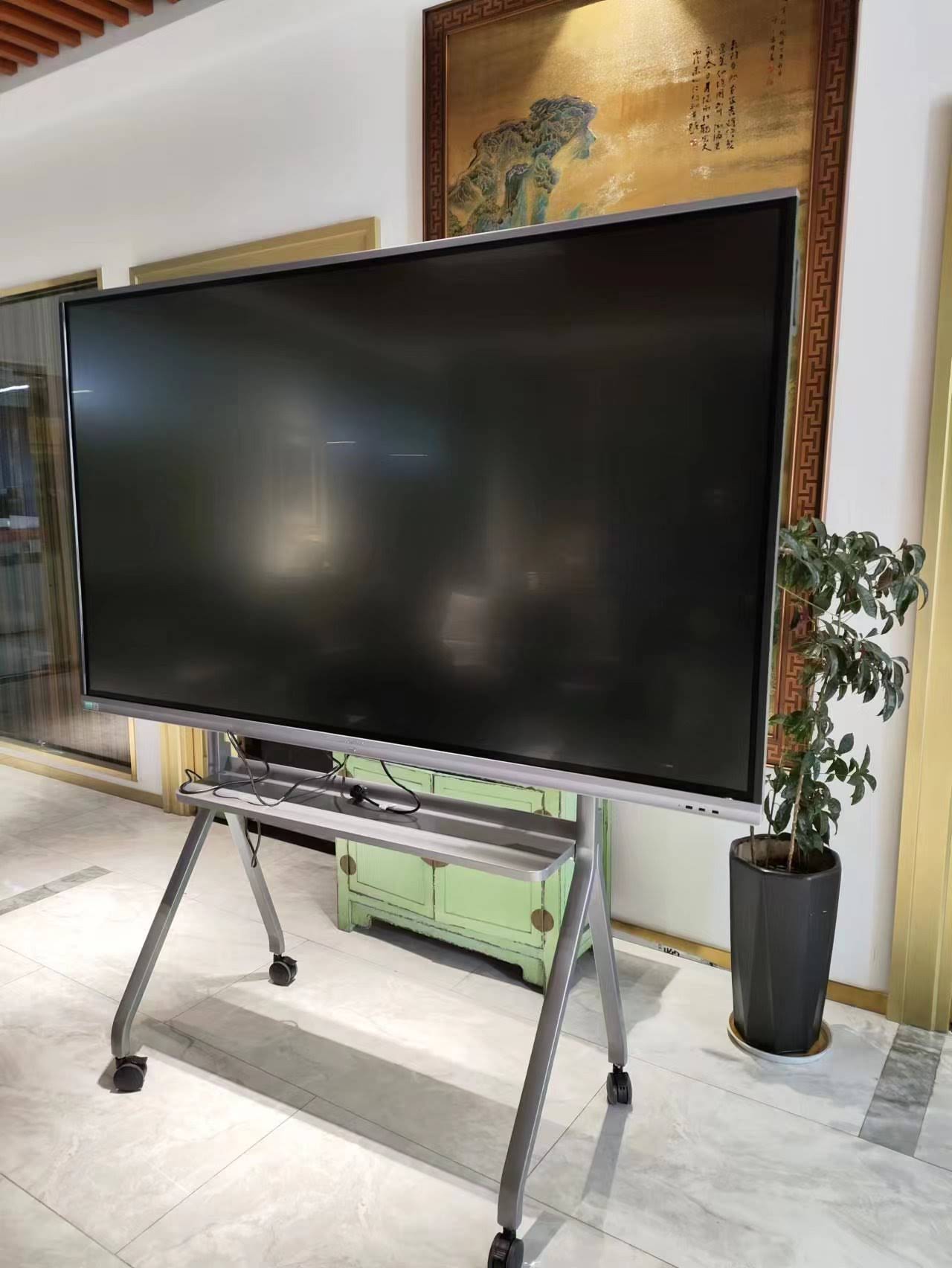
Why Traditional Textbook Presentations Lose Student Attention
Most teachers know the pattern. A chapter is projected or read from the book, students are asked to follow along, and within ten minutes attention drifts. The problem is not the textbook itself; it is the one-way delivery format. Content flows from the page to the student with no opportunity to touch, question, rearrange or respond.
Research summarized in the UNESCO Technology in Education Report highlights that technology improves learning outcomes when it supports active participation rather than simply replacing paper with a screen. In other words, the value of a smart board is not that it displays a textbook in high resolution. The value is that it turns textbook content into something students can interact with.
- Passive reading leads to low retention and minimal classroom discussion.
- Dense diagrams and small print are difficult to see from the back of the room.
- Teachers spend time flipping pages instead of checking for understanding.
- Students with different learning styles are left behind by text-only delivery.
What Makes a Smart Board Ideal for Interactive Textbook Presentations
Not every display is suited to textbook-based teaching. A good smart board for interactive textbook presentations combines screen quality, responsive touch and software that integrates with the resources teachers already use. Below are the core capabilities to look for.
4K Resolution and Large Screen Size
Textbook pages are full of fine detail: small fonts, labeled diagrams, maps and footnotes. A 4K UHD panel ensures that even a zoomed-in paragraph stays crisp, while a 75-inch or 86-inch screen allows students in every row to read comfortably. Anti-glare glass is also essential in classrooms with large windows.
Multi-Touch Writing and Annotation
The ability to write directly over a textbook page is what transforms a presentation into a lesson. Teachers can underline key vocabulary, circle parts of a diagram, draw arrows between concepts and solve math problems step by step on top of the printed example. With 20-point or 40-point multi-touch, several students can annotate the same page simultaneously during group activities.
PDF and E-Textbook Compatibility
Most publishers now provide digital editions in PDF, EPUB or proprietary formats. The best smart boards open these files natively, allow page-by-page navigation, and let teachers save annotated versions to share with students after class. Built-in Android and optional Windows modules give teachers flexibility to run publisher apps, browsers and learning platforms side by side.
Wireless Screen Sharing
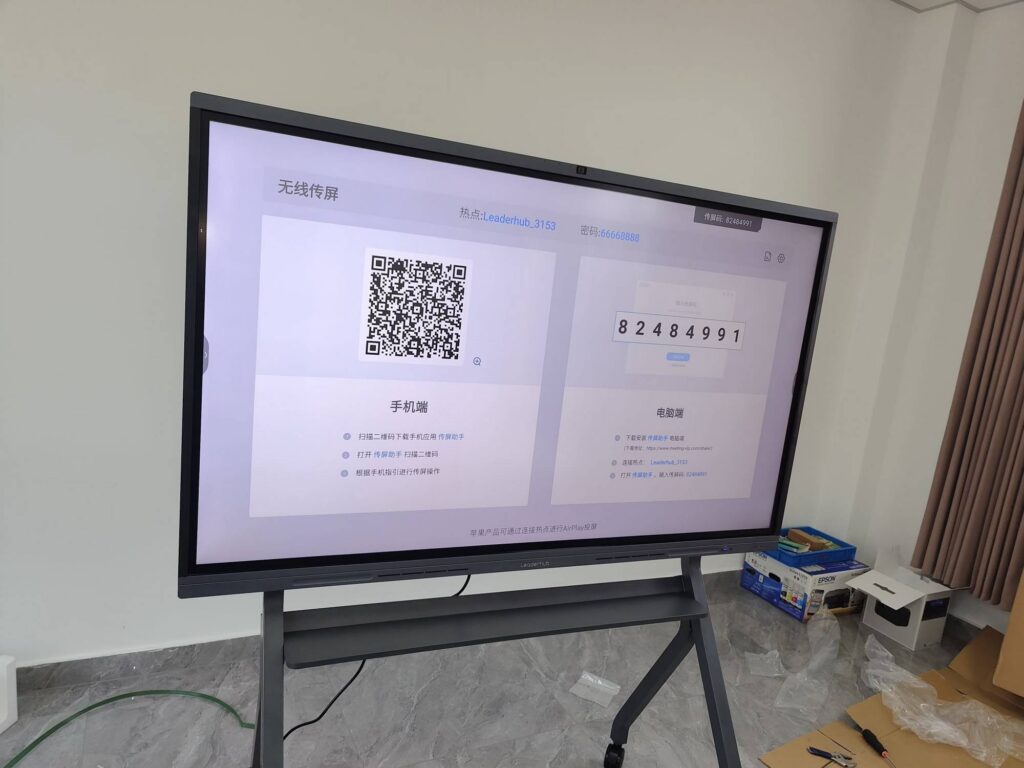
Students can mirror their tablets or laptops onto the board to present their own notes, answers or research. This two-way sharing is a key factor in the ISTE Standards for Students, which emphasize learners as creators and communicators rather than passive recipients of content.
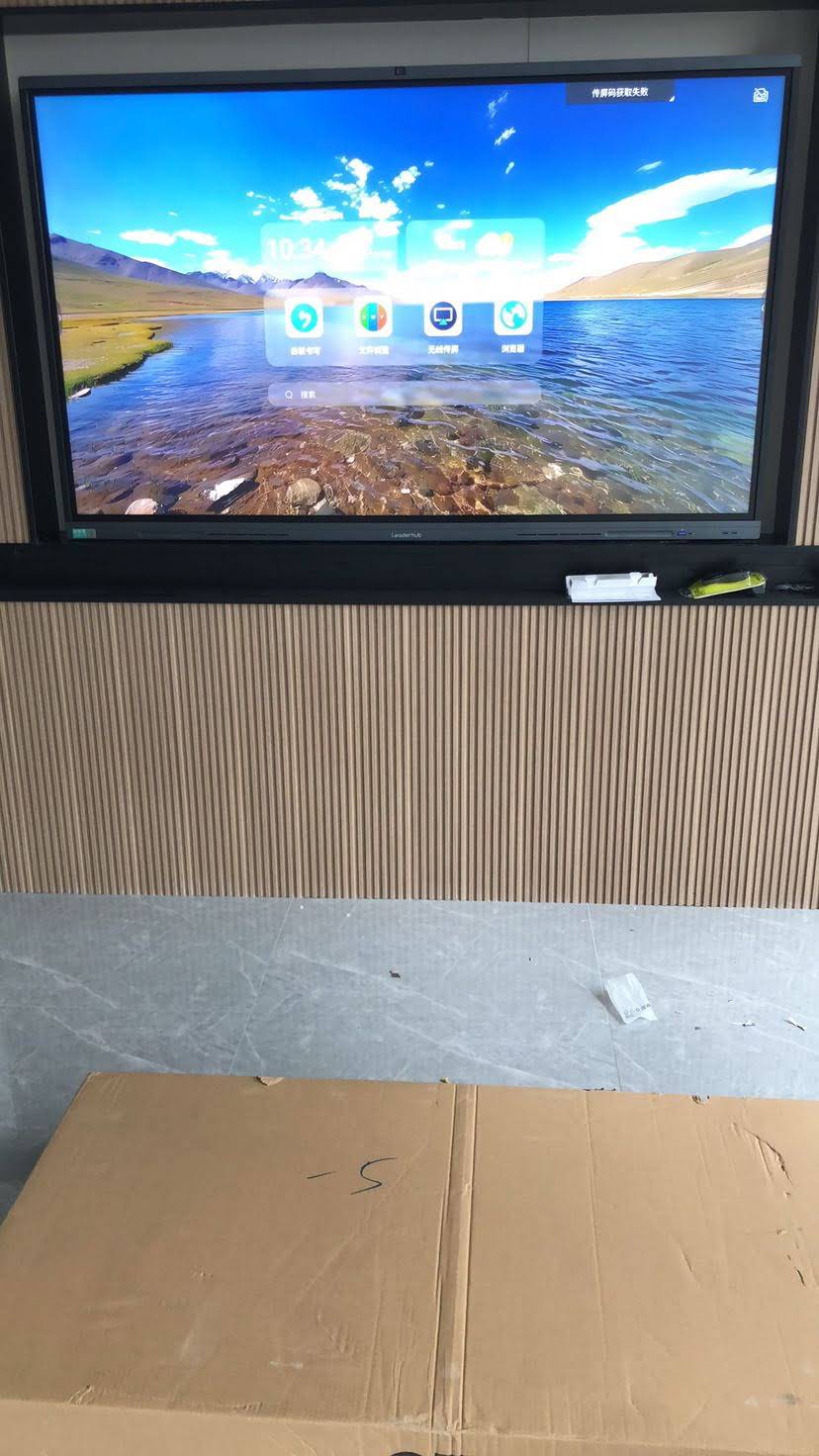
Key Features Comparison: Smart Board vs. Projector vs. Traditional Whiteboard
| Feature | Interactive Smart Board | Projector Setup | Traditional Whiteboard |
|---|---|---|---|
| Textbook display | 4K digital pages, zoom and annotation | Lower brightness, washed-out detail | Not possible |
| Student interaction | Multi-touch, wireless sharing, quizzes | Limited, requires separate devices | Marker writing only |
| Save and share notes | One tap to cloud, QR code or email | Manual screenshots | Photos of the board |
| Room lighting | Works in full daylight | Requires dimmed lights | Works in daylight |
| Maintenance | Minimal, 50,000+ hour panel life | Bulb and filter replacement | Markers and erasers |
How to Bring a Textbook Chapter to Life: A Step-by-Step Lesson Flow
Owning the right hardware is only half the equation. The following workflow shows how teachers can structure a textbook-based lesson around a smart board so that students stay engaged throughout.
- Open the chapter as a digital page. Load the PDF or e-textbook directly on the board and zoom into the first key section. Use the spotlight tool to hide the rest of the page and focus attention on one paragraph or image.
- Annotate as you read. Highlight vocabulary in one color and core concepts in another. Students quickly learn the visual code and begin to anticipate what matters.
- Turn diagrams into activities. Erase labels from a textbook diagram and invite students to come up and drag or write the correct terms back into place.
- Split the screen. Keep the textbook page on one side and a blank whiteboard on the other for worked examples, brainstorming or a live timeline.
- Launch a quick check. Use a polling app or built-in quiz tool so every student answers a question about the passage from their own device, with results displayed instantly on the board.
- Save and distribute. At the end of the lesson, export the annotated pages and share them through a QR code so students have a complete record for revision.
Engagement Strategies by Subject
Different subjects benefit from different interactive techniques. The table below outlines practical ways to use a smart board for interactive textbook presentations across the curriculum.
| Subject | Textbook Challenge | Smart Board Solution |
|---|---|---|
| Mathematics | Worked examples are static and skip steps | Solve problems live beside the textbook example; use geometry tools and graphing apps |
| Science | Processes are shown as flat diagrams | Overlay animations and videos; label cell structures or circuits by touch |
| Languages | Reading passages feel distant | Highlight grammar patterns, play audio, let students rewrite sentences on screen |
| History & Geography | Maps and timelines are small and crowded | Zoom into maps, build timelines collaboratively, link to primary sources |
| Art & Design | Printed reproductions lose detail | Display artworks in 4K, sketch over compositions, compare side by side |
Classroom Benefits Backed by Evidence
Educators often ask whether interactive displays genuinely improve learning or simply look impressive. The evidence points to clear gains when the technology is used purposefully. According to the EEF Digital Technology Guidance, technology is most effective when it improves the quality of explanations and modeling, increases opportunities for practice, and supports feedback. All three are natural strengths of textbook presentations delivered on a smart board.
Clearer Explanations
Zooming, highlighting and layering annotations help teachers break down complex passages visually, which supports students who struggle with text-heavy content.
More Practice Opportunities
Students can come to the board to complete textbook exercises in front of peers, or respond from their devices while results appear on screen for discussion.
Immediate Feedback
Live polls, quizzes and shared answers allow teachers to spot misconceptions in real time and adjust the lesson before moving on.
The OECD Digital Education Outlook also notes that teacher confidence is a major predictor of successful technology adoption. Choosing a board with an intuitive interface and minimal setup time is therefore just as important as the specification sheet.
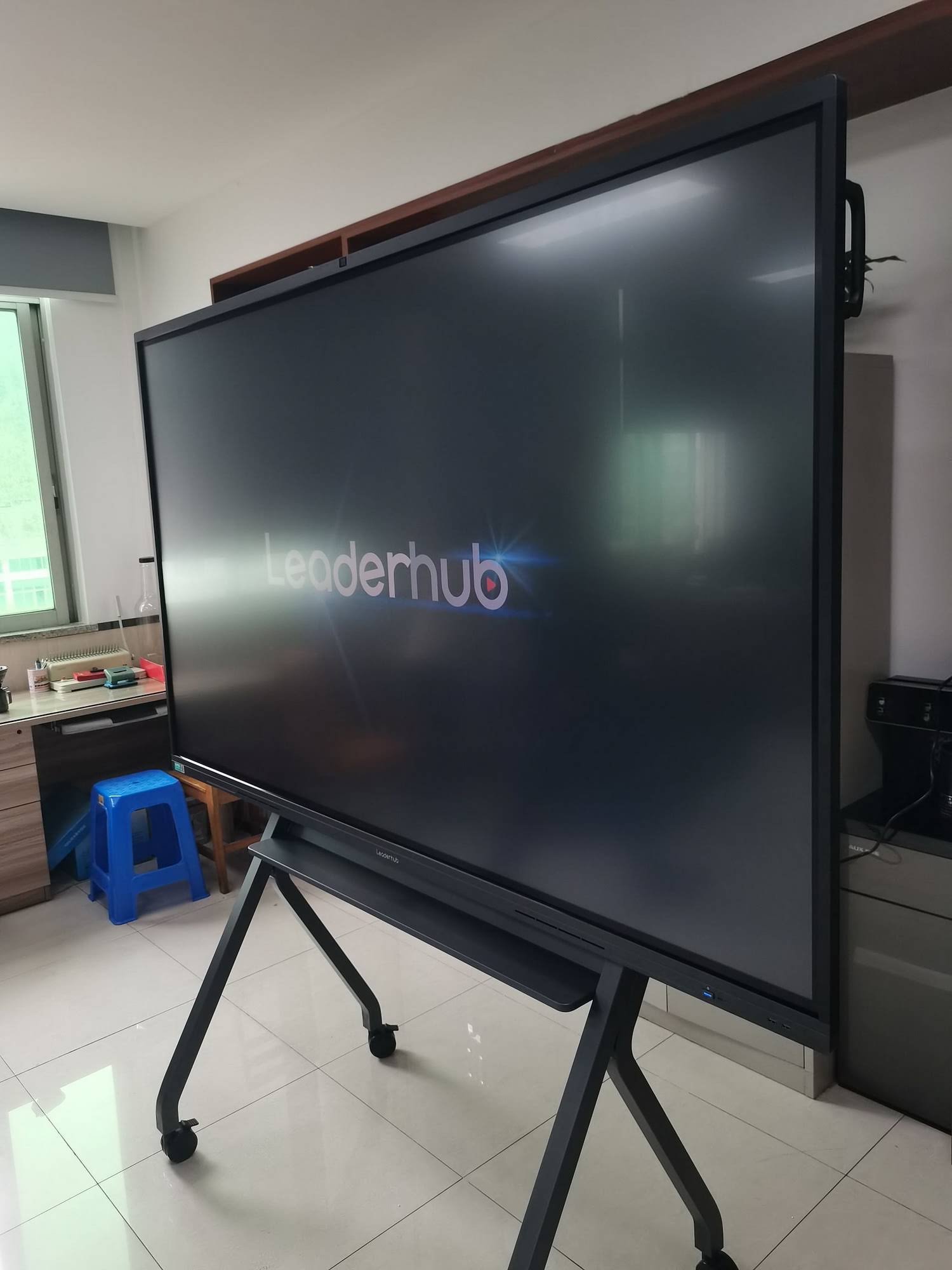
Choosing the Right Smart Board Size for Your Classroom
Screen size directly affects whether students at the back can read textbook text. A practical rule is that the screen diagonal should be at least one-sixth of the distance to the farthest seat. Use the following guide when planning a purchase.
- 65-inch: Ideal for small classrooms, tutoring centers and seminar rooms with up to 15 students. The Leaderhub L65ZM Interactive Whiteboard offers a cost-effective 4K entry point for this scenario.
- 75-inch: The most popular choice for standard classrooms of 20 to 30 students. The Leaderhub L75HM Interactive Smart Whiteboard balances viewing distance, writing space and budget.
- 86-inch and above: Recommended for large classrooms, lecture halls and training rooms where detailed textbook pages must remain legible from 8 meters or more. The Leaderhub L86HM Interactive Smart Whiteboard is designed for exactly this environment.
- Mobile options: For schools that share one display across several rooms, a wheeled stand or a portable panel such as the U55Pro Mobile 4K Smart Display provides flexibility without installation.
Practical Tips for Teachers New to Smart Boards
Even the most capable hardware delivers little value if teachers feel uncertain in front of the class. These tips help educators build confidence quickly.
- Start with one routine. Use the board for a daily warm-up based on the textbook before expanding to full lessons.
- Prepare annotations in advance. Pre-mark key pages so you can focus on students rather than menus during class.
- Hand over the pen. Invite students to the board as early as possible; ownership drives engagement more than any animation.
- Use the save function every lesson. Annotated pages become a shared revision library over the school year.
- Combine with student devices. Wireless sharing from tablets lets quieter students contribute without standing up.
- Review screen time thoughtfully. Guidance such as the OECD Screen Time Research reminds educators that interactive, teacher-led display use is very different from passive individual screen use.
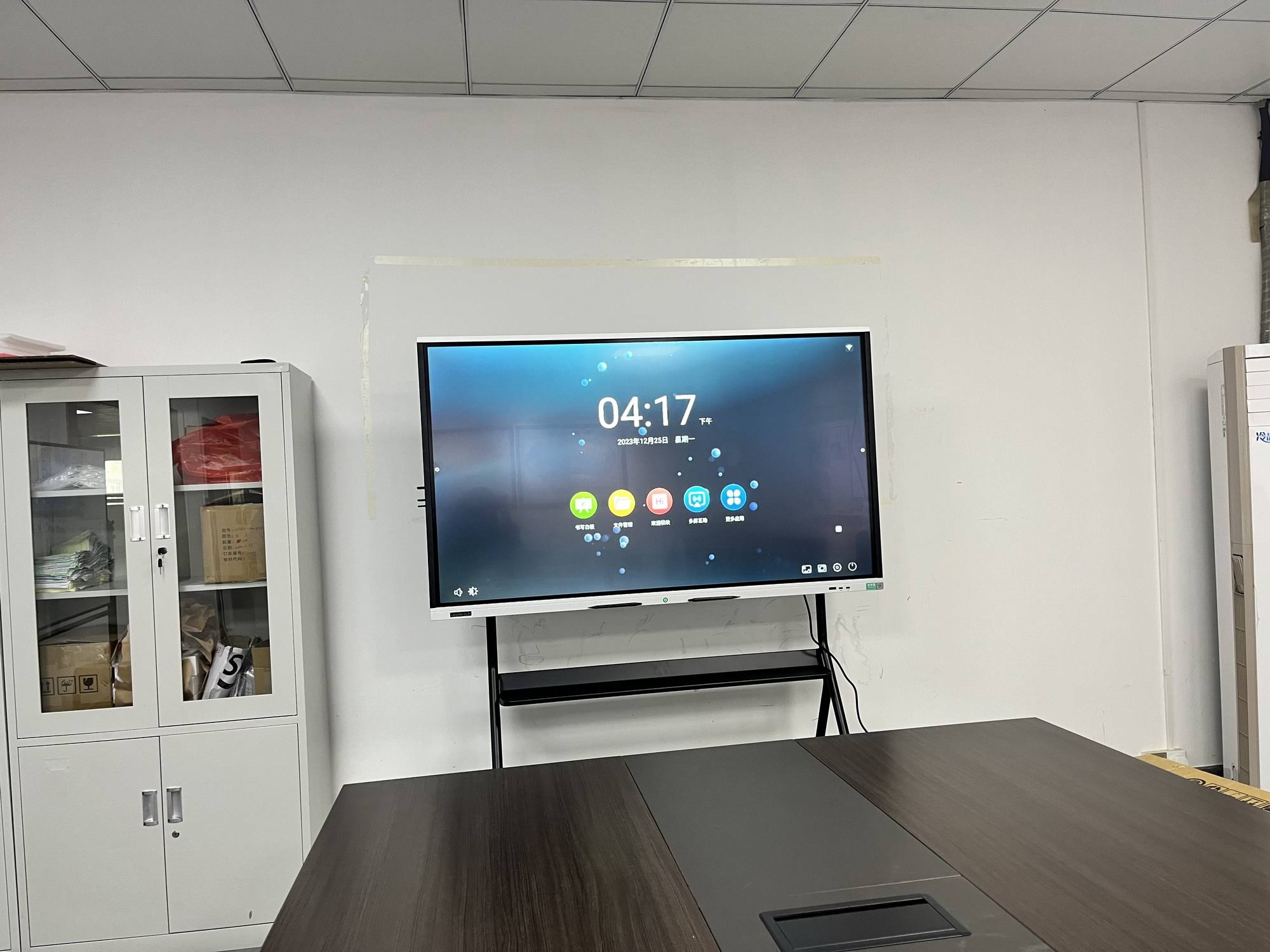
Integrating Smart Boards with Existing Teaching Resources
Schools rarely start from scratch. Most already have learning management systems, publisher platforms, document cameras and student devices. A smart board for interactive textbook presentations should fit into this ecosystem rather than replace it.
Connecting Publisher Content
Through built-in browsers and Android apps, teachers can log into publisher portals and open interactive textbook editions directly on the board. Where publishers offer only PDF downloads, the native document viewer handles annotation and page navigation.
Adding a Dedicated Computing Module
For schools running Windows-based assessment software or legacy curriculum tools, pairing the display with a compact unit such as the Leaderhub LP5C Mini PC provides full desktop performance behind the screen without extra cables on the teacher’s desk.
Supporting Hybrid and Remote Learners
Built-in cameras and microphones allow annotated textbook lessons to be streamed to students at home, while cloud saving ensures absent students receive the same notes as those in the room. The EU Blended Learning Guidance highlights this continuity as a key priority for modern schools.
Why Schools Choose Leaderhub for Interactive Textbook Teaching
Leaderhub is a Shenzhen-based interactive display manufacturer with 16 years of experience and products delivered to more than 82 countries. Its education-focused smart whiteboard range spans 65-inch to 110-inch 4K panels with responsive multi-touch, built-in annotation software and wireless sharing, all engineered to make textbook-based lessons more visual, collaborative and memorable. For schools evaluating a classroom upgrade, the team can advise on sizing, mounting and integration through the contact page.
Frequently Asked Questions
Can I use my existing paper textbooks with a smart board?
Yes. A document camera connected to the board lets you project physical pages and annotate over them. Many schools also request PDF editions from publishers for direct display.
Do teachers need technical training to use a smart board for textbook presentations?
Basic functions such as opening a file, writing and saving can be learned in under an hour. Most schools find that a short onboarding session followed by peer sharing is enough for teachers to build confidence.
How many students can write on the board at once?
Modern interactive panels support 20 to 40 simultaneous touch points, allowing small groups to label diagrams or solve problems together on the same page.
Is a smart board suitable for bright classrooms?
Yes. Unlike projectors, LED-backlit interactive panels with anti-glare glass remain fully legible in daylight, so there is no need to close blinds during textbook presentations.
What is the lifespan of an interactive smart board?
Quality panels are rated for 50,000 hours or more, which translates to well over a decade of typical school use with no bulbs or filters to replace.
Final Thoughts
A smart board for interactive textbook presentations does not replace good teaching; it amplifies it. By turning static pages into zoomable, annotatable and shareable content, teachers gain a powerful way to explain difficult ideas, invite participation and give feedback in the moment. When paired with thoughtful lesson design and the right screen size for the room, interactive displays help students see textbooks not as something to get through, but as material they can explore, question and make their own.