Connecting an iPad to a smart board turns a personal tablet into a classroom or boardroom powerhouse. Whether you want to mirror a Keynote presentation, annotate a PDF live in front of students, or let several participants share their screens during a meeting, learning how to connect an iPad to a smart board takes only a few minutes once you understand the options. This guide walks through every practical method — wireless screen mirroring, wired HDMI and USB-C connections, and app-based casting — with step-by-step instructions, troubleshooting tips, and advice on which approach suits your environment best.
Why Connect an iPad to a Smart Board?
Smart boards and interactive flat panels are designed to be the central hub of any room, but the iPad is where most teachers and presenters actually prepare their content. Bringing the two together offers real advantages:
- Freedom of movement — walk around the room while controlling what appears on the large display.
- Instant content sharing — show photos, videos, slides, and documents stored on the iPad without transferring files.
- Student participation — pass the iPad around so learners can contribute directly to the big screen.
- Hybrid collaboration — pair the iPad with video-conferencing apps and display remote participants on the panel.
- Reduced setup time — wireless casting eliminates cables and adapters cluttering the teacher’s desk.
Research from the OECD Digital Education Outlook highlights that the value of classroom technology depends heavily on how smoothly devices work together. A reliable iPad-to-smart-board connection removes friction and keeps the focus on teaching and collaborating.
Before You Start: What You Need to Check
Not every smart board supports every connection method. Spend two minutes confirming the following before choosing an approach:
| Item to Check | Why It Matters | Where to Find It |
|---|---|---|
| iPad port type | Determines whether you need a Lightning or USB-C adapter for wired connections | Bottom edge of the iPad |
| Smart board operating system | Android-based panels often include built-in AirPlay-compatible receivers; Windows modules may need extra software | Settings menu or product manual |
| Wi-Fi network | Wireless mirroring usually requires both devices on the same network or a direct hotspot | Network settings on both devices |
| Available inputs | HDMI, USB-C, and Touch-USB ports decide whether a wired connection supports touch-back | Side or rear panel of the smart board |
| iPadOS version | Newer versions support Stage Manager and extended display on compatible models | Settings → General → About |
Method 1: Wireless Screen Mirroring with AirPlay
AirPlay is Apple’s native wireless streaming protocol and the fastest way to get an iPad screen onto a smart board. Most modern Android-powered interactive panels — including LeaderHub smart whiteboards — ship with a built-in casting receiver that accepts AirPlay connections directly, no dongle required.
Step-by-Step AirPlay Connection
- Make sure the iPad and the smart board are connected to the same Wi-Fi network. On the smart board, open the wireless casting or screen-share app and note the device name shown on screen.
- On the iPad, swipe down from the top-right corner to open Control Center.
- Tap Screen Mirroring (the icon with two overlapping rectangles).
- Select the smart board’s name from the list of available devices.
- If prompted, enter the four-digit AirPlay code displayed on the smart board.
- Your iPad screen appears on the panel within a second or two. Rotate the iPad to landscape for a full-width view.
To stop mirroring, open Control Center again, tap Screen Mirroring, and choose Stop Mirroring.
Tips for a Stable AirPlay Session
- Use a 5 GHz Wi-Fi band where possible — it offers higher bandwidth and less interference than 2.4 GHz.
- Many school networks isolate client devices for security. If the smart board does not appear in the mirroring list, ask IT whether AP isolation or multicast filtering is enabled.
- Some panels offer a built-in hotspot mode. Connecting the iPad directly to the panel’s hotspot bypasses network restrictions entirely.
- Close bandwidth-heavy background apps on the iPad before casting high-resolution video.
Method 2: Casting Through the Smart Board’s Companion App
Beyond AirPlay, nearly every smart board manufacturer provides a free companion app for iPadOS. These apps go further than simple mirroring — they often allow multi-device split screen, remote touch control, file transfer, and the ability for a teacher to approve or reject student casting requests.
How Companion App Casting Works
- Download the manufacturer’s screen-share app from the App Store on your iPad.
- Open the casting app on the smart board. A connection code or QR code appears on the panel.
- Launch the app on the iPad, enter the code or scan the QR code with the iPad camera.
- Choose Share Screen and confirm the iPadOS broadcast prompt.
- The smart board displays the iPad feed. Depending on the panel, up to four or nine devices can be shown simultaneously in a grid.
Companion apps are particularly useful for teachers who want to showcase several students’ work side by side, or for meeting hosts who need to compare documents from multiple colleagues at once. Guidance from ISTE Standards for Educators encourages exactly this kind of learner-driven display sharing to build collaborative skills.
Method 3: Wired Connection via HDMI or USB-C
Wireless is convenient, but a cable remains the most dependable option in environments with unreliable Wi-Fi, strict network policies, or when you need zero-latency video playback. The wired route differs slightly depending on your iPad’s port.
For USB-C iPads (iPad Pro, iPad Air 4th gen and later, iPad mini 6, iPad 10th gen)
- Use either a USB-C to HDMI cable or Apple’s USB-C Digital AV Multiport Adapter.
- Plug the HDMI end into an open HDMI input on the smart board.
- Switch the smart board’s input source to the corresponding HDMI channel.
- The iPad screen appears immediately. If the panel includes a USB-C port with DisplayPort Alt Mode, a single USB-C to USB-C cable can carry video, touch data, and charging power at once.
For Lightning iPads (iPad 9th gen and earlier models)
- Connect a Lightning Digital AV Adapter to the iPad’s Lightning port.
- Run an HDMI cable from the adapter to the smart board.
- Optionally plug a Lightning charging cable into the adapter’s pass-through port to keep the iPad powered during long sessions.
- Select the matching HDMI input on the smart board.
Will Touch Work Over a Wired Connection?
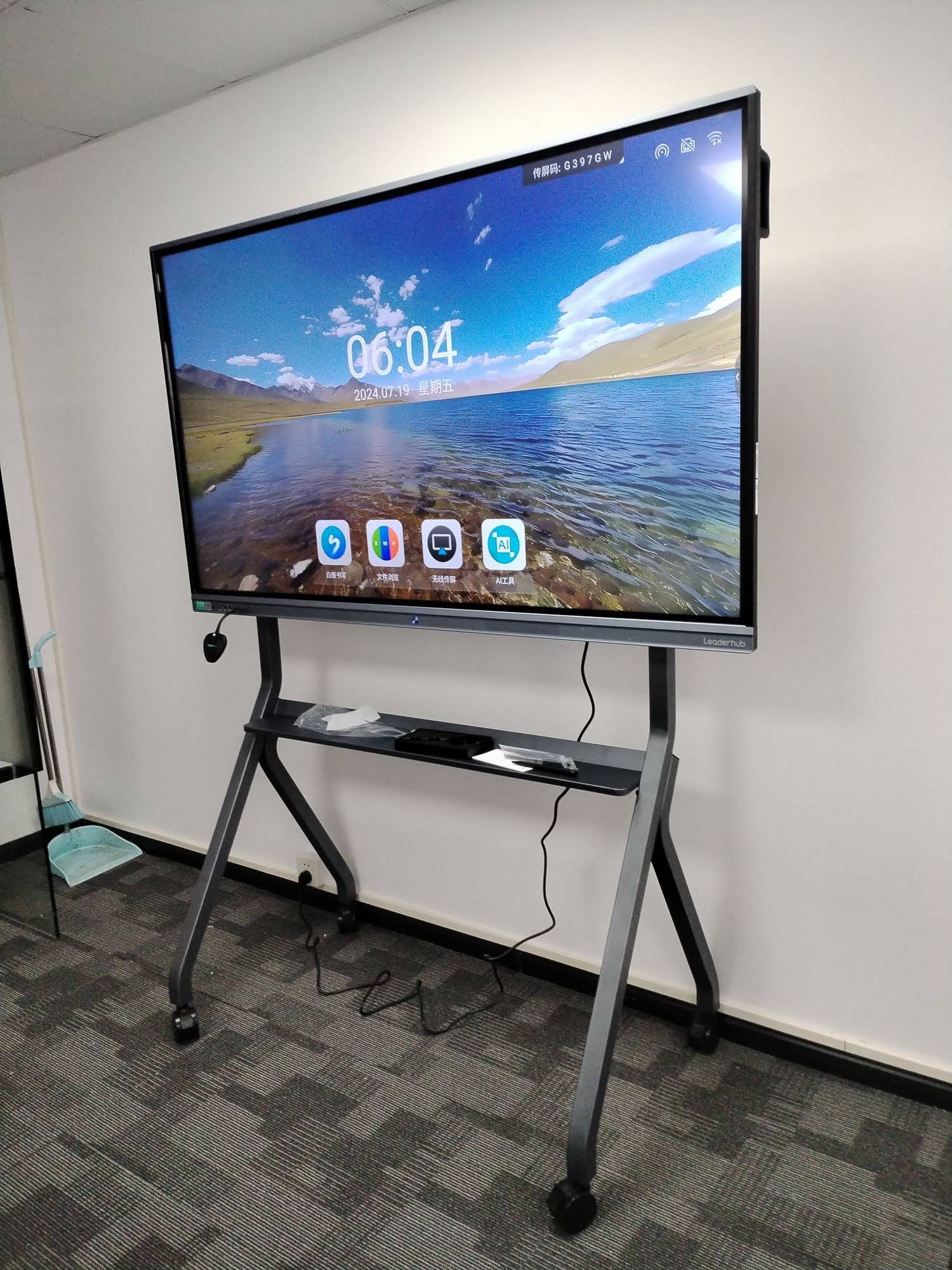
By default, touching the smart board while an iPad is connected over HDMI will not control the iPad — HDMI carries video only. Some panels support touch-back through a separate USB touch cable, but iPadOS has historically treated external touch input differently from a Mac or PC. For full two-way interaction, wireless companion apps with remote-control features are generally the better choice. If your workflow depends on touching the panel to drive the iPad, test the specific combination before committing to it in a live class or meeting.
Wireless vs. Wired: Which Method Should You Choose?
| Factor | AirPlay Mirroring | Companion App | HDMI / USB-C Cable |
|---|---|---|---|
| Setup time | Under 10 seconds | About 30 seconds (first time) | Under 10 seconds |
| Latency | Low (network dependent) | Low to moderate | Near zero |
| Mobility | Full room freedom | Full room freedom | Limited by cable length |
| Multi-device display | Usually one at a time | Up to 4–9 devices | One per input |
| Network required | Yes (or panel hotspot) | Yes (or panel hotspot) | No |
| Best for | Quick presentations, video | Group work, student sharing | Secure rooms, long sessions |
Using the iPad as a Digital Whiteboard on the Smart Board
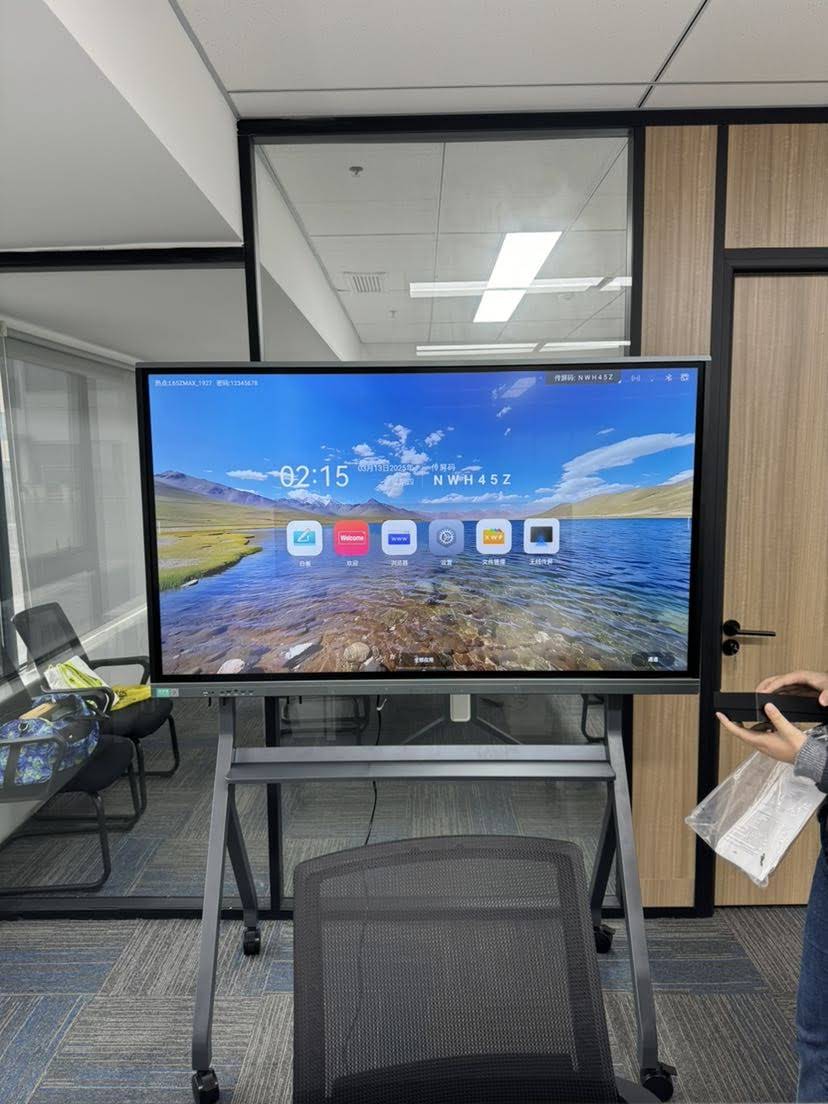
Once the connection is live, the iPad becomes a remote canvas. Apps such as Apple Freeform, Notability, GoodNotes, Explain Everything, and Microsoft Whiteboard let you write with an Apple Pencil while the strokes appear instantly on the large panel. This approach is popular with teachers who prefer to face the class while writing, and with presenters who want to annotate slides without blocking the audience’s view.
For a smoother experience, consider these settings adjustments:
- Enable Guided Access (Settings → Accessibility) when handing the iPad to students so they stay in the intended app.
- Turn on Do Not Disturb so notifications do not pop up on the big screen mid-lesson.
- Set the iPad to landscape orientation lock to match the smart board’s aspect ratio and avoid black bars.
- On compatible iPads, use Stage Manager with extended display to show one app on the panel while keeping notes private on the iPad.
Common Problems and How to Fix Them
The Smart Board Does Not Appear in the Screen Mirroring List
- Confirm both devices share the same network, not just the same network name (some schools run separate staff and guest SSIDs).
- Restart the casting app on the smart board.
- Toggle Wi-Fi off and on from the iPad.
- Try the smart board’s direct hotspot if the campus network blocks device discovery.
Video Is Choppy or Audio Lags
- Move closer to the access point or switch to the 5 GHz band.
- Lower the mirroring quality in the companion app settings if the option exists.
- For film clips or animation-heavy lessons, switch to an HDMI cable.
The Image Appears with Black Bars
- Rotate the iPad to landscape — the 4:3 iPad display will still show side bars on a 16:9 panel, which is normal.
- Open the content in a video or presentation app that supports full-screen 16:9 output.
The HDMI Adapter Shows “Accessory Not Supported”
- Use a certified adapter — uncertified Lightning adapters are frequently rejected after iPadOS updates.
- Unplug, wait five seconds, and reconnect.
- Check that the HDMI cable is firmly seated at both ends.
Choosing a Smart Board That Works Seamlessly with iPads
If you are still selecting a display, prioritise panels that make iPad connectivity effortless out of the box. Look for:
- Built-in AirPlay-compatible casting so no additional receiver or dongle is needed.
- A front-facing USB-C port that supplies video, touch, and power through one cable.
- Support for multi-screen casting so several iPads can share the panel at once.
- An Android operating system with regular firmware updates to keep pace with new iPadOS releases.
- A 4K panel to display Retina-quality iPad content without softening.
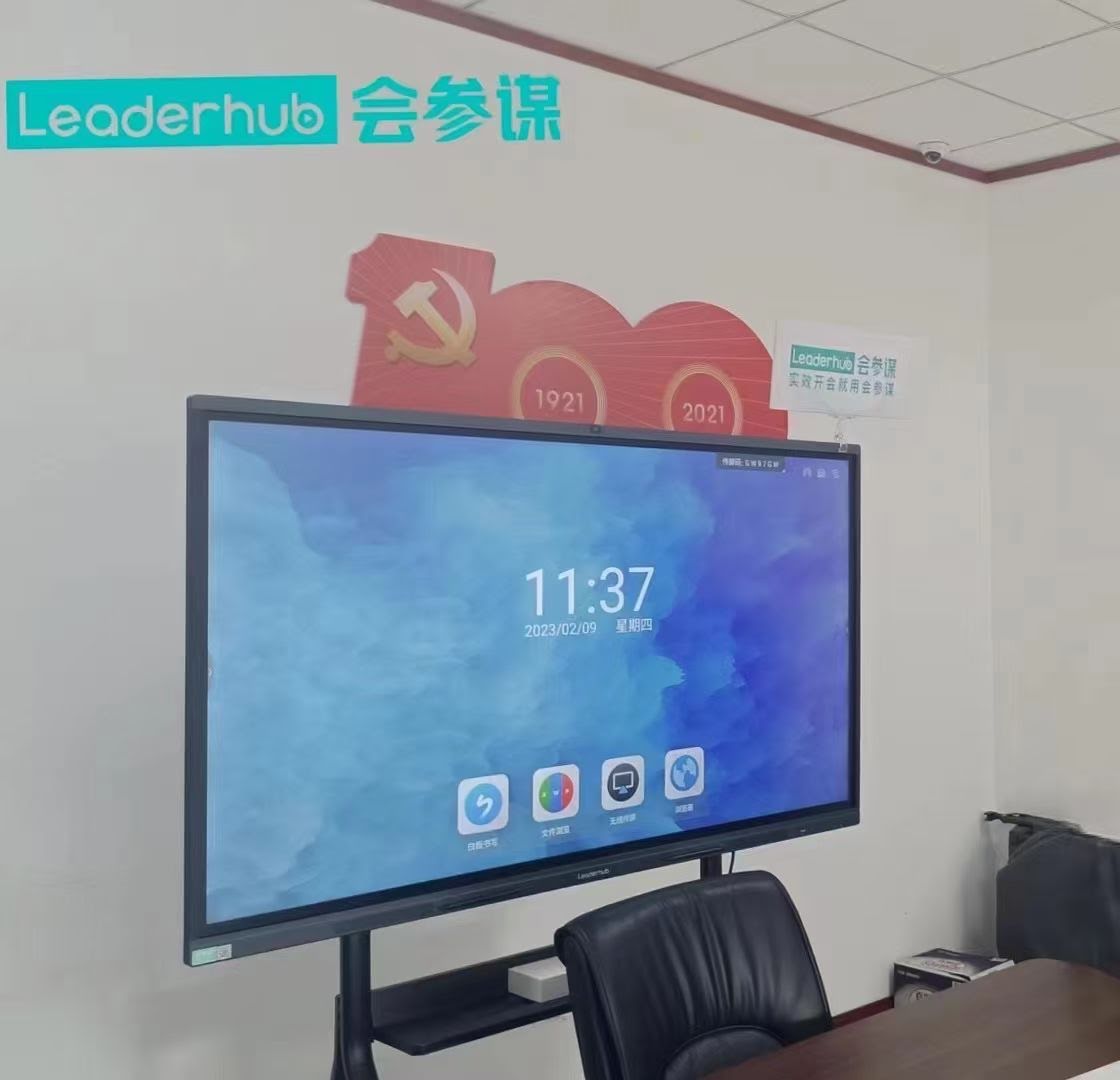
LeaderHub, a Shenzhen-based manufacturer with 16 years of interactive-display expertise serving 82 countries, designs its smart whiteboards with exactly these requirements in mind. The LeaderHub L75HM 75″ 4K Interactive Smart Whiteboard offers wireless casting from iPad, Android, Windows, and macOS devices, while the budget-friendly L65ZM 65″ Smart Panel suits smaller classrooms and huddle rooms. For mobile setups, the U55Pro Mobile Interactive Flat Panel can be rolled between rooms and paired with an iPad in seconds.
| Model | Screen Size | Ideal Setting | Price |
|---|---|---|---|
| LeaderHub L65ZM | 65″ 4K | Small classrooms, huddle rooms | $1,099 |
| LeaderHub L75HM | 75″ 4K | Standard classrooms, conference rooms | $1,599 |
| LeaderHub L86ZM | 86″ 4K | Lecture halls, large boardrooms | $1,699 |
| LeaderHub U55Pro | 55″ 4K Mobile | Flexible spaces, shared rooms | $2,499 |
Frequently Asked Questions
Can I connect an iPad to a smart board without Wi-Fi?
Yes. Use an HDMI or USB-C cable for a fully offline connection, or connect the iPad to the smart board’s built-in hotspot if the panel offers one.
Do I need a special app to mirror my iPad?
Not if the smart board supports AirPlay natively — Screen Mirroring in Control Center is enough. A companion app is only required for advanced features such as multi-device split screen or remote touch control.
Can students connect their own iPads at the same time?
Most modern panels allow several devices to cast simultaneously through the companion app, with a moderator mode that lets the teacher approve each request. Check your panel’s specification for the maximum number of concurrent screens.
Will the smart board charge my iPad during a wired session?
If you connect through a USB-C port that supports power delivery, yes. With an HDMI adapter, use the pass-through charging port on the adapter to keep the iPad powered.
Is there any noticeable delay with wireless mirroring?
On a healthy 5 GHz network, latency is typically under 100 milliseconds — unnoticeable for slides, documents, and annotation. For fast-moving video or gaming content, a wired connection remains the gold standard.
Mastering how to connect an iPad to a smart board unlocks a more mobile, interactive, and inclusive way of teaching and presenting. Start with AirPlay for everyday use, keep a USB-C or Lightning adapter in your bag as a backup, and explore your panel’s companion app when you want to bring the whole room onto the screen. If you are evaluating new hardware, contact the LeaderHub team to find a smart whiteboard that fits your space, budget, and Apple ecosystem.