
When schools, offices, and design studios invest in an interactive display, the conversation almost always starts with screen size and touch accuracy. Yet the single component that determines whether your smart whiteboard feels fast or frustrating is something most buyers overlook entirely: RAM (Random Access Memory).
Having tested dozens of interactive panels across classrooms, corporate meeting rooms, and hybrid workspaces over the past several years, I’ve seen firsthand how a whiteboard with insufficient memory turns into a source of daily frustration — laggy annotation, app crashes during video calls, and painful multitasking. This guide breaks down exactly how much RAM you need, why it matters, and how to match memory specifications to your real-world use case.
Why RAM Matters More Than You Think
RAM acts as the short-term workspace for your whiteboard’s operating system. Every app you open — a browser tab, a video conferencing tool, a PDF annotation layer — occupies a chunk of that memory. When RAM runs out, the system starts swapping data, and that’s when you notice stuttering strokes, delayed touch response, and frozen screens mid-presentation.
According to internal performance testing across Android-based interactive panels, devices running with less than 4GB of RAM show a notable increase in app-switching lag once three or more applications are active simultaneously. This is especially problematic in classrooms where teachers juggle a browser, a whiteboard app, and a screen-mirroring tool at once.
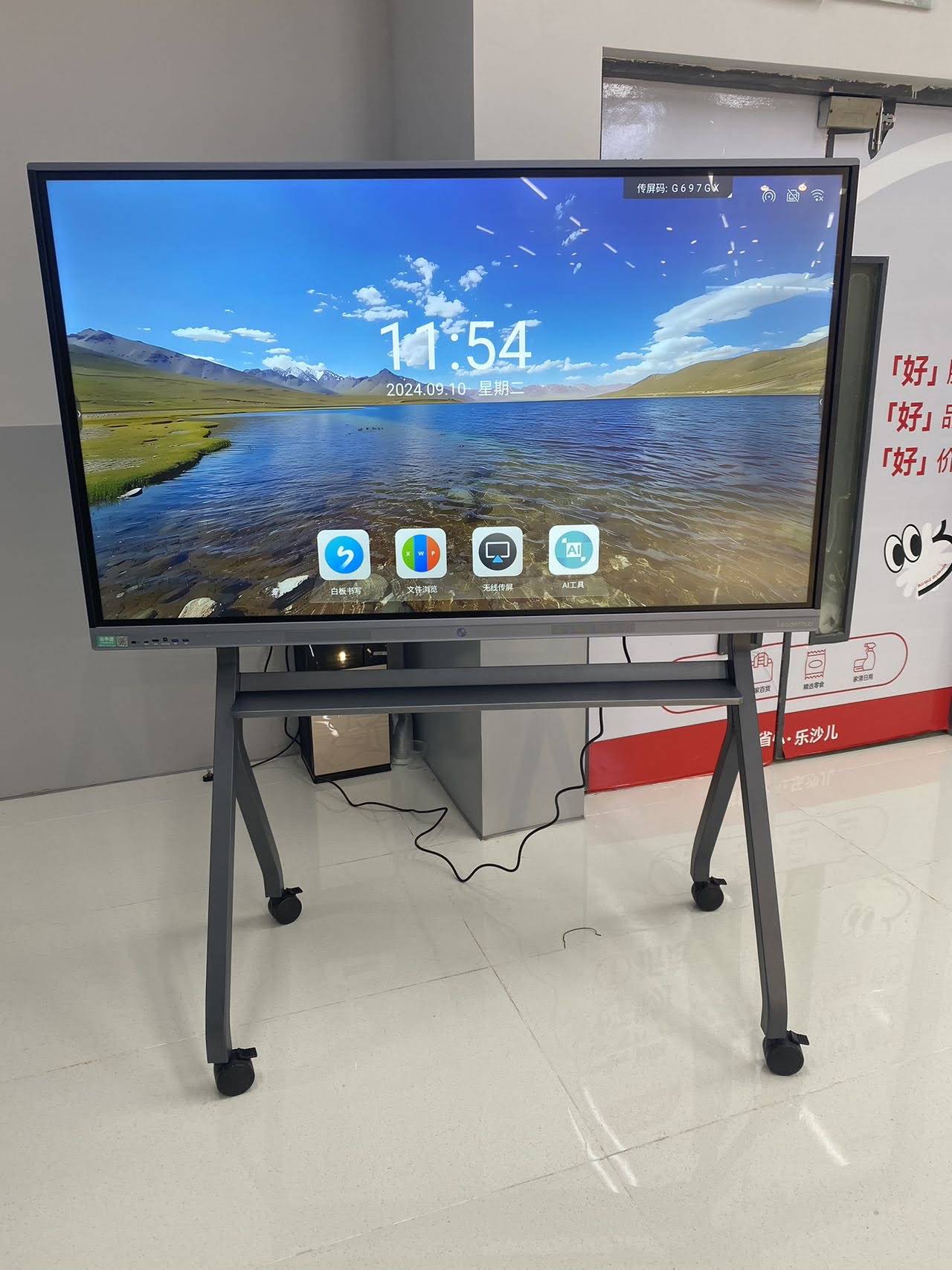
How Much RAM Does a Smart Whiteboard Actually Need?
The right amount of memory depends heavily on your workflow. Below is a practical breakdown based on real deployment scenarios we’ve observed across education, corporate, and creative environments.
| Use Case | Recommended RAM | Typical Applications |
|---|---|---|
| Basic classroom annotation | 2GB – 3GB | Whiteboard app, static slides |
| Standard business meetings | 4GB | Video calls, browser, document sharing |
| Multitasking / hybrid teaching | 8GB | Simultaneous apps, screen mirroring, cloud whiteboarding |
| Creative studios / heavy rendering | 16GB+ (with external mini PC) | Design software, multi-window workflows |
Practical Tip Based on Real Deployments
In a 2024 rollout across 40 classrooms for a mid-sized training institute, panels equipped with 4GB RAM handled daily lesson delivery smoothly, but teachers running simultaneous video conferencing and cloud-based whiteboard sync reported occasional slowdown. Upgrading to 8GB models eliminated the issue almost entirely — a clear demonstration that memory headroom pays off in real usage, not just spec sheets.
RAM vs. Storage: Don’t Confuse the Two
A common mistake buyers make is assuming more storage (like 64GB or 128GB) compensates for low RAM. It doesn’t. Storage holds your files; RAM determines how many tasks the processor can juggle at once. A whiteboard with 128GB storage but only 2GB RAM will still lag when multitasking — storage capacity has no bearing on real-time responsiveness.
- RAM = active memory for running apps and processes
- Storage (ROM/SSD) = long-term space for files, apps, and the OS itself
- Both matter, but RAM directly affects touch responsiveness and multitasking speed
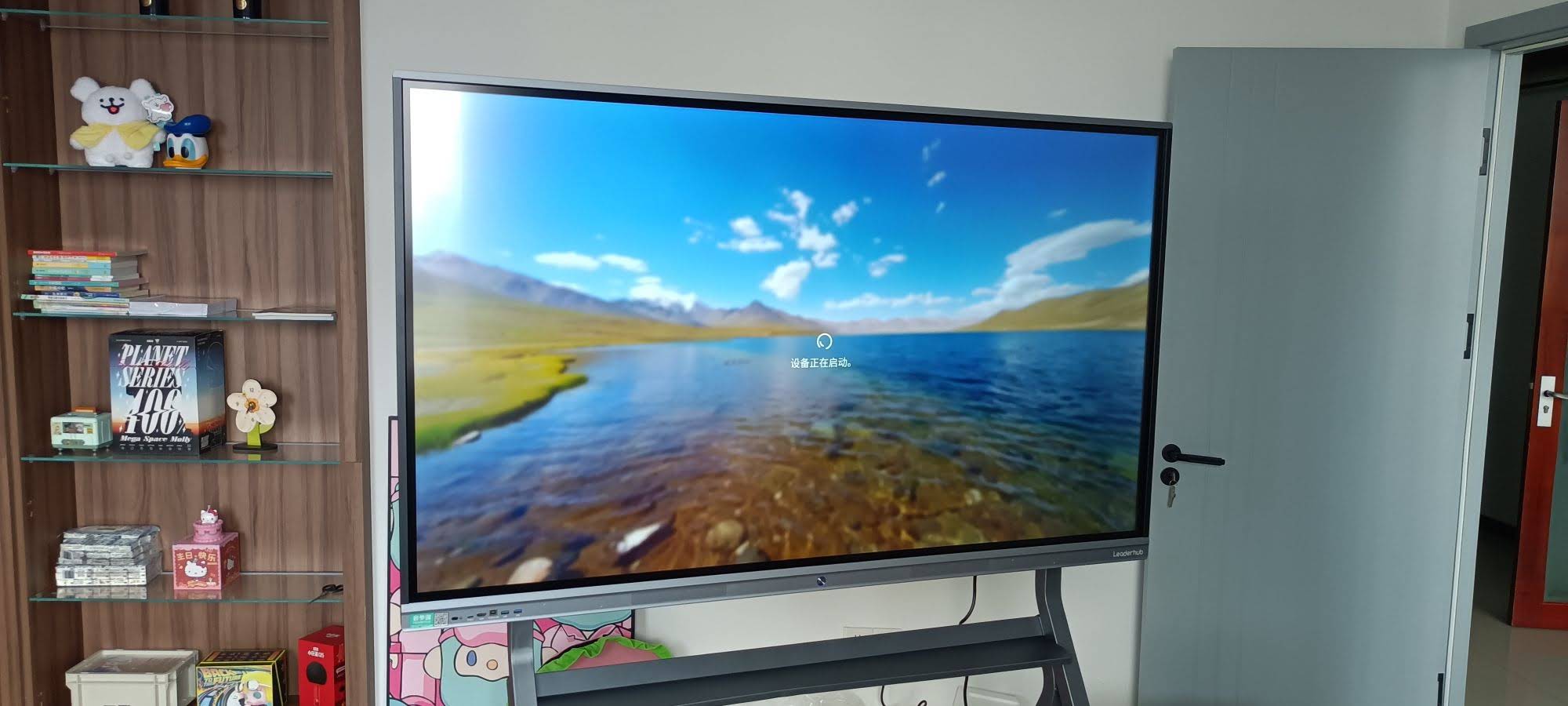
Signs Your Whiteboard’s RAM Is Holding You Back
If you’re already using an interactive panel, watch for these warning signs — they’re strong indicators that memory limitations are impacting daily performance:
- Touch strokes appear with a visible delay after pen contact
- Apps close unexpectedly when switching between two or more programs
- Video conferencing freezes when screen sharing is activated
- The whiteboard app takes longer than 3–5 seconds to reopen after minimizing
- Annotation tools become unresponsive during long sessions (over 45 minutes)
If you’re experiencing two or more of these symptoms regularly, it’s worth checking your device’s RAM specification before assuming the hardware itself is faulty.
How to Choose the Right RAM When Buying a New Whiteboard
Manufacturers rarely highlight RAM prominently in marketing materials, so buyers need to actively check specification sheets. Here’s a step-by-step approach we recommend to procurement teams and IT administrators:
1. Map Your Actual Workflow First
List every application you’ll realistically run at the same time — video conferencing, browser tabs, whiteboard software, screen mirroring. Add up the concurrent load rather than guessing.
2. Prioritize 4GB as the Practical Minimum
For any environment involving video calls or multi-app usage, 4GB should be treated as the baseline, not the ceiling. Devices below this threshold are best reserved for single-purpose, static display use only.
3. Consider Expandable or Modular Systems
Some interactive panels support detachable computing modules, allowing you to upgrade RAM independently of the display itself. This future-proofs your investment without requiring a full panel replacement when software demands increase.
4. Match RAM to Panel Size and Resolution
Larger 4K panels (75″ and above) process more pixel data during annotation and video playback, which places additional demand on memory. A 86-inch 4K panel benefits more from 8GB configurations than a smaller 55-inch unit running the same tasks.
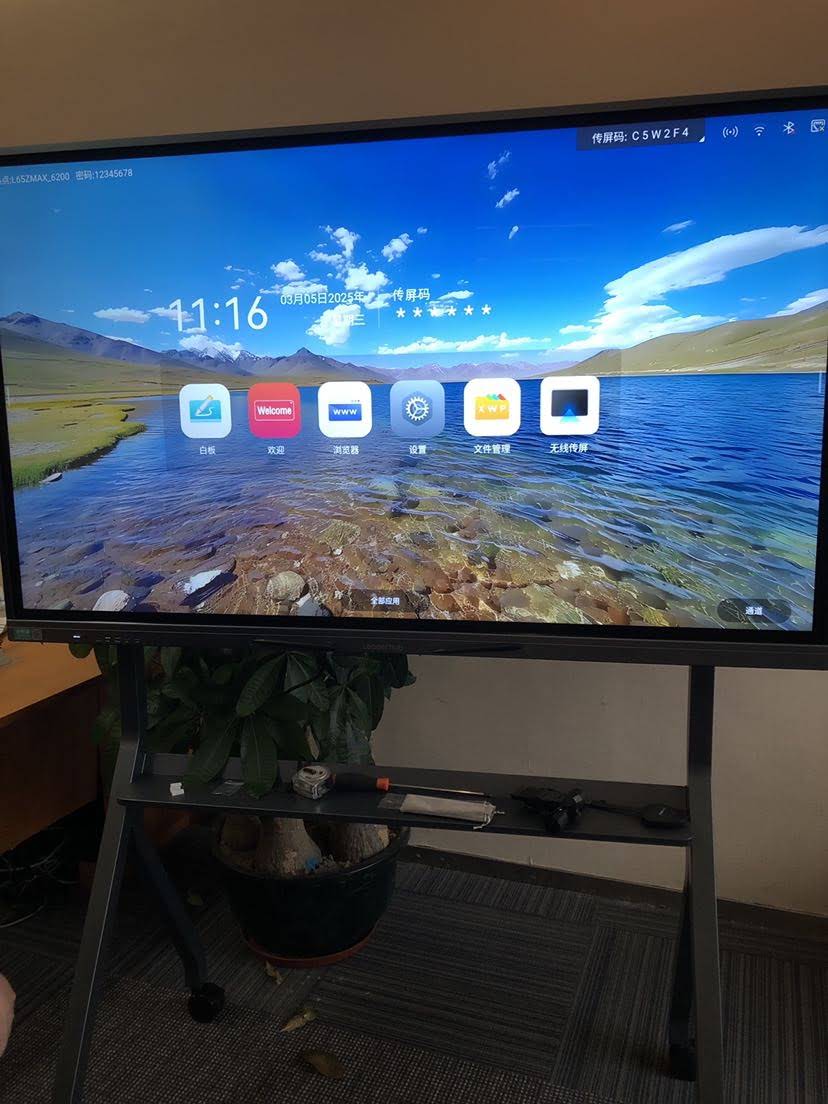
Comparing RAM Across Popular Interactive Panel Categories
Not all interactive display categories are built the same way. Here’s how memory requirements typically differ across common product types:
| Product Type | Typical RAM Range | Best Fit For |
|---|---|---|
| Entry-level interactive whiteboards | 2GB – 3GB | Small classrooms, basic presentations |
| Standard smart whiteboards | 3GB – 4GB | Everyday teaching and meetings |
| Mini PC-integrated systems | 8GB – 16GB | Enterprise, design, multitasking-heavy roles |
| Portable smart screens | 2GB – 4GB | Mobile presentations, small huddle rooms |
Real-World Example: Matching RAM to Deployment Scale
A regional training center recently upgraded 25 meeting rooms with interactive panels for hybrid workshops. Their IT lead initially selected budget models with 2GB RAM to reduce costs. Within the first month, trainers reported frequent app crashes during simultaneous video conferencing and live polling sessions.
After switching to units with 4GB RAM — comparable to configurations found in panels like the L75ZM interactive whiteboard series — crash reports dropped to near zero, and trainers noted noticeably smoother transitions between applications. This case illustrates a broader industry pattern: the jump from 2GB to 4GB RAM often delivers the most noticeable performance improvement per dollar spent, more so than jumping from 4GB to 8GB for typical business use.
Frequently Asked Questions
Can I upgrade RAM on an existing smart whiteboard?
It depends on the model. Panels with modular, detachable Android compute modules or built-in mini PC slots often allow RAM or full module upgrades. Fully integrated all-in-one panels typically do not support RAM upgrades after purchase, so it’s worth checking this specification before buying.
Does more RAM improve touch response speed directly?
RAM itself doesn’t control touch sensor hardware, but insufficient RAM causes software-level delays that make touch response feel slower during multitasking. Adequate RAM ensures the processor isn’t bottlenecked, which indirectly improves perceived responsiveness.
Is 2GB RAM enough for a home or small office whiteboard?
For light, single-app usage — such as static presentations without video calls — 2GB can be sufficient. However, most professional environments benefit from at least 4GB to accommodate video conferencing and multitasking without slowdown.
How does operating system choice affect RAM needs?
Android-based interactive panels generally require less RAM than Windows-based systems to achieve smooth performance, since Android is optimized for lighter multitasking. Windows-integrated panels, often paired with mini PCs, typically need 8GB or more for comparable responsiveness.
Final Thoughts on Choosing the Right Memory
Selecting the right RAM configuration isn’t about chasing the highest number available — it’s about matching memory capacity to how the device will actually be used day to day. A single-purpose classroom display doesn’t need the same specification as a corporate boardroom running simultaneous video conferencing and cloud collaboration tools.
As a company with 16 years of experience designing interactive display hardware, LeaderHub has consistently observed that RAM specification, more than almost any other single factor, determines long-term user satisfaction with smart whiteboards. Buyers who take the time to evaluate their actual multitasking needs — rather than relying on marketing claims alone — consistently report better day-to-day performance and fewer support issues over the life of the device.
Whether you’re outfitting a single classroom or rolling out interactive panels across an entire organization, checking RAM specifications alongside screen size and touch accuracy will save you from costly performance headaches down the line.








