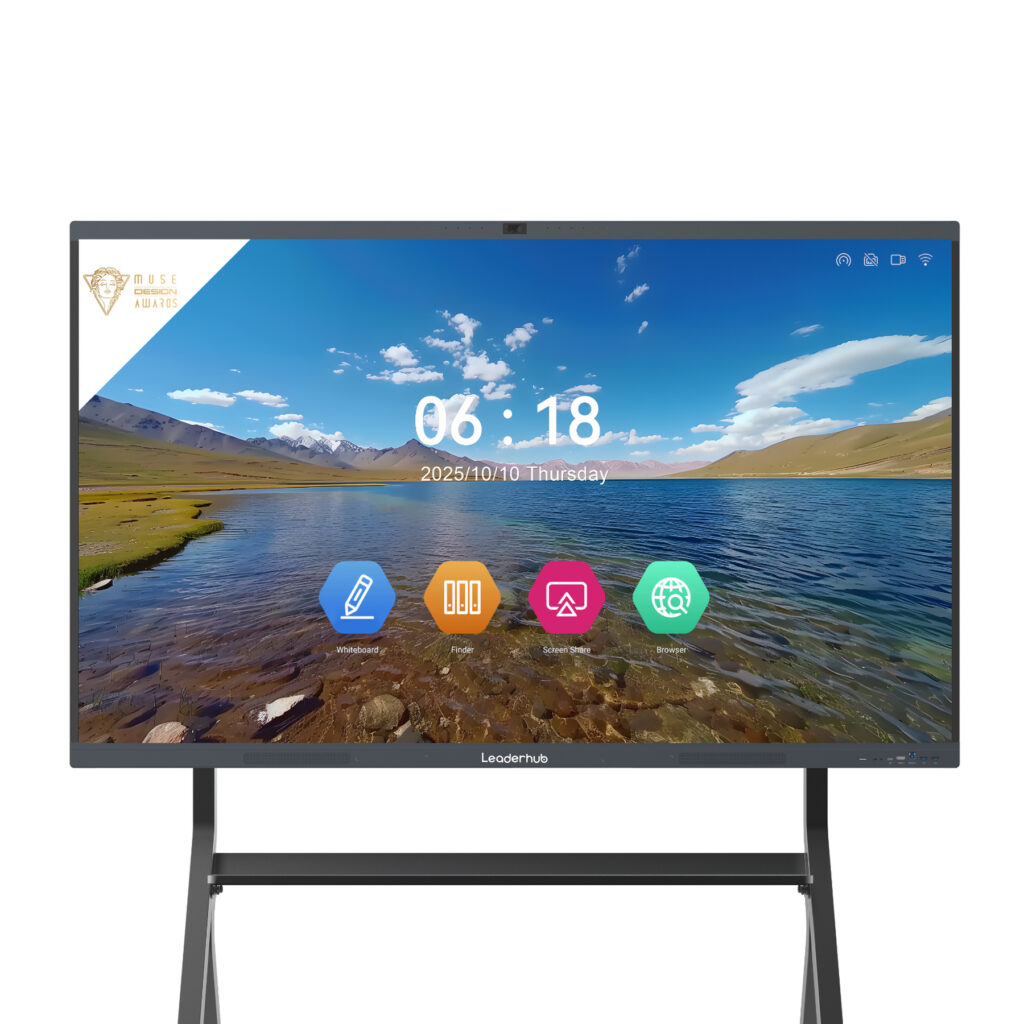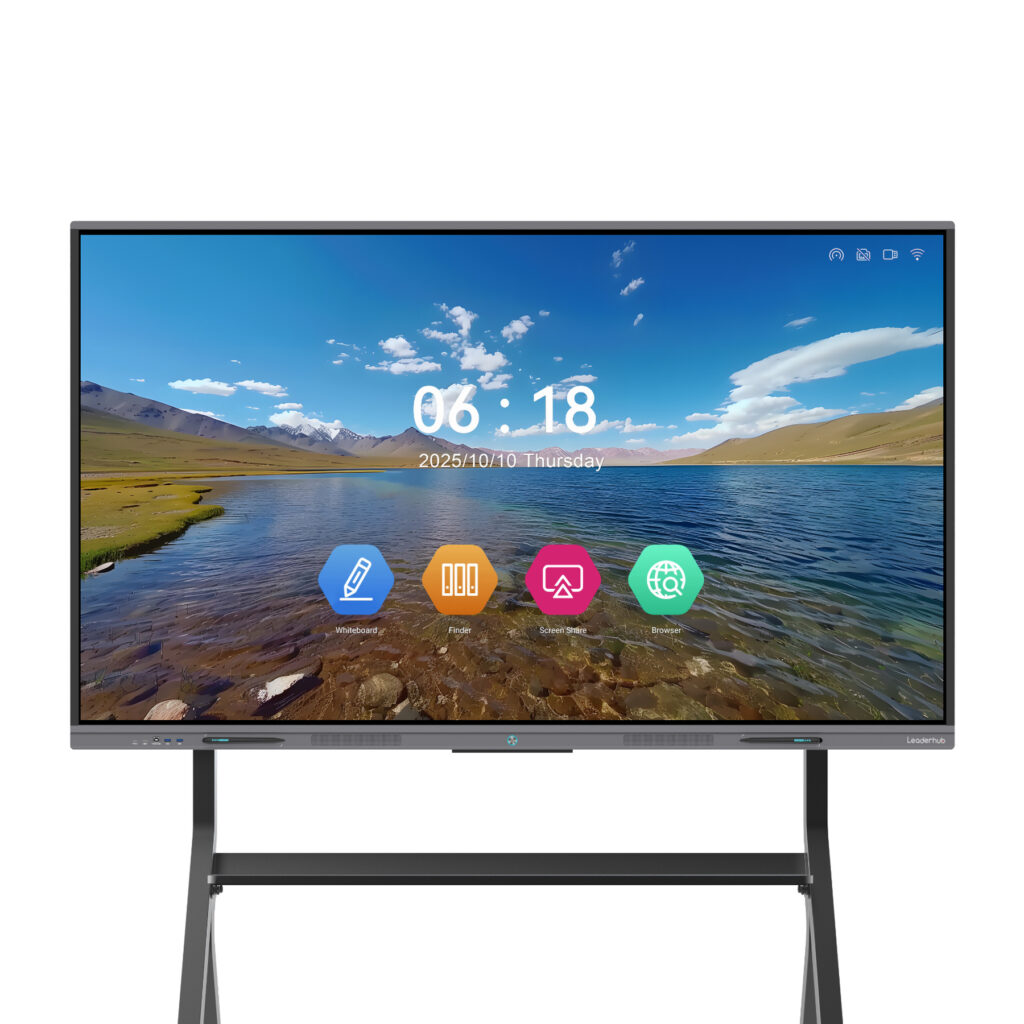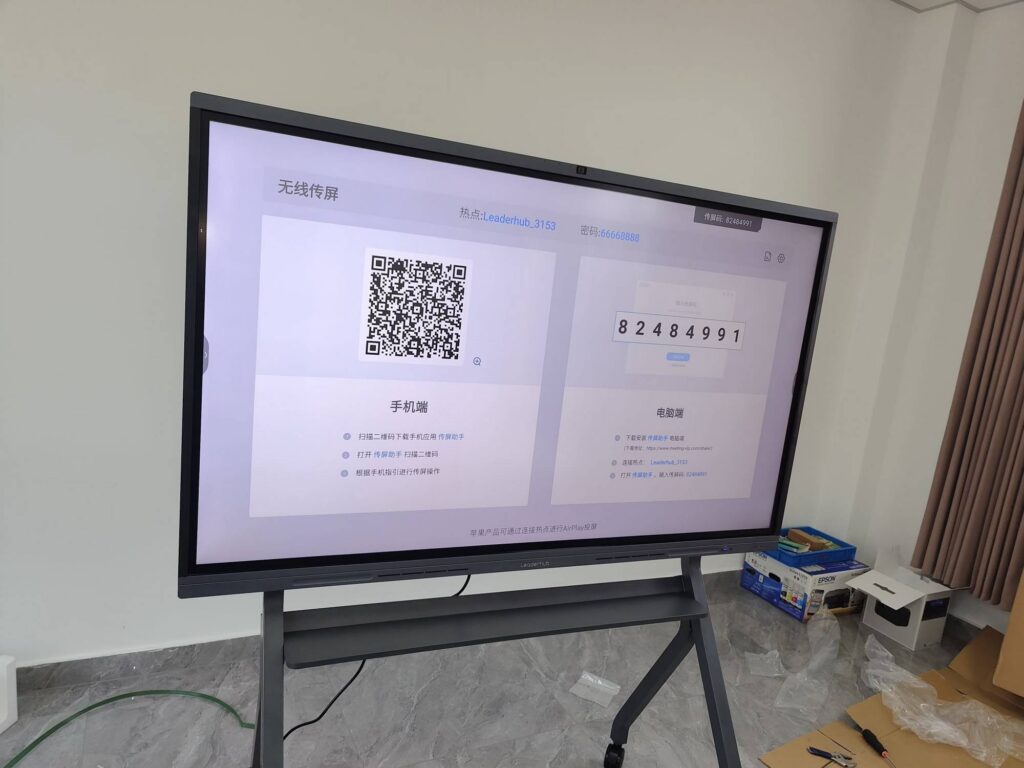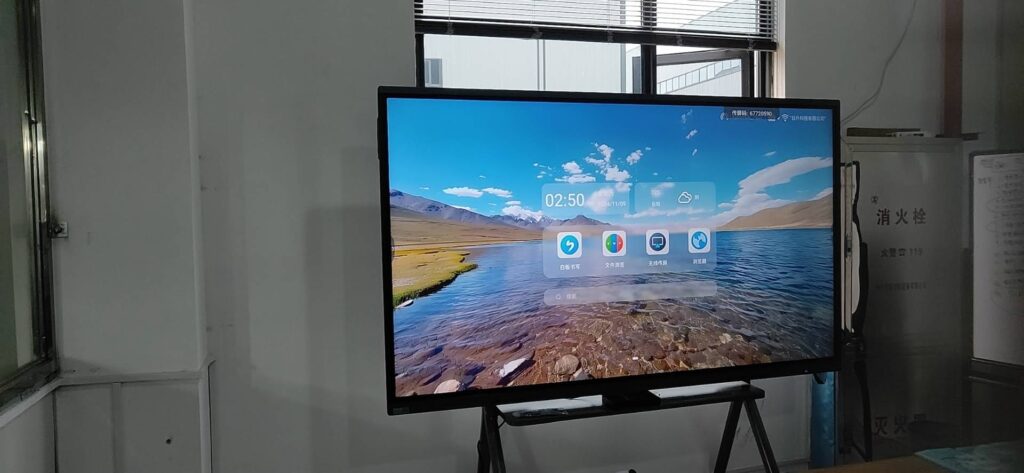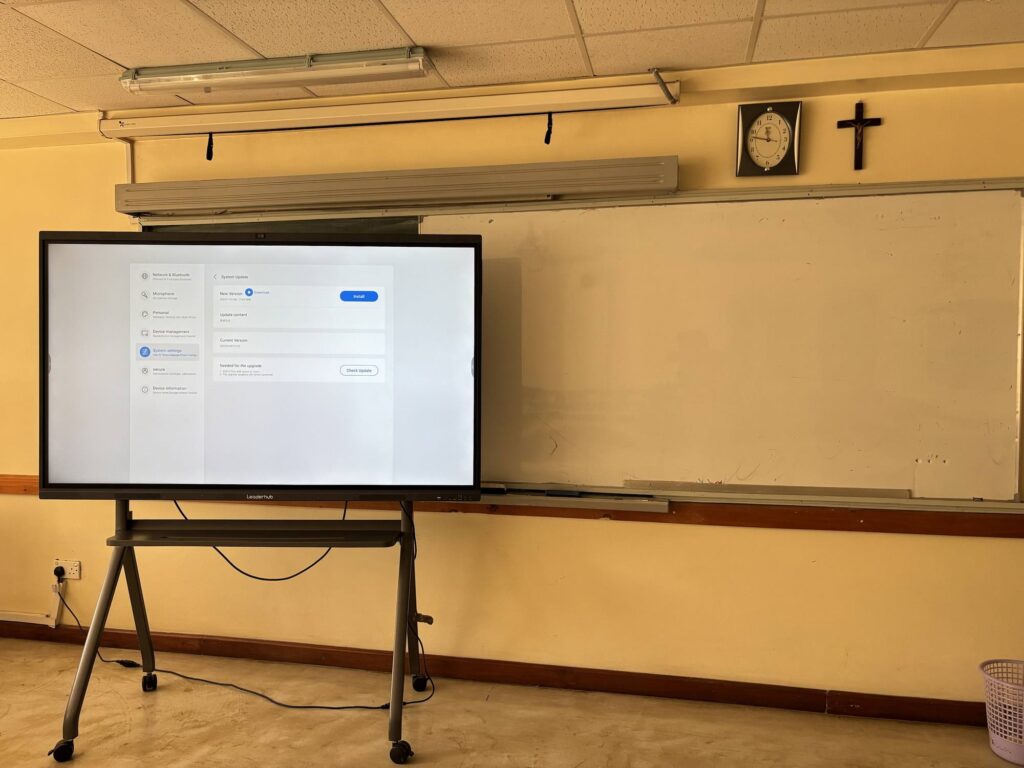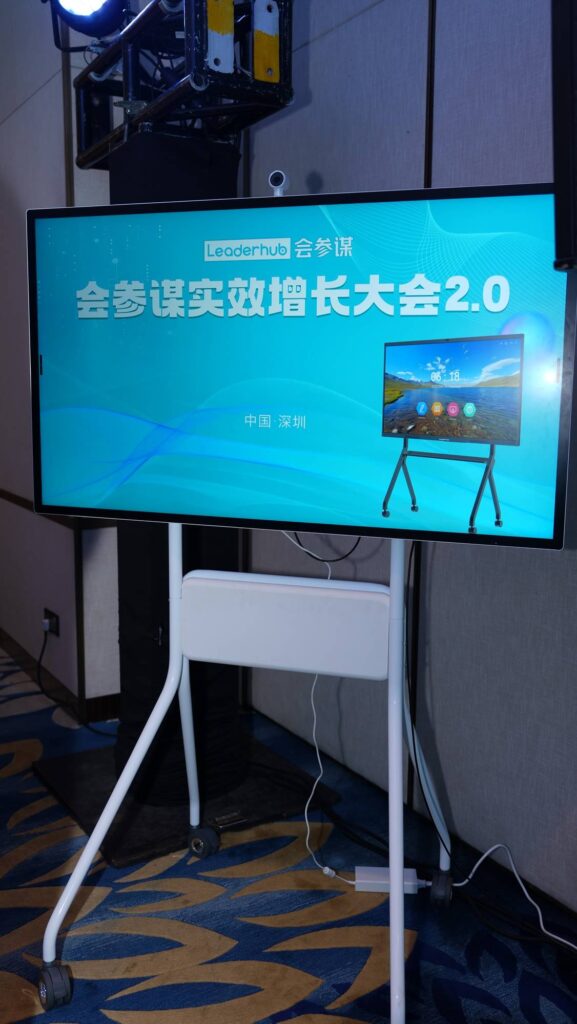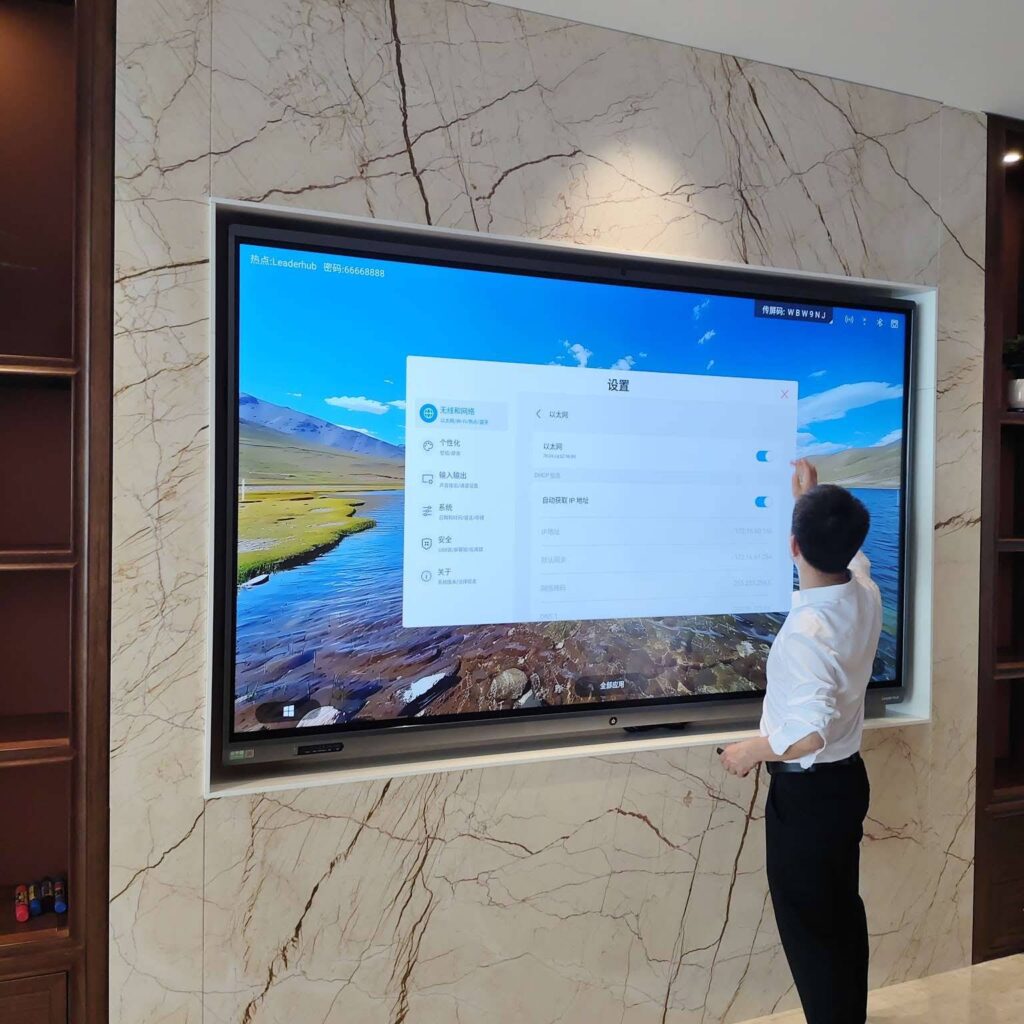
Walk into a modern classroom or boardroom and you will probably see a large touchscreen on the wall. The glass panel is only half of the story. The part that turns a big display into a tool people actually enjoy using is the software layer running on it. So, what is smart board software? In short, it is the operating system, applications, and cloud services that let you write, annotate, share, record, and collaborate on an interactive display. This guide explains what smart board software does, how it works under the hood, which features matter most for teaching and meetings, and how to evaluate it before you buy.
What Is Smart Board Software? A Simple Definition
Smart board software is the collection of programs that run on an interactive flat panel (IFP) or interactive whiteboard. It interprets touch and pen input, renders digital ink, manages screen sharing from laptops and phones, and connects the board to cloud storage, video-conferencing platforms, and learning management systems. Without this software, a smart board is just a very large monitor.
Hardware vs. Software: Understanding the Difference
It helps to separate the two layers clearly:
- Hardware – the 4K LCD panel, infrared or capacitive touch frame, cameras, microphones, speakers, and the built-in Android system-on-chip or optional Windows OPS module.
- Software – the launcher/home screen, whiteboarding app, annotation tools, wireless casting service, file manager, browser, conferencing apps, and the device-management console used by IT teams.
Most buyers compare screen size and resolution first, yet day-to-day satisfaction is driven far more by how intuitive the software feels to a teacher at 8 a.m. or a sales manager presenting to a client.
Core Features of Smart Board Software
Although every brand designs its own interface, mature smart board software usually includes the following building blocks.
1. Digital Whiteboarding and Annotation
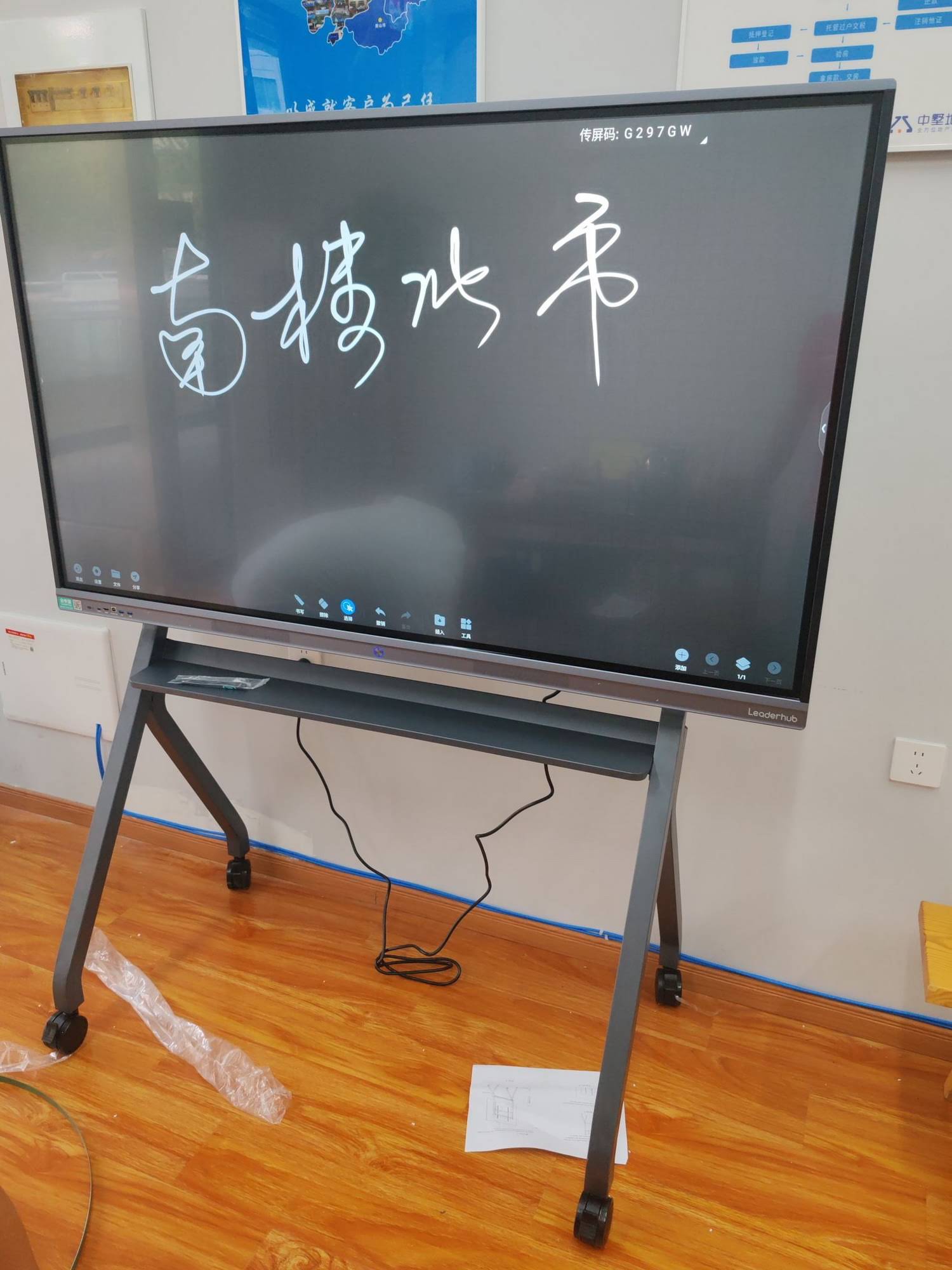
An infinite canvas where users write with a stylus or finger, erase with the palm, insert shapes, images, PDFs, and sticky notes, and save the result as an image or PDF. Good whiteboarding apps support multi-user writing – 20 or 40 simultaneous touch points – so several students or colleagues can work on the board at once.
2. Wireless Screen Sharing
Built-in support for Miracast, AirPlay, Google Cast, or a proprietary casting app lets any laptop, tablet, or phone mirror to the board without cables. Advanced versions allow split-screen display of two to four devices and reverse control, where the presenter operates a connected laptop directly from the touchscreen.
3. Video Conferencing Integration
Native or third-party apps for Zoom, Microsoft Teams, Google Meet, and other platforms, combined with the board’s camera and microphone array, turn the panel into an all-in-one meeting hub for hybrid work and remote teaching.
4. Cloud Sync and File Management
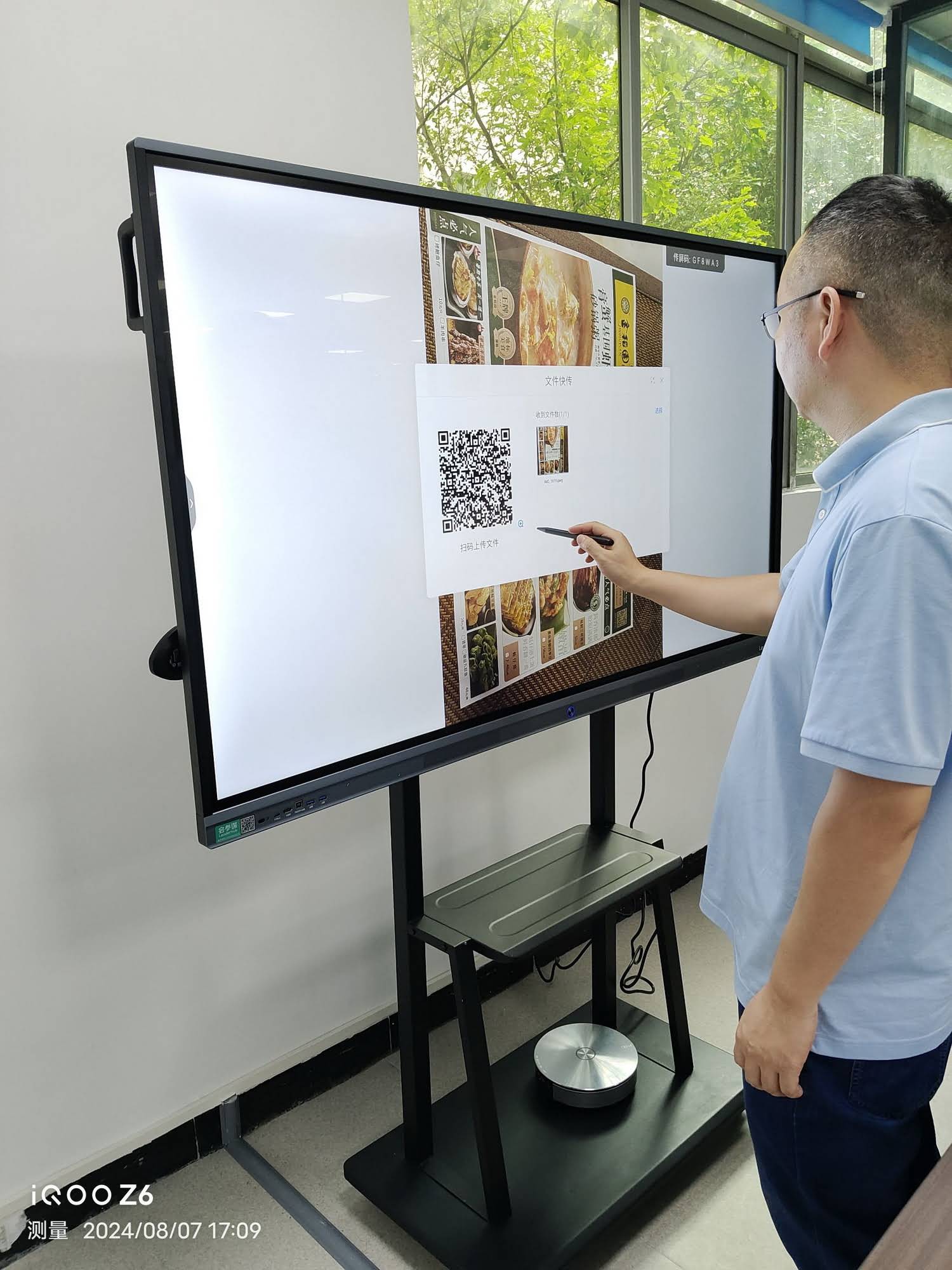
Users log in to Google Drive, OneDrive, or a brand cloud, open lesson plans or decks directly on the board, and save annotated versions back to the cloud. QR-code sharing lets participants download the session notes instantly.
5. Classroom and Meeting Tools
Timers, spotlights, screen masks, rulers, protractors, voting/quiz modules, screen recording, and split-screen multitasking are common additions designed for lessons and workshops.
6. Device Management and Security
IT administrators need remote firmware updates, app whitelisting, usage analytics, and account-based logins. Enterprise-grade software supports mobile device management (MDM) so hundreds of boards across campuses or offices can be configured centrally.
| Feature | Value for Teaching | Value for Meetings |
|---|---|---|
| Whiteboarding & annotation | Live problem solving, mark-up of textbooks and worksheets | Brainstorming, sketching workflows, annotating proposals |
| Wireless screen sharing | Students present from their own devices | Cable-free presentations, multi-device comparison |
| Video conferencing | Hybrid lessons, guest speakers, remote tutoring | Hybrid team meetings, client calls |
| Cloud sync | Lesson files available in every room, notes sent to students | Decks open instantly, meeting notes shared via QR code |
| Device management | District-wide control, content filtering | Enterprise security, remote troubleshooting |
How Smart Board Software Works
Understanding the architecture makes it easier to compare products and troubleshoot problems later.
The Operating System Layer
Most interactive panels ship with an embedded Android system that boots in seconds and runs the launcher, whiteboard, and casting apps. Many boards also accept an optional OPS slot computer or an external mini PC running Windows, which gives users the full desktop versions of Office, Teams, or specialized teaching software. Dual-system designs let you switch between Android and Windows with a single tap.
Touch and Pen Input Processing
The touch frame detects finger or stylus positions many times per second and sends coordinates to the software. The software then applies palm rejection, pressure or tip-size detection, and smoothing algorithms so handwriting looks natural with minimal latency. Some systems distinguish between a fine pen tip and a thick tip, assigning different colors or tools automatically.
Wireless Casting Protocols
Screen sharing relies on the board and the user’s device being on the same network (or a direct Wi-Fi link). The casting service encodes the device screen as a video stream and the board decodes it in real time. Low-latency codecs and 5 GHz Wi-Fi are essential for smooth video playback.
Cloud and Account Services
When a teacher or employee logs in, the software retrieves their files, settings, and app preferences from the cloud. After the session, notes are saved automatically and the board can be set to wipe local data for privacy. This account-based approach makes shared rooms safer and more personal at the same time.
A Typical Workflow From Power-On to Shared Notes
- The board wakes on touch or motion and displays the launcher with calendar, apps, and quick-share codes.
- The presenter casts a laptop screen or opens a cloud file directly on the panel.
- Participants annotate over the content with pens and fingers; the software layers ink on top of any app or video.
- Remote attendees join through the conferencing app and see the same canvas.
- At the end, notes are exported as PDF, emailed, or downloaded by scanning a QR code.
- The session closes, the account logs out, and the room is ready for the next group.
Smart Board Software for Teaching
In education, the software must serve two audiences: teachers who need speed and simplicity, and students who need engagement and accessibility. Research summarized in the UNESCO Technology in Education Report stresses that technology improves learning only when it is aligned with pedagogy and teacher training, so look for software that removes friction rather than adds it.
Features Teachers Use Most
- Subject toolkits – graph paper, coordinate grids, geometric tools, chemistry and music templates.
- Lesson templates and pre-built backgrounds for literacy, numeracy, and STEM activities.
- Screen recording to capture explanations for absent students or flipped classrooms.
- Quiz and polling modules that collect answers from student devices in real time.
- Split-screen mode to show a video on one side and take notes on the other.
- Accessibility options such as high-contrast backgrounds, text-to-speech, and on-screen handwriting recognition.
Classroom Management and Safety
Schools also need content filtering, guest-mode restrictions, and scheduled power-off. The OECD Digital Education Outlook highlights that effective digital ecosystems depend on interoperability – your smart board software should integrate with the learning platforms your school already uses rather than forcing a separate silo.
Smart Board Software for Meetings
Business users prioritize fast start-up, reliable casting, and seamless conferencing. A panel such as the L75H Pro interactive flat panel pairs 4K visuals with software designed for the boardroom.
What Business Teams Look For
- One-tap meeting join through calendar integration with Microsoft 365 or Google Workspace.
- Annotation over any shared screen, including live spreadsheets and CAD drawings.
- Multi-device split screen for comparing designs or dashboards side by side.
- Instant export of whiteboard sessions to email, Slack, or shared drives.
- Guest mode that leaves no personal data behind after the meeting.
- Remote management so IT can update dozens of rooms without site visits.
Key Benefits of Smart Board Software
| Benefit | Why It Matters |
|---|---|
| Higher engagement | Touch, multi-user writing, and interactive quizzes keep students and attendees active instead of passive. |
| Time savings | No cables, no adapters, no searching for files – sessions start in seconds and notes are shared automatically. |
| Hybrid readiness | Remote participants see the same canvas and can annotate from home. |
| Lower total cost | One device replaces projector, whiteboard, conference camera, and speakerphone; fewer consumables. |
| Better record keeping | Every lesson or meeting can be saved, searched, and revisited. |
| Centralized control | IT teams update, secure, and monitor every board from a single dashboard. |
Types of Smart Board Software
When people ask what smart board software is, they are often mixing three distinct categories. Knowing the difference prevents confusion when comparing quotes.
| Type | Examples | Typical Cost Model |
|---|---|---|
| Built-in (embedded) software | Launcher, whiteboard, casting, file manager preloaded on the panel | Included with the hardware, free updates |
| Third-party apps | Zoom, Teams, Google Classroom, Miro, browser-based tools | Free or existing organizational licenses |
| Cloud collaboration platforms | Brand clouds with account sync, lesson libraries, MDM consoles | Free tier plus optional subscription for advanced management |
How to Choose the Right Smart Board Software
Use this checklist during demos. Guidance from the EEF Digital Technology Guidance is a useful reminder that the purchase decision should begin with the learning or business problem you want to solve, not the feature list.
Evaluation Checklist
- Ease of use – can a first-time user start writing and sharing within one minute without training?
- Writing experience – low latency, palm rejection, natural ink, no calibration drift.
- Cross-platform casting – Windows, macOS, iOS, Android, and Chromebooks all supported.
- Conferencing compatibility – certified or stable apps for the platforms you already pay for.
- Cloud and LMS integration – Google Drive, OneDrive, Google Classroom, Moodle, or your CRM.
- Security and privacy – account logout, data wipe, app whitelisting, encrypted casting.
- Update policy – how long will the manufacturer provide firmware and app updates?
- Licensing clarity – which features are free forever and which require a subscription?
- Offline capability – does whiteboarding still work when the network drops?
- Hardware flexibility – support for an OPS or external PC if Windows apps are required.
Smart Boards That Ship With Software Ready to Use
Leaderhub is a Shenzhen-based interactive-display manufacturer with 16 years of experience, delivering smart whiteboards, interactive flat panels, mini PCs, and portable smart screens to education and enterprise customers in more than 82 countries. Every panel in the smart whiteboard range comes preloaded with whiteboarding, annotation, wireless casting, and cloud tools, so teams can start collaborating on day one.
| Model | Best For | Price |
|---|---|---|
| L65ZM 65″ 4K Smart Panel | Small classrooms and huddle rooms | $1,099 |
| L75HM 75″ 4K Smart Whiteboard | Standard classrooms and meeting rooms | $1,599 |
| L86ZM 86″ 4K Smart Panel | Lecture halls and large boardrooms | $1,699 |
| U55Pro 55″ Mobile 4K Smart Display | Flexible spaces that need a board on wheels | $2,499 |
| L110H 110″ Interactive Flat Panel | Auditoriums and executive briefing centers | $7,999 |
Teams that need full Windows applications on the board can add a compact unit such as the LP5C Mini PC, while mobile teaching and small-group work are well served by the portable rotating screens.
Frequently Asked Questions
Is smart board software free?
The core software preloaded on most interactive panels – whiteboard, annotation, casting, and file management – is included in the hardware price. Advanced cloud management or premium lesson libraries from some vendors may require a subscription, so ask for a clear breakdown before purchase.
Can I use smart board software without the internet?
Yes. Whiteboarding, annotation, local file playback, and HDMI input work offline. Internet access is required for cloud sync, video conferencing, and remote device management.
Does smart board software work with Zoom, Teams, and Google Meet?
Most Android-based panels run these apps natively, and Windows OPS or mini PC configurations run the full desktop versions. Check that the board’s camera and microphones are recognized by the conferencing app during a demo.
What is the difference between smart board software and an interactive whiteboard app?
An interactive whiteboard app is a single program for drawing and annotating. Smart board software is the complete environment – operating system, launcher, casting, conferencing, cloud, and management tools – within which that app runs.
How often should smart board software be updated?
Reputable manufacturers release firmware and app updates several times a year to add features and patch security issues. Standards bodies such as ISTE encourage educators to keep tools current so that classroom practice keeps pace with technology.
Ready to See Smart Board Software in Action?
Understanding what smart board software is makes the buying decision far easier: choose the panel whose software your teachers or teams will actually use every day. Explore the full product range or contact our team for a live demonstration, OEM/ODM options, and volume pricing for schools and enterprises.