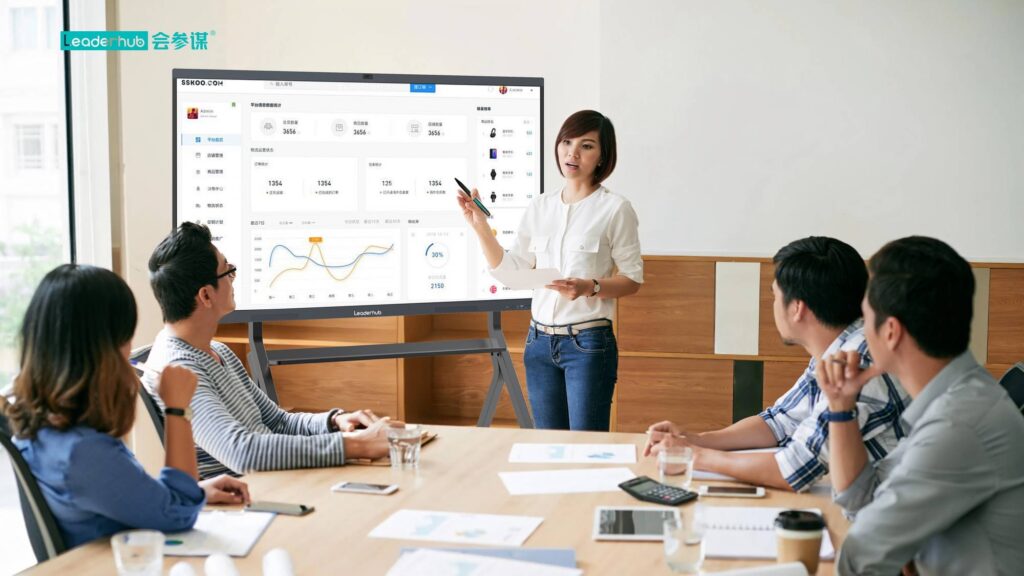
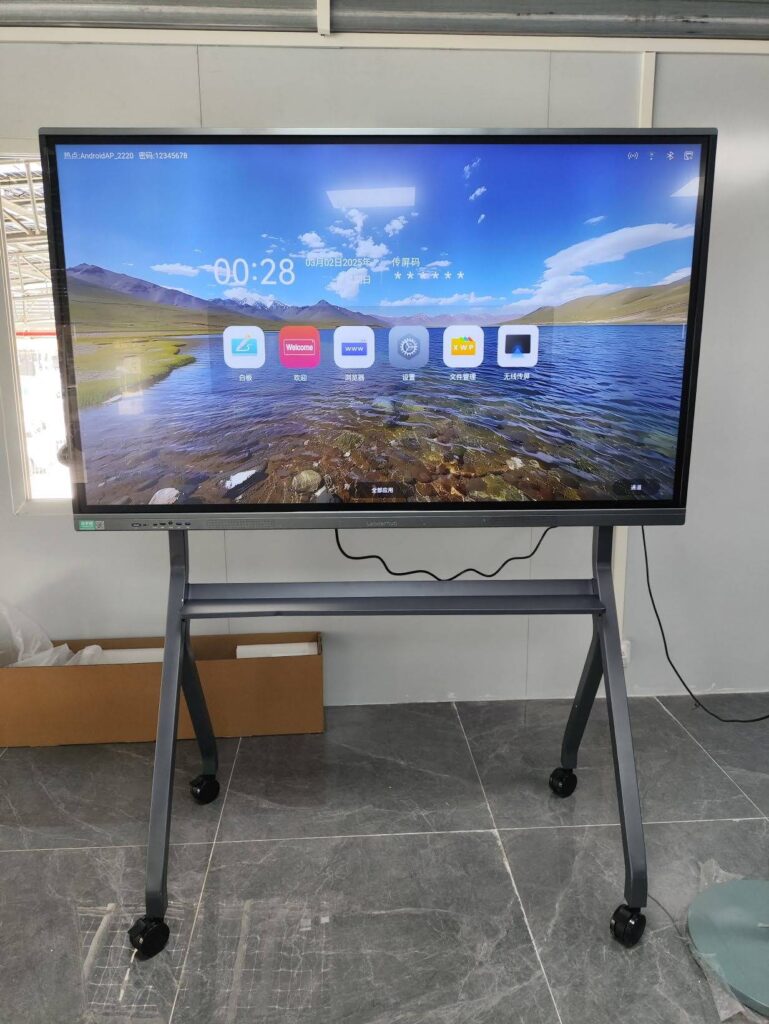
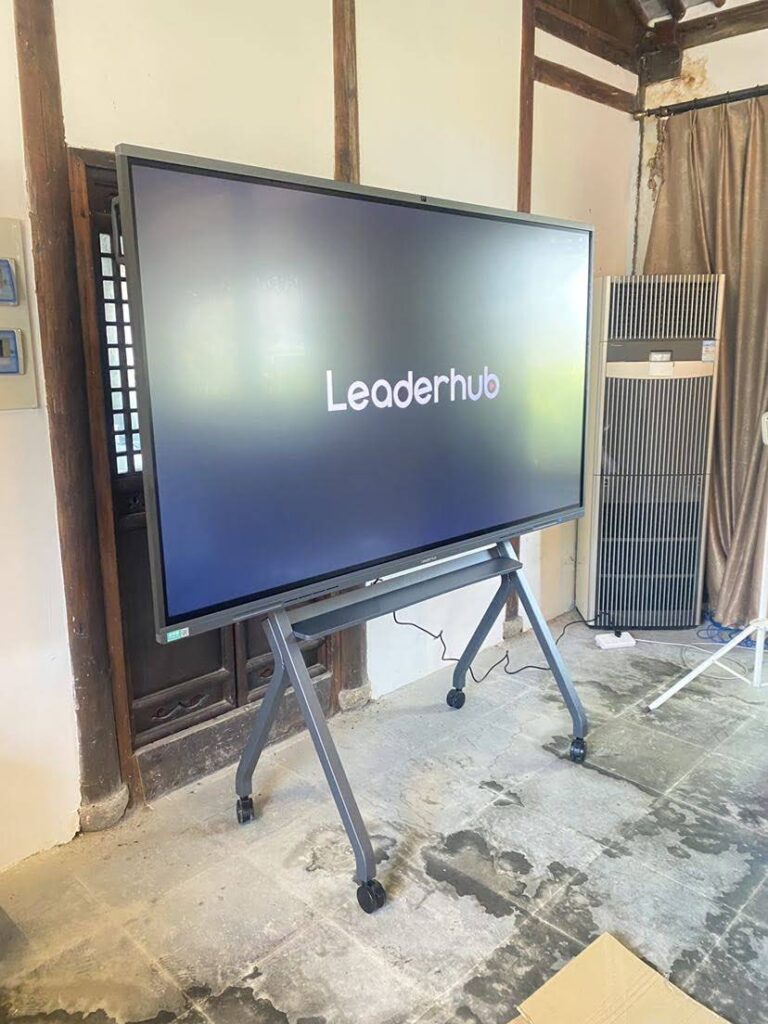
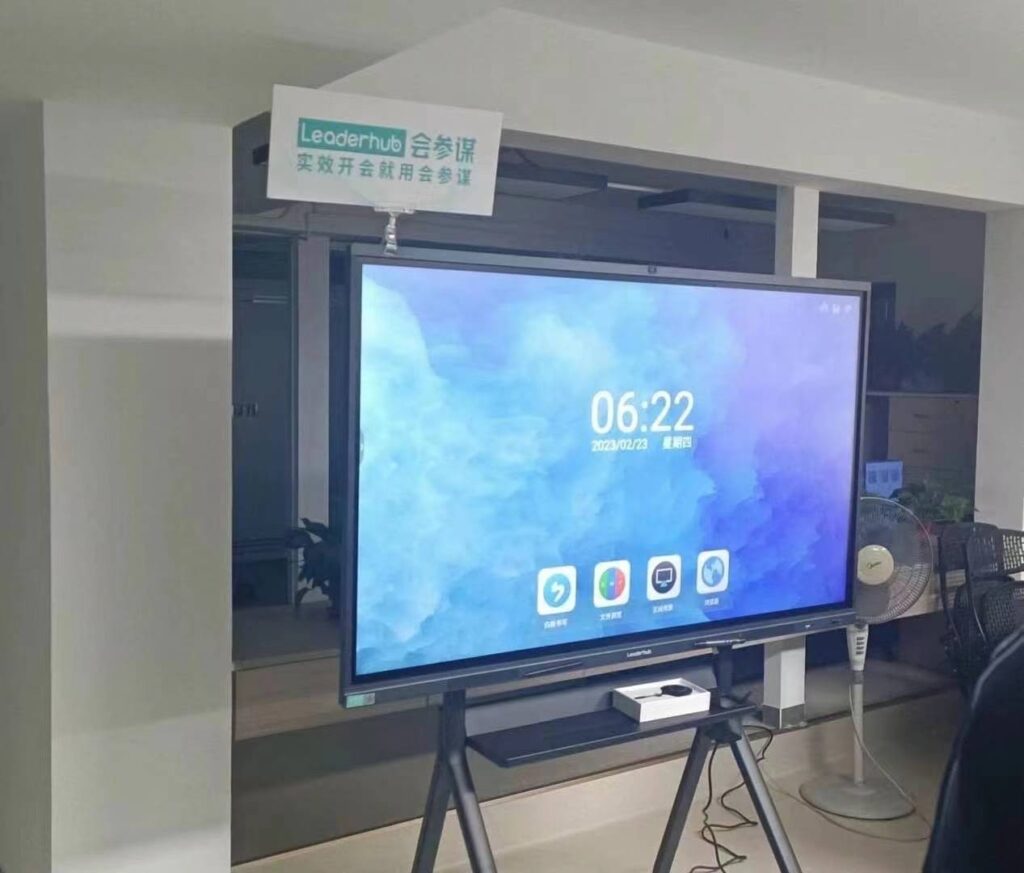
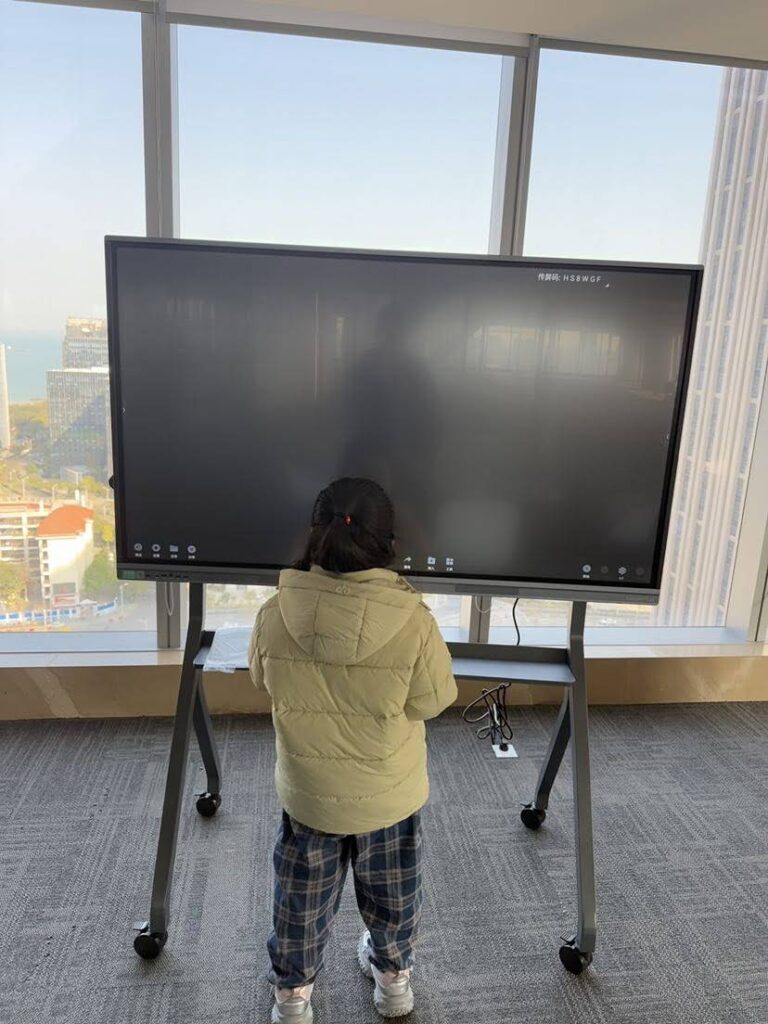
Modern interactive display technology has transformed how we teach, present, and collaborate. But a common question arises: can you actually use a smart board without connecting it to a traditional computer? The short answer is yes¡ªand this capability has revolutionized classroom and meeting room setups worldwide.
According to recent education technology reports, over 68% of institutions now prefer standalone interactive displays that eliminate dependency on external computers. This shift reflects a growing demand for simplified, all-in-one solutions that reduce technical complexity while maximizing functionality.
Understanding Smart Board Technology and Built-In Computing Power
Today’s smart boards are fundamentally different from earlier generations of interactive whiteboards. Modern smart whiteboards come equipped with integrated Android or Windows operating systems, essentially functioning as large-format tablets with touch capability.
These devices typically include:
- Built-in processors (quad-core or higher)
- Internal storage (16GB to 128GB)
- RAM (2GB to 8GB)
- Operating systems (Android 8.0+, Windows 10/11, or custom OS)
- Pre-installed collaboration and presentation software
- Wireless connectivity (WiFi, Bluetooth)
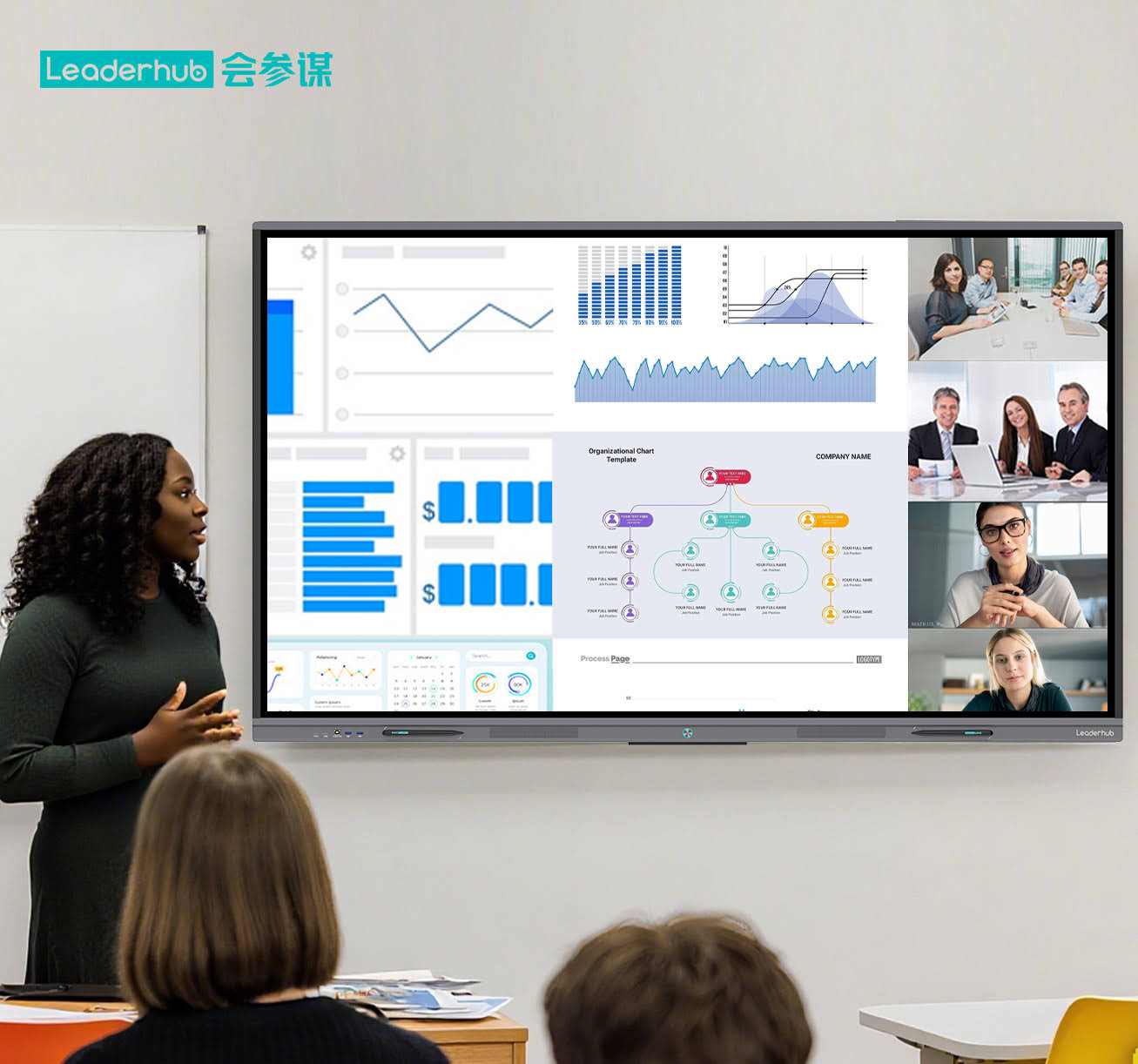
LeaderHub, with over 16 years of experience developing interactive display technologies, has engineered smart boards specifically designed for standalone operation. Their products serve more than 82 countries, proving that computer-free smart board operation is not just possible¡ªit’s becoming the standard.
What You Can Do Without Connecting a Computer
The standalone functionality of modern smart boards is surprisingly comprehensive. Here’s what you can accomplish without any external computer connection:
Core Presentation and Annotation Features
The most fundamental capability is digital whiteboarding. You can write, draw, erase, and annotate directly on the screen using a stylus or your finger. Most devices offer:
- Multiple pen colors and brush styles
- Shape recognition tools
- Text input via on-screen keyboard
- Page management (add, delete, reorder slides)
- Background templates (grid, lined, blank)
Document and Media Playback
Built-in file managers allow you to open and present various file formats directly from USB drives, cloud storage, or internal memory:
| File Type | Typical Support | Annotation Capability |
|---|---|---|
| PDF Documents | Full support | Yes, with save function |
| PowerPoint (PPT/PPTX) | Full support | Yes, overlay annotations |
| Word Documents | View and basic edit | Yes |
| Images (JPG, PNG) | Full support | Yes, with markup tools |
| Videos (MP4, AVI) | Full playback | Pause and annotate frames |
Web Browsing and Online Content
Most smart boards include a built-in web browser, enabling direct internet access without an external computer. This means you can:
- Search for information during presentations
- Access online educational resources
- Stream educational videos from YouTube or other platforms
- Use web-based applications and tools
- Display real-time data and dashboards
Educational Apps and Business Tools
Smart boards with Android OS can run apps directly from Google Play Store or pre-installed app stores. Common applications include:
- Educational games and interactive learning tools
- Mind mapping and brainstorming software
- Quiz and polling applications
- Video conferencing platforms (Zoom, Teams, Google Meet)
- Productivity suites (Google Workspace, Microsoft 365 web versions)
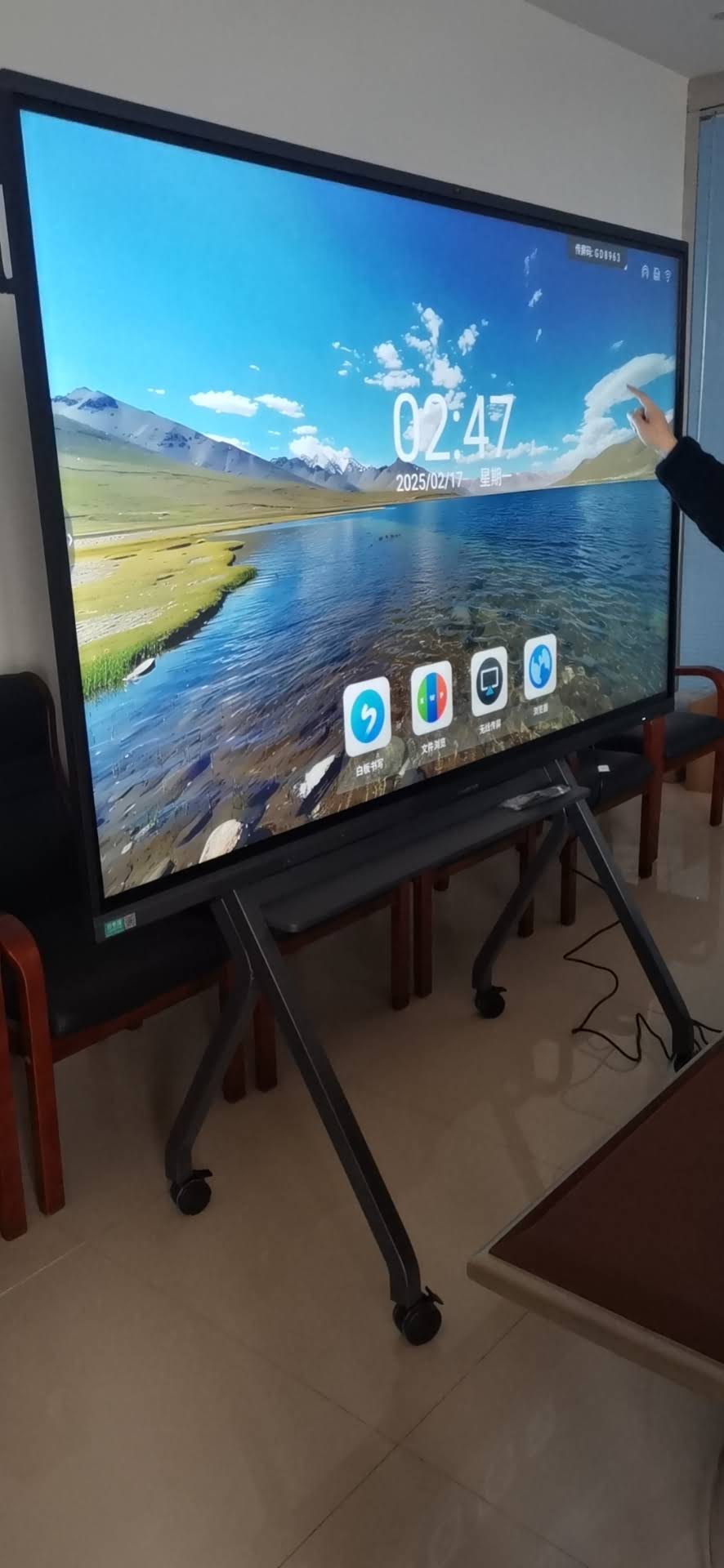
Setting Up Your Smart Board for Computer-Free Operation
Getting started with standalone smart board operation requires minimal technical knowledge. Here’s a comprehensive setup process:
Initial Hardware Setup
- Physical Installation: Mount the smart board securely on a wall or mobile stand at appropriate height
- Power Connection: Connect to a reliable power source (most units require standard AC power)
- Network Configuration: Connect to WiFi network for internet access and cloud features
- Peripheral Setup: Connect any optional accessories like external speakers or document cameras
Software Configuration
First-time startup typically involves these steps:
- Select system language and region settings
- Connect to wireless network
- Sign in to Google or Microsoft account (for app downloads)
- Configure display settings (brightness, touch sensitivity)
- Install or update pre-loaded applications
- Set up cloud storage connections (Google Drive, OneDrive, Dropbox)
Calibration and Testing
Proper calibration ensures accurate touch response:
- Run the built-in calibration tool (usually in Settings menu)
- Test touch accuracy across all screen areas
- Adjust pen pressure sensitivity if available
- Verify handwriting recognition accuracy
When You Might Still Need a Computer Connection
While standalone operation covers most use cases, certain scenarios benefit from connecting an external computer:
Specialized Software Requirements
Professional applications not available on Android or with limited web versions:
- Advanced CAD and 3D modeling software (AutoCAD, SolidWorks)
- Professional video editing suites (Adobe Premiere, Final Cut Pro)
- Specialized scientific or engineering applications
- Industry-specific ERP or CRM systems
- High-end graphic design tools requiring desktop processing power
Performance-Intensive Tasks
Operations that exceed the smart board’s built-in processing capabilities:
- Rendering complex 3D graphics or animations
- Running multiple virtual machines
- Processing large datasets in real-time
- High-resolution video editing above 1080p
Legacy System Integration
Organizations with existing infrastructure may require computer connections for:
- Access to on-premises servers and databases
- Specialized security protocols and VPN requirements
- Custom enterprise applications without cloud versions
- Controlled IT environments with restricted app installation
Comparing Standalone vs Computer-Connected Operation
Understanding the tradeoffs helps you determine the best setup for your needs:
| Aspect | Standalone Operation | Computer-Connected |
|---|---|---|
| Setup Complexity | Minimal – plug and play | Moderate – requires cable management and driver installation |
| Startup Time | 15-30 seconds | 2-5 minutes (computer boot + connection) |
| Total Cost | Lower – single device purchase | Higher – smart board + computer + maintenance |
| Processing Power | Limited to built-in specs | Scalable based on computer specs |
| Software Flexibility | App store limitations | Full desktop software access |
| Maintenance | Single point of failure, simpler troubleshooting | Multiple components to maintain |
| Portability | Excellent – one device to move | Poor – multiple components |
Real-World Applications: Computer-Free Smart Board Success Stories
Education Sector Implementation
A school district in Texas deployed 250 standalone smart boards across 15 elementary schools in 2023. Results after one academic year:
- 87% reduction in technical support calls related to display issues
- Average lesson startup time decreased from 8 minutes to under 2 minutes
- Teachers reported 40% increase in willingness to use interactive technology
- Annual IT maintenance costs dropped by $45,000
Teachers particularly appreciated the ability to start lessons immediately without waiting for computer boot sequences or troubleshooting connection issues.
Corporate Meeting Rooms
A multinational consulting firm standardized on computer-free smart boards for their 80+ meeting rooms worldwide. Key outcomes:
- Meeting setup time reduced from average 12 minutes to 3 minutes
- Eliminated dependency on personal laptops for presentations
- Improved collaboration with instant whiteboard access
- Reduced equipment failure rates by 60%
Medical Training Facilities
A medical training center integrated standalone smart displays in simulation labs:
- Instructors could quickly annotate medical diagrams during simulations
- Real-time video streaming from procedure cameras without computer intermediaries
- Students used touch interaction to manipulate 3D anatomical models
- Wireless screen sharing from tablets for case study discussions
Maximizing Standalone Smart Board Performance
Optimization Tips for Daily Use
To get the most from computer-free operation:
- Regular Updates: Keep system software and apps updated to latest versions
- Storage Management: Regularly clear cache and remove unused apps to maintain performance
- Cloud Integration: Use cloud storage for file access rather than consuming internal storage
- Network Quality: Ensure strong WiFi signal for smooth streaming and web browsing
- Screen Care: Clean the display regularly with appropriate materials to maintain touch sensitivity
Enhancing Functionality with Accessories
These peripherals expand capabilities without requiring a computer:
- Wireless keyboards and mice for easier text input
- Document cameras for displaying physical materials
- External USB drives for additional storage and easy file transfer
- Bluetooth speakers for enhanced audio in larger rooms
- Wireless presentation remotes for distance control
Content Preparation Best Practices
Preparing materials for standalone operation:
- File Format Selection: Convert documents to PDF for consistent display across devices
- Cloud Synchronization: Store frequently used files in cloud services for instant access
- Backup Strategy: Keep copies on USB drives as fallback for network issues
- Optimized Media: Compress large video files to appropriate resolution for smoother playback
- Template Creation: Build reusable whiteboard templates for common presentation types
Troubleshooting Common Issues Without a Computer
Touch Response Problems
If touch accuracy degrades:
- Run the calibration utility from system settings
- Clean the screen surface thoroughly with microfiber cloth
- Check for magnetic interference from nearby devices
- Restart the smart board to clear temporary glitches
- Update touch driver firmware if available
Performance Slowdowns
When the system becomes sluggish:
- Close unused applications running in background
- Clear app cache and temporary files
- Remove unused apps to free storage space
- Check for system updates that may include performance improvements
- Restart the device to clear memory
Connectivity Issues
Resolving network problems:
- Verify WiFi password and network settings
- Move closer to router or install WiFi extender
- Switch between 2.4GHz and 5GHz bands if available
- Restart both smart board and router
- Check for MAC address filtering on network
Future Trends in Computer-Independent Smart Boards
The industry continues advancing toward even greater independence from traditional computers:
AI-Powered Features
Emerging capabilities include:
- Real-time handwriting-to-text conversion with context awareness
- Intelligent content suggestions based on meeting context
- Automatic meeting notes and action item extraction
- Voice-controlled operation for hands-free interaction
- Smart object recognition and manipulation
Enhanced Processing Power
Next-generation smart boards feature:
- Octa-core processors matching mid-range computer performance
- Up to 16GB RAM for true multitasking
- SSD storage options up to 256GB
- Dedicated graphics processing for smoother visuals
- 5G connectivity for faster cloud access
Expanded Software Ecosystems
Growing app availability specifically designed for large-format touchscreens:
- Professional design tools optimized for touch interfaces
- Advanced video editing applications
- Comprehensive business intelligence platforms
- Specialized educational content libraries
- Native versions of enterprise software suites
Making the Decision: Do You Need a Computer?
Use this decision framework to determine your setup requirements:
Choose Standalone Operation If You:
- Primarily need whiteboarding and annotation capabilities
- Present standard documents (PDFs, PowerPoint, images)
- Value quick startup and minimal technical complexity
- Work primarily with web-based applications
- Want to minimize total cost of ownership
- Need portable or frequently relocated displays
- Have users with varying technical skill levels
Consider Adding a Computer Connection If You:
- Regularly use specialized desktop-only software
- Process large files requiring significant computing power
- Need access to on-premises servers or databases
- Work with high-resolution video editing or 3D rendering
- Have strict IT security requirements mandating controlled devices
- Require specific legacy applications without cloud alternatives
Hybrid Approach Considerations
Many organizations implement a flexible hybrid model:
- Use standalone mode for 80% of daily activities
- Keep computer connection available for specialized tasks
- Use screen mirroring from personal devices when needed
- Maintain optional computer access without requiring it for every use
This approach provides maximum flexibility while avoiding dependency on external computers for routine operations.
Cost Analysis: Standalone vs Computer-Connected Setups
Understanding total cost of ownership over a 5-year period:
| Cost Category | Standalone Setup | Computer-Connected Setup |
|---|---|---|
| Initial Hardware | $2,500 – $4,500 | $2,000 – $3,500 (display) + $800 – $1,500 (computer) |
| Installation | $200 – $400 | $400 – $700 |
| Software Licenses | $0 – $500 (apps) | $500 – $2,000 (OS + applications) |
| Annual Maintenance | $150 – $300 | $300 – $600 |
| 5-Year Total | $3,450 – $6,400 | $5,200 – $10,700 |
Beyond direct costs, consider indirect savings from standalone operation:
- Reduced IT support time (estimated 2-4 hours per unit annually)
- Lower energy consumption (single device vs. two)
- Decreased downtime from fewer component failures
- Simplified user training and onboarding
Expert Recommendations for Different Use Cases
K-12 Education
Recommendation: Standalone operation
Elementary and secondary schools benefit most from computer-free smart boards because:
- Teachers need quick lesson transitions without technical delays
- Built-in educational apps meet most curriculum needs
- Reduced complexity increases teacher adoption rates
- Lower total cost enables wider deployment across more classrooms
- Simplified troubleshooting reduces burden on limited IT staff
Higher Education and Research
Recommendation: Hybrid approach
Universities and research institutions should maintain computer connectivity options:
- Standalone mode for lectures and general presentations
- Computer connection for specialized research software
- Access to institutional databases and computing resources
- Flexibility for guest speakers to connect personal devices
Small to Medium Business
Recommendation: Standalone operation
SMBs maximize value with computer-free setups:
- Meeting rooms become instantly usable without technical setup
- Web-based business tools cover most operational needs
- Lower upfront investment for multiple meeting spaces
- Wireless screen sharing from personal devices maintains flexibility
Enterprise and Corporate
Recommendation: Depends on security requirements
Large organizations should evaluate based on:
- IT security policies regarding standalone internet-connected devices
- Integration needs with existing infrastructure
- Software requirements across different departments
- Balance between convenience and control
Conclusion: The Computer-Free Smart Board Era
Modern smart board technology has definitively answered the question of computer-free operation. Not only can you use a smart board without a computer, but for many applications, operating without one is actually preferable.
The key advantages¡ªsimplified setup, faster startup, lower costs, and reduced maintenance¡ªmake standalone operation the default choice for most educational and business environments. The built-in computing power, comprehensive app ecosystems, and intuitive interfaces have matured to the point where external computers are optional rather than required.
That said, specialized applications and performance-intensive tasks still benefit from computer connections. The ideal approach for many organizations is maintaining the flexibility to operate standalone for daily use while preserving the option to connect external devices when specific needs arise.
As processing power continues increasing and software ecosystems expand, the gap between standalone and computer-connected capabilities will continue narrowing. For organizations evaluating smart board purchases today, prioritizing strong standalone capabilities ensures your investment will remain relevant as technology evolves.
The question is no longer whether you can use a smart board without a computer¡ªit’s whether you have specific reasons to add the complexity of one.