
Smart boards have become essential tools in modern classrooms, meeting rooms, and training facilities worldwide. However, many users still struggle with the proper shutdown procedure, which can lead to system errors, data loss, or even hardware damage. According to a 2024 study by the Educational Technology Research Institute, approximately 37% of interactive display malfunctions stem from improper shutdown procedures. This comprehensive guide will walk you through the correct process to safely and efficiently shut down your smart board while protecting your investment and ensuring optimal performance.
Understanding Why Proper Shutdown Matters
Before diving into the shutdown process, it’s important to understand why following the correct procedure is crucial. Smart boards are sophisticated devices that combine display technology, computing systems, and touchscreen interfaces. When you simply unplug the device or force a power shutdown, you risk corrupting system files, losing unsaved work, and damaging internal components.
Professional IT administrators in educational institutions report that devices shut down properly last an average of 3-5 years longer than those frequently subjected to improper shutdowns. This translates to significant cost savings and reduced maintenance requirements over time.
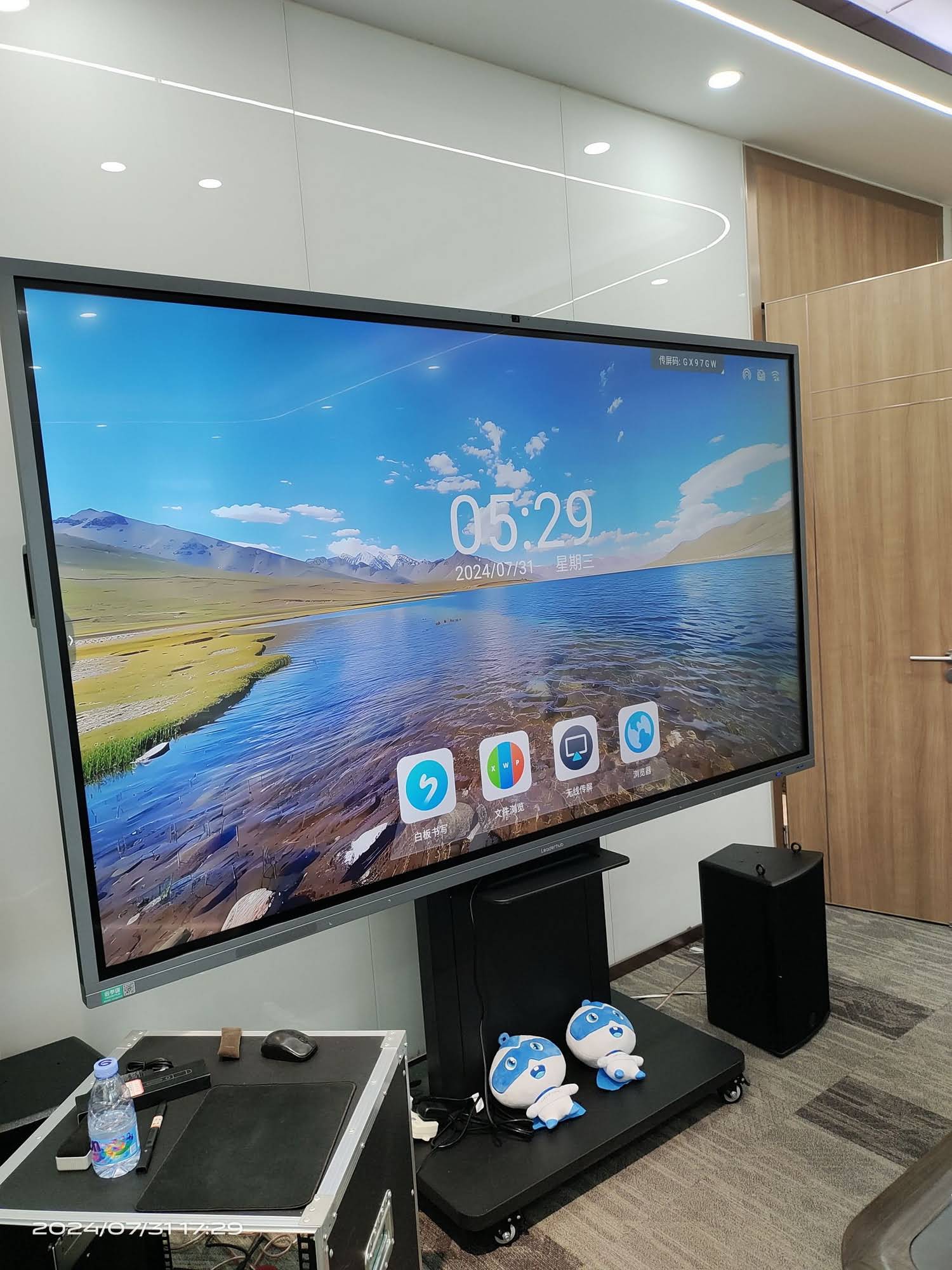
Step-by-Step Guide to Shutting Down Your Smart Board
1. Save All Open Files and Close Applications
The first critical step is ensuring all your work is preserved. Open each application and use the save function (typically Ctrl+S on Windows or Cmd+S on Mac-based systems). Don’t rely on auto-save features alone¡ªmanually verify that everything is saved.
Close all applications one by one rather than letting the system close them automatically during shutdown. This prevents potential data corruption and ensures proper file closure. Pay special attention to:
- Presentation software (PowerPoint, Google Slides, Prezi)
- Whiteboard annotation tools
- Document editors
- Web browsers with multiple tabs
- Video conferencing applications
2. Disconnect All External Devices
Modern smart boards often connect to various peripherals. Before shutdown, safely remove all external devices to prevent data transfer interruptions or device recognition errors on next startup:
| Device Type | Proper Removal Method | Why It Matters |
|---|---|---|
| USB Drives | Use “Safely Remove Hardware” option | Prevents data corruption and file system errors |
| HDMI Cables | Disconnect after closing all screen-sharing apps | Avoids signal conflicts and display errors |
| Document Cameras | Exit camera software before unplugging | Ensures proper driver shutdown |
| Wireless Presenters | Remove USB receiver after turning off device | Maintains Bluetooth pairing settings |
3. Access the Shutdown Menu
The shutdown process varies slightly depending on your smart board’s operating system. Here’s how to access the shutdown menu for the most common platforms:
Windows-based Smart Boards:
- Click the Start menu button in the lower-left corner
- Select the Power icon
- Choose “Shut down” from the dropdown menu
- Wait for the system to complete the shutdown process (typically 30-60 seconds)
Android-based Smart Boards:
- Press and hold the physical power button for 2-3 seconds
- Select “Power off” or “Shut down” from the options
- Confirm your selection if prompted
- Allow the system to complete the shutdown sequence
Proprietary Operating Systems:
- Look for a dedicated power or settings icon on the home screen
- Navigate to system settings or power management
- Select the shutdown option
- Follow any additional on-screen prompts
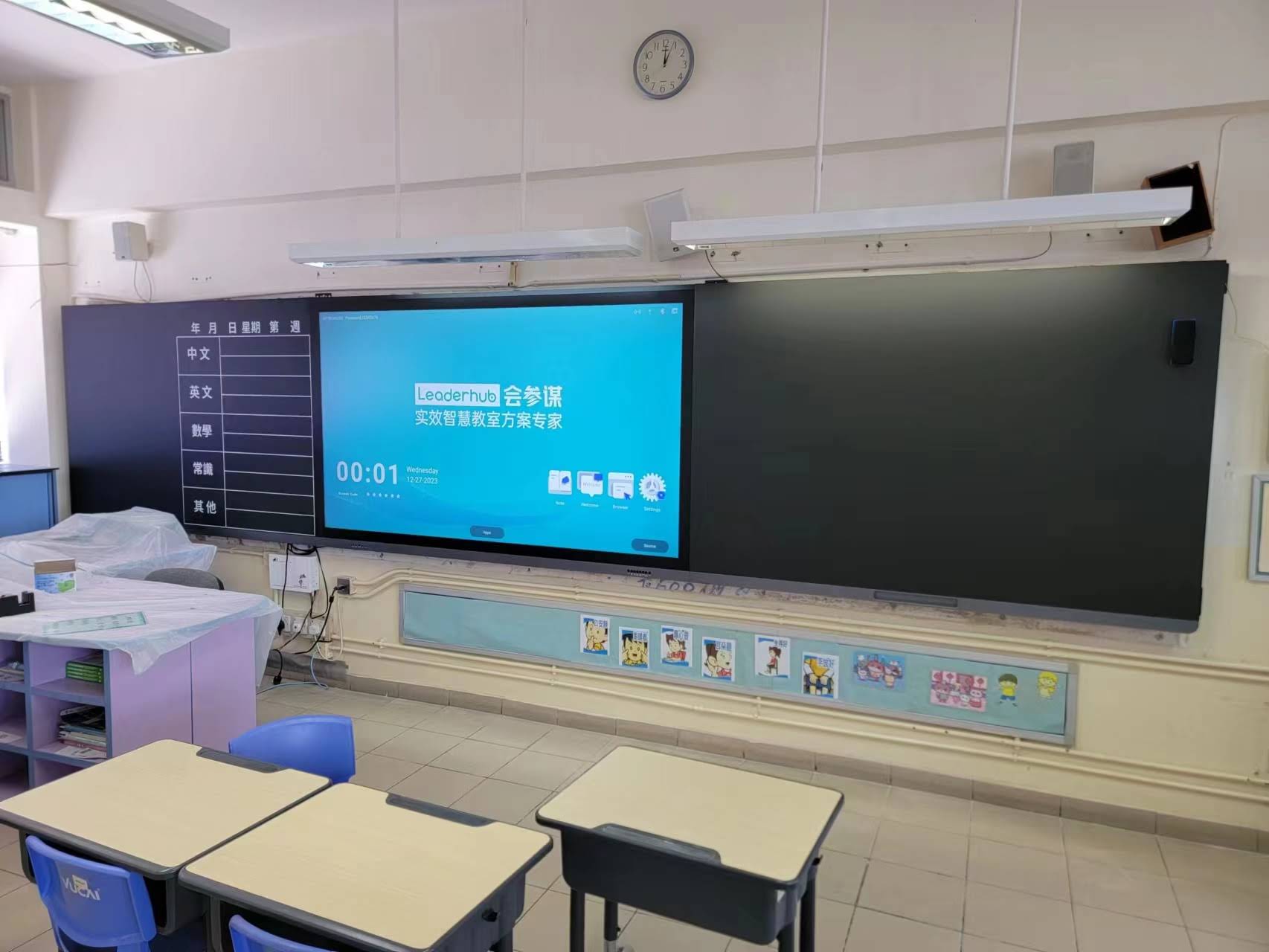
Common Mistakes to Avoid During Shutdown
Never Force Shutdown Unless Absolutely Necessary
One of the most damaging practices is forcing a shutdown by holding the power button or unplugging the device. This should only be done as a last resort when the system is completely unresponsive. A forced shutdown can cause:
- Operating system file corruption
- Loss of system preferences and settings
- Damage to storage drives
- Incomplete software updates that create system instability
If your smart board becomes unresponsive, try these steps first:
- Wait 2-3 minutes to see if the system recovers automatically
- Try accessing the task manager (Ctrl+Alt+Delete on Windows)
- Close unresponsive applications individually
- Only force shutdown if the system remains completely frozen for more than 5 minutes
Don’t Ignore System Updates
Many users shut down their smart boards while system updates are pending or in progress. This can lead to serious issues. If you see an update notification during shutdown, follow these best practices:
- Allow updates to install if you have time (typically 10-30 minutes)
- If time is limited, postpone the update rather than interrupting it
- Schedule updates during off-hours when the device won’t be needed
- Never interrupt an update that’s already in progress
Post-Shutdown Best Practices
Power Management for Extended Life
After completing the software shutdown, proper physical power management extends your device lifespan. Consider these professional recommendations:
Wait Before Unplugging: After the screen goes dark, wait an additional 10-15 seconds before disconnecting power. Internal components may still be finishing their shutdown sequences.
Use Surge Protection: Always connect your smart board through a quality surge protector. Power fluctuations during shutdown can damage sensitive electronics.
Ventilation Consideration: Don’t immediately cover or move the device after shutdown. Allow 5-10 minutes for internal cooling systems to finish their work, especially after extended use sessions.
Environmental Factors
The shutdown environment affects long-term device health. A study by the International Display Technology Association found that devices shut down in temperature-controlled environments experienced 28% fewer hardware failures over five years compared to those in variable conditions.
- Ensure room temperature is between 50-95¡ãF (10-35¡ãC) during shutdown
- Avoid shutting down in direct sunlight or near heat sources
- Maintain humidity levels between 20-80% for optimal component protection
- Keep the device away from windows in extreme weather conditions
Troubleshooting Shutdown Issues
Smart Board Won’t Shut Down
If your smart board refuses to shut down properly, try these expert-recommended solutions:
Check for Running Background Processes: Some applications continue running in the background even after their windows are closed. Access your system’s task manager to identify and close these processes manually before attempting shutdown again.
Disable Fast Startup (Windows): Fast startup can sometimes interfere with proper shutdown. Navigate to Power Options > Choose what the power buttons do > Change settings that are currently unavailable > Uncheck “Turn on fast startup.”
Update Device Drivers: Outdated or corrupted drivers can prevent proper shutdown. Visit your smart board manufacturer’s website to download the latest driver updates. LeaderHub provides comprehensive driver support for all their interactive display solutions, ensuring reliable performance across their product range.
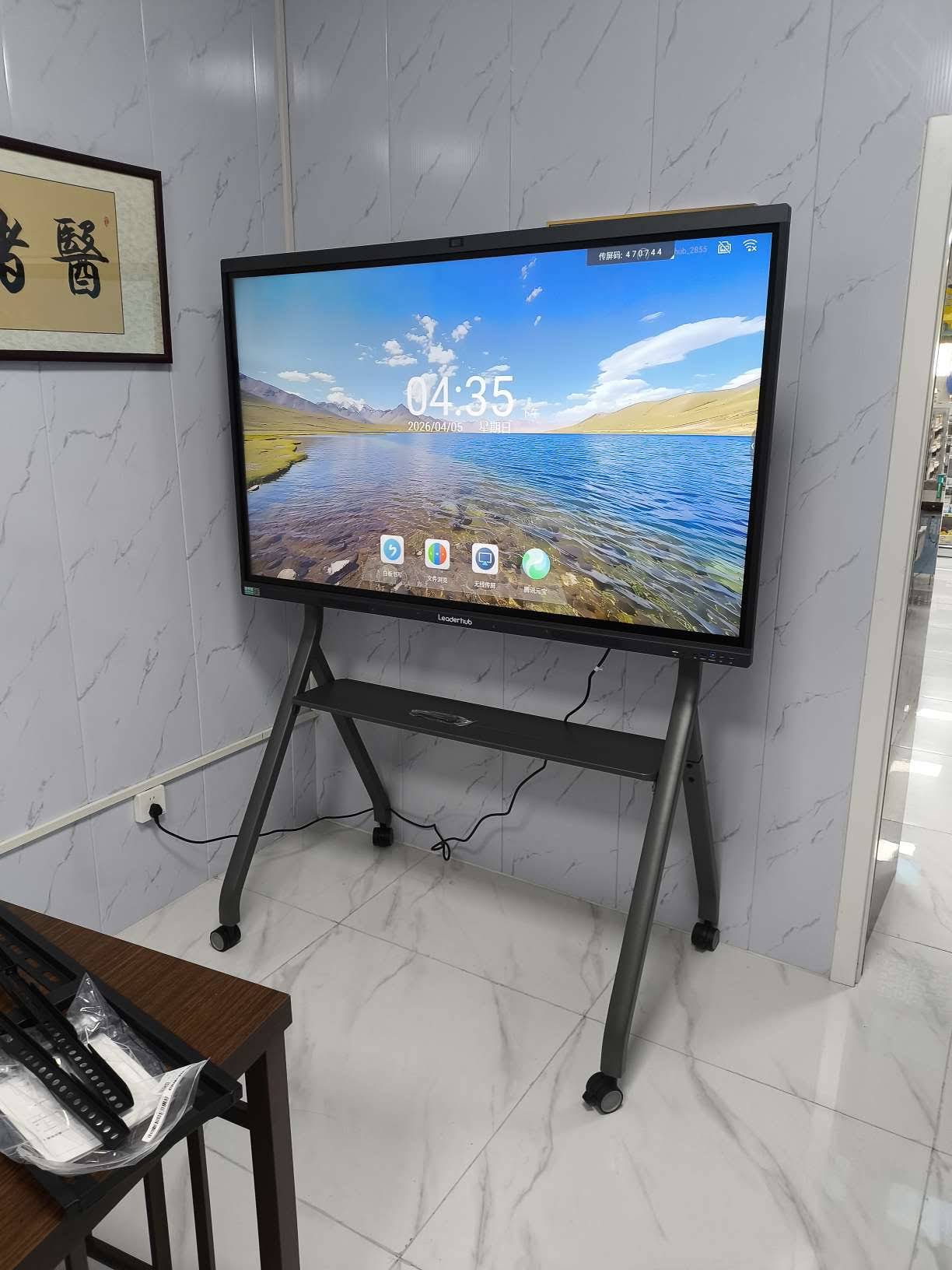
Slow Shutdown Process
If your smart board takes excessively long to shut down (more than 3-5 minutes), consider these optimization strategies:
- Clear Temporary Files: Accumulated temporary files slow down system operations. Use built-in disk cleanup tools monthly to maintain optimal performance.
- Reduce Startup Programs: Too many programs launching at startup also affects shutdown speed. Review and disable unnecessary startup items.
- Check Available Storage: When storage space drops below 15% capacity, system operations slow significantly. Regularly archive or delete unnecessary files.
- Scan for Malware: Malicious software can interfere with shutdown processes. Run regular security scans using reputable antivirus software.
Advanced Shutdown Options for Power Users
Scheduled Shutdowns
For facilities managing multiple smart boards, scheduled shutdowns increase efficiency and ensure consistent power management. Most operating systems support automated shutdown scheduling:
Windows Command Line Method: Use the “shutdown” command with specific parameters to schedule automatic shutdowns. For example, “shutdown /s /t 3600” schedules shutdown in one hour.
Third-Party Management Software: Enterprise environments often deploy centralized device management software that can remotely schedule and execute shutdowns across multiple units simultaneously.
Hybrid Shutdown vs. Full Shutdown
Understanding the difference between shutdown modes helps you choose the right option for your needs:
| Shutdown Type | Description | Best Used When |
|---|---|---|
| Full Shutdown | Completely powers down all systems and clears memory | End of day, weekends, or before maintenance |
| Hybrid Shutdown | Saves system state for faster restart | Brief breaks between classes or meetings |
| Sleep Mode | Low-power state with instant wake capability | Short interruptions under 2 hours |
Industry-Specific Shutdown Considerations
Educational Environments
Schools and universities face unique challenges with smart board shutdown procedures. With multiple users throughout the day and varying technical literacy levels, establishing clear protocols is essential.
The National Education Technology Association recommends implementing a standardized shutdown checklist posted near each smart board. This ensures consistency regardless of who is using the device. Key elements include:
- Visual step-by-step instructions with screenshots
- Emergency contact information for technical support
- Specific notes about classroom-specific configurations
- Reminder to report any issues immediately
Many educational institutions also implement automated shutdown schedules that trigger 30 minutes after the last scheduled class, reducing the burden on faculty members while ensuring devices aren’t left running overnight.
Corporate Meeting Rooms
In corporate environments, smart boards often connect to complex AV systems, video conferencing equipment, and network infrastructure. Professional AV installers recommend these additional steps:
- End all video conferencing sessions properly rather than just closing windows
- Disconnect from wireless presentation systems before shutdown
- Log out of any company accounts or cloud services
- Return display settings to default configurations
- Document any technical issues encountered during the session
Energy Efficiency and Cost Savings
Understanding Power Consumption
Proper shutdown practices directly impact energy costs and environmental sustainability. According to recent energy audits, smart boards left running unnecessarily consume an average of 150-300 watts per hour, translating to significant annual costs for organizations with multiple units.
A medium-sized school district with 100 smart boards can save approximately $8,000-12,000 annually by implementing strict shutdown policies. These savings come from:
- Reduced electricity consumption
- Extended component lifespan reducing replacement frequency
- Decreased cooling requirements for rooms with powered-down equipment
- Lower maintenance costs from reduced wear on electronic components
Phantom Power Management
Even after proper shutdown, smart boards may draw phantom power in standby mode. While this power consumption is minimal (typically 0.5-3 watts), it accumulates across multiple devices. Consider these strategies:
- Use smart power strips that completely cut power to peripherals when not in use
- Configure BIOS settings to minimize standby power consumption
- For devices not used daily, disconnect from power completely
- Install power monitoring systems to track actual consumption patterns
Maintenance Integration with Shutdown Routines
Weekly Shutdown Maintenance Tasks
Incorporating basic maintenance into your shutdown routine extends device life and maintains optimal performance. Professional installation technicians recommend these weekly practices:
Screen Cleaning: After shutdown and cooling, use a microfiber cloth slightly dampened with screen-safe cleaner to remove fingerprints, dust, and marks. Always clean when the device is completely powered off and cool to the touch.
Port Inspection: Examine all connection ports for dust accumulation or damage. Use compressed air to clean ports, preventing connection issues that could complicate future startups.
Software Updates Review: Check for pending system updates and schedule them during convenient off-hours. Keeping software current prevents many shutdown-related issues.
Monthly Deep Maintenance
Once monthly, perform more thorough maintenance tasks during extended shutdowns:
- Review system logs for any error messages or warnings
- Clear cache and temporary files to maintain system speed
- Test the shutdown process timing and note any changes
- Verify that all connected peripherals are functioning correctly
- Document any unusual behavior for technical support reference
Future-Proofing Your Shutdown Process
Emerging Technologies
Smart board technology continues evolving, and shutdown procedures evolve with it. Current trends include:
AI-Powered Sleep Management: Next-generation devices use artificial intelligence to learn usage patterns and automatically optimize power states. These systems can predict when a device won’t be needed and initiate proper shutdown sequences automatically.
Cloud-Based Settings Synchronization: Modern smart boards increasingly rely on cloud storage for settings and configurations. Proper shutdown ensures these settings sync correctly, maintaining consistency across sessions and devices.
Integrated Diagnostics: Advanced models now run automated diagnostics during shutdown, identifying potential issues before they become serious problems. Review these diagnostic reports regularly to stay ahead of maintenance needs.
Preparing for Upgrades
When planning to upgrade your smart board system, proper shutdown procedures become even more critical. Data migration, settings transfer, and system preparation all depend on clean shutdowns:
- Perform a full backup before any system upgrades
- Document current settings and configurations
- Verify all software licenses and activation keys
- Create a system restore point before major changes
Training and Documentation
Creating Effective User Guides
Organizations should develop comprehensive yet accessible documentation for all smart board users. Effective guides include:
- Visual flowcharts showing decision points in the shutdown process
- Quick reference cards laminated and placed near devices
- Video tutorials accessible via QR codes for visual learners
- Troubleshooting decision trees for common issues
- Contact information for technical support at various escalation levels
Ongoing User Education
Technology changes, and user training must keep pace. Implement these strategies for continuous education:
Schedule brief quarterly refresher sessions covering shutdown procedures and any new features or changes. These sessions should be optional but incentivized through convenience (lunch-and-learn format) or professional development credits.
Create a dedicated support channel (email, chat, or phone) specifically for smart board questions. Track common issues to identify areas where additional training would be beneficial.
Recognize and reward users who consistently follow proper procedures. This positive reinforcement encourages compliance and creates ambassadors who can help train others.
Conclusion
Properly shutting down your smart board is a simple process that yields significant benefits. By following the systematic approach outlined in this guide¡ªsaving your work, disconnecting peripherals, using the correct shutdown menu, and implementing proper post-shutdown care¡ªyou protect your investment, extend device lifespan, and ensure reliable performance for years to come.
The few extra minutes spent on proper shutdown procedures prevent hours of troubleshooting and potentially costly repairs. Whether you’re an educator managing classroom technology, a corporate professional leading presentations, or an IT administrator overseeing multiple devices, these practices form the foundation of responsible smart board operation.
Remember that technology serves us best when we treat it with care and respect. As smart boards become increasingly sophisticated and integrated into our daily workflows, establishing and maintaining good shutdown habits ensures these powerful tools remain reliable, efficient, and ready to support your communication and collaboration needs whenever you need them.








