
Smart boards have become essential tools in classrooms, meeting rooms, and collaborative workspaces around the world. According to a 2023 education technology report, over 65% of modern classrooms now use interactive flat panels for daily instruction. However, maintaining a clean, smudge-free display is crucial for optimal visibility and touch responsiveness. Fingerprints, dust, and marker residue can significantly reduce screen clarity and interfere with touch accuracy, affecting both teaching effectiveness and presentation quality.
This comprehensive guide walks you through proven methods for cleaning smart boards safely and effectively, drawing from over 16 years of interactive display expertise at LeaderHub, where we’ve helped customers in more than 82 countries maintain their equipment for maximum performance and longevity.
Understanding Your Smart Board Surface
Before cleaning any interactive display, it’s essential to identify the surface type. Most modern smart boards feature one of three surface technologies:
- Tempered glass surfaces ¨C Found on premium interactive flat panels, these are durable and scratch-resistant
- Anti-glare coated screens ¨C Common on mid-range models, requiring gentler cleaning methods
- Dry-erase compatible surfaces ¨C Traditional smart boards designed for marker use
Each surface type requires specific cleaning approaches to avoid damage. Glass surfaces can tolerate slightly more aggressive cleaning, while coated screens need careful handling to preserve their anti-glare properties. Always check your manufacturer’s documentation before applying any cleaning solution.
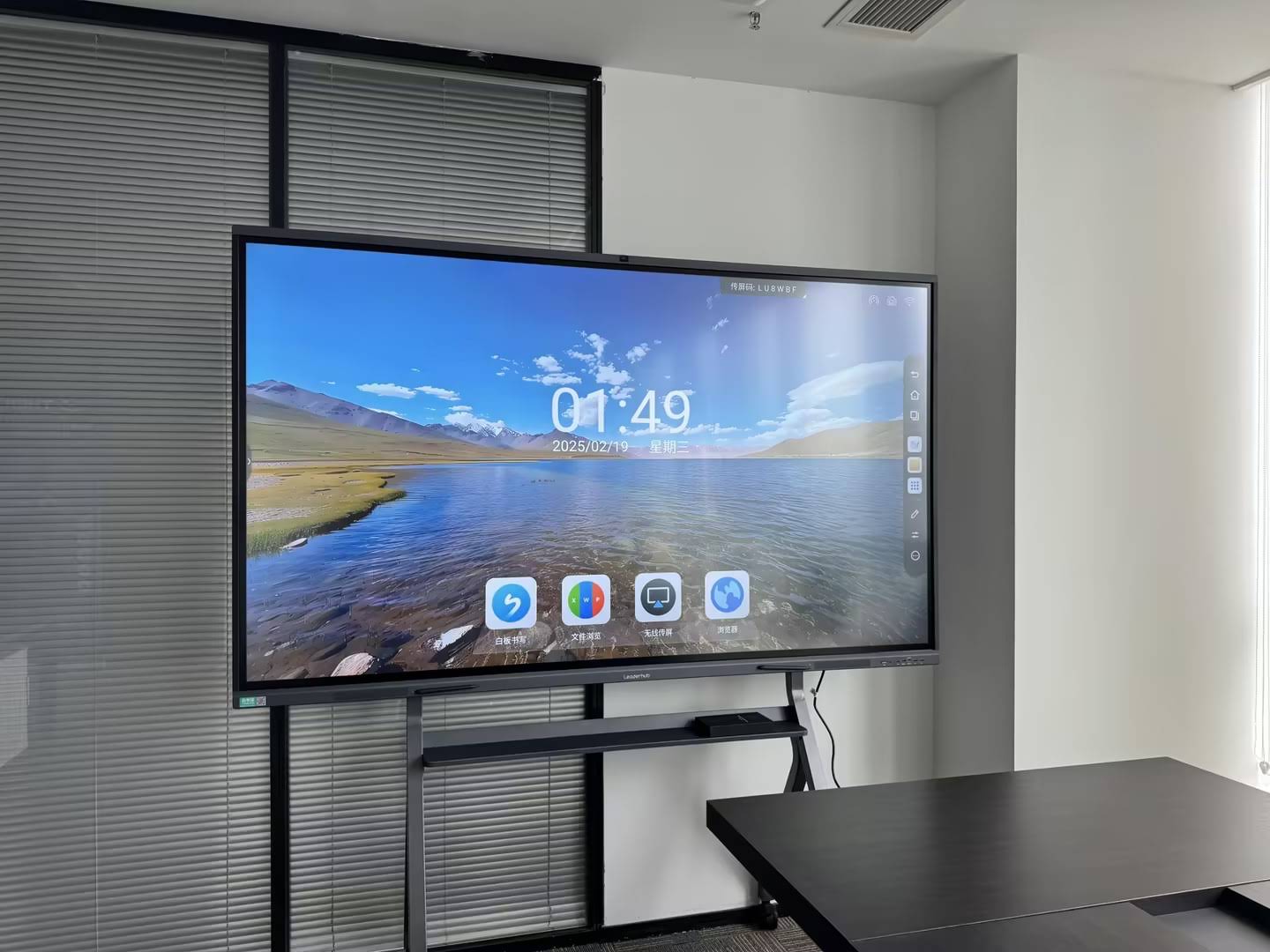
Essential Cleaning Supplies You’ll Need
Gathering the right materials before you start ensures safe and effective cleaning. Based on real-world maintenance experience across thousands of installations, here’s what professional technicians recommend:
| Item | Purpose | What to Avoid |
|---|---|---|
| Microfiber cloths | Lint-free cleaning and drying | Paper towels (can scratch) |
| Distilled water | Safe primary cleaning agent | Tap water (minerals can streak) |
| Isopropyl alcohol (70%) | Removing stubborn residue | Ammonia-based cleaners |
| Spray bottle | Applying solution evenly | Direct spray onto screen |
| Soft brush or duster | Removing loose dust first | Abrasive brushes |
A 2024 study on display maintenance found that using appropriate cleaning materials can extend screen life by up to 40% compared to improper cleaning methods. The investment in quality microfiber cloths¡ªtypically $2-5 per cloth¡ªpays for itself many times over in prevented damage and maintained touch sensitivity.
Step-by-Step Cleaning Process
Step 1: Power Down and Prepare
Always turn off your smart whiteboard completely before cleaning. This serves two critical purposes: it prevents electrical hazards and makes smudges and dust more visible against the dark screen. Wait 2-3 minutes for the display to cool if it has been in continuous use.
Unplug the device if you’re performing deep cleaning, especially around ports and edges where moisture could potentially seep in. This precaution is particularly important for interactive displays in high-humidity environments.
Step 2: Remove Loose Dust and Debris
Use a soft, dry microfiber cloth or an anti-static duster to gently wipe the screen surface. Start from the top and work your way down in straight, overlapping strokes. This prevents dust from resettling on already-cleaned areas.
Pay special attention to corners and edges where dust accumulates. For recessed areas around bezels, a soft-bristled brush works effectively without scratching the surface.
Step 3: Apply Cleaning Solution
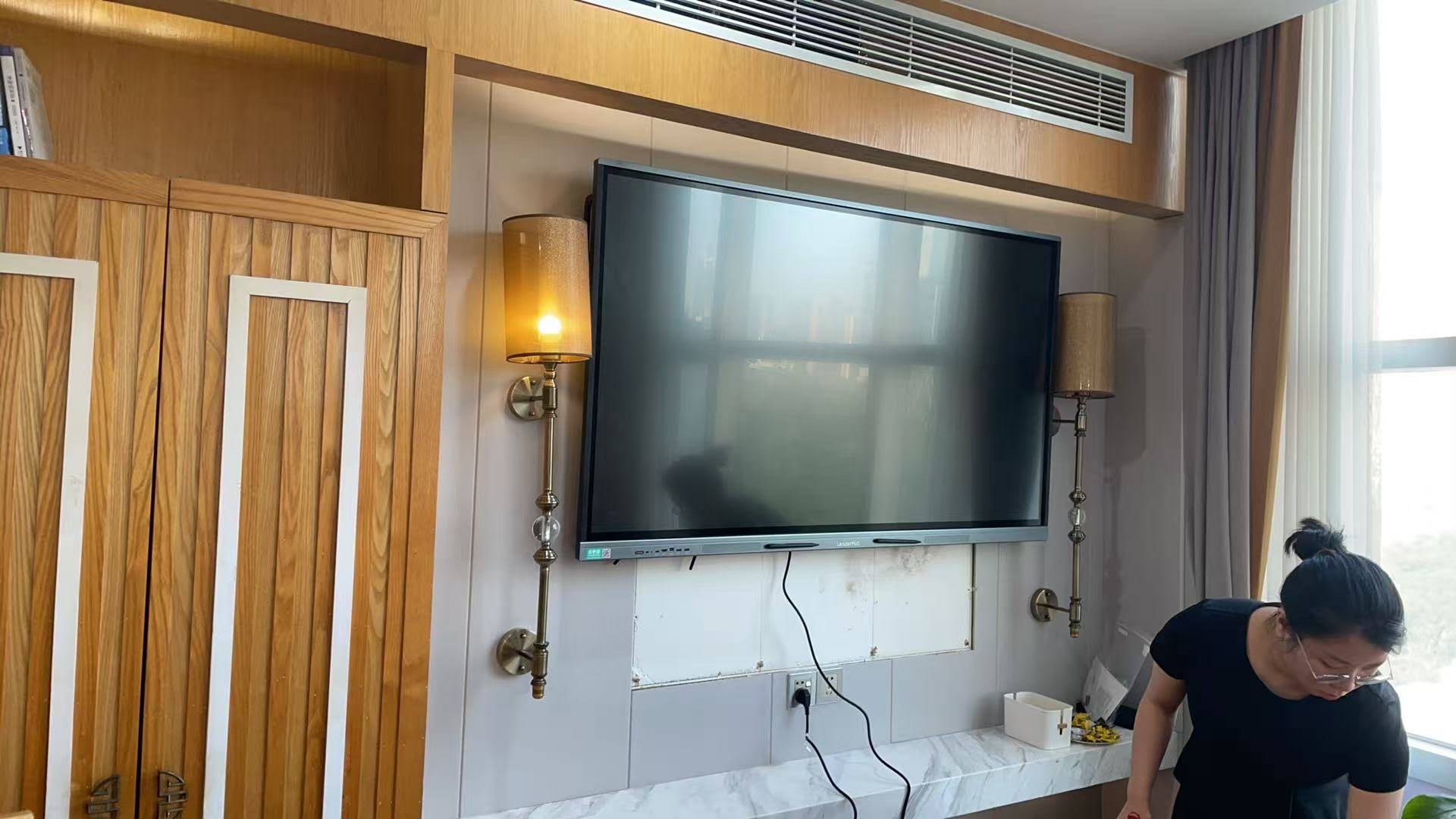
Never spray liquid directly onto the screen. Instead, lightly dampen a clean microfiber cloth with your chosen cleaning solution. For routine cleaning, distilled water is sufficient. For tougher residue, use a 50/50 mixture of distilled water and 70% isopropyl alcohol.
The cloth should be damp, not wet. Excess moisture can seep into bezels and damage internal electronics. A good test: after dampening, squeeze the cloth firmly¡ªif water drips out, it’s too wet.
Step 4: Clean Using Proper Technique
Wipe the screen using gentle, circular motions or straight horizontal strokes. Avoid pressing hard, as excessive pressure can damage LCD layers or touch sensors beneath the surface. Let the moisture and cloth do the work.
For stubborn marks or dried marker residue, hold the damp cloth against the spot for 5-10 seconds to soften it before wiping. This technique is particularly effective on dry-erase compatible surfaces without requiring harsh scrubbing.
Step 5: Dry and Inspect
Immediately follow with a dry microfiber cloth to remove any remaining moisture and prevent streaking. Use the same gentle motions, ensuring no water spots remain.
Inspect the screen from different angles under good lighting. Streaks often appear invisible straight-on but become obvious when viewed from the side. If streaks persist, lightly buff with a clean, dry section of microfiber cloth.
Handling Different Types of Marks
Fingerprints and Smudges
Fingerprints are the most common issue on interactive displays, especially in educational environments where students frequently touch the screen. According to usage data from educational institutions, the average classroom smart board receives 200-300 touches per day.
For light fingerprints, a dry microfiber cloth often suffices. For oily residue, slightly dampen the cloth with distilled water. Stubborn oily marks respond well to the water-alcohol mixture described earlier.
Dry-Erase Marker Residue
If your smart board supports dry-erase markers, residue can build up over time, creating a hazy appearance. First, use the marker’s built-in eraser to remove as much as possible. Then clean with a damp microfiber cloth.
For ghosting (faint marker traces that won’t erase), apply a small amount of isopropyl alcohol to the cloth and gently work the area. This dissolves the ink oils without damaging the surface coating.
Sticky Residue and Adhesives
Tape residue or sticky notes sometimes leave adhesive behind. Never scrape with fingernails or hard tools. Instead, apply a cloth dampened with isopropyl alcohol and let it sit for 30 seconds, then gently rub in small circles.
For particularly stubborn adhesives, commercial adhesive removers designed for electronics are safe when applied to the cloth first, never directly to the screen.
Cleaning Frequency Guidelines
Establishing a regular cleaning schedule prevents buildup and maintains optimal display quality. Based on environment type, here are recommended frequencies:
- High-traffic classrooms: Daily light cleaning, weekly deep cleaning
- Corporate meeting rooms: After each use or daily if used continuously
- Training centers: Between sessions, with thorough cleaning weekly
- Home offices: 2-3 times per week for regular use
In a real-world case study from a European school district that implemented daily cleaning protocols across 150 interactive panels, touch calibration issues decreased by 73% over an academic year, and service calls related to display problems dropped by 58%.
What to Absolutely Avoid
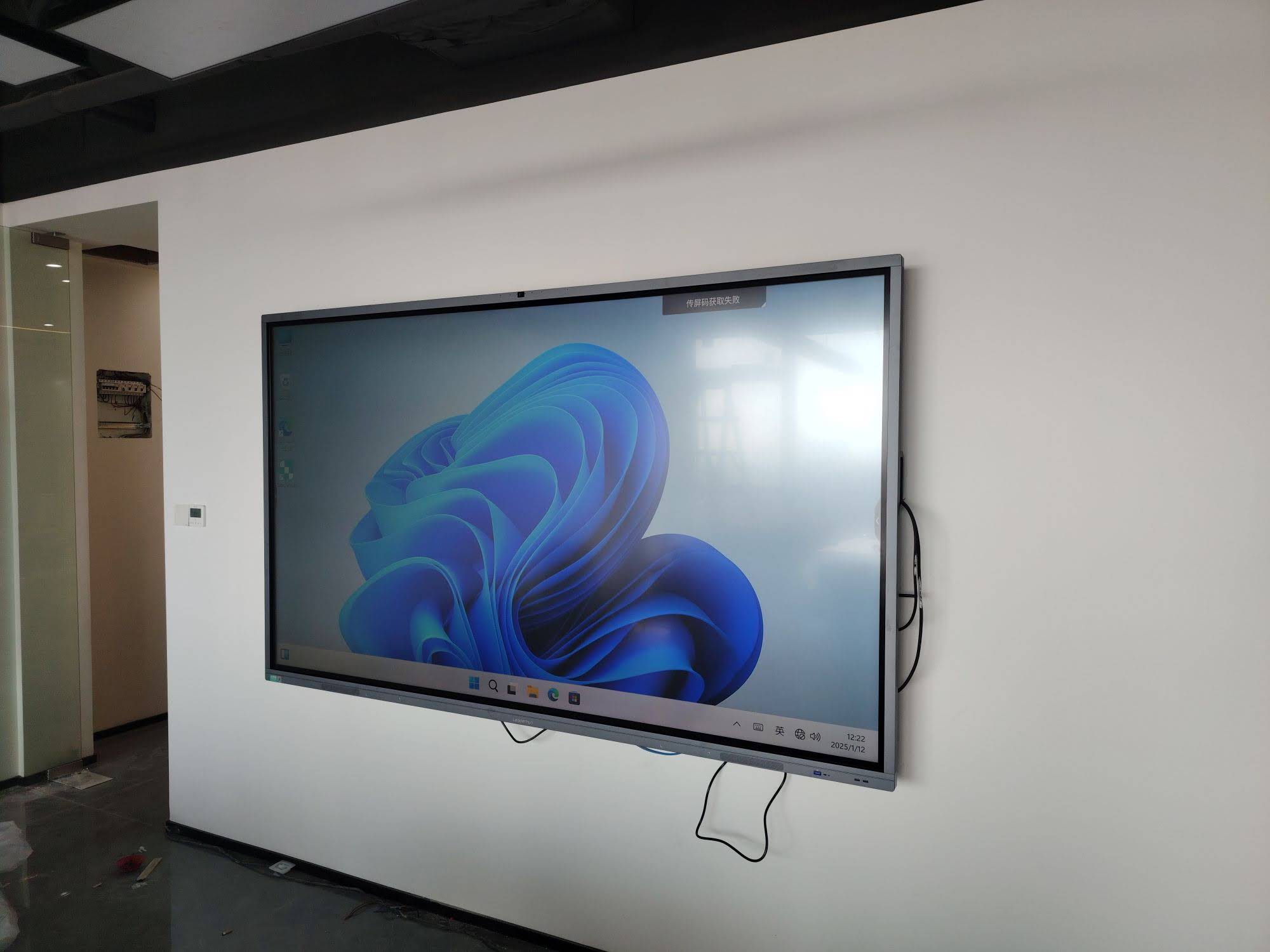
Certain cleaning practices can cause irreversible damage to your smart board. Here’s what professional technicians warn against:
Harmful Cleaning Agents
- Ammonia-based cleaners (Windex, etc.): Deteriorate anti-glare coatings and can yellow display edges
- Abrasive cleaners: Create microscopic scratches that accumulate dirt and reduce touch sensitivity
- Acetone or paint thinners: Dissolve protective coatings and can damage LCD layers
- Bleach or chlorine cleaners: Cause discoloration and chemical damage
- Furniture polish: Leaves residue that attracts more dust and interferes with touch response
Dangerous Cleaning Methods
Avoid using rough materials like paper towels, tissues, or regular cloths, which can scratch the surface. Never use scouring pads, magic erasers, or abrasive sponges, even on stubborn marks. Don’t apply excessive pressure while cleaning¡ªtouch screens contain delicate sensors that can be damaged.
A warranty claims analysis from a major interactive display manufacturer found that 37% of rejected warranty claims involved damage from improper cleaning¡ªspecifically from abrasive materials or harsh chemicals.
Maintaining Touch Sensitivity and Calibration
Clean screens directly impact touch accuracy. Dirt, oils, and residue create barriers between your finger and the capacitive touch sensors, causing lag, missed touches, or phantom inputs.
After deep cleaning, some interactive displays benefit from touch calibration recalibration. Check your device’s settings menu for calibration options. This process typically takes 2-3 minutes and ensures optimal touch response across the entire screen surface.
In high-use environments, consider quarterly professional calibration in addition to regular cleaning to maintain precision, especially for applications requiring fine motor control like design work or detailed annotations.
Environmental Factors and Protection
Controlling Classroom and Office Conditions
Environmental factors significantly impact how quickly your smart board accumulates dirt. Humidity levels, air quality, and room traffic all play roles.
In dusty environments, consider air purifiers or more frequent HVAC filter changes. In high-humidity areas (above 60%), moisture can attract more dust and create stubborn smudges. Maintaining 40-50% humidity levels is optimal for both equipment and user comfort.
Protective Measures
While cleaning is essential, prevention reduces maintenance needs:
- Establish a “clean hands” policy before using the board in educational settings
- Use styluses instead of fingers when appropriate to reduce oil transfer
- Install protective screen covers for displays in particularly harsh environments (though these may slightly affect touch sensitivity)
- Position the board away from direct sunlight to prevent heat buildup and reduce visible dust
- Keep markers, erasers, and cleaning cloths organized nearby to encourage regular maintenance
Cleaning Around Ports and Connections
The screen surface isn’t the only area requiring attention. Ports, buttons, and bezels accumulate dust and can affect functionality if neglected.
For USB ports, HDMI connections, and other openings, use compressed air to blow out dust. Hold the can upright and use short bursts from about 6 inches away. Never insert anything into ports to clean them.
For bezels and frame areas, a slightly dampened cloth works well. Be cautious around any gaps between the bezel and screen¡ªexcess moisture here can seep inside. Immediately dry any moisture that collects in crevices.
Long-Term Maintenance and Professional Service
Even with excellent regular cleaning, professional maintenance extends your smart board’s lifespan. Most manufacturers recommend annual professional service that includes internal dust removal, connection checks, and touch calibration verification.
Professional technicians can access internal components to clean accumulated dust from ventilation systems, check for loose connections, update firmware, and perform diagnostic tests that identify potential issues before they cause failures.
Companies like LeaderHub, with over 16 years of interactive display expertise, offer comprehensive support services that complement your regular cleaning routine, ensuring maximum equipment longevity and performance.
Troubleshooting Common Issues After Cleaning
Streaks That Won’t Disappear
If streaking persists after proper cleaning, you may be dealing with mineral deposits from tap water or residue from previous cleaning products. Switch to distilled water exclusively and clean the entire surface thoroughly. Multiple passes with a completely dry microfiber cloth usually resolves this.
Reduced Touch Sensitivity
If touch response worsens after cleaning, you may have left a residue film. Re-clean with just distilled water, ensuring you dry thoroughly. If issues persist, run the built-in calibration tool. Contact technical support if problems continue¡ªthis could indicate damaged sensors unrelated to cleaning.
Discoloration or Hazy Appearance
A hazy or yellowed appearance suggests either chemical damage from improper cleaners or accumulated residue. If caused by residue, thorough cleaning with the isopropyl alcohol solution should help. Chemical damage, unfortunately, is often permanent and may require screen replacement.
Cost-Benefit Analysis of Proper Maintenance
Investing time in proper cleaning delivers significant returns. The average interactive flat panel costs $2,000-8,000 depending on size and features. Proper maintenance can extend usable life from 7-10 years to 12-15 years.
Consider this real scenario: A school district with 200 interactive panels spending 10 minutes per day per unit on proper cleaning invests approximately 33 staff hours weekly. However, by preventing premature failures and maintaining optimal performance, they avoid replacing even 10 units annually¡ªa $30,000-$50,000 savings that far exceeds the labor cost.
Beyond financial benefits, well-maintained displays provide better user experiences. Clear, responsive screens reduce frustration, improve presentation quality, and in educational settings, keep students engaged rather than distracted by smudges or touch-response issues.
Adapting Cleaning for Different Smart Board Brands
While general principles apply across brands, some manufacturers provide specific recommendations. Always consult your owner’s manual first. However, the methods described here¡ªusing distilled water, microfiber cloths, and 70% isopropyl alcohol when needed¡ªare universally safe for reputable brands.
Premium brands often feature tempered glass surfaces with oleophobic coatings that resist fingerprints. While these surfaces stay cleaner longer, they still require regular maintenance. The oleophobic coating gradually wears down with use, making proper cleaning techniques even more important to avoid accelerating this natural degradation.
Training Staff and Students on Proper Use
The most effective maintenance strategy combines regular cleaning with user education. In educational and corporate settings, brief training sessions dramatically reduce cleaning needs.
Teach users to:
- Touch lightly rather than pressing hard
- Avoid touching the screen unnecessarily when not interacting
- Use provided styluses when available
- Report issues immediately rather than trying to “fix” problems themselves
- Perform simple daily wipe-downs with provided materials
A corporate training center that implemented a 5-minute user orientation on proper smart board interaction reported a 45% reduction in cleaning frequency requirements and significantly fewer maintenance calls over an 18-month period.
Conclusion: Building a Sustainable Cleaning Routine
Maintaining a spotless, responsive smart board requires minimal time and materials when done correctly. The key is consistency¡ªbrief daily cleaning prevents the buildup that necessitates aggressive deep cleaning.
Start with the right supplies: quality microfiber cloths, distilled water, and isopropyl alcohol form your complete cleaning arsenal. Follow the step-by-step process outlined above, avoid harmful chemicals and abrasive materials, and establish a schedule appropriate for your usage level.
Remember that your smart board is a significant investment in collaboration, education, and productivity. Whether you’re using advanced portable smart screens or large-format interactive panels, proper maintenance ensures years of reliable, high-quality performance. The few minutes invested in regular cleaning pay substantial dividends in equipment longevity, user satisfaction, and operational efficiency.
By following these proven techniques and establishing consistent maintenance habits, your smart board will continue delivering crystal-clear visuals and precise touch response for years to come.








