Recording a lesson, building a flipped-classroom video library, or producing a full online course is no longer a job reserved for media departments. Teachers, tutors, trainers, and independent educators are now expected to create polished learning content on their own — and the device at the center of that workflow matters more than anything else. A well-chosen smart board for educational content production turns a classroom or home studio into a recording set, a digital whiteboard, a camera rig, and a collaboration hub all at once.
This guide walks you through the features that actually affect production quality, the benefits you can expect, how to match screen size and budget to your setup, and a shortlist of top picks that creators and schools are using today.
Why a Smart Board Is Different from a Classroom Display
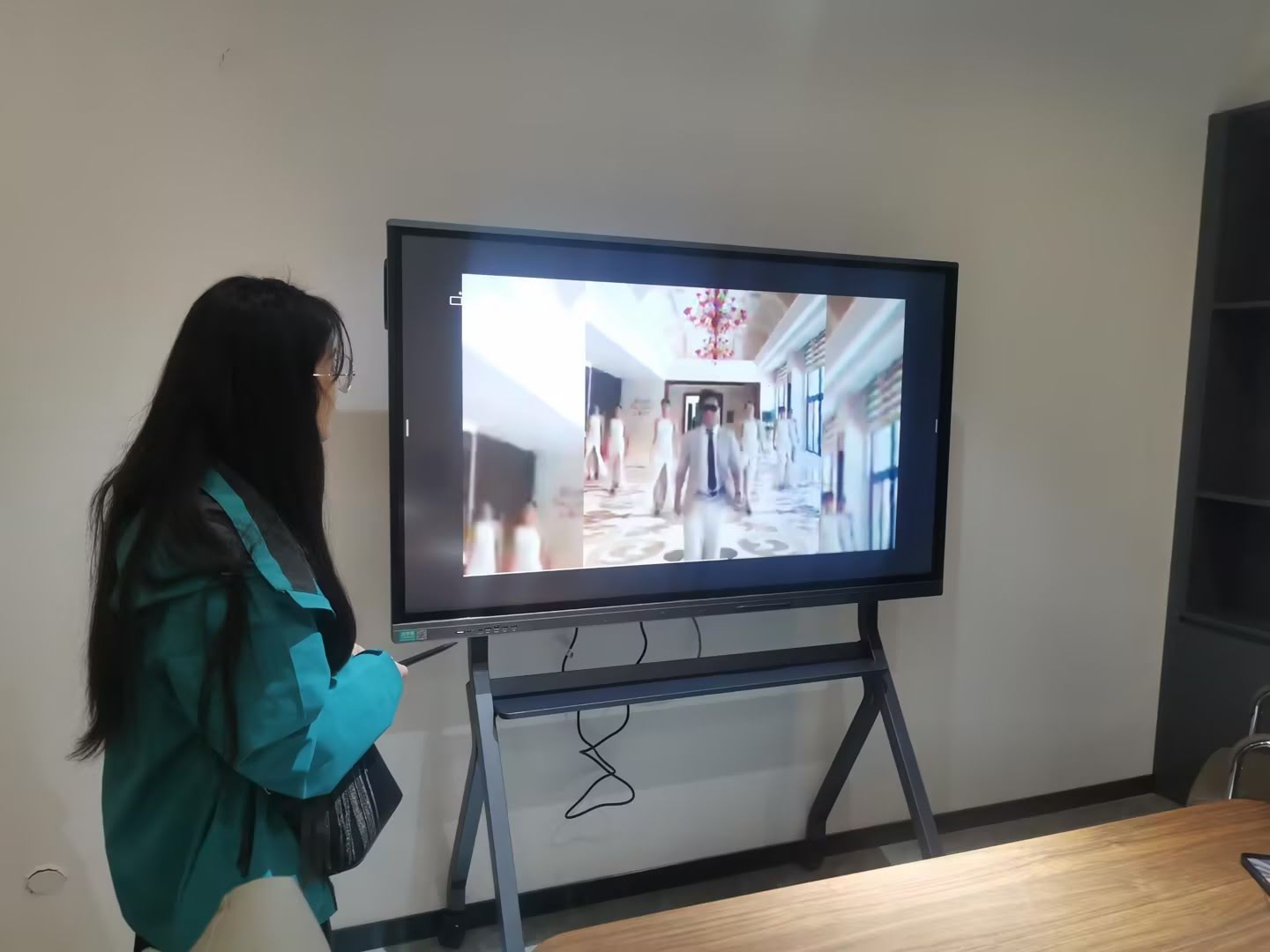
Traditional interactive panels were designed for one task: delivering a lesson to students sitting in the room. Content production flips that priority. The audience is now a camera, a microphone, and a future viewer who will watch on a phone or laptop. That changes what “good” looks like:
- Capture quality matters more than brightness in a sunny room.
- Low-latency writing matters because every stroke is recorded and replayed.
- Built-in recording and export replaces the need for a separate capture card and PC.
- Clean, uncluttered annotation tools keep the final video readable on small screens.
Organizations such as UNESCO have urged schools to evaluate technology by asking what problem it solves and for whom — a principle outlined in their Choosing Technology in Education guidance. For content creators, the problem is clear: produce more high-quality lessons in less time, without a video crew.
Key Features to Look For
1. 4K Display with Anti-Glare Glass
A 4K (3840 × 2160) panel gives you enough pixel density to zoom into diagrams, equations, or code snippets during recording while still looking crisp after compression. Anti-glare, low-reflection glass is just as important — studio lights and windows create hot spots that ruin an otherwise perfect take.
2. Responsive Touch and Natural Handwriting
Look for infrared or capacitive touch with sub-10ms writing latency, palm rejection, and at least 20 touch points. If your workflow includes handwritten math, language characters, or sketches, test how the board handles fast cursive and small text. Lag that feels minor in person becomes very visible in a recorded close-up.
3. Integrated Camera, Microphone Array, and Speakers
A built-in 4K or 1080p camera with auto-framing and a multi-microphone array with noise cancellation eliminate the need for external audio gear in most recording scenarios. Check that the camera can be angled or that the panel offers software framing so you are in shot while writing.
4. On-Board Screen Recording and Cloud Export
The best smart boards record the screen, camera, and audio simultaneously and export directly to MP4 or to cloud drives. This single feature can cut post-production time in half. Look for the ability to record whiteboard sessions, annotations over PDFs or slides, and split-screen layouts.
5. Operating System, Processor, and Storage
Android-based panels are fast to start and simple to maintain. If you edit video on the same device or need Windows-only authoring tools, choose a panel with an OPS slot or pair it with a compact mini PC. Aim for at least 8GB RAM and 128GB storage for smooth multitasking during recording.
6. Connectivity and Wireless Screen Sharing
HDMI 2.0, USB-C with power delivery, Wi-Fi 6, and wireless casting from phones, tablets, and laptops let you bring in student work, demos, or reference videos without breaking the recording flow.
7. Mobility and Flexible Mounting
Content creators often record in shared spaces. A mobile stand with locking wheels, or a rotating screen that switches between portrait and landscape, gives you the flexibility to film vertical social-media clips as easily as widescreen lectures.
Feature Priority Checklist for Content Creators
| Feature | Why It Matters for Production | Priority |
|---|---|---|
| 4K anti-glare panel | Sharp detail on camera, no light hot spots | Essential |
| Low-latency writing | Natural handwriting in recorded close-ups | Essential |
| Built-in camera and mic array | One-device recording, no external audio rig | Essential |
| Native screen recording | Direct MP4 export, faster turnaround | Essential |
| OPS slot / mini PC support | Run Windows editing and authoring tools | High |
| Wireless casting | Pull in demos and student work live | High |
| Mobile stand or rotation | Film in multiple rooms and orientations | Medium |
| AI tools (transcription, summaries) | Auto-captions and lesson notes for accessibility | Medium |
Benefits of Producing Educational Content on a Smart Board
Faster Production Cycles
With display, camera, audio, and recording in a single device, a 20-minute lesson can be recorded and exported in roughly 25 minutes. There is no syncing of separate audio tracks, no capture software to configure, and no re-shoots because the whiteboard was out of focus.
Higher Engagement in the Final Video
Research summarized by the OECD in its OECD Digital Education Outlook highlights that learners respond better to visual, step-by-step explanation than static slides. Live annotation on a smart board recreates that step-by-step feel in recorded content, keeping viewers watching longer.
Reusable Assets
Every whiteboard session can be saved as an image, PDF, or video. One live lesson becomes a recording for absent students, a revision clip for exams, and a teaser for social media — all from the same source.
Consistent Quality Across a Team
When a school or training company standardizes on one smart board model, every instructor records at the same resolution, with the same tools and layout. This consistency is what makes a course library look professional rather than homemade.
Matching Screen Size to Your Recording Space
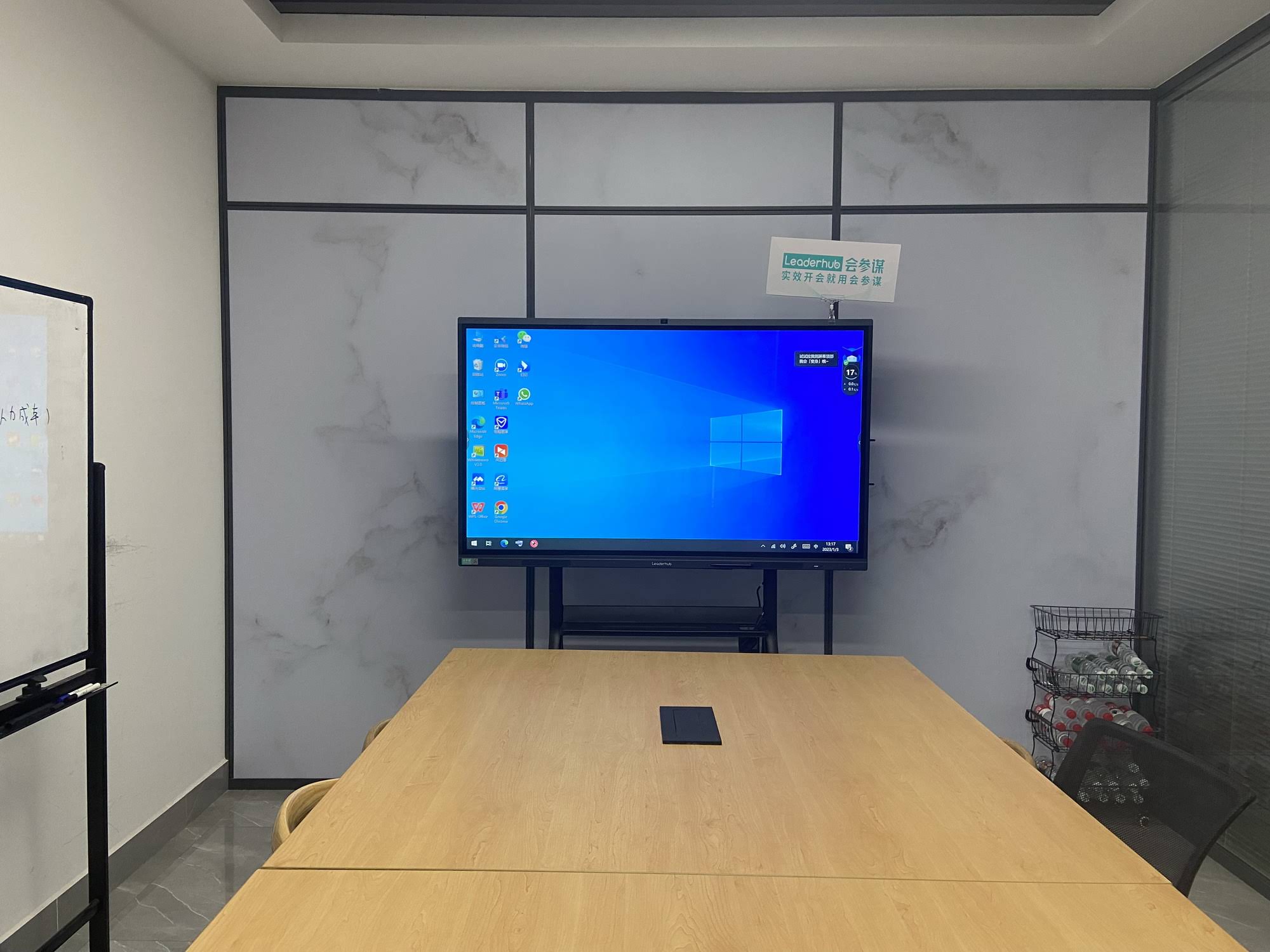
Bigger is not always better. A screen that fills your camera frame perfectly in a lecture hall may be far too large for a desk-side recording nook. Use the table below as a starting point.
| Screen Size | Ideal Production Setup | Camera Distance |
|---|---|---|
| 24–27 inch | Desk-side creator setup, vertical short-form video, one-on-one tutoring | 0.5–1 m |
| 55 inch | Home studio, small training room, mobile recording cart | 1.5–2.5 m |
| 65 inch | Standard classroom recording, hybrid lessons, workshop capture | 2–3 m |
| 75 inch | Large classroom, dual-presenter lessons, split-screen demos | 3–4 m |
| 86 inch and above | Lecture hall capture, auditorium livestreams, multi-camera production | 4 m + |
Top Picks: Smart Boards Built for Educational Content Production
Leaderhub, a Shenzhen-based manufacturer with 16 years of interactive-display expertise and products delivered to 82+ countries, offers a smart whiteboard range that covers every production scenario above — from compact rotating creator screens to 110-inch lecture panels. The picks below are grouped by use case.
Best for Solo Creators and Small Studios: Leaderhub L65HM
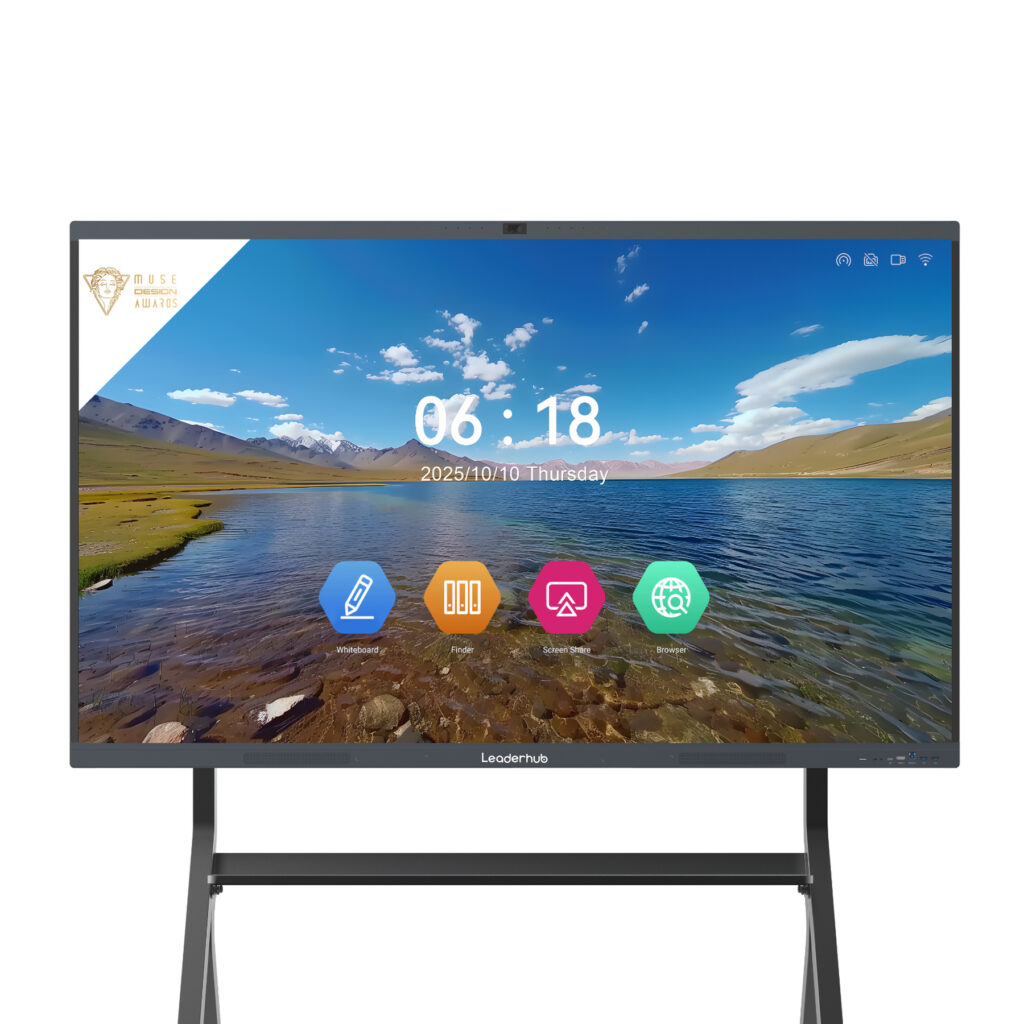
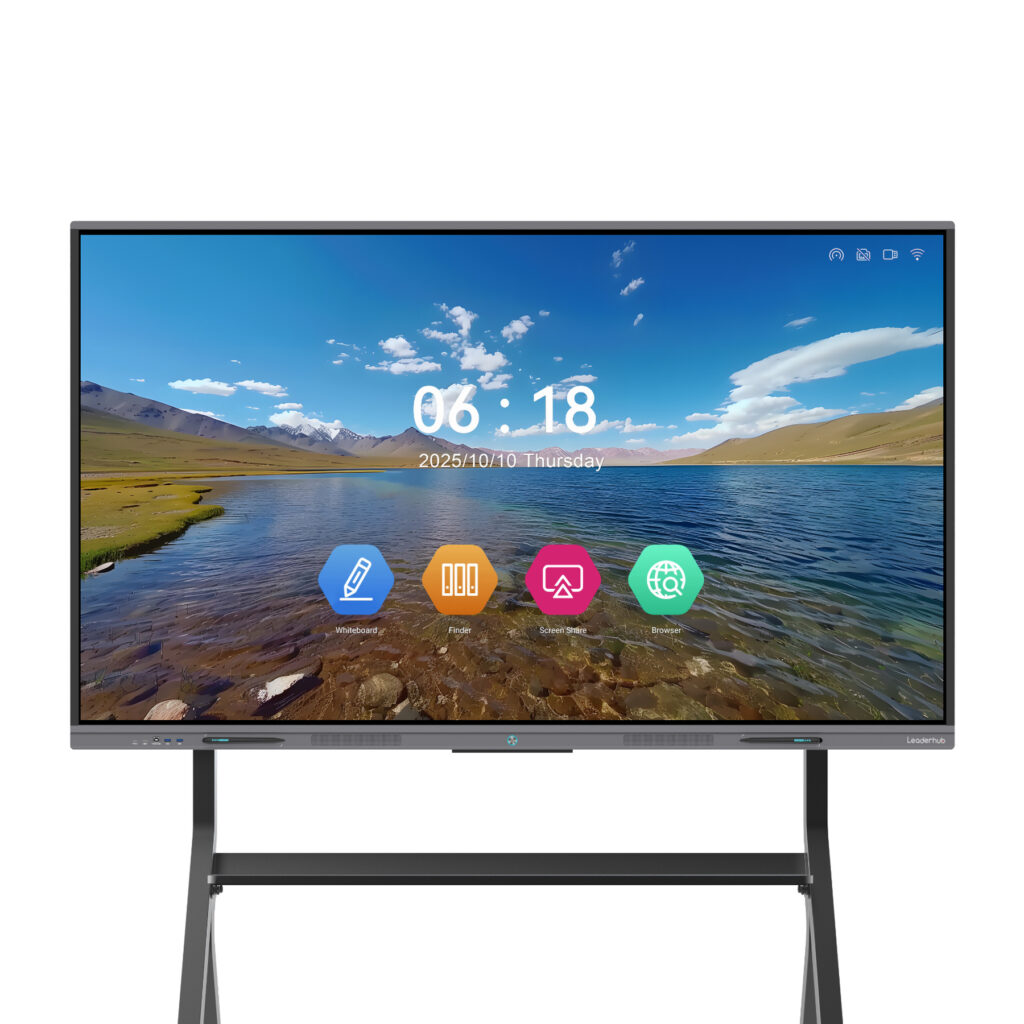
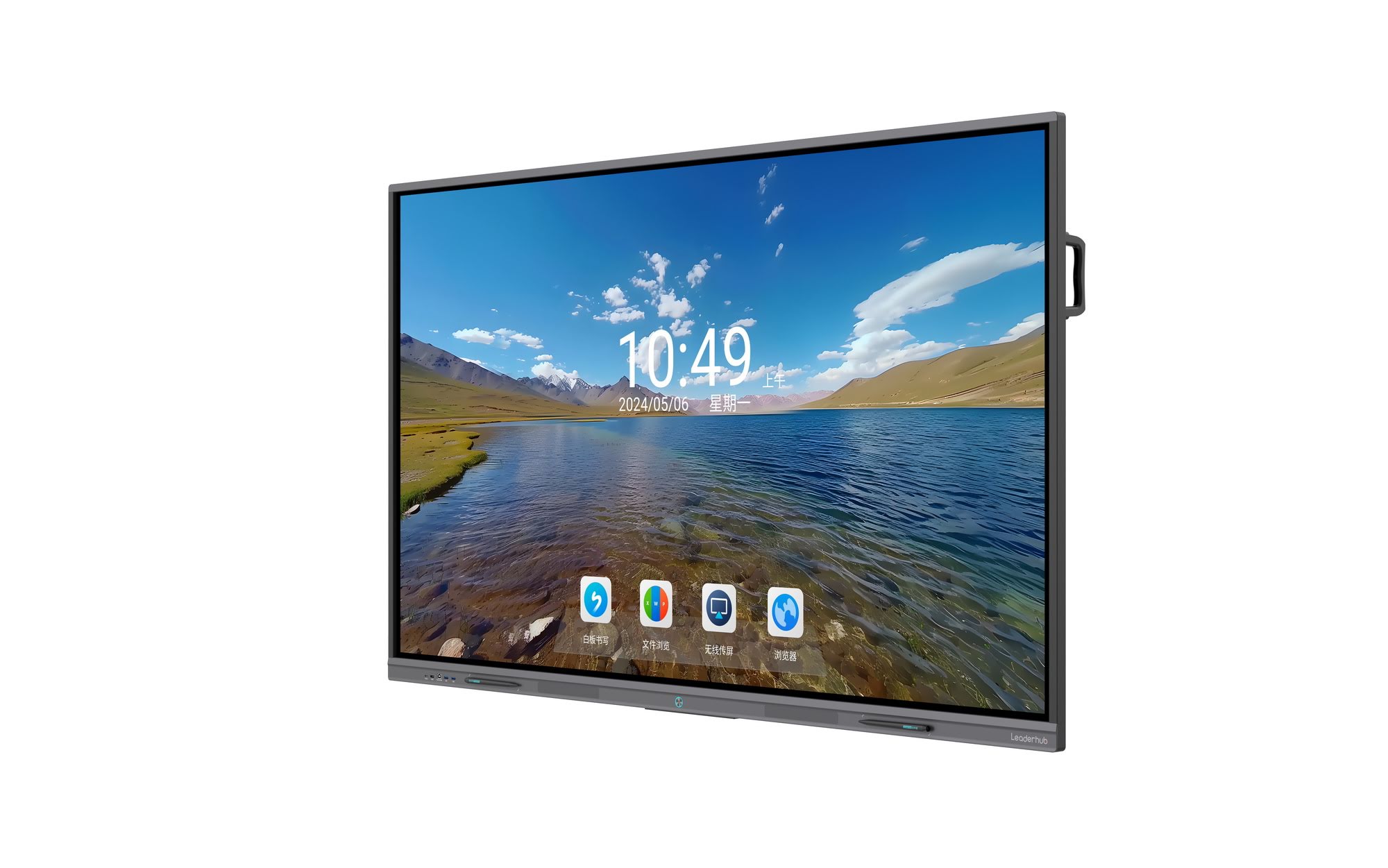
The L65HM 65″ 4K Interactive Smart Whiteboard is the sweet spot for individual educators. It is large enough to frame comfortably on camera, fits in a spare room or small classroom, and the HM series design — recognized with an international design award — includes the integrated camera, microphone array, and annotation tools that make single-device recording practical.
Best Value for Classroom Recording: Leaderhub L75ZM
Schools equipping several rooms for lesson capture should look at the L75ZM 75″ 4K Smart Panel. The ZM series delivers 4K touch and smooth writing at an accessible price, making it realistic to standardize a whole department on one model.
Best for Lecture Capture: Leaderhub L86HM
For large rooms and multi-camera livestreams, the L86HM 86″ 4K Smart Whiteboard offers the screen real estate to show slides, live annotation, and a remote participant window at the same time while remaining legible from the back row and on the recording.
Best Mobile Production Board: Leaderhub U55Pro
The U55Pro 55″ Mobile 4K Smart Display is designed to move. Roll it between a science lab, an art room, and a quiet recording corner, and film consistently everywhere. It is ideal for content teams that serve many departments with one device.
Best Compact Creator Screen: Leaderhub L277M Rotating Screen
If you produce short-form vertical lessons or tutor one-on-one on camera, the L277M 27″ Smart Rotating Screen with built-in battery lets you switch between portrait and landscape in seconds and record anywhere without a power outlet.
Recommended Companion: Leaderhub LP5C Mini PC
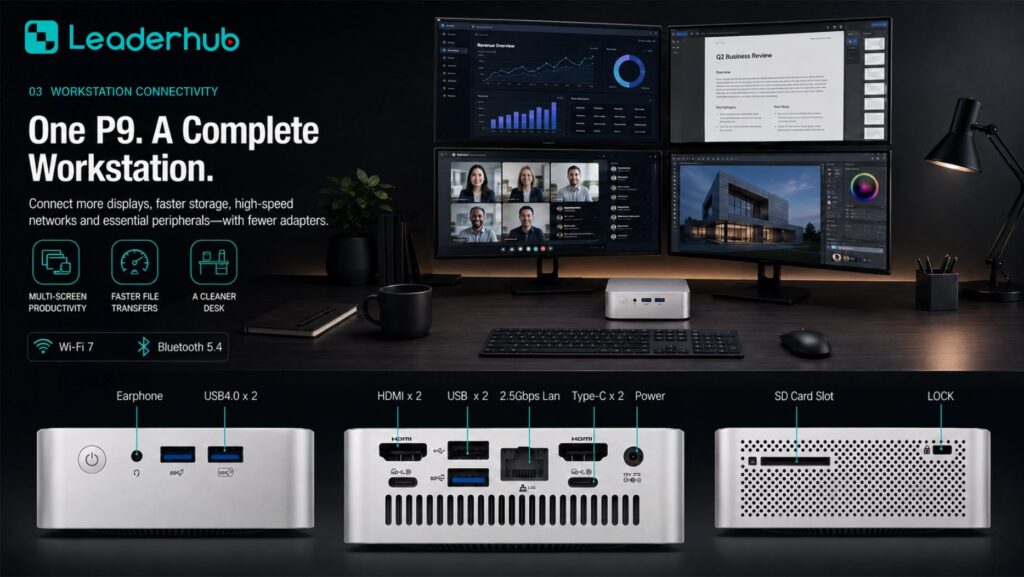
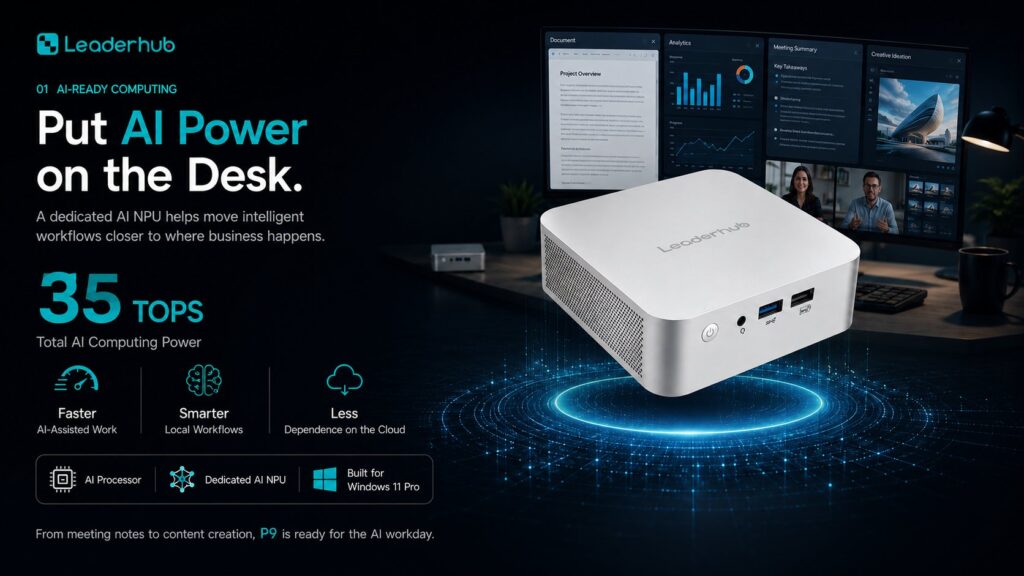
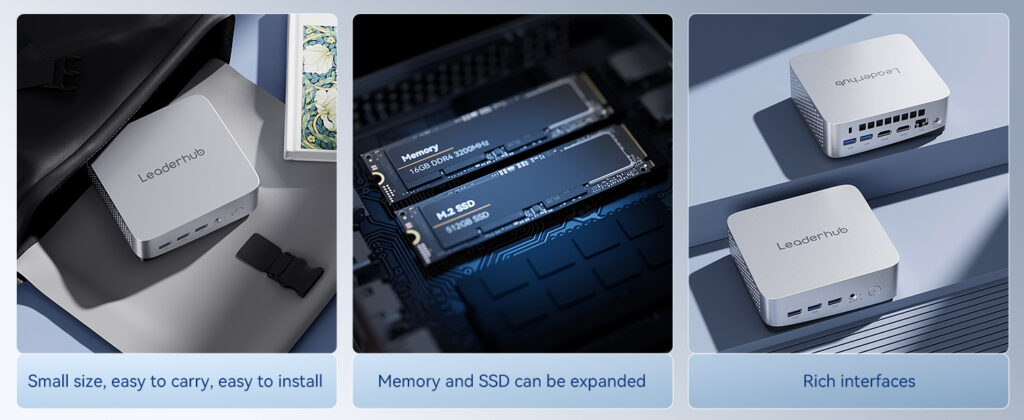
Pair any panel with the LP5C Mini PC (Intel i5, 16GB RAM, 512GB SSD) to run Windows-based video editors, authoring tools, and LMS exports directly on the board — a complete production and post-production station in one footprint.
| Model | Size | Best For | Price |
|---|---|---|---|
| L277M Rotating Screen | 27″ | Vertical video, tutoring, desk setups | $899.00 |
| L65ZM | 65″ | Budget classroom recording | $1,099.00 |
| L65HM | 65″ | Solo creators, small studios | $1,299.00 |
| L75ZM | 75″ | Department-wide standardization | $1,399.00 |
| L75HM | 75″ | Hybrid lessons, dual presenters | $1,599.00 |
| U55Pro Mobile | 55″ | Multi-room mobile production | $2,499.00 |
| L86HM | 86″ | Lecture capture, livestreams | $3,199.00 |
| L110H | 110″ | Auditoriums, flagship studios | $7,999.00 |
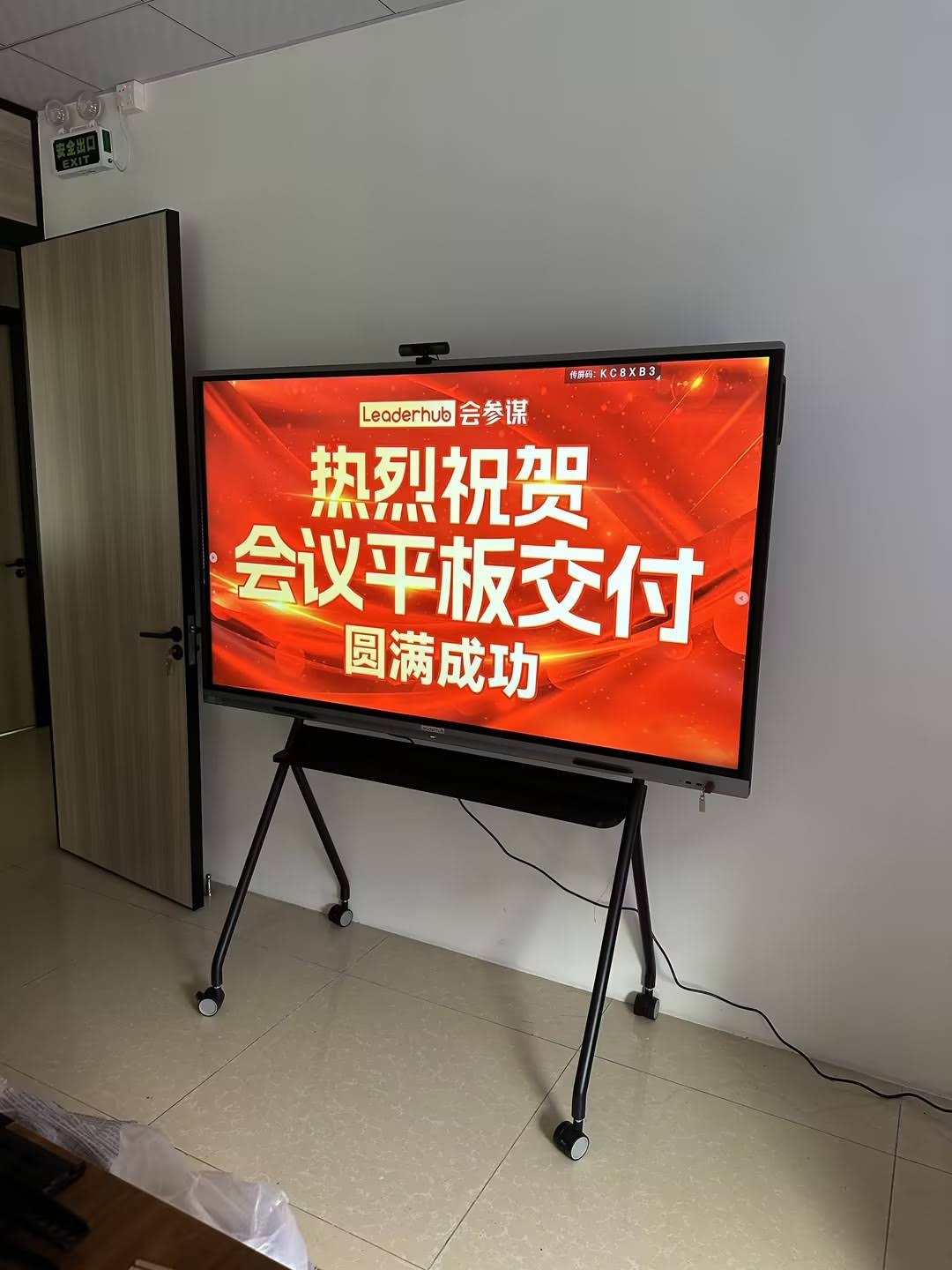
A Simple Production Workflow on a Smart Board
- Prepare: Load slides, PDFs, or a blank whiteboard template. Save a reusable layout with your logo and lesson title.
- Frame: Position the camera or enable auto-framing so your face and the writing area are both visible.
- Record: Start on-board recording, teach as you normally would, annotate live, and cast in any external demos.
- Export: Save the MP4 and the whiteboard PDF to your cloud drive or LMS directly from the panel.
- Repurpose: Trim highlights for short-form clips, generate captions with AI tools, and publish the full lesson.
Budget Planning and Total Cost of Ownership
When comparing options, look beyond the sticker price. Consider the cost of items the smart board replaces — a camera, microphone, capture card, dedicated PC, and projector — and the staff time saved per recorded lesson. A $1,299 65″ board that eliminates $800 of peripherals and saves an hour of editing per lesson pays for itself within a single semester for most active content creators.
Also factor in warranty length, software update policy, and whether the vendor offers OEM/ODM customization for institutions deploying at scale. Frameworks such as the ISTE Standards for Educators can help you justify the investment in terms of learning outcomes rather than hardware alone.
Frequently Asked Questions
Do I need a separate camera if the smart board has one built in?
For most lesson recordings, no. Built-in 4K or 1080p cameras with auto-framing are sufficient. Add an external camera only for cinematic multi-angle courses or when the presenter moves far from the board.
Can a smart board record directly without a laptop?
Yes. Android-based panels record screen, camera, and audio natively and export MP4 files to USB or cloud storage. A laptop or mini PC is only needed for advanced editing.
Which size is best for a home studio?
A 55″ or 65″ panel balances presence on camera with room requirements. For vertical short-form content, a 27″ rotating screen is often more practical.
Is 4K necessary if my videos are published in 1080p?
Recording in 4K gives you headroom to crop and zoom in post-production without losing sharpness, and it keeps fine handwriting legible after platform compression.
Final Thoughts
The right smart board for educational content production is the one that lets you press record and teach — without wrestling with cables, cameras, or capture software. Prioritize a 4K anti-glare panel, responsive low-latency writing, integrated camera and microphones, and native recording with cloud export. Then match the screen size to your actual recording space and the content formats you publish most.
Ready to build your production setup? Explore the full product range or contact the Leaderhub team for a tailored recommendation based on your room, budget, and content goals.