Classrooms today run on technology. From interactive whiteboards and lesson-streaming platforms to online assessments and video conferencing, almost every school activity now depends on a reliable computer behind the screen. A mini PC for classrooms delivers that computing power in a compact, quiet, energy-efficient form that fits neatly behind a display, under a teacher’s desk, or inside a shared computer lab. This guide explains what to look for when selecting a compact computer for schools and teachers, how to match specifications to real teaching scenarios, and how to plan a deployment that stays within budget.
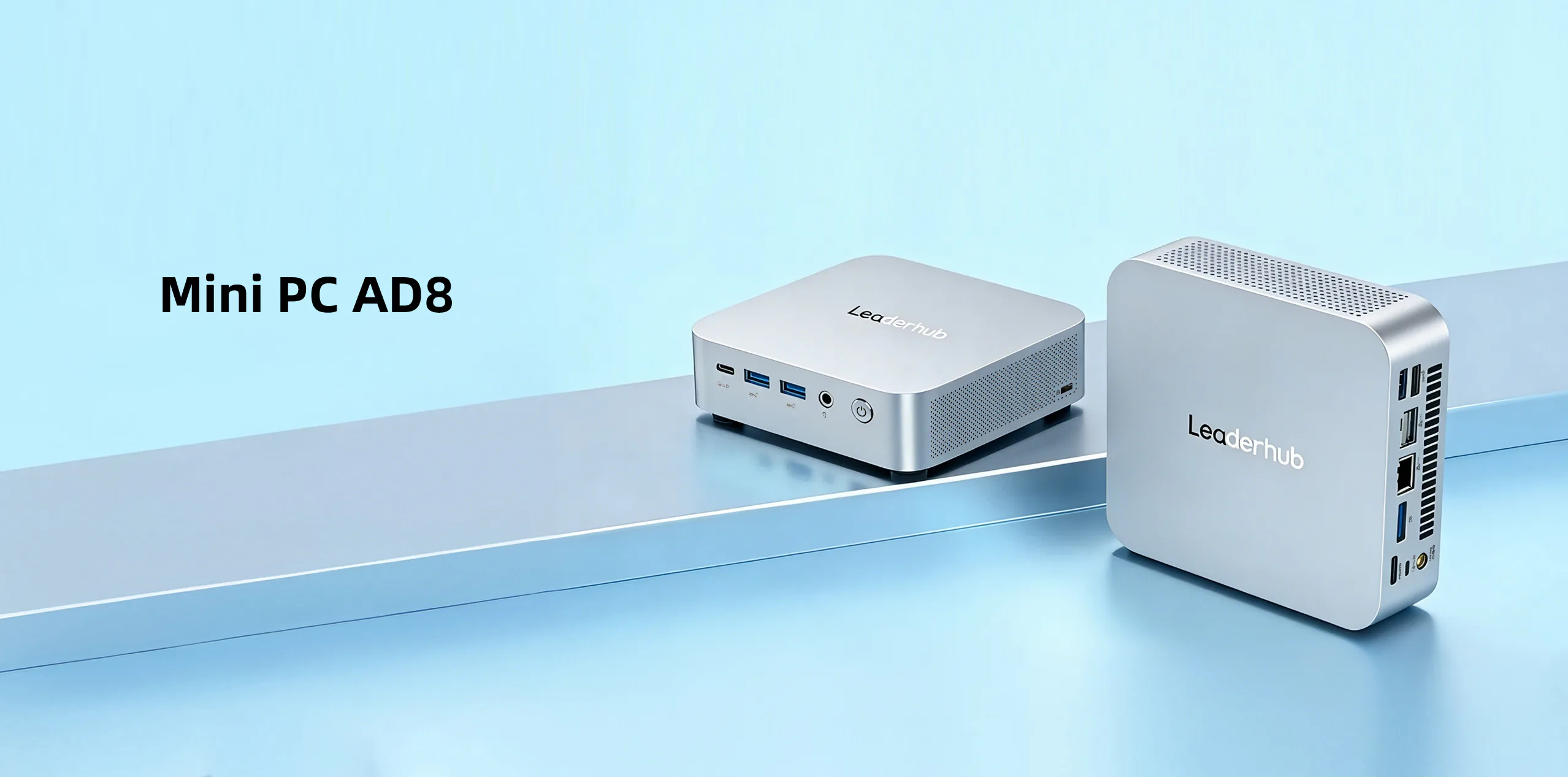
Why Schools Are Switching to Mini PCs
Traditional tower desktops take up space, generate heat and noise, and are expensive to maintain across dozens of classrooms. Laptops are portable but fragile, easy to misplace, and often underpowered when driving a large 4K interactive panel for a full school day. A classroom mini PC sits between the two, offering desktop-class reliability in a device roughly the size of a textbook.
- Space saving: Mounts behind a monitor or interactive flat panel using a VESA bracket, keeping teacher desks clutter-free.
- Low power consumption: Many models draw under 15–35 W during normal use, which reduces electricity costs across a whole campus.
- Quiet operation: Efficient cooling means no distracting fan noise during lessons or exams.
- Easy to standardize: IT teams can image one configuration and roll it out to every room, simplifying support.
- Secure and tamper-resistant: Hidden mounting and lockable ports help prevent theft and unauthorized changes.
- Affordable upgrades: Replacing an aging PC behind an existing display costs far less than replacing an entire all-in-one system.
International research supports a thoughtful, needs-driven approach to classroom hardware. The UNESCO Technology in Education Report stresses that technology should be chosen on the basis of educational value, cost, and sustainability rather than novelty — exactly the criteria that make compact computers a sensible choice for schools.
Key Factors When Choosing a Mini PC for Classrooms
Not every small computer is suitable for education. The following factors determine whether a device will perform smoothly for years or frustrate teachers within a single semester.
1. Processor Performance
The CPU determines how well the system handles multitasking. A teacher may simultaneously run a browser with ten tabs, a presentation, a video call, and whiteboard annotation software. Entry-level processors such as the Intel N100 are excellent for general teaching, web-based platforms, and media playback. Mid-range chips such as the Intel Core i5-12450HX add significant headroom for STEM labs, coding classes, light video editing, and dual 4K output.
2. Memory and Storage
Aim for a minimum of 8 GB RAM for standard classrooms and 16 GB for labs or teacher workstations that run heavier applications. Storage should always be a solid-state drive; a 512 GB SSD provides fast boot times and enough room for the operating system, curriculum software, and locally cached lesson materials.
3. Ports and Connectivity
Classrooms need more ports than typical home setups. Check for:
- At least one HDMI and one DisplayPort or USB-C video output for dual displays (interactive panel plus teacher monitor)
- Multiple USB-A and USB-C ports for document cameras, keyboards, student response devices, and touch cables
- Gigabit Ethernet for stable wired networking in exam environments
- Wi-Fi 6 and Bluetooth 5.x for wireless peripherals and flexible placement
- A 3.5 mm audio jack for classroom speakers or assistive listening systems
4. Compatibility With Interactive Displays
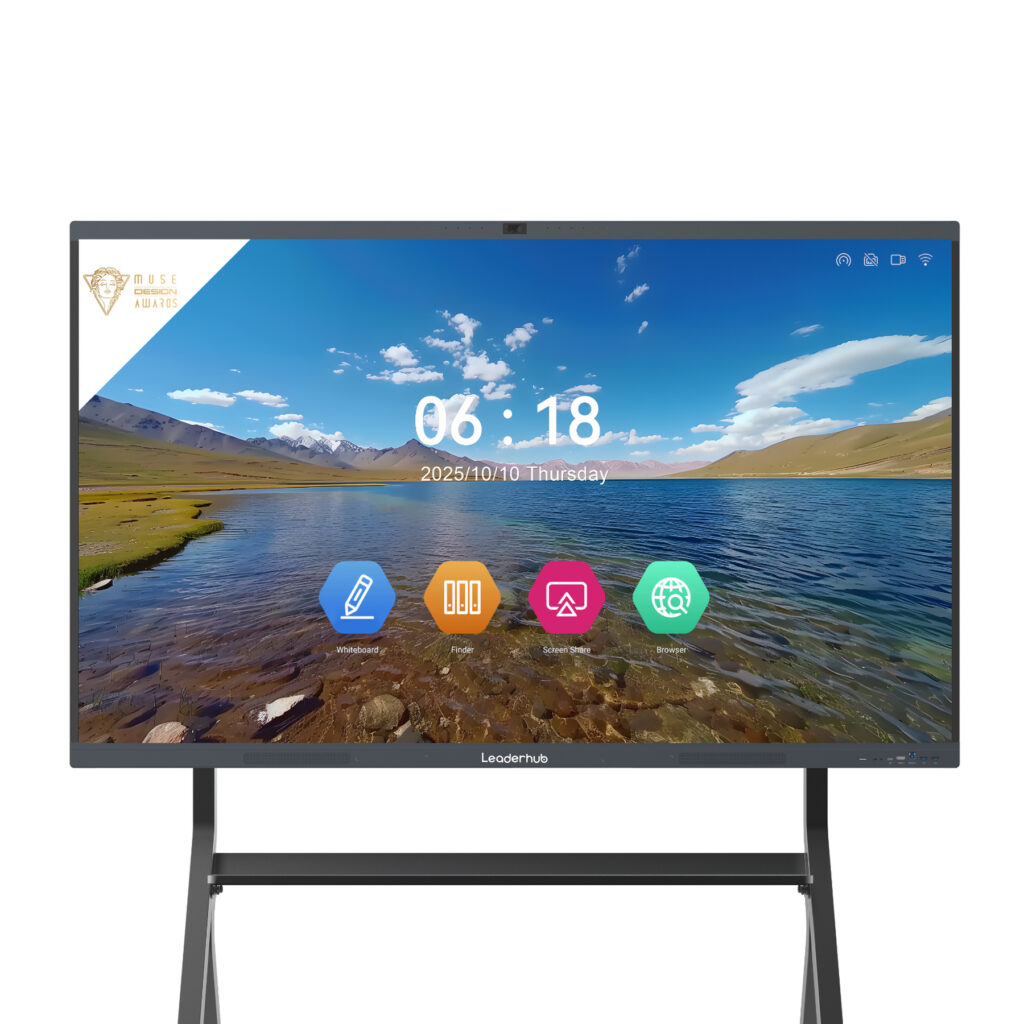
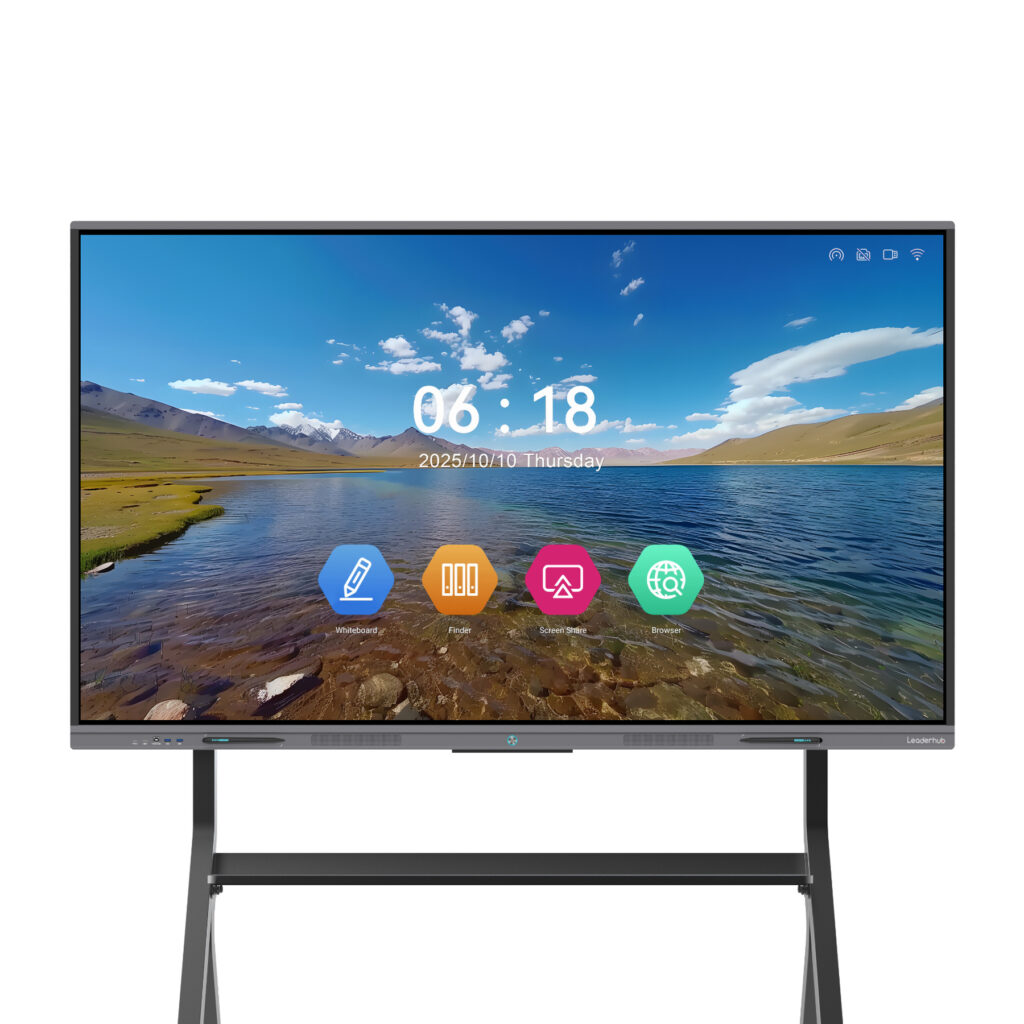
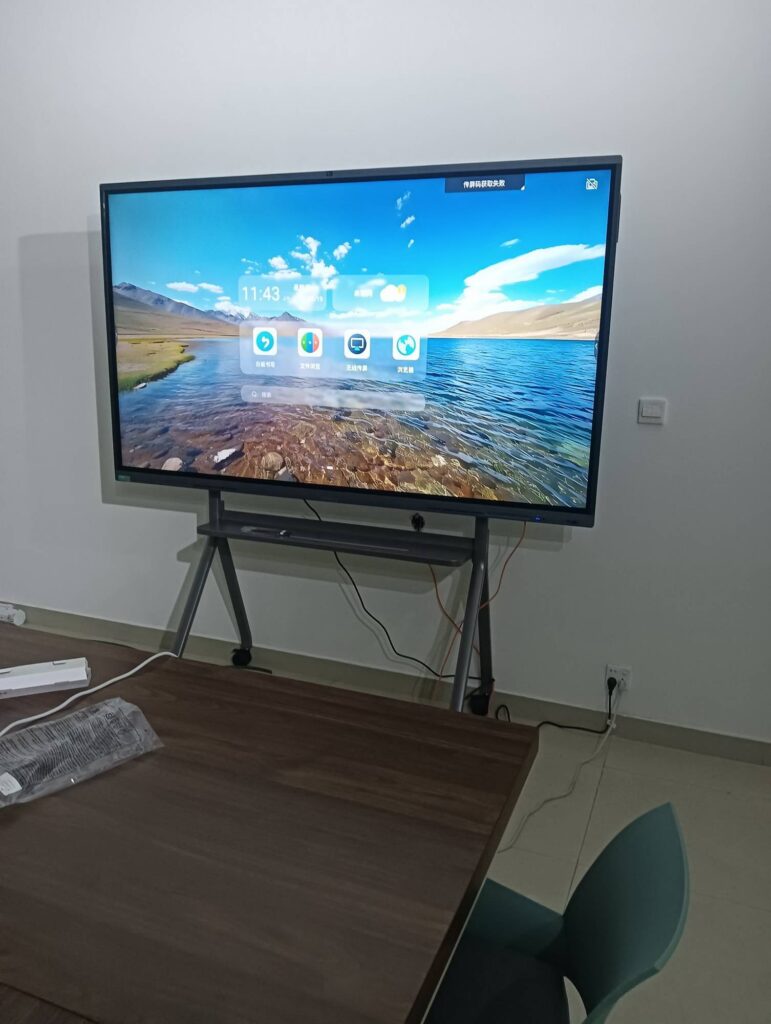
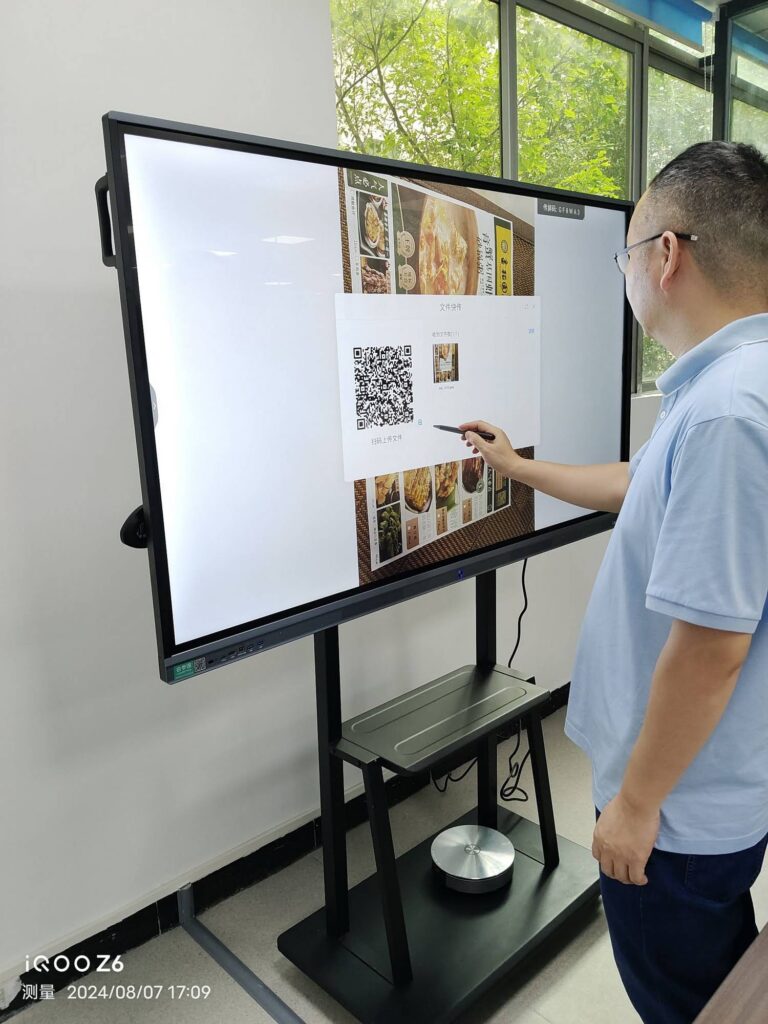
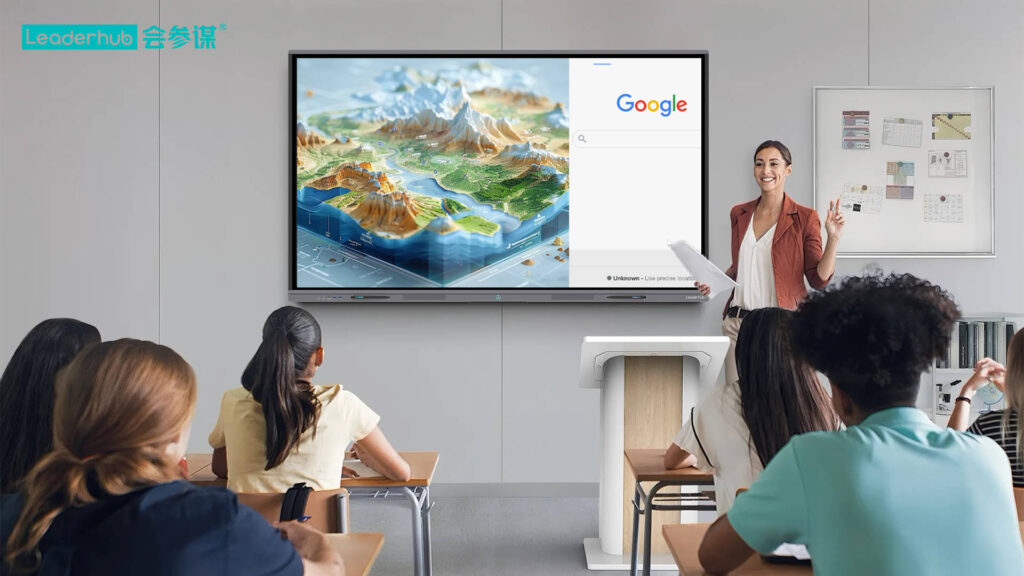
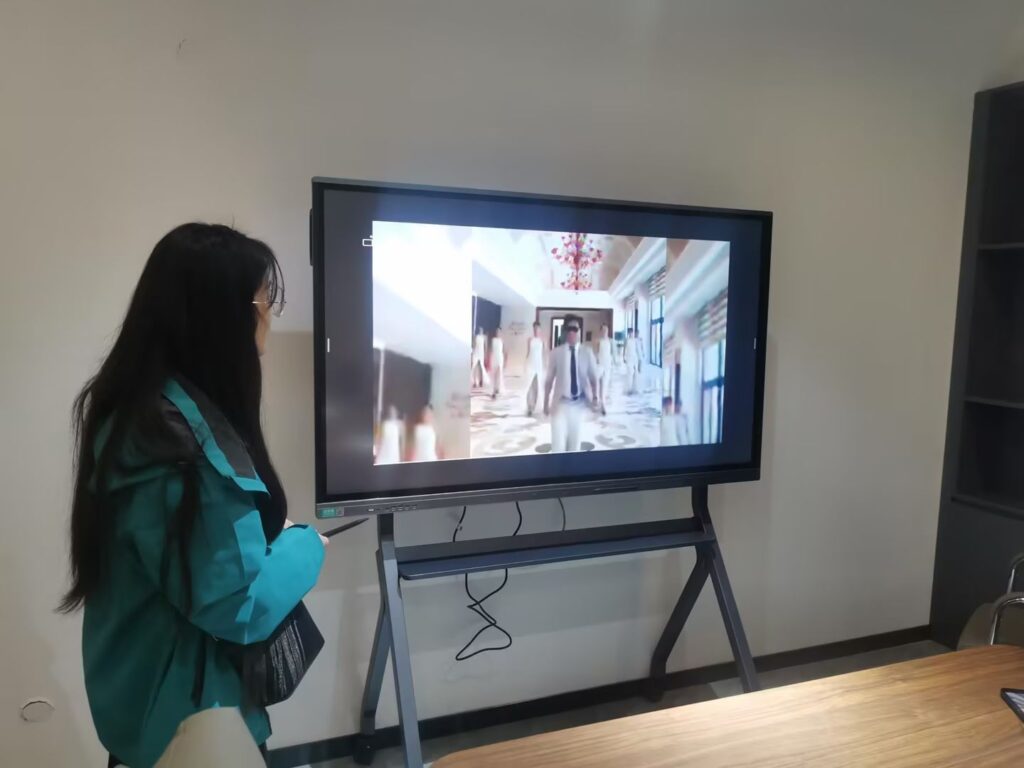
If the mini PC will drive a touchscreen, it must support the panel’s native resolution and refresh rate and pass touch signals back over USB. Pairing a compact computer with a 4K interactive smart whiteboard turns a standard room into a fully interactive learning space without the cost of an all-in-one OPS module.
5. Thermal Design and Durability
Classroom devices often run eight hours a day, five days a week, in rooms that are not always air-conditioned. Look for metal chassis construction, dust-resistant vents, and cooling systems rated for continuous operation. A device that throttles under heat will slow down precisely when the lesson needs it most.
6. Management and Security
School IT departments benefit from features such as TPM 2.0 for encrypted drives, BIOS password protection, Wake-on-LAN for scheduled updates, and compatibility with mobile device management (MDM) tools. These capabilities allow administrators to maintain hundreds of devices remotely.
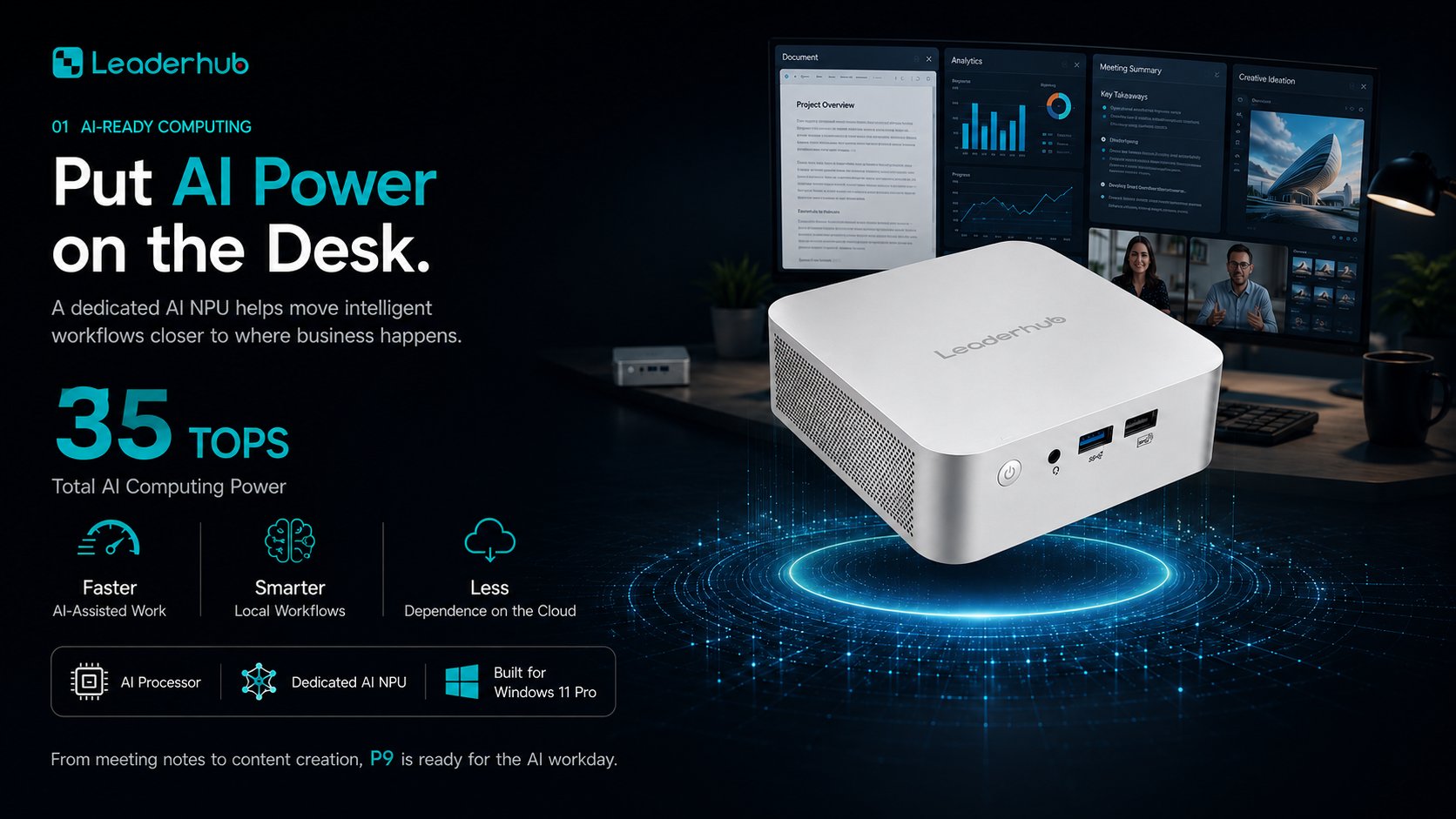
Recommended Specification Tiers for Schools
The table below outlines three practical specification tiers that cover the majority of educational use cases.
| Tier | Processor | RAM / Storage | Best For |
|---|---|---|---|
| Essential | Intel N100 or equivalent | 8 GB / 512 GB SSD | General classrooms, web-based learning, presentations, digital signage |
| Performance | Intel Core i5-12450HX | 16 GB / 512 GB SSD | Computer labs, coding, STEM simulations, dual 4K displays, hybrid teaching |
| Advanced | High-performance multi-core platform | 16–32 GB / 512 GB–1 TB SSD | Media production rooms, design courses, AI and data-science electives, lecture halls |
Matching the Mini PC to Classroom Scenarios
Different rooms place different demands on hardware. Consider the following common scenarios before finalizing a purchase list.
Teacher Podium or Front-of-Class Station
The device drives the main interactive panel and often a second monitor facing the teacher. Priorities are dual-display output, touch passthrough, quiet operation, and quick wake from sleep so lessons start on time.
Student Computer Lab
Twenty to forty identical units run simultaneously, so consistency, power efficiency, and remote management matter most. VESA mounting behind each monitor keeps desks clear and reduces accidental damage.
Library and Media Center
Research stations need reliable networking and browser performance rather than raw CPU power. An Essential-tier unit is usually sufficient and keeps costs down across many seats.
Hybrid and Remote Learning Rooms
Simultaneous video conferencing, screen sharing, and recording require a Performance-tier processor, plenty of USB ports for cameras and microphones, and wired Ethernet for stable streaming. The OECD Digital Education Outlook highlights how blended learning environments increasingly depend on dependable classroom infrastructure.
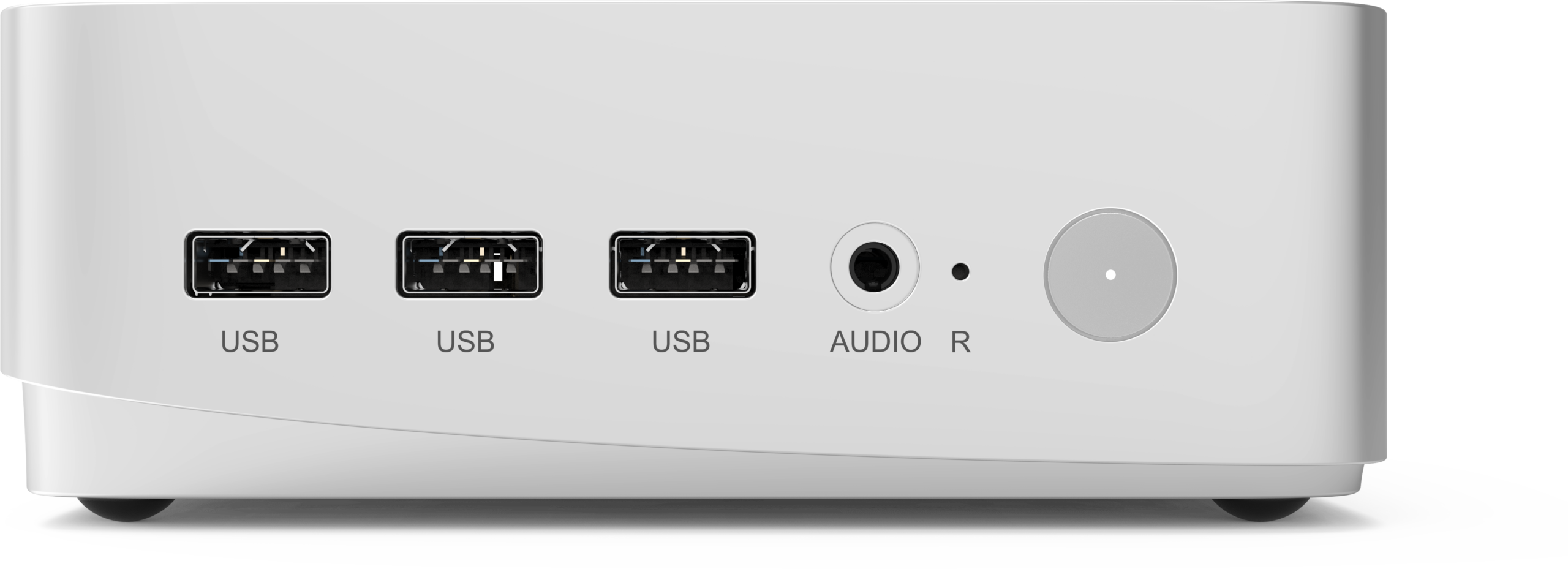
Mini PC vs. Desktop vs. Laptop vs. OPS Module
| Criteria | Mini PC | Tower Desktop | Laptop | OPS Module |
|---|---|---|---|---|
| Footprint | Very small, hidden mounting | Large | Occupies desk space | Built into the panel |
| Power Use | Low | High | Low to medium | Low |
| Flexibility | Works with any display brand | Works with any display | Portable but easily removed | Locked to compatible panels |
| Durability | High, fanless or low-RPM cooling | High | Hinges and batteries wear out | High |
| Cost per Seat | Low to medium | Medium | Medium to high | Medium to high |
LeaderHub Mini PCs Built for Education
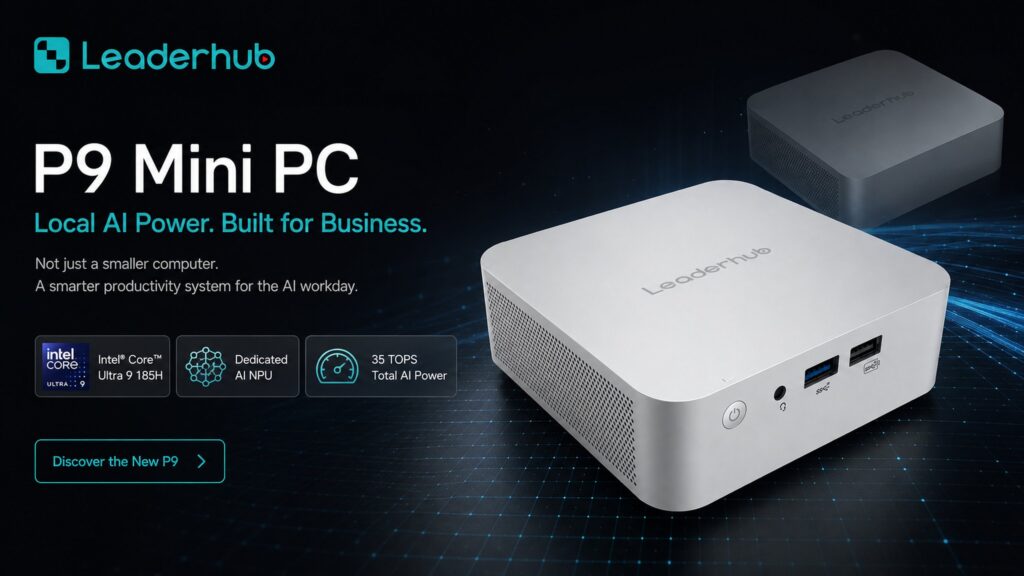
LeaderHub is a Shenzhen-based technology company with 16 years of interactive-display expertise, delivering smart whiteboards, mini PCs, and portable smart screens to schools and enterprises in more than 82 countries. Its compact computer line was designed with the same principles that guide its education displays: reliability, simple deployment, and strong value for budget-conscious institutions.
| Model | Core Specs | Ideal Classroom Use | Price |
|---|---|---|---|
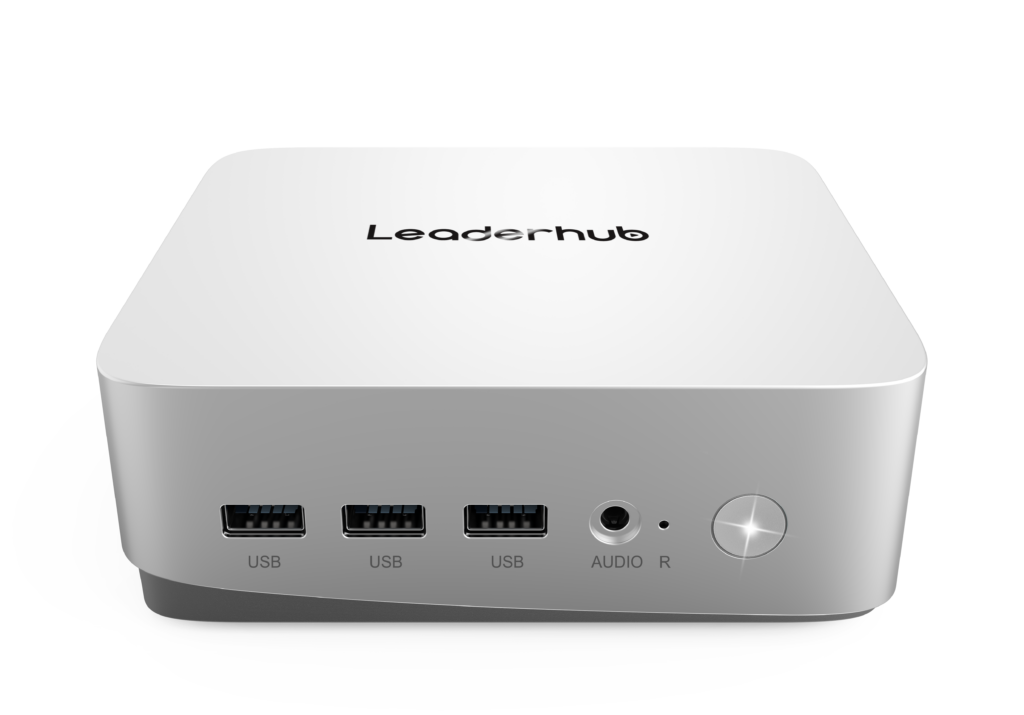
| LeaderHub LP1C Mini PC | Intel N100, 8 GB RAM, 512 GB SSD | General classrooms, libraries, digital signage, large-scale lab rollouts | $399.00 |
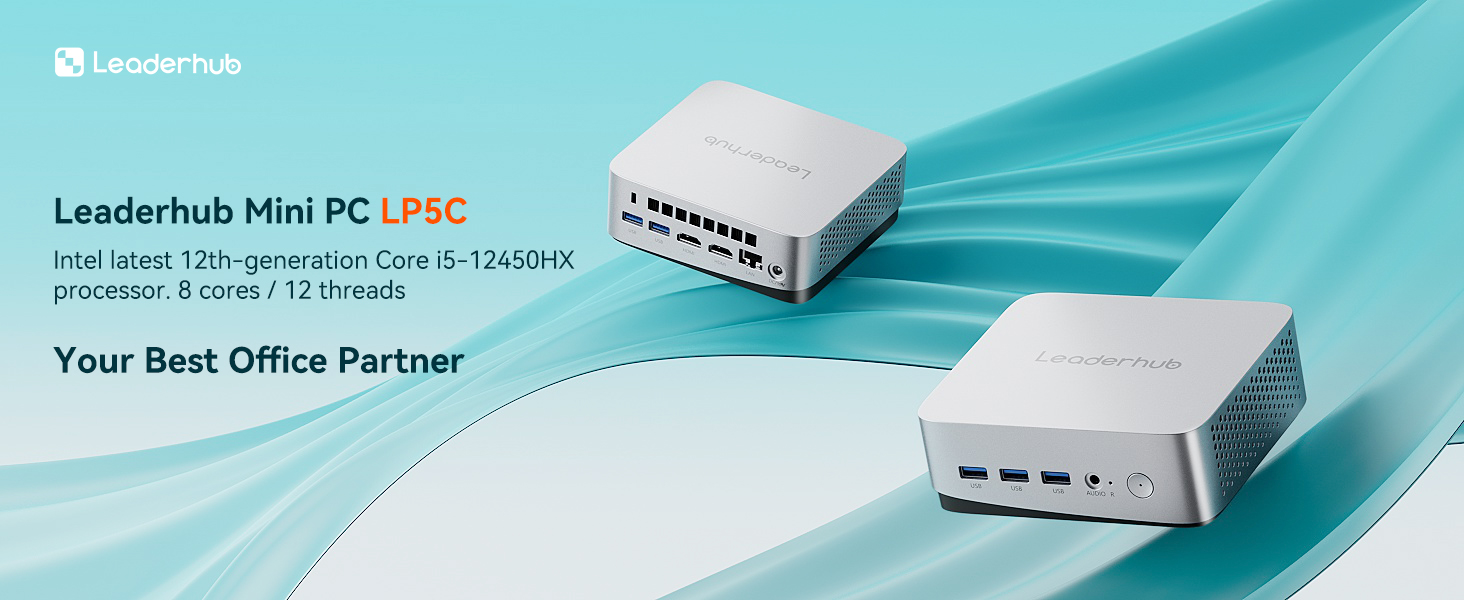
| LeaderHub LP5C Mini PC | Intel Core i5-12450HX, 16 GB RAM, 512 GB SSD | Teacher workstations, STEM and coding labs, hybrid learning rooms | $799.00 |
| LeaderHub AD8 Mini PC | Flagship compact platform for demanding workloads | Media production rooms, design and AI electives, lecture halls | $999.00 |
Schools that want a complete front-of-class solution can pair any of these units with an interactive panel such as the LeaderHub L75ZM 75″ 4K Smart Panel, creating a touch-enabled teaching station at a fraction of the cost of proprietary bundles. Browse the full range on the LeaderHub mini PC collection page.
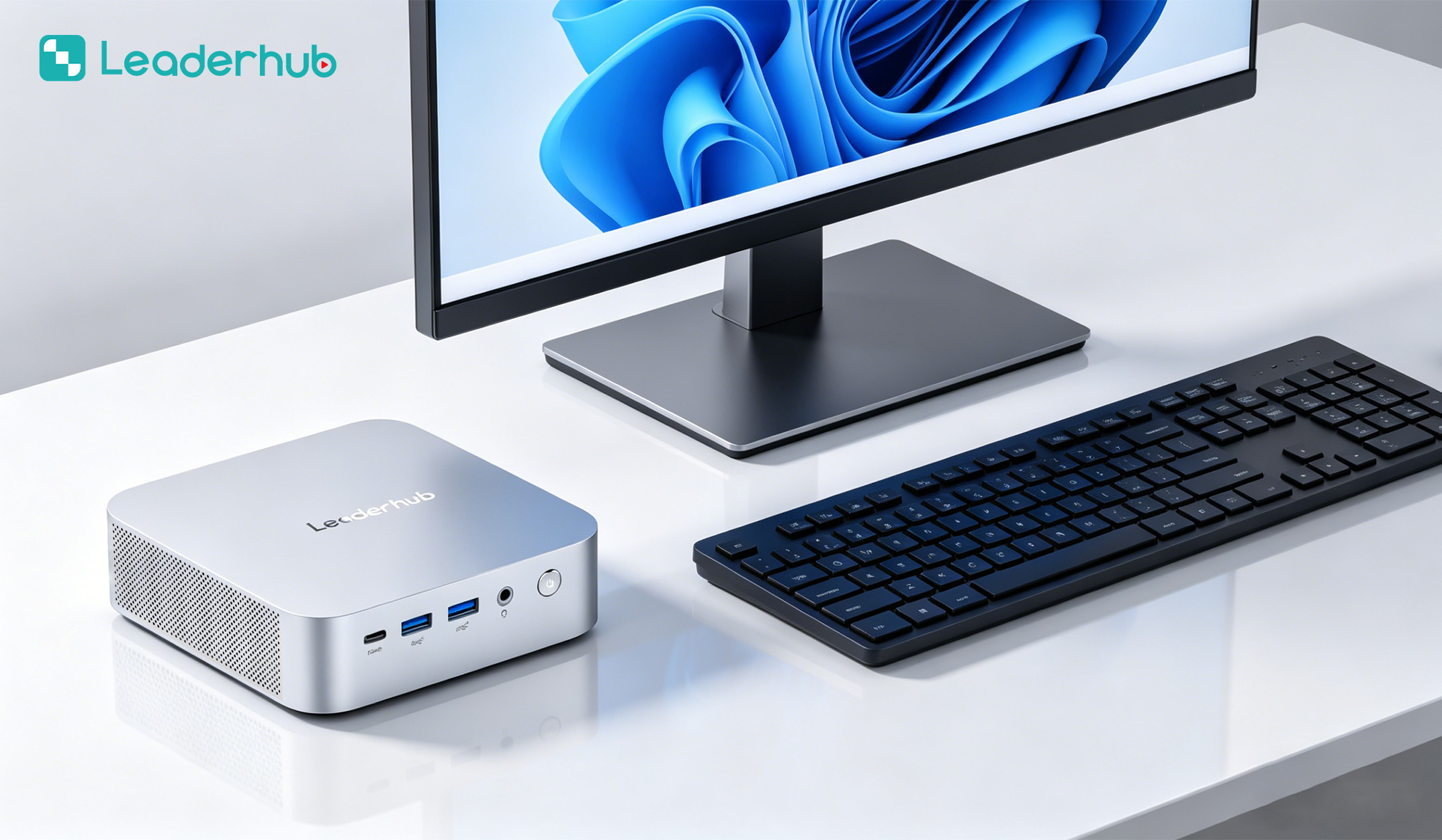
Deployment Tips for IT Administrators and Teachers
Choosing the right hardware is only half the job. A smooth rollout depends on planning, standardization, and training.
- Pilot before scaling. Install two or three units in different room types for a full term and gather feedback from teachers before placing a bulk order.
- Standardize the image. Build a single operating-system image with all curriculum software, security policies, and browser bookmarks, then deploy it to every device.
- Mount securely. Use VESA brackets behind displays or lockable enclosures under desks to reduce theft and cable damage.
- Label cables and ports. Color-coded cables help substitute teachers reconnect displays and touch cables without calling IT.
- Schedule updates outside class hours. Use Wake-on-LAN and MDM tools to push updates overnight so lessons are never interrupted.
- Train teachers on the basics. A short session covering display switching, audio routing, and whiteboard software builds confidence and reduces support tickets.
- Keep spares. Maintaining roughly five percent spare units allows same-day swaps when a device fails.
The ISTE Essential Conditions framework is a useful reference for aligning hardware purchases with professional development, technical support, and curriculum goals.
Budgeting and Total Cost of Ownership
The sticker price is only one part of the equation. When comparing options, calculate the total cost of ownership over a five-year lifecycle, including:
- Electricity consumption (a 15 W mini PC versus a 150 W tower across hundreds of hours per year)
- Maintenance time and replacement parts
- Software licensing per device
- Mounting hardware, cables, and peripherals
- Downtime cost when a lesson cannot proceed
For most schools, an Essential-tier compact computer in standard classrooms combined with Performance-tier units in labs and teacher stations delivers the best balance of capability and cost. Guidance such as the EdTech Magazine guide to choosing an interactive display for K-12 also recommends evaluating the computing device and the display together rather than as separate purchases.
Frequently Asked Questions
Is a mini PC powerful enough to run an interactive whiteboard?
Yes. Even an Intel N100-based unit comfortably drives a 4K interactive panel for annotation, presentations, and video playback. For simultaneous video conferencing and heavy multitasking, choose a Core i5-class model.
Can a mini PC support two displays at once?
Most classroom-oriented models include HDMI plus DisplayPort or USB-C video output, allowing a teacher monitor and a front-of-class panel to run simultaneously in extended or mirrored mode.
How long does a classroom mini PC typically last?
With solid-state storage and no moving parts other than a low-speed fan, a quality unit usually serves five to seven years, which aligns with most school refresh cycles.
Does a mini PC work with existing school software and management tools?
Units running Windows or Linux integrate with standard directory services, MDM platforms, and classroom-management software without special configuration.
Should we choose a mini PC or an OPS module for our interactive panels?
An external mini PC offers greater flexibility: it works with any display brand, can be upgraded independently, and can be moved to another room if the panel is replaced. OPS modules are tidier but lock you into one manufacturer’s ecosystem.
Final Thoughts
The best mini PC for classrooms is the one that matches your actual teaching needs: enough processing power for the software teachers use every day, the right ports for the displays and peripherals in each room, durable construction for long school days, and management features that keep IT workloads manageable. By defining specification tiers, piloting before scaling, and evaluating total cost of ownership, schools can modernize every classroom without overspending.
Ready to equip your school with reliable compact computers and interactive displays? Contact the LeaderHub education team for volume pricing, deployment advice, and complete classroom bundles.