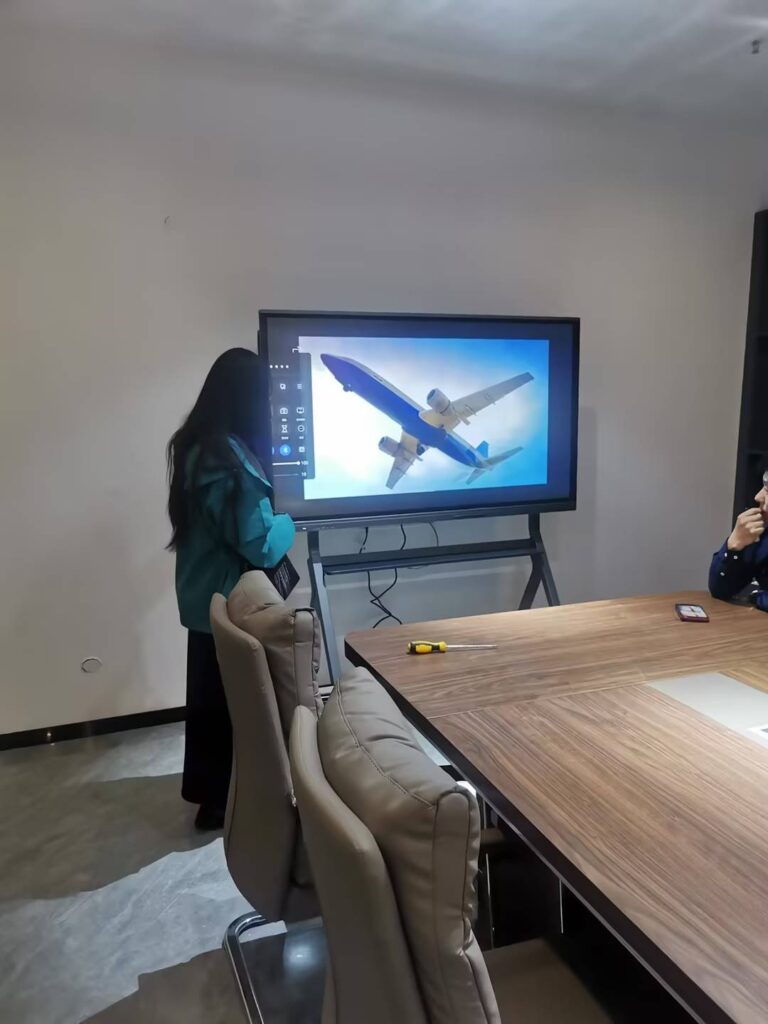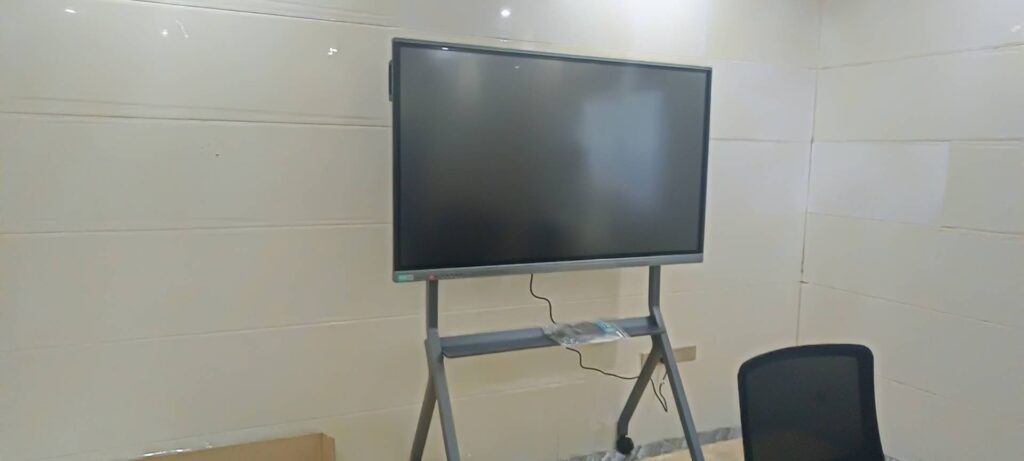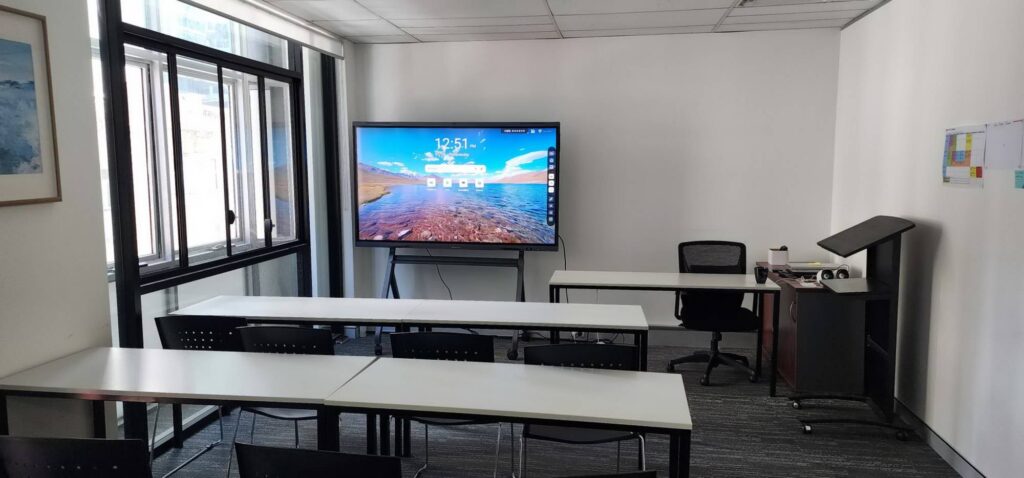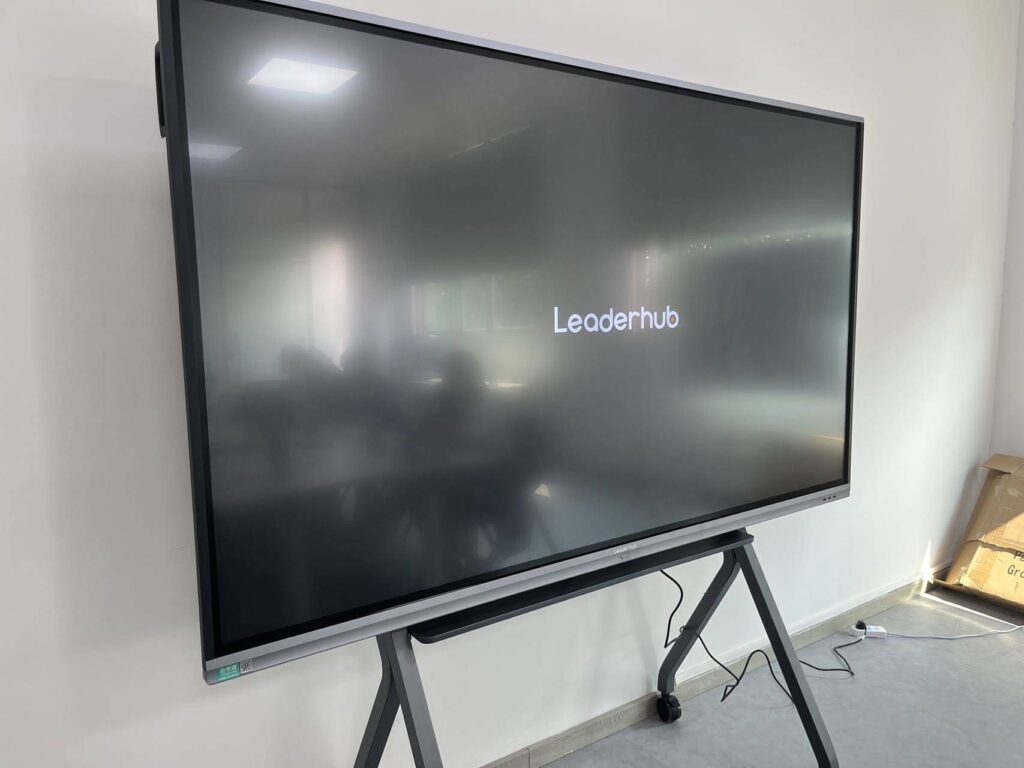
Parent-teacher meetings are some of the most important conversations a school holds all year, yet many of them still rely on printed report cards, a stack of worksheets and a clock that always runs out too fast. A smart board for parent teacher meetings changes that dynamic. Instead of talking about a student’s progress, teachers and parents can look at it together on a large touchscreen, annotate it in real time, and leave with a shared digital record of what was agreed. This guide walks through why interactive displays are becoming a standard tool for parent conferences, how to set one up, and the best practices that make every meeting more productive.
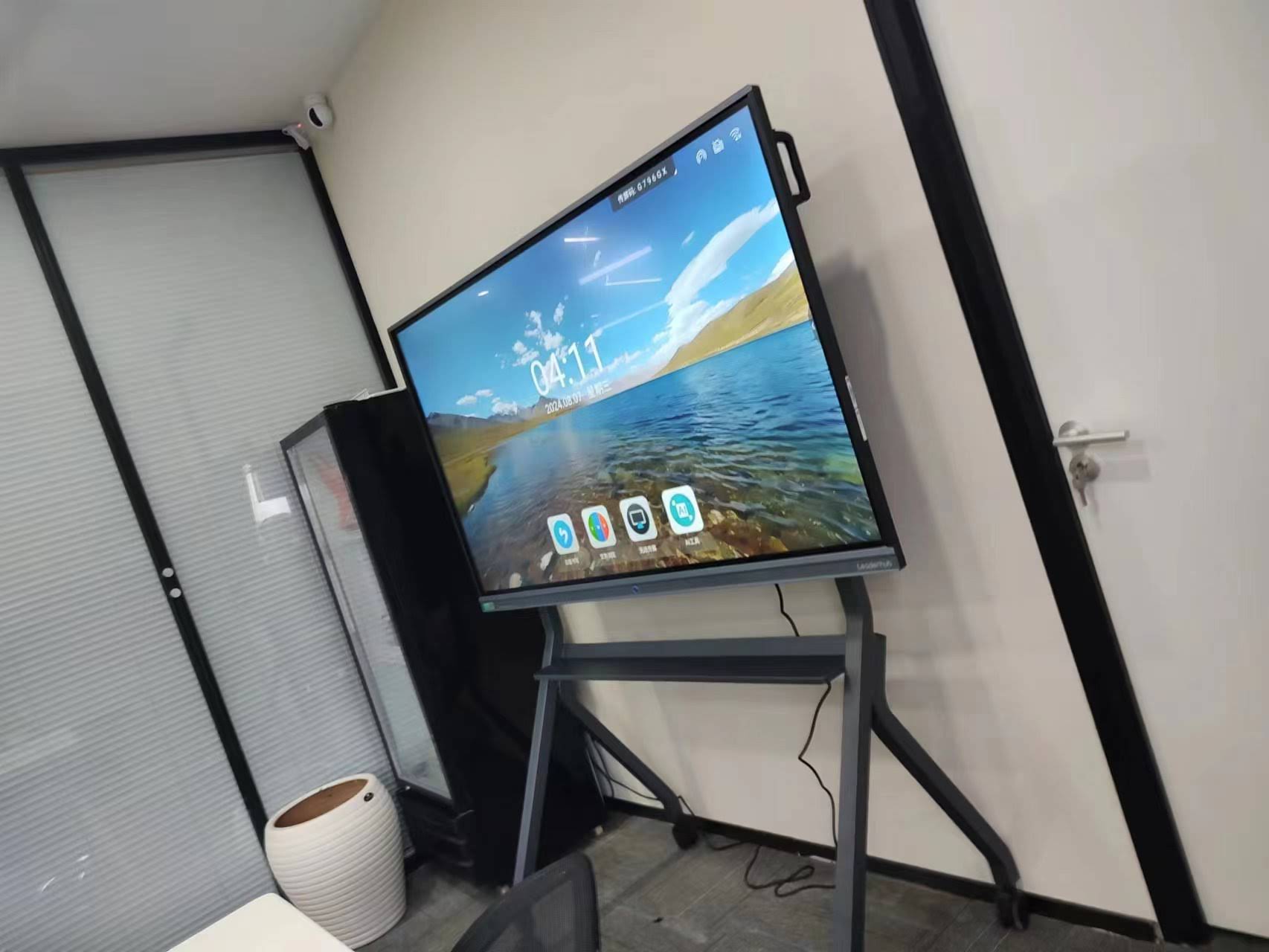
Why Use a Smart Board for Parent Teacher Meetings?
Traditional conferences are often one-directional: the teacher speaks, the parent listens, and both leave with slightly different memories of what was said. An interactive smart board turns the meeting into a collaborative, visual conversation. Grades, attendance, work samples, and behaviour notes are all on one screen, so parents see the evidence rather than just hearing the summary.
Research from the OECD Digital Education Outlook highlights that digital tools are most effective when they strengthen communication between school and home rather than replace it. A smart board does exactly that – it supports the human conversation with clear, shared information.
Key Benefits at a Glance
- Visual clarity: Charts, rubrics and portfolios are easier to understand on a 65″–86″ 4K display than on an A4 printout.
- Real-time annotation: Teachers can circle, highlight and write notes directly on student work while the parent watches.
- Shared records: Meeting notes and action plans can be saved as PDF and emailed or scanned via QR code before the parent leaves.
- Hybrid flexibility: Built-in cameras and microphones let working parents or a second guardian join remotely.
- Time efficiency: Fewer minutes are lost shuffling papers, so more of the 15-minute slot goes to meaningful dialogue.
- Privacy control: Student files are opened from a secure account and cleared between appointments, unlike paper left on a desk.
What Makes a Smart Board Suitable for Parent Conferences?
Not every display is built for the quick-turnaround, high-trust environment of a conference evening. When evaluating a smart whiteboard for this purpose, schools should focus on features that reduce friction and protect student data.
| Feature | Why It Matters for Parent Meetings | Recommended Spec |
|---|---|---|
| Screen Size | Comfortable viewing for 2–4 people seated close together | 65″ for small rooms, 75″–86″ for libraries or halls |
| Resolution | Handwriting samples and small report text stay legible | 4K UHD (3840 × 2160) |
| Touch Points | Teacher and parent can both interact without conflict | 20-point touch or higher |
| Built-in Camera & Mic | Enables remote guardians to join without extra hardware | Integrated 4K camera, far-field microphone array |
| Account Switching | Protects each student’s data between back-to-back meetings | Cloud login with one-tap sign-out |
| Mobility | Move between classrooms or set up in a hall for conference night | Rolling stand or battery-powered portable screen |
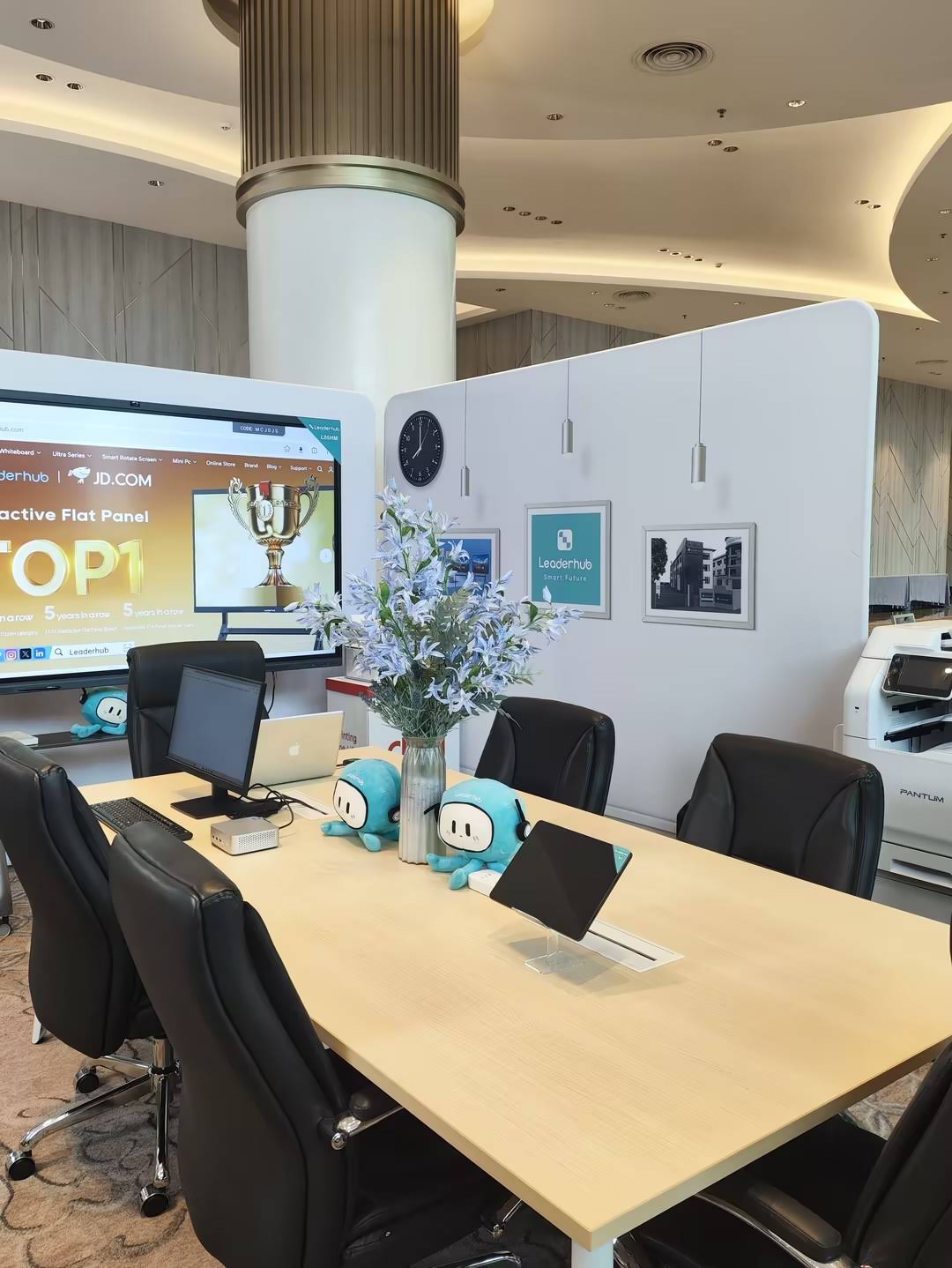
Step-by-Step: How to Use a Smart Board During a Parent Teacher Meeting
The technology only helps if the meeting itself is well structured. Below is a practical workflow that teachers can adapt to a 15- or 20-minute appointment.
1. Prepare a Digital Student Folder
Before conference day, create one folder per student in your cloud drive or whiteboard app. Include the latest report card, two or three scanned work samples, an attendance chart and any assessment data. Having everything in one place means you never have to search for a file while a parent waits.
2. Open with the Big Picture
Start by displaying a simple progress chart or a one-page summary. Parents process visual information quickly, and a single clear overview sets a calm, factual tone before diving into specifics.
3. Annotate Work Samples Together
Pull up a piece of the student’s writing or a maths assessment and use the pen tool to highlight strengths first, then areas to develop. Invite the parent to point to anything they want explained. This two-way interaction is where a smart board genuinely outperforms paper.
4. Co-write an Action Plan
On a fresh whiteboard page, write two or three concrete goals with the parent – for example, “10 minutes of reading aloud each evening” or “complete homework tracker weekly.” Because the parent sees the plan being written, they are more likely to remember and support it.
5. Share and Reset
Export the annotated pages as a PDF and share them by QR code or email directly from the board. Then sign out of the student account so the next family sees a clean screen. The whole hand-over takes less than a minute.
Running Hybrid Parent Teacher Conferences
Many families have shift workers, separated parents in different locations, or guardians who travel. A smart board with an integrated camera and video conferencing apps lets one parent sit in the room while another joins from a phone. The remote participant sees the same annotated screen, not a shaky view of a wall.
Guidance in the EU Blended Learning Guidance stresses that blended approaches should expand access rather than add complexity. Keep hybrid meetings simple: one link, one screen, one shared document.
- Send the video link with the appointment confirmation.
- Join the call from the board itself two minutes early.
- Use screen-share so the remote parent sees the whiteboard, not just the camera feed.
- Save the session notes and send them to both guardians afterwards.
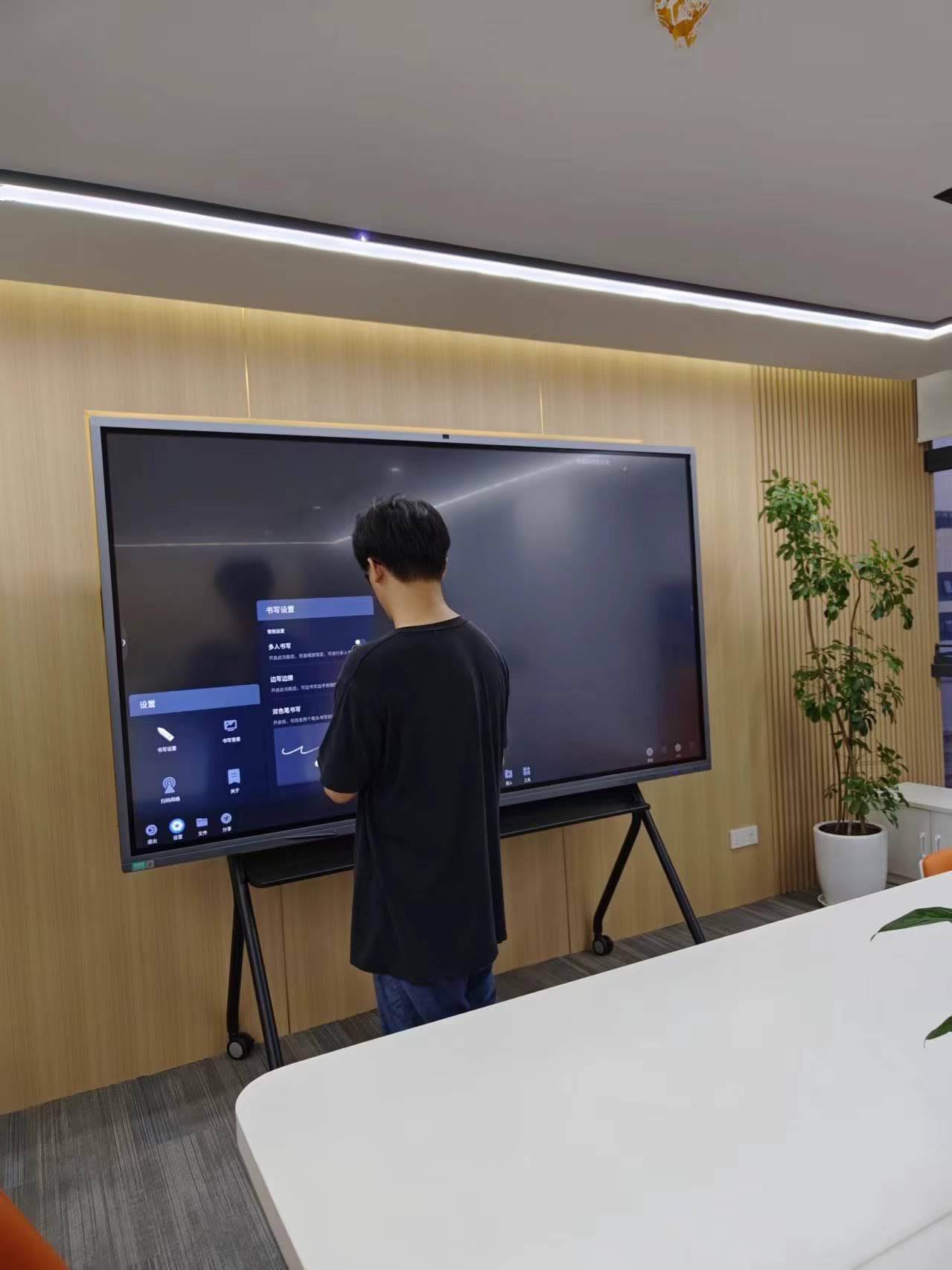
Best Practices for Teachers and School Leaders
For Teachers
- Rehearse once. Open your first student folder, annotate, export and sign out in a dry run so the real meeting feels effortless.
- Lead with strengths. Use the highlighter in a positive colour for achievements before switching colours for development points.
- Keep the screen uncluttered. One document at a time. Minimise other windows so parents focus on their child.
- Use a timer widget. A small on-screen countdown keeps conference night on schedule without feeling abrupt.
- Offer the pen. Letting a parent write a goal themselves increases ownership of the plan.
For School Leaders and IT Teams
- Standardise logins. Each teacher should have a personal cloud account that auto-signs out after inactivity.
- Plan placement. Position the board so it is visible from the seating area but not from the corridor or waiting zone.
- Provide a template. A shared conference template (summary page, work samples, action plan) saves preparation time across the staff.
- Review privacy policies. Follow local data-protection rules for storing and sharing student information digitally. Child Protection in Digital Education offers useful principles for safeguarding student data.
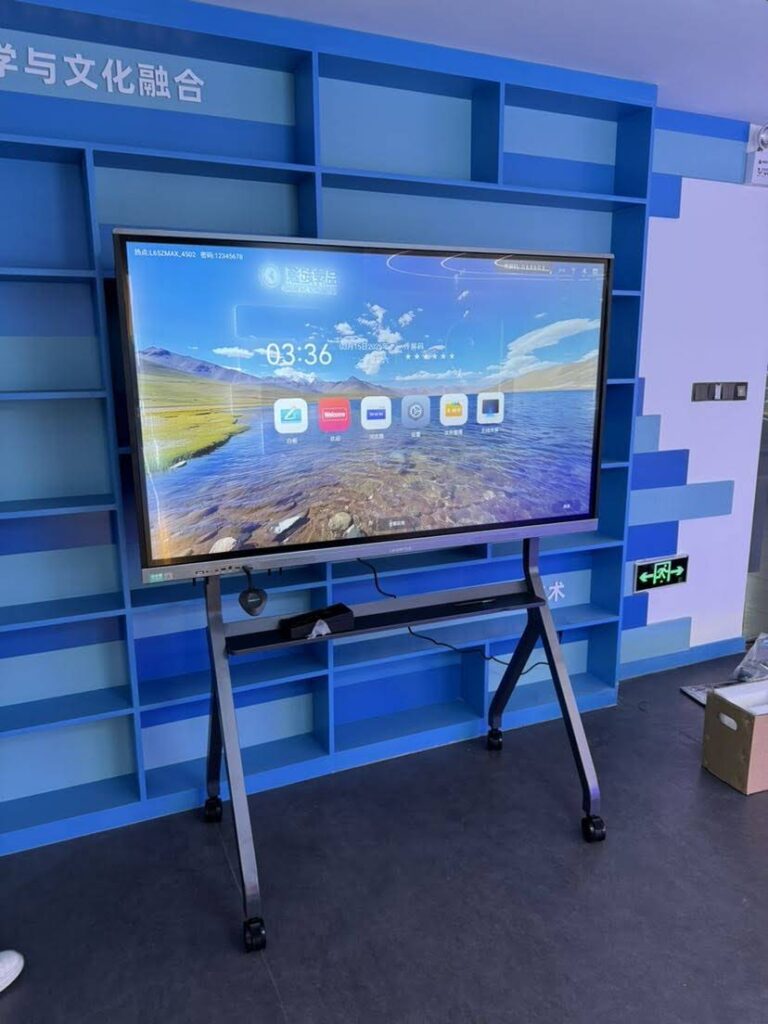
- Consider a mobile unit. One or two boards on rolling stands can serve an entire conference evening in a hall or library.
Smart Board vs. Traditional Conference Tools
| Aspect | Paper Reports & Folders | Laptop or Tablet | Interactive Smart Board |
|---|---|---|---|
| Visibility for parents | Small text, often upside-down | Shared small screen, awkward angles | Large 4K display viewable by everyone |
| Live annotation | Pen on paper, one copy only | Limited, usually teacher-only | Multi-touch, both parties can write |
| Record of the meeting | Handwritten notes, easy to lose | Typed notes, shared later | Instant PDF export via QR or email |
| Remote participation | Not possible | Possible, cramped view | Built-in camera, full-screen share |
| Data privacy between meetings | Papers left visible on desk | Depends on user habits | One-tap sign-out clears everything |
Choosing the Right Display for Your School
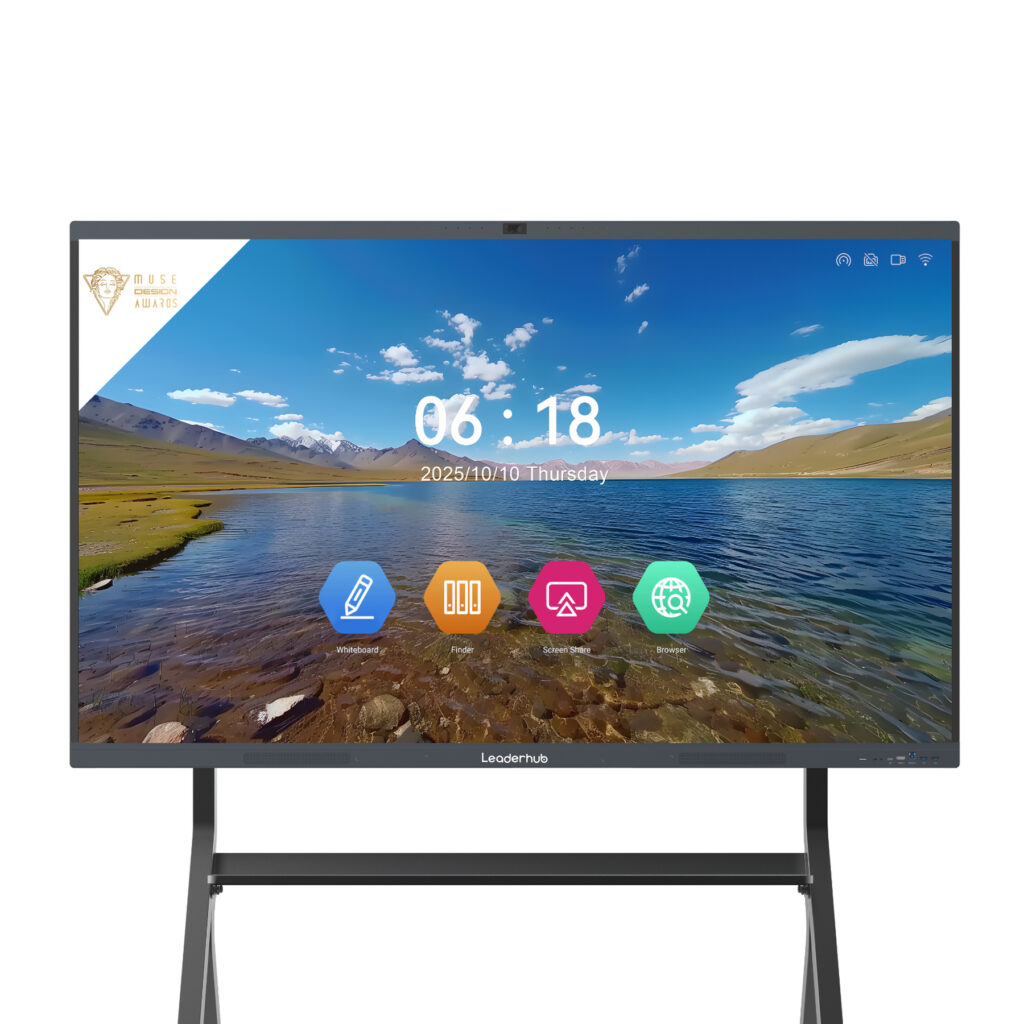
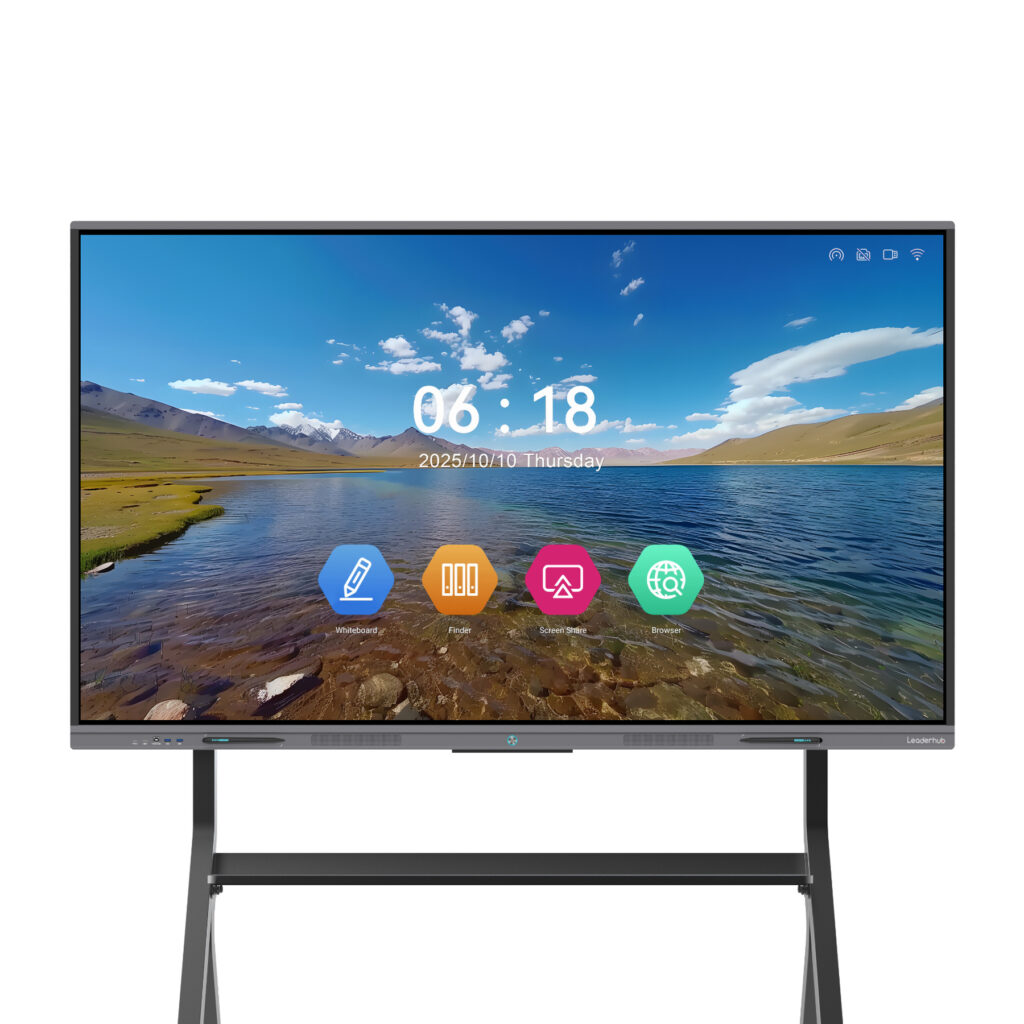
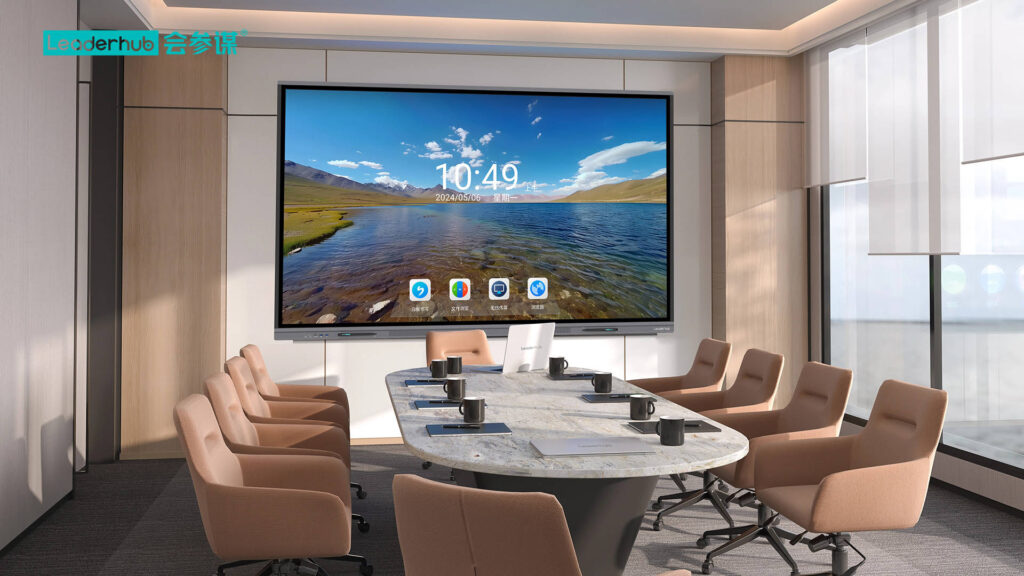
Screen size and mobility are the two decisions that matter most for conference use. A classroom that already hosts daily lessons on an L65ZM 65″ interactive whiteboard can simply reuse it for evening meetings. Larger spaces such as libraries benefit from a 75″ 4K smart whiteboard so families seated a little further back can still read work samples comfortably.
For schools that rotate a small number of displays across many rooms, a battery-powered portable option such as the U55Pro mobile interactive flat panel or a compact rotating smart screen allows staff to set up a conference station anywhere without searching for a power outlet.
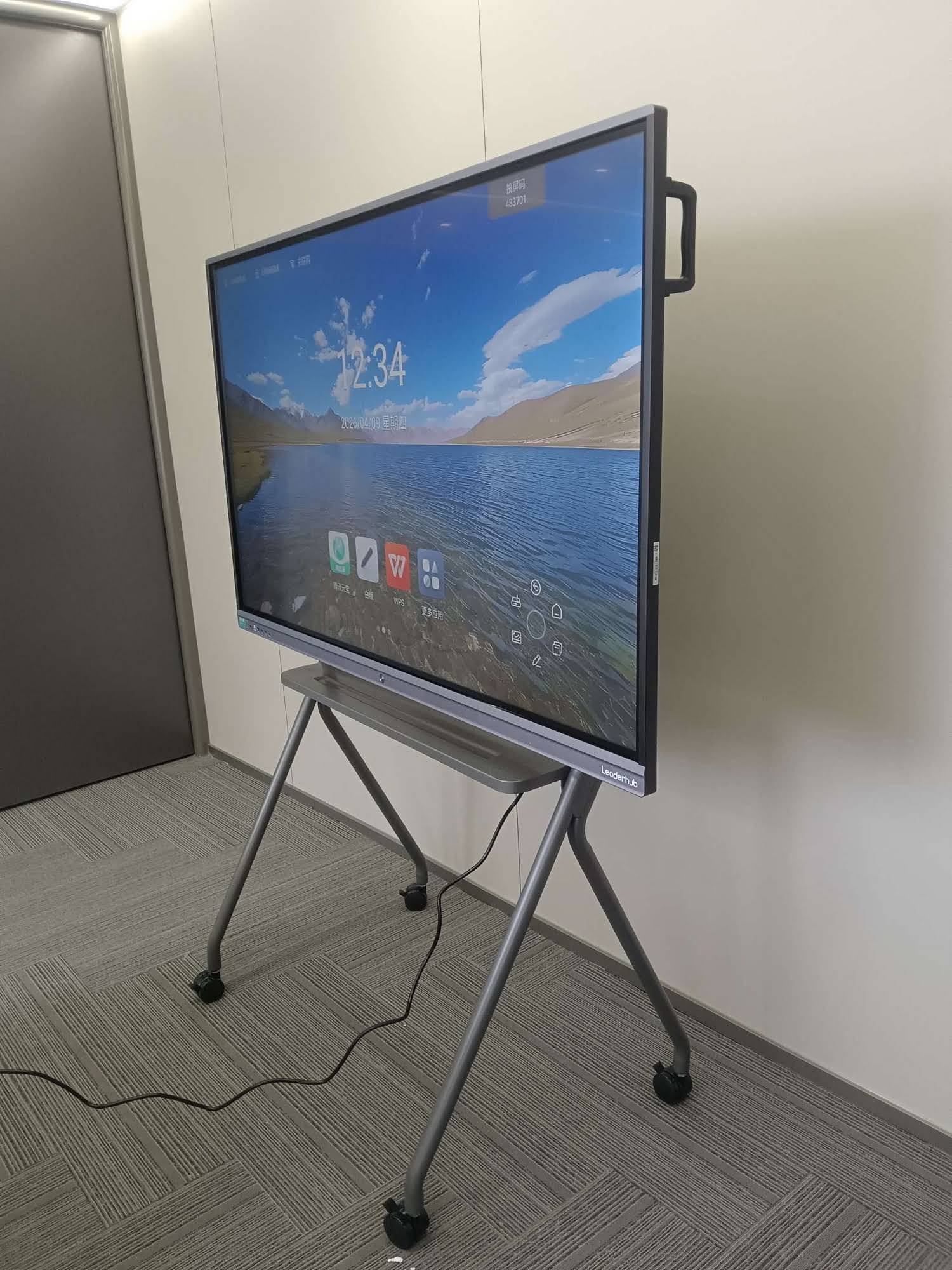
Leaderhub is a Shenzhen-based manufacturer with 16 years of interactive-display expertise, supplying smart whiteboards, interactive flat panels, mini PCs and portable smart screens to education and enterprise customers in more than 82 countries. Its displays combine 4K touchscreens with built-in collaboration tools, making them a practical fit for both daily teaching and parent engagement events.
Common Mistakes to Avoid
- Overloading the screen. Showing ten tabs of data overwhelms parents. Choose three pieces of evidence that tell the story.
- Letting the board lead the conversation. Technology supports the dialogue; eye contact and listening still come first.
- Skipping sign-out. Leaving one student’s file open when the next family walks in is a serious privacy lapse.
- Forgetting non-digital families. Always offer a printed copy of the action plan for parents who prefer paper.
- No fallback plan. Keep a tablet or printed summary ready in case of a network issue.
Frequently Asked Questions
Do parents need any technical knowledge to participate?
No. The teacher controls the board, and parents only need to look, point, or write with the pen if they choose. Remote parents simply click a link on their phone.
How long does it take to switch between students?
With pre-prepared digital folders and cloud login, the hand-over between appointments typically takes under one minute, including exporting notes and signing out.
Is a smart board secure enough for student data?
When used with individual teacher accounts, automatic sign-out and the school’s existing data-protection policies, an interactive display is generally more secure than paper folders left on a desk.
Can one board serve a whole conference evening?
Yes. Many schools set up one or two boards in a hall or library and run back-to-back appointments. A mobile stand or battery-powered panel makes this especially easy.
Final Thoughts
A smart board for parent teacher meetings is not about adding technology for its own sake. It is about making a short, high-stakes conversation clearer, more collaborative and easier to act on. When parents can see the evidence, help write the plan and leave with a digital copy, the partnership between home and school becomes stronger – and students benefit most. Explore the full range of interactive displays for education or contact the Leaderhub team for advice on the right setup for your school.