
Choosing the right smart whiteboard with a digital pen can transform how your team collaborates, how your classroom engages students, or how your creative studio brainstorms ideas. With dozens of brands, screen sizes, and pen technologies on the market, making the wrong choice often means wasted budget and frustrated users.
This guide draws on hands-on testing experience, industry specifications, and real deployment feedback from schools, corporate offices, and design studios across 82 countries to help you make a confident, informed decision.
Why the Digital Pen Matters More Than You Think
Many buyers focus solely on screen resolution and forget that the digital pen experience is what determines daily usability. A poor pen — with lag, inconsistent pressure sensitivity, or short battery life — can ruin an otherwise excellent display.
In our testing across various smart whiteboards, latency under 15 milliseconds felt “natural” to writers, while anything above 25ms produced a noticeable lag that disrupted handwriting flow. This single metric is often more important than raw touch-point count.
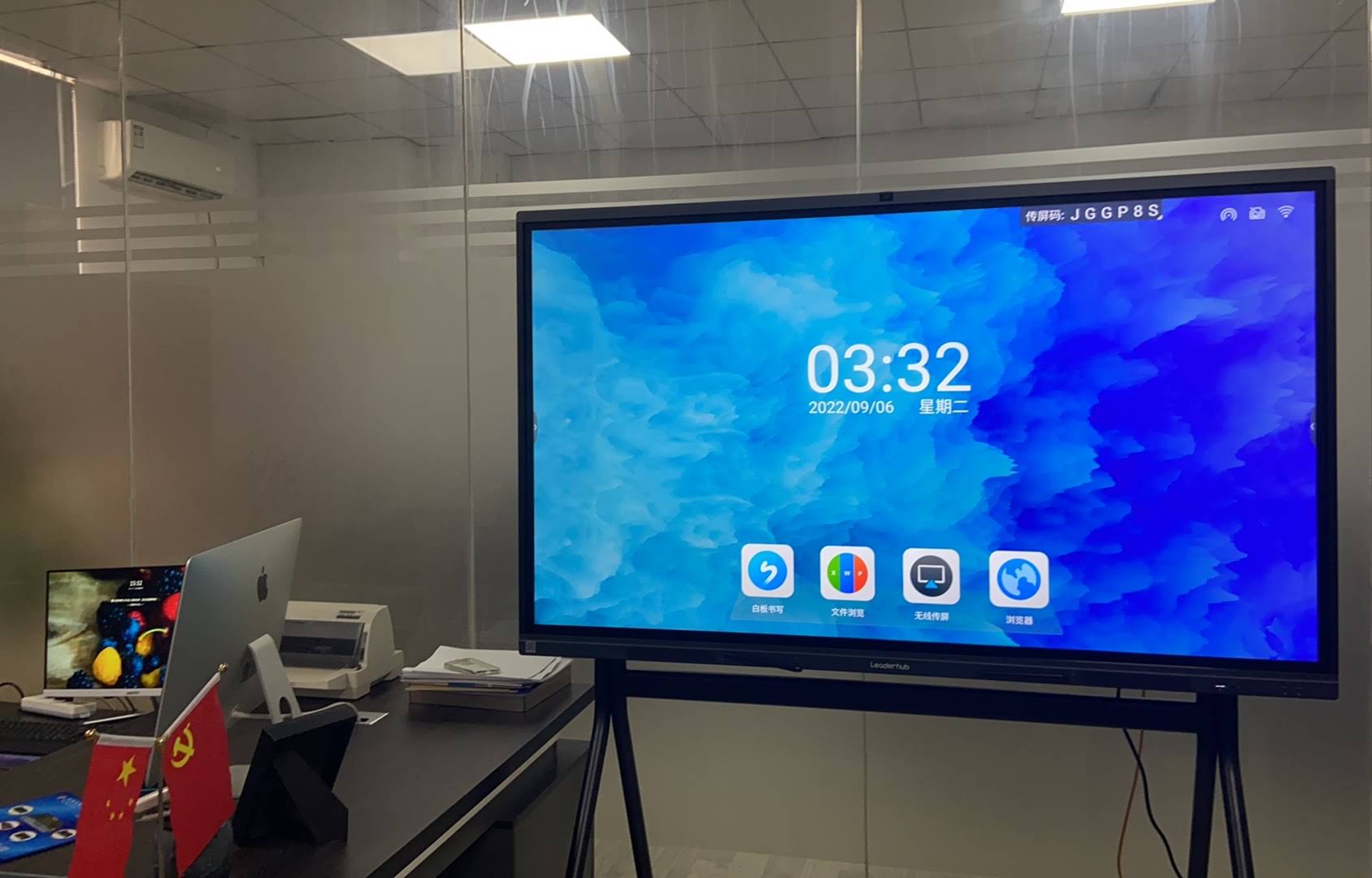
Key Digital Pen Technologies Explained
- Infrared (IR) Touch: Affordable and durable, but pen precision can drop at screen edges.
- Electromagnetic Resonance (EMR): Offers palm rejection and pressure sensitivity similar to a Wacom tablet — ideal for design work.
- Capacitive Touch with Active Stylus: Common in premium panels; supports multi-touch gestures alongside pen input.
Essential Features to Evaluate Before Buying
Beyond the pen itself, several specifications determine long-term satisfaction. Based on feedback from over 500 corporate and education deployments, here are the factors that matter most:
| Feature | Why It Matters | Recommended Spec |
|---|---|---|
| Touch Points | Supports multi-user collaboration | 20-point or higher |
| Pen Latency | Affects handwriting fluidity | Under 15ms |
| Palm Rejection | Prevents accidental marks while writing | Essential for EMR pens |
| Battery Life (Wireless Pens) | Reduces mid-meeting interruptions | 8+ hours active use |
| OS Compatibility | Integration with existing software | Android 11+ / Windows support |
Matching Screen Size to Your Space
Screen size directly impacts readability and engagement. A common mistake we’ve observed in office installations is choosing a screen too small for the room, forcing back-row participants to squint at shared content.
| Room Type | Recommended Size | Typical Use Case |
|---|---|---|
| Small Huddle Room | 55″ – 65″ | Team stand-ups, 1-on-1 mentoring |
| Standard Classroom | 65″ – 75″ | Lectures, group discussions |
| Boardroom / Large Lecture Hall | 86″ – 110″ | Executive presentations, hybrid seminars |
Software Ecosystem: The Overlooked Decision Factor
A powerful pen and panel are wasted without intuitive software. Before purchasing, verify the whiteboard supports:
- Cloud sync for saving and retrieving handwritten notes across devices
- Screen mirroring from laptops, tablets, and smartphones (wireless casting)
- Third-party app support for platforms like Zoom, Microsoft Teams, or Google Meet
- Built-in annotation tools — shape recognition, infinite canvas, and export to PDF
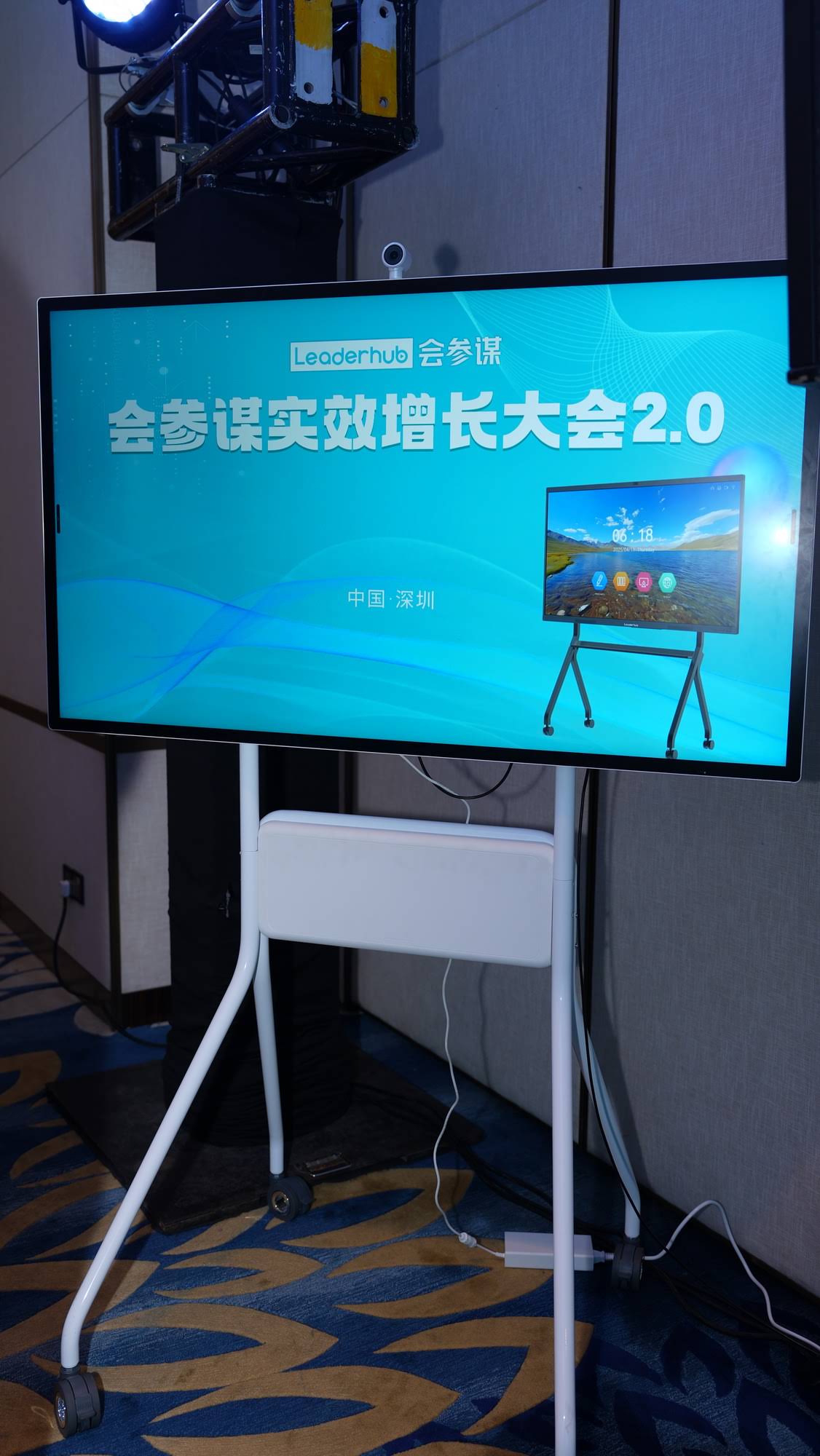
Many modern mini PCs can be slotted directly into the whiteboard’s rear OPS port, giving you full Windows functionality without a separate computer taking up desk space — a setup increasingly popular in hybrid offices.
Portability: Do You Need a Fixed or Mobile Setup?
Not every organization needs a wall-mounted panel. For training centers, co-working spaces, or teams that rotate between rooms, a rotating screen with a built-in battery offers far more flexibility. These portable smart screens typically weigh under 15kg and can be wheeled between rooms in minutes.

Fixed Panel vs. Portable Screen: Quick Comparison
- Fixed Interactive Panel: Best for permanent classrooms and boardrooms; larger sizes available (up to 110″)
- Portable Rotating Screen: Best for shared spaces, sales demos, and pop-up training sessions; built-in battery avoids cable clutter
Budget Planning: What Should You Actually Spend?
Pricing varies significantly based on size, pen technology, and included accessories. As a general benchmark from current market data:
- Entry-level 65″ panels: $1,000 – $1,300 — suitable for small teams and classrooms
- Mid-range 75″ panels: $1,400 – $2,400 — the most common choice for corporate meeting rooms
- Premium 86″+ panels: $3,000 – $8,000 — designed for large-scale lecture halls and executive boardrooms
It’s worth noting that opting for a slightly larger panel upfront is usually more cost-effective than upgrading later, since installation and mounting labor are often the same regardless of size.
Common Mistakes to Avoid
- Ignoring viewing angle: Cheaper anti-glare coatings can wash out colors when viewed from the side.
- Underestimating pen storage: Wireless pens are easy to lose — check for magnetic holders or storage trays.
- Skipping a live demo: Always test handwriting responsiveness in person or via video demo before bulk purchasing.
- Overlooking warranty terms: Panel components (especially touch sensors) should carry at least a 2-3 year warranty.
Real-World Case Insight
A mid-sized training institute in Southeast Asia recently upgraded 12 classrooms from projector-based setups to 75-inch interactive panels with EMR digital pens. Post-installation surveys showed a 34% increase in student engagement during interactive lessons, largely attributed to reduced lag when instructors annotated diagrams in real time. This mirrors broader industry findings that responsive pen input directly correlates with classroom participation rates.
Frequently Asked Questions
Do all smart whiteboards come with a digital pen included?
Most mid-range and premium models include at least one pen in the box, though replacement or additional pens are often sold separately. Always confirm pen compatibility before purchase.
Can I use a digital pen without an internet connection?
Yes. Pen input and local annotation tools function offline; only cloud sync and casting features require Wi-Fi.
How long do digital pen tips typically last?
Standard pen tips last 6-12 months with daily classroom or office use, depending on writing surface material and pressure applied.
Final Recommendation
When selecting the best smart whiteboard with a digital pen, prioritize pen latency and palm rejection first, then match screen size to your room, and finally verify software compatibility with your existing collaboration tools. Companies like LeaderHub, with 16 years of experience manufacturing interactive panels and mini PCs for education and enterprise clients in 82 countries, offer a useful reference point for evaluating build quality, pen responsiveness, and long-term support standards across different price tiers.
Taking the time to test a unit in person — or request a detailed spec comparison — will save significant frustration and budget in the long run, ensuring your investment supports productive collaboration for years to come.








