
Choosing the right smart whiteboard for your classroom, office, or training center can feel overwhelming. With dozens of brands, screen sizes, and technology specifications on the market, it’s easy to get lost in marketing jargon rather than focusing on what actually matters for daily use.
After testing and reviewing interactive displays across educational institutions and corporate environments for years, we’ve compiled this practical guide to help you make an informed decision. Whether you’re outfitting a single conference room or an entire school district, this guide covers everything from touch technology to total cost of ownership.
What Exactly Is a Smart Whiteboard?
A smart whiteboard (also called an interactive flat panel or interactive display) combines a large touchscreen display with built-in computing power, annotation software, and connectivity features. Unlike traditional projectors or basic whiteboards, these devices allow users to write, draw, annotate documents, and share content wirelessly — all without external cables or separate computers.
Modern units typically integrate an Android or Windows operating system, multi-point touch recognition, and video conferencing capabilities, making them suitable for both education and enterprise collaboration.
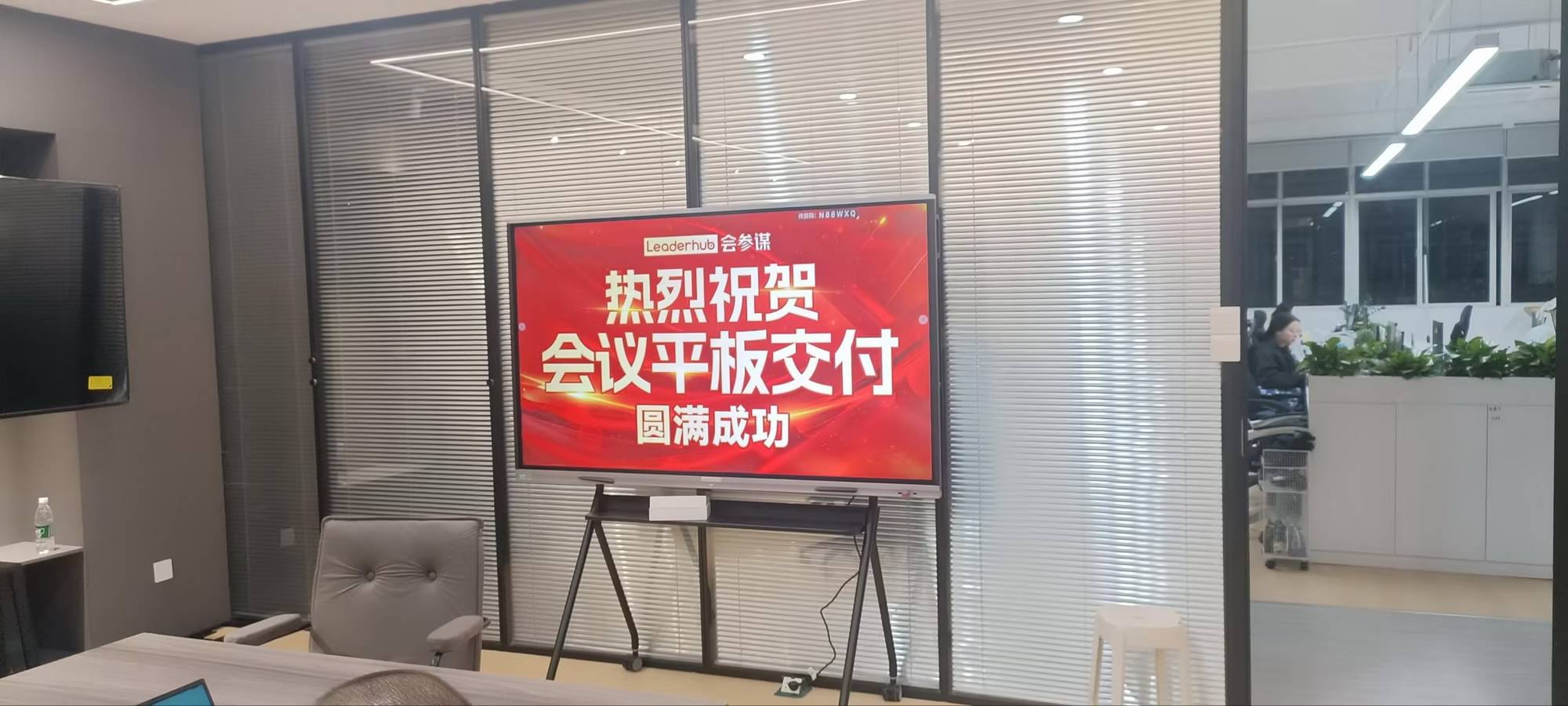
1. Screen Size: Match the Room, Not Just the Budget
Screen size is often the first specification buyers look at, but it should be determined by room dimensions rather than price alone. A panel too small for the space will strain viewers’ eyes, while an oversized display in a small room can feel overwhelming.
- Small meeting rooms (up to 10 people): 55″–65″ displays are typically sufficient
- Standard classrooms or mid-size conference rooms: 65″–75″ is the most popular range
- Large lecture halls or boardrooms: 86″ and above, with 110″ models available for auditoriums
For reference, a 75-inch interactive whiteboard generally covers rooms up to 8 meters deep comfortably, based on standard viewing-distance guidelines used by AV integrators.
2. Display Resolution and Panel Quality
Resolution directly affects text clarity and image sharpness, especially important when displaying spreadsheets, CAD drawings, or detailed presentations. Here’s a quick comparison of common resolution standards:
| Resolution | Pixel Count | Best Use Case |
|---|---|---|
| HD (720p) | 1280×720 | Not recommended for professional use |
| Full HD (1080p) | 1920×1080 | Small huddle rooms only |
| 4K UHD | 3840×2160 | Classrooms, offices, presentations (recommended) |
Nearly all reputable manufacturers now standardize on 4K UHD resolution for panels 55″ and above, as it provides the pixel density needed for clear text readability from any seat in the room.
3. Touch Technology: Infrared vs. Capacitive
The type of touch technology affects writing accuracy, palm rejection, and durability over time.
Infrared (IR) Touch
Cost-effective and widely used, IR touch detects finger or stylus position through infrared sensors along the screen edges. It supports multi-touch (usually 20-40 points) and works well with gloved hands or various stylus types.
Capacitive Touch
Similar to smartphone screens, capacitive touch offers a smoother, more responsive writing experience with better palm-rejection accuracy. It’s generally found on premium models and tends to have a longer lifespan.
For most educational and business settings, infrared touch with palm rejection offers the best balance of cost and performance — this is the technology used in LeaderHub’s mid-range whiteboard lineup.
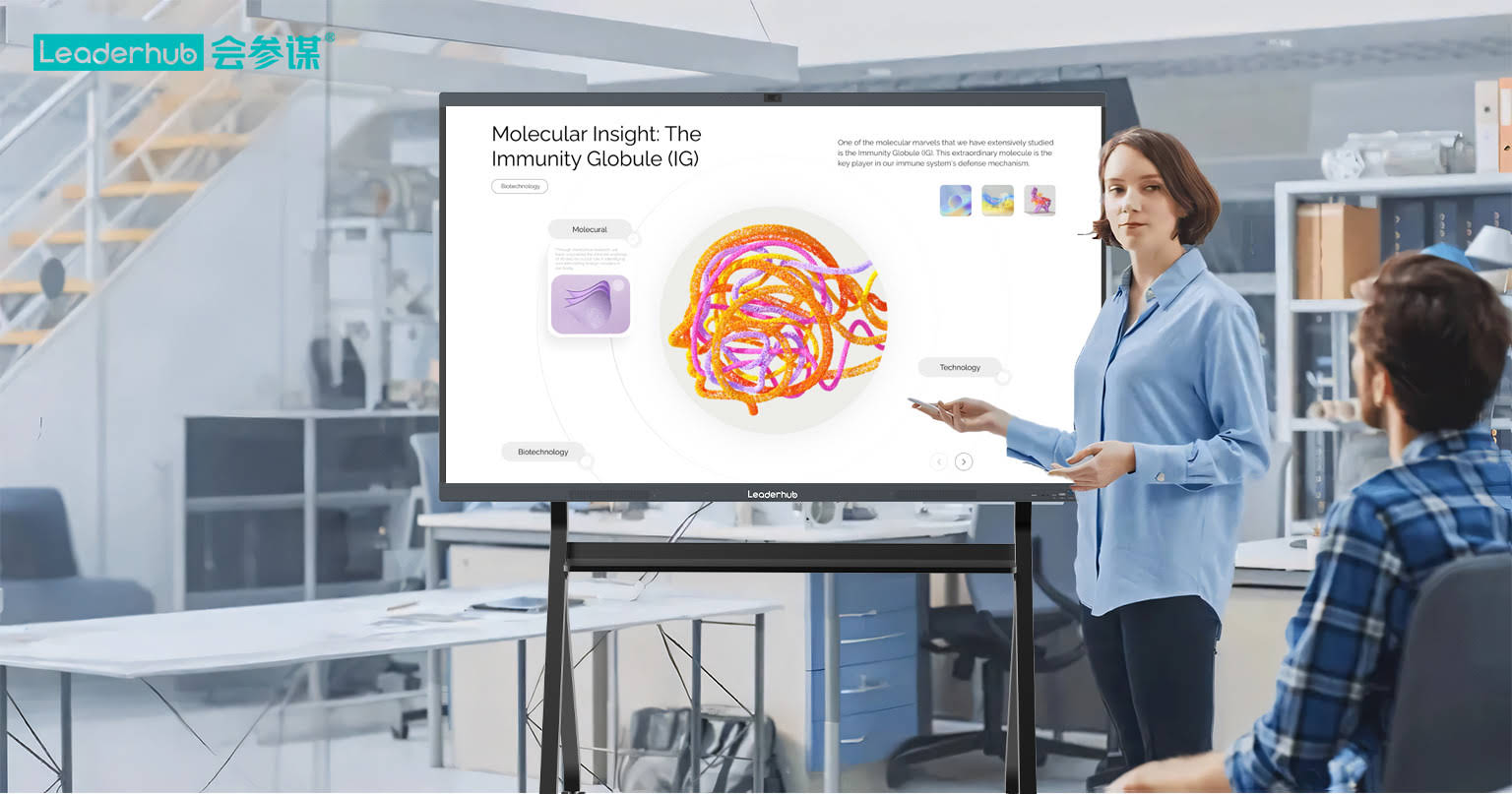
4. Operating System and Software Ecosystem
The onboard software determines how easily users can annotate, save, and share content. Look for these essential features:
- Built-in Android OS for standalone apps without needing a separate PC
- Whiteboard annotation tools with cloud save and export to PDF/image formats
- Screen mirroring from laptops, tablets, and smartphones (wireless casting)
- Video conferencing compatibility with Zoom, Microsoft Teams, and Google Meet
- Optional Windows module (via slot-in mini PC) for running desktop software directly
A slot-in Windows mini PC is a particularly valuable addition, as it eliminates the need for external computers while still allowing access to full desktop applications like Excel, PowerPoint, or specialized design software.
5. Connectivity and Ports
Before purchasing, verify the panel includes sufficient input/output options for your existing equipment:
| Port Type | Purpose |
|---|---|
| HDMI In/Out | Connect laptops, cameras, or extend display to secondary screen |
| USB-C | Single-cable video, data, and charging for compatible laptops |
| RJ45 (Ethernet) | Stable wired network for video calls and firmware updates |
| Wi-Fi / Bluetooth | Wireless screen sharing and peripheral connections |
6. Mounting Options: Fixed vs. Portable
Not every space requires a permanently wall-mounted display. If you need flexibility across multiple rooms, consider a rolling stand or portable smart screen instead.
For example, a portable handheld smart screen with a built-in battery is ideal for trainers who move between rooms or for pop-up presentation setups, while fixed wall-mounted panels suit permanent classroom or boardroom installations.
7. Brightness and Anti-Glare Coating
Rooms with significant natural light require displays with at least 350-400 nits of brightness and an anti-glare or matte finish. Glossy screens may look sharp in dark demo rooms but often become difficult to read under fluorescent lighting or near windows — a common complaint we’ve observed in real classroom deployments.
8. Total Cost of Ownership
Price comparisons should go beyond the sticker price. Consider these factors:
- Warranty length and coverage (2-3 years is standard for reputable brands)
- Availability of local technical support and spare parts
- Software update frequency and long-term OS support
- Energy consumption for large-scale deployments across multiple rooms
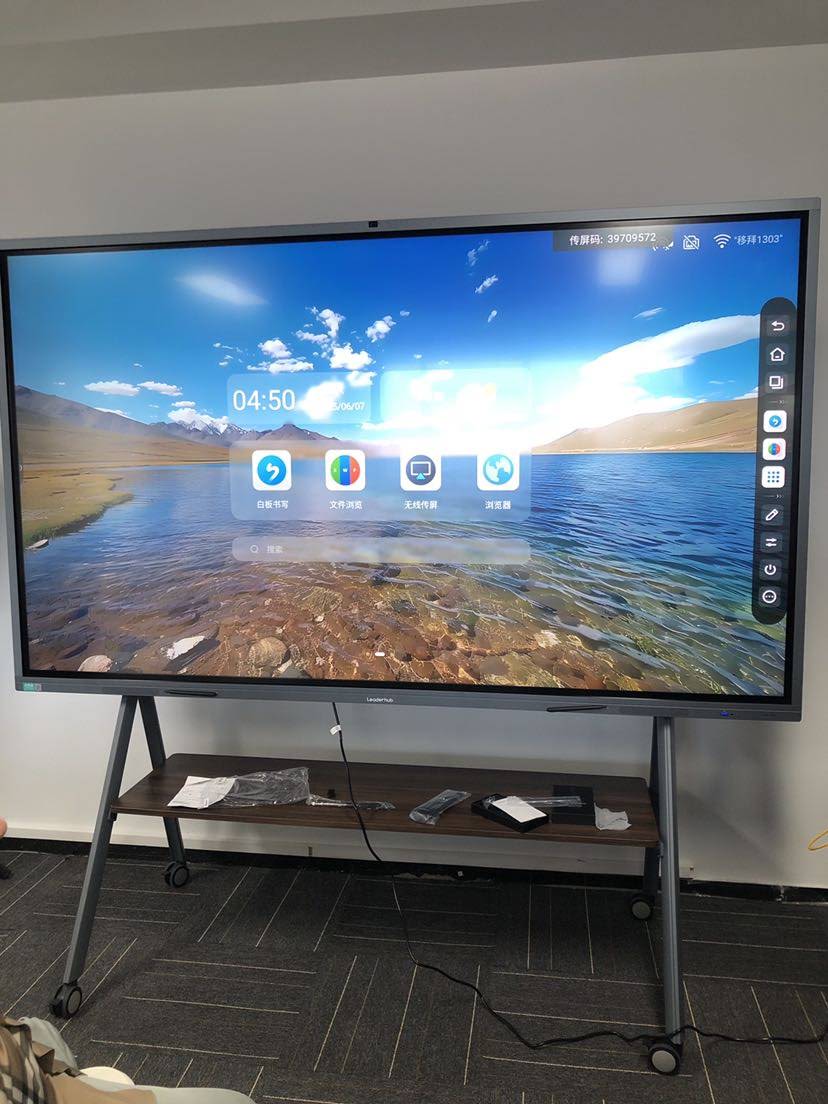
Comparing Popular Screen Size Options
Here’s a practical price-to-size comparison to help calibrate your budget expectations:
| Screen Size | Typical Price Range | Recommended Setting |
|---|---|---|
| 65″ | $1,000 – $1,300 | Small classrooms, huddle rooms |
| 75″ | $1,400 – $1,600 | Standard classrooms, mid-size offices |
| 86″ | $1,700 – $3,200 | Large classrooms, boardrooms |
| 110″ | $7,000+ | Auditoriums, large lecture halls |
Common Buying Mistakes to Avoid
- Ignoring room acoustics: Built-in speakers vary widely in quality; test audio clarity before finalizing a purchase for larger rooms.
- Overlooking software licensing: Some annotation tools require ongoing subscriptions — clarify this during procurement.
- Skipping a hands-on demo: Touch responsiveness and writing lag can only be properly evaluated in person or through a live video demo.
- Underestimating installation costs: Wall mounting, cabling, and electrical work can add 10-15% to the total project budget.
Industry Insight: Why Reliability Matters
According to procurement data from educational technology deployments, panels with poor after-sales support account for a disproportionate share of support tickets within the first year of use. This makes manufacturer reputation and warranty terms just as important as the technical specifications themselves.
LeaderHub, a Shenzhen-based manufacturer with 16 years of experience in the interactive display industry, has shipped products to over 82 countries and holds a top ranking in its category on JD.com — reflecting sustained consumer trust and consistent product reliability across global markets.
Frequently Asked Questions
How long does a smart whiteboard typically last?
With proper use, a quality interactive panel should last 5-7 years before requiring replacement, assuming regular firmware updates and reasonable daily usage hours.
Can smart whiteboards work without internet access?
Yes. Core writing and annotation functions work offline. However, features like screen mirroring, cloud sync, and video conferencing require an internet connection.
Is a Windows module necessary?
Not always. If your team primarily uses cloud-based apps (Google Workspace, Zoom, etc.), the built-in Android OS is sufficient. A Windows mini PC module becomes valuable when running desktop-only software like AutoCAD or specialized enterprise tools.
Final Recommendations
Selecting the right smart whiteboard comes down to matching technical specifications with your actual usage patterns. Prioritize 4K resolution, reliable touch technology, and sufficient connectivity options over flashy but rarely-used features. Always request a live demonstration before purchasing, particularly for bulk institutional orders.
For those exploring options across different price points and screen sizes, browsing a full smart whiteboard product line side-by-side can help clarify which specifications genuinely matter for your specific environment.








