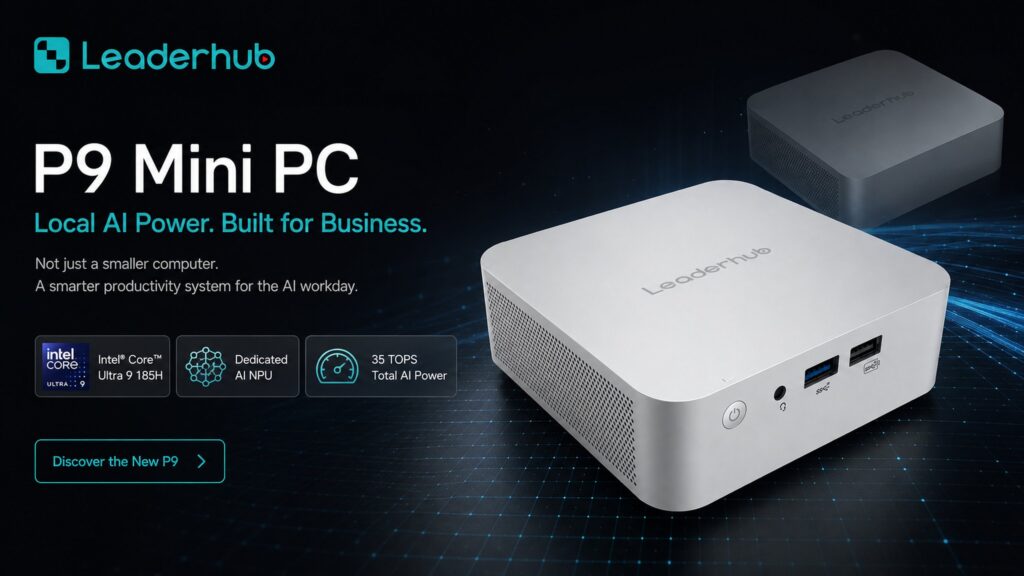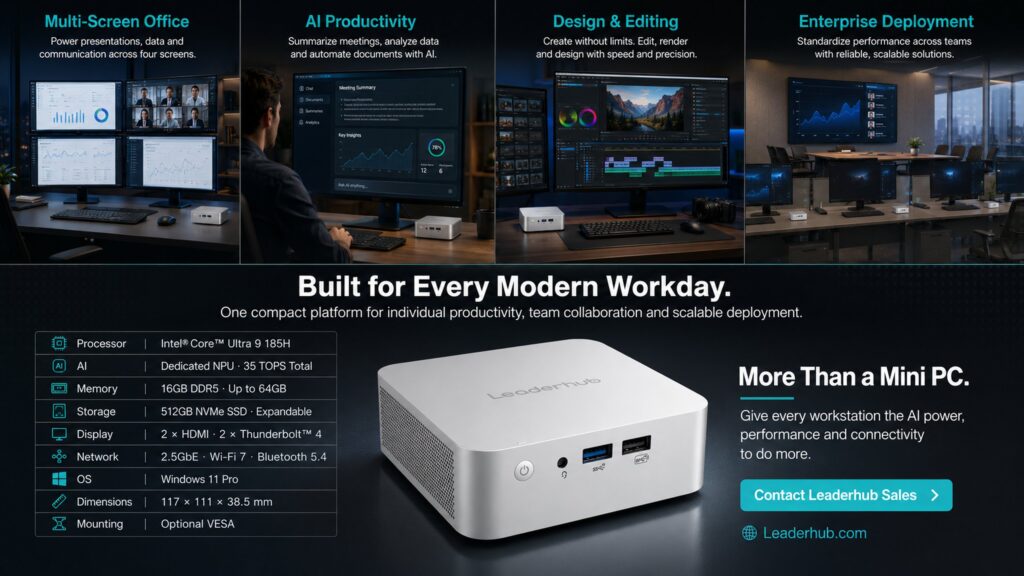
Schools today need computers that are affordable, reliable, energy-efficient and easy to manage across dozens or even hundreds of seats. A traditional tower PC takes up desk space, consumes power and is expensive to maintain, while laptops are fragile and easy to misplace. That is why a growing number of IT administrators are searching for the best mini PC for schools. These palm-sized computers deliver full desktop performance in a chassis small enough to mount behind a monitor or interactive display, making them ideal for modern classrooms and shared computer labs.
This guide explains what matters most when selecting compact computers for education, compares the requirements of classrooms and computer labs, and highlights which specifications offer the best balance of price and performance for school budgets.
Why Mini PCs Are Becoming the Standard for Education
Global reports such as the UNESCO Technology in Education Report emphasize that technology should be chosen on the school’s terms: it must be appropriate, equitable, scalable and sustainable. Mini PCs fit this framework particularly well for several reasons:
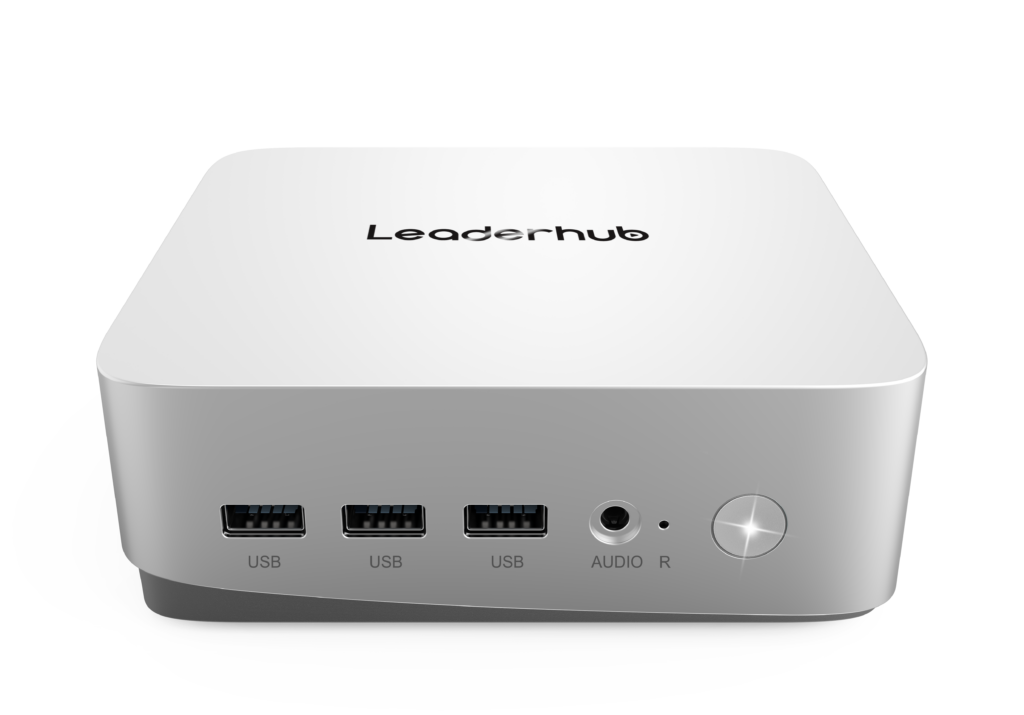
- Space efficiency – A mini PC is often smaller than a textbook and can be VESA-mounted behind a monitor, freeing up desk space in crowded computer labs.
- Lower energy consumption – Many compact computers draw between 10W and 45W under load, a fraction of a conventional desktop, which lowers electricity bills across an entire campus.
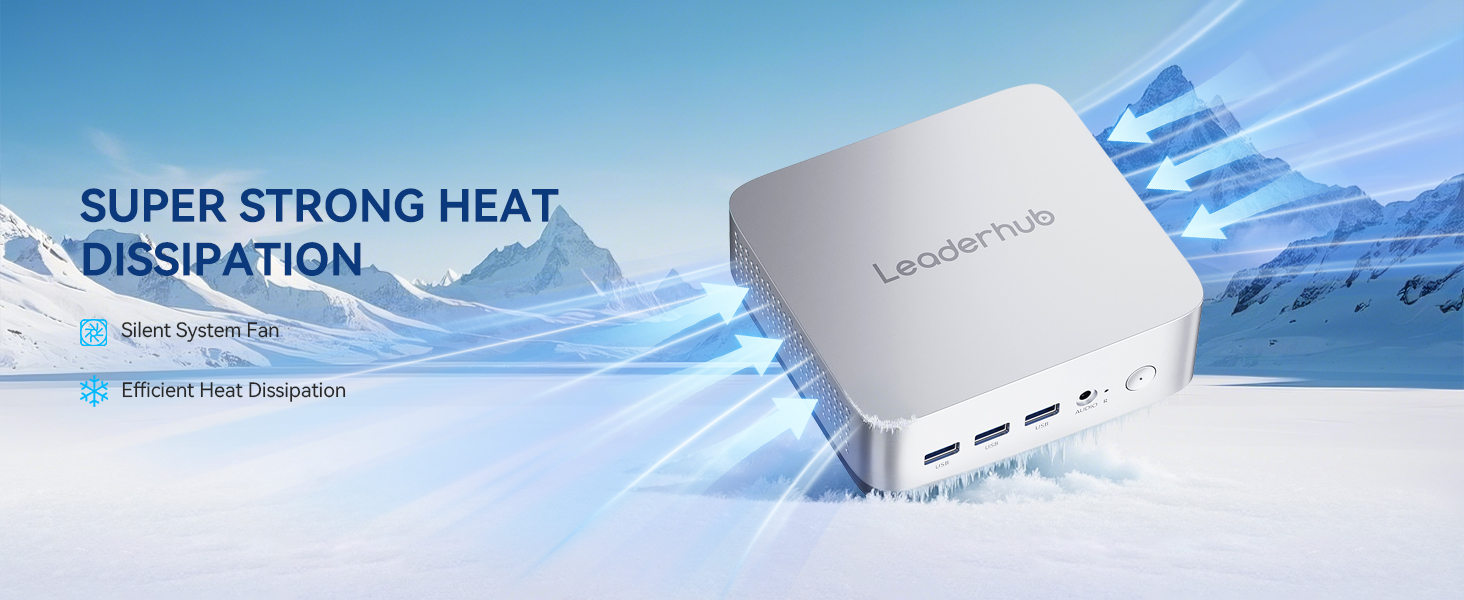
- Quiet operation – Fanless or low-noise designs keep classrooms and libraries free from distracting fan hum.
- Simplified management – Identical units can be imaged, deployed and updated in bulk, reducing the workload on school IT teams.
- Longevity and theft resistance – Secured to a mount with a Kensington lock, a mini PC is far less likely to be damaged or go missing than a laptop or tablet.
Key Factors When Choosing a Mini PC for Schools
Not every compact computer is suited to education. Below are the specifications that have the greatest impact on day-to-day classroom performance and long-term total cost of ownership.
1. Processor Performance
The processor determines how smoothly students can multitask between a browser, a word processor, a video call and an educational app. For general classroom use, web-based learning platforms and office software, an efficient Intel N-series processor such as the N100 is more than adequate. For computer labs running coding environments, video editing, 3D modelling or STEM simulations, a multi-core Intel Core i5 or higher is recommended.
2. Memory (RAM)
Modern browsers and learning management systems are memory-hungry. 8GB of RAM should be considered the minimum for any school mini PC, while 16GB offers comfortable headroom for labs where students keep many tabs and applications open simultaneously.
3. Storage Type and Capacity
Always choose a solid-state drive (SSD) over a mechanical hard disk. SSDs boot in seconds, survive bumps and knocks, and dramatically reduce the time students spend waiting at the start of a lesson. A 512GB SSD gives plenty of room for the operating system, applications and local project files, especially when cloud storage is used for student work.
4. Ports and Connectivity
Check for a mix of USB-A and USB-C ports for keyboards, mice, webcams and document cameras; at least one HDMI output (dual outputs are useful for teacher stations driving a monitor plus a projector or interactive panel); Gigabit Ethernet for stable wired networking in labs; and Wi-Fi 6 with Bluetooth for flexible classroom placement.
5. Durability, Thermal Design and Noise
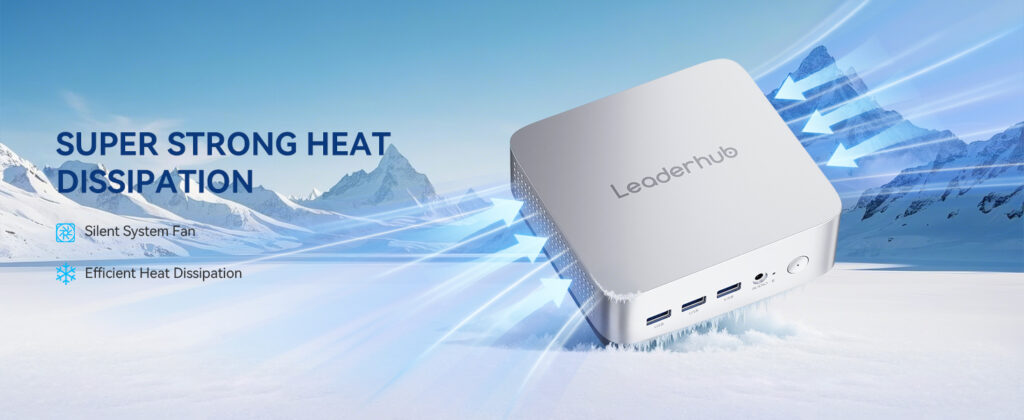
School devices run for long hours in rooms that are not always well ventilated. Look for metal housings, efficient cooling and low acoustic output. Quieter machines contribute to a calmer learning environment, a point reinforced by research on OECD Digital Devices Research, which highlights that device design and classroom context influence how effectively technology supports learning.
6. Operating System and Manageability
Windows 11 Pro remains the most common choice in schools because it supports domain joining, group policies, BitLocker encryption and remote management tools. Make sure the mini PC ships with a licensed OS and supports TPM 2.0 for security compliance.
Classrooms vs. Computer Labs: Different Needs, Different Specs
A teacher’s podium computer and a 30-seat computer lab place very different demands on hardware. The table below summarizes the key differences to help you allocate budget wisely.
| Requirement | Classroom Teacher Station | Computer Lab Workstation |
|---|---|---|
| Primary tasks | Presentations, video playback, interactive whiteboard software, video conferencing | Coding, office suites, research, design tools, exams and assessments |
| Display outputs | Dual HDMI / USB-C for monitor + interactive panel | Single output to a 22–27″ monitor |
| Recommended CPU | Intel N100 or Core i5 | Intel N100 (general) / Core i5+ (STEM & media) |
| RAM / Storage | 8–16GB / 512GB SSD | 8–16GB / 512GB SSD |
| Mounting | Behind interactive panel or inside podium | VESA mount behind each monitor |
| Priority | Reliability and multi-display support | Cost per seat and ease of mass deployment |
Recommended Mini PC Configurations for Different School Scenarios
To make procurement simpler, here is a quick reference guide that matches typical education use cases with suitable hardware tiers.
| Scenario | Suggested Tier | Example Model | Approx. Price |
|---|---|---|---|
| Primary school classrooms, library kiosks, digital signage | Entry – Intel N100, 8GB, 512GB SSD | LeaderHub LP1C Mini PC | $399 |
| Secondary school computer labs, coding clubs, teacher podiums | Mid-range – Intel i5-12450HX, 16GB, 512GB SSD | LeaderHub LP5C Mini PC | $799 |
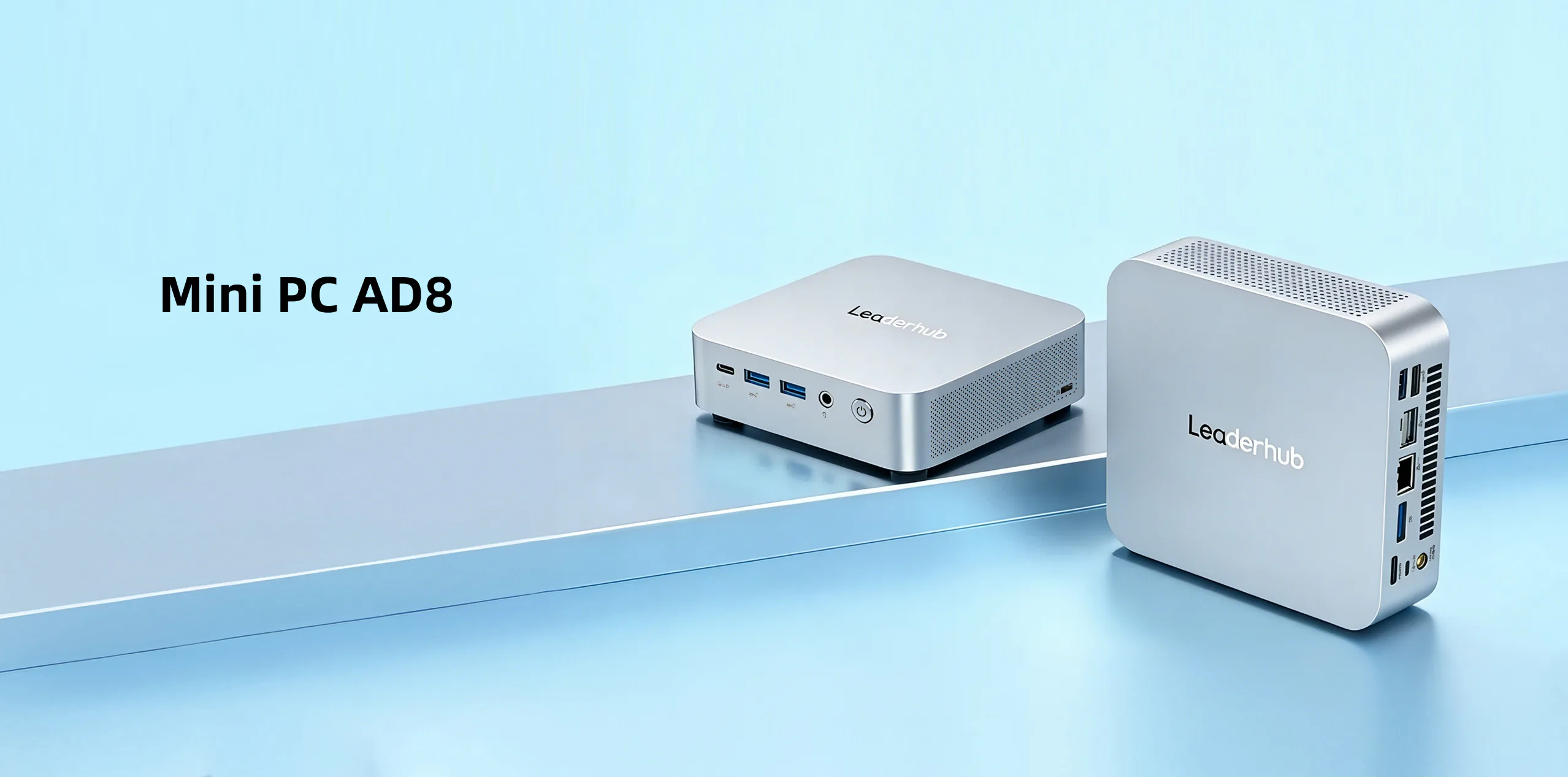
| Media labs, design studios, AI and STEM programs | Performance – high-core-count platform | LeaderHub AD8 Mini PC | $999 |
You can compare all three models side by side in the mini PC collection, each of which ships ready for Windows deployment with SSD storage and a VESA-compatible chassis.
Pairing a Mini PC with an Interactive Whiteboard
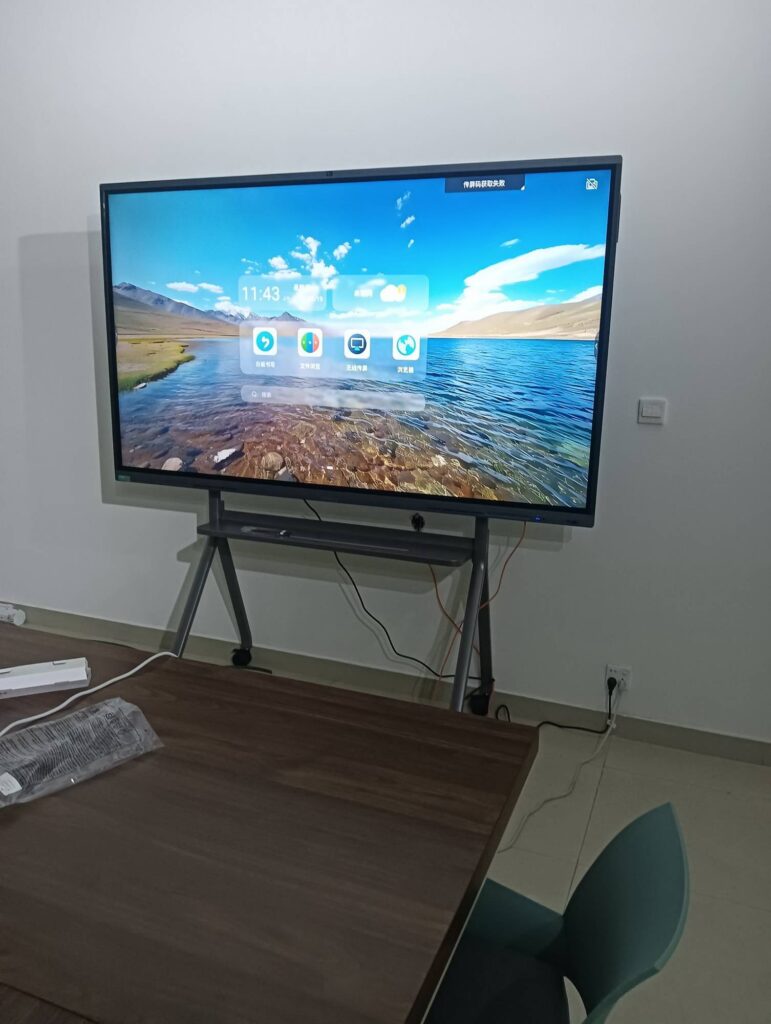
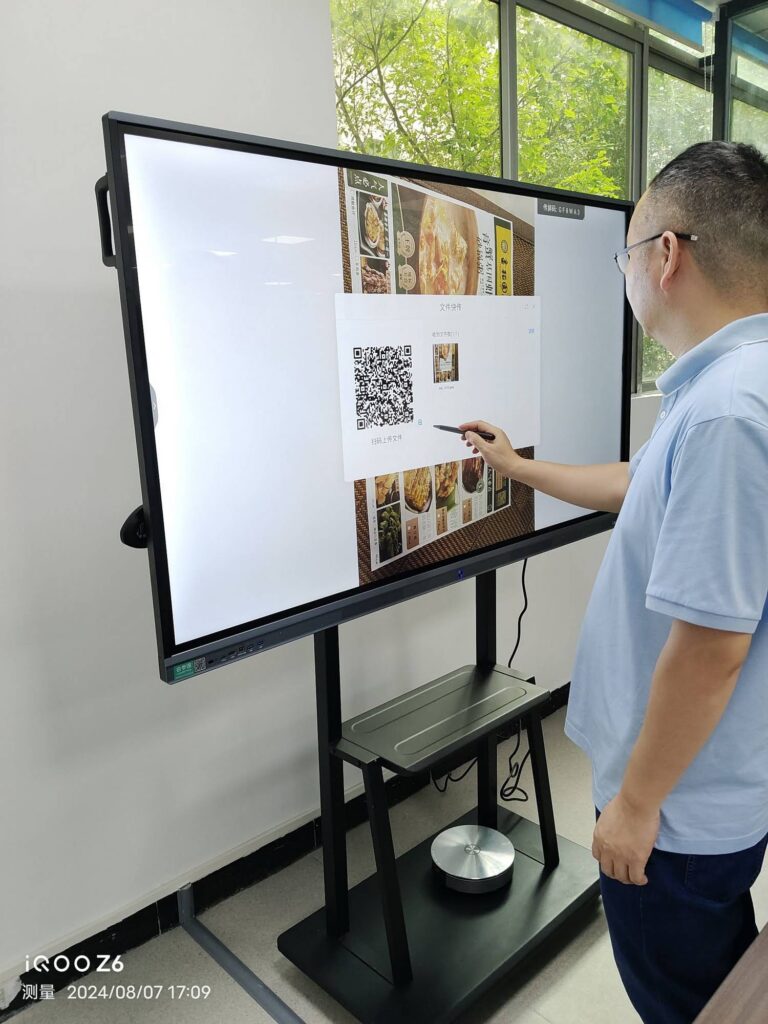
One of the most powerful classroom configurations is a mini PC connected to a large interactive flat panel. The mini PC provides a full Windows environment for teaching software, browser-based resources and video conferencing, while the panel delivers touch interaction for the whole class. Benefits of this combination include:
- Full desktop compatibility – Run any Windows application, from Microsoft Office to specialist science or language software, directly on the big screen.
- Easy upgrades – When processing demands grow, replace the mini PC rather than the entire display.
- Hidden installation – The compact computer mounts invisibly behind the panel, keeping cables tidy and tamper-free.
- Hybrid teaching – Plug in a camera and microphone to stream lessons to remote students, supporting the blended learning models described in the EU Blended Learning Guidance.
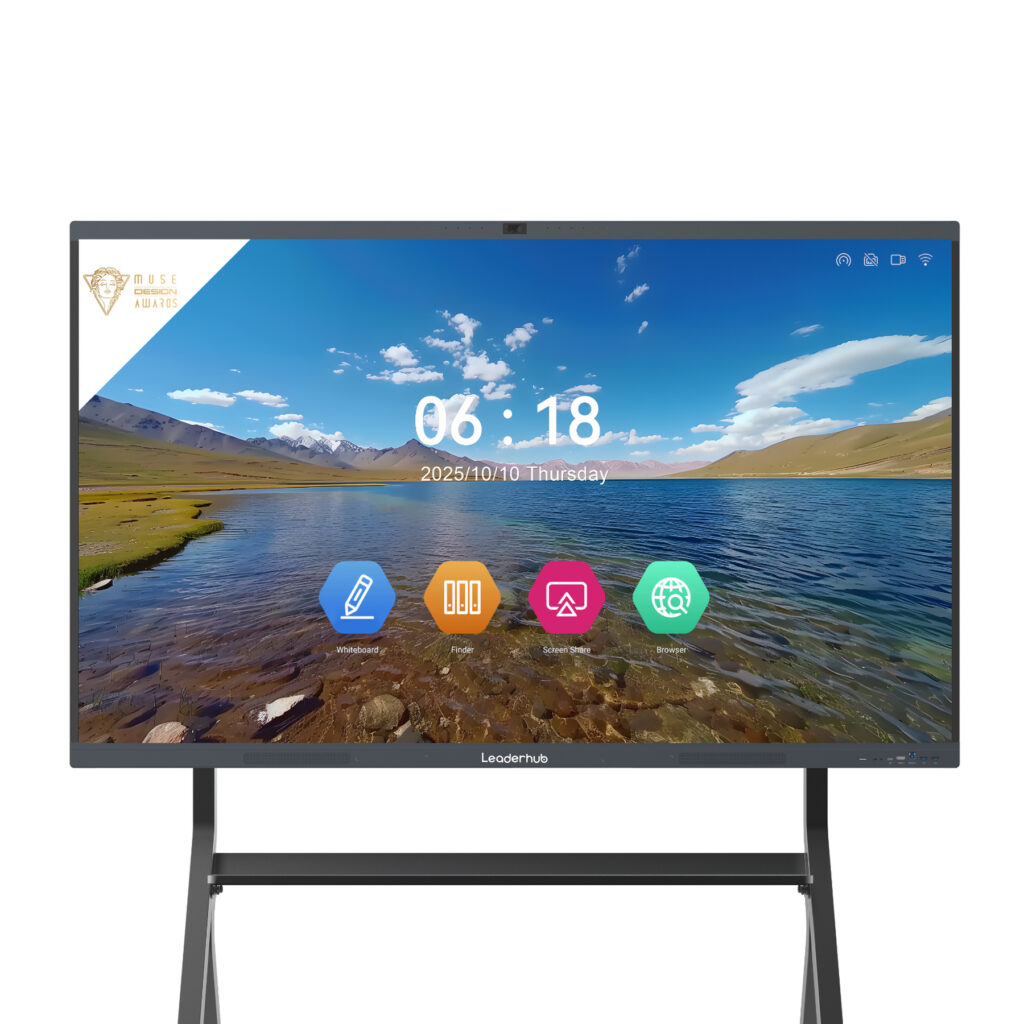
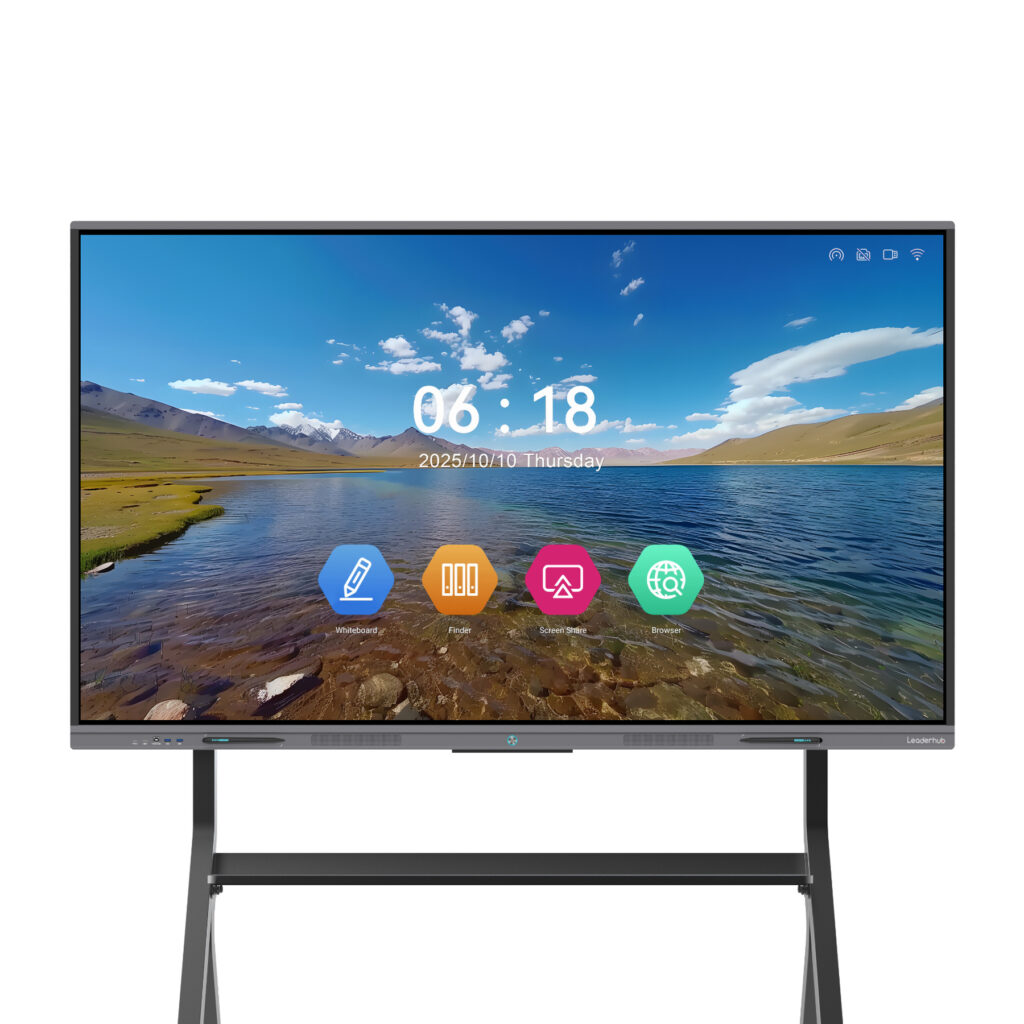
Popular pairings include the 65-inch and 75-inch 4K panels in the smart whiteboard range, which offer multi-point touch and HDMI/USB-C inputs that connect directly to a mini PC.
Deployment and Budget Tips for School IT Teams
Choosing the hardware is only half the job. These practical tips will help you roll out compact computers smoothly and keep long-term costs under control.
Standardize on one or two models
Fewer SKUs mean a single disk image, simpler spare-parts inventory and faster troubleshooting. Mixing an entry-level unit for classrooms with a mid-range unit for labs usually covers every need.
Plan for a five-year lifecycle
SSD storage and efficient processors age well. Buying slightly above the minimum specification today prevents premature replacement and keeps devices usable for the full depreciation period.
Calculate total cost of ownership
Factor in energy savings, reduced cooling load and lower maintenance hours. A lab of 30 mini PCs can save hundreds of kilowatt-hours per year compared with towers, an advantage highlighted in guidance from the World Bank Education Technology program on sustainable school infrastructure.
Secure and protect every unit
Use lockable VESA brackets, enable BIOS passwords and deploy centralized device management. Following the Effective Technology Use in Schools framework from ISTE ensures that technology investments are supported by policy, training and infrastructure.
Train teachers before launch
Even the best hardware is underused without confident educators. Schedule short onboarding sessions so staff can connect devices, share screens and troubleshoot common issues independently.
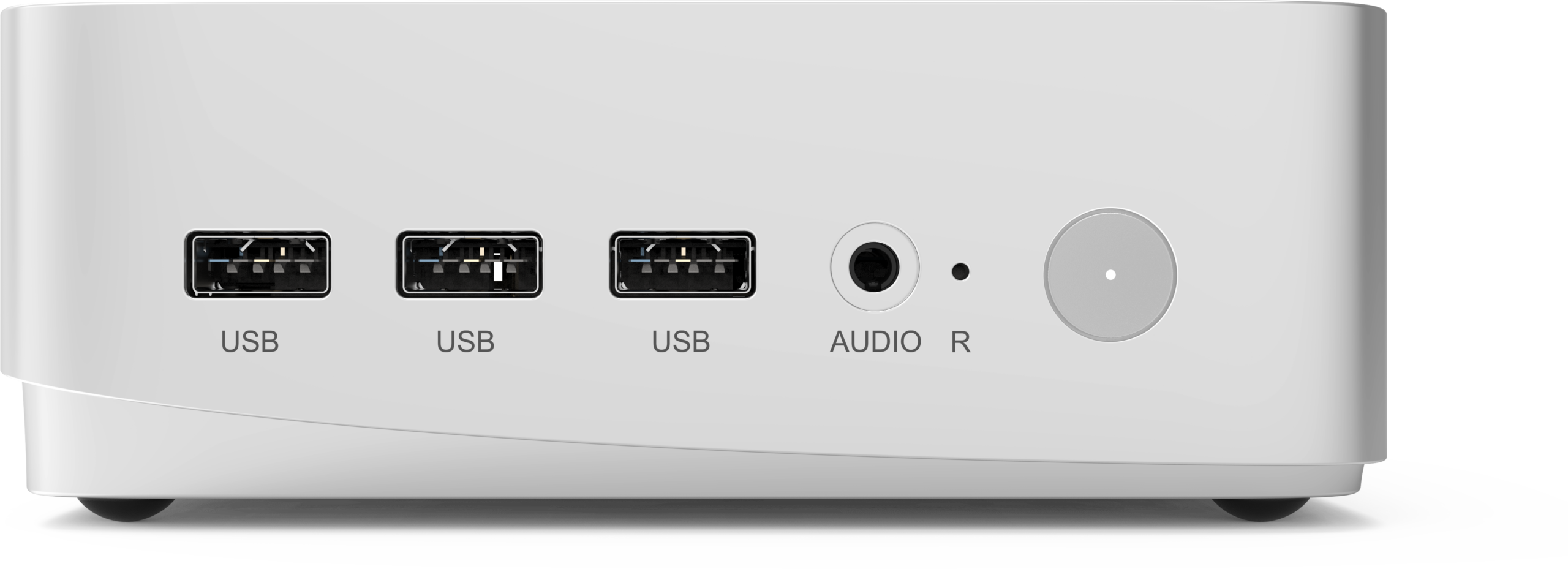
Who Makes These Education-Ready Mini PCs?
LeaderHub is a Shenzhen-based technology company with 16 years of experience in the interactive display industry, supplying smart whiteboards, interactive flat panels, mini PCs and portable smart screens to education, enterprise and creative customers in 82 countries. Its mini PC line is engineered to work seamlessly with its classroom panels, giving schools a single-vendor solution for displays and computing. Schools and distributors interested in volume pricing or OEM configurations can reach the team through the contact page.
Frequently Asked Questions
Is a mini PC powerful enough for a school computer lab?
Yes. An Intel N100 mini PC with 8GB RAM and an SSD handles browsing, office software, educational platforms and basic coding without difficulty. For media-heavy curricula, an Intel Core i5 model with 16GB RAM is recommended.
How many monitors can a school mini PC drive?
Most models support at least two displays via HDMI and USB-C, which allows a teacher station to run a desk monitor and a large interactive panel at the same time.
Can mini PCs be mounted behind monitors or interactive displays?
Yes. Nearly all education-focused compact computers include a VESA mounting bracket so they can be fixed securely out of sight behind a screen.
Are mini PCs easy to repair or upgrade?
Many units allow RAM and SSD upgrades through a simple bottom panel, extending the device’s useful life and lowering replacement costs.
Which operating system is best for schools?
Windows 11 Pro is the most widely supported option for domain management and classroom software, though some models can also run Linux distributions for computer science programs.
Final Thoughts
Selecting the right mini PC for schools comes down to matching hardware to real teaching needs: efficient N-series processors for everyday classrooms, Core i5 performance for demanding labs, SSD storage everywhere, and enough ports to connect monitors, interactive panels and peripherals. By standardizing on compact, energy-efficient computers and pairing them with interactive displays, schools can modernize learning spaces, reduce operating costs and give students and teachers technology that simply works every day.