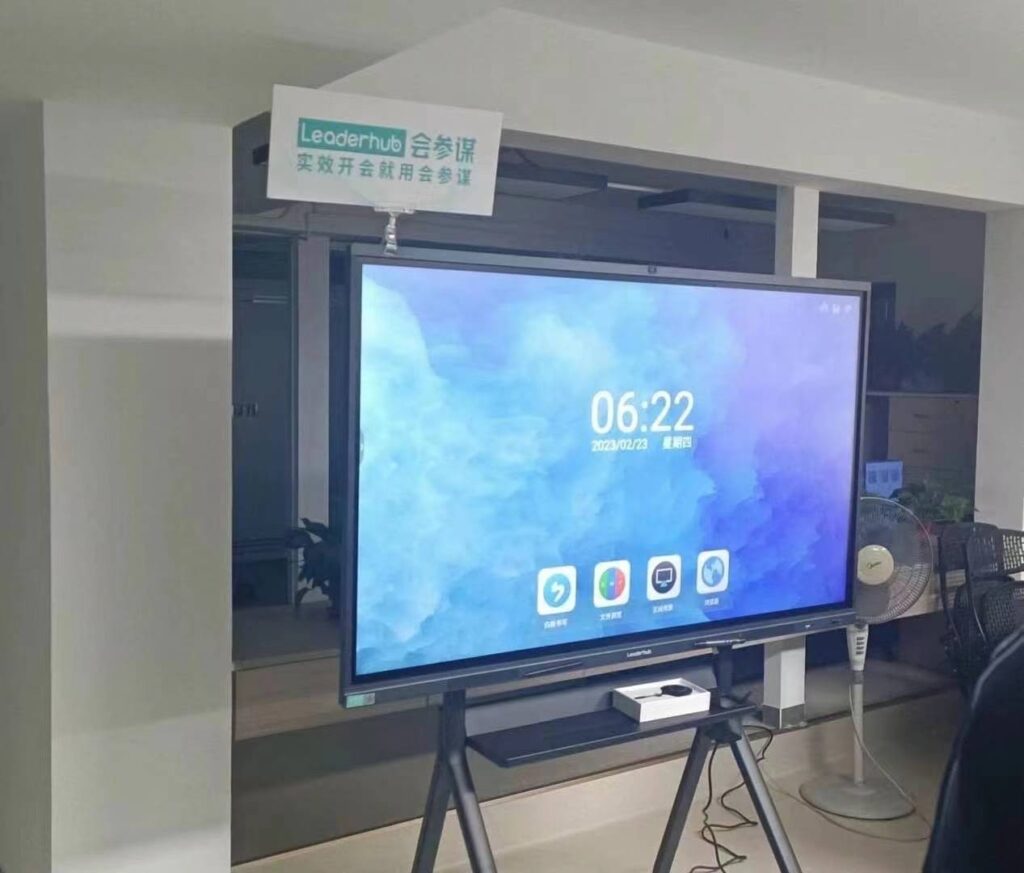
An unresponsive touch screen on your smart board can disrupt lessons, meetings, and presentations. Whether you’re an educator preparing for class or a business professional leading a conference, a frozen or non-functional touch interface creates frustration and wastes valuable time. Understanding why touch screens stop responding and knowing how to fix them quickly can save hours of troubleshooting and keep your workflow running smoothly.
This guide walks you through practical solutions for unlocking and restoring touch functionality on smart boards, based on real-world experience from classrooms, conference rooms, and training centers worldwide. From simple power cycles to advanced calibration techniques, you’ll find actionable steps that work across different brands and models.
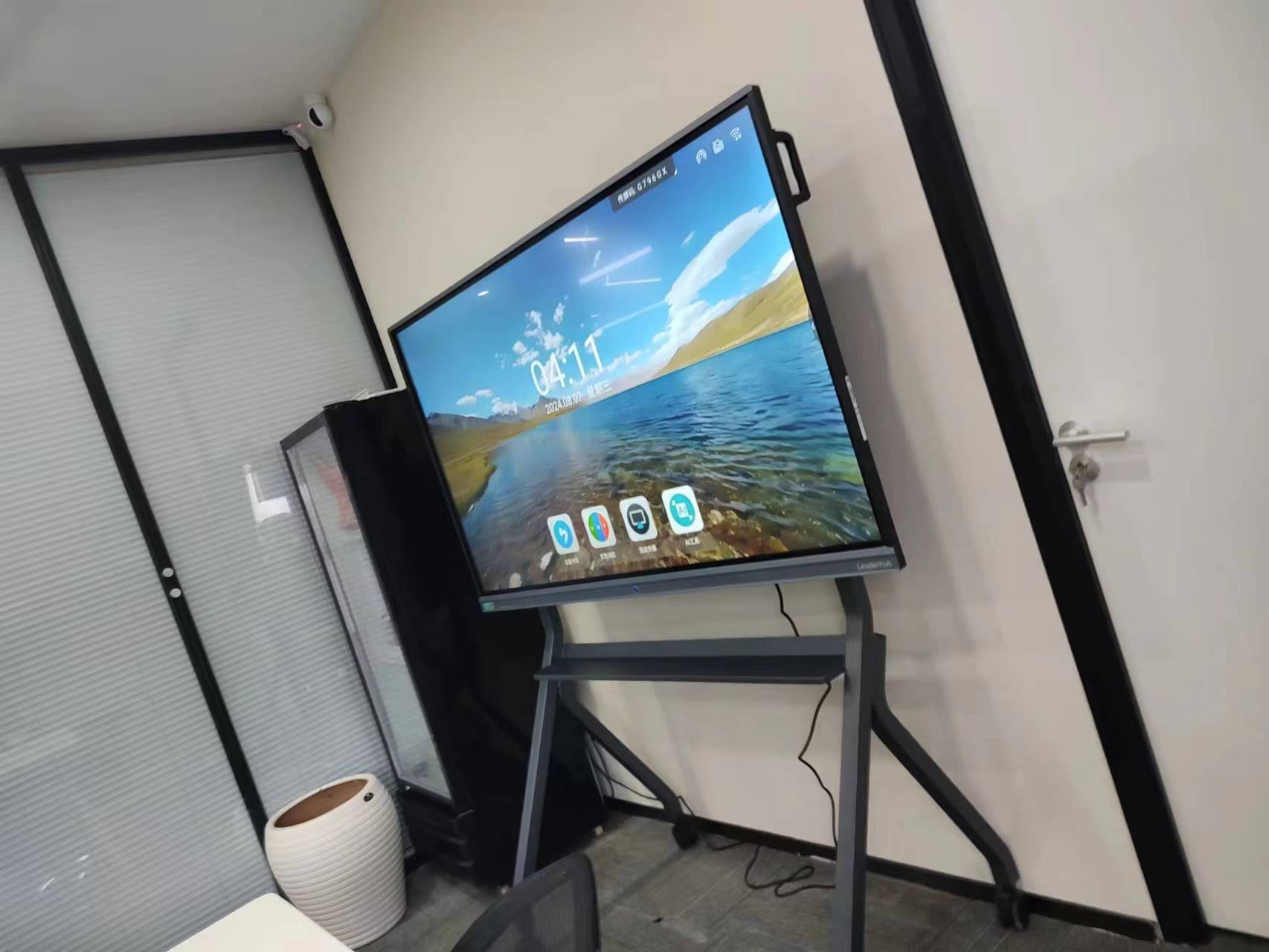
Why Smart Board Touch Screens Stop Responding
Before diving into solutions, it’s important to understand the common causes behind touch screen failures. Modern interactive flat panels rely on multiple interconnected systems¡ªhardware sensors, software drivers, operating system integration, and power management¡ªall of which must function correctly for touch input to work.
Hardware-Related Issues
Physical connection problems account for approximately 35-40% of touch screen failures in educational and corporate environments, according to IT support data from school districts using interactive displays. Loose USB cables connecting the touch overlay to the display’s internal computer, damaged connectors, or faulty touch sensors can all prevent the system from detecting input.
Environmental factors also play a role. Accumulated dust, moisture, or residue on the screen surface can interfere with capacitive or infrared touch detection. In one documented case from a university lecture hall, cleaning solution residue left after maintenance created a conductive film that confused the touch sensor, causing it to register phantom touches and ignore actual input.
Software and Driver Conflicts
Operating system updates frequently introduce compatibility issues with touch screen drivers. Windows updates, in particular, have been known to overwrite manufacturer-specific drivers with generic versions that lack proper calibration data. This problem affects both smart whiteboards and interactive panels across multiple brands.
Third-party software installations can also conflict with touch functionality. Screen annotation tools, remote desktop applications, and even certain antivirus programs have been reported to interfere with touch input processing, especially when they implement their own overlay interfaces.
Power Management Settings
Many smart boards use USB-connected touch overlays that can be disabled by aggressive power-saving features. When the operating system puts USB ports into low-power mode to conserve energy, touch functionality may stop working even though the display itself remains active.
| Issue Category | Common Symptoms | Typical Frequency |
|---|---|---|
| Hardware Connection | Complete touch failure, intermittent response | 35-40% |
| Driver/Software | Inaccurate calibration, delayed response | 30-35% |
| Power Management | Touch works after restart, then fails | 15-20% |
| Physical Damage | Dead zones, erratic behavior | 10-15% |
Quick Fixes: First Steps for Unresponsive Touch Screens
When your smart board’s touch screen stops responding, start with these immediate troubleshooting steps. These solutions resolve the majority of touch-related issues and take less than five minutes to perform.
Perform a Complete Power Cycle
A proper power cycle clears temporary system states and reinitializes hardware connections. Unlike simply turning the display off with the remote control, this process completely cuts power to all components:
- Press the power button on the smart board to turn it off completely
- Unplug the power cable from the wall outlet or power strip
- Wait 30 seconds to allow capacitors to discharge
- Plug the power cable back in securely
- Turn on the smart board and wait for the operating system to fully boot
- Test touch functionality by tapping different areas of the screen
This simple procedure resolves approximately 60% of touch screen issues in classroom and meeting room environments, according to technical support logs from interactive display manufacturers.
Clean the Screen Surface Properly
Contaminants on the screen can interfere with touch detection, especially on capacitive and infrared systems. However, improper cleaning can cause additional problems:
- Use only microfiber cloths designed for electronic displays
- Apply screen cleaner to the cloth, never directly to the screen
- Avoid alcohol-based cleaners that can damage anti-glare coatings
- Wipe in gentle circular motions without applying excessive pressure
- Ensure the screen is completely dry before testing touch functionality
For stubborn residue, dampen the microfiber cloth with distilled water. One educational technology coordinator reported that switching from commercial glass cleaner to manufacturer-recommended cleaning solution eliminated recurring touch detection problems in 12 classrooms.
Check Physical Connections
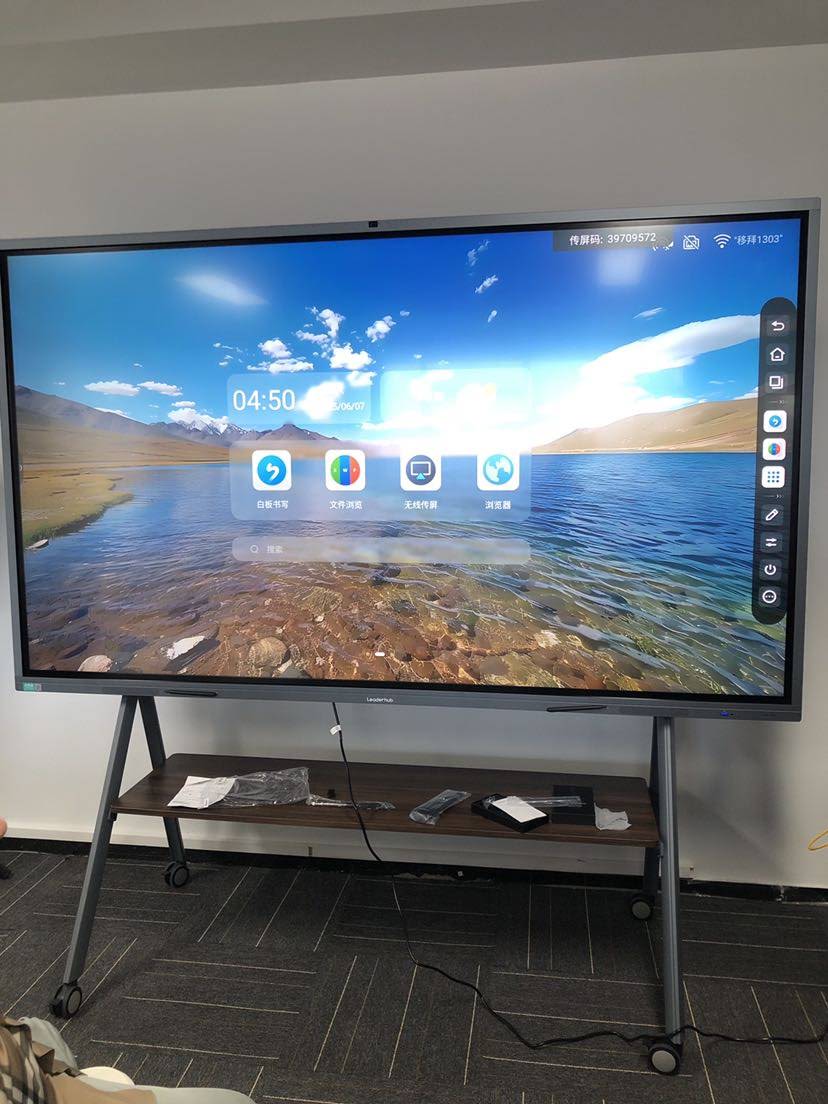
Loose cables are a surprisingly common cause of touch screen failures, particularly in high-traffic environments where equipment gets moved or adjusted frequently:
- Locate the USB cable connecting the touch overlay to the computer (usually at the back or side of the unit)
- Disconnect and firmly reconnect both ends of the USB cable
- Inspect cable ends for bent pins, corrosion, or physical damage
- If using a USB hub, try connecting directly to the main computer instead
- Test with a different USB port if available
In corporate environments with wall-mounted interactive displays, vibration from nearby foot traffic or equipment can gradually loosen connections over time. Quarterly physical inspections can prevent unexpected failures during critical presentations.
Advanced Troubleshooting for Persistent Touch Issues
When basic fixes don’t restore touch functionality, more systematic troubleshooting is required. These advanced techniques address driver conflicts, calibration errors, and operating system configuration problems.
Update or Reinstall Touch Screen Drivers
Driver problems often manifest after Windows updates or when transitioning between user accounts. The solution requires accessing Device Manager and manually managing the touch screen driver:
- Right-click the Start button and select “Device Manager”
- Expand the “Human Interface Devices” section
- Look for entries containing “HID-compliant touch screen” or your smart board’s brand name
- Right-click the touch screen device and select “Update driver”
- Choose “Search automatically for drivers” first, then try “Browse my computer for drivers” if automatic search fails
- If updating doesn’t work, right-click again and select “Uninstall device”
- Restart the smart board to allow Windows to reinstall the driver automatically
For interactive flat panels from specialized manufacturers, always download drivers directly from the manufacturer’s support website rather than relying on Windows Update. Generic drivers may lack calibration data specific to your model.
Recalibrate Touch Screen Accuracy
Touch calibration ensures that the point where you touch corresponds accurately to the cursor position on screen. Calibration drift occurs over time due to temperature changes, mechanical stress, or software updates:
Windows Calibration Process:
- Open Control Panel and navigate to “Tablet PC Settings”
- Click on the “Display” tab
- Click “Calibrate” and follow the on-screen instructions
- Touch each calibration point precisely at its center
- Complete all calibration points without skipping any
- Save the calibration and test accuracy across different screen areas
Some smart boards include manufacturer-specific calibration utilities that offer more precision than Windows’ built-in tool. Check your smart board’s software package for calibration options¡ªthese specialized tools often provide multi-point calibration (20+ points) compared to Windows’ standard 4-point or 16-point calibration.
Disable USB Selective Suspend
Windows’ power management can disable USB-connected touch overlays to save energy, causing touch functionality to fail unpredictably. Disabling this feature ensures consistent touch response:
- Open Control Panel and go to “Power Options”
- Click “Change plan settings” for your active power plan
- Click “Change advanced power settings”
- Expand “USB settings” then “USB selective suspend setting”
- Set both “On battery” and “Plugged in” to “Disabled”
- Click Apply and restart the system
This configuration change is particularly important for smart boards in conference rooms that remain powered on continuously. One corporate IT department eliminated 80% of their touch screen support tickets by implementing this setting across all meeting room displays.
Model-Specific Solutions and Manufacturer Tools
Different smart board manufacturers implement touch technology in unique ways, which means some troubleshooting steps are model-specific. Understanding your particular system helps target the right solution.
Infrared Touch Technology Considerations
Smart boards using infrared touch detection require clear line-of-sight between the frame-mounted sensors. Obstructions, ambient light interference, or sensor misalignment can cause touch failures:
- Check for physical objects blocking the infrared sensors around the screen perimeter
- Reduce direct sunlight or bright ambient lighting that can overwhelm sensors
- Verify that no protective films or screen protectors interfere with the infrared grid
- Use the manufacturer’s diagnostic tool to test individual sensor zones
Infrared systems are particularly sensitive to screen scratches and surface damage. Even minor scratches can create false touch points if they catch and scatter infrared light.
Capacitive Touch System Troubleshooting
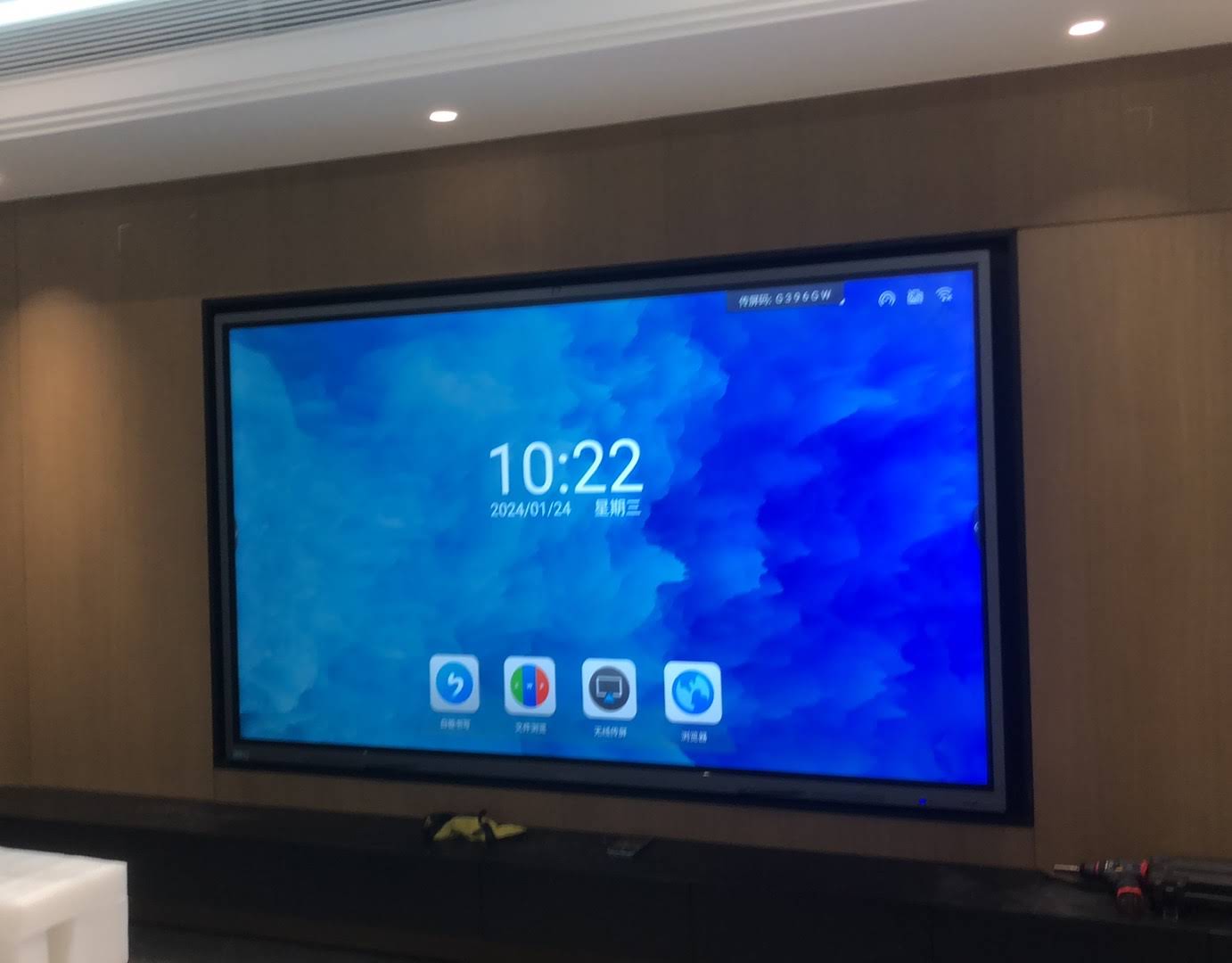
Capacitive smart boards detect touch through changes in electrical field. These systems can be affected by electromagnetic interference, grounding issues, or conductive materials near the screen:
- Ensure the smart board is properly grounded through a three-prong outlet
- Move electronic devices (wireless routers, speakers, power strips) away from the display
- Avoid wearing gloves or using styluses not designed for capacitive screens
- Check for water damage or moisture inside the display enclosure
Capacitive systems work best with direct finger contact. Using certain types of screen protectors or attempting to operate the screen with non-conductive materials will prevent touch detection.
Using Manufacturer Diagnostic Software
Professional-grade interactive displays from companies like LeaderHub often include diagnostic utilities that provide detailed information about touch system health. These tools can identify specific hardware failures that general troubleshooting cannot detect:
- Touch sensor grid visualization showing dead zones or sensitivity variations
- Real-time connection status for USB and internal communication buses
- Firmware version checking and update capabilities
- Advanced calibration options with precision adjustment
- Historical logs of touch system errors and warnings
Download these diagnostic tools from your manufacturer’s support portal. They typically require administrative privileges to run and may need to be executed before the operating system fully loads for certain low-level hardware tests.
Preventing Future Touch Screen Problems
Proactive maintenance reduces the frequency of touch screen failures and extends the useful life of your smart board. These preventive measures are based on best practices from schools and businesses managing large deployments of interactive displays.
Establish Regular Maintenance Schedules
Systematic maintenance catches problems before they cause failures during critical use:
| Frequency | Maintenance Task | Impact |
|---|---|---|
| Daily | Clean screen surface with microfiber cloth | Prevents residue buildup |
| Weekly | Check cable connections, verify touch response | Catches loose connections early |
| Monthly | Update drivers and firmware, run diagnostics | Maintains compatibility |
| Quarterly | Recalibrate touch accuracy, deep clean | Corrects calibration drift |
| Annually | Professional inspection, replace worn components | Extends overall lifespan |
Implement Proper Usage Guidelines
User behavior significantly affects touch screen longevity. Training users on proper interaction techniques prevents physical damage and software conflicts:
- Avoid tapping the screen with hard objects (pens, rulers, jewelry)
- Use only manufacturer-approved styluses designed for your smart board’s touch technology
- Don’t lean on or apply excessive pressure to the screen surface
- Keep food, drinks, and liquids away from the interactive display
- Power down properly rather than unplugging while active
In educational settings, posting simple usage guidelines near the smart board reduces accidental damage. Visual reminders about proper stylus use and screen cleaning help establish good habits among multiple users.
Create System Restore Points Before Updates
Operating system updates are a leading cause of touch screen driver problems. Creating restore points provides a quick recovery path:
- Before installing Windows updates, create a system restore point
- Document current driver versions and touch system settings
- Test touch functionality immediately after updates complete
- If touch stops working, roll back to the restore point and defer the problematic update
- Check manufacturer support forums for update compatibility information
Enterprise environments benefit from phased update deployment¡ªtest updates on a single smart board before rolling out to the entire organization.
When to Contact Technical Support or Service Providers
Some touch screen problems require professional intervention. Recognizing when self-service troubleshooting has reached its limit saves time and prevents additional damage from misguided repair attempts.
Hardware Failure Indicators
These symptoms typically indicate component failure that requires manufacturer service:
- Permanent dead zones where touch never registers, regardless of calibration
- Physical damage to the screen surface such as cracks, deep scratches, or delamination
- Phantom touches that persist after thorough cleaning and driver reinstallation
- Intermittent failures that correlate with physical movement or vibration
- Complete touch system failure that survives all troubleshooting steps
Before contacting support, document the symptoms with photos or video, note what troubleshooting steps you’ve already attempted, and gather information about your smart board’s model number, serial number, and purchase date. This information speeds up the support process significantly.
Warranty and Service Considerations
Most commercial smart boards include multi-year warranties covering manufacturing defects and component failures. Understanding your warranty terms helps determine the best course of action:
- Check whether your warranty includes on-site service or requires shipping the unit
- Verify if touch system components are covered under standard or extended warranty
- Confirm whether self-service troubleshooting affects warranty validity
- Ask about advance replacement options for critical installations
Many manufacturers, including interactive display specialists with global support networks, offer expedited service for educational institutions and business customers with service-level agreements. Inquire about these programs when purchasing smart boards for mission-critical applications.
Alternative Solutions During Extended Downtime
When repairs take time or replacement parts are on backorder, maintaining productivity requires workaround solutions. These temporary measures keep your presentation or teaching environment functional while the touch screen is unavailable:
External Input Devices
- Connect a wireless mouse and keyboard for basic interaction
- Use a wireless presenter remote for slideshow control
- Attach a USB drawing tablet for annotation capabilities
- Employ a document camera for sharing physical materials
Software-Based Alternatives
- Enable remote control features that allow interaction from laptops or tablets
- Use screen mirroring apps that add touch annotation on connected devices
- Leverage whiteboard apps on tablets connected wirelessly to the display
- Switch to collaborative platforms where participants can contribute from their own devices
These solutions maintain most interactive capabilities while your primary touch screen undergoes repair. In one documented case, a university continued delivering interactive lectures for three weeks using tablet-based annotation while waiting for a replacement touch overlay to arrive from overseas.
Conclusion: Maintaining Reliable Touch Functionality
Touch screen problems on smart boards range from simple cable disconnections to complex driver conflicts, but most issues can be resolved through systematic troubleshooting. Starting with basic power cycles and cleaning, then progressing to driver updates and calibration when necessary, solves the vast majority of touch-related problems without requiring professional service.
The key to long-term reliability lies in preventive maintenance¡ªregular cleaning, periodic calibration checks, careful driver management, and proper user training all contribute to minimizing unexpected failures. When problems do occur, quick diagnosis and appropriate response keep downtime to a minimum.
For complex issues or suspected hardware failure, don’t hesitate to contact manufacturer support. Modern smart boards represent significant investments in productivity and collaboration technology, and professional service ensures these tools continue delivering value throughout their intended lifespan. Whether you’re managing a single classroom display or a corporate deployment of dozens of interactive panels, understanding how to troubleshoot and maintain touch screen functionality is an essential skill that pays dividends in reduced downtime and sustained user satisfaction.