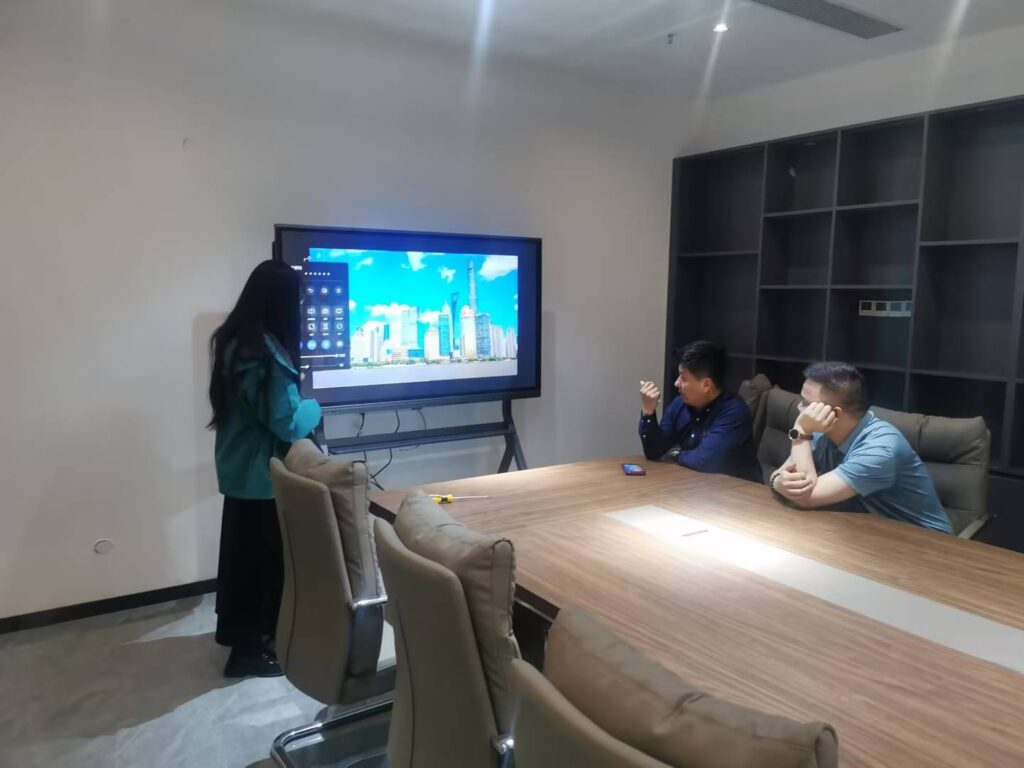
Choosing the right interactive display for your classroom, boardroom, or training center can feel overwhelming — especially when manufacturers throw around terms like “dual-system,” “OPS module,” and “Android + Windows hybrid.” If you’ve been researching a dual-system smart whiteboard, you already know that not all products are created equal.
This guide breaks down exactly what a dual-system smart whiteboard is, why it matters, and how to evaluate the right model for your budget and use case. We’ve drawn on real deployment data from schools and enterprises across 82 countries to give you a buyer’s guide you can actually trust.
What Is a Dual-System Smart Whiteboard?
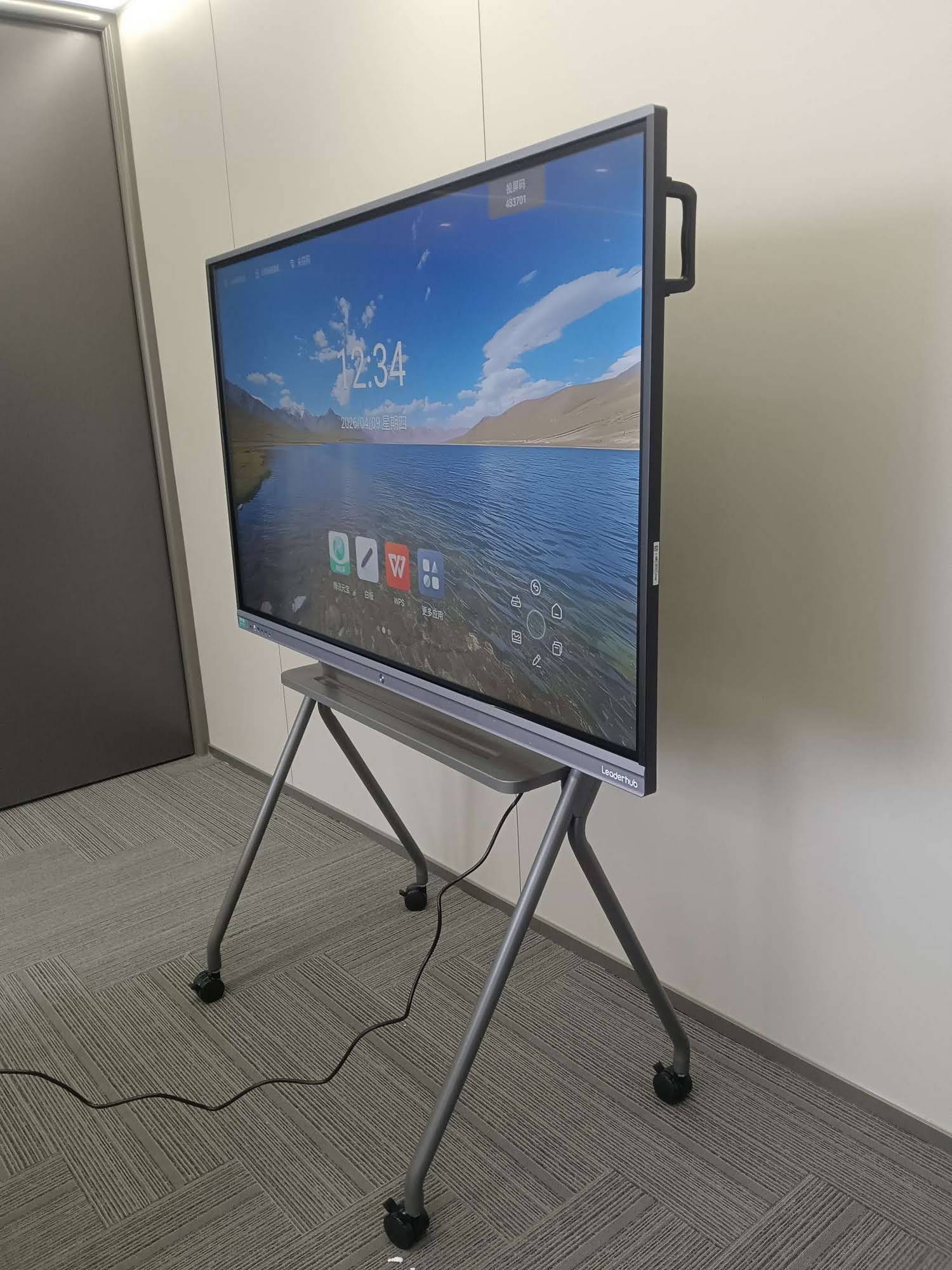
A dual-system smart whiteboard combines two independent operating environments in one device — typically an embedded Android system for everyday whiteboarding, annotation, and wireless casting, plus a swappable Windows PC module (often called an OPS slot) for running full desktop software like PowerPoint, CAD tools, or specialized business applications.
Instead of buying a separate laptop, projector, and whiteboard, you get all three functions in a single touchscreen unit. Switching between systems usually takes one tap on the home menu — no rebooting required.
Why This Matters for Real Buyers
In our conversations with education IT managers and corporate procurement teams, the same pain point comes up repeatedly: staff need Android for quick file sharing and touch annotation, but IT departments require Windows for domain login, security compliance, and legacy software. A dual-system board eliminates the need to choose one over the other.
Key Factors to Evaluate Before You Buy
1. Screen Size and Resolution
Room size dictates screen size. A 55″ panel works well in a huddle room seating 6-8 people, while a 75″ or 86″ display is better suited for classrooms and boardrooms with 15+ attendees. Always confirm the panel supports true 4K UHD resolution (3840 x 2160) — anything lower will look blurry when displaying spreadsheets or fine text from six feet away.
2. Touch Technology and Writing Latency
Infrared (IR) touch technology remains the industry standard for interactive whiteboards because it supports 20+ simultaneous touch points and works reliably with any stylus, finger, or even a gloved hand. When testing a unit in person, write a sentence quickly on the screen — latency above 15 milliseconds will feel noticeably laggy.
3. Processor and RAM (Android Side)
Don’t underestimate the embedded Android chipset. A board with only 2GB RAM will stutter when running annotation software alongside a video call app. Look for at least 4GB RAM and an octa-core processor for smooth multitasking.
4. OPS Module Compatibility
Confirm the OPS slot follows the standard size (usually 200mm x 120mm x 30mm) so you can upgrade the Windows module later without replacing the entire whiteboard. This future-proofs your investment — a critical consideration if you’re purchasing for multiple rooms across a school or office building.
5. Connectivity and Casting
Modern meeting rooms rely heavily on wireless screen sharing. Check for built-in support for AirPlay, Miracast, and a dedicated screen-mirroring dongle. Wired options should include at least two HDMI inputs, USB-C with power delivery, and a LAN port for stable network connections.
Comparing Dual-System vs. Single-System Boards
| Feature | Dual-System Board | Single-System (Android Only) |
|---|---|---|
| Windows Software Support | Full compatibility via OPS module | None or requires external PC |
| Upgrade Path | Swap OPS module independently | Limited to firmware updates |
| Enterprise Domain Login | Supported | Not supported |
| Initial Cost | Moderate to higher | Lower |
| Best For | Schools, enterprises, training centers | Small meeting rooms, casual use |
Real-World Use Case: How Schools Are Using Dual-System Boards
During a 2024 rollout across a mid-sized vocational training center in Southeast Asia, IT staff reported that switching from single-system Android boards to dual-system smart whiteboards reduced software compatibility complaints by roughly 70% within the first semester. Instructors could run Android-based interactive lesson apps for daily teaching, then flip to Windows for specialized CAD and accounting software used in advanced courses — without needing a separate desktop computer in every room.
This mirrors what many industry specialists have observed: hybrid systems reduce total cost of ownership because institutions avoid purchasing, maintaining, and eventually replacing standalone PCs in every classroom.
Buyer’s Checklist: What to Ask Before Purchasing
- Does the OPS module meet industry-standard sizing? This ensures future upgradeability.
- What is the warranty period on the touch panel and internal components? Reputable manufacturers typically offer 2-3 years minimum.
- Is the anti-glare glass certified? Look for panels rated to reduce reflection by at least 90%.
- Does the supplier offer regional after-sales support? This matters if you’re deploying across multiple locations or countries.
- Can the board integrate with existing video conferencing software? Confirm compatibility with Zoom, Teams, and Google Meet.
Common Mistakes to Avoid
- Buying based on screen size alone without checking touch accuracy specs.
- Ignoring the Android RAM/storage specs because “the Windows side handles the heavy lifting.”
- Skipping a live demo — always test writing latency and app switching speed in person or via video call before purchasing in bulk.
- Overlooking mounting and VESA compatibility for existing wall or stand setups.
How Pricing Typically Breaks Down
Based on current market data across education and enterprise buyers, here’s a general pricing guide by screen size for quality dual-system units:
| Screen Size | Typical Price Range | Recommended Room Size |
|---|---|---|
| 65″ | $1,000 – $1,400 | Small classrooms, huddle rooms |
| 75″ | $1,400 – $2,400 | Standard classrooms, mid-size meeting rooms |
| 86″ | $1,700 – $3,200 | Large classrooms, boardrooms |
| 110″ | $7,000+ | Auditoriums, large training halls |
Frequently Asked Questions
Can I replace the Windows module without buying a new whiteboard?
Yes — as long as the board uses a standard OPS slot, you can swap in a newer or more powerful mini PC module without replacing the entire display.
Do dual-system boards require special installation?
No special installation is required beyond standard wall mounting or a mobile stand. Most units follow VESA mounting standards, and setup typically takes under an hour with two people.
Is a dual-system board worth it for a small business?
If your team regularly switches between casual screen-sharing and formal Windows-based presentations, yes. The flexibility often pays for itself within the first year by eliminating the need for a separate laptop-to-projector setup.
Final Thoughts
A dual-system smart whiteboard isn’t just a trend — it’s a practical solution to a real operational problem: needing both consumer-friendly touch interaction and enterprise-grade software compatibility in one device. When evaluating options, prioritize touch accuracy, OPS upgradeability, and after-sales support over flashy marketing specs.
LeaderHub, a Shenzhen-based interactive display manufacturer with 16 years of industry experience serving 82 countries, designs its interactive flat panel lineup with these exact priorities in mind — combining reliable Android performance with upgradeable Windows OPS modules for schools, enterprises, and training centers worldwide.
Whether you’re outfitting a single conference room or an entire campus, taking the time to evaluate touch technology, processor specs, and upgrade paths will save you from costly replacements down the line. A well-chosen dual-system board should serve your team reliably for 5-7 years with proper maintenance and timely software updates.