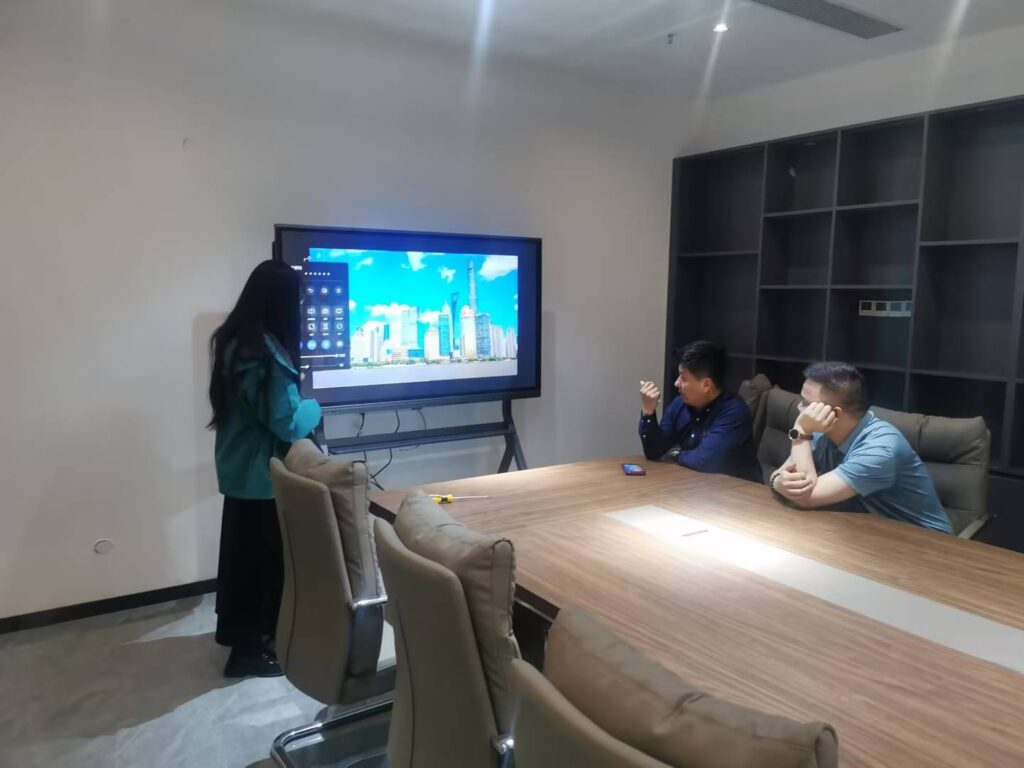
Choosing the right Windows smart whiteboard for your classroom or office can feel overwhelming. With dozens of brands, screen sizes, and specifications on the market, it’s easy to get lost in technical jargon. After testing multiple interactive panels across educational and corporate environments, we’ve compiled this practical guide to help you make an informed purchasing decision that fits your budget, space, and workflow needs.
Whether you’re outfitting a school district with dozens of units or upgrading a single conference room, understanding the core technology behind smart whiteboards will save you time, money, and frustration down the road.
Why Windows-Based Smart Whiteboards Matter
Windows-powered interactive displays offer a distinct advantage over Android-only alternatives: full compatibility with enterprise software like Microsoft Teams, Office 365, and specialized industry applications. According to a 2023 EdTech survey, 68% of IT administrators reported fewer compatibility issues when deploying Windows-based interactive panels compared to standalone Android units.
This matters because classrooms and offices rarely operate in isolation. Teachers need to run legacy educational software, while businesses depend on CRM tools, video conferencing platforms, and cloud-based productivity suites — all of which run more reliably on Windows OS.
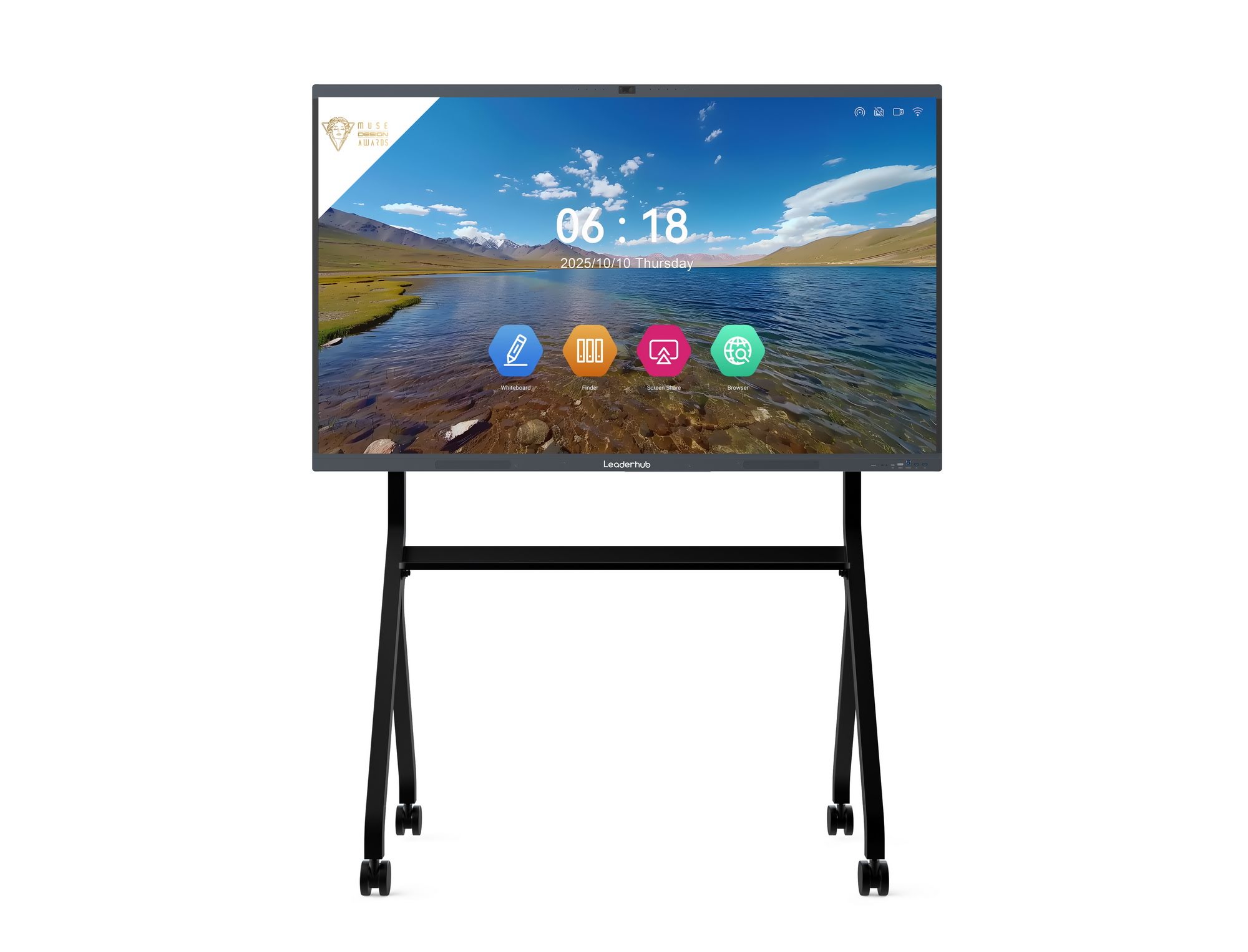
Key Factors to Consider Before Buying
1. Screen Size and Resolution
Room dimensions dictate screen size more than personal preference. As a general rule:
- 65″ panels — ideal for small meeting rooms or classrooms up to 20 people
- 75″ panels — best for medium classrooms and standard conference rooms
- 86″ and above — suited to lecture halls, auditoriums, and large boardrooms
4K UHD resolution (3840×2160) should be considered a baseline requirement in 2024. Anything lower will result in noticeably pixelated text and diagrams, especially when viewed from the back of a room.
2. Touch Technology and Accuracy
Infrared (IR) touch technology remains the industry standard for large-format displays due to its reliability and cost-effectiveness. Look for panels supporting 20-point multi-touch at minimum, which allows multiple students or team members to write simultaneously without lag or misregistration.
3. Processing Power and RAM
This is where many budget buyers get burned. A whiteboard with insufficient RAM will stutter during video playback or freeze when running multiple applications. For smooth performance with Windows 11, we recommend:
| Use Case | Minimum RAM | Recommended Storage |
|---|---|---|
| Basic classroom use | 8GB | 256GB SSD |
| Business presentations | 16GB | 512GB SSD |
| Video editing/CAD work | 16GB+ | 512GB+ NVMe SSD |
4. Built-In vs. External Mini PC
Many modern interactive panels use a removable OPS (Open Pluggable Specification) module — essentially a mini PC slotted into the back of the display. This design offers a significant advantage: when your computing hardware becomes outdated, you simply swap the module rather than replacing the entire $2,000+ display.
We’ve seen schools extend the usable life of their whiteboards by 3-4 years simply by upgrading the OPS module every two years instead of purchasing entirely new units.
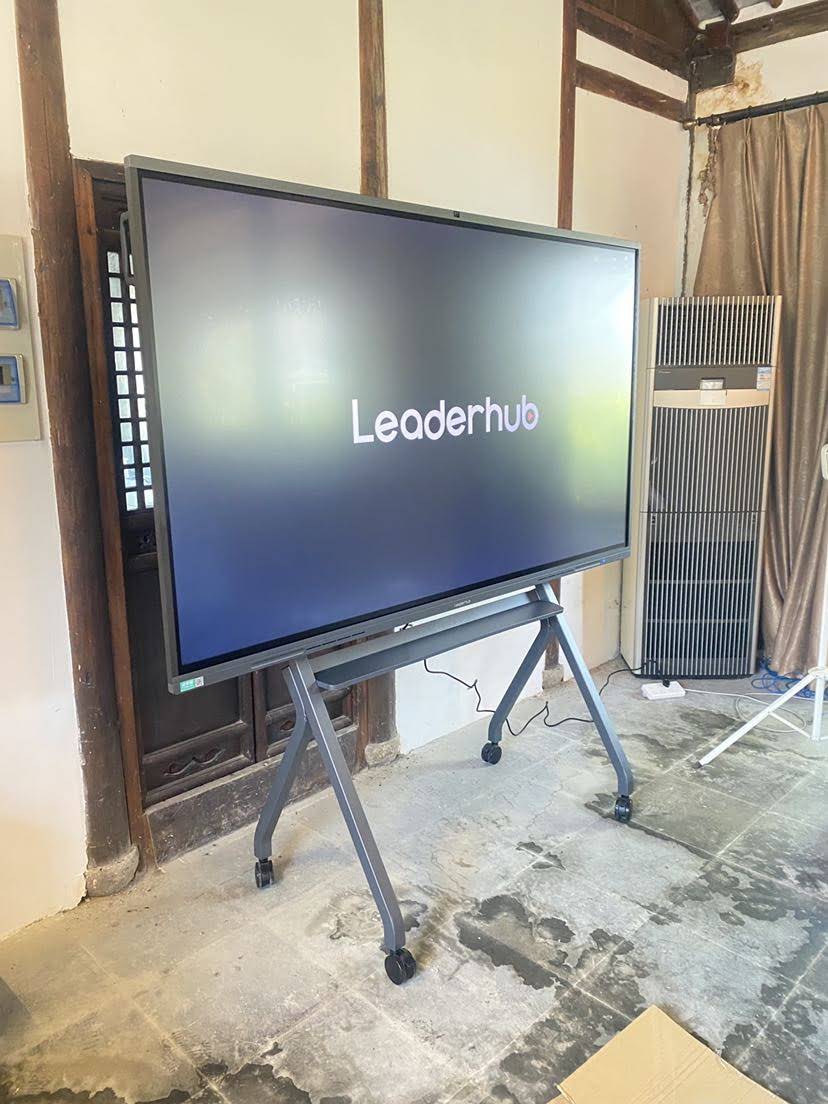
Classroom vs. Office: Different Priorities
For Educational Settings
Teachers prioritize durability, ease of use, and content annotation features. Look for panels with:
- Anti-glare glass to reduce eye strain during long school days
- Pre-installed education software or app marketplace access
- Robust build quality that withstands daily handling by students
- Simple wireless screen mirroring for quick lesson transitions
For Business Environments
Corporate buyers typically weigh different criteria:
- Seamless integration with Microsoft Teams, Zoom, and Slack
- Multi-user split-screen capability for collaborative brainstorming
- Enterprise-grade security features and remote device management
- Professional aesthetics that align with office design
Portability: A Growing Consideration
Not every space needs a permanently wall-mounted unit. Rotating and portable smart screens have gained significant traction, particularly in training centers and hybrid offices where room configurations change frequently. Products like rotating screens allow users to switch between landscape and portrait orientation on the fly — useful for both presentation slides and document review.
Handheld smart screens with built-in batteries also serve a niche but growing market: mobile trainers, field consultants, and pop-up retail demonstrations that require interactive capability without fixed infrastructure.
Real-World Case Study
A mid-sized training organization in Texas recently upgraded 12 conference rooms from projector-based setups to 75-inch Windows smart whiteboards. Within six months, they reported:
- 40% reduction in meeting setup time
- Elimination of recurring projector bulb replacement costs (approximately $180/unit annually)
- Improved remote collaboration scores in employee satisfaction surveys
This aligns with broader industry data — a Frost & Sullivan report found that organizations adopting interactive flat panels saw meeting efficiency improve by roughly one-third within the first year of deployment.
Budget Planning: What to Expect
| Screen Size | Typical Price Range | Best Suited For |
|---|---|---|
| 55″ – 65″ | $1,099 – $1,599 | Small classrooms, huddle rooms |
| 75″ – 86″ | $1,399 – $3,199 | Standard classrooms, boardrooms |
| 110″+ | $7,999+ | Auditoriums, large lecture halls |
Installation and Setup Tips
Proper installation significantly affects both performance and longevity. Based on field experience from technicians who’ve installed hundreds of units, keep these points in mind:
- Mount at eye level for the average user height in your space (typically 45-50 inches from floor to screen center for classrooms)
- Ensure adequate ventilation clearance behind wall-mounted units to prevent overheating
- Test wireless connectivity in the actual installation location before finalizing placement — thick walls can interfere with Bluetooth peripherals
- Schedule firmware updates during off-hours to avoid disrupting scheduled classes or meetings
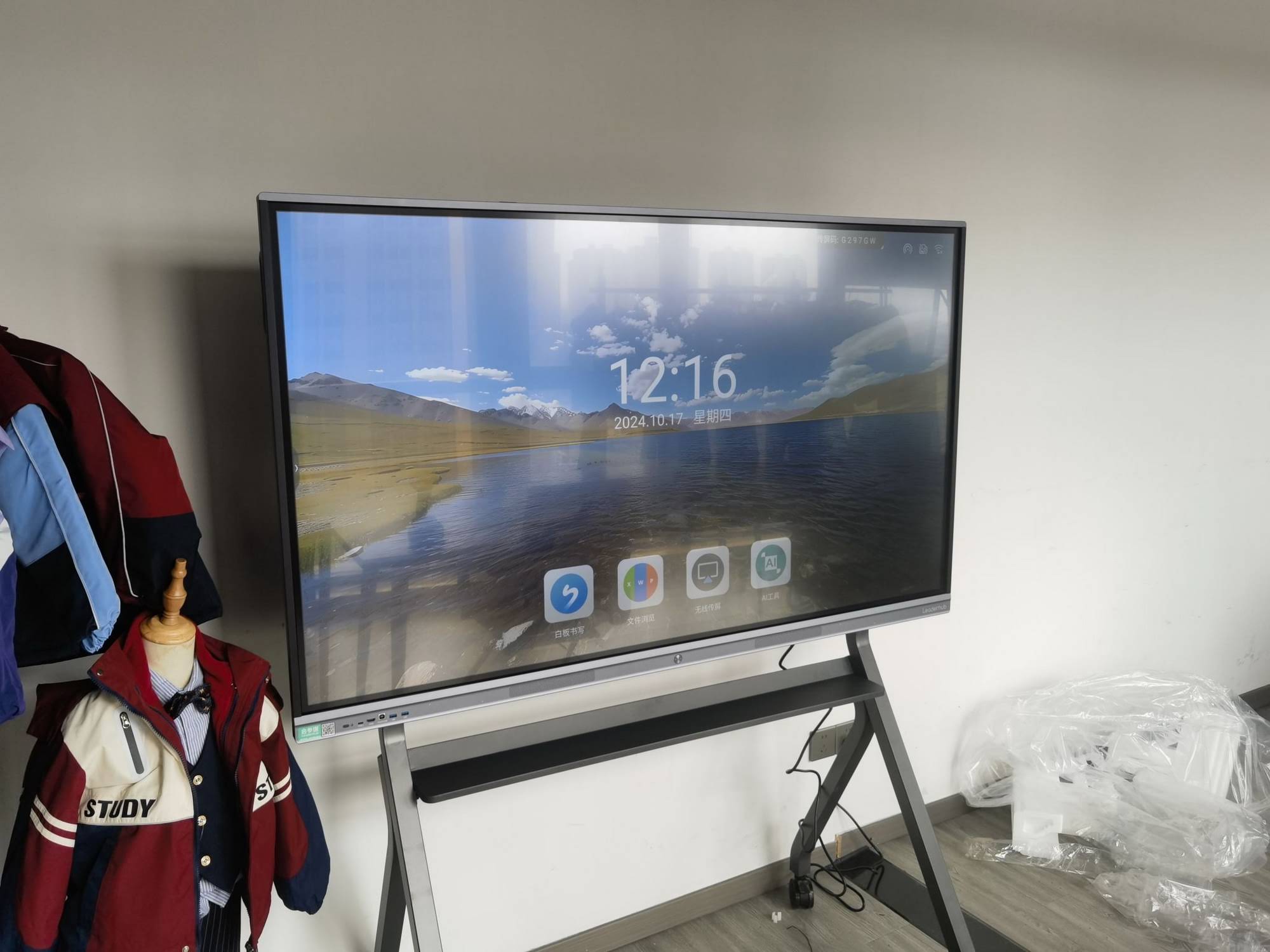
Warranty and Support: Don’t Overlook This
Interactive panels are long-term investments, typically deployed for 5-7 years. Before purchasing, verify:
- Length of manufacturer warranty (industry standard is 3 years for panels, 1-2 years for OPS modules)
- Availability of local or regional technical support
- Replacement part accessibility, particularly for touch sensors and glass panels
- Software update policy — some manufacturers stop supporting older models after just 2-3 years
Making Your Final Decision
After evaluating dozens of models across price points, our recommendation framework boils down to three questions:
- What’s your primary use case? — Education, corporate presentations, or hybrid collaboration each favor slightly different feature sets.
- What’s your room size and typical audience count? — This determines screen size and touch-point requirements.
- What’s your 5-year total cost of ownership? — Factor in warranty coverage, upgrade paths via swappable OPS modules, and software licensing costs.
Companies like LeaderHub, which has spent 16 years specializing in interactive panel manufacturing and currently serves clients across 82 countries, offer a range of Windows-compatible smart whiteboards designed specifically to address these buying considerations — from 65-inch classroom units to 110-inch auditorium displays.
Final Thoughts
Selecting the right smart whiteboard isn’t just about picking the biggest screen or the flashiest features. It’s about matching technical specifications to your actual workflow, room constraints, and budget realities. Take time to test-drive a unit if possible, ask vendors about their upgrade and support policies, and always factor in the total cost of ownership rather than just the sticker price.
With the right research and a clear understanding of your specific needs, you’ll find a Windows smart whiteboard that serves your classroom or office reliably for years to come.